2023 JEEP RENEGADE warning
[x] Cancel search: warningPage 140 of 364

138 MULTIMEDIA
Safety/Driving Assistance
Set Time Hours This setting will allow you to set the hours. Sync Time With GPS must be off for
this
s
etting to be available. The “+” setting will increase the hours. The “-”
setting will decrease the hours.
Set Time Minutes This setting will allow you to set the minutes. Sync Time With GPS must be off
for thi
s setting to be available. The “+” setting will increase the minutes. The
“-” setting will decrease the minutes.
Show Time in Status Bar This setting will place the time in the radio’s status bar.
Set Date This setting will allow you to set the day, month and year. Using “+” or “-”, you
can sc
roll through the available days, months, or years.
Setting Name Description
When the Safety/Driving Assistance button is pressed on the touchscreen, the system displays the options related to the vehicle’s safety settings. These options
will differ depending on the features equipped on the vehicle. The settings may display in list form or within subfolders on the screen. To access a subfolder,
select the desired folder; the available options related to that feature will then display on the screen.
NOTE:
Depending on the vehicle’s options, feature settings may vary.
Setting Name Description
Forward Collision Warning This setting will change the distance at which the Forward Collision Warning
(FCW)
alert sounds. The “Medium” setting will have the FCW system signal
when an object is in view, and the possibility of a collision is detected. The
“Near” setting will have the FCW system signal when the object is closer to the
vehicle. The “Far” setting will have the FCW system signal when an object is at
a far distance from the vehicle.
Page 141 of 364

MULTIMEDIA 139
Forward Collision Warning-Plus (FCW+) This setting will turn the Forward Collision Warning-Plus system on or off. The
“Off”
setting will deactivate the FCW+ system. The “Warning Only” setting will
provide only an audible chime when a collision is detected. The “Warning +
Active Braking” setting will provide an audible chime and apply brake
pressure when a collision is detected.
LaneSense Warning
This setting will change the distance at which the steering wheel will provide
lane d
eparture feedback. The available settings are “Early”, “Medium”, and
“Late”.
LaneSense Strength This setting will change the strength of the steering wheel feedback during a
lane d
eparture. The available settings are “Low”, “Medium”, and “High”.
Side Distance Warning This setting will adjust the warning for side distance. The available options are
“Off”
,
“Sound Only”, and “Sound & Display”.
Side Distance Warning Volume This setting will adjust the volume for side distance warning. The available
options
are “Low”, “Med”, and “High”.
Drowsy Driver Alert This setting will monitor the driver’s driving habits and warn you of any
c
hang
e
s, indicating that the driver may be drowsy. The available options are
“On” and “Off”.
ParkSense This setting will change the type of ParkSense alert when a close object is
detect
ed and provide both an audible chime and a visual display.
Front ParkSense Volume This setting will adjust the volume of the Front ParkSense system. The
avail
a
ble settings are “Low”, “Medium”, and “High”.
Setting Name Description
5
Page 151 of 364
MULTIMEDIA 149
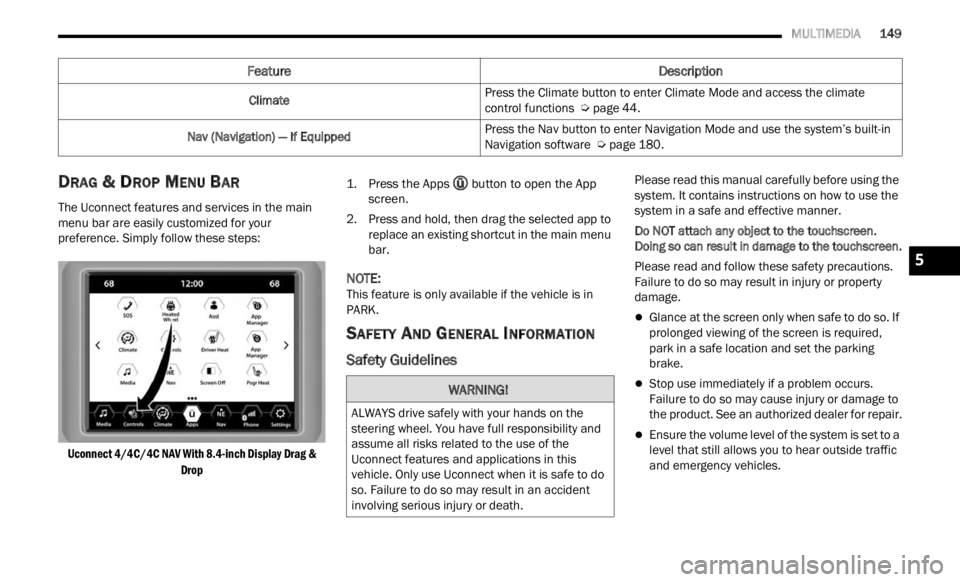
DRAG & DROP MENU BAR
The Uconnect features and services in the main
menu bar are easily customized for your
preference. Simply follow these steps:
Uconnect 4/4C/4C NAV With 8.4-inch Display Drag & Drop
1.
P
ress the Apps
butt
on to open the App
screen.
2. P ress and hold, then drag the selected app to
repla
ce an existing shortcut in the main menu
bar.
NOTE:
This feature is only available if the vehicle is in
PARK.
SAFETY AND GENERAL INFORMATION
Safety Guidelines
Please read this manual carefully before using the
system. It contains instructions on how to use the
system in a safe and effective manner.
Do NOT attach any object to the touchscreen.
Doing s
o can result in damage to the touchscreen.
Please read and follow these safety precautions.
Failur
e to do so may result in injury or property
damage.
Glance at the screen only when safe to do so. If
prolonged viewing of the screen is required,
park in a safe location and set the parking
brake.
Stop use immediately if a problem occurs.
Failure to do so may cause injury or damage to
the product. See an authorized dealer for repair.
Ensure the volume level of the system is set to a
level that still allows you to hear outside traffic
and emergency vehicles.
Climate
Press the Climate button to enter Climate Mode and access the climate
c
ontrol
functions Ú page 44.
Nav (Navigation) — If Equipped Press the Nav button to enter Navigation Mode and use the system’s built-in
Navig
a
tion software Ú page 180.
Feature Description
WARNING!
ALWAYS drive safely with your hands on the
steering wheel. You have full responsibility and
assume all risks related to the use of the
Uconnect features and applications in this
vehicle. Only use Uconnect when it is safe to do
so. Failure to do so may result in an accident
involving serious injury or death.
5
Page 167 of 364

MULTIMEDIA 165
Reviewing your recent Incoming SMS
Messages.
Pairing up to 10 phones/audio devices for easy
access to connect to them quickly.
NOTE:
Your phone must be capable of SMS messaging via
Bluet oot
h® for messaging features to work
properly.
Your mobile phone’s audio is transmitted through
your v e
hicle’s audio system; the system will
automatically mute your radio when using the
Uconnect Phone.
For Uconnect customer support:
US visit UconnectPhone.com or call
877-855-8400
Canada visit UconnectPhone.com or call
800-465-2001 (English) or (French) call
800-3 8
7-9983
Uconnect Phone allows you to transfer calls
betwee
n the system and your mobile phone as you
enter or exit your vehicle and enables you to mute
the system's microphone for private conversation. The Phone feature is driven through your
Bluet
oot
h® “Hands-Free Profile” mobile phone.
Uconnect features Bluetooth® technology — the
global standard that enables different electronic
devices to connect to each other without wires or a
docking station. Ensure you phone is turned on
with Bluetooth® active and has been paired to the
Uconnect system. Up to 10 mobile phones or audio
devic e
s are allowed to be linked to the system.
Only one linked (or paired) mobile phone and one
audio device can be used with the system at a
time.
Phone Button
The Phone button on your steering wheel
is used to get into the Phone Mode and
make c
alls, show recent, incoming or
outgoing calls, view phonebook, etc.
When you push the button you will hear a BEEP.
The BEEP is your signal to give a command. Voice Command Button
The Voice Command button on your
steering wheel is only used for “barge in”
and w h
en you are already in a call or
want to make another call.
The button on your steering wheel is also used to
acces s
the Voice Commands for the Uconnect
Voice Command features if your vehicle is
equipped.
Phone Operation
OPERATION
Voice commands can be used to operate the
Uconnect Phone and to navigate its menu
structure. Voice commands are required after
most Uconnect Phone prompts. There are two
general methods for how Voice Command works:
1. Say compound commands like “Call John Smit h
mobile”.
2. Say the individual commands and allow the syste
m to guide you to complete the task.
You will be prompted for a specific command and
then g
uided through the available options.
Prior to giving a voice command, one must wait
for the beep, which follows the “Listen” prompt
or another prompt.
For certain operations, compound commands
can be used. For example, instead of saying
WARNING!
ALWAYS drive safely with your hands on the
steering wheel. You have full responsibility and
assume all risks related to the use of the
Uconnect features and applications in this
vehicle. Only use Uconnect when it is safe to do
so. Failure to do so may result in an accident
involving serious injury or death.
5
Page 175 of 364

MULTIMEDIA 173
Even though the system is designed for many
languages and accents, the system may not always
work for some.
NOTE:
It is recommended that you do not store names in
your F a
vorites phonebook while the vehicle is in
motion.
Number and name recognition rate is optimized
when t
he entries are not similar. You can say “O”
(letter “O”) for “0” (zero).
Even though international dialing for most number
combin a
tions is supported, some shortcut dialing
number combinations may not be supported.
Audio Performance
Audio quality is maximized under:
Low-To-Medium Blower Setting
Low-To-Medium Vehicle Speed
Low Road Noise
Smooth Road Surface
Fully Closed Windows
Dry Weather Conditions
Operation From The Driver's Seat
Performance such as audio clarity, echo, and
loudne s
s to a large degree rely on the phone and
network, and not the Uconnect Phone.
Echo at the far end can sometimes be reduced by
loweri n
g the in-vehicle audio volume.
PHONE VOICE COMMANDS
Making and answering hands-free phone calls is
easy with Uconnect. When the Phonebook button
is illuminated on your touchscreen, your system is
ready. Check UconnectPhone.com for mobile
phone compatibility and pairing instructions.
Push the Phone button and wait for the beep to
say a command. See the following examples:
“ Call John Smith”
“Dial 123 456 7890”
“Redial ” (call previous outgoing phone number)
“Call back ” (call previously answered incoming
phone number)
Did You Know: When
providing a Voice Command,
push the Phone button and say “Call”, th en
pronounce the name exactl y as it appears in your phonebook. When a contact has multiple phone
numbers, you can say “
Call John Smith work”.
VOICE TEXT REPLY — IF EQUIPPED
Uconnect can announce incoming text messages.
Push the VR button or Phone button and
say:
1. “
Listen
” to have the system read an incoming
te x
t message. (Must have compatible mobile
phone paired to Uconnect system.)
2. “ Reply ” after an incoming text message has
bee n
read.
Listen to the Uconnect prompts. After the
beep,
repeat one of the predefined messages
and follow the system prompts.
WARNING!
ALWAYS drive safely with your hands on the
wheel. You have full responsibility and assume
all risks related to the use of the Uconnect
features and applications in this vehicle. Only
use Uconnect when it is safe to do so. Failure to
do so may result in an accident involving serious
injury or death.
PRE-DEFINED VOICE TEXT REPLY
RESPONSES
Yes. Stuck in
traff i
c. See you later.
No. Start without
me. I’l
l
be late.
Okay. Where are
you? I w
i
ll be 5
25, 30, 45,
60> minutes late.
Call me.
Are you there
yet?
5
Page 194 of 364

192 MULTIMEDIA
Options (only during route guidance)
Press the Options button to display the following
options.
Press the desired button:
2D North Up/Map View 2D/Map View 3D
Press this button to scroll between the three
viewin
g options.
Repeat Directions
Press this button to repeat the current voice
prompt .
Mute Guidance
Press this button to mute the voice prompts.
Stop Guidance
Press this button to stop route guidance.
Settings
Press this button to view all the available
s
e t
ti
n
gs Ú page 192.
View Map — Settings
With the Map displayed, press the button on the
bottom right of the map that has three horizontal
lines on it. Then press the Settings button.
View Map Settings Icon
View Map Settings Button
The following Map Settings are available:
Map Settings
Map Setup — Press this button to display items to
customize how your map is viewed
Ú
page 193.
Speed Limit — Press this button to turn on/off
speed limit warning announcements and to
enter a predefined speed limit for your route.
Guidance — Press this button to display items to
customize your route guidance Ú page 196.
Traffic — Press this button to set how you
receive traffic information updates.
GPS (DMS) — Press this button to change the
GPS display. Press the desired button:
Decimal
Degrees-Minutes-Seconds (DMS)
Degrees-Minutes (DM)
Page 204 of 364

202 MULTIMEDIA
service is integrated with a vehicle's Navigation
system, SiriusXM® Traffic Plus can help drivers
pick the fastest route based on traffic conditions.
1. Detailed information on traffic speed,
accid
ents, construction, and road closings.
2. Traffic information from multiple sources, inclu
ding police and emergency services,
cameras and road sensors.
3. Coast-to-coast delivery of traffic information.
4. Vi e
w conditions for points along your route and
beyon d
.
CONNECTED VEHICLE SERVICES —
IF EQUIPPED
IS MY VEHICLE CONNECTED?
If equipped, vehicles with an ASSIST and an SOS
button are connected vehicles. These buttons will
be located on either the rearview mirror or
overhead console, depending on the vehicle. If
these buttons are present in your vehicle, you have
a connected radio and can take advantage of the
many connected vehicle features.
For further information about the ASSIST and SOS
button s
Ú page 268.
INTRODUCTION TO CONNECTED VEHICLE
S
ERVICES
One of the many benefits of your vehicle’s
Uconnect system is that you can now take
advantage of SiriusXM Guardian™ connected
services. To unlock the full potential of SiriusXM
Guardian™ in your vehicle, you first need to
activate SiriusXM Guardian™ connected services.
NOTE:
SiriusXM Guardian™ involves the collection, trans -
mission and use of data from your vehicle
Ú page 220.
SiriusXM Guardian™ Contact Information
SiriusXM Guardian™/Care
US residents visit: https://www.driveucon -
nect.com/sirius-xm-guardian.html or call
1-844-796-4827
Canadian residents visit: https://www.driveuco-
nnect.ca/en/sirius-xm-guardian or call
1-877-324-9091
What Is SiriusXM Guardian™?
SiriusXM Guardian™ uses an embedded device in
the Uconnect system installed in your vehicle,
which receives GPS signals and communicates
with the SiriusXM Guardian™ Customer Care
center via wireless and landline communications
networks. Depending on the type of device in your
vehicle, some SiriusXM Guardian™ connected
services require an operable LTE (voice/data) or
3G or 4G (data) network compatible with your
device. SiriusXM Guardian™ is available only on
equipped vehicles purchased within the
continental United States, Alaska, Hawaii, Puerto
Rico and Canada.WARNING!
ALWAYS obey traffic laws and pay attention to
the road. ALWAYS drive safely with your hands on
the steering wheel. You have full responsibility
and assume all risks related to the use of the
features and applications in this vehicle. Only
use the features and applications when it is safe
to do so. Failure to comply may result in an
accident involving serious injury or death.
Page 207 of 364

MULTIMEDIA 205
Editing Your Notifications
Notifications are an important element of your
Sirius
XM Guardian™ account. For example, any
time you use your remote services (such as
Remote Door Unlock), you can elect to receive a
text message, push notification, and/or E-mail to
notify you of the event. To set up the notifications,
please follow these instructions:
1. Log on to your Owner’s Account at
https:// www. m
opar.com/en-us.html (US Residents)
and select “Dashboard”, or www.mopar.ca
(Canadian Residents), select “My Vehicle”
a nd t he
n “Dashboard”.
2. Click the Edit/Edit Profile button. 3. Onc
e there, select “SiriusXM Guardian™”
wher e
you can edit Notification Preferences.
4. You can enter a mobile phone and/or email addre
ss to notify you, and you can customize
the types of messages.
USING SIRIUSXM GUARDIAN™
SOS Call — If Equipped
Access To Emergency Services At The Push Of A
Button
SiriusXM Guardian™ In-Vehicle Assistance Features
With SiriusXM Guardian™, your vehicle has
onboard
assistance features located on the
rearview mirror or overhead console designed to
enhance your driving experience if you should ever
need assistance or support.
Description
SOS Call offers a convenient way to get in contact
w ith a
SiriusXM Guardian™ Customer Care agent
in the event of an emergency. When the
connection between the vehicle and the live agent
is made, your vehicle will automatically transmit
location information. In the event of a minor
collision, medical or any other emergency, press
the SOS button to be connected to a call center
agent who can send emergency assistance to your
vehicle’s location.
NOTE:
Certain SiriusXM Guardian™ connected services
are d e
pendent on an operational Uconnect
system, cellular network availability that is compatible with the device in your vehicle, and
GPS network availability. Not all features of
SiriusXM Guardian™ are available everywhere at
all times, particularly in remote or enclosed areas.
How It Works
1. Push the SOS Call button; the indicator light will
turn green indicating a call has been
placed.
NOTE:
In case the SOS Call button is accidentally
pushed, there is a 10-second delay before
the SOS call is placed. The system will
verbally alert you that a call is about to be
made. To cancel the SOS Call connection,
push the SOS Call button on the rearview
mirror or overhead console or press the
Cancel button on the touchscreen within 10
seconds.
During an SOS Call, the Bluetooth®-paired
phone is disconnected so incoming or
outgoing calls will go through your mobile
device versus the hands-free system which
is not available due to the SOS Call.
2. Once a connection between the vehicle and a Siriu
sXM Guardian™ Customer Care agent is
made, the agent will stay on the line with you.
NOTE:
Calls between the vehicle occupants and the
Siriu s
XM Guardian™ Customer Care center may be
WARNING!
Some SiriusXM Guardian™ connected services,
including SOS Call and Roadside Assistance
Call, will NOT work without a network connection
compatible with your device.
Center Light StatusDescription
Off No call activated
Green Active call in progress
Red System error
5