2023 JEEP COMPASS U connect settings
[x] Cancel search: U connect settingsPage 147 of 344

STARTING AND OPERATING145
The sensors may not detect objects of a partic -
ular shape or made from particular materials
(very thin poles, trailer beams, panels, nets,
bushes, anti-parking posts, pavements, rubbish
bins, motor vehicles, etc.). Always take great
care to check that the vehicle and its path are
actually compatible with the parking place iden -
tified by the system.
The use of wheels and tires that are different
size to the original equipment could affect the
operation of the system.
The operation of the rear sensors is automati -
cally deactivated when the trailer's electric plug
is inserted in the vehicle's tow hook socket,
while the front sensors stay active and can
provide acoustic and visual warnings. If this situ -
ation occurs, Active Park Assist will not work.
The rear sensors are automatically reactivated
when the trailer's cable plug is removed.
In "Search in Progress" mode, the system could
incorrectly identify a parking place to carry out
the maneuver (e.g. by a junction, driveways,
roads crossing the direction of travel, etc.).
In the case of parking maneuvers on roads with
inclines, the performance of the system could
be inferior and it may deactivate.
If a parking maneuver is being carried out
between two parked vehicles alongside a curb,
the system may cause the vehicle to drive up
onto the curb.
Some maneuvers at very tight bends might be
impossible to be carried out.
Take great care to ensure that conditions do not
change during the parking maneuver (e.g. if
there are persons and/or animals in the parking
place, moving vehicles, etc.) and intervene
immediately if necessary.
During parking maneuvers, pay attention to vehi -
cles approaching from the opposite direction.
Always abide by the law and road regulations.
NOTE:
Correct system operation is not guaranteed if
snow chains or the compact spare tire are fitted.
The function only informs the driver about the
last appropriate parking place (parallel or
perpendicular) detected by the parking sensors.
Some messages displayed are accompanied by
acoustic warnings.
ACTIVE LANE MANAGEMENT SYSTEM —
IF EQUIPPED
ACTIVE LANE MANAGEMENT OPERATION
The Active Lane Management (ALM) system uses a
forward facing camera to detect lane markings or
road edges and measure vehicle position within
the lane boundaries. It also uses the Blind Spot Monitoring sensors to detect vehicles in adjacent
lanes while the driver is preparing to change lanes.
The system is operational at speeds above 37 mph
(60 km/h) and below 112 mph (180 km/h).
When both lane markings are detected, and the
vehicle drifts out of the lane (no turn signal
applied), the Active Lane Management system
provides a visual warning in the instrument cluster,
as well as a steering assist torque (if configured in
Uconnect Settings), to prompt the driver to remain
within the lane boundaries. If the driver continues
to drift out of the lane, the system provides a
flashing visual warning through the instrument
cluster display as well as a haptic steering wheel
vibration (if configured in Uconnect Settings) when
the vehicle crosses the lane boundary.
The warning will be in the form of a vibration in the
steering wheel, and/or automatic steering
assistance to direct the vehicle back toward the
center of the lane.
When both lane markings are detected, and the
driver uses the turn signal to indicate a lane
change while the system detects another vehicle in
the Blind Spot Monitoring zone on that side of the
vehicle, the Active Lane Management system
provides a warning in the form of steering assist
and/or steering vibration (depending on radio
settings) to guide the vehicle back to the center of
the lane.
4
22_MP_OM_EN_USC_t.book Page 145
Page 148 of 344

146STARTING AND OPERATING
Depending on the type of warning selected, the
system will either guide the vehicle back to the
center of the lane, provide a vibration in the
steering wheel, or both.
NOTE:For an event where the Active Lane Management
system is reacting to a target vehicle in the
adjacent lane, the steering vibration will occur as
soon as the vehicle starts to depart the center of its
lane (as opposed to waiting until the lane marker is
crossed), the Blind Spot Monitoring indicator LED
on the mirror will flash, and the steering wheel
torque will be greater than for a normal lane
departure (no vehicle in adjacent lane).
The driver may manually override the steering
assist warning by applying force into the steering
wheel at any time.
When only a single lane marking is detected and the
driver drifts across the lane marking (no turn signal
applied), the Active Lane Management system
provides a visual warning in the instrument cluster,
as well as a steering assist torque (if configured in
Uconnect Settings), to prompt the driver to remain
within the lane boundaries. If the driver continues to
drift out of the lane, the system provides a flashing
visual warning through the instrument cluster
display as well as a haptic steering wheel vibration
(if configured in Uconnect Settings) when the
vehicle crosses the lane boundary.
NOTE:When operating conditions have been met, the
Active Lane Management system will monitor if the
driver’s hands are on the steering wheel and
provides an audible and visual warning to the
driver if removed. The system will cancel if the
driver does not return their hands to the wheel.
TURNING ACTIVE LANE MANAGEMENT
O
N OR OFF
The Active Lane Management button is
located on the switch panel below the
Uconnect display.
To turn the system on, push the Active Lane
Management button (LED turns off). A message is
shown in the instrument cluster display.
To turn the system off, push the button again
(LED turns on).
NOTE:The Active Lane Management system will retain
the last system state on or off from the last ignition
cycle when the ignition is placed in the ON/RUN
position.
ACTIVE LANE MANAGEMENT WARNING
M
ESSAGE
The Active Lane Management system will indicate
the current lane drift condition through the
instrument cluster display.
When the system is on, the lane lines are gray
when both of the lane boundaries have not been
detected.
System On (Gray Lines)
22_MP_OM_EN_USC_t.book Page 146
Page 150 of 344
148STARTING AND OPERATING
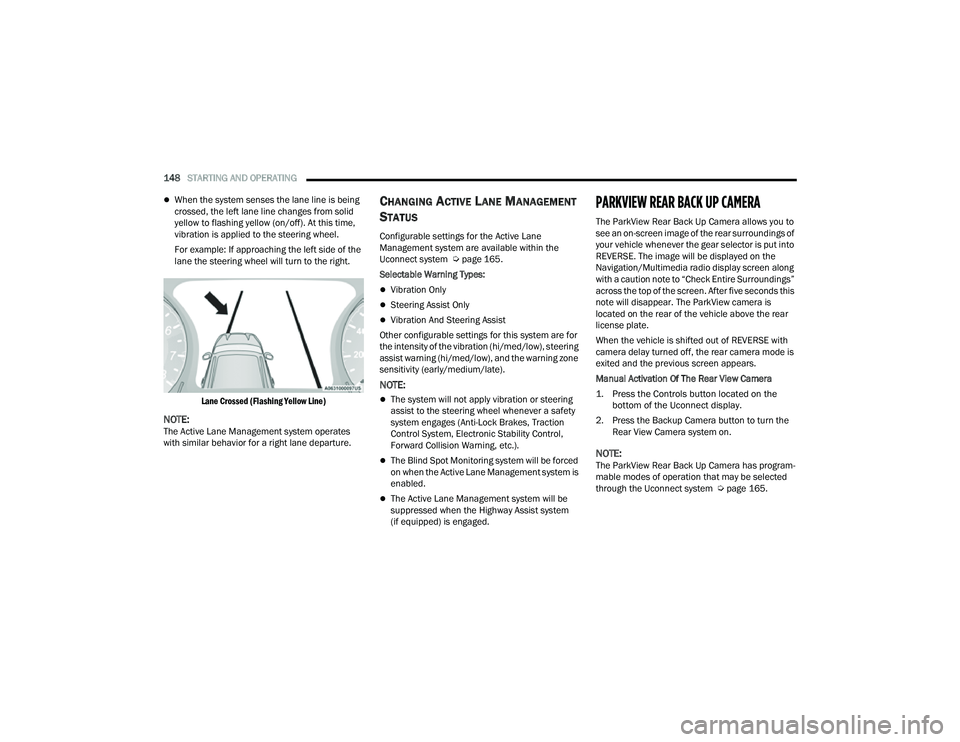
When the system senses the lane line is being
crossed, the left lane line changes from solid
yellow to flashing yellow (on/off). At this time,
vibration is applied to the steering wheel.
For example: If approaching the left side of the
lane the steering wheel will turn to the right.
Lane Crossed (Flashing Yellow Line)
NOTE:The Active Lane Management system operates
with similar behavior for a right lane departure.
CHANGING ACTIVE LANE MANAGEMENT
S
TATUS
Configurable settings for the Active Lane
Management system are available within the
Uconnect system Ú page 165.
Selectable Warning Types:
Vibration Only
Steering Assist Only
Vibration And Steering Assist
Other configurable settings for this system are for
the intensity of the vibration (hi/med/low), steering
assist warning (hi/med/low), and the warning zone
sensitivity (early/medium/late).
NOTE:
The system will not apply vibration or steering
assist to the steering wheel whenever a safety
system engages (Anti-Lock Brakes, Traction
Control System, Electronic Stability Control,
Forward Collision Warning, etc.).
The Blind Spot Monitoring system will be forced
on when the Active Lane Management system is
enabled.
The Active Lane Management system will be
suppressed when the Highway Assist system
(if equipped) is engaged.
PARKVIEW REAR BACK UP CAMERA
The ParkView Rear Back Up Camera allows you to
see an on-screen image of the rear surroundings of
your vehicle whenever the gear selector is put into
REVERSE. The image will be displayed on the
Navigation/Multimedia radio display screen along
with a caution note to “Check Entire Surroundings”
across the top of the screen. After five seconds this
note will disappear. The ParkView camera is
located on the rear of the vehicle above the rear
license plate.
When the vehicle is shifted out of REVERSE with
camera delay turned off, the rear camera mode is
exited and the previous screen appears.
Manual Activation Of The Rear View Camera
1. Press the Controls button located on the bottom of the Uconnect display.
2. Press the Backup Camera button to turn the Rear View Camera system on.
NOTE:The ParkView Rear Back Up Camera has program -
mable modes of operation that may be selected
through the Uconnect system Ú page 165.
22_MP_OM_EN_USC_t.book Page 148
Page 152 of 344

150STARTING AND OPERATING
SURROUND VIEW CAMERA SYSTEM —
IF EQUIPPED
Your vehicle may be equipped with the Surround
View Camera system that allows you to see an
on-screen image of the surroundings and Top View
of your vehicle whenever the gear selector is put
into REVERSE or a different view is selected
through the touchscreen soft buttons. The Top
View of the vehicle will show which doors are open.
The image will be displayed on the touchscreen
display along with a caution note “Check Entire
Surroundings” across the top of the screen.
After five seconds, this note will disappear. The
Surround View Camera system is comprised of four
sequential cameras located in the front grille, rear
liftgate and side mirrors.
NOTE:The Surround View Camera system has program -
mable settings that may be selected through the
Uconnect system Ú page 165.
Press this button on the touchscreen to
enter the Surround View Camera menu in
the Uconnect system.
When the vehicle is shifted into REVERSE, the Rear
View and Top View is the default view of the
system.
When the vehicle is shifted out of REVERSE with
camera delay turned on, the camera image will
continue to be displayed for up to 10 seconds
unless the vehicle speed exceeds 8 mph (13 km/h),
the vehicle is shifted into PARK or the ignition is
placed in the OFF position. There is a touchscreen
button X to disable the display of the camera image.
When the vehicle is shifted out of REVERSE with
camera delay turned off, the Surround View
Camera mode is exited and the last known screen
appears again.
When enabled, active guidelines are overlaid on
the image to illustrate the width of the vehicle,
including the side view mirrors and its projected
backup path based on the steering wheel position.
Different colored zones indicate the distance to
the rear of the vehicle.
The following table shows the approximate
distances for each zone:
Modes Of Operation
Manual activation of the Surround View Camera is
selected by pressing the Surround View Camera
soft key located in the Controls menu within the
Uconnect system.
Top View
The Top View will show in the Uconnect system with
Rear View or Front View in a split screen display.
There are integrated ParkSense arcs in the image
at the front and rear of the vehicle. The arcs will
change color from yellow to red corresponding the
distance zones to the oncoming object.
Surround View Camera View
Zone Distance To The Rear Of
The Vehicle
Red 0 - 1 ft (0 - 30 cm)
Yellow 1 ft - 6.5 ft (30 cm - 2 m)
Green 6.5 ft or greater
(2 m or greater)
22_MP_OM_EN_USC_t.book Page 150
Page 153 of 344

STARTING AND OPERATING151
NOTE:
Front tires will be in image when the tires are
turned.
Due to wide angle cameras in the mirrors, the
image will appear distorted.
Top View will show which doors are open.
Open front doors will cancel outside image.
Open liftgate will cancel rear image while in
Top View.
Rear View Plus Top View This is the default view of the system in
REVERSE and is always paired with the
Top View of the vehicle with optional
active guidelines for the projected path
when enabled.
Rear Cross Path View
Pressing the Rear Cross Path soft key will
give the driver a wider angle view of the
rear camera system. The Top View will be
disabled when this is selected
Front View Plus Top View The Front View will show you what is
immediately in front of the vehicle and is
always paired with the Top View of the
vehicle. Front Cross Path View
Pressing the Front Cross Path soft key
will give the driver a wider angle view of
the front camera system. The Top View
will be disabled when this is selected.
Rear View Camera Pressing the Back Up Camera soft key
will provide a full screen rear view with
Zoom View.
NOTE:If the Rear View Camera view was selected through
the Surround View Camera menu, exiting out of the
Rear View screen will return to the last known
Surround View screen. If the Back Up Camera was
manually activated through the Controls menu of
the Uconnect system, exiting out of the display
screen will return to the Controls menu.
Deactivation
The system can be deactivated under the following
conditions:
The speed of the vehicle is greater than 8 mph
(13 km/h).
The vehicle is shifted into PARK.
The vehicle is in any gear other than REVERSE
and the X button is pressed.
The camera delay system is turned off manually
through the Uconnect Settings menu
Úpage 165.
NOTE:
If snow, ice, mud, or any foreign substance
builds up on the camera lenses, clean the
lenses, rinse with water, and dry with a soft
cloth. Do not cover the lenses.
If a malfunction with the system has occurred,
see an authorized dealer.
WARNING!
Drivers must be careful when backing up even
when using the Surround View Camera. Always
check carefully behind your vehicle, and be sure
to check for pedestrians, animals, other
vehicles, obstructions, or blind spots before
backing up. You are responsible for the safety of
your surroundings and must continue to pay
attention while backing up. Failure to do so can
result in serious injury or death.
4
22_MP_OM_EN_USC_t.book Page 151
Page 162 of 344

160STARTING AND OPERATING
RECREATIONAL TOWING (BEHIND MOTORHOME)
TOWING THIS VEHICLE BEHIND ANOTHER VEHICLE
NOTE:
When towing your vehicle, always follow appli -
cable state and provincial laws. Contact state
and provincial Highway Safety offices for addi -
tional details.
You must ensure that the Auto Park Brake
feature is disabled before towing this vehicle, to
avoid inadvertent Electric Park Brake engage -
ment. The Auto Park Brake feature is enabled or
disabled via the Customer Programmable
Features in the Uconnect Settings.
RECREATIONAL TOWING —
F
RONT-WHEEL DRIVE (FWD) MODELS
Recreational towing is allowed ONLY if the front
wheels are OFF the ground. This may be
accomplished using a tow dolly (front wheels off
the ground) or vehicle trailer (all four wheels off the
ground). If using a tow dolly, follow this procedure:
1. Properly secure the dolly to the tow vehicle, following the dolly manufacturer's
instructions.
2. Drive the front wheels onto the tow dolly. 3. Apply the Electric Park Brake (EPB). Place the
transmission in PARK (P). Turn the engine off.
4. Properly secure the front wheels to the dolly, following the dolly manufacturer's instructions.
5. Turn the ignition to the ON/RUN position, but do not start the engine.
6. Press and hold the brake pedal.
7. Release the EPB.
8. Turn the ignition OFF, remove the key fob, and release the brake pedal.
TOWING CONDITION WHEELS OFF THE GROUND FRONT-WHEEL DRIVE (FWD) FOUR-WHEEL DRIVE (4WD)
Flat Tow NONENOT ALLOWEDNOT ALLOWED
Dolly Tow REAR
NOT ALLOWEDNOT ALLOWED
FRONT OKNOT ALLOWED
On Trailer ALLBEST METHODOK
22_MP_OM_EN_USC_t.book Page 160
Page 167 of 344

MULTIMEDIA165
UCONNECT SETTINGS
The Uconnect system uses a combination of
buttons on the touchscreen and buttons on the
faceplate located in the center of the instrument
panel. These buttons allow you to access and
change Programmable Features. Many features
can vary by vehicle and packages.
Buttons on the faceplate are located below and/or
beside the Uconnect system in the center of the
instrument panel. In addition, there is a Scroll/
Enter control knob below and to the right of the
screen. Turn the control knob to scroll through
menus and change settings. Push the center of the
control knob one or more times to select or change
a setting.
Your Uconnect system may also have Screen Off
and Mute buttons on the faceplate.
Push the Screen Off button on the faceplate to turn
off the Uconnect screen. Push the button again or
tap the screen to turn the screen on.
Press the Back Arrow button to exit out of a Menu
or certain option on the Uconnect system.
Push and hold the Power button on the radio’s
faceplate for a minimum of 15 seconds to reset
the radio.
CUSTOMER PROGRAMMABLE FEATURES
Uconnect 5 With 8.4-inch Display Buttons On Faceplate
And Soft Buttons On Touchscreen
For the Uconnect 5 With 8.4-inch Display and the
Uconnect 5/5 NAV With 10.1-inch Display
Press the Vehicle button, then press the Settings
tab on the top of the touchscreen. In this menu, the
Uconnect system allows you to access all of the
available programmable features.
NOTE:
Only one touchscreen area may be selected at a
time.
Depending on the vehicle’s options, feature
settings may vary.
When making a selection, press the button on the
touchscreen to enter the desired menu. Once in
the desired menu, press and release the preferred
setting option until a check mark appears next to
the setting, showing that setting has been
selected. Once the setting is complete, press the
Vehicle button to exit to the screen. Pressing the
Up or Down Arrow button on the right side of the
screen will allow you to toggle up or down through
the available settings.
1 — Uconnect Buttons On The Touchscreen
2 — Uconnect Buttons On The Faceplate
5
22_MP_OM_EN_USC_t.book Page 165
Page 168 of 344

166MULTIMEDIA
My Profile
When the My Profile button is pressed on the touchscreen, the system displays options related to the vehicle’s profiles.
NOTE:Depending on the vehicle’s options, feature settings may vary.
Setting Name Description
Language This setting will change the language of the Uconnect system and Instrument
Cluster Display. The available languages are English, Français, and Español.
Display Mode This setting will adjust the display for the radio to “Auto” or “Manual”.
“Manual” allows for more customization with the radio display.
Display Brightness Headlights On This setting will allow you to set the brightness when the headlights are on. To
access this setting, Display Mode must be set to “Manual”. The “+” setting will
increase the brightness; the “-” will decrease the brightness.
Display Brightness Headlights Off This setting will allow you to set the brightness when the headlights are off. To
access this setting, Display Mode must be set to “Manual”. The “+” setting will
increase the brightness; the “-” will decrease the brightness.
Set Theme This setting will allow you to change the display theme.
Units This setting will allow you to customize the units for “Speed” (MPH or km/h),
“Distance” (mi or km), “Fuel Consumption” (MPG [US], MPG [UK], L/100 km,
or km/L), “Pressure” (psi, kPa, or bar), and “Temperature” (°C or °F) units of
measurement independently.
Touchscreen Beep This setting will allow you to turn the touchscreen beep on or off.
Show Main Category Bar Labels This setting will allow the main category bar labels to be shown on or off.
Navigation Next Turn Pop-ups Displayed in Cluster This setting will display navigation prompts in the Instrument Cluster Display.
22_MP_OM_EN_USC_t.book Page 166