2023 HYUNDAI TUCSON settings
[x] Cancel search: settingsPage 147 of 638
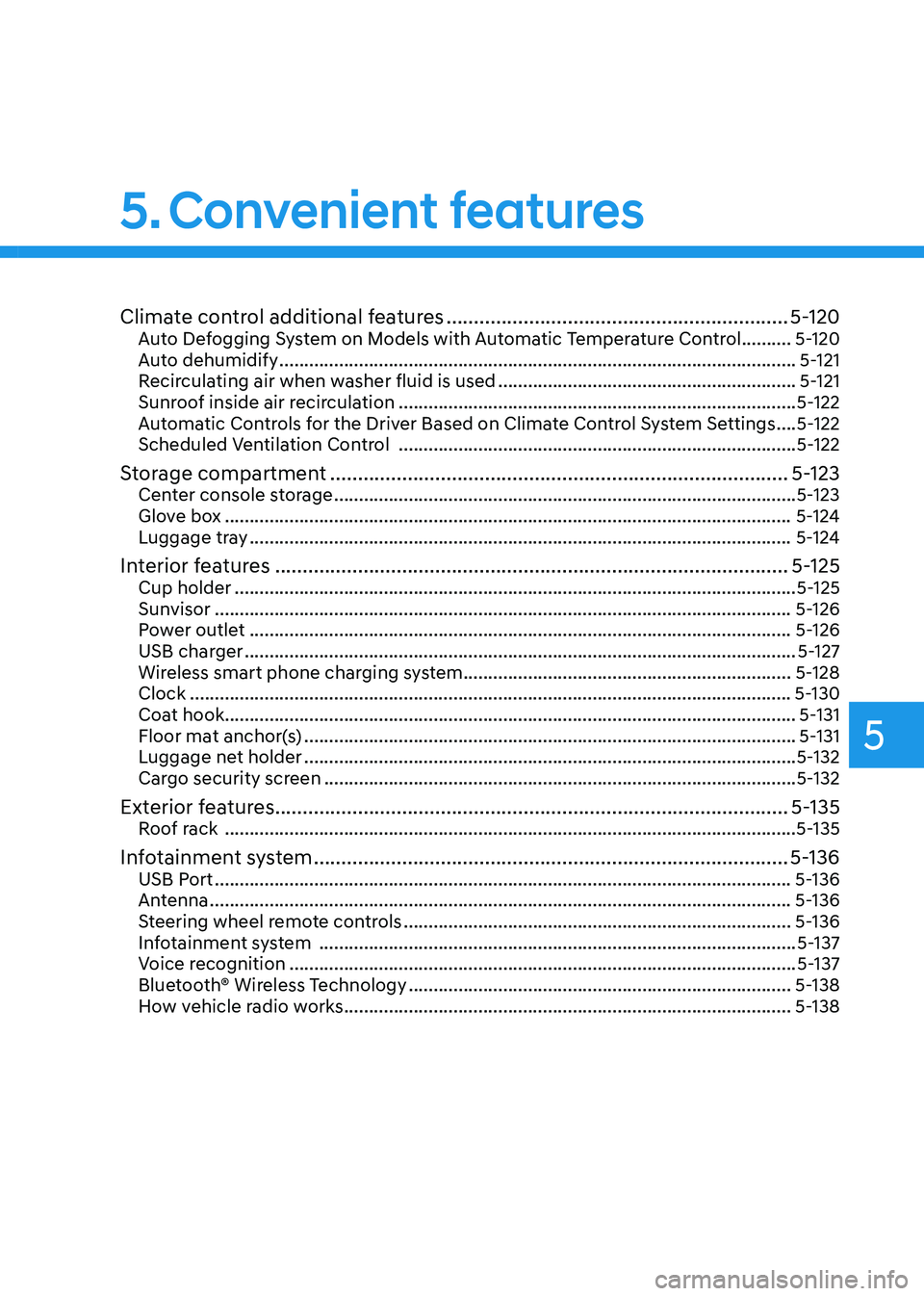
Climate control additional features ..............................................................5-120Auto Defogging System on Models with Automatic Temperature Control ..........5-120
Auto dehumidify ........................................................................\
................................5-121
Recirculating air when washer fluid is used ............................................................5-121
Sunroof inside air recirculation ........................................................................\
........5-122
Automatic Controls for the Driver Based on Climate Control System Settings ....5-122
Scheduled Ventilation Control ........................................................................\
........5-122
Storage compartment ........................................................................\
...........5-123Center console storage ........................................................................\
.....................5-123
Glove box ........................................................................\
..........................................5-124
Luggage tray ........................................................................\
.....................................5-124
Interior features ........................................................................\
.....................5-125Cup holder ........................................................................\
.........................................5-125
Sunvisor ........................................................................\
............................................5-126
Power outlet ........................................................................\
.....................................5-126
USB charger ........................................................................\
.......................................5-127
Wireless smart phone charging system ..................................................................5-128
Clock ........................................................................\
.................................................5-130
Coat hook ........................................................................\
...........................................5-131
Floor mat anchor(s) ........................................................................\
...........................5-131
Luggage net holder ........................................................................\
...........................5-132
Cargo security screen ........................................................................\
.......................5-132
Exterior features ........................................................................\
.....................5-135Roof rack ........................................................................\
...........................................5-135
Infotainment system ........................................................................\
..............5-136USB Port ........................................................................\
............................................5-136
Antenna ........................................................................\
.............................................5-136
Steering wheel remote controls ........................................................................\
......5-136
Infotainment system ........................................................................\
........................5-137
Voice recognition ........................................................................\
..............................5-137
Bluetooth® Wireless Technology ........................................................................\
.....5-138
How vehicle radio works ........................................................................\
..................5-138
5. Convenient features
5
Page 152 of 638
Convenient features
5-8
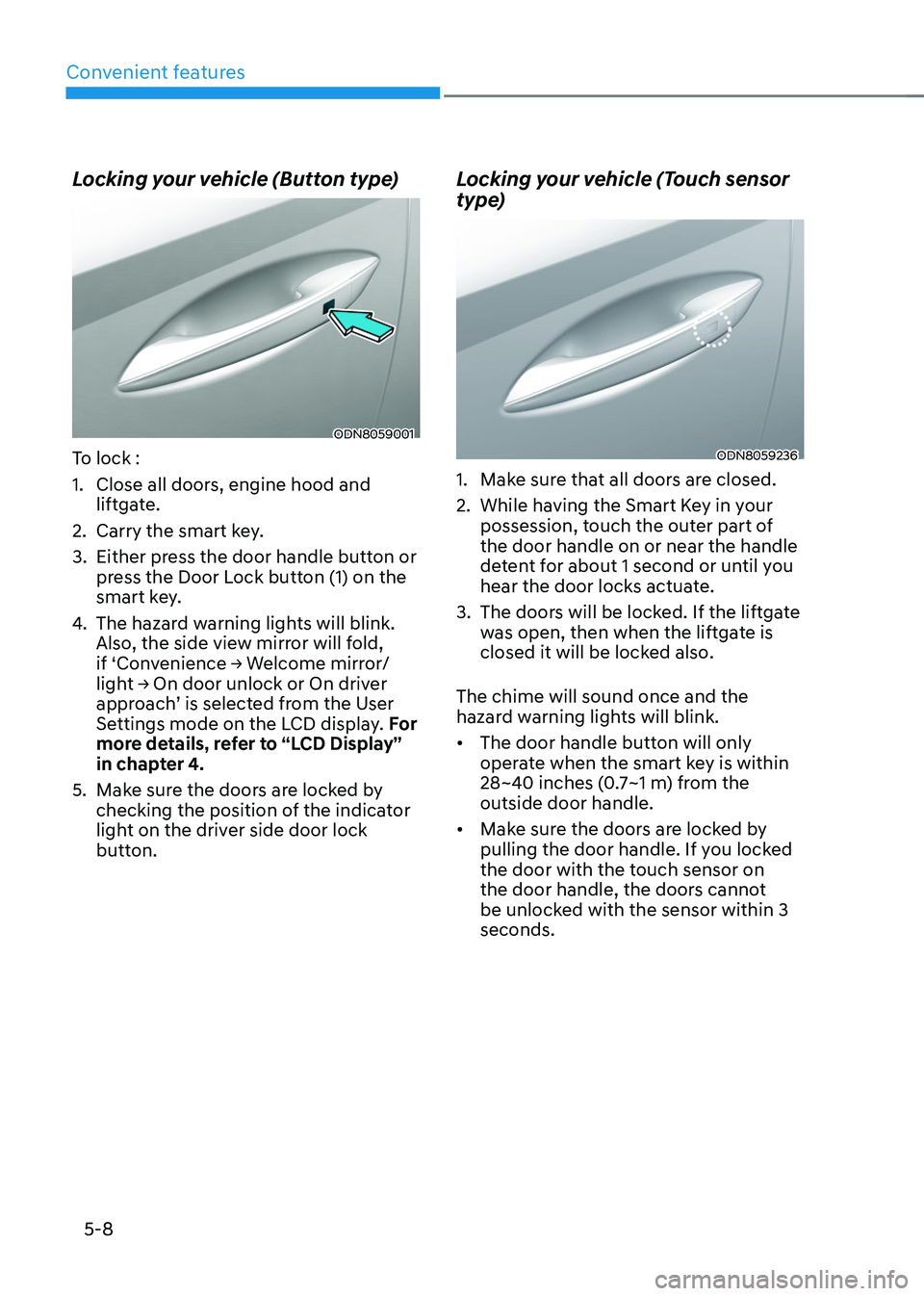
Locking your vehicle (Button type)
ODN8059001
To lock :
1. Close all doors, engine hood and
liftgate.
2. Carry the smart key.
3. Either press the door handle button or
press the Door Lock button (1) on the
smart key.
4. The hazard warning lights will blink.
Also, the side view mirror will fold,
if ‘Convenience → Welcome mirror/light → On door unlock or On driver approach’ is selected from the User
Settings mode on the LCD display. For
more details, refer to “LCD Display”
in chapter 4.
5. Make sure the doors are locked by
checking the position of the indicator
light on the driver side door lock
button.
Locking your vehicle (Touch sensor
type)
ODN8059236
1. Make sure that all doors are closed.
2. While having the Smart Key in your
possession, touch the outer part of
the door handle on or near the handle
detent for about 1 second or until you
hear the door locks actuate.
3. The doors will be locked. If the liftgate
was open, then when the liftgate is
closed it will be locked also.
The chime will sound once and the
hazard warning lights will blink.
• The door handle button will only
operate when the smart key is within
28~40 inches (0.7~1 m) from the
outside door handle.
• Make sure the doors are locked by
pulling the door handle. If you locked
the door with the touch sensor on
the door handle, the doors cannot
be unlocked with the sensor within 3
seconds.
Page 154 of 638
Convenient features
5-10
3. If you unlock the doors using the
passenger side door handle, all the
doors will unlock. If you unlock the
doors using the driver side door
handle, either the driver side door
will unlock or all the doors will unlock
depending on the setting for the Two
Press Unlock feature. Refer to User
Settings to change the Driver Door
unlock mode.• The door handle button will only
operate when the smart key is
within 28~40 inches (0.7~1 m) from
the outside door handle.
• If you do not open the door after
unlocking within 30 seconds, it will
return to the lock mode.
• If you unlocked the door with the
door handle, the doors cannot be
locked with the sensor within 2
seconds.
To prevent unintentional door lock or
unlock:
Press the lock button on the smart key
and immediately press the unlock button
along with the lock button for more than
4 seconds. The hazard warning lights will
blink four times. At this time, the doors
will not lock or unlock even though the
touch sensor is touched on the outside
door handle.
To deactivate the function, press the
door lock or unlock button on the smart
key. Opening or Unlocking the Liftgate
To open the liftgate:
1. If your vehicle has a Smart Key, make
sure you have the Smart Key in your
possession.
2. Press either the liftgate open/close
button on the vehicle or press and
hold the liftgate open button on
the smart key for more than one
second. The hazard warning lights
will blink twice and the liftgate will be
unlocked. Pull up on the liftgate to
open. If your vehicle is equipped with
power liftgate then the liftgate will
automatically open.
Remotely starting vehicle
(if equipped)
You can start the vehicle using the
Remote Start button on the smart key.
To start the vehicle remotely:
1. Before you can use remote start your
vehicle, the door lock button must be
pressed. Press the door lock button
on the Smart Key. You must be within
about 32 feet (10m) from your vehicle.
2. Press and hold the remote start
button on your Smart Key. You must
press the button within 4 seconds
from when you pressed the door lock
button to activate the remote start.
3. The hazard warning lights will blink
and the engine will start.
4. To turn off the remote start function,
press the Remote Start button once.
Page 159 of 638
05
5-15
Hyundai Digital Key
(if equipped)
Digital Key Application
To use Hyundai Digital Key mobile app,
you should install the Hyundai Digital
Key application on your Android phone.
Search ‘Hyundai digital key’ in the
Google Play Store and download the app.
Please refer to the detailed manual of the
digital key app. The option can be found
under the following app menu:
Menu → Application Info → Tutorial
Please review the contents of the manual
before using the app.
ÃThis service is only available for
Android smartphones. Please confirm
supported/compatible devices on our
website.
WARNING
Delete Digital Key Settings When
Purchasing a Used Vehicle
If any of the digital key (smartphone key
or card key) is already registered when
you press ON button after unlocking
the doors, the message ‘Digital key(s)
active’ appears on the instrument
cluster once. If you sell your vehicle
or purchase a used Hyundai vehicle
equipped with the Digital Key feature,
you should confirm the message and
delete the registered smartphone key
and card key. For more information,
please contact the Hyundai Customer
Care Center. If the card key does not
work properly, please delete the card
key and register the smartphone key
and re-register the card key.
For vehicle maintenance
If you need to have your Digital Key
System repaired or replaced please
ensure your Smartphone Key is still
active. You may have to pair your phone
again.
In the case, re-initialize your Digital Keys
using the Hyundai Digital Key mobile app.
Digital key (smartphone) NFC
function
You can use the smartphone Digital Key
feature once Near Field Communication
(NFC) setting has been enabled on your
phone.
To enable NFC, go to Settings on your
smart phone.
In addition, your smart phone screen
should be unlocked when using the
Digital Key feature.
ÃTo enable the user settings for NFC on
your smart phone, go to the Settings
app on your phone. For further
assistance, refer to your smart phone
manual.
Page 162 of 638
Convenient features
5-18
Set up main vehicle
You can manage multiple digital keys
from the Digital key app. From the list of
digital keys you own, select the vehicle
you want to make your priority vehicle.
For more information, please refer to
the ‘Tutorial’ on your Digital key app.
ONX4050001
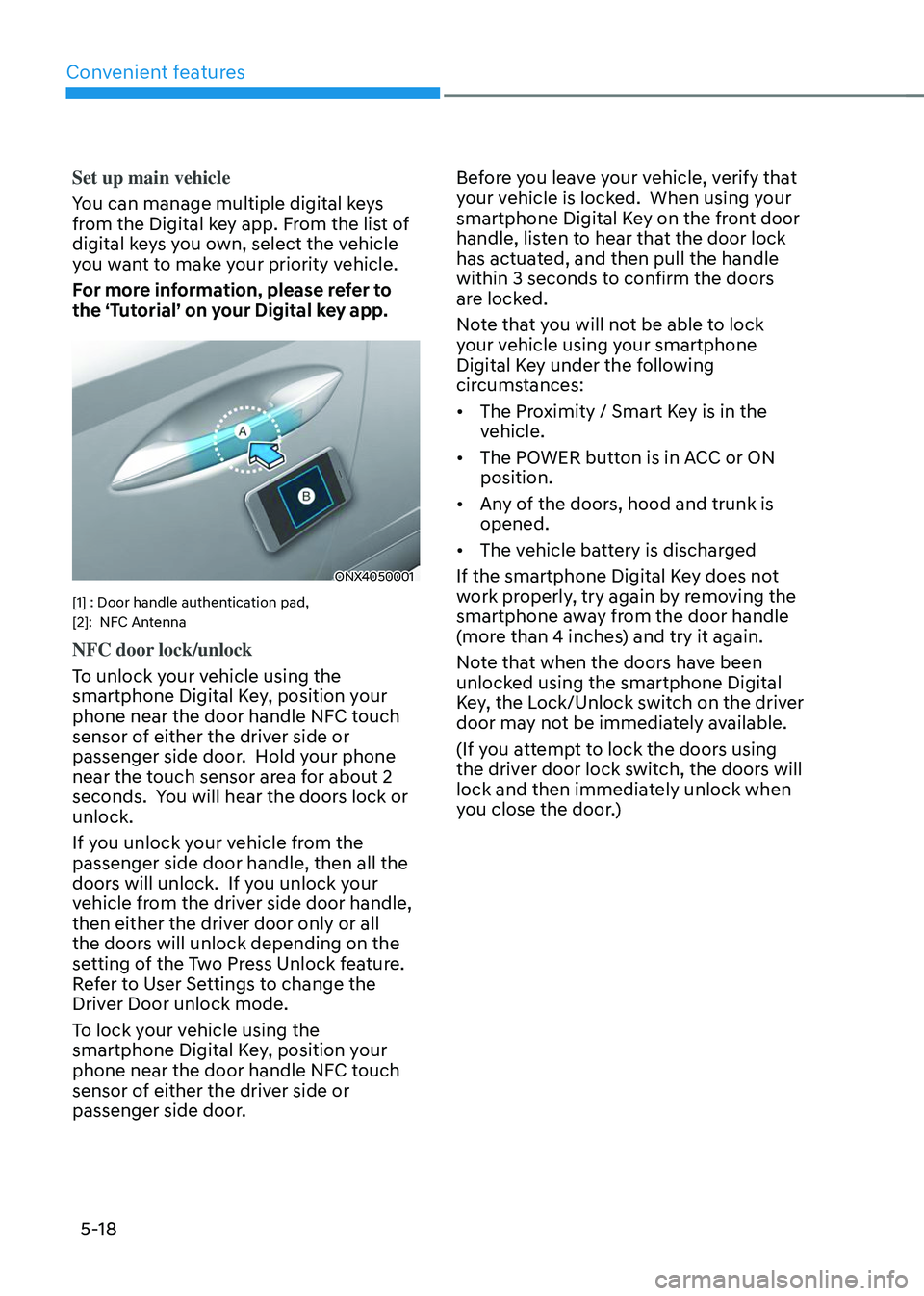
[1] : Door handle authentication pad,
[2]: NFC Antenna
NFC door lock/unlock
To unlock your vehicle using the
smartphone Digital Key, position your
phone near the door handle NFC touch
sensor of either the driver side or
passenger side door. Hold your phone
near the touch sensor area for about 2
seconds. You will hear the doors lock or
unlock.
If you unlock your vehicle from the
passenger side door handle, then all the
doors will unlock. If you unlock your
vehicle from the driver side door handle,
then either the driver door only or all
the doors will unlock depending on the
setting of the Two Press Unlock feature.
Refer to User Settings to change the
Driver Door unlock mode.
To lock your vehicle using the
smartphone Digital Key, position your
phone near the door handle NFC touch
sensor of either the driver side or
passenger side door. Before you leave your vehicle, verify that
your vehicle is locked. When using your
smartphone Digital Key on the front door
handle, listen to hear that the door lock
has actuated, and then pull the handle
within 3 seconds to confirm the doors
are locked.
Note that you will not be able to lock
your vehicle using your smartphone
Digital Key under the following
circumstances:
•
The Proximity / Smart Key is in the
vehicle.
• The POWER button is in ACC or ON
position.
• Any of the doors, hood and trunk is
opened.
• The vehicle battery is discharged
If the smartphone Digital Key does not
work properly, try again by removing the
smartphone away from the door handle
(more than 4 inches) and try it again.
Note that when the doors have been
unlocked using the smartphone Digital
Key, the Lock/Unlock switch on the driver
door may not be immediately available.
(If you attempt to lock the doors using
the driver door lock switch, the doors will
lock and then immediately unlock when
you close the door.)
Page 165 of 638
05
5-21
Remote Start with Digital Key
• Using the Hyundai Digital Key app
on your phone, press the Door Lock
button and then press the Remote
Start button (buttons must be pressed
within about 4 seconds). If all the
doors of your vehicle are closed
(including the hood and the liftgate),
the engine will be automatically
started.
Note that when the remote start
feature is activated, the hazard
warning lights will blink two times
and a chime will sound before engine
startup. Also note the following:
• The climate control system will come
on using the same settings from when
you last used the vehicle
• To turn off the engine, press the
Remote Engine Stop button within the
Hyundai Digital Key app.
• The engine will remain running for
approximately 10 minutes, and then
engine will automatically shut OFF.
• To keep the engine running, access
the vehicle and place the smartphone
on the wireless charging pad
(authentication pad) while the engine
is still in remote engine-ON mode.
For more information, refer to the Engine
Start/Stop button in chapter 6. Vehicle information Display
The digital key application displays
the vehicle information such as
driving or door conditions through the
communication with the vehicle.
•
How to check : Select the vehicle
what you want to check and touch
the vehicle image, then vehicle
information display page will be
shown.
• Contents : accumulated odometer,
latest fuel economy, driving range,
fuel remaining, tire pressure, doors
lock/unlock status and last data
updated time.
ÃNote that displayed vehicle data may
be slightly different from the current
vehicle condition
ÃFor more information, please refer to
the ‘Tutorial’ on your Digital key app.
Page 167 of 638
05
5-23
• If the remote control function is not
activated, please use NFC function to
lock or unlock the doors
• You should be careful not to
press the remote control button
on the digital key (smartphone)
accidentally.
• If the digital key (smartphone) is
discharged or defective or you
cannot use the digital key since the
vehicle battery is discharged, use the
inside door lock button to lock all of
the doors.
CAUTION
• Hyundai digital key app on the
smartphone and card key may not
work if any of the following occurs:
-Hyundai digital key app on the
smartphone is deleted. (Required
to reinstall the app)
-Account log in information of
Hyundai digital key app is expired.
(Required to re-log in)
-When you try to log in to another
smartphone instead of the
registered smartphone with same
user account.
-Smartphone rooting or app
hacking is detected.
-Smartphone battery or the vehicle
battery is discharged.
-Smartphone’s screen is off or
locked.
-NFC or Bluetooth is turned off on
the smartphone settings.
-Smartphone’s mobile network
setting is off or airplane mode is
activated.
-A credit card is overlapped in the
back of your smartphone or metal
or thick case is used.
-Use the card key with insert it
into the wallet or card holder or
overlapping with other cards.
-If you use a smart phone cover that
uses wireless communication or is
made of metal, the digital key NFC
function may not work properly.
Remove the smart phone cover
before using the digital key NFC
function.
• The vehicle may not be controlled by
the smartphone if any of the following
occurs:
- Basic and necessary functions of
the smartphone manufacturer are
operating. (General call, urgent
call, audio or NFC payment)
-Wireless earphone is operating.
(General call, urgent call or audio)
-The digital key app function such
as basic setting or app launching
is limited by prior policy according
to the manufacturer while using a
smartphone produced by domestic
and foreign manufactures.
à If you change the smartphone
number, you should modify the user
account information on the HYUNDAI
customer web site to use the digital
key app.
ÃIf the vehicle owner changes
the smartphone device, the new
smartphone should be registered in
the car after deleting the registered
digital key(smartphone).
ÃIf a sharer changes or reset the
smartphone, the key should be re-
shared from owner.
ÃSome of the old smartphone may
not work properly. Please check the
available smartphone models with
your dealer.
ÃNFC antenna position on the
smartphone can be confirmed
on each smartphone’s manual or
contact to customer service center
of the smartphone manufacture.
Page 168 of 638
Convenient features
5-24
Digital key (Card key)
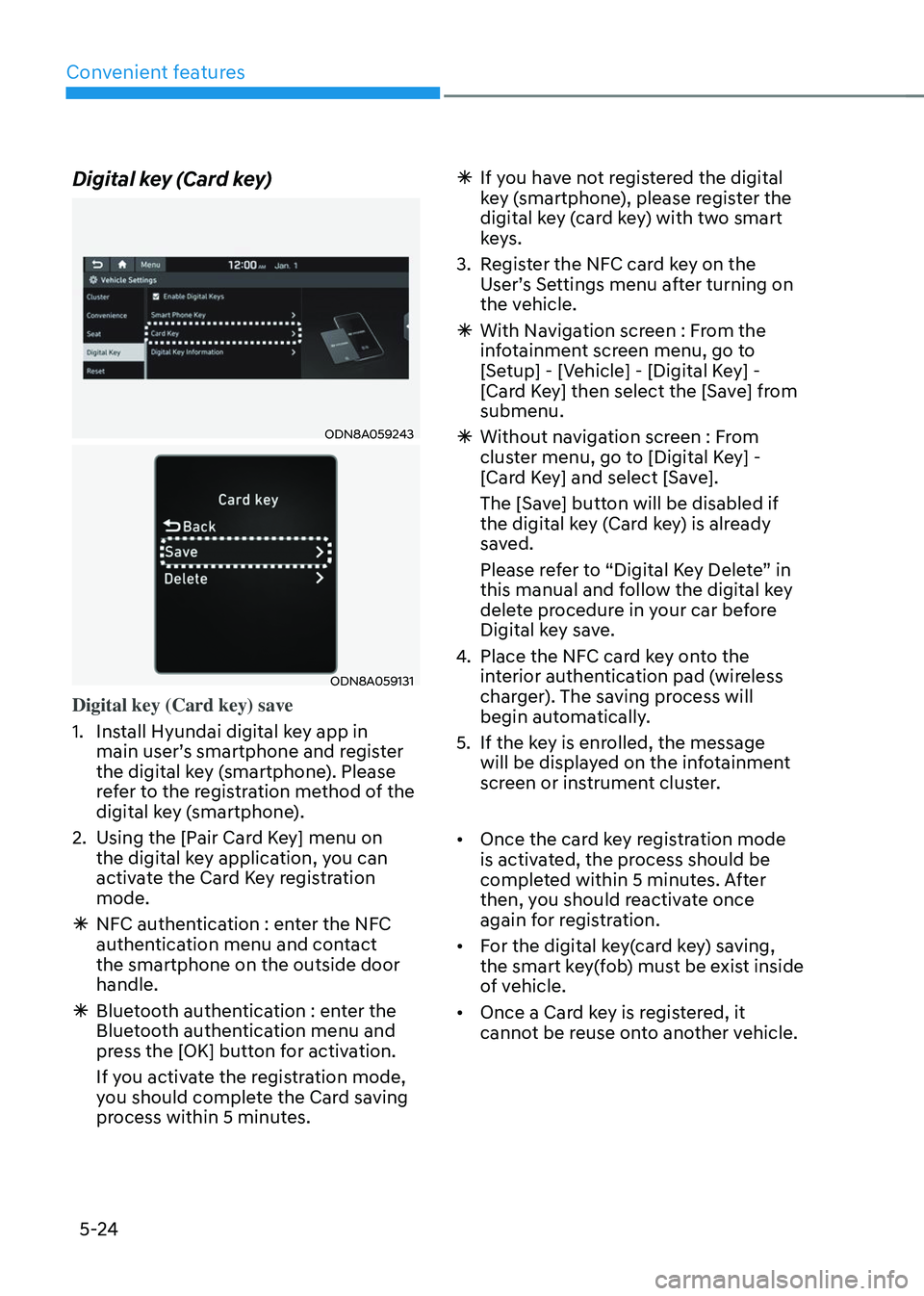
ODN8A059243
ODN8A059131
Digital key (Card key) save
1. Install Hyundai digital key app in
main user’s smartphone and register
the digital key (smartphone). Please
refer to the registration method of the
digital key (smartphone).
2. Using the [Pair Card Key] menu on
the digital key application, you can
activate the Card Key registration
mode.
ÃNFC authentication : enter the NFC
authentication menu and contact
the smartphone on the outside door
handle.
ÃBluetooth authentication : enter the
Bluetooth authentication menu and
press the [OK] button for activation.
If you activate the registration mode,
you should complete the Card saving
process within 5 minutes.
ÃIf yo u have not registered the digital
key (smartphone), please register the
digital key (card key) with two smart
keys.
3. Register the NFC card key on the
User’s Settings menu after turning on
the vehicle.
à With Navigation screen : From the
infotainment screen menu, go to
[Setup] - [Vehicle] - [Digital Key] -
[Card Key] then select the [Save] from
submenu.
ÃWithout navigation screen : From
cluster menu, go to [Digital Key] -
[Card Key] and select [Save].
The [Save] button will be disabled if
the digital key (Card key) is already
saved.
Please refer to “Digital Key Delete” in
this manual and follow the digital key
delete procedure in your car before
Digital key save.
4. Place the NFC card key onto the
interior authentication pad (wireless
charger). The saving process will
begin automatically.
5. If the key is enrolled, the message
will be displayed on the infotainment
screen or instrument cluster.
• Once the card key registration mode
is activated, the process should be
completed within 5 minutes. After
then, you should reactivate once
again for registration.
• For the digital key(card key) saving,
the smart key(fob) must be exist inside
of vehicle.
• Once a Card key is registered, it
cannot be reuse onto another vehicle.