2023 HYUNDAI SONATA ECO mode
[x] Cancel search: ECO modePage 134 of 555
Instrument Cluster
4-48
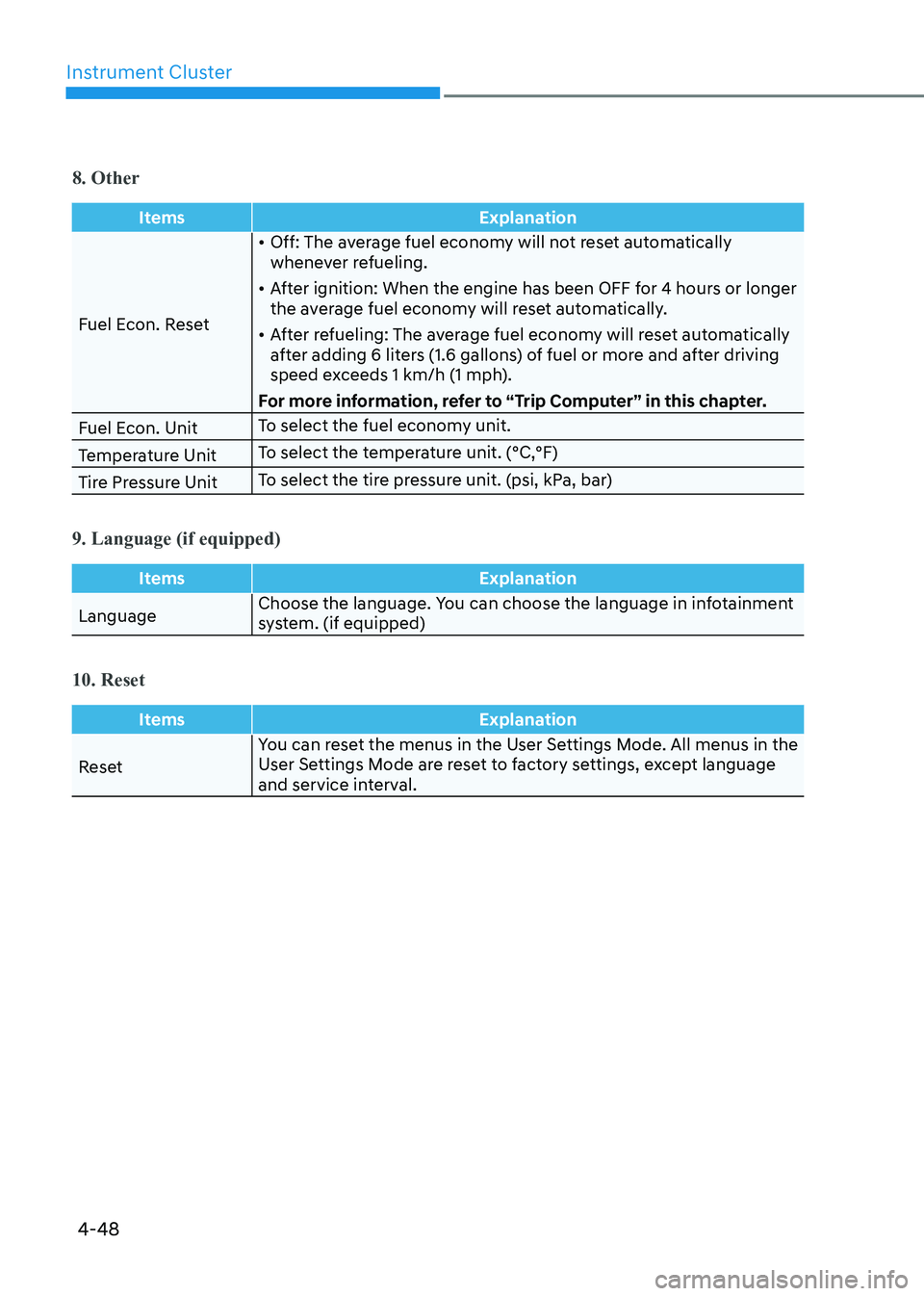
8. Other
ItemsExplanation
Fuel Econ. Reset•
Off: The average fuel economy will not reset automatically
whenever refueling.
• After ignition: When the engine has been OFF for 4 hours or longer
the average fuel economy will reset automatically.
• After refueling: The average fuel economy will reset automatically
after adding 6 liters (1.6 gallons) of fuel or more and after driving
speed exceeds 1 km/h (1 mph).
For more information, refer to “Trip Computer” in this chapter.
Fuel Econ. Unit To select the fuel economy unit.
Temperature Unit To select the temperature unit. (°C,°F)
Tire Pressure Unit To select the tire pressure unit. (psi, kPa, bar)
9. Language (if equipped)
Items
Explanation
LanguageChoose the language. You can choose the language in infotainment
system. (if equipped)
10. Reset
Items
Explanation
ResetYou can reset the menus in the User Settings Mode. All menus in the
User Settings Mode are reset to factory settings, except language
and service interval.
Page 136 of 555
Instrument Cluster
4-50
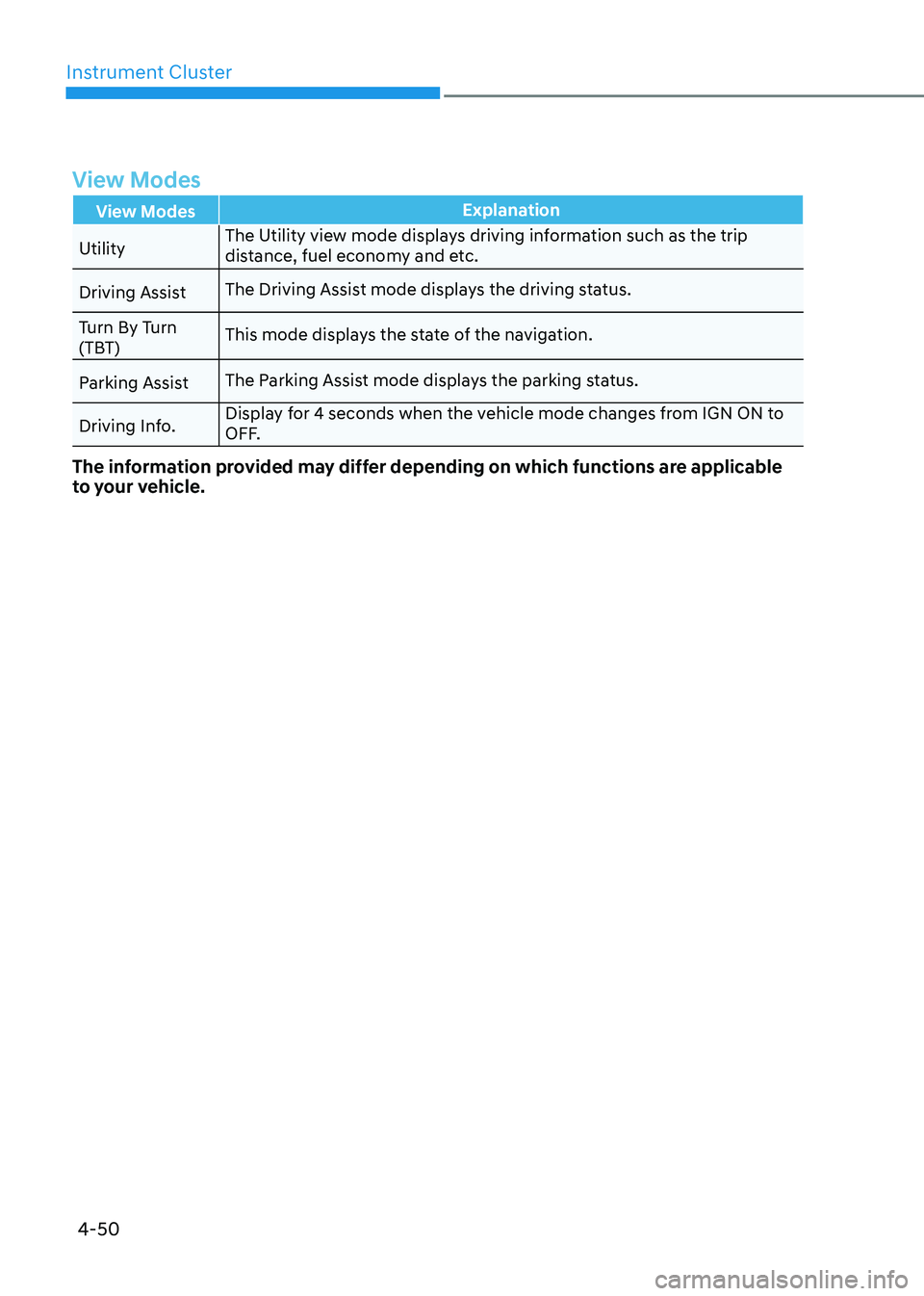
View Modes
View ModesExplanation
UtilityThe Utility view mode displays driving information such as the trip
distance, fuel economy and etc.
Driving Assist The Driving Assist mode displays the driving status.
Turn By Turn
(TBT) This mode displays the state of the navigation.
Parking Assist The Parking Assist mode displays the parking status.
Driving Info. Display for 4 seconds when the vehicle mode changes from IGN ON to
OFF.
The information provided may differ depending on which functions are applicable
to your vehicle.
Page 137 of 555
04
4-51
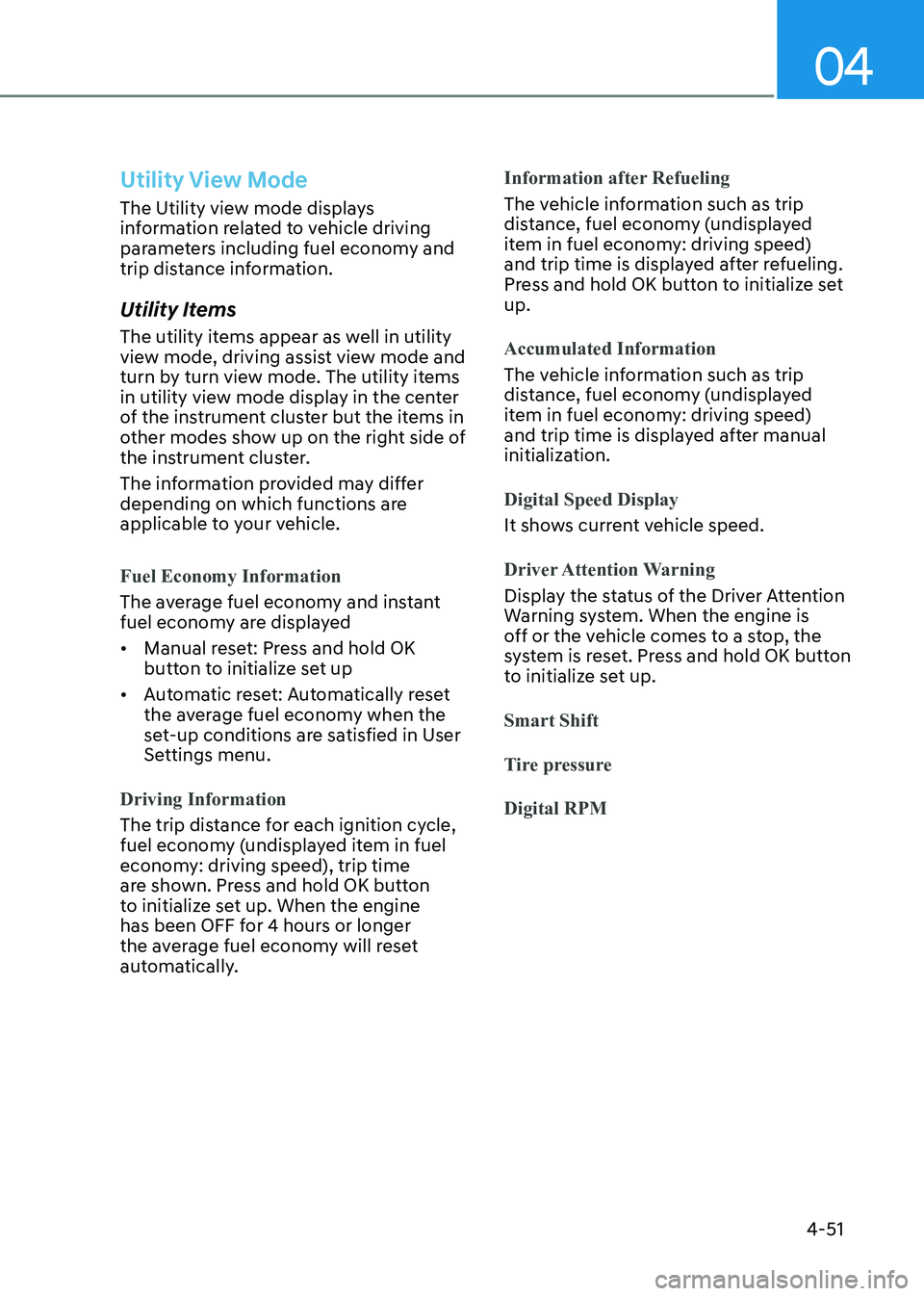
Utility View Mode
The Utility view mode displays
information related to vehicle driving
parameters including fuel economy and
trip distance information.
Utility Items
The utility items appear as well in utility
view mode, driving assist view mode and
turn by turn view mode. The utility items
in utility view mode display in the center
of the instrument cluster but the items in
other modes show up on the right side of
the instrument cluster.
The information provided may differ
depending on which functions are
applicable to your vehicle.
Fuel Economy Information
The average fuel economy and instant
fuel economy are displayed • Manual reset: Press and hold OK
button to initialize set up
• Automatic reset: Automatically reset
the average fuel economy when the
set-up conditions are satisfied in User
Settings menu.
Driving Information
The trip distance for each ignition cycle,
fuel economy (undisplayed item in fuel
economy: driving speed), trip time
are shown. Press and hold OK button
to initialize set up. When the engine
has been OFF for 4 hours or longer
the average fuel economy will reset
automatically.
Information after Refueling
The vehicle information such as trip
distance, fuel economy (undisplayed
item in fuel economy: driving speed)
and trip time is displayed after refueling.
Press and hold OK button to initialize set up.
Accumulated Information
The vehicle information such as trip
distance, fuel economy (undisplayed
item in fuel economy: driving speed)
and trip time is displayed after manual
initialization.
Digital Speed Display
It shows current vehicle speed.
Driver Attention Warning
Display the status of the Driver Attention
Warning system. When the engine is
off or the vehicle comes to a stop, the
system is reset. Press and hold OK button
to initialize set up.
Smart Shift
Tire pressureDigital RPM
Page 146 of 555
Instrument Cluster
4-60
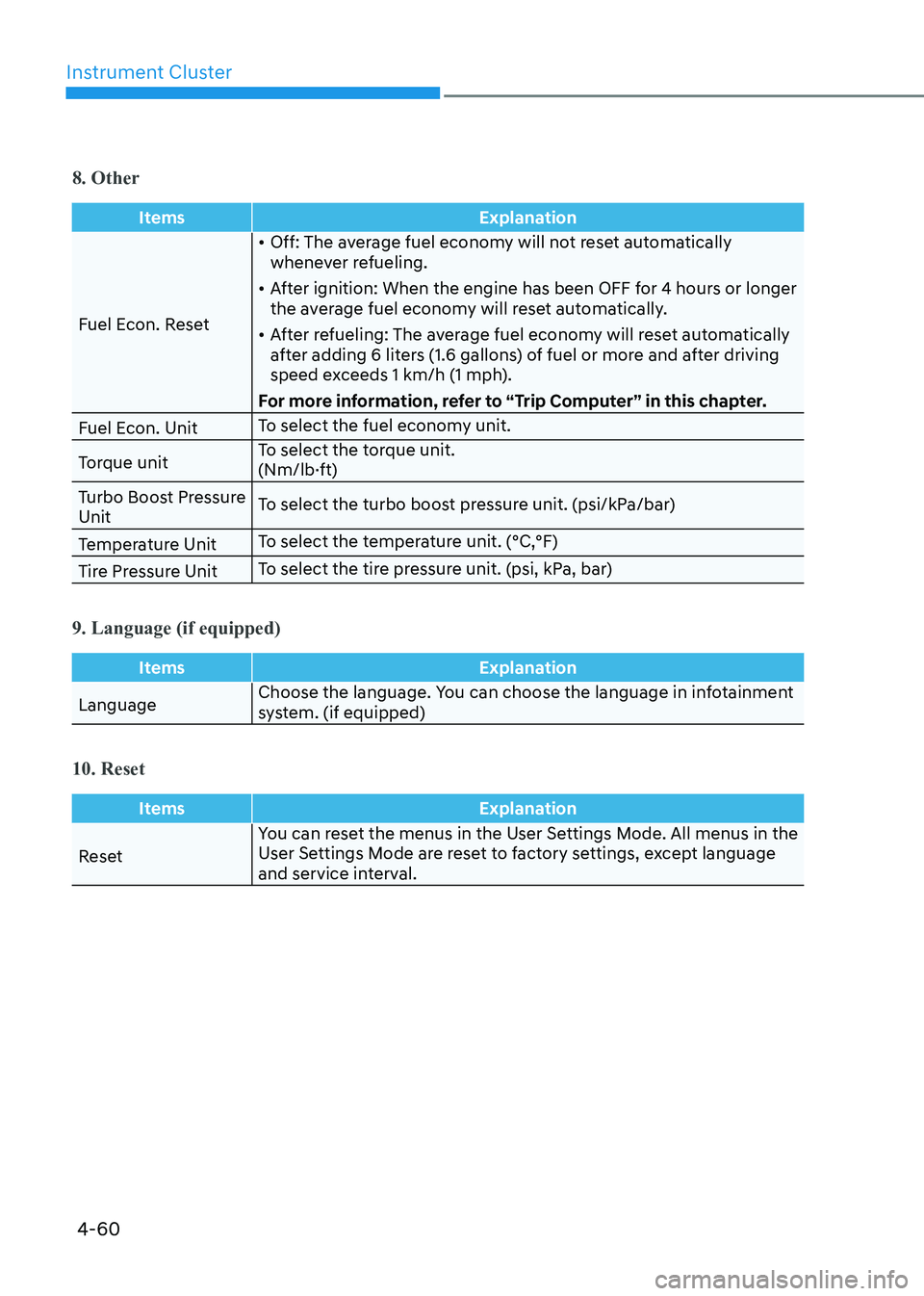
8. Other
ItemsExplanation
Fuel Econ. Reset•
Off: The average fuel economy will not reset automatically
whenever refueling.
• After ignition: When the engine has been OFF for 4 hours or longer
the average fuel economy will reset automatically.
• After refueling: The average fuel economy will reset automatically
after adding 6 liters (1.6 gallons) of fuel or more and after driving
speed exceeds 1 km/h (1 mph).
For more information, refer to “Trip Computer” in this chapter.
Fuel Econ. Unit To select the fuel economy unit.
Torque unit To select the torque unit.
(Nm/lb·ft)
Turbo Boost Pressure Unit To select the turbo boost pressure unit. (psi/kPa/bar)
Temperature Unit To select the temperature unit. (°C,°F)
Tire Pressure Unit To select the tire pressure unit. (psi, kPa, bar)
9. Language (if equipped)
Items
Explanation
LanguageChoose the language. You can choose the language in infotainment
system. (if equipped)
10. Reset
Items
Explanation
ResetYou can reset the menus in the User Settings Mode. All menus in the
User Settings Mode are reset to factory settings, except language
and service interval.
Page 150 of 555
Convenience Features
5-4
Remote Key (if equipped)
OIG046001
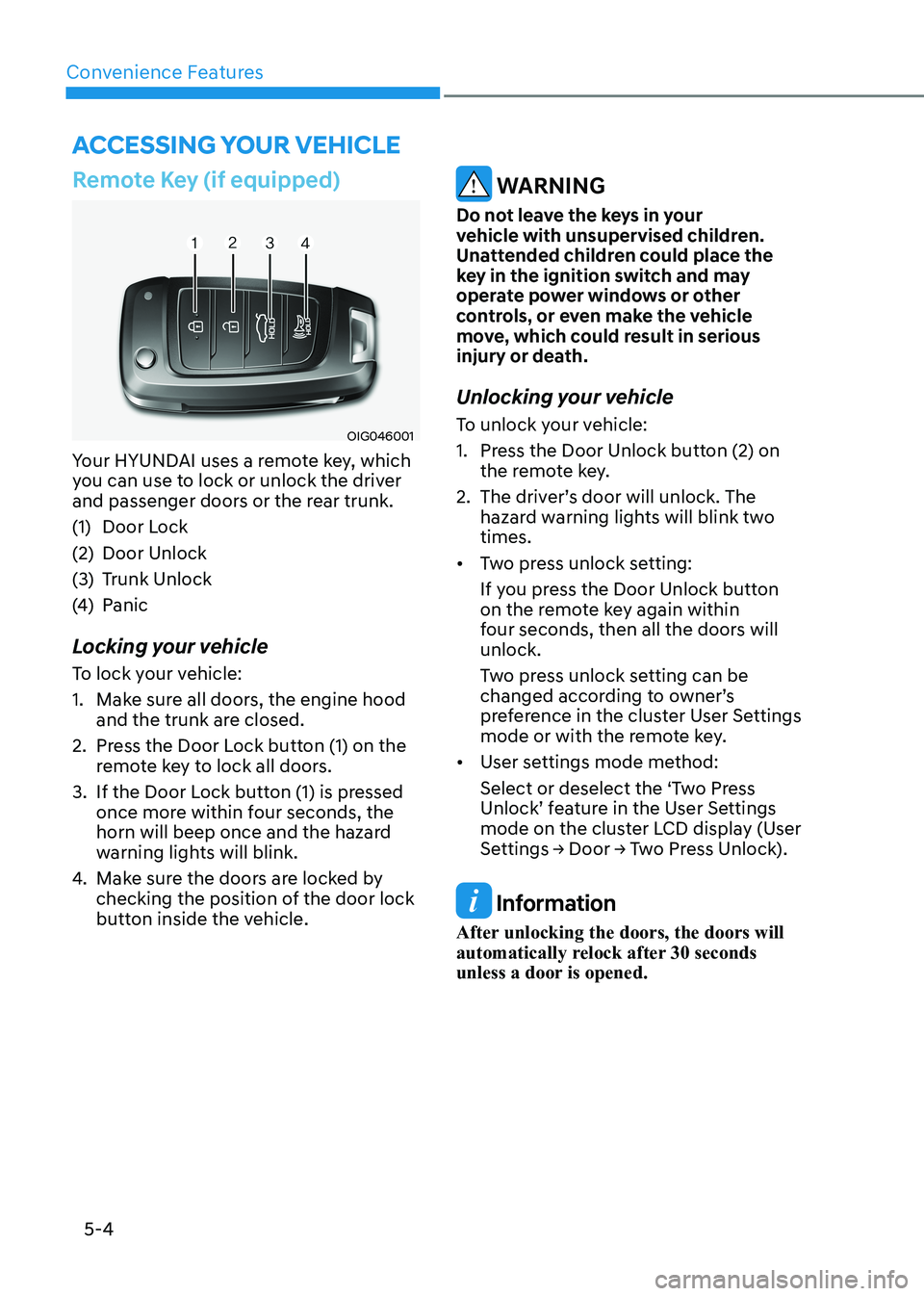
Your HYUNDAI uses a remote key, which
you can use to lock or unlock the driver
and passenger doors or the rear trunk.
(1) Door Lock
(2) Door Unlock
(3) Trunk Unlock
(4) Panic
Locking your vehicle
To lock your vehicle:
1. Make sure all doors, the engine hood and the trunk are closed.
2. Press the Door Lock button (1) on the remote key to lock all doors.
3. If the Door Lock button (1) is pressed once more within four seconds, the
horn will beep once and the hazard
warning lights will blink.
4. Make sure the doors are locked by
checking the position of the door lock
button inside the vehicle.
WARNING
Do not leave the keys in your
vehicle with unsupervised children.
Unattended children could place the
key in the ignition switch and may
operate power windows or other
controls, or even make the vehicle
move, which could result in serious
injury or death.
Unlocking your vehicle
To unlock your vehicle:
1. Press the Door Unlock button (2) on the remote key.
2. The driver’s door will unlock. The hazard warning lights will blink two times.
• Two press unlock setting:
If you press the Door Unlock button
on the remote key again within
four seconds, then all the doors will unlock.
Two press unlock setting can be
changed according to owner’s
preference in the cluster User Settings
mode or with the remote key.
• User settings mode method:
Select or deselect the ‘Two Press
Unlock’ feature in the User Settings
mode on the cluster LCD display (User
Settings → Door → Two Press Unlock).
Information
After unlocking the doors, the doors will
automatically relock after 30 seconds
unless a door is opened.
Accessing Your Vehicle
Page 151 of 555
05
5-5
Trunk unlocking
To unlock the trunk :
1. Press and hold the Trunk Unlock button (3) on the remote key for more than one second.
2. The hazard warning lights will blink two times and the trunk will be
unlocked.
3. Once the trunk is opened and then closed, the trunk will automatically
re-lock after 30 seconds.
Information
The word “HOLD” is written on the
button to inform you that you must press
and hold the button for more than one second.
Panic button (4)
Press and hold the Panic button (4) for
more than one second. The horn sounds
and hazard warning lights flash for about 30 seconds.
To cancel the panic mode, press any
button on the remote key.
Start-up
For information, refer to the “Key
Ignition Switch” section in chapter 6.
NOTICE
To prevent damaging the remote key: • Keep the remote key away from
water or any liquid and fire. Internal
circuits may malfunction if the inside
of the remote key gets damp (from
liquids or moisture) or if it is heated.
This can exclude the remote key from
being covered under warranty.
• Avoid dropping or throwing the
remote key.
• Protect the remote key from extreme
temperatures. Mechanical key
OIG046004
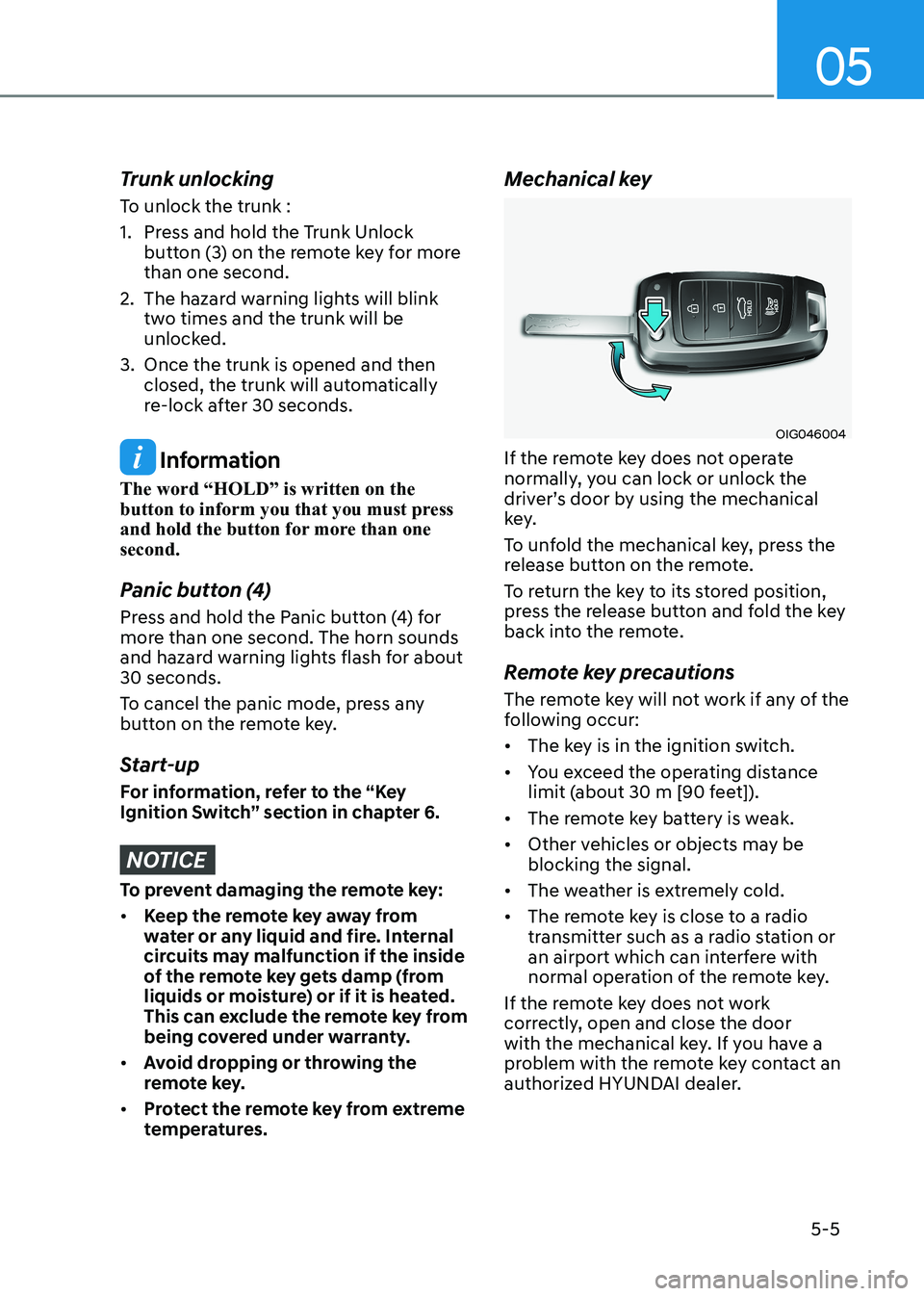
If the remote key does not operate
normally, you can lock or unlock the
driver’s door by using the mechanical
key.
To unfold the mechanical key, press the
release button on the remote.
To return the key to its stored position,
press the release button and fold the key
back into the remote.
Remote key precautions
The remote key will not work if any of the
following occur: • The key is in the ignition switch.
• You exceed the operating distance
limit (about 30 m [90 feet]).
• The remote key battery is weak.
• Other vehicles or objects may be blocking the signal.
• The weather is extremely cold.
• The remote key is close to a radio
transmitter such as a radio station or
an airport which can interfere with
normal operation of the remote key.
If the remote key does not work
correctly, open and close the door
with the mechanical key. If you have a
problem with the remote key contact an
authorized HYUNDAI dealer.
Page 155 of 555
05
5-9
Unlocking your vehicle
(When the Two Press Unlock feature
is off)
ODN8059001
„
„Button type
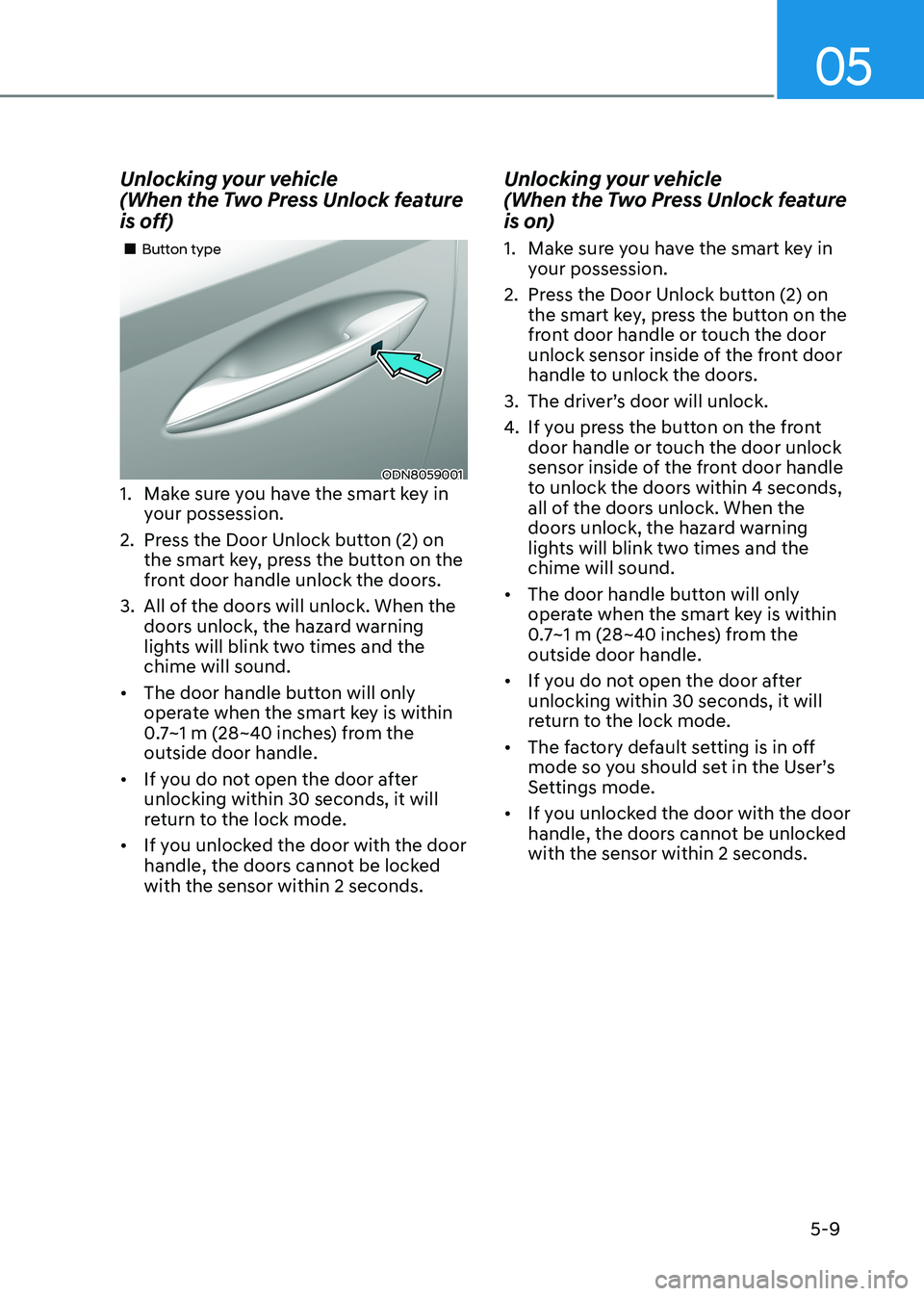
1. Make sure you have the smart key in your possession.
2. Press the Door Unlock button (2) on the smart key, press the button on the
front door handle unlock the doors.
3. All of the doors will unlock. When the doors unlock, the hazard warning
lights will blink two times and the chime will sound.
• The door handle button will only
operate when the smart key is within
0.7~1 m (28~40 inches) from the outside door handle.
• If you do not open the door after unlocking within 30 seconds, it will
return to the lock mode.
• If you unlocked the door with the door
handle, the doors cannot be locked with the sensor within 2 seconds. Unlocking your vehicle
(When the Two Press Unlock feature
is on)
1. Make sure you have the smart key in
your possession.
2. Press the Door Unlock button (2) on the smart key, press the button on the
front door handle or touch the door
unlock sensor inside of the front door
handle to unlock the doors.
3. The driver’s door will unlock.
4. If you press the button on the front
door handle or touch the door unlock
sensor inside of the front door handle
to unlock the doors within 4 seconds,
all of the doors unlock. When the
doors unlock, the hazard warning
lights will blink two times and the chime will sound.
• The door handle button will only
operate when the smart key is within
0.7~1 m (28~40 inches) from the outside door handle.
• If you do not open the door after unlocking within 30 seconds, it will
return to the lock mode.
• The factory default setting is in off
mode so you should set in the User’s
Settings mode.
• If you unlocked the door with the door
handle, the doors cannot be unlocked with the sensor within 2 seconds.
Page 156 of 555
Convenience Features
5-10
Two Press Unlock Feature
The priority for unlocking the driver door
only, or unlocking all the doors with
one press may be adjusted in the User
Settings mode in the cluster LCD display.
The Two Press Unlock feature, when
enabled, will require the user to press
the door unlock button once for driver
door only and twice for unlocking all the
doors.
Select or Deselect the Two Press Unlock
feature in the User Settings mode in the
cluster LCD display. The option can be
found under the following menu:
User Settings → Door → Two Press Unlock
The Two Press Unlock feature can also be
enabled or disabled by pressing the door
lock and unlock buttons simultaneously
on the Key FOB:
Press and hold both the Door Lock
button and the Door Unlock button
simultaneously until the hazard warning
lights blink.
This will enable or disable the Two Press
Unlock feature. Repeat this procedure to enable/disable the mode again.
Information
If you press the front passenger outside
door handle with the smart key in your possession, all the doors will unlock. Smart Key Reminder
If the smart key is in the vehicle and
any door is opened, the doors will not
lock even though the lock button of the
central door lock switch is pressed.
Trunk opening
To open:
1. Make sure you have the smart key
in your possession and either press
inside the trunk emblem or press the
Trunk Unlock button (3) on the smart
key for more than one second.
2. Once the trunk is opened, the hazard warning lights will blink two times.
• The trunk handle button will only
operate when the smart key is within
0.7~1 m (28~40 inches) from the outside door handle.
• Once the trunk is opened and then
closed, the trunk will automatically
re-lock and the hazard warning will blink once.
• If you leave the smart key and close
the trunk, the chime will sound for 5
seconds. In the case, the trunk cannot
be locked so open it with the trunk
handle button.
Panic button
Press and hold the Panic button (4) for
more than one second. The horn sounds
and hazard warning lights blink for about
30 seconds. To cancel the panic mode,
press any button on the Smart Key.