2023 HYUNDAI SONATA remote start
[x] Cancel search: remote startPage 241 of 555
05
5-95
How Remote Smart Parking
Assist System Works
Remote Moving Forward/Backward
Remote Moving Forward/Backward is
available with the driver outside the
vehicle. Make sure the conditions are
met before activating Remote Moving
Forward/Backward function. With the
function, you can park or exit the vehicle
and the procedure is as follows.
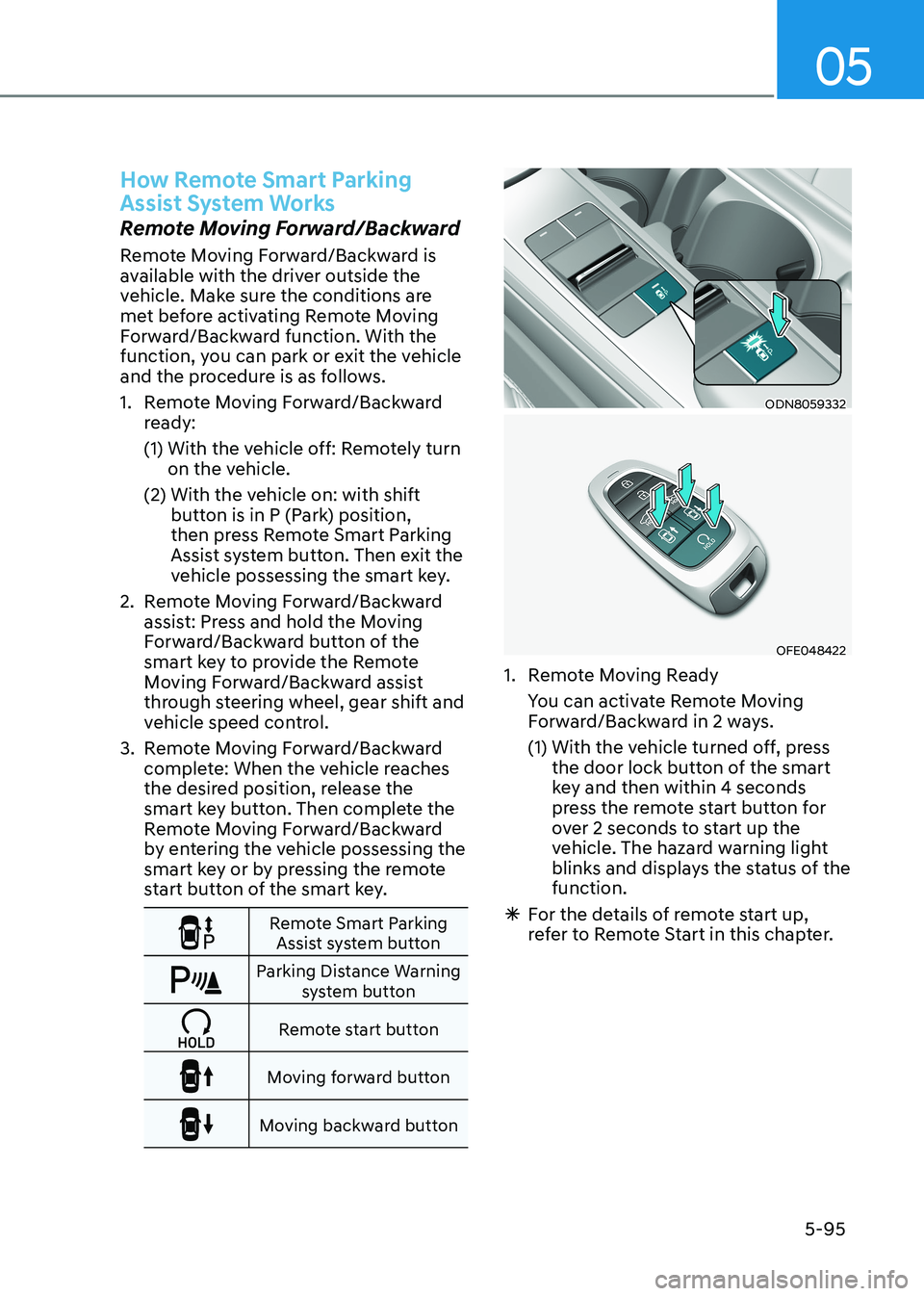
1. Remote Moving Forward/Backward ready:
(1) With the vehicle off: Remotely turn on the vehicle.
(2) With the vehicle on: with shift button is in P (Park) position,
then press Remote Smart Parking
Assist system button. Then exit the
vehicle possessing the smart key.
2. Remote Moving Forward/Backward assist: Press and hold the Moving
Forward/Backward button of the
smart key to provide the Remote
Moving Forward/Backward assist
through steering wheel, gear shift and
vehicle speed control.
3. Remote Moving Forward/Backward complete: When the vehicle reaches
the desired position, release the
smart key button. Then complete the
Remote Moving Forward/Backward
by entering the vehicle possessing the
smart key or by pressing the remote
start button of the smart key.
Remote Smart Parking Assist system button
Parking Distance Warning system button
Remote start button
Moving forward button
Moving backward button
ODN8059332
OFE048422
1. Remote Moving Ready
You can activate Remote Moving Forward/Backward in 2 ways.
(1) With the vehicle turned off, press the door lock button of the smart
key and then within 4 seconds
press the remote start button for
over 2 seconds to start up the
vehicle. The hazard warning light
blinks and displays the status of the function.
à For the details of remote start up,
refer to Remote Start in this chapter.
Page 244 of 555
Convenience Features
5-98
CAUTION
• The driver should check for obstacles
in directly around the vehicle.
• The function may be cancelled if you
attach something (cover, etc.) to the
steering wheel.
• Make sure all the passengers exit the
vehicle when the Remote Moving
Forward/Backward is in activation.
• Make sure all the smart keys are
outside the vehicle when the Remote
Moving Forward/Backward assist is
in activation.
• The detection range of the smart key
can be differed by the surroundings
(ex: Indoor/outdoor, strong electric
field area)
• If the parking distance warning
sounds three consecutive times
during operating the Remote Moving
Forward/Backward system, you
should not move your vehicle in that
direction since the objects are too
close. The driver should operate the
vehicle manually. To cancel the Remote Moving
Forward/Backward while in
operation
1. Press the remote start button on the
smart key.
2. The driver should press Remote Smart Parking Assist system button while
Remote Moving Forward/Backward is
instructed.
3. The driver should shift the gear besides P (parking) while Remote
Moving Forward/Backward is
instructed.
4. The driver should press Parking
Distance Warning system button
while the Remote Moving Forward/
Backward is instructed.
5. During Remote Moving Forward/ Backward operation, the vehicle
turns off when the driver presses the
remote start button on the smart key.
6. The function is cancelled but the vehicle stays on when the driver
enters the vehicle with the smart key
and all the doors are open.
Page 245 of 555

05
5-99
The Remote Moving Forward/
Backward assist will stop
temporarily when:
1. An obstacle is detected at the
direction the vehicle is heading.
2. The door or trunk is opened.
3. The moving forward/backward button on the smart key is released.
4. Multiple buttons on the smart key are
pressed at the same time.
5. The distance between the smart key and vehicle is over 4 m (13 ft.).
6. A button on the other smart key is pressed during operation.
7. Rear Cross-Traffic Collision-Avoidance
Assist system is activated while
reserving.
8. The vehicle moves 7 m (23 ft.) with the Remote Moving Forward/Backward
while the smart key is pressed.
(Maximum travel distance per move)
à The vehicle stops when the Remote
Smart Parking Assist system will stop
temporarily and the function will
resume when the above condition is
cleared.
The Remote Moving Forward/
Backward assist is cancelled while
in operation when:
1. The driver holds the steering wheel while the steering wheel is controlled.
2. The gear is shifted or the Electronic Parking Brake (EPB) is activated.
3. The hood opens.
4. The vehicle speed exceeds 5km/h (3
mph).
5. The vehicle accelerates suddenly.
6. The vehicle slips back while controlling the vehicle speed.
7. The wheel is stuck and the vehicle is
unable to move. 8. About 3 minutes and 50 seconds
have passed after the Remote Moving
Forward/Backward assist starts.
9. The gradient of the road exceeds
the range supported by the Remote
Moving Forward/Backward assist.
10. The steering, shifting gear and drive assist are difficult.
11. The suspended status lasts for over 1 minute.
12. The driver continuously presses and releases the smart key’s moving
forward/backward button over 10 times.
13. The Traction Control System (TCS) is activated while controlling the vehicle speed.
14. The smart key is damaged.
15. The accelerator/brake pedal is depressed while all the doors are closed.
16. The brake pedal is depressed while the driver’s door is open and the
smart key is outside the vehicle.
17. The vehicle travels more than 14 m (46 ft.) after the Remote Moving
Forward/Backward assist is activated.
18. The theft alarm system is activated.
à When the Remote Moving Forward/
Backward is completed, the gear in
P(Park) and Electronic Parking Brake
(EPB) are engaged automatically and
the vehicle turns off.
à The frequent beep sounds are
generated to show the deactivation
status.
Page 248 of 555
Convenience Features
5-102
Link with other systems
Activation of other systems may
be restricted according to the
circumstances while Remote Smart
Parking Assist system is in activation.
The systems linked to the Remote Smart
Parking Assist system are as follows:
1. Idle Stop & Go
(1) While Remote Smart Parking
Assist system is operating, ISG is
deactivated.
(2) If Remote Smart Parking Assist system is completed or cancelled,
ISG can be activated.
2. Auto Hold
(1) The activated Auto Hold is switched to deactivation status
when Remote Smart Parking Assist
system starts.
(2) The Auto Hold button will not respond while Remote Smart
Parking Assist system is in
activation.
(3) After Remote Smart Parking Assist system is completed or
deactivated, the Auto Hold will
return to the status before Remote
Smart Parking Assist system was
activated.
3. Electronic Stability Control (ESC)
(1) Electronic Stability Control (ESC) system switches from OFF to
activation status (ESC OFF button
turns off) when Remote Smart
Parking Assist system is activated.
(2) The ESC OFF button will not respond while Remote Smart
Parking Assist system is in
activation.
(3) The ABS/TCS/ESC system activates while Remote Smart Parking Assist
system is in activation.
(4) After Remote Smart Parking Assist system is completed or
deactivated, the ESC maintains the
ON status.
How the Remote Moving
Forward/Backward System
Works
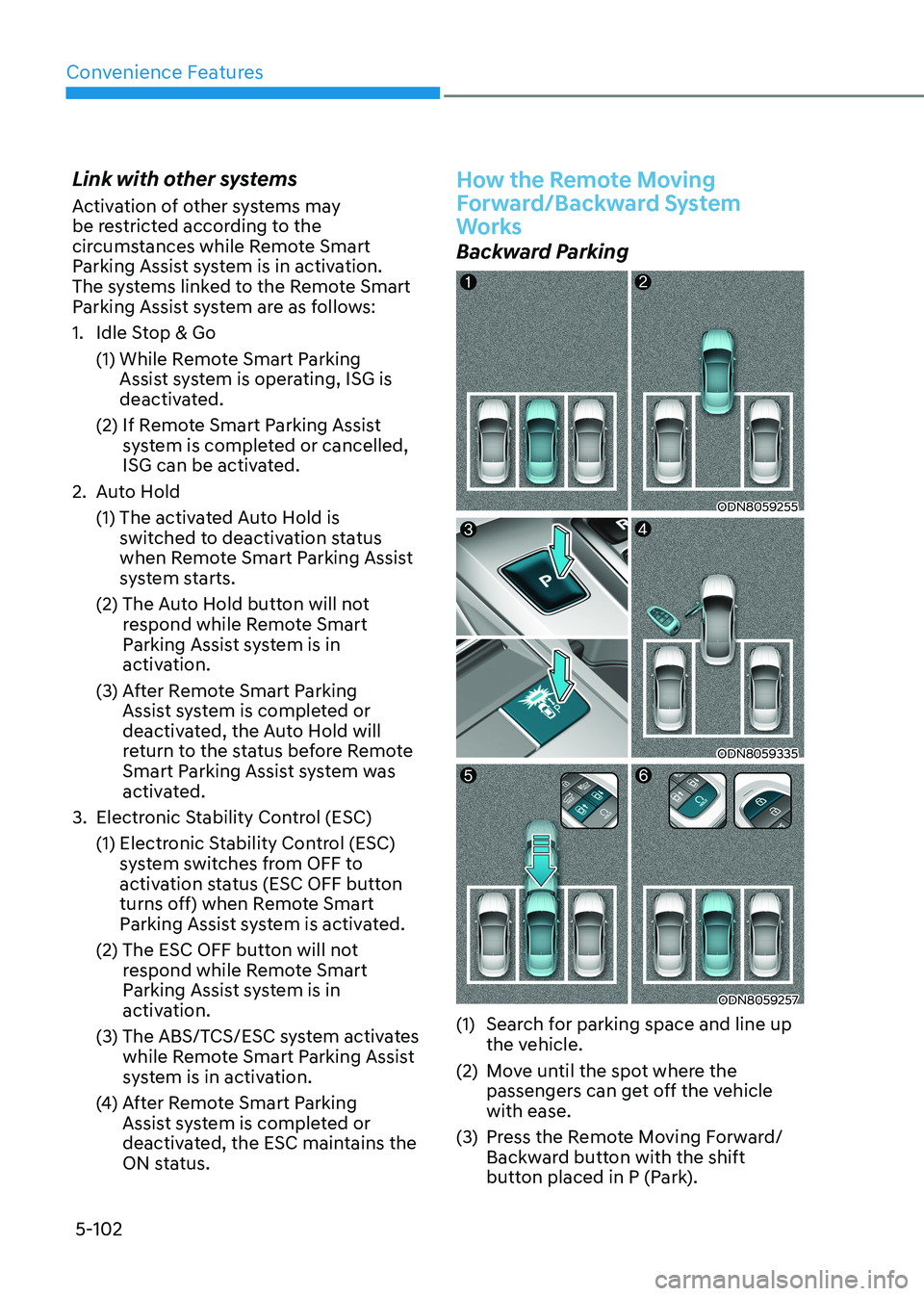
Backward Parking
ODN8059255
ODN8059335
ODN8059257
(1) Search for parking space and line up the vehicle.
(2) Move until the spot where the passengers can get off the vehicle with ease.
(3) Press the Remote Moving Forward/ Backward button with the shift
button placed in P (Park).
Page 281 of 555
![HYUNDAI SONATA 2023 Owners Manual 05
5-135
Wireless Cellular Phone
Charging System (if equipped)
ODN8059223
[A]: Indicator light, [B]: Charging pad
On certain models, the vehicle comes
equipped with a wireless cellular phone
cha](/manual-img/35/56185/w960_56185-280.png "HYUNDAI SONATA 2023 Owners Manual 05
5-135
Wireless Cellular Phone
Charging System (if equipped)
ODN8059223
[A]: Indicator light, [B]: Charging pad
On certain models, the vehicle comes
equipped with a wireless cellular phone
cha")
05
5-135
Wireless Cellular Phone
Charging System (if equipped)
ODN8059223
[A]: Indicator light, [B]: Charging pad
On certain models, the vehicle comes
equipped with a wireless cellular phone
charger.
The system is available when all doors
are closed, and when the ignition switch is ON.
To charge a cellular phone
The wireless cellular phone charging
system charges only the Qi-enabled
cellular phones. Read the label on the
cellular phone accessory cover or visit
your cellular phone manufacturer’s
website to check whether your cellular
phone supports the Qi technology.
The wireless charging process starts
when you put a Qi-enabled cellular
phone on the wireless charging unit.
1. Remove other items, including the smart key, from the wireless charging
unit. If not, the wireless charging
process may be interrupted. Place
the cellular phone on the center of
the charging pad (
).
2. The indicator light is orange when the cellular phone is charging. The
indicator light turns green when
phone charging is complete.
3. You can turn ON or OFF the wireless charging function in the user settings
mode on the instrument cluster. For
further information, refer to the “LCD
Display Modes” in this chapter.
If your cellular phone is not charging:
- Slightly change the position of the cellular phone on the charging pad.
- Make sure the indicator light is orange.
The indicator light will blink orange for 10
seconds if there is a malfunction in the
wireless charging system.
In this case, temporarily stop the
charging process, and re-attempt to
charge your cellular phone again.
The system warns you with a message
on the LCD display if the cellular phone
is still on the wireless charging unit after
the engine is turned OFF and the front door is opened.
Information
For some manufacturers’ cellular phones, the system may not warn you even though
the cellular phone is left on the wireless
charging unit. This is due to the particular
characteristic of the cellular phone and
not a malfunction of the wireless charging.
NOTICE
• The wireless cellular phone charging system may not support certain
cellular phones, which are not
verified for the Qi specification (
).
• When placing your cellular phone on the charging mat, position the
phone in the middle of the mat for
optimal charging performance. If
your cellular phone is off to the side,
the charging rate may be less and in
some cases the cellular phone may
experience higher heat conduction.
• In some cases, the wireless charging may stop temporarily when the
Remote Key or Smart Key is used,
either when starting the vehicle or
locking/unlocking the doors, etc.
• When charging certain cellular phones, the charging indicator
may not change to green when the
cellular phone is fully charged.
Page 288 of 555
6
6. While Driving
Before Driving ................................................................................................ 6-5
Before Entering the Vehicle ..................................................................................... 6-5
Before Starting ......................................................................................................... 6-5
Ignition Switch ............................................................................................... 6-6
Key Ignition Switch .................................................................................................. 6-6
Engine Start/Stop Button ........................................................................................ 6-9
Remote Start ............................................................................................................ 6-12
Automatic Transmission ............................................................................... 6-13
Automatic Transmission Operation ........................................................................ 6-13
Parking ..................................................................................................................... 6-16
LCD Display Message .............................................................................................. 6-17
Good Driving Practices .......................................................................................... 6-18
Paddle Shifter (Manual Shift Mode) ...................................................................... 6-19
Dual Clutch Transmission ........................................................................... 6-20
Dual Clutch Transmission Operation .................................................................... 6-20
Parking .................................................................................................................... 6-27
LCD Display Message (Button Type) ..................................................................... 6-27
Good Driving Practices ......................................................................................... 6-29
Brake System ................................................................................................ 6-30
Power Brakes .......................................................................................................... 6-30
Disc Brakes Wear Indicator.................................................................................... 6-30
Electronic Parking Brake (EPB) ............................................................................... 6-31
Auto Hold ................................................................................................................ 6-34
Anti-Lock Brake System (ABS) ............................................................................... 6-37
Electronic Stability Control (ESC) ......................................................................... 6-39
Vehicle Stability Management (VSM) .................................................................... 6-41
Hill-Start Assist Control (HAC) ............................................................................... 6-42
Good Braking Practices ......................................................................................... 6-42
Launch Control ............................................................................................. 6-43
Launch Control Operation and Release ................................................................6-43
Launch Control Limitation ..................................................................................... 6-44
Drive Mode Integrated Control System .....................................................6-45
Drive Mode ............................................................................................................. 6-45
Vehicle Characteristic ............................................................................................ 6-49
Page 299 of 555
While Driving
6-12
NOTICE
To prevent damage to the vehicle:
When the stop lamp switch fuse is
blown, you can't start the engine
normally. Replace the fuse with a new
one. If you are not able to replace
the fuse, you can start the engine by
pressing and holding the Engine Start/
Stop button for 10 seconds with the
Engine Start/Stop button in the ACC position.
Do not press the Engine Start/Stop
button for more than 10 seconds except
when the stop lamp switch fuse is
blown.
For your safety always depress the
brake pedal before starting the engine.
ODN8069002
Information
If the smart key battery is weak or the
smart key does not work correctly, you
can start the engine by pressing the Engine Start/Stop button with the smart key in
the direction of the picture above.
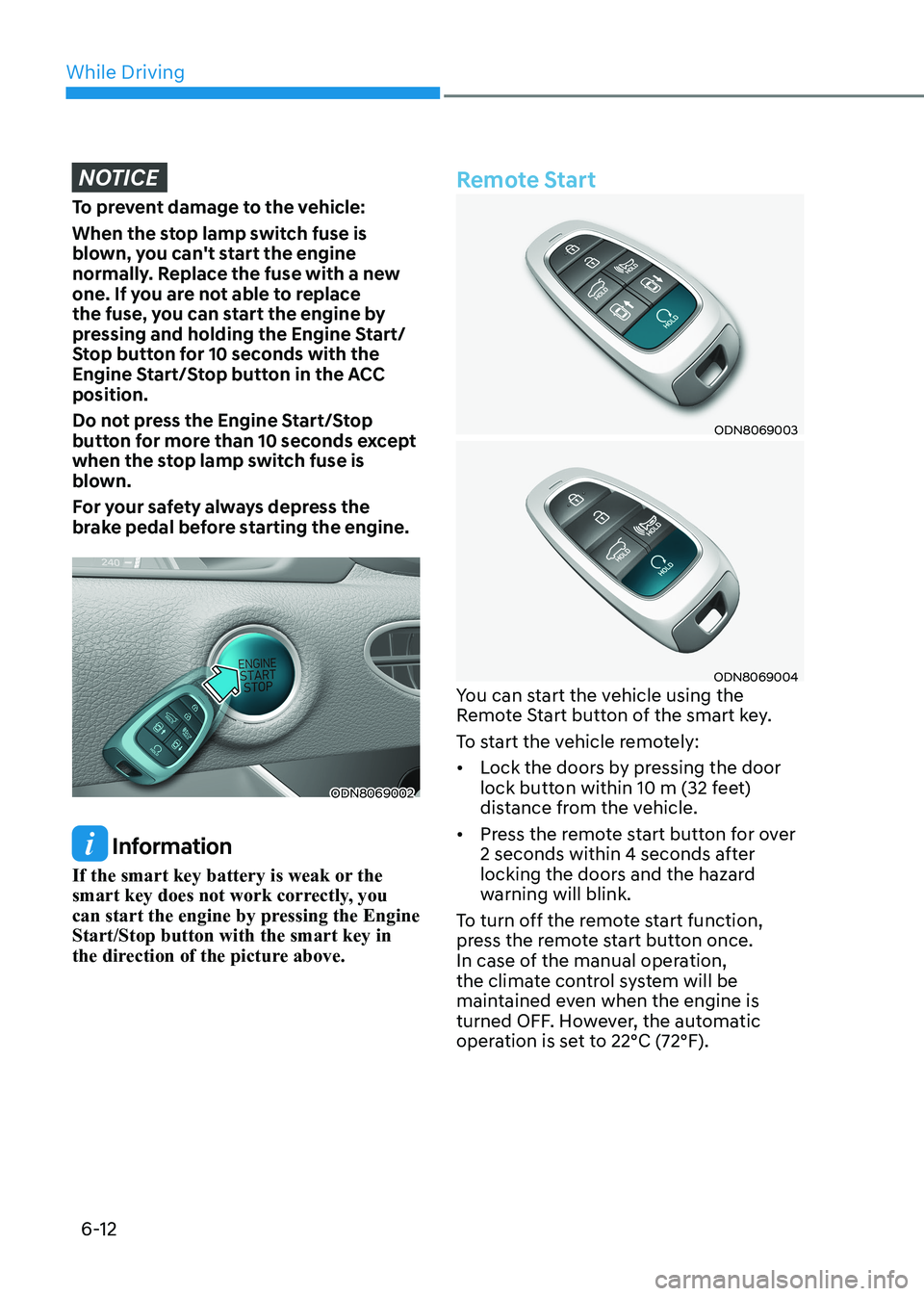
Remote Start
ODN8069003
ODN8069004
You can start the vehicle using the
Remote Start button of the smart key.
To start the vehicle remotely:• Lock the doors by pressing the door
lock button within 10 m (32 feet)
distance from the vehicle.
• Press the remote start button for over
2 seconds within 4 seconds after
locking the doors and the hazard
warning will blink.
To turn off the remote start function,
press the remote start button once.
In case of the manual operation,
the climate control system will be
maintained even when the engine is
turned OFF. However, the automatic
operation is set to 22°C (72°F).
Page 459 of 555

07
7-11
TPMS Malfunction
Indicator
The TPMS Malfunction Indicator
will illuminate after it blinks for
approximately one minute when there
is a problem with the Tire Pressure
Monitoring System.
Have the system checked by an
authorized HYUNDAI dealer as soon as possible.
NOTICE
If there is a malfunction with the
TPMS, the individual tire pressures
in the cluster LCD display will not be
available. Have the system checked by
an authorized HYUNDAI dealer as soon as possible.
NOTICE
The TPMS Malfunction Indicator may
illuminate after blinking for one minute
if the vehicle is near electric power
supply cables or radio transmitters
such as police stations, government
and public offices, broadcasting
stations, military installations, airports,
transmitting towers, etc.
Additionally, the TPMS Malfunction
Indicator may illuminate if snow chains
are used or electronic devices such as
computers, chargers, remote starters,
navigation, etc. This may interfere with
normal operation of the TPMS.
Changing a Tire with TPMS
If you have a flat tire, the Low Tire
Pressure and LCD position indicator will
come on. Have the flat tire repaired by an
authorized HYUNDAI dealer as soon as
possible or replace the flat tire with the
spare tire. (if equipped)
CAUTION
It is recommended that you do not use a
puncture-repairing agent not approved
by HYUNDAI dealer to repair and/or
inflate a low pressure tire. Tire sealant
not approved by HYUNDAI dealer may
damage the tire pressure sensor.
The spare tire does not come with a
tire pressure monitoring sensor. When
the low pressure tire or the flat tire is
replaced with the spare tire, the Low
Tire Pressure LCD position indicator will
remain on. Also, the TPMS Malfunction
Indicator will illuminate after blinking
for one minute if the vehicle is driven
at speed above 25 km/h (15.5 mph) for
approximately 20 minutes. Once the
original tire equipped.
Once the original tire equipped with
a tire pressure monitoring sensor is
reinflated to the recommended pressure
and reinstalled on the vehicle, the Low
Tire Pressure LCD position indicator and
TPMS Malfunction Indicator will go off
within a few minutes of driving.
If the indicators do not disappear after a
few minutes, please visit an authorized
HYUNDAI dealer.