Page 149 of 533

3-66
Convenient features of your vehicle
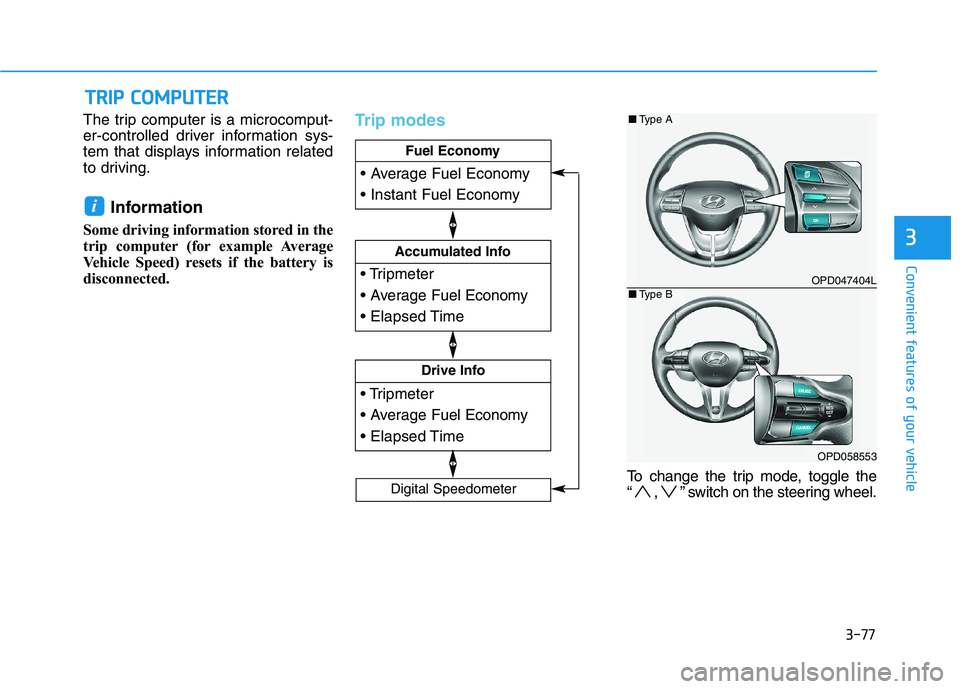
Low Pressure (if equipped)
This warning message is displayed if
the tyre pressure is low. The corre-
sponding tyre on the vehicle will be
illuminated.
For more details, refer to "Tyre
Pressure Monitoring System (TPMS)"
in chapter 6.
Turn on FUSE SWITCH
This warning message is displayed if
the fuse switch located on the fuse
box under the steering wheel is OFF.
You should turn the fuse switch on.
For more details, refer to “Fuses”
in chapter 7.
Low washer fluid (if equipped)
This warning message is displayed
if the washer fluid level in the reser-
voir is nearly empty.
Have the washer fluid reservoir
refilled.
Low fuel
This warning message is displayed if
the fuel tank is almost out of fuel.
When this message is displayed, the
low fuel level warning light in the
cluster will come on.
It is recommended to look for the
nearest service station and refuel as
soon as possible.
Add fuel as soon as possible.
Engine has overheated
(if equipped)
This warning message is displayed
when the engine coolant tempera-
ture is above 120°C (248°F). This
means that the engine is overheated
and may be damaged.
If your vehicle is overheated, refer
to “Overheating” in chapter 6.
OPDE046119OPD067005L
Page 160 of 533
3-77
Convenient features of your vehicle
3
The trip computer is a microcomput-
er-controlled driver information sys-
tem that displays information related
to driving.
Information
Some driving information stored in the
trip computer (for example Average
Vehicle Speed) resets if the battery is
disconnected.
Trip modes
To change the trip mode, toggle the
“ , ” switch on the steering wheel.
i
T TR
RI
IP
P
C
CO
OM
MP
PU
UT
TE
ER
R
Drive Info
Accumulated Info
Fuel Economy
Digital Speedometer
OPD047404L
OPD058553
■Type A
■Type B
Page 161 of 533
3-78
Convenient features of your vehicle
Fuel economy
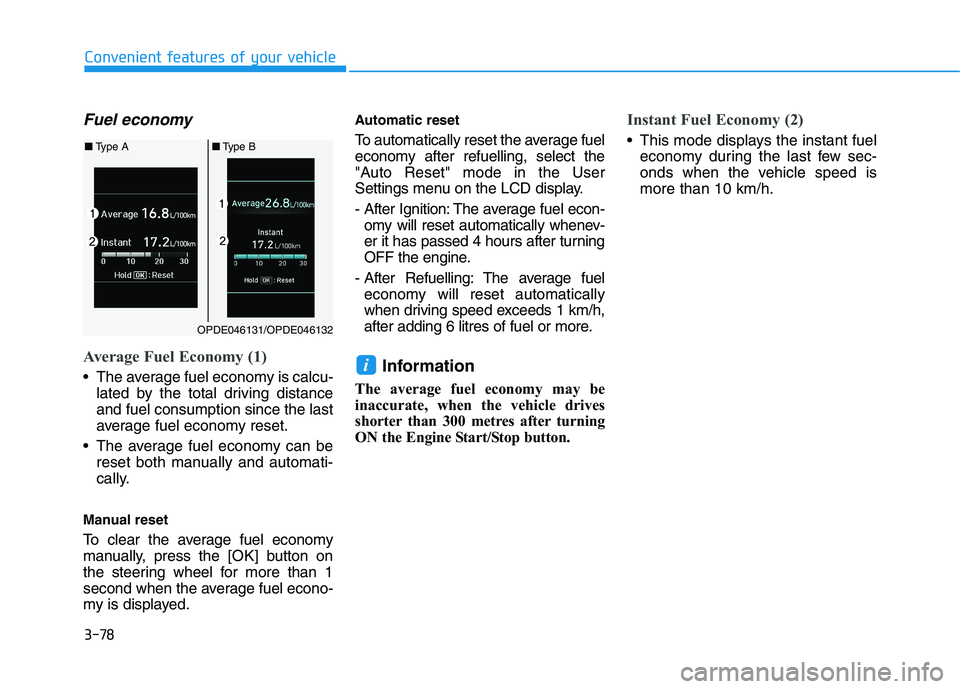
Average Fuel Economy (1)
The average fuel economy is calcu-
lated by the total driving distance
and fuel consumption since the last
average fuel economy reset.
The average fuel economy can be
reset both manually and automati-
cally.
Manual reset
To clear the average fuel economy
manually, press the [OK] button on
the steering wheel for more than 1
second when the average fuel econo-
my is displayed.
Automatic reset
To automatically reset the average fuel
economy after refuelling, select the
"Auto Reset" mode in the User
Settings menu on the LCD display.
- After Ignition: The average fuel econ-
omy will reset automatically whenev-
er it has passed 4 hours after turning
OFF the engine.
- After Refuelling: The average fuel
economy will reset automatically
when driving speed exceeds 1 km/h,
after adding 6 litres of fuel or more.
Information
The average fuel economy may be
inaccurate, when the vehicle drives
shorter than 300 metres after turning
ON the Engine Start/Stop button.
Instant Fuel Economy (2)
This mode displays the instant fuel
economy during the last few sec-
onds when the vehicle speed is
more than 10 km/h.
i
OPDE046131/OPDE046132
■Type A■Type B
Page 167 of 533
3-84
One-touch turn signal function
To activate a one-touch turn signal
function, move the turn signal lever
slightly and then release it. The lane
change signals will blink 3, 5 or 7
times.
You can activate/deactivate the One
Touch Turn Signal function or choose
the number of blinks (3, 5, or 7) from
the User Settings mode on the LCD
display.For more details, refer to
"LCD Display" in this chapter.
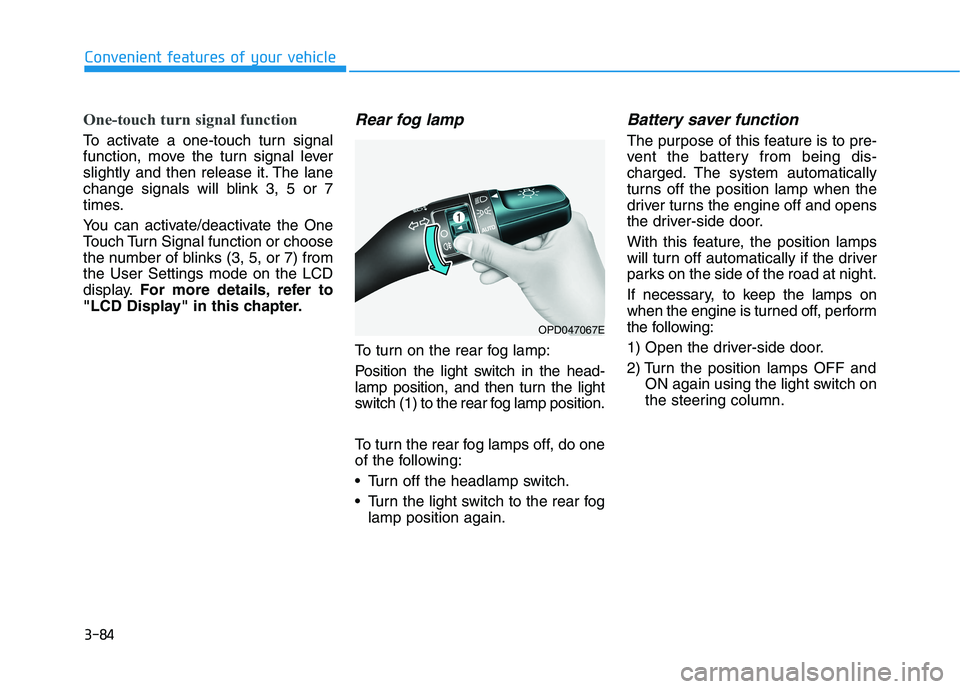
Rear fog lamp
To turn on the rear fog lamp:
Position the light switch in the head-
lamp position, and then turn the light
switch (1) to the rear fog lamp position.
To turn the rear fog lamps off, do one
of the following:
• Turn off the headlamp switch.
Turn the light switch to the rear fog
lamp position again.
Battery saver function
The purpose of this feature is to pre-
vent the battery from being dis-
charged. The system automatically
turns off the position lamp when the
driver turns the engine off and opens
the driver-side door.
With this feature, the position lamps
will turn off automatically if the driver
parks on the side of the road at night.
If necessary, to keep the lamps on
when the engine is turned off, perform
the following:
1) Open the driver-side door.
2) Turn the position lamps OFF and
ON again using the light switch on
the steering column.
Convenient features of your vehicle
OPD047067E
Page 226 of 533
Multimedia System
Multimedia system .................................................4-2
AUX, USB and iPod®port ................................................4-2
Antenna ...............................................................................4-3
Steering wheel audio controls .......................................4-4
Bluetooth
®Wireless Technology hands-free ...........4-5
Audio / Video / Navigation system (AVN) ..................4-5
How vehicle radio works .................................................4-5
Audio (With Touch Screen) ..................................4-9
Features of Your Audio .................................................4-10
Radio .................................................................................4-18
Media..................................................................................4-20
Phone .................................................................................4-31
Setup ..................................................................................4-39
4
Page 229 of 533
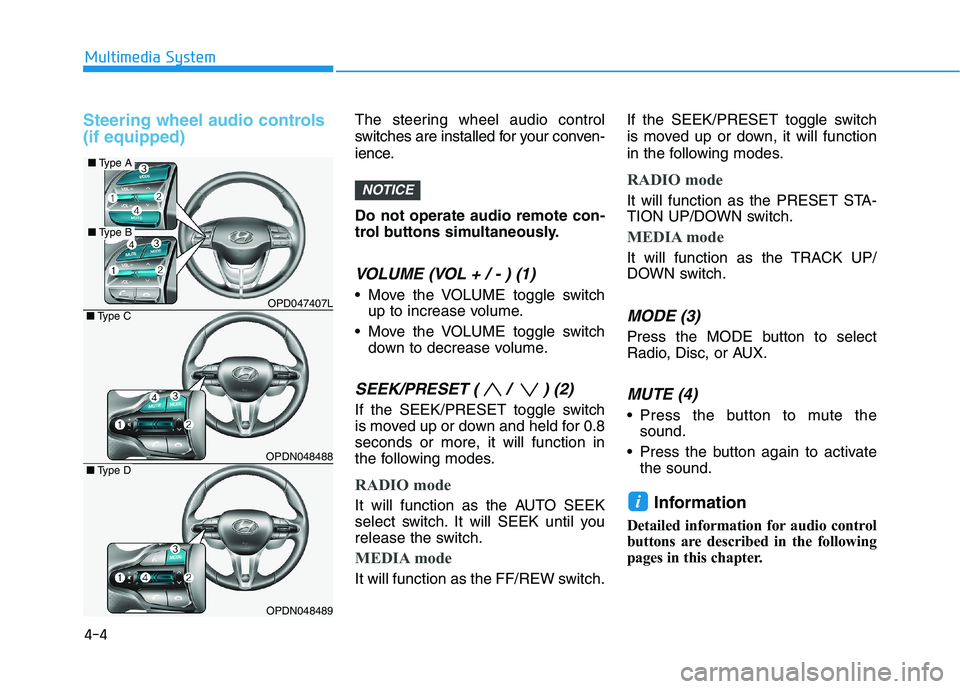
Steering wheel audio controls
(if equipped)The steering wheel audio control
switches are installed for your conven-
ience.
Do not operate audio remote con-
trol buttons simultaneously.
VOLUME (VOL + / - ) (1)
Move the VOLUME toggle switch
up to increase volume.
Move the VOLUME toggle switch
down to decrease volume.
SEEK/PRESET ( / ) (2)
If the SEEK/PRESET toggle switch
is moved up or down and held for 0.8
seconds or more, it will function in
the following modes.
RADIO mode
It will function as the AUTO SEEK
select switch. It will SEEK until you
release the switch.
MEDIA mode
It will function as the FF/REW switch.If the SEEK/PRESET toggle switch
is moved up or down, it will function
in the following modes.
RADIO mode
It will function as the PRESET STA-
TION UP/DOWN switch.
MEDIA mode
It will function as the TRACK UP/
DOWN switch.
MODE (3)
Press the MODE button to select
Radio, Disc, or AUX.
MUTE (4)
Press the button to mute the
sound.
Press the button again to activate
the sound.
Information
Detailed information for audio control
buttons are described in the following
pages in this chapter.
i
NOTICE
4-4
Multimedia System
OPD047407L
OPDN048488
OPDN048489
■Type C
■Type D
■Type A
■Type B
Page 240 of 533
4-15
Multimedia System
4
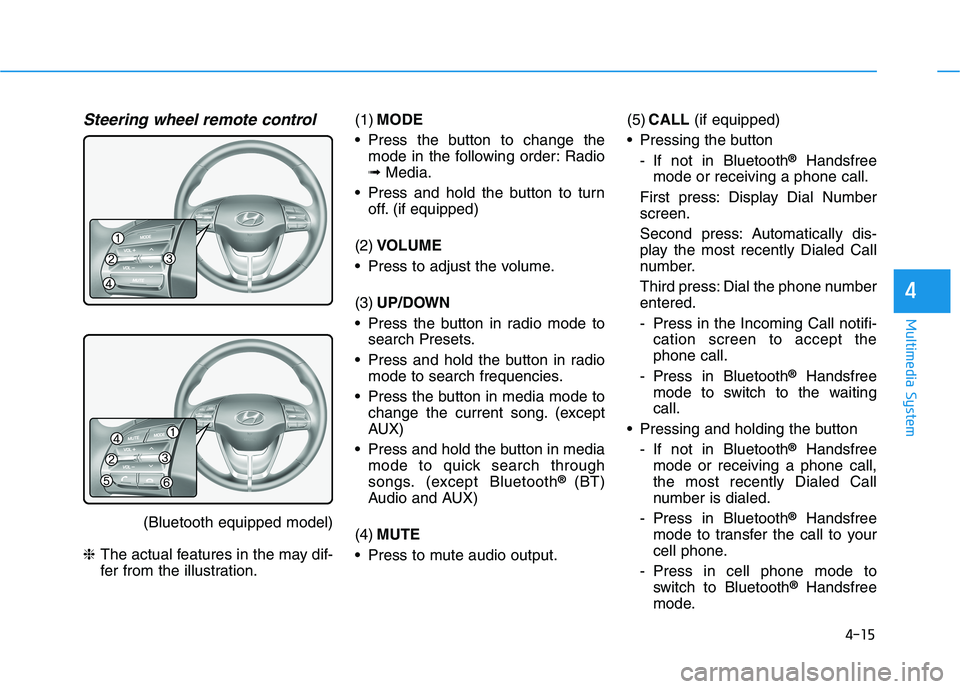
Steering wheel remote control
(Bluetooth equipped model)
❈The actual features in the may dif-
fer from the illustration.(1)MODE
Press the button to change the
mode in the following order: Radio
➟Media.
Press and hold the button to turn
off. (if equipped)
(2)VOLUME
Press to adjust the volume.
(3)UP/DOWN
Press the button in radio mode to
search Presets.
Press and hold the button in radio
mode to search frequencies.
Press the button in media mode to
change the current song. (except
AUX)
Press and hold the button in media
mode to quick search through
songs. (except Bluetooth
® (BT)
Audio and AUX)
(4)MUTE
Press to mute audio output.(5)CALL(if equipped)
Pressing the button
- If not in Bluetooth
®Handsfree
mode or receiving a phone call.
First press: Display Dial Number
screen.
Second press: Automatically dis-
play the most recently Dialed Call
number.
Third press: Dial the phone number
entered.
- Press in the Incoming Call notifi-
cation screen to accept the
phone call.
- Press in Bluetooth
®Handsfree
mode to switch to the waiting
call.
Pressing and holding the button
- If not in Bluetooth
®Handsfree
mode or receiving a phone call,
the most recently Dialed Call
number is dialed.
- Press in Bluetooth
®Handsfree
mode to transfer the call to your
cell phone.
- Press in cell phone mode to
switch to Bluetooth
®Handsfree
mode.
Page 259 of 533
![HYUNDAI I30 2023 Owners Manual 4-34
Multimedia System
Pairing the first Bluetooth®device
Press the [PHONE]button on the
audio system or the [CALL]button
on the steering wheel remote control
➟Search for the vehicle from the
Bluet](/manual-img/35/56144/w960_56144-258.png "HYUNDAI I30 2023 Owners Manual 4-34
Multimedia System
Pairing the first Bluetooth®device
Press the [PHONE]button on the
audio system or the [CALL]button
on the steering wheel remote control
➟Search for the vehicle from the
Bluet")
4-34
Multimedia System
Pairing the first Bluetooth®device
Press the [PHONE]button on the
audio system or the [CALL]button
on the steering wheel remote control
➟Search for the vehicle from the
Bluetooth
®device, and pair ➟Enter
the passkey on the Bluetooth®
device or approve passkey ➟
Bluetooth®pairing completed.
1. When the [PHONE]button on the
audio or the [CALL]button on the
steering wheel remote control is
pressed, the following screen is
displayed. Devices can now be
paired.
(1) Vehicle Name: Searched name in
Bluetooth
®device.
Information
The vehicle name in the image above
is an example. Refer to your device for
the actual name of your device.
2. Search for available Bluetooth
®
devices in the Bluetooth®menu of
your Bluetooth®device (mobile
phone, etc.).
3. Confirm that the vehicle name in
your Bluetooth
®device matches
the vehicle name shown on the
audio screen, then select it.
4-1. For devices that require passkey
entry, a passkey entry screen is
shown on your Bluetooth
®
device.
- Enter the passkey ‘0000’, in your
Bluetooth
®device.4-2. For devices that require passkey
confirmation, the following
screen is shown on the audio
system. A 6-digit passkey input
screen is shown in the
Bluetooth
®device.
- After confirming that the 6-digit
passkey on the audio screen
and the Bluetooth
®device are
identical, select [OK] in your
Bluetooth
®device.
Information
The 6-digit passkey in the image
above is an example. Refer to your
vehicle for the actual passkey.
i
i