Page 167 of 664
165
uuOperating the Switches Around the Steering Wheel uENGINE START/STOP Button
Controls
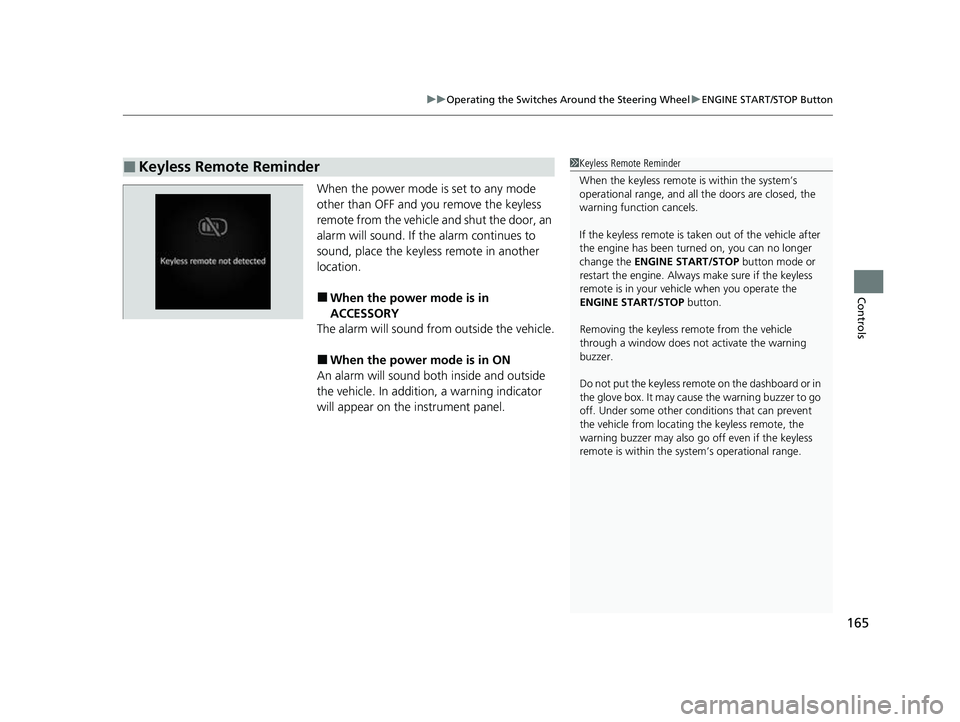
When the power mode is set to any mode
other than OFF and yo u remove the keyless
remote from the vehicle and shut the door, an
alarm will sound. If the alarm continues to
sound, place the keyless remote in another
location.
■When the power mode is in
ACCESSORY
The alarm will sound from outside the vehicle.
■When the power mode is in ON
An alarm will sound both inside and outside
the vehicle. In additi on, a warning indicator
will appear on the instrument panel.
■Keyless Remote Reminder1 Keyless Remote Reminder
When the keyless remote is within the system’s
operational range, and all the doors are closed, the
warning function cancels.
If the keyless remote is taken out of the vehicle after
the engine has been turned on, you can no longer
change the ENGINE START/STOP button mode or
restart the engine. Always make sure if the keyless
remote is in your vehi cle when you operate the
ENGINE START/STOP button.
Removing the keyless remote from the vehicle
through a window does not activate the warning
buzzer.
Do not put the keyless remo te on the dashboard or in
the glove box. It may cause the warning buzzer to go
off. Under some other cond itions that can prevent
the vehicle from locating the keyless remote, the
warning buzzer may also go off even if the keyless
remote is within the system’s operational range.
23 HR-V-313V06000_01.book 165 ページ 2022年4月4日 月曜日 午前10時49分
Page 202 of 664
uuInterior Convenience Items uOther Interior Convenience Items
200
Controls
1Wireless Charger*
During the charging phase, it is normal for the
charging area and de vice to heat up.
Charging may be briefl y interrupted when:
•All the doors and the tailgate are closed
- to avoid interference with the proper functioning
of the keyless access system.
•The position of the device is altered.
Do not charge more than one device at a time on a
charging area.
If the device becomes too hot and its battery
protection function activa tes, it may charge
extremely slowly or no longer charge.
The temperature at which the battery protection
function activates de pends on the device.
* Not available on all models
23 HR-V-313V06000_01.book 200 ページ 2022年4月4日 月曜日 午前10時49分
Page 243 of 664

Continued241
uuAudio System Basic Operation uAndroid AutoTM
Features
• Maps
Display Google Maps and use the navigation function just as you would with your
Android phone. When the vehicle is in motion, it is not possible to make keyboard
entries. Stop the vehicle in a safe location to undertake a search or provide other
inputs.
• Phone
Make and receive phone calls as well as listen to voicemail.
• Exit
•
Operate Android Auto with your voice.
■Android Auto Menu1Android AutoTM
For details on c ountries and regions where Android
Auto is available, as well as information pertaining to
function, refer to the Android Auto homepage.
Screens may differ depending on the version of the
Android Auto app you are using.
Android Auto Operating Requirements &
Limitations
Android Auto requires a compatible Android phone
with an active mobile connection and data plan. Your
carrier’s rate plans will apply.
Changes in operating systems, hardware, software,
and other technology integral to providing Android
Auto functionality, as well as new or revised
governmental regulations, may result in a decrease or
cessation of Android Auto functionality and services.
Honda cannot and does not pr ovide any warranty or
guarantee of future Android Auto performance or
functionality.
It is possible to use 3r d party apps if they are
compatible with Android Auto. Refer to the Android
Auto homepage for informat ion on compatible apps.
To adjust the ringtone volume, the guidance volume
of the navigation or voice recognition, or the audio
volume, turn the VOL / AUDIO (Volume/Power)
knob while the sound you want to adjust is playing.
Go back to the
audio screen
CONNECT Button
P
ress to display Android Auto screen
Android Auto menu screen
Go back to the Android
Auto menu screen
23 HR-V-313V06000_01.book 241 ページ 2022年4月4日 月曜日 午前10時49分
Page 271 of 664
269
uuAudio System Basic Operation uPlaying AM/FM Radio
Continued
Features
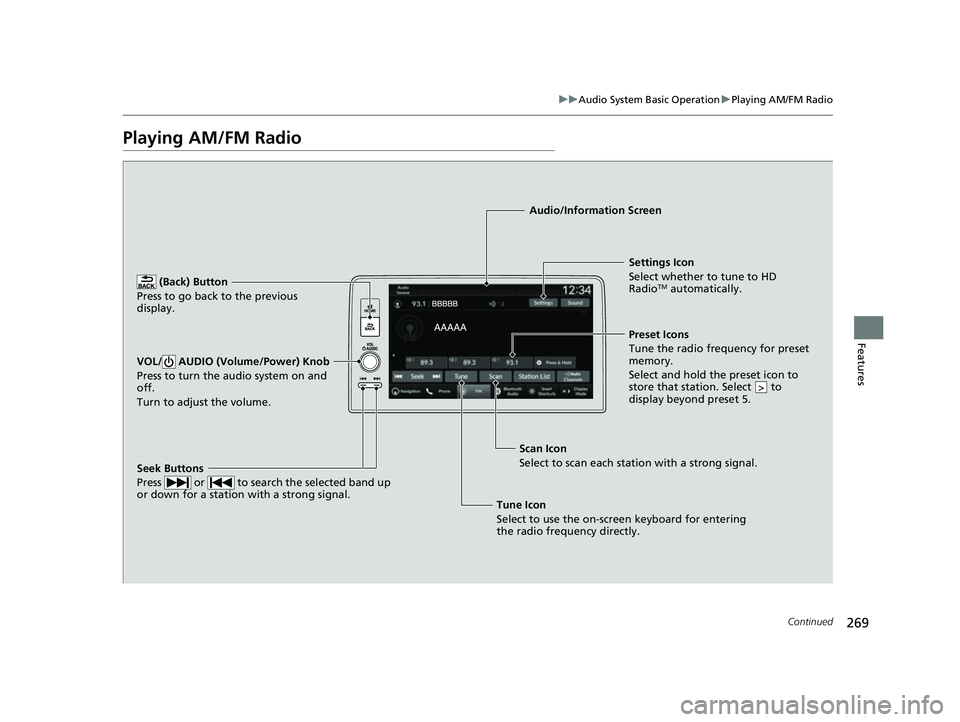
Playing AM/FM Radio
(Back) Button
Press to go back to the previous
display.
Seek Buttons
Press or to search the selected band up
or down for a station with a strong signal.
VOL/ AUDIO (Volume/Power) Knob
Press to turn the audio system on and
off.
Turn to adjust the volume.
Settings Icon
Select whether to tune to HD
Radio
TM automatically.
Tune Icon
Select to use the on-scr een keyboard for entering
the radio frequency directly. Audio/Information Screen
Scan Icon
Select to sca n each
station with a strong signal.Preset Icons
Tune the radio frequency for preset
memory.
Select and hold the preset icon to
store that station. Select to
display beyond preset 5.
>
23 HR-V-313V06000_01.book 269 ページ 2022年4月4日 月曜日 午前10時49分
Page 278 of 664
uuAudio System Basic Operation uPlaying SiriusXM ® Radio
276
Features
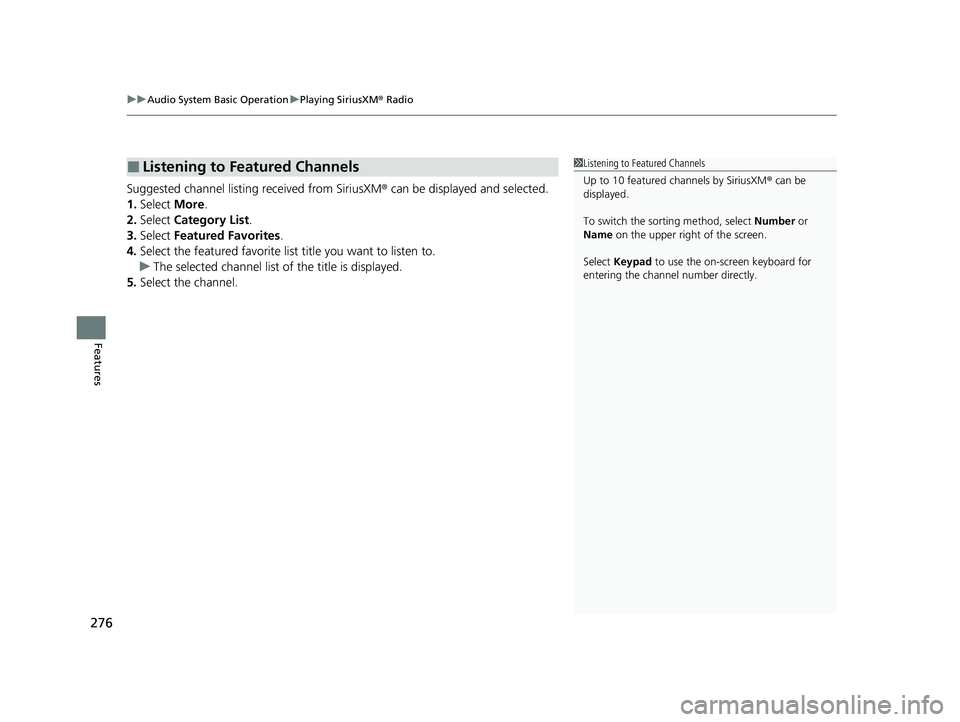
Suggested channel listing received from SiriusXM ® can be displayed and selected.
1. Select More.
2. Select Category List .
3. Select Featured Favorites .
4. Select the featured favorite list title you want to listen to.
u The selected channel list of the title is displayed.
5. Select the channel.
■Listening to Featured Channels1Listening to Featured Channels
Up to 10 featured channels by SiriusXM ® can be
displayed.
To switch the sorting method, select Number or
Name on the upper right of the screen.
Select Keypad to use the on-screen keyboard for
entering the channel number directly.
23 HR-V-313V06000_01.book 276 ページ 2022年4月4日 月曜日 午前10時49分
Page 282 of 664
uuAudio System Basic Operation uPlaying SiriusXM ® Radio
280
Features
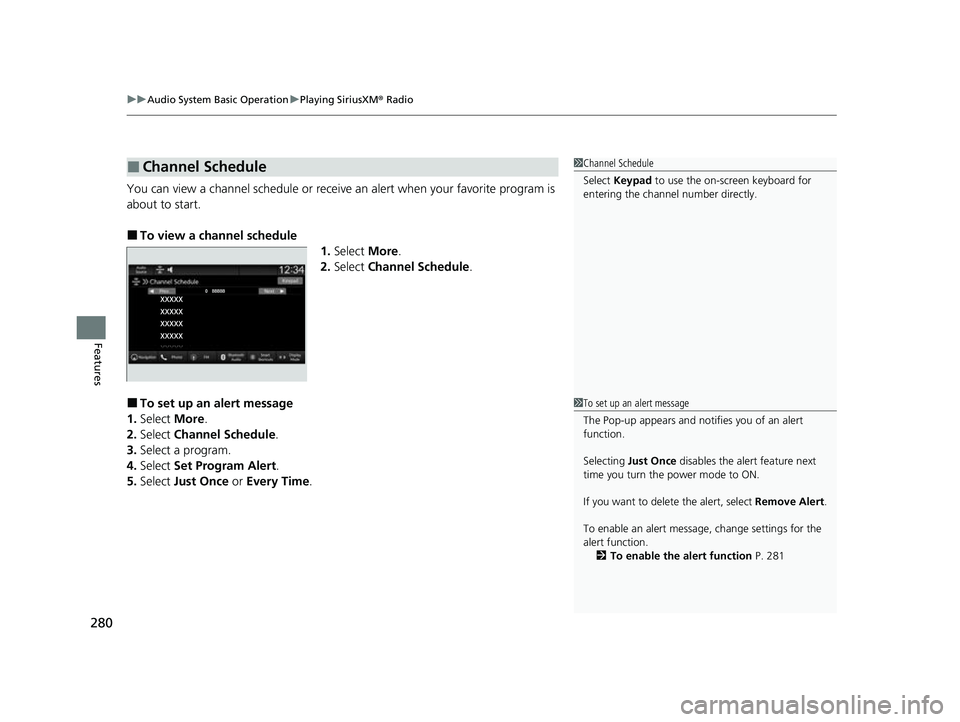
You can view a channel schedule or receive an alert when your favorite program is
about to start.
■To view a channel schedule
1.Select More.
2. Select Channel Schedule .
■To set up an alert message
1. Select More.
2. Select Channel Schedule .
3. Select a program.
4. Select Set Program Alert .
5. Select Just Once or Every Time .
■Channel Schedule1Channel Schedule
Select Keypad to use the on-screen keyboard for
entering the channel number directly.
1To set up an alert message
The Pop-up appears and not ifies you of an alert
function.
Selecting Just Once disables the alert feature next
time you turn the power mode to ON.
If you want to delete the alert, select Remove Alert.
To enable an alert message, change settings for the
alert function. 2 To enable the alert function P. 281
23 HR-V-313V06000_01.book 280 ページ 2022年4月4日 月曜日 午前10時49分
Page 299 of 664

297
uuAudio System Basic Operation uSmart Shortcuts
Continued
Features
Smart Shortcuts
By observing and learning driver behavior s, patterns, and preferences, the system
anticipates driver actions and presents on-screen suggestions to help perform
desired actions quicker and with fewer steps.
• The app will suggest actions based on what it learns you do often, and
occasionally make recommendations ba sed on your learned preferences.
• The system will take some time to learn. The more you interact with the system,
the more suggestion you will see, and the more accurate they will become.
• Suggestions will automatically refresh periodically to provide updated content for
each profile.
• You can also provide feedback on whether a suggestion is helpful by pressing and
holding on it. This can help the app grow smarter over time.
• To change the notifications behavior for Smart Shortcuts:
1. Select Options on the Smart Shortcuts screen.
2. Select Suggestion Settings .
3. Select an option.
• All data used for Smart Shortcuts can be erased by a Factory Data Reset.
2Defaulting All the Settings P. 368
1Smart Shortcuts
The app also supports different profiles for each user,
with customized learning for each profile. The app
will also learn to associate a profile to a user over time
based on key fob and connected phone data.
Smart Shortcuts Screen Shortcut Suggestion
23 HR-V-313V06000_01.book 297 ページ 2022年4月4日 月曜日 午前10時49分
Page 310 of 664
308
uuAudio System Basic Operation uAndroid AutoTM
Features
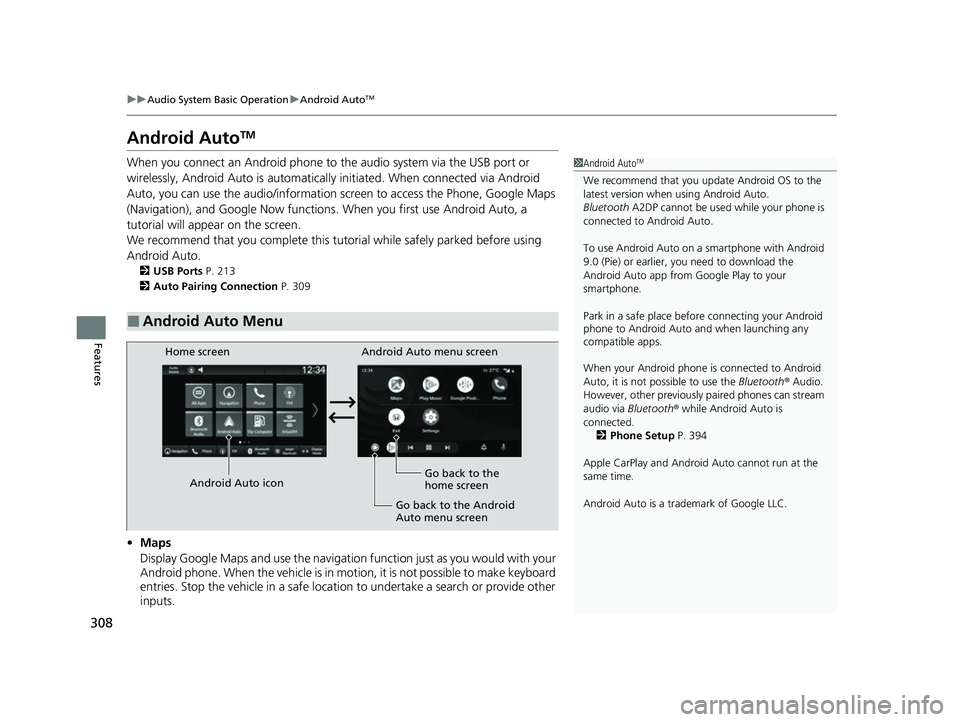
Android AutoTM
When you connect an Android phone to the audio system via the USB port or
wirelessly, Android Auto is automatically initiated. When connected via Android
Auto, you can use the audio/information screen to access the Phone, Google Maps
(Navigation), and Google Now functions. When you first use Android Auto, a
tutorial will appe ar on the screen.
We recommend that you complete this tuto rial while safely parked before using
Android Auto.
2 USB Ports P. 213
2 Auto Pairing Connection P. 309
•Maps
Display Google Maps and use the navigation function just as you would with your
Android phone. When the vehicle is in motion, it is not possible to make keyboard
entries. Stop the vehicle in a safe location to undertake a search or provide other
inputs.
■Android Auto Menu
1 Android AutoTM
We recommend that you upda te Android OS to the
latest version when using Android Auto.
Bluetooth A2DP cannot be used while your phone is
connected to Android Auto.
To use Android Auto on a smartphone with Android
9.0 (Pie) or earl ier, you need to download the
Android Auto app from Google Play to your
smartphone.
Park in a safe place befo re connecting your Android
phone to Android Auto and when launching any
compatible apps.
When your Android phone is connected to Android
Auto, it is not possible to use the Bluetooth® Audio.
However, other previously paired phones can stream
audio via Bluetooth ® while Android Auto is
connected. 2 Phone Setup P. 394
Apple CarPlay and Android Auto cannot run at the
same time.
Android Auto is a trademark of Google LLC.
Android Auto menu screen
Home screen
Android Auto icon Go back to the
home screen
Go back to the Android
Auto menu screen
23 HR-V-313V06000_01.book 308 ページ 2022年4月4日 月曜日 午前10時49分