Page 217 of 664

215
uuAudio System uAudio Remote Controls
Continued
Features
Audio Remote Controls
Allow you to operate the audio system whil e driving. The information is shown on
the driver information interface.
SOURCE Button
Cycles through the audio modes as follows:
FMAM USB/iPod/Apple CarPlay/
Android Auto Bluetooth® Audio
VOL
(+/VOL(- (Volume) Switch
Press Up: To increase the volume.
Press Down: To decrease the volume.
/ (Seek/Skip) Buttons
• When listening to the radio
Press : To select the next preset radio station.
Press : To select the previous preset radio station.
Press and hold : To select the next strong station.
Press and hold : To select the previous strong station.
• When listening to an iPod, USB flash drive, Bluetooth® Audio, or Smartphone
Connection
Press : To skip to the next song.
Press : To go back to the beginning of the current or previous song.
• When listening to a USB flash drive or Bluetooth® Audio
Press and hold : To skip to the next folder/group.
Press and hold : To go back to the previous folder/group.
1Audio Remote Controls
Some modes appear only when an appropriate
device or medium is used.
Depending on the Bluetooth® device you connect,
some functions may not be available.Models with 7-in. Color Touchscreen
/ (Seek/Skip) Buttons
SOURCE
ButtonVOL( +/VOL( -
(Volume) Switch
23 HR-V-313V06000_01.book 215 ページ 2022年4月4日 月曜日 午前10時49分
Page 218 of 664
uuAudio System uAudio Remote Controls
216
Features
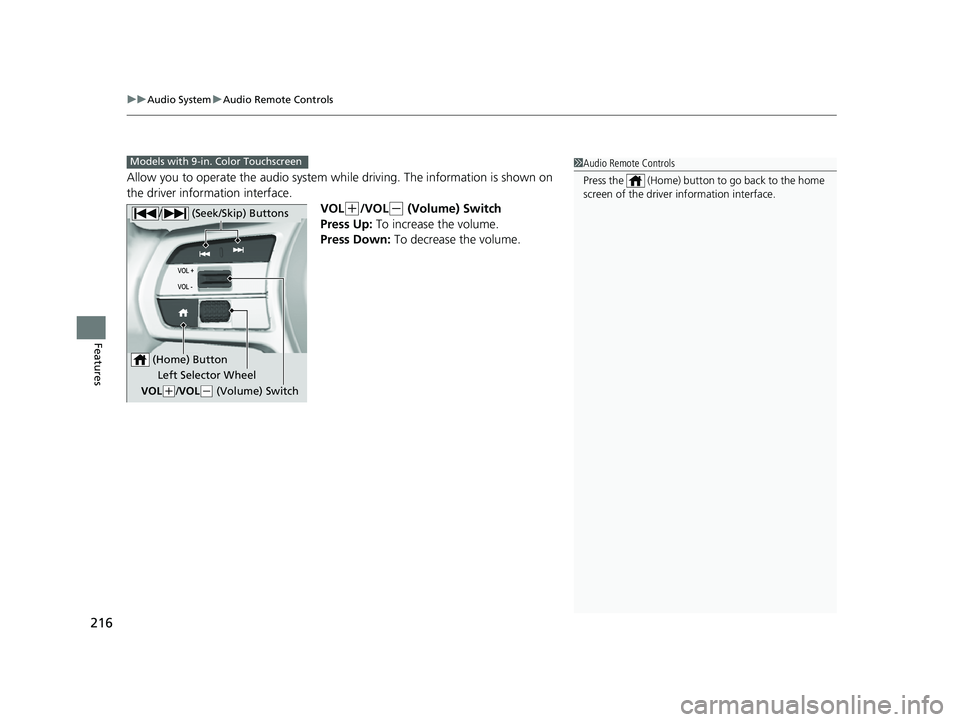
Allow you to operate the audio system wh ile driving. The information is shown on
the driver information interface.
VOL
(+/VOL(- (Volume) Switch
Press Up: To increase the volume.
Press Down: To decrease the volume.
1Audio Remote Controls
Press the (Home) button to go back to the home
screen of the driver information interface.Models with 9-in. Color Touchscreen
/ (Seek/Skip) Buttons
Left Selector Wheel
VOL
( +/VOL(- (Volume) Switch
(Home) Button
23 HR-V-313V06000_01.book 216 ページ 2022年4月4日 月曜日 午前10時49分
Page 219 of 664
217
uuAudio System uAudio Remote Controls
Continued
Features
/ (Seek/Skip) Buttons
• When listening to the radio
Press : To select the next preset radio station.
Press : To select the previous preset radio station.
Press and hold : To select the next strong station.
Press and hold : To select the previous strong station.
• When listening to an iPod, USB flash drive, Bluetooth® Audio, or Smartphone
Connection
Press : To skip to the next song.
Press : To go back to the beginning of the current or previous song.
• When listening to a USB flash drive
Press and hold : To skip to the next folder.
Press and hold : To go back to the previous folder.
23 HR-V-313V06000_01.book 217 ページ 2022年4月4日 月曜日 午前10時49分
Page 221 of 664

219
Features
Audio System Basic Operation
To use the audio system, the power mode must be in ACCESSORY or ON.Use the selector knob or MENU button to
access some au dio functions.
Press to switch between the normal and
extended display fo r some functions.
Selector knob: Rotate left or right to scroll
through the available choices. Press to set
your selection.
MENU button: Press to display the menu
screen. (Back) button: Press to go back to the
previous display.
Models with 7-in. Color Touchscreen1 Audio System Basic Operation
These indications are used to show how to operate
the selector knob.
Rotate to select.
Press to enter.
Menu Items 2 Adjusting the Clock P. 134
2 Adjusting the Sound P. 220
2 Display Setup P. 221
2 Customized Features P. 337
Press the buttons on the steering wheel to change
any audio setting. 2 Audio Remote Controls P. 215
Touchscreen operation
•Use simple gestures - in cluding touching, swiping
and scrolling - to operate certain audio functions.
•Some items may be grayed out during driving to
reduce the potential for distraction.
•You can select them when the vehicle is stopped.•Wearing gloves may limit or prevent touchscreen
response.
You can change the touchs creen sensitivity setting.
2 Customized Features P. 337
(Back)
Button
Selector Knob
MENU Button
Menu Display
23 HR-V-313V06000_01.book 219 ページ 2022年4月4日 月曜日 午前10時49分
Page 224 of 664
222
uuAudio System Basic Operation uPlaying AM/FM Radio
Features
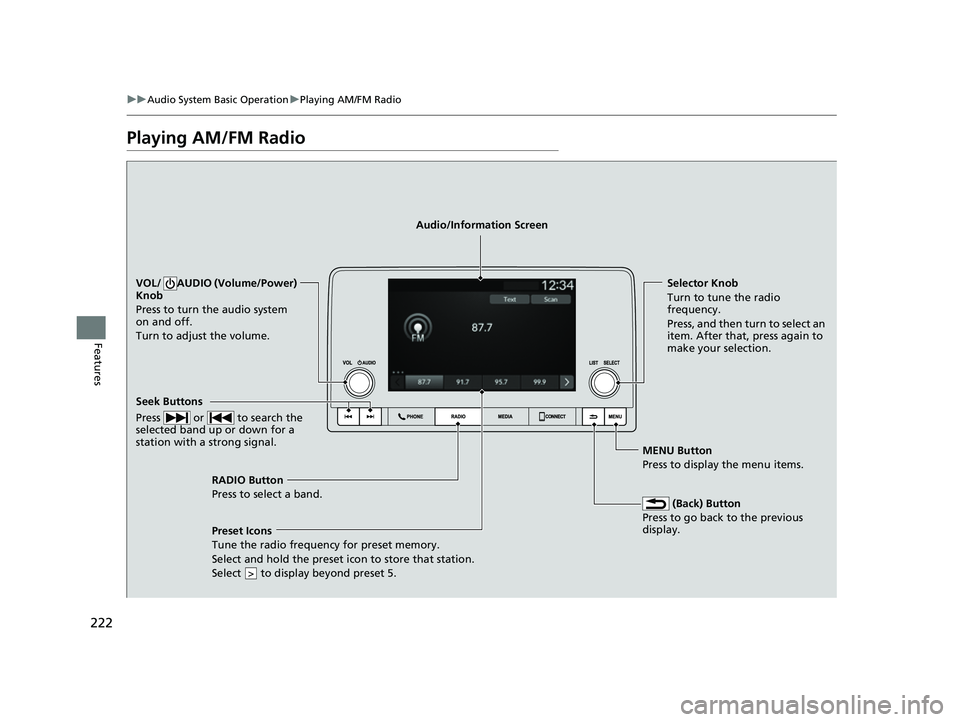
Playing AM/FM Radio
RADIO Button
Press to select a band.
(Back) Button
Press to go back to the previous
display.
Seek Buttons
Press or to search the
selected band up or down for a
station with a strong signal.
VOL/ AUDIO (Volume/Power)
Knob
Press to turn the audio system
on and off.
Turn to adjust the volume.Selector Knob
Turn to tune the radio
frequency.
Press, and then turn to select an
item. After that, press again to
make your selection.
MENU Button
Press to display the menu items.
Audio/Information Screen
Preset Icons
Tune the radio frequency for preset
memory.
Select and hold the preset icon to store that station.
Select to display beyond preset 5.
>
23 HR-V-313V06000_01.book 222 ページ 2022年4月4日 月曜日 午前10時49分
Page 226 of 664
224
uuAudio System Basic Operation uPlaying an iPod
Features
Playing an iPod
Using your USB connector, connect the iPod to the USB port, then press the MEDIA
button.
2 USB Ports P. 213
USB Indicator
Appears when an iPod is connected.
MEDIA Button
Press to select iPod (if connected). (Back) Button
Press to go back to the previous display.
Track Buttons
Press or to change
songs. Press and hold to move
rapidly within a song.
VOL/ AUDIO (Volume/Power)
Knob
Press to turn the audio system on
and off.
Turn to adjust the volume.
Selector Knob
Turn to change songs.
Press and turn to select an item,
then press to set your selection.
MENU Button
Press to display the menu items.
Audio/Information Screen
Album Art
Shu
ffle Icon
Select to play all files in
the current category in
random order.
Play/Pause Icon
Select to play/pause a song.
Repeat Icon
Select to repeat the current file.
23 HR-V-313V06000_01.book 224 ページ 2022年4月4日 月曜日 午前10時49分
Page 229 of 664

227
uuAudio System Basic Operation uPlaying a USB Flash Drive
Continued
Features
Playing a USB Flash Drive
Your audio system reads and plays sound files on a USB flash drive in either MP3,
WMA, AAC, FLAC, or WAV format.
Connect your USB flash drive to the USB port, then press the MEDIA button.
2USB Ports P. 213
USB Indicator
Appears when a USB flash drive is connected.
MEDIA Button
Press to select USB flash drive (if connected). (Back) Button
Press to go back to the previous display.
Track Buttons
Press or to change files.
Press and hold to move rapidly
within a track.
VOL/ AUDIO (Volume/Power)
Knob
Press to turn the audio system on
and off.
Turn to adjust the volume.Selector Knob
Turn to change files.
Press and turn to select an item,
then press to set your selection.
MENU Button
Press to display the menu items.
Audio/Information Screen
Play Icon
Select to play a f ile
. Random Icons
Select to play all files in the current category
in random order.
Pause Icon
Select to pause a file.
Repeat Icons
Select to repeat the current file.
23 HR-V-313V06000_01.book 227 ページ 2022年4月4日 月曜日 午前10時49分
Page 232 of 664
230
uuAudio System Basic Operation uPlaying Bluetooth ® Audio
Features
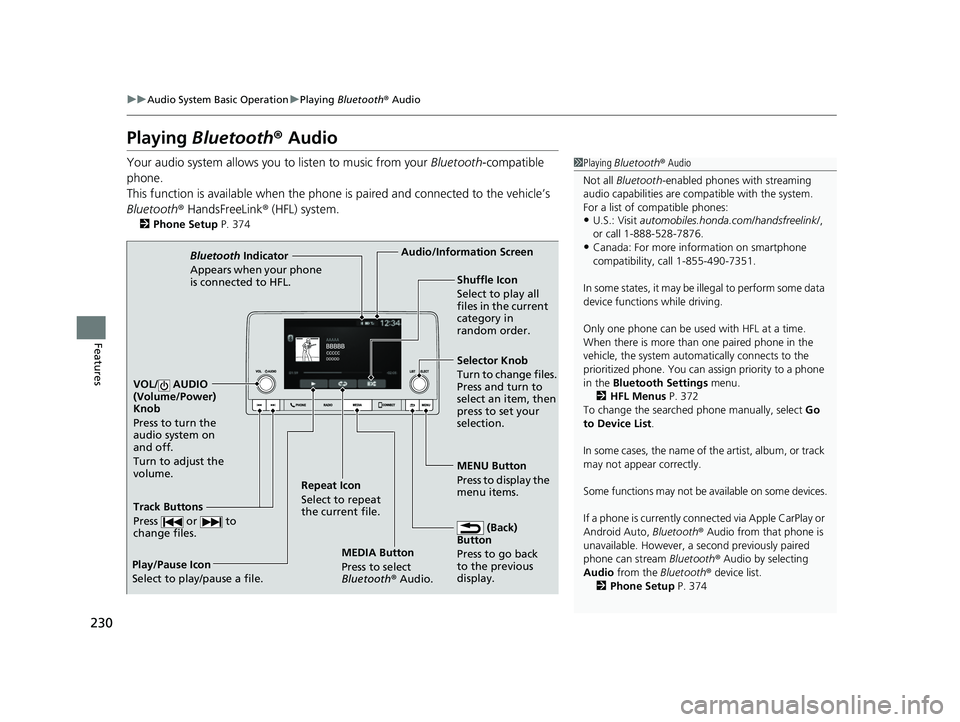
Playing Bluetooth ® Audio
Your audio system allows you to listen to music from your Bluetooth-compatible
phone.
This function is available when the phone is paired and connected to the vehicle’s
Bluetooth ® HandsFreeLink ® (HFL) system.
2 Phone Setup P. 374
1Playing Bluetooth ® Audio
Not all Bluetooth -enabled phones with streaming
audio capabilities are compatible with the system.
For a list of compatible phones:
•U.S.: Visit automobiles.honda.com/handsfreelink/ ,
or call 1-888-528-7876.
•Canada: For more info rmation on smartphone
compatibility, call 1-855-490-7351.
In some states, it may be il legal to perform some data
device functions while driving.
Only one phone can be used with HFL at a time.
When there is more than one paired phone in the
vehicle, the system automatically connects to the
prioritized phone. You can a ssign priority to a phone
in the Bluetooth Settings menu.
2 HFL Menus P. 372
To change the searched phone manually, select Go
to Device List .
In some cases, the name of the artist, album, or track
may not appear correctly.
Some functions may not be available on some devices.
If a phone is currently conne cted via Apple CarPlay or
Android Auto, Bluetooth® Audio from that phone is
unavailable. However, a se cond previously paired
phone can stream Bluetooth® Audio by selecting
Audio from the Bluetooth® device list.
2 Phone Setup P. 374
MEDIA Button
Press to select
Bluetooth® Audio.
VOL/ AUDIO
(Volume/Power)
Knob
Press to turn the
audio system on
and off.
Turn to adjust the
volume.
MENU Button
Press to display the
menu items.
Audio/Information Screen
Bluetooth Indicator
Appears when your pho
ne
is connected to HFL.
Track Buttons
Press or to
change files.
Repeat Icon
Select to repeat
the current file. Shuffle Icon
Select to play all
files in the current
category in
random order.
Selector Knob
Turn to change files.
Press and turn to
select an item, then
press to set your
selection.
(Back)
Button
Press to go back
to t he previou
s
display.
Play/Pause Icon
Select to play/pause a file.
23 HR-V-313V06000_01.book 230 ページ 2022年4月4日 月曜日 午前10時49分