Page 238 of 719

237
Features
This chapter describes how to operate technology features.
Audio SystemAbout Your Audio System ................ 238
USB Ports ......................................... 239
Audio System Theft Protection ......... 241
Audio Remote Controls .................... 242
Audio System Basic Operation ........ 246
Adjusting the Sound ........................ 247
Display Setup ................................... 248
Playing AM/FM Radio ....................... 249
Playing an iPod ................................ 251
Playing a USB Flash Drive ................. 254
Playing Bluetooth ® Audio ................. 257
Siri Eyes Free .................................... 261
Models with 7-in. Color Touchscreen
Smartphone Voice Recognition ........ 262
Apple CarPlay .................................. 263
Android Auto
TM................................ 267
Audio System Basic Operation ........ 271
Start Up ........................................... 272
Audio/Information Screen ................ 273
System Updates ............................... 284
Adjusting the Sound ........................ 290
Display Setup ................................... 291
Voice Control Operation .................. 293
Playing AM/FM Radio ....................... 296
Playing SiriusXM ® Radio ................... 300
Playing an iPod ................................ 311Models with 9-in. Color Touchscreen
Playing a USB Flash Drive ................. 314
Playing Bluetooth ® Audio ................ 317
HondaLink ®..................................... 320
Smart Shortcuts ............................... 324
Wi-Fi Connection ............................. 327
AT&T Hotspot
*................................ 328
Apple CarPlay .................................. 329
Android Auto
TM............................... 336
Power Flow...................................... 342
Audio Error Messages ...................... 345
General Information on the Audio System ............................................. 347
Customized Features ................ 368, 376
Bluetooth® HandsFreeLink® ..... 400, 420
Refuel Recommend .......................... 439
* Not available on all models
Page 239 of 719
238
Features
Audio System
About Your Audio System
The audio system features AM/FM radio and SiriusXM® Radio service*. It can also
play USB flash drives, iPod, iPhone, and Bluetooth® devices.
You can operate the audio system from the buttons and switches on the panel, the
remote controls on the steering wheel, or the icons on the touchscreen interface.
*1 : Models with 7-in. Color Touchscreen
*2 : Models with 9-in. Color Touchscreen
1 About Your Audio System
SiriusXM ® Radio
* is available on a subscription basis
only. For more information on SiriusXM ® Radio*,
contact a dealer.
2 General Information on the Audio System
P. 347
SiriusXM ® Radio
* is available in the United States and
Canada, except Ha waii, Alaska, and Puerto Rico.
SiriusXM ®
* is a registered tra demark of SiriusXM
Radio, Inc.
State or local laws may pr ohibit the operation of
handheld electronic devices while operating a
vehicle.
Remote Controls iPod
USB Flash Drive
*2
*1
* Not available on all models
Page 243 of 719

242
uuAudio System uAudio Remote Controls
Features
Audio Remote Controls
Allow you to operate the audio system wh ile driving. The information is shown on
the driver information interface.
SOURCE Button
Cycles through the audio modes as follows:
FMAM USB/iPod/Apple CarPlay/
Android Auto Bluetooth ® Audio
VOL
(+/VOL(- (Volume) Switch
Press Up: To increase the volume.
Press Down: To decrease the volume.
/ (Seek/Skip) Buttons
• When listening to the radio
Press : To select the next preset radio station.
Press : To select the previous preset radio station.
Press and hold : To select the next strong station.
Press and hold : To select the previous strong station.
• When listening to an iPod, USB flash drive, Bluetooth® Audio, or Smartphone
Connection
Press : To skip to the next song.
Press : To go back to the beginning of the current or previous song.
• When listening to a USB flash drive or Bluetooth® Audio
Press and hold : To skip to the next folder/group.
Press and hold : To go back to the previous folder/group.
1Audio Remote Controls
Some modes appear only when an appropriate
device or medium is used.
Depending on the Bluetooth® device you connect,
some functions may not be available.Models with 7-in. Color Touchscreen
/ (Seek/Skip) Buttons
SOURCE
ButtonVOL( +/VOL(-
(Volume) Switch
Page 244 of 719
Continued243
uuAudio System uAudio Remote Controls
Features
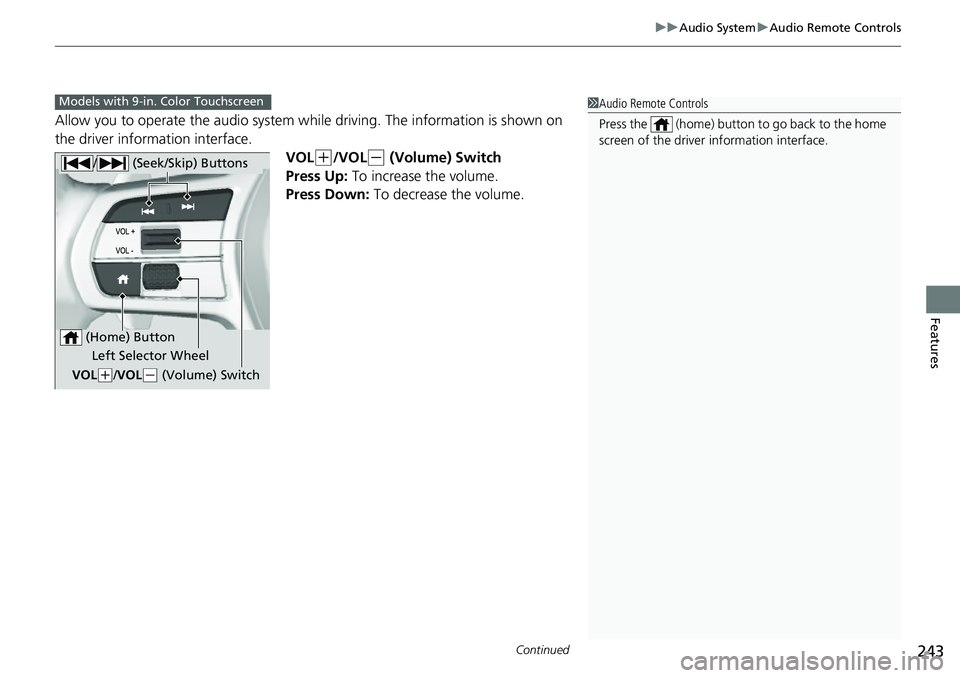
Allow you to operate the audio system whil e driving. The information is shown on
the driver information interface.
VOL
(+/VOL(- (Volume) Switch
Press Up: To increase the volume.
Press Down: To decrease the volume.
1 Audio Remote Controls
Press the (home) button to go back to the home
screen of the driver information interface.Models with 9-in. Color Touchscreen
/ (Seek/Skip) Buttons
Left Selector Wheel
VOL
( +/VOL(- (Volume) Switch
(Home) Button
Page 245 of 719
244
uuAudio System uAudio Remote Controls
Features
/ (Seek/Skip) Buttons
• When listening to the radio
Press : To select the next preset radio station.
Press : To select the previous preset radio station.
Press and hold : To select the next strong station.
Press and hold : To select the previous strong station.
• When listening to an iPod, USB flash drive, Bluetooth® Audio, or Smartphone
Connection
Press : To skip to the next song.
Press : To go back to the beginning of the current or previous song.
• When listening to a USB flash drive
Press and hold : To skip to the next folder.
Press and hold : To go back to the previous folder.
Page 246 of 719
245
uuAudio System uAudio Remote Controls
Features
Left Selector Wheel
• When selecting the audio mode
Press the (home) button, then roll up or down to select Audio on the driver
information interface, and then press the left selector wheel.
Roll up or down:
FM
AM
SXM
USB
Bluetooth
Apps
(Apple CarPlay/Android Auto)
To cycle through the audio modes, roll up or down
and then press the left selector wheel:
Page 247 of 719

246
Features
Audio System Basic Operation
To use the audio system, the power mode must be in ACCESSORY or ON.Use the selector knob or MENU button to
access some audio functions.
Press to switch between the normal and
extended display fo r some functions.
Selector knob: Rotate left or right to scroll
through the available choices. Press to set
your selection.
MENU button: Press to display the menu
screen. (Back) button: Press to go back to the
previous display.
Models with 7-in. Color Touchscreen1 Audio System Basic Operation
These indications are used to show how to operate
the selector knob.
Rotate to select.
Press to enter.
Menu Items 2 Adjusting the Clock P. 146
2 Adjusting the Sound P. 247
2 Display Setup P. 248
2 Customized Features P. 368
Press the buttons on the steering wheel to change
any audio setting. 2 Audio Remote Controls P. 242
Touchscreen operation
•Use simple gestures - in cluding touching, swiping
and scrolling - to operate certain audio functions.
•Some items may be grayed out during driving to
reduce the potential for distraction.
•You can select them when the vehicle is stopped.•Wearing gloves may limit or prevent touchscreen
response.
You can change the touchs creen sensitivity setting.
2 Customized Features P. 368
(Back)
Button
Selector Knob
MENU Button
Menu Display
Page 251 of 719
uuAudio System Basic Operation uPlaying AM/FM Radio
250
Features
Provides text data information related to your selected RDS capable FM station.
■To find an RDS station from Station List
1. Press while listening to an FM station.
2. Select the station.
■Update List
Updates your available station list at any time.
1. Press while listening to an FM station.
2. Select Refresh .
■Radio text
Displays the radio text informat ion of the selected RDS station.
1. Select Text.
■Scan
Samples each of the strongest stations on the selected band for 10 seconds.
1. Select Scan.
To turn off scan, select Stop or press the button.
■Radio Data System (RDS)1Playing AM/FM Radio
Stereo reproduction in AM is not available.
You can store 12 AM stations and 12 FM stations into
the preset memory.
Switching the Audio Mode
Press the audio source selecting button on the
steering wheel.
2 Audio Remote Controls P. 242
1Radio Data System (RDS)
When you select an RDS-capable FM station, the RDS
automatically turns on, and the station name is
displayed under the frequency. However, when the
signals of that station become weak, the station
name disappears.