Page 273 of 719
272
uuAudio System Basic Operation uStart Up
Features
Start Up
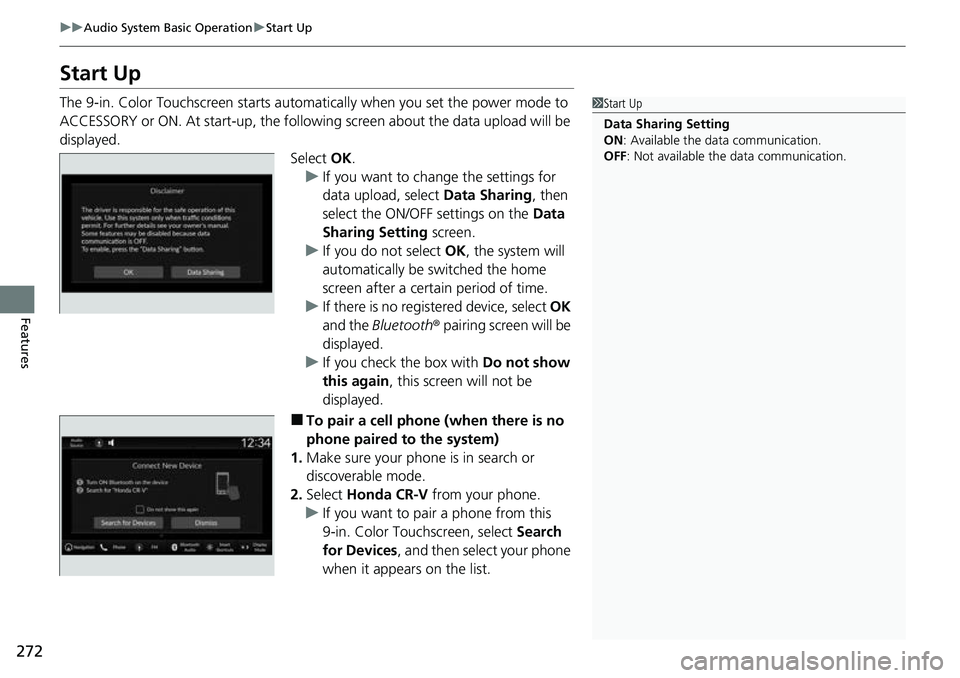
The 9-in. Color Touchscreen starts automatically when you set the power mode to
ACCESSORY or ON. At start-up, the following screen about the data upload will be
displayed.
Select OK.
u If you want to change the settings for
data upload, select Data Sharing, then
select the ON/OFF settings on the Data
Sharing Setting screen.
u If you do not select OK, the system will
automatically be switched the home
screen after a certain period of time.
u If there is no registered device, select OK
and the Bluetooth ® pairing screen will be
displayed.
u If you check the box with Do not show
this again , this screen will not be
displayed.
■To pair a cell phone (when there is no
phone paired to the system)
1. Make sure your phone is in search or
discoverable mode.
2. Select Honda CR-V from your phone.
u If you want to pair a phone from this
9-in. Color Touchscreen, select Search
for Devices , and then select your phone
when it appears on the list.
1 Start Up
Data Sharing Setting
ON : Available the data communication.
OFF: Not available the data communication.
Page 274 of 719

273
uuAudio System Basic Operation uAudio/Information Screen
Continued
Features
Audio/Information Screen
Displays the audio status and wallpaper. From this display, you can go to various
setup options.
■Using the audio/in formation screen
Press the button to go to the home screen.
Select the following icons on the home screen or after selecting All Apps.
■Navigation*
Displays the navigation screen.
2Refer to the Navigation System Manual
■Phone
Displays the HFL information.
2 Bluetooth ® HandsFreeLink ® P. 420
■Switching the Display
1 Using the audio/in formation screen
Touchscreen operation
•Use simple gestures - in cluding touching, swiping
and scrolling - to operate certain audio functions.
•Some items may be grayed out during driving to
reduce the potential for distraction.
•You can select them when the vehicle is stopped or
use voice commands.
•Wearing gloves may limit or prevent touchscreen
response.
You can change the touchs creen sensitivity setting.
2 Customized Features P. 376
Home Screen
Button
All Apps
* Not available on all models
Page 294 of 719
293
uuAudio System Basic Operation uVoice Control Operation
Continued
Features
Voice Control Operation
Your vehicle has a voice control syst em that allows hands-free operation.
The voice control system uses the (t alk) button on the steering wheel and a
microphone near the map lights on the ceiling.
To achieve optimum voice recognition when using the voice control system:
• Make sure the correct screen is displa yed for the voice command that you are
using.
The system recognizes only certain commands.
Available voice commands:
2 Voice Portal Screen P. 294
•Close the windows and moonroof.
• Adjust the dashboard and side vents so air does not blow onto the microphone
on the ceiling.
• Speak clearly in a natural speaking vo ice without pausing between words.
• Reduce any background noise if possible. The system may misinterpret your
command if more than one person is speaking at the same time.
■Voice Recognition
1Voice Control Operation
When you press the button, a helpful prompt asks
what you would like to do. Press and release the
button again to bypass this prompt and give a
command.
1 Voice Recognition
The voice control system can only be used from the
driver’s seat because the microphone unit removes
noises from the front passenger’s side.
Page 295 of 719

294
uuAudio System Basic Operation uVoice Control Operation
FeaturesWhen the (talk) button is pressed,
available voice commands appear on the
screen.
For a complete list of commands, say “Help”
after the beep.
Depending on the selected mode, the
displayed commands are different on the
voice portal scr een. The commands
recognized are the same regardless of
which screen is selected.
Normal Mode: A list of example commands
is displayed to quickly complete your
desired function.
Assist Mode: A list of basic commands is
displayed to guide you step by step through
the voice menu.
■Voice Portal ScreenYou can change the mode on the General
Settings screen.
2Voice Control P. 387
The system only rec ognizes the commands
on the following pages, at certain screens.
Free-form voice commands are not
recognized.
When the voice portal screen is displayed, it
will change to the top screen of each
function by using the global commands.
• Music Search
• AM
• FM
• Sirius XM
• Phone
• Navigation
*
When the system recognizes a phone
command, the screen will change to the
dedicated phone voice recognition screen.
These commands can only be used when a
phone is connected.
■General Commands
■Phone Commands
■Phone Commands
• Call
• Call
The system only recognizes contact names
stored in the phonebook of your phone. If a
full name is registered in the first name
field, the system will recognize the first
name and last name as one contact name.
Phone commands are not available if using
Apple CarPlay.
When the system re cognizes an audio
command, the screen will change to the
dedicated audio voice recognition screen.
■FM Commands
• Tune to
■AM Commands
• Tune to
■Sirius XM Commands
• Tune to SXM
• Tune to SXM
■Audio Commands
* Not available on all models
Page 313 of 719
uuAudio System Basic Operation uPlaying an iPod
312
Features
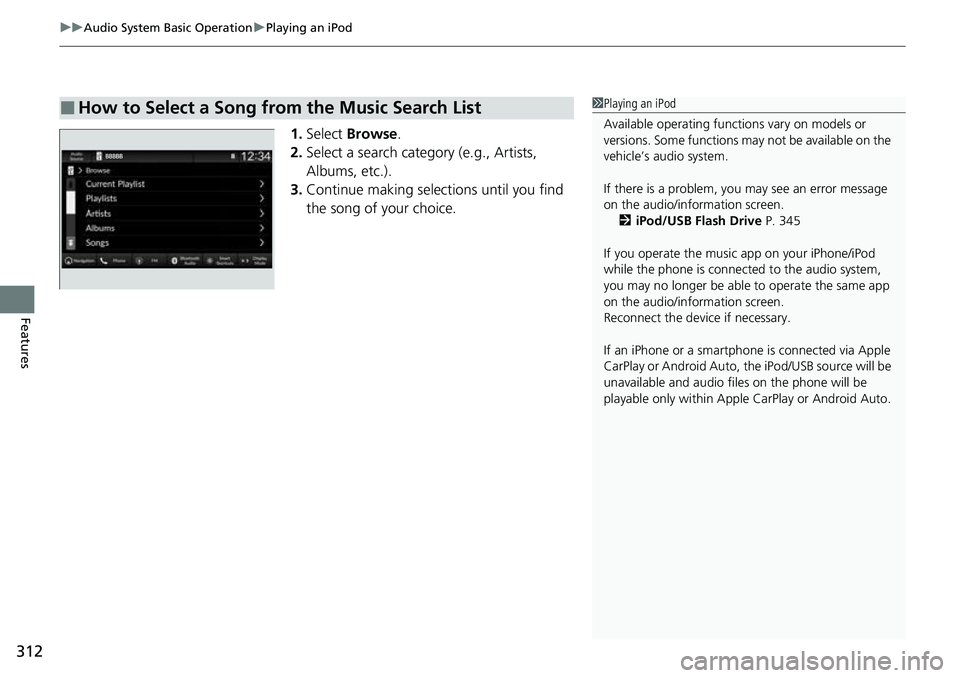
1. Select Browse .
2. Select a search catego ry (e.g., Artists,
Albums, etc.).
3. Continue making selections until you find
the song of your choice.
■How to Select a Song from the Music Search List1Playing an iPod
Available operating functi ons vary on models or
versions. Some functions ma y not be available on the
vehicle’s audio system.
If there is a problem, you may see an error message
on the audio/information screen. 2 iPod/USB Flash Drive P. 345
If you operate the musi c app on your iPhone/iPod
while the phone is connected to the audio system,
you may no longer be able to operate the same app
on the audio/information screen.
Reconnect the devi ce if necessary.
If an iPhone or a smartpho ne is connected via Apple
CarPlay or Android Auto, th e iPod/USB source will be
unavailable and a udio files on the phone will be
playable only within Appl e CarPlay or Android Auto.
Page 318 of 719
317
uuAudio System Basic Operation uPlaying Bluetooth ® Audio
Continued
Features
Playing Bluetooth ® Audio
Your audio system allows you to listen to music from your Bluetooth-compatible
phone.
This function is available when the phone is paired and connected to the vehicle’s
Bluetooth ® HandsFreeLink ® (HFL) system.
2Phone Setup P. 425
1Playing Bluetooth ® Audio
Not all Bluetooth -enabled phones with streaming
audio capabilities are compatible with the system.
For a list of compatible phones:
•U.S.: Visit automobiles.honda.com/handsfreelink/ ,
or call 1-888-528-7876.
•Canada: For more info rmation on smartphone
compatibility, call 1-855-490-7351.
It may be illegal to perform some data device
functions while driving.
Only one phone can be used with HFL at a time.
When there is more than one paired phone in the
vehicle, the system automatically connects to the
prioritized phone. You can a ssign priority to a phone
in the Bluetooth ® device list.
2 Phone Setup P. 425
The connected phone for Bluetooth® Audio can be
different.
If more than one phone is paired to the HFL system,
there may be a delay before the system begins to play.
In some cases, the name of the artist, album, or track
may not appear correctly.
Some functions may not be available on some devices.
If a phone is currently conne cted via Apple CarPlay or
Android Auto, Bluetooth® Audio from that phone is
unavailable. However, a se cond previously paired
phone can stream Bluetooth® Audio by selecting
from the Bluetooth ® device list.
2 Phone Setup P. 425
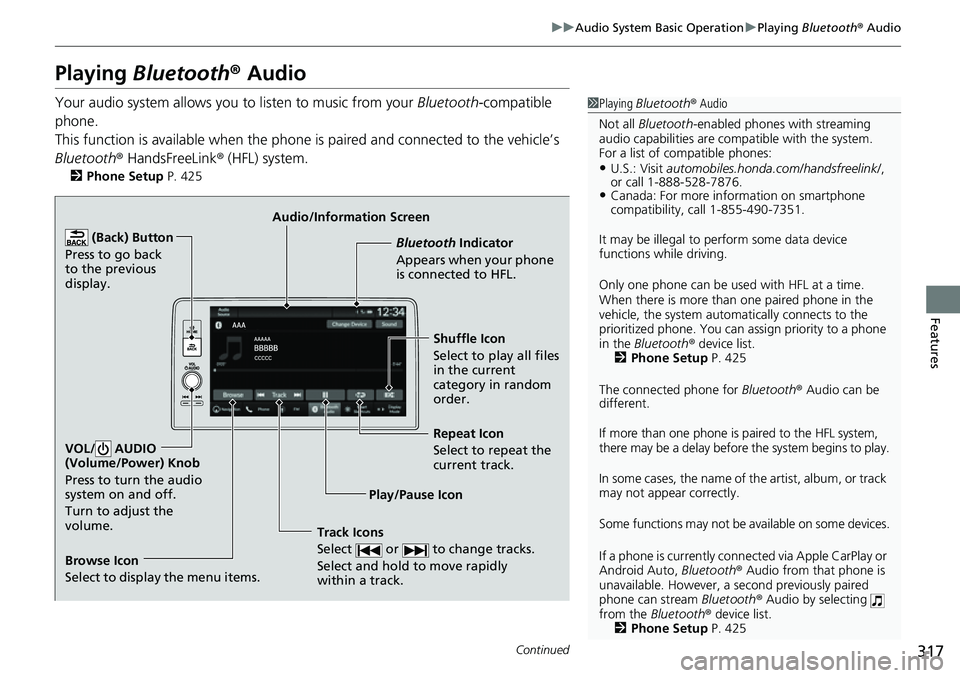
Audio/Information Screen
Browse Icon
Select to display the menu items. Play/Pause IconBluetooth Indic
a
tor
Appears when your phone
is connected to HFL.
Track Icons
Select or to change tracks.
Select and hold to move rapidly
within a track.
Repeat Icon
Select to repeat the
current track.
(Back) Button
Press to go back
to the previous
display.VOL/ AUDIO
(Volume/Power) Knob
Press to turn the audio
system on and off.
Turn to adjust the
volume.
Shuffle Icon
Select to play all files
in the current
category in random
order.
Page 319 of 719
uuAudio System Basic Operation uPlaying Bluetooth ® Audio
318
Features
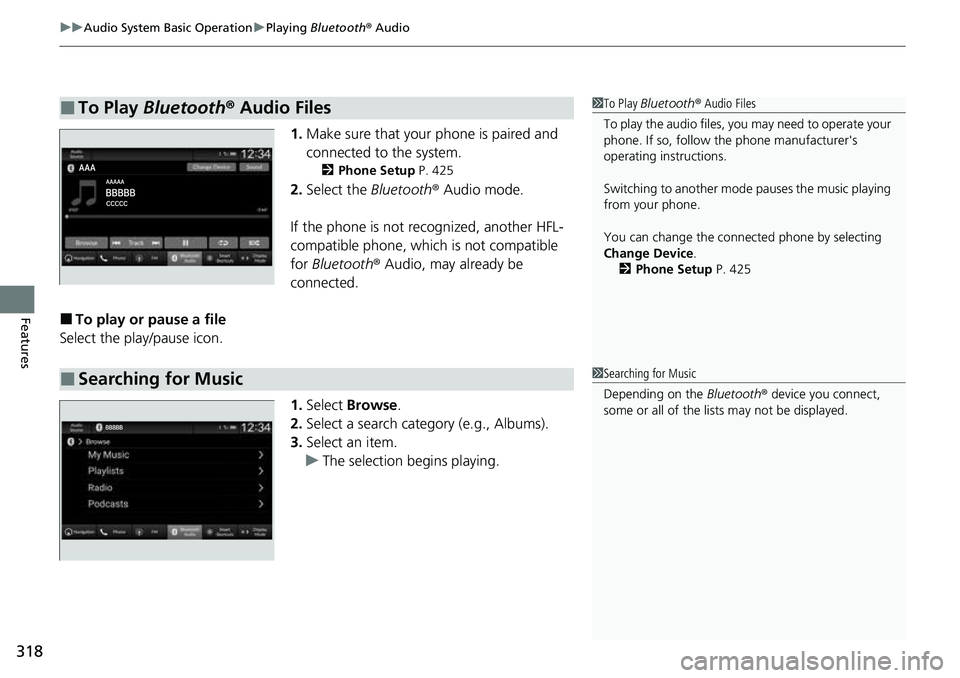
1. Make sure that your phone is paired and
connected to the system.
2 Phone Setup P. 425
2.Select the Bluetooth® Audio mode.
If the phone is not recognized, another HFL-
compatible phone, which is not compatible
for Bluetooth ® Audio, may already be
connected.
■To play or pause a file
Select the play/pause icon.
1.Select Browse .
2. Select a search category (e.g., Albums).
3. Select an item.
u The selection begins playing.
■To Play Bluetooth ® Audio Files1 To Play Bluetooth ® Audio Files
To play the audio files, y ou may need to operate your
phone. If so, follow the phone manufacturer's
operating instructions.
Switching to another mode pauses the music playing
from your phone.
You can change the connected phone by selecting
Change Device .
2 Phone Setup P. 425
■Searching for Music1Searching for Music
Depending on the Bluetooth® device you connect,
some or all of the list s may not be displayed.
Page 321 of 719
320
uuAudio System Basic Operation uHondaLink ®
Features
HondaLink ®
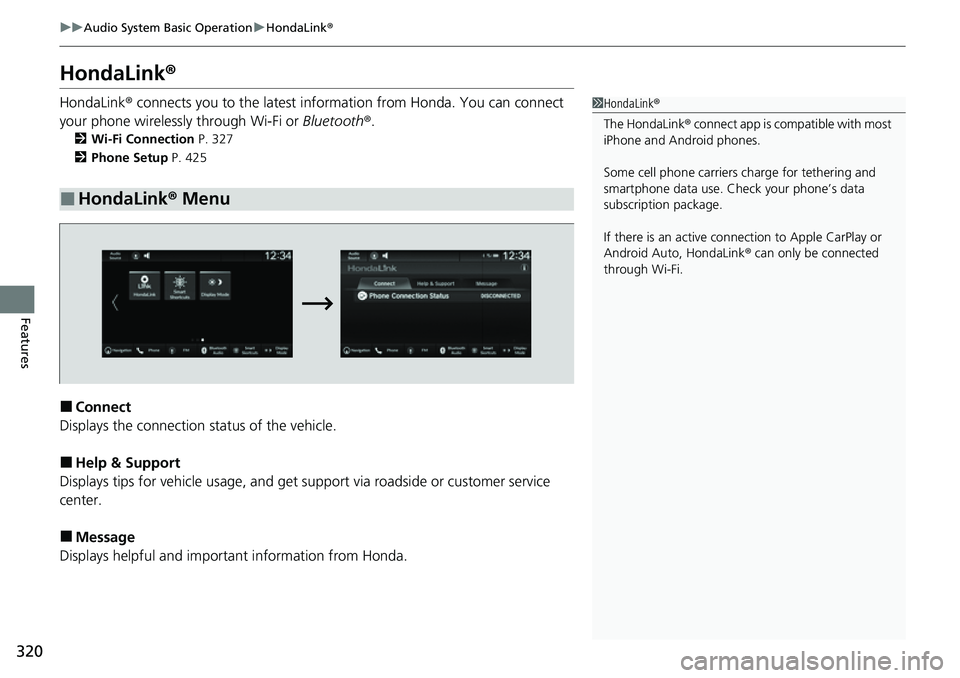
HondaLink® connects you to the latest information from Honda. You can connect
your phone wirelessly through Wi-Fi or Bluetooth®.
2Wi-Fi Connection P. 327
2 Phone Setup P. 425
■Connect
Displays the connection status of the vehicle.
■Help & Support
Displays tips for vehicle usage, and get support via roadside or customer service
center.
■Message
Displays helpful and important information from Honda.
■HondaLink® Menu
1HondaLink ®
The HondaLink® connect app is compatible with most
iPhone and Android phones.
Some cell phone carriers charge for tethering and
smartphone data use. Check your phone’s data
subscription package.
If there is an active connection to Appl e CarPlay or
Android Auto, HondaLink ® can only be connected
through Wi-Fi.