2023 HONDA CIVIC navigation system
[x] Cancel search: navigation systemPage 294 of 840
292
uuAudio System Basic Operation uAudio/Information Screen
Features
■General Settings
Enters the customiz ing menu screen.
2Customized Features P. 390
■Navigation
Displays the navigation screen.
2 Refer to the Navigation System Manual
■HondaLink ®
Displays the Ho ndaLink screen.
2HondaLink® P. 337
■Apple CarPlay/Android Auto
Displays the Apple CarPlay or Android Auto.
2 Apple CarPlay P. 346
2 Android AutoTM P. 353
■Vehicle Settings
Displays the vehicle settings screen.
2 Customized Features P. 390
23 CIVIC HATCHBACK TYPE R-31T406100_03.book 292 ページ 2022年6月23日 木曜日 午後9時28分
Page 313 of 840
311
uuAudio System Basic Operation uVoice Control Operation
Continued
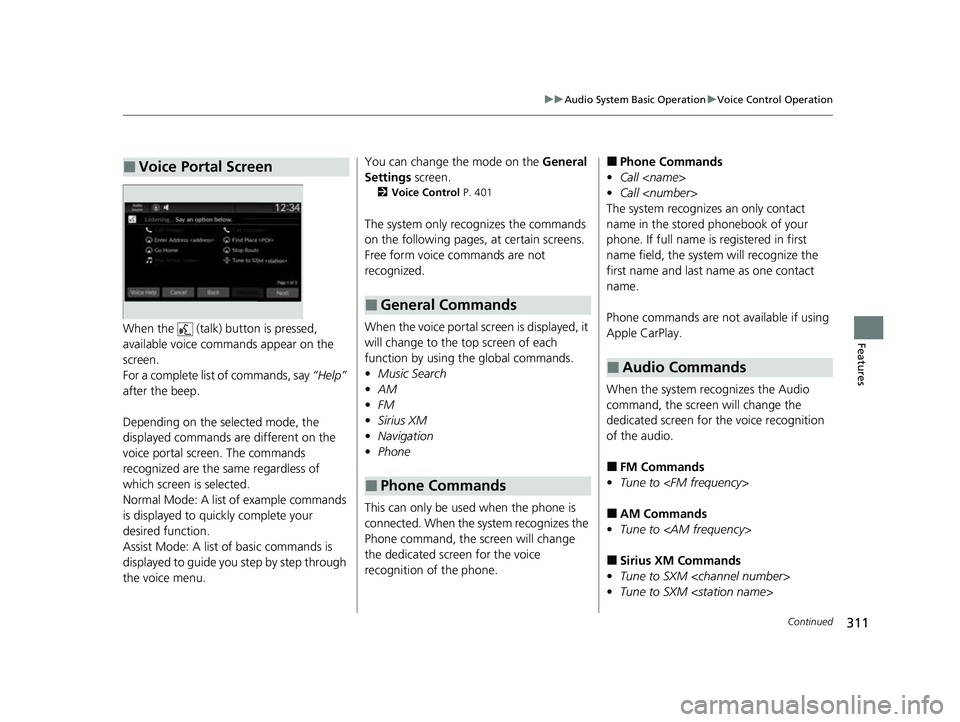
FeaturesWhen the (talk) button is pressed,
available voice comma nds appear on the
screen.
For a complete list of commands, say “Help”
after the beep.
Depending on the selected mode, the
displayed commands are different on the
voice portal screen. The commands
recognized are the same regardless of
which screen is selected.
Normal Mode: A list of example commands
is displayed to quickly complete your
desired function.
Assist Mode: A list of basic commands is
displayed to guide you step by step through
the voice menu.
■Voice Portal ScreenYou can change the mode on the General
Settings screen.
2Voice Control P. 401
The system only re cognizes the commands
on the following pages, at certain screens.
Free form voice commands are not
recognized.
When the voice portal scr een is displayed, it
will change to the top screen of each
function by using the global commands.
• Music Search
• AM
• FM
• Sirius XM
• Navigation
• Phone
This can only be used when the phone is
connected. When the sy stem recognizes the
Phone command, the screen will change
the dedicated screen for the voice
recognition of the phone.
■General Commands
■Phone Commands
■Phone Commands
• Call
• Call
The system recognizes an only contact
name in the stored phonebook of your
phone. If full name is registered in first
name field, the system will recognize the
first name and last name as one contact
name.
Phone commands are not available if using
Apple CarPlay.
When the system recognizes the Audio
command, the screen will change the
dedicated screen for the voice recognition
of the audio.
■FM Commands
• Tune to
■AM Commands
• Tune to
■Sirius XM Commands
• Tune to SXM
• Tune to SXM
■Audio Commands
23 CIVIC HATCHBACK TYPE R-31T406100_03.book 311 ページ 2022年6月23日 木曜日 午後9時28分
Page 314 of 840
312
uuAudio System Basic Operation uVoice Control Operation
Features
■iPod Commands
• List Album
• List Artist
• List Genre
• List Playlist
• Play
• Play
• Play Album
• Play Artist
• Play Genre
• Play Music
• Play Playlist
• Play Song
■USB Commands
• List Album
• List Artist
• List Playlist
• Play
• Play
• Play Album
• Play Artist
• Play Music
• Play Playlist
• Play Song
screen.
2
Refer to the Navigation System Manual
•Voice Help
• Cancel
• Back
Voice Help are readout voice guidance for
Help on current screen.
• Previous
• Next
• Yes
• No
■Navigation Commands
■Standard Commands
■List Commands
23 CIVIC HATCHBACK TYPE R-31T406100_03.book 312 ページ 2022年6月23日 木曜日 午後9時28分
Page 344 of 840
uuAudio System Basic Operation uSmart Shortcuts
342
Features
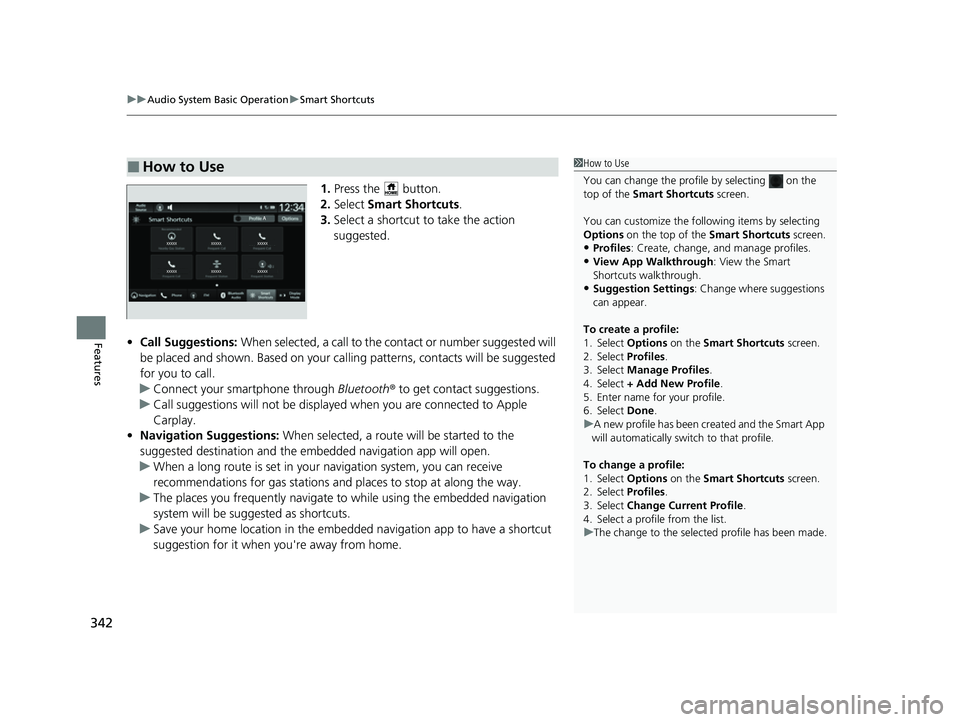
1. Press the button.
2. Select Smart Shortcuts .
3. Select a shortcut to take the action
suggested.
• Call Suggestions: When selected, a call to the c ontact or number suggested will
be placed and shown. Based on your cal ling patterns, contacts will be suggested
for you to call.
u Connect your smartphone through Bluetooth® to get contact suggestions.
u Call suggestions will not be displayed when you are connected to Apple
Carplay.
• Navigation Suggestions: When selected, a route will be started to the
suggested destination and the embedded navigation app will open.
u When a long route is set in your navigation system, you can receive
recommendations for gas stations and places to stop at along the way.
u The places you frequently navigate to while using the embedded navigation
system will be suggested as shortcuts.
u Save your home location in the embedded navigation app to have a shortcut
suggestion for it when you're away from home.
■How to Use1How to Use
You can change the profile by selecting on the
top of the Smart Shortcuts screen.
You can customize the foll owing items by selecting
Options on the top of the Smart Shortcuts screen.
•Profiles: Create, change, a nd manage profiles.
•View App Walkthrough : View the Smart
Shortcuts walkthrough.
•Suggestion Settings : Change where suggestions
can appear.
To create a profile:
1. Select Options on the Smart Shortcuts screen.
2. Select Profiles .
3. Select Manage Profiles .
4. Select + Add New Profile .
5. Enter name for your profile.
6. Select Done .
u A new profile has been cr eated and the Smart App
will automatically switch to that profile.
To change a profile:
1. Select Options on the Smart Shortcuts screen.
2. Select Profiles .
3. Select Change Current Profile .
4. Select a profile from the list.
u The change to the selected profile has been made.
23 CIVIC HATCHBACK TYPE R-31T406100_03.book 342 ページ 2022年6月23日 木曜日 午後9時28分
Page 348 of 840
346
uuAudio System Basic Operation uApple CarPlay
Features
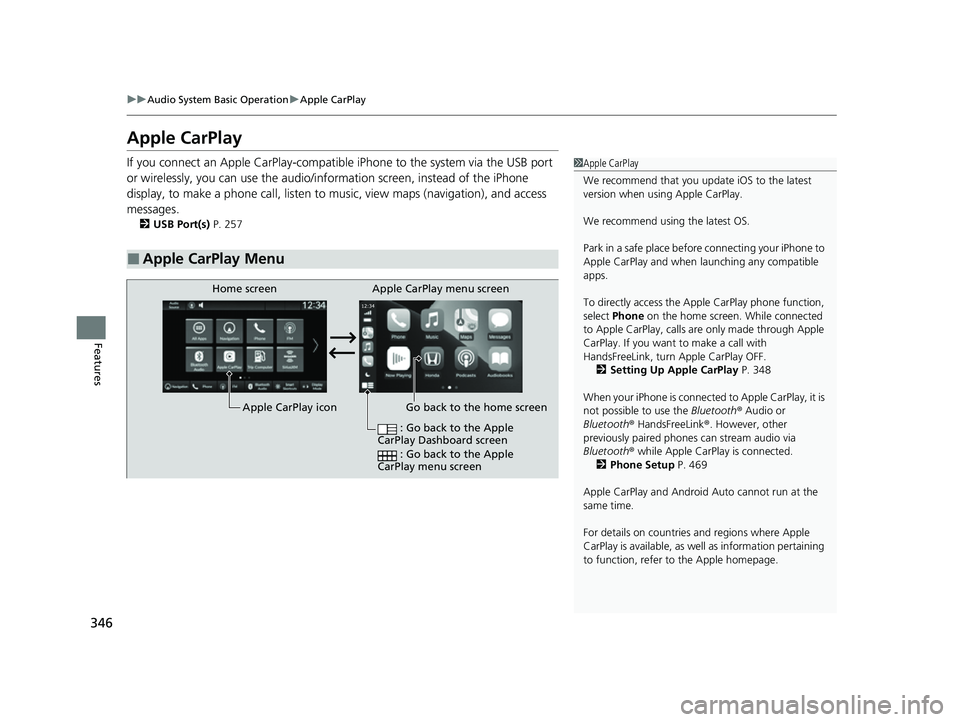
Apple CarPlay
If you connect an Apple CarPlay-compatible iPhone to the system via the USB port
or wirelessly, you can use the audio/info rmation screen, instead of the iPhone
display, to make a phone call, listen to mu sic, view maps (navigation), and access
messages.
2 USB Port(s) P. 257
■Apple CarPlay Menu
1Apple CarPlay
We recommend that you upda te iOS to the latest
version when usi ng Apple CarPlay.
We recommend using the latest OS.
Park in a safe place before connecting your iPhone to
Apple CarPlay and when launching any compatible
apps.
To directly access the Appl e CarPlay phone function,
select Phone on the home screen. While connected
to Apple CarPlay, calls are only made through Apple
CarPlay. If you want to make a call with
HandsFreeLink, turn Apple CarPlay OFF.
2 Setting Up Apple CarPlay P. 348
When your iPhone is connected to Apple CarPlay, it is
not possible to use the Bluetooth® Audio or
Bluetooth ® HandsFreeLink ®. However, other
previously paired phones can stream audio via
Bluetooth ® while Apple CarPlay is connected.
2 Phone Setup P. 469
Apple CarPlay and Android Auto cannot run at the
same time.
For details on c ountries and regions where Apple
CarPlay is available, as well as information pertaining
to function, refer to the Apple homepage.
Go back to the home screen
Home screen
Apple CarPlay icon Apple CarPlay menu screen
: Go back to the Apple
CarPlay Dashboard screen
: Go back to the Apple
CarPlay menu screen
23 CIVIC HATCHBACK TYPE R-31T406100_03.book 346 ページ 2022年6月23日 木曜日 午後9時28分
Page 349 of 840
Continued347
uuAudio System Basic Operation uApple CarPlay
Features
■Phone
Access the contact list, make phone ca lls, or listen to voice mail.
■Messages
Check and reply to text messages, or have messages read to you.
■Music
Play music stored on your iPhone.
■Maps
Display Apple Maps and use the navigation function just as you would on your
iPhone.
Only one navigation system (pre-installed navigation or Apple CarPlay) can give
directions at a time. When you are using one system, directions to any prior
destination set on the other system will be canceled, and the system you are
currently using will direct you to your destination.
1 Apple CarPlay
Apple CarPlay Operating Requirements &
Limitations
Apple CarPlay requi res a compatible iPhone with an
active cellular connecti on and data plan. Your
carrier's rate plans will apply.
Changes in operating systems, hardware, software,
and other technology integral to providing Apple
CarPlay functionality, as well as new or revised
governmental regulations, may result in a decrease or
cessation of Apple CarPlay functionality and services.
Honda cannot and does not pr ovide any warranty or
guarantee of future Appl e CarPlay performance or
functionality.
It is possible to use 3r d party apps if they are
compatible with Apple CarPlay. Refer to the Apple
homepage for information on compatible apps.
23 CIVIC HATCHBACK TYPE R-31T406100_03.book 347 ページ 2022年6月23日 木曜日 午後9時28分
Page 355 of 840
353
uuAudio System Basic Operation uAndroid AutoTM
Continued
Features
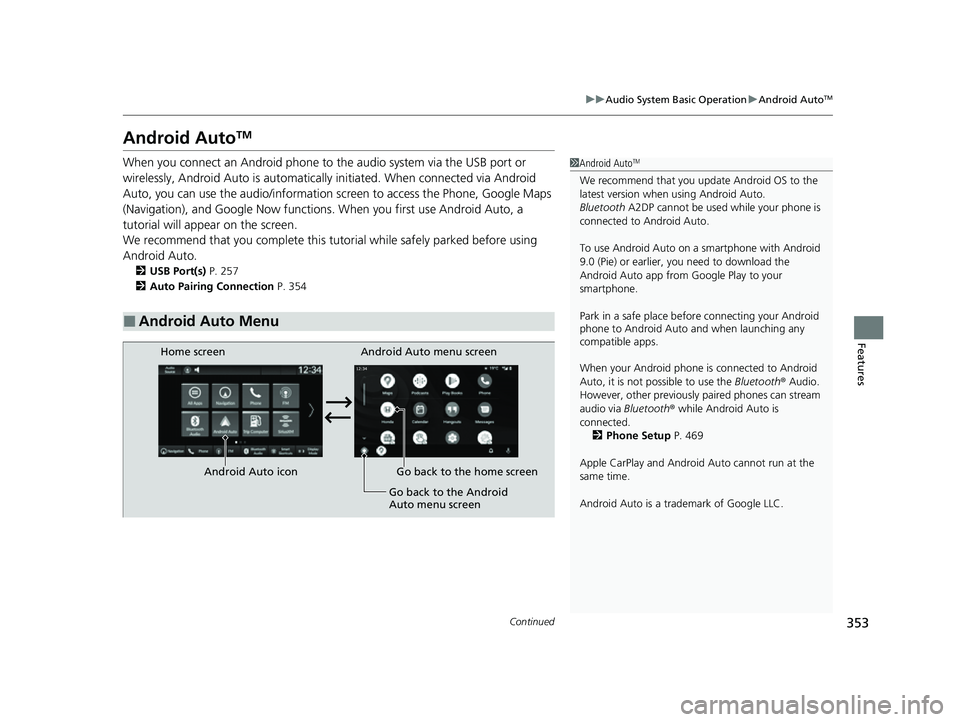
Android AutoTM
When you connect an Android phone to the audio system via the USB port or
wirelessly, Android Auto is automatically initiated. When connected via Android
Auto, you can use the audio/information screen to access the Phone, Google Maps
(Navigation), and Google Now functions. When you first use Android Auto, a
tutorial will appear on the screen.
We recommend that you comple te this tutorial while safely parked before using
Android Auto.
2 USB Port(s) P. 257
2 Auto Pairing Connection P. 354
■Android Auto Menu
1Android AutoTM
We recommend that you upda te Android OS to the
latest version when using Android Auto.
Bluetooth A2DP cannot be used while your phone is
connected to Android Auto.
To use Android Auto on a smartphone with Android
9.0 (Pie) or earl ier, you need to download the
Android Auto app from Google Play to your
smartphone.
Park in a safe place befo re connecting your Android
phone to Android Auto and when launching any
compatible apps.
When your Android phone is connected to Android
Auto, it is not possible to use the Bluetooth® Audio.
However, other previously paired phones can stream
audio via Bluetooth ® while Android Auto is
connected. 2 Phone Setup P. 469
Apple CarPlay and Android Auto cannot run at the
same time.
Android Auto is a trademark of Google LLC.
Android Auto menu screen
Home screen
Android Auto icon Go back to the home screen Go back to the Android
Auto menu screen
23 CIVIC HATCHBACK TYPE R-31T406100_03.book 353 ページ 2022年6月23日 木曜日 午後9時28分
Page 356 of 840
uuAudio System Basic Operation uAndroid AutoTM
354
Features
• Maps
Display Google Maps and use the navigation function just as you would with your
Android phone. When the vehicle is in motion, it is not possible to make keyboard
entries. Stop the vehicle in a safe location to undertake a search or provide other
inputs.
• Phone
Make and receive phone calls as well as listen to voicemail.
• Honda
•
Operate Android Auto with your voice.
• You can check Android notifications.
• (Android Auto Home)
Display useful information organized by Android Auto into simple cards that
appear just when they're needed.
When you connect an Android phone to the unit via the USB port or wirelessly,
Android Auto is automatically initiated.
■Auto Pairing Connection
1 Android AutoTM
For details on c ountries and regions where Android
Auto is available, as well as information pertaining to
function, refer to the Android Auto homepage.
Screens may differ depending on the version of the
Android Auto app you are using.
Android Auto Operating Requirements &
Limitations
Android Auto requires a compatible Android phone
with an active mobile connection and data plan. Your
carrier's rate plans will apply.
Changes in operating systems, hardware, software,
and other technology integral to providing Android
Auto functionality, as well as new or revised
governmental regulations, may result in a decrease or
cessation of Android Auto functionality and services.
Honda cannot and does not pr ovide any warranty or
guarantee of future Android Auto performance or
functionality.
It is possible to use 3r d party apps if they are
compatible with Android Auto. Refer to the Android
Auto homepage for informat ion on compatible apps.
23 CIVIC HATCHBACK TYPE R-31T406100_03.book 354 ページ 2022年6月23日 木曜日 午後9時28分