Page 267 of 533
265Continued
Features
Bluetooth® HandsFreeLink ®
Bluetooth® HandsFreeLink ® (HFL) allows you to place and receive phone calls using
your vehicle’s audio system, without handling your cell phone.
Using HFL
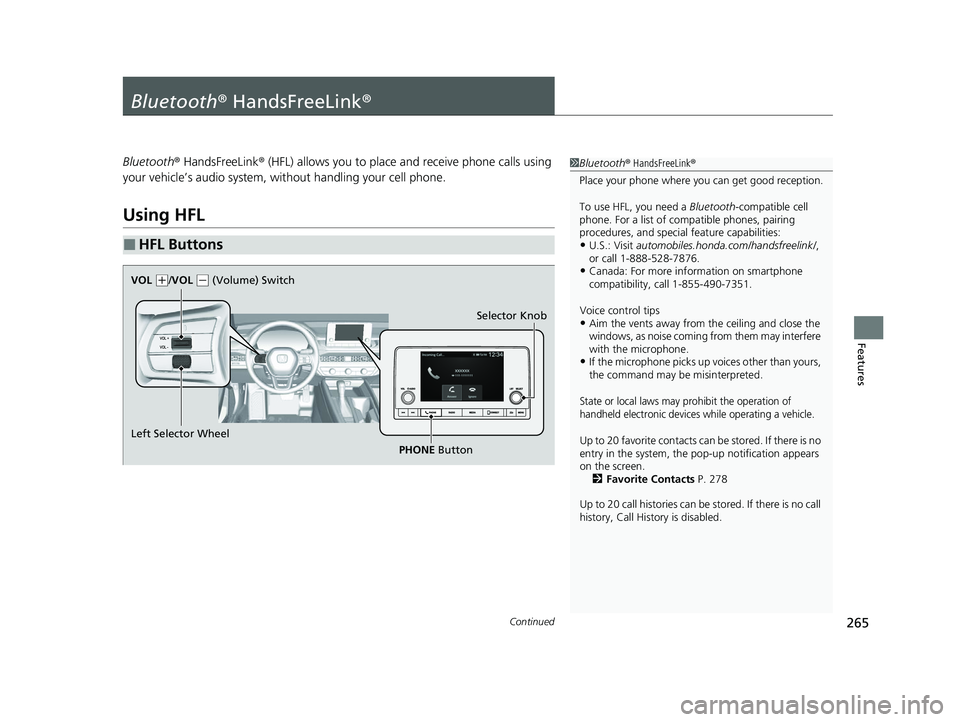
■HFL Buttons
1 Bluetooth ® HandsFreeLink ®
Place your phone where y ou can get good reception.
To use HFL, you need a Bluetooth-compatible cell
phone. For a list of compatible phones, pairing
procedures, and special feature capabilities:
•U.S.: Visit automobiles.honda.com/handsfreelink/ ,
or call 1-888-528-7876.
•Canada: For more info rmation on smartphone
compatibility, call 1-855-490-7351.
Voice control tips
•Aim the vents away from the ceiling and close the
windows, as noise coming from them may interfere
with the microphone.
•If the microphone picks up vo ices other than yours,
the command may be misinterpreted.
State or local laws may pr ohibit the operation of
handheld electronic devices while operating a vehicle.
Up to 20 favorite contacts ca n be stored. If there is no
entry in the system, the pop-up notification appears
on the screen. 2 Favorite Contacts P. 278
Up to 20 call histories can be stored. If there is no call
history, Call History is disabled.
Selector Knob
Left Selector Wheel PHONE Button
VOL
(
+/VOL (- (Volume) Switch
23 ACCORD 4D US PET MAP-3130A6000_01.book 265 ページ 2022年10月19日 水曜日 午前11時49分
Page 268 of 533
uuBluetooth ® HandsFreeLink ®u Using HFL
266
Features
Left Selector Wheel: While receiving a call, the incoming call screen is displayed on
the driver information interface. You can pi ck up the call using the left selector
wheel.
2 Receiving a Call P. 283
PHONE button: Press to go directly to the Phone screen.
Selector knob: Rotate to select an item on the screen, then press .
1 Bluetooth ® HandsFreeLink ®
Bluetooth ® Wireless Technology
The Bluetooth ® word mark and logos are registered
trademarks owned by Bluetooth SIG, Inc., and any
use of such marks by Honda Motor Co., Ltd., is under
license. Other trademarks and trade names are those
of their respective owners.
HFL Limitations
An incoming call on HFL will interrupt the audio
system when it is playing. It will resume when the call
is ended.
23 ACCORD 4D US PET MAP-3130A6000_01.book 266 ページ 2022年10月19日 水曜日 午前11時49分
Page 272 of 533

uuBluetooth ® HandsFreeLink ®u HFL Menus
270
Features
■To pair a cell phone (No phone has
been paired to the system)
1. Press the PHONE button.
2. Make sure your phone is in search or
discoverable mode.
3. Select Yes.
u The audio system will enter a waiting
mode for pairing.
4. Select Accord from your phone.
u If you want to pair a phone from this
audio system, select Search from car
and follow the prompts.
When your phone appears on the list,
select it.
5. The system gives you a pairing code on the
audio/information screen.
u Confirm if the pairing code on the screen
and your phone match.
This may vary by phone.
6. A notification appears on the screen if
pairing is successful.
■Phone Setup1 Phone Setup
Your Bluetooth -compatible phone must be paired to
HFL before you can make and receive hands-free
calls.
Phone Pairing Tips:
•You cannot pair your phone while the vehicle is
moving.
•Up to six phones can be paired.
•Your phone’s battery may dr ain faster when it is
connected to HFL.
•If your phone is not ready to be paired or is not
paired within three minutes, the system will time
out and return to the Bluetooth Settings screen.
Once you have paired a phone, you can see it
displayed on the screen with one or two icons on the
right side.
These icons indicate the following: : The phone is compatible with Bluetooth® Audio.
: The phone can be used with HFL.
When pairing a phone from this audio system:
If your phone doesn’t appear on the audio/
information screen, select Search from phone and
search for Bluetooth® devices using your phone.
From your phone, select Accord .
23 ACCORD 4D US PET MAP-3130A6000_01.book 270 ページ 2022年10月19日 水曜日 午前11時49分
Page 273 of 533
271
uuBluetooth ® HandsFreeLink ®u HFL Menus
Continued
Features
■To pair a cell phone (when a phone has
already been paired to the system)
1. Press the PHONE button.
u If a prompt appears asking to connect to
a phone, select No and proceed with
step 2.
2. Select Settings .
3. Select Bluetooth Settings.
4. Select Connect New Device .
u The audio system will enter a waiting
mode for pairing.
23 ACCORD 4D US PET MAP-3130A6000_01.book 271 ページ 2022年10月19日 水曜日 午前11時49分
Page 274 of 533
272
uuBluetooth ® HandsFreeLink ®u HFL Menus
Features
5. Make sure your phone is in search or
discoverable mode.
6. Select Accord from your phone.
u If you want to pair a phone from this
audio system, select Search from car
and follow the prompts.
When your phone appears on the list,
select it.
7. The system gives you a pairing code on the
audio/information screen.
u Confirm if the pairing code on the screen
and your phone match.
This may vary by phone.
8. A notification appears on the screen if
pairing is successful.
u You can prioritize a Bluetooth ® device at
the same time. Select Yes if you want to
prioritize the device.
23 ACCORD 4D US PET MAP-3130A6000_01.book 272 ページ 2022年10月19日 水曜日 午前11時49分
Page 415 of 533

Continued413
uuParking Your Vehicle uCross Traffic Monitor*
Driving
An arrow icon appears on the side a vehicle is approaching on the audio/information
screen.
■When the System Detects a Vehicle1When the System Detects a Vehicle
If the on the lower right changes to in amber
when the transmission is in
( R, mud, snow or ice,
etc. may have accumulated in the vicinity of the
sensor. The system is temporarily canceled. Check the
bumper corners for any obs tructions, and thoroughly
clean the area if necessary.
If the comes on when the transmission is in
( R,
there may be a problem with the Cross Traffic
Monitor system. Do not use the system and have your
vehicle checked by a dealer.
If the display remains the same with the transmission
in
( R, there may be a problem with the rear camera
system and the Cross Traffic Monitor system.
Do not use the system and have your vehicle checked
by a dealer.
Wide View
Normal View Arrow IconTop Down View
23 ACCORD 4D US PET MAP-3130A6000_01.book 413 ページ 2022年10月19日 水曜日 午前11時49分
Page 416 of 533
414
uuParking Your Vehicle uCross Traffic Monitor*
Driving
The system can be turned on and off on the
audio/information screen by selecting the
Cross Traffic Monitor icon.
You can also switch the system on and off
from the customized feature on the audio/
information screen.
2 Customized Features P. 259
■Cross Traffic Monitor On and Off
Cross Traffic Monitor icon
23 ACCORD 4D US PET MAP-3130A6000_01.book 414 ページ 2022年10月19日 水曜日 午前11時49分
Page 418 of 533

uuMulti-View Rear Camera uAbout Your Multi-View Rear Camera
416
Driving
You can view three different camera modes on the audio/information screen.
Select appropriate icon to switch the mode.
• If you were last using Wide view mode or Normal view mode, the same view
mode will be activated the next time you put the transmission into
(R.
• If you were using Top down view mode before you turned off the engine, Wide
view mode will be activated the next time you set the power mode to ON and put
the transmission into
(R.
• If you were using Top down view mode and 10 seconds elapsed after you took
the transmission out of
(R, Wide view mode will be activated the next time you
put the transmission into
(R.
• If you were using Top down view mode and put the transmission back into
(R
within 10 seconds after you took it out of
(R, Top down view mode will be
activated.
1 About Your Multi-View Rear Camera
If the vehicle’s rear view is not displayed on the audio/
information screen while the shift position is in
( R,
there may be a problem with the system. Have your
vehicle checked by a dealer immediately.
Wide view
mode Normal view
modeTop down view
mode
Bumper
BumperBumper
23 ACCORD 4D US PET MAP-3130A6000_01.book 416 ページ 2022年10月19日 水曜日 午前11時49分


