2023 GMC SIERRA radio controls
[x] Cancel search: radio controlsPage 150 of 430

GMC Sierra/Sierra Denali 2500 HD/3500 HD Owner Manual (GMNA-
Localizing-U.S./Canada-16504257) - 2023 - CRC - 5/18/22
Infotainment System 149
.Set up the audio by presetting favorite
stations, setting the tone, and adjusting
the speakers.
.Set up phone numbers in advance so they
can be called easily by pressing a single
control or by using a single voice
command.
See Distracted Driving 0204.
Active Noise Cancellation (ANC)
If equipped, ANC reduces engine noise in the
vehicle’s interior. ANC requires the
factory-installed audio system, radio,
speakers, amplifier (if equipped), induction
system, and exhaust system to work
properly. Deactivation is required by your
dealer if related aftermarket equipment is
installed.
Overview
Infotainment System
The infotainment system is controlled by
using the infotainment display, controls on
the center stack, steering wheel controls,
and voice recognition.
Uplevel Radio
1.O(Power)
.Press to turn the power on.
.Press to mute/unmute the system
when on.
.Press and hold to display the
power off screen or the option to
display the power off screen.
.Turn to decrease or increase the
volume.
2.7
.Radio: Press and release to go to
the previous station or channel.
Press and hold to fast seek the
next strongest previous station or
channel. See AM-FM Radio 0154.
.USB/Bluetooth: Press to seek to
the beginning of the current or
previous track. Press and hold to
quickly reverse through a track.
Release to return to playing speed.
See USB Port 0158 or
Bluetooth Audio 0160.
Page 152 of 430

GMC Sierra/Sierra Denali 2500 HD/3500 HD Owner Manual (GMNA-
Localizing-U.S./Canada-16504257) - 2023 - CRC - 5/18/22
Infotainment System 151
4.6
.Radio: Press and release to go to
the next station or channel. Press
and hold to fast seek the next
strongest station or channel.
.USB/Bluetooth: Press to seek the
next track. Press and hold to fast
forward through a track. Release to
return to playing speed. SeeUSB
Port 0158 or
Bluetooth Audio 0160.
5.v
.Press and release to access the
phone display or answer an
incoming call.
Home Page
The Home Page is where vehicle application
icons are accessed. Some applications are
disabled when the vehicle is moving.
Swipe left or right across the display to
access the pages of icons.
Managing Home Page Icons 1. Touch and hold any of the Home Page icons to enter edit mode.
2. Continue holding the icon and drag it to the desired position. 3. Release your finger to drop the icon in
the desired position.
4. To move an application to another page, drag the icon to the edge of the display
toward the desired page.
5. Continue dragging and dropping application icons as desired.
Steering Wheel Controls
If equipped, some audio controls can be
adjusted at the steering wheel.
g:Press to answer an incoming call or
start voice recognition. See Bluetooth
(Pairing and Using a Phone) 0177 or
Bluetooth (Overview) 0176.
c:Press to decline an incoming call or
end a current call. Press to mute or unmute
the infotainment system when not on a call.
The favorites and volume switches are on
the back of the steering wheel.
1. Favorite: When on a radio source, press to select the next or previous audio
broadcast favorite. When listening to a
media device, press to select the next or
previous track.
2. Volume: Press to increase or decrease the volume.
Page 156 of 430
GMC Sierra/Sierra Denali 2500 HD/3500 HD Owner Manual (GMNA-
Localizing-U.S./Canada-16504257) - 2023 - CRC - 5/18/22
Infotainment System 155
Fade/Balance :Touch to adjust by using the
controls on the infotainment display or by
tapping/dragging the crosshair.
Finding a Station
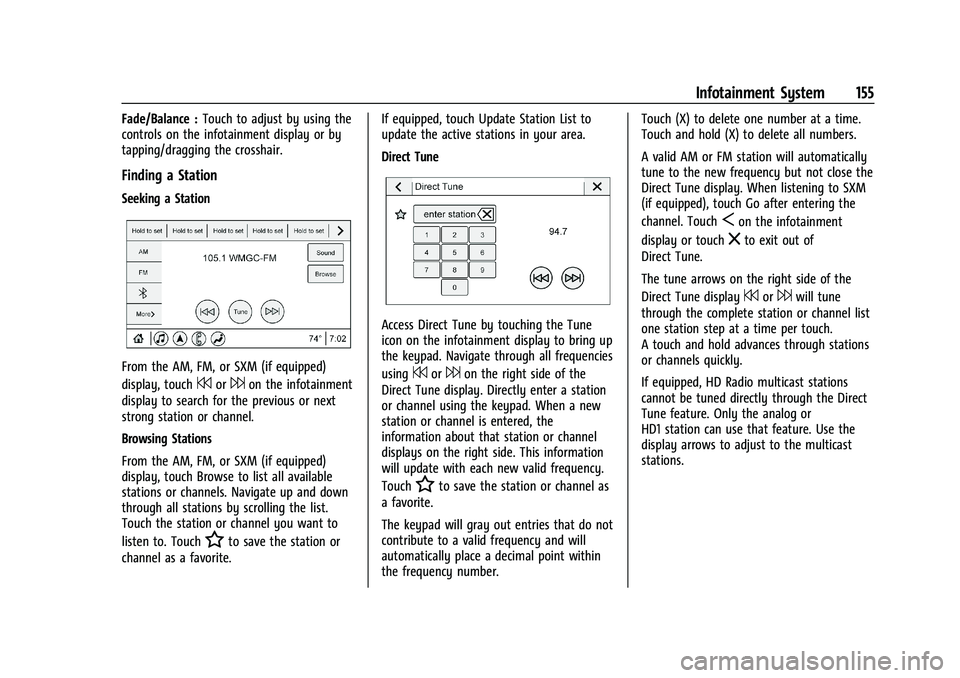
Seeking a Station
From the AM, FM, or SXM (if equipped)
display, touch
7or6on the infotainment
display to search for the previous or next
strong station or channel.
Browsing Stations
From the AM, FM, or SXM (if equipped)
display, touch Browse to list all available
stations or channels. Navigate up and down
through all stations by scrolling the list.
Touch the station or channel you want to
listen to. Touch
Hto save the station or
channel as a favorite. If equipped, touch Update Station List to
update the active stations in your area.
Direct Tune
Access Direct Tune by touching the Tune
icon on the infotainment display to bring up
the keypad. Navigate through all frequencies
using
7or6on the right side of the
Direct Tune display. Directly enter a station
or channel using the keypad. When a new
station or channel is entered, the
information about that station or channel
displays on the right side. This information
will update with each new valid frequency.
Touch
Hto save the station or channel as
a favorite.
The keypad will gray out entries that do not
contribute to a valid frequency and will
automatically place a decimal point within
the frequency number. Touch (X) to delete one number at a time.
Touch and hold (X) to delete all numbers.
A valid AM or FM station will automatically
tune to the new frequency but not close the
Direct Tune display. When listening to SXM
(if equipped), touch Go after entering the
channel. Touch
Son the infotainment
display or touch
zto exit out of
Direct Tune.
The tune arrows on the right side of the
Direct Tune display
7or6will tune
through the complete station or channel list
one station step at a time per touch.
A touch and hold advances through stations
or channels quickly.
If equipped, HD Radio multicast stations
cannot be tuned directly through the Direct
Tune feature. Only the analog or
HD1 station can use that feature. Use the
display arrows to adjust to the multicast
stations.
Page 161 of 430

GMC Sierra/Sierra Denali 2500 HD/3500 HD Owner Manual (GMNA-
Localizing-U.S./Canada-16504257) - 2023 - CRC - 5/18/22
160 Infotainment System
Bluetooth Audio
Music may be played from a paired
Bluetooth device. SeeBluetooth (Pairing and
Using a Phone) 0177 or
Bluetooth (Overview) 0176 for help pairing a
device.
Volume and song selection may be
controlled by using the infotainment
controls or the mobile device. If Bluetooth is
selected and no volume is present, check the
volume setting on the infotainment system.
Music can be launched by touching
Bluetooth from the recent sources list on
the left of the display or by touching the
More option and then touching the
Bluetooth device.
To play music via Bluetooth:
1. Power on the device, and pair to connect the device.
2. Once paired, touch Audio from the Home Page, then touch Bluetooth from the
recent sources list on the left of the
display.
Bluetooth Sound Menu
See “Infotainment System Sound Menu”
under AM-FM Radio 0154. Manage Bluetooth Devices
From the Home Page:
1. Touch Audio.
2. Touch Devices to add or delete devices.
When touching Bluetooth, the radio may
not be able to launch the audio player on
the connected device to start playing. When
the vehicle is not moving, use the mobile
device to begin playback.
All devices launch audio differently. When
selecting Bluetooth as a source, the radio
may show as paused on the display. Press
play on the device or touch
pon the
vehicle display to begin playback.
Browse functionality will be provided where
supported by the Bluetooth device. This
media content will not be part of the
MyMedia source mode.
Some smartphones support sending
Bluetooth music information to display on
the radio. When the radio receives this
information, it will check to see if any is
available and display it. For more
information about supported Bluetooth
features, visit your brand website. See
Online Account 0398 for details.
See Radio Frequency Statement 0404.
Navigation
Using the Navigation System
If equipped, launch the Nav application by
touching the Nav icon on the Home Page or
on the shortcut tray near the bottom of the
infotainment display.
When the Nav application is launched for
the first time, a product walkthrough is
available. Use of the feature requires the
Terms and Conditions and the Privacy
statement to be confirmed. If available and
signed into a profile, it is also suggested to
enable and confirm Predictive Navigation.
Predictive Navigation (If Equipped)
If Predictive Navigation is available and
confirmed, this feature learns preferences by
remembering where the vehicle has been.
It uses the locations and navigation history
to personalize routes and results.
Predictive Navigation may learn elements
such as:
.Personalized routes based on preferred
streets.
.Search results that provide best matches
at the top of the list.
Page 174 of 430

GMC Sierra/Sierra Denali 2500 HD/3500 HD Owner Manual (GMNA-
Localizing-U.S./Canada-16504257) - 2023 - CRC - 5/18/22
Infotainment System 173
Canceling Voice Recognition
.Touch or say“Cancel”or“Exit” to
terminate the voice recognition session
and show the display where voice
recognition was initiated.
.Pression the steering wheel controls
to terminate the voice recognition session
and show the display where voice
recognition was initiated.
Natural Language Commands
Most languages do not support natural
language commands in sentence form. For
those languages, use direct commands like
the examples shown on the display.
Helpful Hints for Speaking Commands
Voice recognition can understand commands
that are naturally stated in sentence form or
direct commands that state the application
and the task.
For best results:
.Listen for the prompt before saying a
command or reply.
.Speak the command naturally, not too
fast, not too slow.
.Use direct commands without a lot of
extra words. For example, “Call
at work,” “Play” followed by the artist or
song name, or “Tune”followed by the
radio station number.
.Navigation destinations can be made in a
single command using keywords. A few
examples are: “I want directions to an
address,” “I need to find a place of
interest or (POI),” or“Find contact.”
The system responds by requesting more
details. For other POIs, say the name of a
category like “Restaurants,” “Shopping
Malls,” or“Hospitals.”
.Navigating to a destination outside of the
current country takes more than one
command. The first command is to tell
the system where the navigation will take
place, such as an Address, Intersection,
POI, or Contact. If Address or Intersection
is selected, the second command is to
say, “Change Country.” Once the system
responds, say the country before saying
the rest of the address and/or
intersection.
If POI is asked for, say “Change Location,”
then “Change Country.” Direct commands might be more clearly
understood by the system. An example of a
direct command would be
“Call
Examples of these direct commands are
displayed on most of the screens while a
voice session is active. If “Phone”or“Phone
Commands,” is spoken, the system
understands that a phone call is requested
and will respond with questions until
enough details are gathered to make a call.
If a cell phone number has been saved with
a name and a place, the direct command
should include both, for example “Call
When a list is displayed, a voice prompt will
ask to confirm or select an option from
that list.
When a display contains a list, there may be
options that are available but not displayed.
The list on a voice recognition screen
functions the same as a list on other
displays. Scrolling or flinging can be used to
help display other entries from the list.
Manually scrolling or paging the list on a
display during a voice recognition session
suspends the current voice recognition event
Page 177 of 430

GMC Sierra/Sierra Denali 2500 HD/3500 HD Owner Manual (GMNA-
Localizing-U.S./Canada-16504257) - 2023 - CRC - 5/18/22
176 Infotainment System
Voice Recognition for Navigation
(If Equipped)
“Navigation”:Begin a dialog to enter
specific destination information.
“Navigation Commands” :Begin a dialog to
enter specific destination information.
“Address” :Begin a dialog to enter a
specific destination address, which includes
the entire address consisting of the house
number, street name, city, state/province,
and country. Do not include the ZIP code.
“Place of Interest” :Begin a dialog to enter
a destination Place of Interest category or
major brand name.
The name must be precisely spoken.
Nicknames or short names for the
businesses will not likely be found. Lesser
known businesses might have to be located
by category, such as fast food, hotels,
or banks.
“Navigate to Contact” :Begin a dialog to
enter a specific destination contact name.
“Cancel Route” :End route guidance.
“Take Me Home” :Create a route to a
stored home location.
Voice Recognition for the Phone
“Call
stored contact. The command may include
location if the contact has location numbers
stored.
“Call
Mobile,” or“On Other” :Initiate a call to a
stored contact and location at home, at
work, on mobile device, or on another
phone.
“Call
to a cell phone number of seven digits, 10
digits, or three digit emergency numbers.
“Pair Phone” :Begin the Bluetooth pairing
process. Follow the instructions on the
infotainment display.
“Redial” :Initiate a call to the last dialed
number.
“Switch Phone” :Select a different
connected cell phone for outgoing calls.
“Voice Keypad” :Begin a dialog to enter
special numbers like international numbers.
The numbers can be entered in groups of
digits with each group of digits being
repeated back by the system. If the group
of digits is not correct, the command
“Delete” will remove the last group of digits and allow them to be re-entered. Once the
entire number has been entered, the
command
“Call”will start dialing the
number.
Phone Assistant Voice Recognition
Press and holdgon the steering wheel
controls to pass through and launch Google
phone assistant or Siri.
For the low radio, whether connected by
Bluetooth or phone projection, the only
available voice recognition is either Siri
(iPhone) or the Google Assistant (Android).
Phone
Bluetooth (Overview)
The Bluetooth-capable system can be paired
with up to 10 Bluetooth devices and two
active Bluetooth devices, allowing:
.Placement and receipt of calls in a
hands-free mode.
.Sharing of the device’s address book or
contact list with the vehicle.
Page 205 of 430

GMC Sierra/Sierra Denali 2500 HD/3500 HD Owner Manual (GMNA-
Localizing-U.S./Canada-16504257) - 2023 - CRC - 5/9/22
204 Driving and Operating
Trailer Towing
General Towing Information . . . . . . . . . . 268
Driving Characteristics andTowing Tips . . . . . . . . . . . . . . . . . . . . . . . . . 268
Trailer Towing . . . . . . . . . . . . . . . . . . . . . . . . . 272
Towing Equipment . . . . . . . . . . . . . . . . . . . . 276
Trailer Sway Control (TSC) . . . . . . . . . . . . . 285
Trailering App . . . . . . . . . . . . . . . . . . . . . . . . . 287
Conversions and Add-Ons
Add-On Electrical Equipment . . . . . . . . . . . 297
Adding a Snow Plow or Similar Equipment . . . . . . . . . . . . . . . . . . . . . . . . . . 298
Pickup Conversion to Chassis Cab . . . . . 300
Driving Information
Driving for Better Fuel Economy
Driving habits can affect fuel mileage. Here
are some driving tips to get the best fuel
economy possible:
.Set the climate controls to the desired
temperature after the engine is started,
or turn them off when not required.
.Avoid fast starts and accelerate smoothly.
.Brake gradually and avoid abrupt stops.
.Avoid idling the engine for long periods
of time.
.When road and weather conditions are
appropriate, use cruise control.
.Always follow posted speed limits or
drive more slowly when conditions
require.
.Keep vehicle tires properly inflated.
.Combine several trips into a single trip.
.Replace the vehicle's tires with the same
TPC Spec number molded into the tire's
sidewall near the size.
.Follow recommended scheduled
maintenance.
Distracted Driving
Distraction comes in many forms and can
take your focus from the task of driving.
Exercise good judgment and do not let other
activities divert your attention away from
the road. Many local governments have
enacted laws regarding driver distraction.
Become familiar with the local laws in
your area.
To avoid distracted driving, keep your eyes
on the road, keep your hands on the
steering wheel, and focus your attention on
driving.
.Do not use a phone in demanding driving
situations. Use a hands-free method to
place or receive necessary phone calls.
.Watch the road. Do not read, take notes,
or look up information on phones or
other electronic devices.
.Designate a front seat passenger to
handle potential distractions.
.Become familiar with vehicle features
before driving, such as programming
favorite radio stations and adjusting
climate control and seat settings. Program
all trip information into any navigation
device prior to driving.
Page 422 of 430

GMC Sierra/Sierra Denali 2500 HD/3500 HD Owner Manual (GMNA-
Localizing-U.S./Canada-16504257) - 2023 - CRC - 5/9/22
Index 421
H
Halogen Bulbs . . . . . . . . . . . . . . . . . . . . . . . . . . . 325
Hazard Warning Flashers . . . . . . . . . . . . . . . . .142
HD Radio Technology . . . . . . . . . . . . . . . . . . . . 156
Head Restraints . . . . . . . . . . . . . . . . . . . . . . . . . . . 49
Head-Up Display (HUD) . . . . . . . . . . . . . . . . . . . 132
HeadlampsAiming . . . . . . . . . . . . . . . . . . . . . . . . . . . . . . . . 325
Automatic . . . . . . . . . . . . . . . . . . . . . . . . . . . . . . 141
Bulb Replacement . . . . . . . . . . . . . . . . . . . . . . 325
Daytime Running Lamps (DRL) . . . . . . . . . . 141
Flash-to-Pass . . . . . . . . . . . . . . . . . . . . . . . . . . . . 141
Headlamps, Front Turn Signal,Sidemarker, and Parking Lamps . . . . . . 325
High-Beam On Light . . . . . . . . . . . . . . . . . . . . 127
High/Low Beam Changer . . . . . . . . . . . . . . . 141
Lamps On Reminder . . . . . . . . . . . . . . . . . . . 128
Heated Mirrors . . . . . . . . . . . . . . . . . . . . . . . . . . . . . . . . . 39
Rear Seats . . . . . . . . . . . . . . . . . . . . . . . . . . . . . . 58
Steering Wheel . . . . . . . . . . . . . . . . . . . . . . . . 105
Ventilated Front Seats . . . . . . . . . . . . . . . . . . 56
Heater Engine . . . . . . . . . . . . . . . . . . . . . . . . . . . . . . . . . 226
Heating . . . . . . . . . . . . . . . . . . . . . . . . . . . . . .196, 197
High-Beam On Light . . . . . . . . . . . . . . . . . . . . . . 127 Hill
Descent Control (HDC) . . . . . . . . . . . . . . . . . 242
Descent Control Light . . . . . . . . . . . . . . . . . . 123
Hill and Mountain Roads . . . . . . . . . . . . . . . . . 212
Hill Start Assist (HSA) . . . . . . . . . . . . . . . . . . . . 240
Hood . . . . . . . . . . . . . . . . . . . . . . . . . . . . . . . . . . . . 303
Horn . . . . . . . . . . . . . . . . . . . . . . . . . . . . . . . . . . . . . 106
How to Wear Seat Belts Properly . . . . . . . . . 59
HVAC . . . . . . . . . . . . . . . . . . . . . . . . . . . . . . . .196, 197
I
If the System Needs Service . . . . . . . . . . . . . . 171
Ignition Positions . . . . . . . . . . . . . . . . . . . . 221, 223
Immobilizer . . . . . . . . . . . . . . . . . . . . . . . . . . . . . . . .35
Indicator Vehicle Ahead . . . . . . . . . . . . . . . . . . . . . . . . . 124
Indicators
Warning Lights and Gauges . . . . . . . . . . . . . 111
Infants and Young Children, Restraints . . . . .77
Information Publication Ordering . . . . . . . . . . . . . . . . . . . 404
Infotainment Using the System . . . . . . . . . . . . . . . . . . . . . . 152
Infotainment System . . . . . . . . . . . . . . . . . . . . 407
Inspection Multi-Point Vehicle . . . . . . . . . . . . . . . . . . . . 387
Instrument Cluster . . . . . . . . . . . . . . . . . . . . . . . . 111
Instrument Panel Overview . . . . . . . . . . . . . . . . .5 Interior Rearview Mirrors . . . . . . . . . . . . . . . . . 40
Introduction . . . . . . . . . . . . . . . . . . . . . . . . . . . 2, 148
J
Jack
Auxiliary . . . . . . . . . . . . . . . . . . . . . . . . . . . . . . . 159
Jump
Starting - North America . . . . . . . . . . . . . . . 367
K
Keyless EntryRemote (RKE) System Operation . . . . . 12, 14
Keys . . . . . . . . . . . . . . . . . . . . . . . . . . . . . . . . . . . . 8, 11
L
Labeling, Tire Sidewall . . . . . . . . . . . . . . . . . . . 338
Lamps Auxiliary Roof Mounted Lamp . . . . . . . . . 144
Daytime Running (DRL) . . . . . . . . . . . . . . . . . 141
Dome . . . . . . . . . . . . . . . . . . . . . . . . . . . . . . . . . . 145
Exterior Cargo . . . . . . . . . . . . . . . . . . . . . . . . . 144
Exterior Controls . . . . . . . . . . . . . . . . . . . . . . . 139
Exterior Lamps Off Reminder . . . . . . . . . . . 141
Exterior Lighting Battery Saver . . . . . . . . 147
Flash-to-Pass . . . . . . . . . . . . . . . . . . . . . . . . . . . . 141
Fog . . . . . . . . . . . . . . . . . . . . . . . . . . . . . . . . . . . . 143
High/Low Beam Changer . . . . . . . . . . . . . . . 141
License Plate . . . . . . . . . . . . . . . . . . . . . . . . . . . 327