2023 GMC ACADIA mirror
[x] Cancel search: mirrorPage 195 of 384

GMC Acadia/Acadia Denali Owner Manual (GMNA-Localizing-U.S./Canada/
Mexico-16402009) - 2023 - CRC - 3/29/22
194 Driving and Operating
2. Turn the steering wheel aboutone-eighth of a turn, until the right front
tire contacts the pavement edge.
3. Turn the steering wheel to go straight down the roadway.
Loss of Control
Skidding
There are three types of skids that
correspond to the vehicle's three control
systems:
.Braking Skid —wheels are not rolling.
.Steering or Cornering Skid —too much
speed or steering in a curve causes tires
to slip and lose cornering force.
.Acceleration Skid —too much throttle
causes the driving wheels to spin.
Defensive drivers avoid most skids by taking
reasonable care suited to existing conditions,
and by not overdriving those conditions. But
skids are always possible.
If the vehicle starts to slide, follow these
suggestions:
.Ease your foot off the accelerator pedal
and steer the way you want the vehicle
to go. The vehicle may straighten out. Be
ready for a second skid if it occurs.
.Slow down and adjust your driving
according to weather conditions. Stopping
distance can be longer and vehicle control
can be affected when traction is reduced
by water, snow, ice, gravel, or other
material on the road. Learn to recognize
warning clues —such as enough water,
ice, or packed snow on the road to make
a mirrored surface —and slow down
when you have any doubt.
.Try to avoid sudden steering, acceleration,
or braking, including reducing vehicle
speed by shifting to a lower gear. Any
sudden changes could cause the tires to
slide.
Remember: Antilock brakes help avoid only
the braking skid.
Off-Road Driving
All-Wheel Drive (AWD) vehicles can be used
for off-road driving. Vehicles without AWD
and vehicles not equipped with All Terrain
(AT) or On-Off Road (OOR) tires must not be
driven off-road except on a level, solid
surface. To contact the tire manufacturer for
more information about the original
equipment tires, see the warranty manual. Controlling the vehicle is the key to
successful off-road driving. One of the best
ways to control the vehicle is to control the
speed.
{Warning
When driving off-road, bouncing and
quick changes in direction can easily
throw you out of position. This could
cause you to lose control and crash. You
and your passengers should always wear
seat belts.
Before Driving Off-Road
.Have all necessary maintenance and
service work completed.
.Fuel the vehicle, fill fluid levels, and check
inflation pressure in all tires, including the
spare, if equipped.
.Read all the information about AWD
vehicles in this manual.
.Make sure all underbody shields,
if equipped, are properly attached.
.Know the local laws that apply to off-road
driving.
Page 200 of 384

GMC Acadia/Acadia Denali Owner Manual (GMNA-Localizing-U.S./Canada/
Mexico-16402009) - 2023 - CRC - 3/29/22
Driving and Operating 199
Winter Driving
Driving on Snow or IceCaution
To avoid damage to the wheels and
brake components, always clear snow and
ice from inside the wheels and
underneath the vehicle before driving.
Snow or ice between the tires and the road
creates less traction or grip, so drive
carefully. Wet ice can occur at about 0 °C
(32 °F) when freezing rain begins to fall.
Avoid driving on wet ice or in freezing rain
until roads can be treated.
For Slippery Road Driving:
.Accelerate gently. Accelerating too quickly
causes the wheels to spin and makes the
surface under the tires slick.
.Turn on Traction Control. See Traction
Control/Electronic Stability Control 0218.
.The Antilock Brake System (ABS) improves
vehicle stability during hard stops, but
the brakes should be applied sooner than
when on dry pavement. See Antilock
Brake System (ABS) 0215.
.Allow greater following distance and
watch for slippery spots. Icy patches can
occur on otherwise clear roads in shaded
areas. The surface of a curve or an
overpass can remain icy when the
surrounding roads are clear. Avoid sudden
steering maneuvers and braking while
on ice.
.Turn off cruise control.
.Select All-Wheel Drive (AWD) Mode for
vehicles equipped with AWD. Select
Snow/Ice Mode for FWD only vehicles.
See Driver Mode Control 0220 and
All-Wheel Drive 0215.
Blizzard Conditions
Stop the vehicle in a safe place and signal
for help. Stay with the vehicle unless there
is help nearby. If possible, use Roadside
Assistance. See Roadside Assistance Program
0 354. To get help and keep everyone in the
vehicle safe:
.Turn on the hazard warning flashers.
.Tie a red cloth to an outside mirror.
{Warning
Snow can trap engine exhaust under the
vehicle. This may cause exhaust gases to
get inside. Engine exhaust contains
carbon monoxide (CO), which cannot be
seen or smelled. It can cause
unconsciousness and even death.
If the vehicle is stuck in snow:
.Clear snow from the base of the
vehicle, especially any blocking the
exhaust pipe.
.Open a window about 5 cm (2 in) on
the vehicle side that is away from the
wind, to bring in fresh air.
.Fully open the air outlets on or under
the instrument panel.
.Adjust the climate control system to
circulate the air inside the vehicle and
set the fan speed to the highest
setting. See “Climate Control Systems.”
For more information about CO, see
Engine Exhaust 0210.
Page 232 of 384

GMC Acadia/Acadia Denali Owner Manual (GMNA-Localizing-U.S./Canada/
Mexico-16402009) - 2023 - CRC - 3/29/22
Driving and Operating 231
Do not install objects on top of the vehicle
that overhang and obstruct the front
camera, such as a canoe, kayak, or other
items that can be transported on a roof rack
system. SeeRoof Rack System 087.
Do not modify the hood, headlamps, or fog
lamps, as this may limit the camera’s ability
to detect an object.
Cleaning the Sensing System
The camera sensor on the windshield behind
the rearview mirror and the radar sensors
on the front of the vehicle can become
blocked by snow, ice, dirt, or mud. These
areas need to be cleaned for ACC to operate
properly.
For cleaning instructions, see “Washing the
Vehicle” underExterior Care 0329.
System operation may also be limited under
snow, heavy rain, or road spray conditions.
Driver Assistance Systems
This vehicle may have features that work
together to help avoid crashes or reduce
crash damage while driving, backing, and
parking. Read this entire section before
using these systems.
{Warning
Do not rely on the Driver Assistance
Systems. These systems do not replace
the need for paying attention and driving
safely. You may not hear or feel alerts or
warnings provided by these systems.
Failure to use proper care when driving
may result in injury, death, or vehicle
damage. See Defensive Driving 0192.
Under many conditions, these systems
will not:
.Detect children, pedestrians, bicyclists,
or animals.
.Detect vehicles or objects outside the
area monitored by the system.
.Work at all driving speeds.
.Warn you or provide you with enough
time to avoid a crash.
.Work under poor visibility or bad
weather conditions.
.Work if the detection sensor is not
cleaned or is covered by ice, snow,
mud, or dirt. (Continued)
Warning (Continued)
.Work if the detection sensor is
covered up, such as with a sticker,
magnet, or metal plate.
.Work if the area surrounding the
detection sensor is damaged or not
properly repaired.
Complete attention is always required
while driving, and you should be ready to
take action and apply the brakes and/or
steer the vehicle to avoid crashes.
Audible or Safety Alert Seat
Some driver assistance features alert the
driver of obstacles by beeping. To view
available settings for this feature, touch the
Settings icon on the infotainment home
page. Select “Vehicle”to display the list of
available options and select “Comfort and
Convenience”.
If equipped with the Safety Alert Seat, the
driver seat cushion may provide a vibrating
pulse alert instead of beeping. To view
available settings for this feature, touch the
Settings icon on the infotainment home
Page 233 of 384

GMC Acadia/Acadia Denali Owner Manual (GMNA-Localizing-U.S./Canada/
Mexico-16402009) - 2023 - CRC - 3/29/22
232 Driving and Operating
page. Select“Vehicle”to display the list of
available options and select “Collision/
Detection Systems”.
Cleaning
Depending on vehicle options, keep these
areas of the vehicle clean to ensure the best
driver assistance feature performance. Driver
Information Center (DIC) messages may
display when the systems are unavailable or
blocked.
.Front and rear bumpers and the area
below the bumpers
.Front grille and headlamps
.Front camera lens in the front grille or
near the front emblem
.Front side and rear side panels
.Outside of the windshield in front of the
rearview mirror
.Side camera lens on the bottom of the
outside mirrors
.Rear side corner bumpers
.Rear Vision Camera above the license
plate Radio Frequency
This vehicle may be equipped with driver
assistance systems that operate using radio
frequency. See
Radio Frequency Statement
0 359 or
Radio Frequency Statement 0359.
Assistance Systems for Parking or
Backing
If equipped, the Rear Vision Camera (RVC),
Surround Vision, Rear Park Assist (RPA),
Front and Rear Park Assist (FRPA), and Rear
Cross Traffic Alert (RCTA) may help the
driver park or avoid objects. Always check
around the vehicle when parking or backing.
Rear Vision Camera (RVC)
When the vehicle is shifted into R (Reverse),
the Rear Vision Camera (RVC) displays an
image of the area behind the vehicle in the
infotainment display. The previous screen
displays when the vehicle is shifted out of
R (Reverse) after a short delay. To return to
the previous screen sooner, press Home or
Back on the infotainment system, shift into
P (Park), or reach a vehicle speed of
approximately 12 km/h (8 mph) while in
D (Drive).
Page 234 of 384

GMC Acadia/Acadia Denali Owner Manual (GMNA-Localizing-U.S./Canada/
Mexico-16402009) - 2023 - CRC - 3/29/22
Driving and Operating 233
1. View Displayed by the Camera
1. View Displayed by the Camera
2. Corners of the Rear Bumper
Displayed images may be farther or closer
than they appear. The area displayed is
limited and objects that are close to either
corner of the bumper or under the bumper
do not display.
A warning triangle may appear on the
infotainment display to show that Rear Park
Assist (RPA) or Rear Cross Traffic Alert (RCTA)
has detected an object. This triangle changes
from amber to red and increases in size the
closer the object.
{Warning
The camera(s) do not display children,
pedestrians, bicyclists, crossing traffic,
animals, or any other object outside of
the cameras’field of view, below the
bumper, or under the vehicle. Shown
distances may be different from actual
distances. Do not drive or park the
vehicle using only these camera(s).
Always check behind and around the
vehicle before driving. Failure to use
proper care may result in injury, death,
or vehicle damage.
Surround Vision System
If equipped, Surround Vision shows an
image of the area surrounding the vehicle,
along with the front or rear camera views
on the infotainment display. The front
camera is in the grille or near the front
emblem, the side cameras are on the
bottom of the outside mirrors, and the rear
camera is above the license plate.
The Surround Vision system can be accessed
by selecting CAMERA in the infotainment
display or when the vehicle is shifted into
R (Reverse). To return to the previous screen
sooner, when not in R (Reverse) press Home
or Back on the infotainment system, shift
into P (Park), or reach a vehicle speed of
approximately 12 km/h (8 mph) while in
D (Drive).
{Warning
The Surround Vision cameras have blind
spots and will not display all objects near
the corners of the vehicle. Folding outside
mirrors that are out of position may not
display surround view correctly. Always
check around the vehicle when parking or
backing.
Page 236 of 384
GMC Acadia/Acadia Denali Owner Manual (GMNA-Localizing-U.S./Canada/
Mexico-16402009) - 2023 - CRC - 3/29/22
Driving and Operating 235
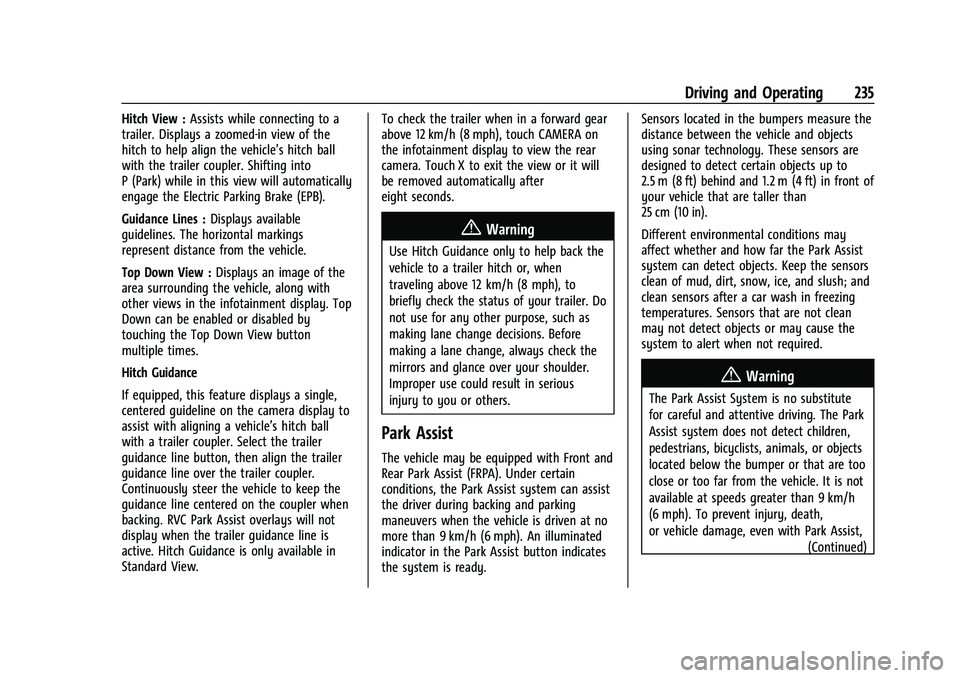
Hitch View :Assists while connecting to a
trailer. Displays a zoomed-in view of the
hitch to help align the vehicle’s hitch ball
with the trailer coupler. Shifting into
P (Park) while in this view will automatically
engage the Electric Parking Brake (EPB).
Guidance Lines : Displays available
guidelines. The horizontal markings
represent distance from the vehicle.
Top Down View : Displays an image of the
area surrounding the vehicle, along with
other views in the infotainment display. Top
Down can be enabled or disabled by
touching the Top Down View button
multiple times.
Hitch Guidance
If equipped, this feature displays a single,
centered guideline on the camera display to
assist with aligning a vehicle’s hitch ball
with a trailer coupler. Select the trailer
guidance line button, then align the trailer
guidance line over the trailer coupler.
Continuously steer the vehicle to keep the
guidance line centered on the coupler when
backing. RVC Park Assist overlays will not
display when the trailer guidance line is
active. Hitch Guidance is only available in
Standard View. To check the trailer when in a forward gear
above 12 km/h (8 mph), touch CAMERA on
the infotainment display to view the rear
camera. Touch X to exit the view or it will
be removed automatically after
eight seconds.
{Warning
Use Hitch Guidance only to help back the
vehicle to a trailer hitch or, when
traveling above 12 km/h (8 mph), to
briefly check the status of your trailer. Do
not use for any other purpose, such as
making lane change decisions. Before
making a lane change, always check the
mirrors and glance over your shoulder.
Improper use could result in serious
injury to you or others.
Park Assist
The vehicle may be equipped with Front and
Rear Park Assist (FRPA). Under certain
conditions, the Park Assist system can assist
the driver during backing and parking
maneuvers when the vehicle is driven at no
more than 9 km/h (6 mph). An illuminated
indicator in the Park Assist button indicates
the system is ready.Sensors located in the bumpers measure the
distance between the vehicle and objects
using sonar technology. These sensors are
designed to detect certain objects up to
2.5 m (8 ft) behind and 1.2 m (4 ft) in front of
your vehicle that are taller than
25 cm (10 in).
Different environmental conditions may
affect whether and how far the Park Assist
system can detect objects. Keep the sensors
clean of mud, dirt, snow, ice, and slush; and
clean sensors after a car wash in freezing
temperatures. Sensors that are not clean
may not detect objects or may cause the
system to alert when not required.
{Warning
The Park Assist System is no substitute
for careful and attentive driving. The Park
Assist system does not detect children,
pedestrians, bicyclists, animals, or objects
located below the bumper or that are too
close or too far from the vehicle. It is not
available at speeds greater than 9 km/h
(6 mph). To prevent injury, death,
or vehicle damage, even with Park Assist,
(Continued)
Page 237 of 384

GMC Acadia/Acadia Denali Owner Manual (GMNA-Localizing-U.S./Canada/
Mexico-16402009) - 2023 - CRC - 3/29/22
236 Driving and Operating
Warning (Continued)
always check the area around the vehicle
and check all mirrors before moving
forward or backing.
How the System Works
The vehicle may have a Park
Assist amphitheatre-like display on the
cluster with bars that represent the
estimated location of a detected object and
the vehicle’s distance from the object. As a
detected object becomes closer, more bars
light up and change color from yellow to
amber to red.
When an object is first detected in the rear,
one beep will be heard from the rear, or the
driver's seat will pulse two times,
if equipped with Safety Alert Seat. When an
object is very close, five beeps will sound
from the front or rear (depending on the
object's location), or the driver's seat will
pulse five times. Beeps for front are higher
pitched than the rear.
Turning the System On and Off
The Park Assist System can be turned on or
off using the infotainment system. To view
available settings for this feature, touch the
Settings icon on the infotainment home
page. Select “Vehicle”to display the list of
available options and select “Collision/
Detection Systems”.
The
Xbutton is used to turn on or off
the Park Assist, which also turns on or off
the Backing Warning and Reverse Automatic
Braking (RAB) at the same time. When the
system is turned off, a system off message
is shown on the display. This message
disappears after a short period of time.
Turn off Park Assist when towing a trailer to
prevent unwanted beeps and when a bike
rack is attached to ensure proper operation. When the System Does Not Seem to Work
Properly
If a service message displays, check the
following conditions:
.The sensors may not be clean. Keep the
vehicle's front and rear bumpers free of
mud, dirt, snow, ice, and slush. For
cleaning instructions, see
Exterior Care
0 329.
.The Park Assist sensors may be covered
by frost or ice. Frost or ice can form
around and behind the sensors and may
not always be seen; this can occur after
washing the vehicle in cold weather. The
message may not clear until the frost or
ice has melted.
If a service message displays and the above
conditions do not exist, take the vehicle to
your dealer for repairs.
If the Park Assist System does not activate
due to a temporary condition, a system off
message is shown on the display. This can
occur under the following conditions:
.The driver has disabled the system.
Page 240 of 384

GMC Acadia/Acadia Denali Owner Manual (GMNA-Localizing-U.S./Canada/
Mexico-16402009) - 2023 - CRC - 3/29/22
Driving and Operating 239
Tailgating Alert
The vehicle ahead indicator will display
amber when you are following a vehicle
ahead too closely.
Selecting the Alert Timing
The Collision Alert control is on the steering
wheel. Press
[to set the FCA timing to
Far, Medium, or Near. The first button press
shows the current setting on the DIC.
Additional button presses will change this
setting. The chosen setting will remain until
it is changed and will affect the timing of
both the Collision Alert and the Tailgating
Alert features. The timing of both alerts will
vary based on vehicle speed. The faster the
vehicle speed, the farther away the alert will occur. Consider traffic and weather
conditions when selecting the alert timing.
The range of selectable alert timings may
not be appropriate for all drivers and driving
conditions.
If your vehicle is equipped with Adaptive
Cruise Control (ACC), changing the FCA
timing setting automatically changes the
following gap setting (Far, Medium,
or Near).
Following Distance Indicator
The following distance to a moving vehicle
ahead in your path is indicated in following
time in seconds on the Driver Information
Center (DIC). See
Driver Information Center
(DIC) (Base Level) 0114 or
Driver Information Center (DIC) (Midlevel)
0 116 orDriver Information Center (DIC)
(Uplevel) 0119. The minimum following time
is 0.5 seconds away. If there is no vehicle
detected ahead, or the vehicle ahead is out
of sensor range, dashes will be displayed.
Unnecessary Alerts
FCA may provide unnecessary alerts for
turning vehicles, vehicles in other lanes,
objects that are not vehicles, or shadows.
These alerts are normal operation and the
vehicle does not need service.
Cleaning the System
If the FCA system does not seem to operate
properly, this may correct the issue:
.Clean the outside of the windshield in
front of the rearview mirror.
.Clean the entire front of the vehicle.
.Clean the headlamps.
Automatic Emergency
Braking (AEB)
The AEB system may help avoid or reduce
the harm caused by front-end crashes. AEB
also includes Intelligent Brake Assist (IBA).
When the system detects a vehicle ahead in
your path that is traveling in the same
direction that you may be about to crash
into, it can provide a boost to braking or
automatically brake the vehicle. This can
help avoid or lessen the severity of crashes
when driving in a forward gear. Depending
on the situation, the vehicle may
automatically brake moderately or hard. This
automatic emergency braking can only occur
if a vehicle is detected. This is shown by the
FCA vehicle ahead indicator being lit. See
Forward Collision Alert (FCA) System 0237.