2023 FORD EXPEDITION wheel
[x] Cancel search: wheelPage 474 of 658
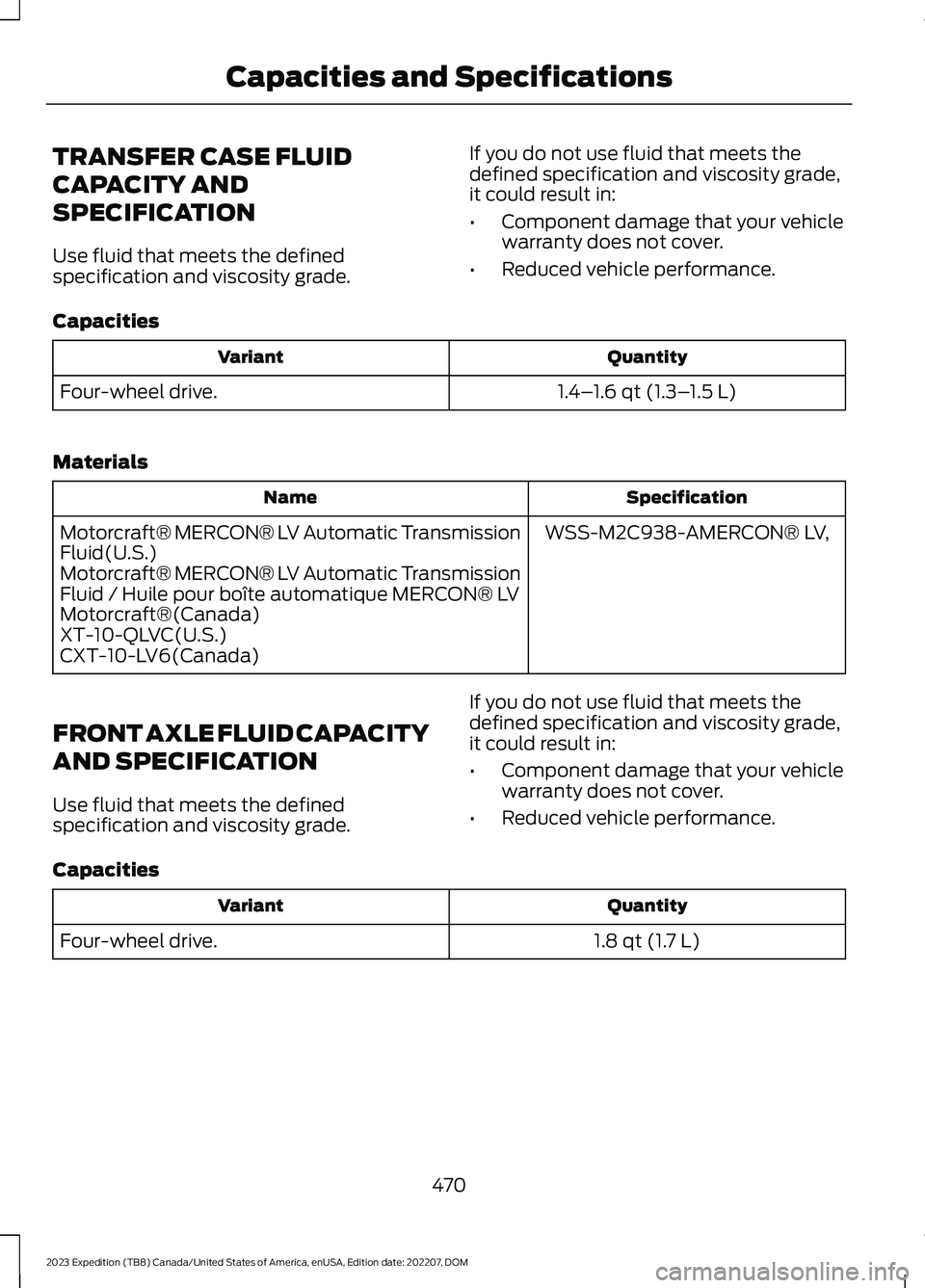
TRANSFER CASE FLUID
CAPACITY AND
SPECIFICATION
Use fluid that meets the definedspecification and viscosity grade.
If you do not use fluid that meets thedefined specification and viscosity grade,it could result in:
•Component damage that your vehiclewarranty does not cover.
•Reduced vehicle performance.
Capacities
QuantityVariant
1.4–1.6 qt (1.3–1.5 L)Four-wheel drive.
Materials
SpecificationName
WSS-M2C938-AMERCON® LV,Motorcraft® MERCON® LV Automatic TransmissionFluid(U.S.)Motorcraft® MERCON® LV Automatic TransmissionFluid / Huile pour boîte automatique MERCON® LVMotorcraft®(Canada)XT-10-QLVC(U.S.)CXT-10-LV6(Canada)
FRONT AXLE FLUID CAPACITY
AND SPECIFICATION
Use fluid that meets the definedspecification and viscosity grade.
If you do not use fluid that meets thedefined specification and viscosity grade,it could result in:
•Component damage that your vehiclewarranty does not cover.
•Reduced vehicle performance.
Capacities
QuantityVariant
1.8 qt (1.7 L)Four-wheel drive.
470
2023 Expedition (TB8) Canada/United States of America, enUSA, Edition date: 202207, DOMCapacities and Specifications
Page 486 of 658
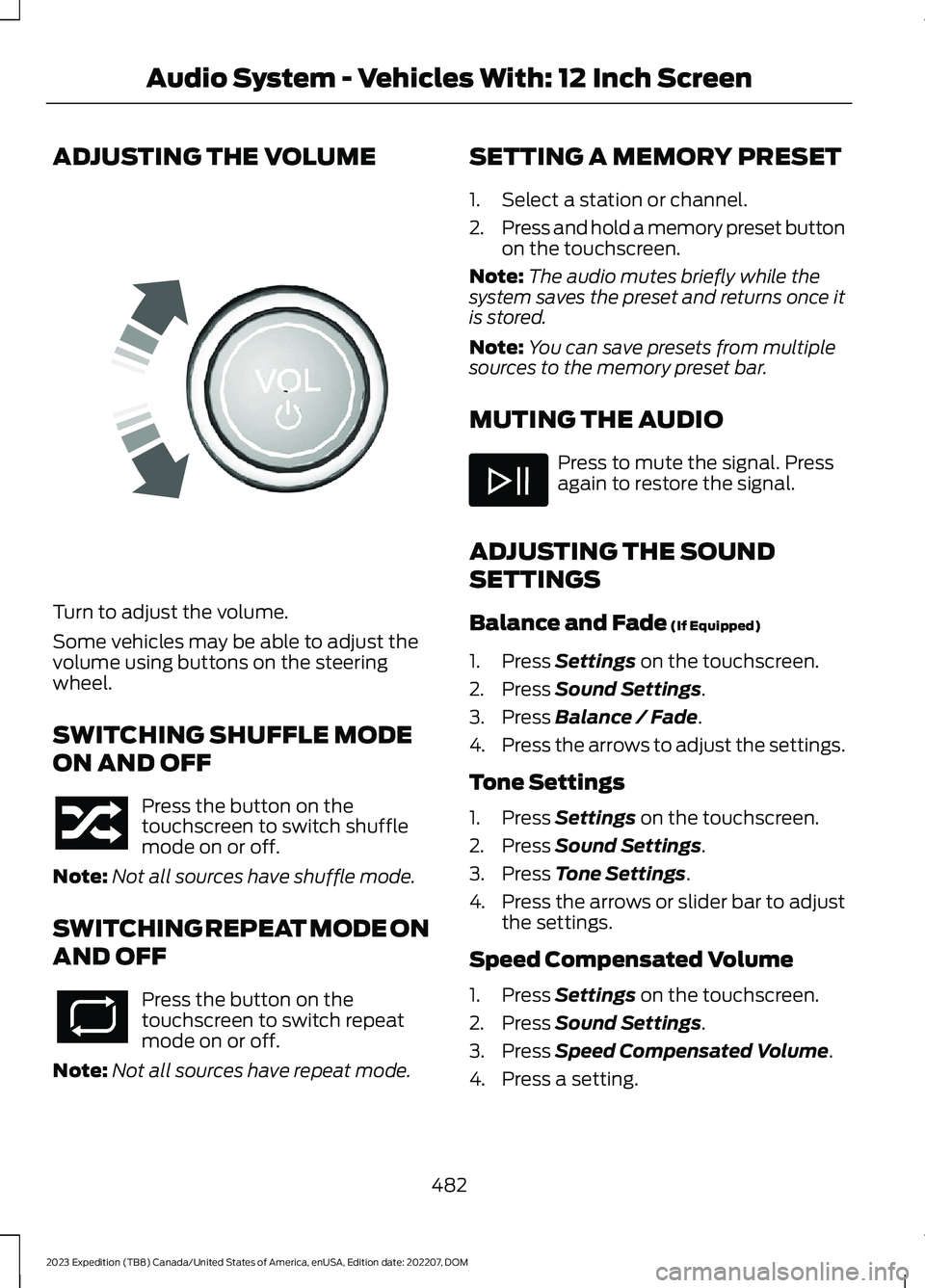
ADJUSTING THE VOLUME
Turn to adjust the volume.
Some vehicles may be able to adjust thevolume using buttons on the steeringwheel.
SWITCHING SHUFFLE MODE
ON AND OFF
Press the button on thetouchscreen to switch shufflemode on or off.
Note:Not all sources have shuffle mode.
SWITCHING REPEAT MODE ON
AND OFF
Press the button on thetouchscreen to switch repeatmode on or off.
Note:Not all sources have repeat mode.
SETTING A MEMORY PRESET
1.Select a station or channel.
2.Press and hold a memory preset buttonon the touchscreen.
Note:The audio mutes briefly while thesystem saves the preset and returns once itis stored.
Note:You can save presets from multiplesources to the memory preset bar.
MUTING THE AUDIO
Press to mute the signal. Pressagain to restore the signal.
ADJUSTING THE SOUND
SETTINGS
Balance and Fade (If Equipped)
1.Press Settings on the touchscreen.
2.Press Sound Settings.
3.Press Balance / Fade.
4.Press the arrows to adjust the settings.
Tone Settings
1.Press Settings on the touchscreen.
2.Press Sound Settings.
3.Press Tone Settings.
4.Press the arrows or slider bar to adjustthe settings.
Speed Compensated Volume
1.Press Settings on the touchscreen.
2.Press Sound Settings.
3.Press Speed Compensated Volume.
4.Press a setting.
482
2023 Expedition (TB8) Canada/United States of America, enUSA, Edition date: 202207, DOMAudio System - Vehicles With: 12 Inch ScreenE248939
Page 497 of 658
Turn to adjust the volume.
Some vehicles may be able to adjust thevolume using buttons on the steeringwheel.
SWITCHING SHUFFLE MODE
ON AND OFF
Press the button on thetouchscreen to switch shufflemode on or off.
Note:Not all sources have shuffle mode.
SWITCHING REPEAT MODE ON
AND OFF
Press the button on thetouchscreen to switch repeatmode on or off.
Note:Not all sources have repeat mode.
SETTING A MEMORY PRESET
1.Select a station or channel.
2.Press and hold a memory preset buttonon the touchscreen.
Note:The audio mutes briefly while thesystem saves the preset and returns once itis stored.
Note:You can save presets from multiplesources to the memory preset bar.
MUTING THE AUDIO
Press the button on the steeringwheel to mute the audio.
Press to mute the signal. Pressagain to restore the signal.
ADJUSTING THE SOUND
SETTINGS
Balance and Fade (If Equipped)
1.Access the vehicle drawer on thetouchscreen.
2.Press SETTINGS.
3.Press Sound.
4.Press Balance / Fade.
5.Press the arrows to adjust the settings.
Tone Settings
1.Access the vehicle drawer on thetouchscreen.
2.Press SETTINGS.
3.Press Sound.
4.Press Tone Settings.
5.Use the slider bar to adjust the settings.
Speed Compensated Volume
1.Access the vehicle drawer on thetouchscreen.
2.Press SETTINGS.
3.Press Sound.
4.Press Speed Compensated Volume.
5.Press a setting.
Occupancy Mode (If Equipped)
1.Access the vehicle drawer on thetouchscreen.
2.Press SETTINGS.
3.Press Sound.
4.Press Occupancy Mode.
5.Press a setting.
Sound Mode (If Equipped)
1.Access the vehicle drawer on thetouchscreen.
493
2023 Expedition (TB8) Canada/United States of America, enUSA, Edition date: 202207, DOMAudio System - Vehicles With: 15 Inch Screen
Page 505 of 658
Press the button to view theprevious card.
Press the button to viewavailable cards.
You can swipe toward the main screen tomove the content into the main screen.
Note:This can only be done with someinformation on demand screens.
REBOOTING THE CENTER
DISPLAY
You can reboot the center display usingthe controls on the steering wheel.
1.Simultaneously press and hold theseek forward and audio system powerbutton for 10 seconds.
501
2023 Expedition (TB8) Canada/United States of America, enUSA, Edition date: 202207, DOMCenter Display Overview - Vehicles With: 12 Inch ScreenE353211 E353209
Page 507 of 658
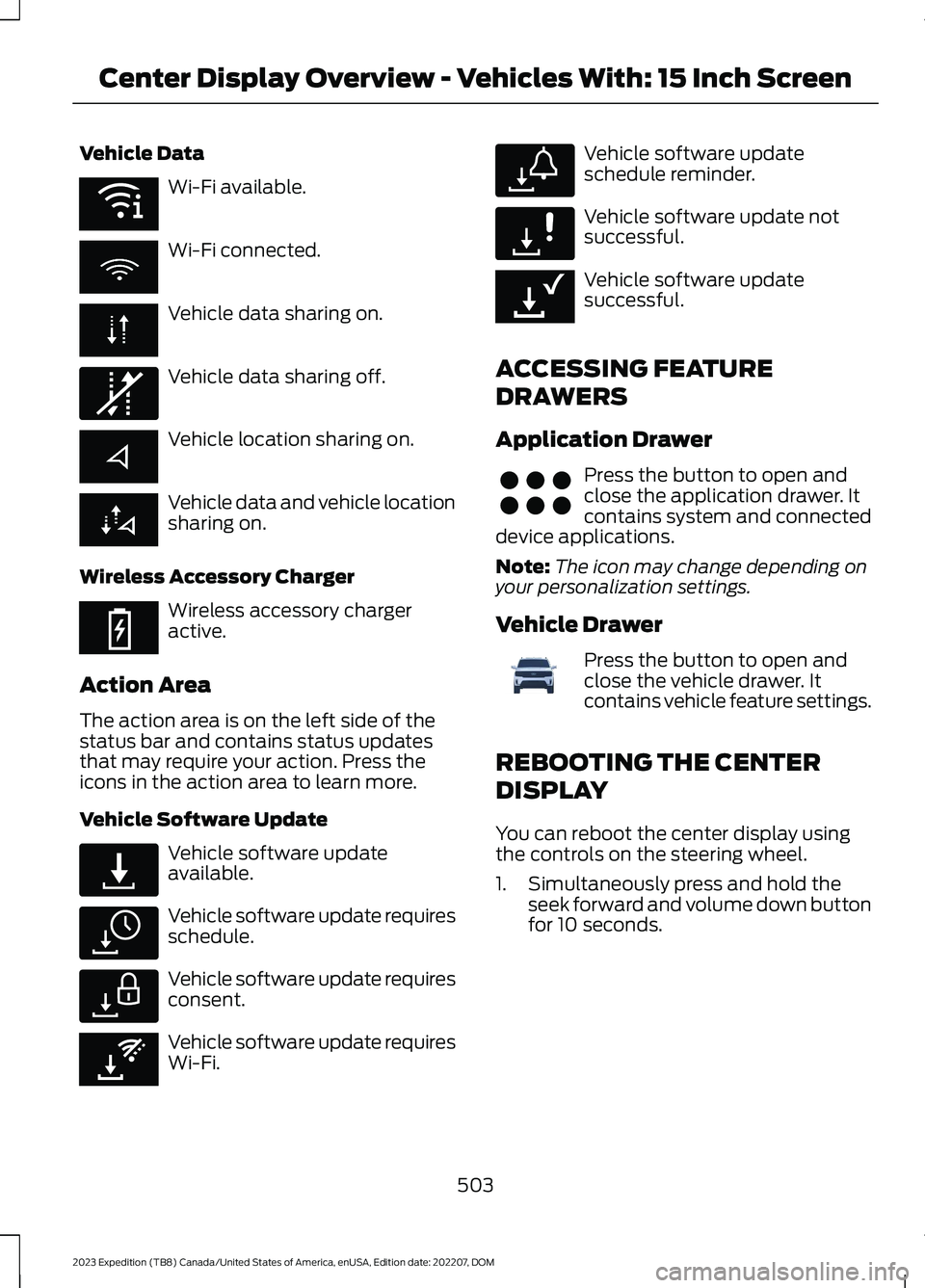
Vehicle Data
Wi-Fi available.
Wi-Fi connected.
Vehicle data sharing on.
Vehicle data sharing off.
Vehicle location sharing on.
Vehicle data and vehicle locationsharing on.
Wireless Accessory Charger
Wireless accessory chargeractive.
Action Area
The action area is on the left side of thestatus bar and contains status updatesthat may require your action. Press theicons in the action area to learn more.
Vehicle Software Update
Vehicle software updateavailable.
Vehicle software update requiresschedule.
Vehicle software update requiresconsent.
Vehicle software update requiresWi-Fi.
Vehicle software updateschedule reminder.
Vehicle software update notsuccessful.
Vehicle software updatesuccessful.
ACCESSING FEATURE
DRAWERS
Application Drawer
Press the button to open andclose the application drawer. Itcontains system and connecteddevice applications.
Note:The icon may change depending onyour personalization settings.
Vehicle Drawer
Press the button to open andclose the vehicle drawer. Itcontains vehicle feature settings.
REBOOTING THE CENTER
DISPLAY
You can reboot the center display usingthe controls on the steering wheel.
1.Simultaneously press and hold theseek forward and volume down buttonfor 10 seconds.
503
2023 Expedition (TB8) Canada/United States of America, enUSA, Edition date: 202207, DOMCenter Display Overview - Vehicles With: 15 Inch ScreenE353219 E335292 E353214 E327789 E327785 E327786 E353217 E327787 E327788 E353218 E356583 E372642
Page 508 of 658
FORD ASSISTANT
USING FORD ASSISTANT -VEHICLES WITH: 12 INCH SCREEN
The digital assistant allows you to controlvehicle features using conversationalrequests.
To begin a voice interaction using the wakeword, say the selected wake word, thensay your command.
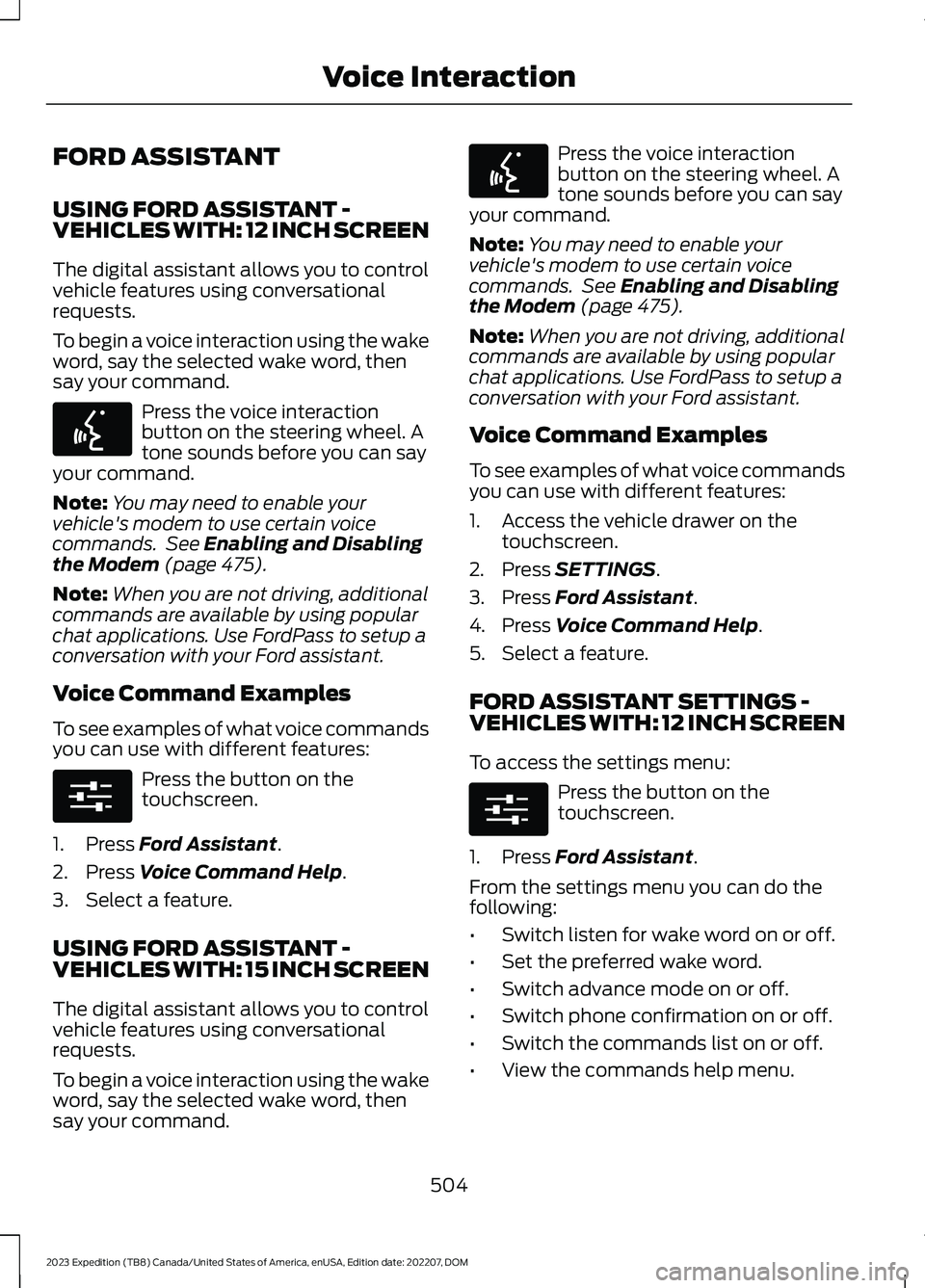
Press the voice interactionbutton on the steering wheel. Atone sounds before you can sayyour command.
Note:You may need to enable yourvehicle's modem to use certain voicecommands. See Enabling and Disablingthe Modem (page 475).
Note:When you are not driving, additionalcommands are available by using popularchat applications. Use FordPass to setup aconversation with your Ford assistant.
Voice Command Examples
To see examples of what voice commandsyou can use with different features:
Press the button on thetouchscreen.
1.Press Ford Assistant.
2.Press Voice Command Help.
3.Select a feature.
USING FORD ASSISTANT -VEHICLES WITH: 15 INCH SCREEN
The digital assistant allows you to controlvehicle features using conversationalrequests.
To begin a voice interaction using the wakeword, say the selected wake word, thensay your command.
Press the voice interactionbutton on the steering wheel. Atone sounds before you can sayyour command.
Note:You may need to enable yourvehicle's modem to use certain voicecommands. See Enabling and Disablingthe Modem (page 475).
Note:When you are not driving, additionalcommands are available by using popularchat applications. Use FordPass to setup aconversation with your Ford assistant.
Voice Command Examples
To see examples of what voice commandsyou can use with different features:
1.Access the vehicle drawer on thetouchscreen.
2.Press SETTINGS.
3.Press Ford Assistant.
4.Press Voice Command Help.
5.Select a feature.
FORD ASSISTANT SETTINGS -VEHICLES WITH: 12 INCH SCREEN
To access the settings menu:
Press the button on thetouchscreen.
1.Press Ford Assistant.
From the settings menu you can do thefollowing:
•Switch listen for wake word on or off.
•Set the preferred wake word.
•Switch advance mode on or off.
•Switch phone confirmation on or off.
•Switch the commands list on or off.
•View the commands help menu.
504
2023 Expedition (TB8) Canada/United States of America, enUSA, Edition date: 202207, DOMVoice InteractionE142599 E280315 E142599 E280315
Page 509 of 658

Press the button next to a menuoption for more information.
FORD ASSISTANT SETTINGS -VEHICLES WITH: 15 INCH SCREEN
To access the settings menu:
1.Access the vehicle drawer on thetouchscreen.
2.Press SETTINGS.
3.Press Ford Assistant.
From the settings menu you can do thefollowing:
•Switch listen for wake word on or off.
•Set the preferred wake word.
•Switch advance mode on or off.
•Switch phone confirmation on or off.
•Switch the commands list on or off.
•View the commands help menu.
Press the button next to a menuoption for more information.
FORD ASSISTANT – FREQUENTLYASKED QUESTIONS
Why does the system notunderstand what I am saying?
•You are speaking too soon. When usingthe button of the steering wheel, waitfor the tone before you speak.
Why does the system notunderstand the name of a track orartist?
•Bluetooth® does not support voicecommands.Connect your device to aUSB port.
•You are not saying the name exactlyas it appears on your device. Say thename of the track or artist exactly as itappears on your device. Spell out anyabbreviations in the name.
•The system does not recognize somespecial characters contained in thename of a song or artist, for example*, - or +. Rename the files on yourdevice or use the touchscreen to selectand play the track.
Why does the system notunderstand the name of a contactin the phonebook on my device andcalls the wrong contact?
•You are not saying the name exactlyas it appears on your device. Say thefirst and last name of the contactexactly as it appears on your device.Spell out any abbreviations in thename.
•The name contains special characters,for example *, - or +. Rename thecontact on your device or use thetouchscreen to select and call thecontact.
505
2023 Expedition (TB8) Canada/United States of America, enUSA, Edition date: 202207, DOMVoice InteractionE366956 E366956
Page 511 of 658
WHAT IS ALEXA BUILT-IN
Allows you to use Alexa in your vehicle forauto specific use cases on the road andgives you access to an ever evolvingnumber of skills that help to make your lifemore productive, entertaining, andconnected while using your vehicle.
ALEXA BUILT-IN
REQUIREMENTS
To use Alexa, all of the following mustoccur:
•Your vehicle modem is enabled.
•You are logged into an existing Amazonaccount.
•Vehicle location services are enabled.
•Vehicle connectivity and vehicle datasharing is enabled.
SIGNING INTO YOUR
ACCOUNT
Press the button in the statusbar and follow the on-screenprompts.
To sign in using the settings menu:
1.Press Settings on the touchscreen.
2.Press Amazon Alexa.
3.Press Get Started.
4.Sign into your account by eitherscanning the QR code or entering theon-screen code into the Amazonwebsite.
5.Once logged in, follow the on-screenprompts.
6.When complete, the vehicle informsyou that Alexa is ready to be used inthe vehicle.
Signing Out of Your Account
1.Press Settings on the touchscreen.
2.Press Amazon Alexa.
3.Press Sign Out.
USING ALEXA BUILT-IN
To use Alexa, say “Alexa” or press the voiceinteraction button on the steering wheeland then say “Alexa” to invoke Alexa tostart listening.
Note:If the wake word is not enabled, youcan only use the voice interaction button.
You can use Alexa for the following andmore:
•Entertainment.
•Hands-free calling.
•Traffic and navigation.
•Vehicle controls.
•Smart home device control.
•Weather and news information.
ALEXA BUILT-IN SETTINGS
Enabling the Wake Word
1.Press Settings on the touchscreen.
2.Press Amazon Alexa.
3.Switch Listen for Wake Word on or off.
Note:If the wake word is not enabled, youcan only use the voice interaction button.
Contact List
Displays a list of connected phones andcontact sharing status for each phone.
To change the contact sharing status:
1.Press Settings on the touchscreen.
2.Press Amazon Alexa.
3.Press Contact List.
507
2023 Expedition (TB8) Canada/United States of America, enUSA, Edition date: 202207, DOMAlexa Built-In - Vehicles With: 12 Inch ScreenE368039