2023 DODGE HORNET phone
[x] Cancel search: phonePage 56 of 288

54GETTING TO KNOW YOUR VEHICLE
The wireless charging pad is equipped with an anti-slip
mat to hold your mobile phone in place, and an LED
indicator light.
Place the device inside the prepared area delimited in the
mat as shown in the image. Incorrect positioning will
prevent the phone from charging.
Correct Phone Position
LED Indicator Status:
No Light: Charging pad is idle or searching for a device.
Device may not be compatible with the Qi
® standard.
Blue Light: Device is detected and is charging.
Red Light/Flashing: Internal error, or foreign object is
detected.
Green Light: Device has completed battery charging
(if device is equipped to transmit this information). Important Notes Regarding This Vehicle’s Wireless
Charging Pad:
The presence of the NFC function active on a smart -
phone could signal malfunction anomalies.
The ignition must be in the ON/RUN position in order
for the phone to charge.
To avoid interference with the key fob search, the wire -
less charging pad will stop charging when any door is
opened.
Be sure to place the mobile device correctly (display
facing upward, and phone not covering the LED) on the
wireless charging pad.
Wireless charging is not as fast as when the phone is
connected to a wired charger.
The phone’s protective case must be removed when
placed on the wireless charging pad.
iPhone
® 12 (including iPod®) is equipped with soft -
ware to protect the device from overheating. When the
software is active, the rate of charge is slowed down to
protect the device.
Phones must always be placed on the wireless
charging pad within the outline shown on the pad so
that its charging parts connect with the charging coils
of the system. Movement of the phone during charging
may prevent or slow the rate of charge.
Having multiple applications open on the phone while
charging will reduce the charging efficiency, and may
even shut down an application that is actively running
(i.e. Apple CarPlay
®). This may also cause the phone to
overheat.
Wireless chargers may implement certain methods to
prevent the phone from overheating during charging
such as slowing down the rate of charge. In certain
instances, the device may shut down for a brief period
of time (when the device reaches a certain tempera -
ture). If this happens, it does not mean there is a fault
with the wireless charging pad. This may just be a
protective measure to prevent damage to the phone.
The use of multiple wireless functions at the same time
(wireless charging, Apple CarPlay
®, Android Auto™)
could cause the device to overheat, resulting in limita -
tion of the functions or it turning off. In this case, it is
recommended to connect the system using t
he USB port.
Do not place the key fob or any other type of metal/
magnetized object inside the mobile phone housing or
near the wireless charging pad.
CAUTION!
The key fob should not be placed on the charging pad
or within 6 inches (15 cm) of it. Doing so can cause
excessive heat buildup and damage to the fob. Placing
the fob in close proximity of the charging pad blocks the
fob from being detected by the vehicle and prevents the
vehicle from starting.
23_GG_OM_EN_USC_t.book Page 54
Page 69 of 288
GETTING TO KNOW YOUR INSTRUMENT PANEL67
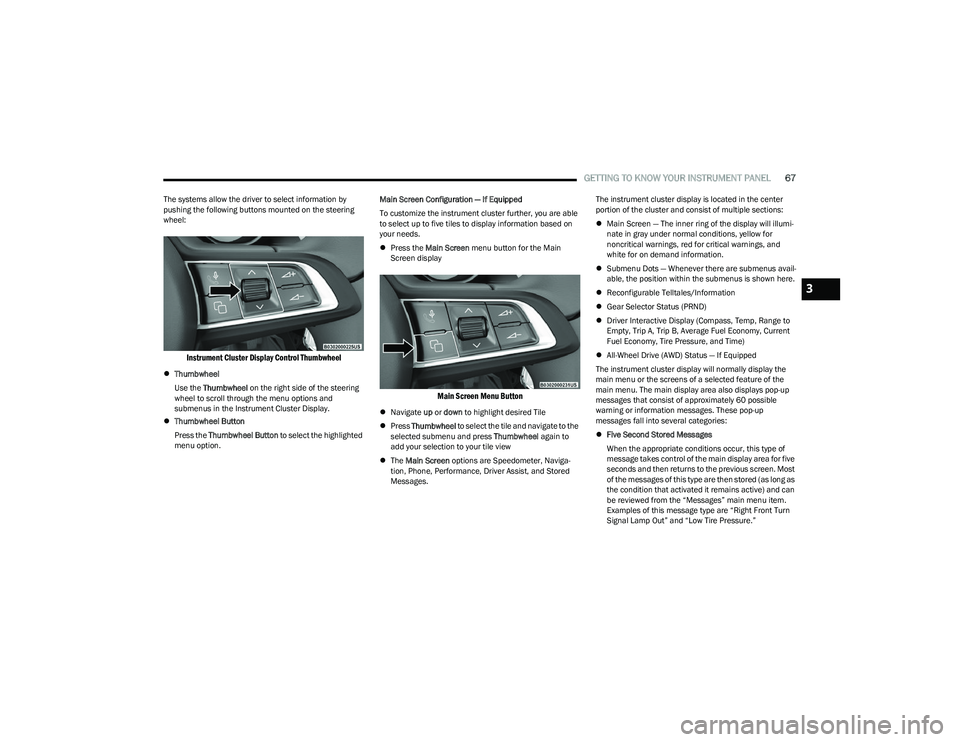
The systems allow the driver to select information by
pushing the following buttons mounted on the steering
wheel:
Instrument Cluster Display Control Thumbwheel
Thumbwheel
Use the Thumbwheel on the right side of the steering
wheel to scroll through the menu options and
submenus in the Instrument Cluster Display.
Thumbwheel Button
Press the Thumbwheel Button to select the highlighted
menu option. Main Screen Configuration — If Equipped
To customize the instrument cluster further, you are able
to select up to five tiles to display information based on
your needs.
Press the Main Screen menu button for the Main
Screen display
Main Screen Menu Button
Navigate up or down to highlight desired Tile
Press Thumbwheel to select the tile and navigate to the
selected submenu and press Thumbwheel again to
add your selection to your tile view
The Main Screen options are Speedometer, Naviga -
tion, Phone, Performance, Driver Assist, and Stored
Messages. The instrument cluster display is located in the center
portion of the cluster and consist of multiple sections:
Main Screen — The inner ring of the display will illumi -
nate in gray under normal conditions, yellow for
noncritical warnings, red for critical warnings, and
white for on demand information.
Submenu Dots — Whenever there are submenus avail -
able, the position within the submenus is shown here.
Reconfigurable Telltales/Information
Gear Selector Status (PRND)
Driver Interactive Display (Compass, Temp, Range to
Empty, Trip A, Trip B, Average Fuel Economy, Current
Fuel Economy, Tire Pressure, and Time)
All-Wheel Drive (AWD) Status — If Equipped
The instrument cluster display will normally display the
main menu or the screens of a selected feature of the
main menu. The main display area also displays pop-up
messages that consist of approximately 60 possible
warning or information messages. These pop-up
messages fall into several categories:
Five Second Stored Messages
When the appropriate conditions occur, this type of
message takes control of the main display area for five
seconds and then returns to the previous screen. Most
of the messages of this type are then stored (as long as
the condition that activated it remains active) and can
be reviewed from the “Messages” main menu item.
Examples of this message type are “Right Front Turn
Signal Lamp Out” and “Low Tire Pressure.”
3
23_GG_OM_EN_USC_t.book Page 67
Page 71 of 288
GETTING TO KNOW YOUR INSTRUMENT PANEL69
SPEEDOMETER
The Speedometer menu options may consist of the
following:
Digital speed and speed unit (MPH or km/h)
Gear Shift Indicator (GSI)
Gear
Drive mode name
The speed units can be changed from MPH to km/h by
pressing the Thumbwheel.
NAVIGATION — IF EQUIPPED
Turn the Thumbwheel up or down to increase or decrease
the zoom on this screen. Press the Thumbwheel to go
back to the initial frame. The zoom level is automatically
reset to the factory settings whenever the engine is
restarted.
The following information is shown:
Direction Indicators
Distance to next change of direction (in miles or kilome -
ters, depending on instrument panel settings)
Suggested lanes
Address of the road to be followed after the change of
direction Press and hold the Thumbwheel to disable the indications
in the right-hand ring for the current navigation. If a
predicted route is selected, the route shall start without
further confirmation.
NOTE:During projection modes (Apple CarPlay® or
Android Auto™) the native map is not available.
PHONE
This menu displays the current status of a phone
connected to the vehicle via Bluetooth®. The System
supports up to two phones connected at the same time.
Information available in cluster depends on which phone
is dynamically selected by the user in each moment (i.e.
the phone in focus), to enter and select one of the phone
connected user should press Thumbwheel
If no phone is connected, the menu will not function when
the
OK button is pushed. Otherwise, if a phone is
connected, push the OK button to enter the menu.
The following items will display:
Recent calls: displays a list of the last 10 calls.
SMS reader: displays the last 10 text messages and if
they are read or unread.
Favorite numbers: displays a maximum of 10 favorite
numbers.
PERFORMANCE
Performance page content automatically changes
according to the selected drive mode.
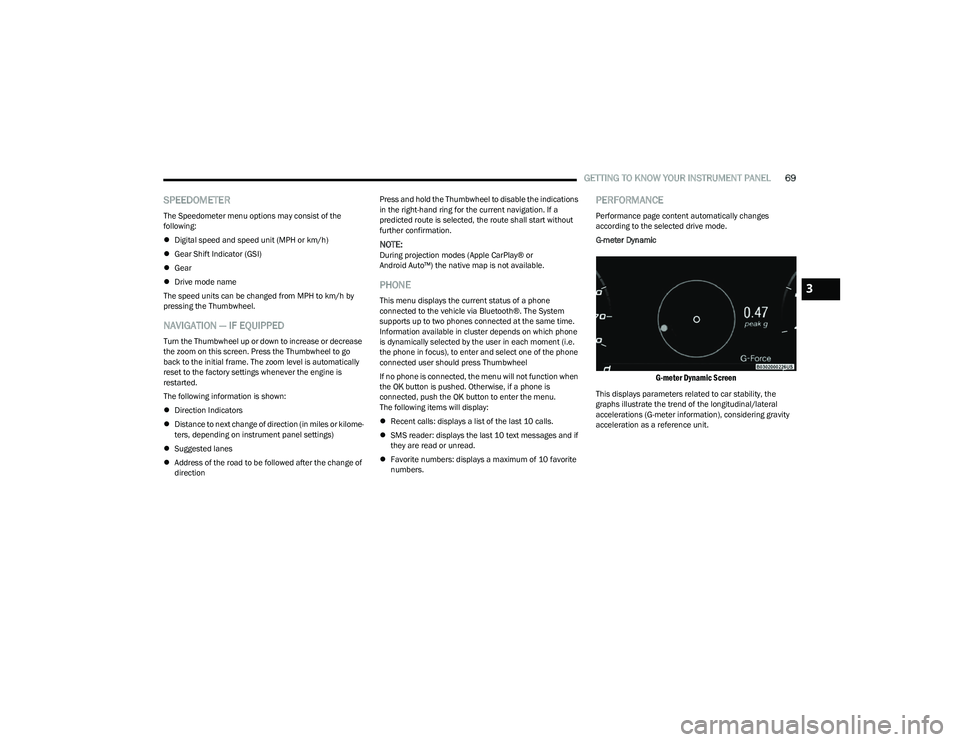
G-meter Dynamic
G-meter Dynamic Screen
This displays parameters related to car stability, the
graphs illustrate the trend of the longitudinal/lateral
accelerations (G-meter information), considering gravity
acceleration as a reference unit.
3
23_GG_OM_EN_USC_t.book Page 69
Page 134 of 288

132MULTIMEDIA
My Profile
Navigation Turn-by-Turn Displayed in Cluster This setting will display Navigation prompts in the Instrument Cluster Display.
Phone Pop-ups Displayed In Cluster This setting will display smartphone notifications and messages in the Instrument Cluster
Display.
Setting Name
Description
When the My Profile button is pressed on the touchscreen, the system displays options related to the vehicle’s profiles.
NOTE:Depending on the vehicle’s options, feature settings may vary.
Setting NameDescription
Language This setting will change the language of the Uconnect system and Instrument Cluster
Display. The available languages are Español (Mexico), English (United States), Italiano,
and Français (Canada).
Display Mode This setting will adjust the display for the radio to “Auto” or “Manual”. “Manual” allows for
more customization with the radio display.
Display Brightness Nighttime This setting will allow you to adjust the “Brightness Nighttime” setting. Selectable options
are 1 through 10.
Display Brightness Daytime This setting will allow you to adjust the “Brightness Daytime” setting. Selectable options
are 1 through 10.
Set Theme This setting will allow you to change the display theme.
Units This setting will allow you to customize the units for “Speed” (MPH or km/h), “Distance”
(mi or km), “Fuel Consumption” (MPG [US], MPG [UK], L/100 km, or km/L), “Pressure”
(psi, kPa, or bar), “Temperature” (°C or °F), and “Torque” (Nm or lb-ft) units of
measurement independently. Unit settings can be selected for “US”, “Metric A”,
“Metric B”, “Imperial”, or “Custom”.
23_GG_OM_EN_USC_t.book Page 132
Page 136 of 288
134MULTIMEDIA
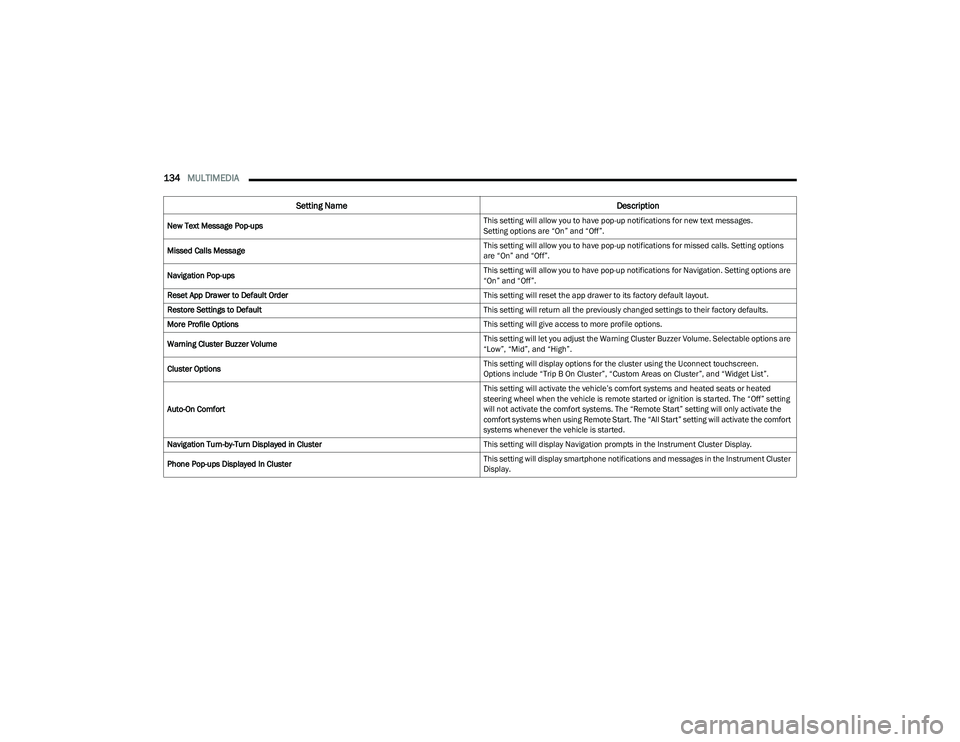
New Text Message Pop-ups This setting will allow you to have pop-up notifications for new text messages.
Setting options are “On” and “Off”.
Missed Calls Message This setting will allow you to have pop-up notifications for missed calls. Setting options
are “On” and “Off”.
Navigation Pop-ups This setting will allow you to have pop-up notifications for Navigation. Setting options are
“On” and “Off”.
Reset App Drawer to Default Order This setting will reset the app drawer to its factory default layout.
Restore Settings to Default This setting will return all the previously changed settings to their factory defaults.
More Profile Options This setting will give access to more profile options.
Warning Cluster Buzzer Volume This setting will let you adjust the Warning Cluster Buzzer Volume. Selectable options are
“Low”, “Mid”, and “High”.
Cluster Options This setting will display options for the cluster using the Uconnect touchscreen.
Options include “Trip B On Cluster”, “Custom Areas on Cluster”, and “Widget List”.
Auto-On Comfort This setting will activate the vehicle’s comfort systems and heated seats or heated
steering wheel when the vehicle is remote started or ignition is started. The “Off” setting
will not activate the comfort systems. The “Remote Start” setting will only activate the
comfort systems when using Remote Start. The “All Start” setting will activate the comfort
systems whenever the vehicle is started.
Navigation Turn-by-Turn Displayed in Cluster This setting will display Navigation prompts in the Instrument Cluster Display.
Phone Pop-ups Displayed In Cluster This setting will display smartphone notifications and messages in the Instrument Cluster
Display.
Setting Name
Description
23_GG_OM_EN_USC_t.book Page 134
Page 140 of 288
138MULTIMEDIA
Phone/Bluetooth®
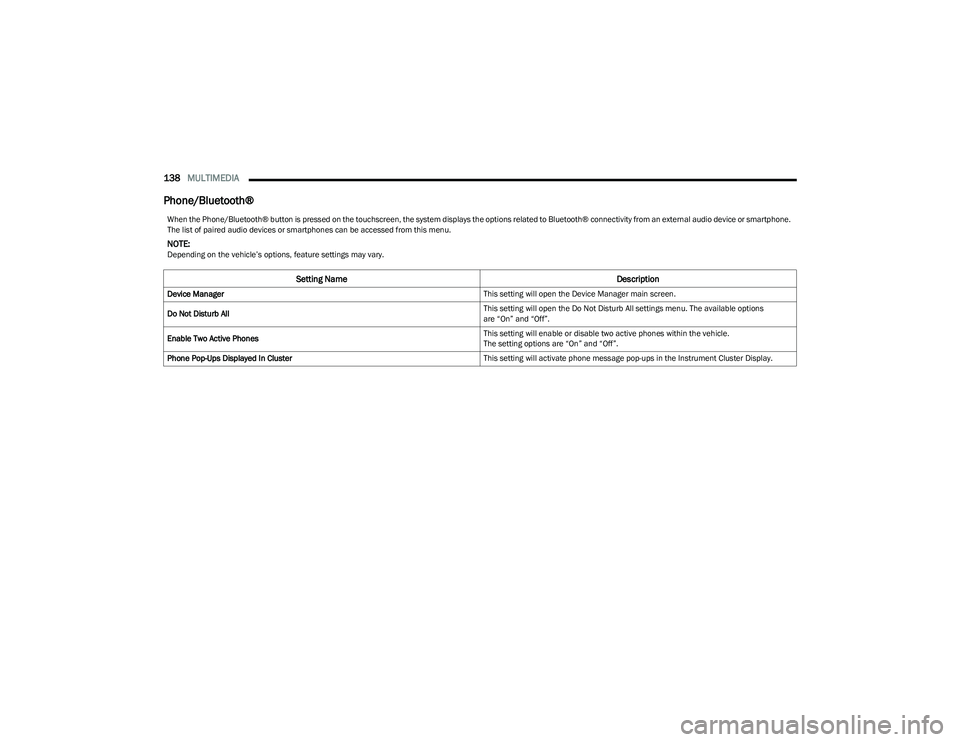
When the Phone/Bluetooth® button is pressed on the touchscreen, the system displays the options related to Bluetooth® connectivity from an external audio device or smartphone.
The list of paired audio devices or smartphones can be accessed from this menu.
NOTE:Depending on the vehicle’s options, feature settings may vary.
Setting Name Description
Device Manager This setting will open the Device Manager main screen.
Do Not Disturb All This setting will open the Do Not Disturb All settings menu. The available options
are “On” and “Off”.
Enable Two Active Phones This setting will enable or disable two active phones within the vehicle.
The setting options are “On” and “Off”.
Phone Pop-Ups Displayed In Cluster This setting will activate phone message pop-ups in the Instrument Cluster Display.
23_GG_OM_EN_USC_t.book Page 138
Page 147 of 288

MULTIMEDIA145
Audio
When the Audio button is pressed on the touchscreen, the system displays options related to the vehicle’s sound system. These settings can change the audio location within the
vehicle, adjust the bass or treble levels, and auto-play settings from an audio device or smartphone.
NOTE:Depending on the vehicle’s options, feature settings may vary.
Setting Name Description
Balance/Fade This setting will adjust audio levels from specific speakers in the front/back and left/right
of the vehicle. The Speaker icon can be moved to set audio location.
Equalizer This setting will adjust the “Bass”, “Mid”, and “Treble” ranges of the audio.
Speed Adjusted Volume This setting will adjust audio volume as speeds increase. At a higher setting, the volume
will increase more as the vehicle speeds up. The available settings are “Off”, “1”, “2”,
and “3”.
Surround Sound This setting will turn the Surround Sound system on or off.
Auto Play This setting will automatically begin playing audio from a connected device.
Auto-On Radio This setting will automatically turn the radio on when the vehicle is started. The available
settings are “Off”, “On”, and “Recall Last”. With “Recall Last”, the system resumes the
previous task before vehicle shut off.
Radio off With Door This setting will keep the radio on when a door is opened or until the Radio Off Delay time
is reached. The available settings are “On” and “Off”.
Loudness This setting improves the sound quality at lower volumes. The available options are “On”
and “Off”.
Volume Adjustment This setting will allow you to set the audio volume levels for each option (Media, Phone,
Navigation, etc.). You can set the volume between 0 and 38.
5
23_GG_OM_EN_USC_t.book Page 145
Page 148 of 288
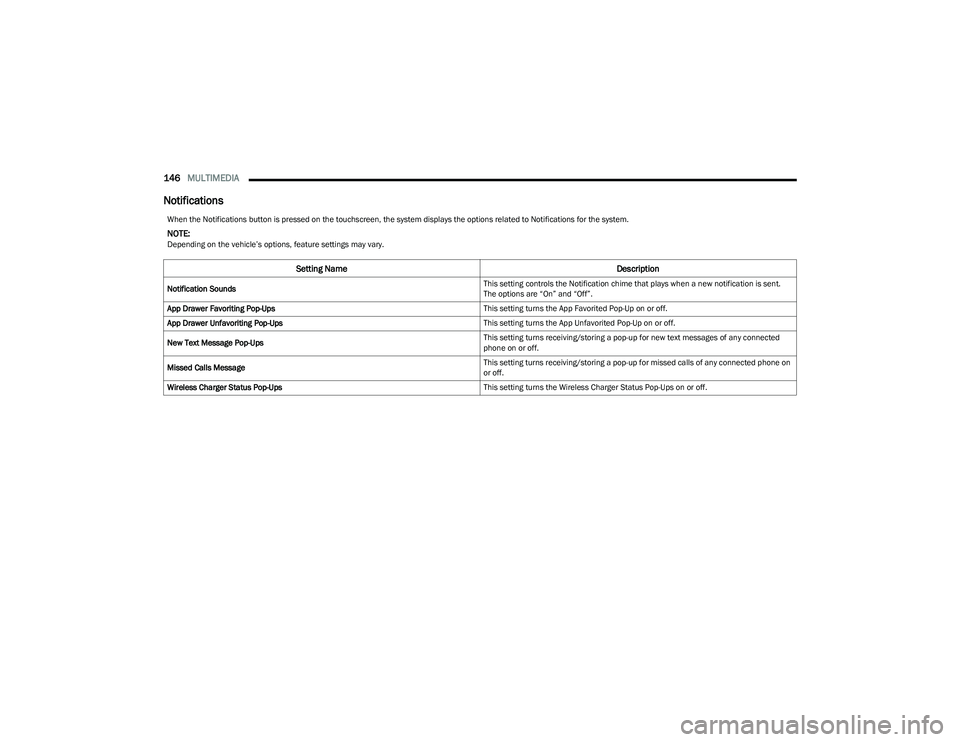
146MULTIMEDIA
Notifications
When the Notifications button is pressed on the touchscreen, the system displays the options related to Notifications for the system.
NOTE:Depending on the vehicle’s options, feature settings may vary.
Setting Name Description
Notification Sounds This setting controls the Notification chime that plays when a new notification is sent.
The options are “On” and “Off”.
App Drawer Favoriting Pop-Ups This setting turns the App Favorited Pop-Up on or off.
App Drawer Unfavoriting Pop-Ups This setting turns the App Unfavorited Pop-Up on or off.
New Text Message Pop-Ups This setting turns receiving/storing a pop-up for new text messages of any connected
phone on or off.
Missed Calls Message This setting turns receiving/storing a pop-up for missed calls of any connected phone on
or off.
Wireless Charger Status Pop-Ups This setting turns the Wireless Charger Status Pop-Ups on or off.
23_GG_OM_EN_USC_t.book Page 146