2023 DODGE CHARGER warning
[x] Cancel search: warningPage 112 of 292
110STARTING AND OPERATING
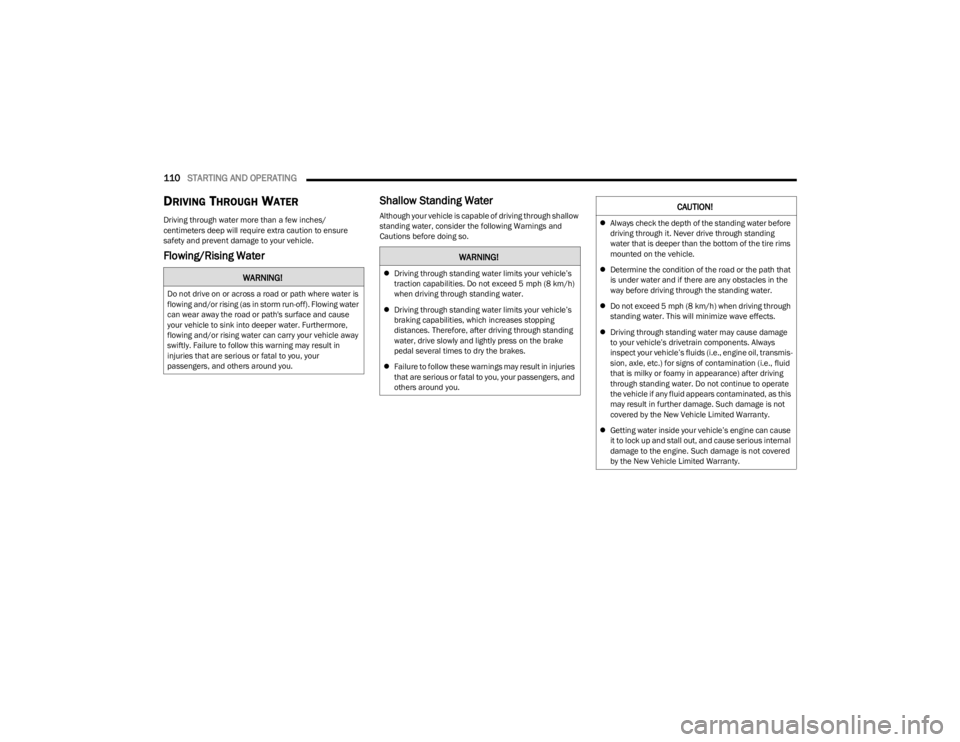
DRIVING THROUGH WATER
Driving through water more than a few inches/
centimeters deep will require extra caution to ensure
safety and prevent damage to your vehicle.
Flowing/Rising Water Shallow Standing Water
Although your vehicle is capable of driving through shallow
standing water, consider the following Warnings and
Cautions before doing so.
WARNING!
Do not drive on or across a road or path where water is
flowing and/or rising (as in storm run-off). Flowing water
can wear away the road or path's surface and cause
your vehicle to sink into deeper water. Furthermore,
flowing and/or rising water can carry your vehicle away
swiftly. Failure to follow this warning may result in
injuries that are serious or fatal to you, your
passengers, and others around you.
WARNING!
Driving through standing water limits your vehicle’s
traction capabilities. Do not exceed 5 mph (8 km/h)
when driving through standing water.
Driving through standing water limits your vehicle’s
braking capabilities, which increases stopping
distances. Therefore, after driving through standing
water, drive slowly and lightly press on the brake
pedal several times to dry the brakes.
Failure to follow these warnings may result in injuries
that are serious or fatal to you, your passengers, and
others around you.
CAUTION!
Always check the depth of the standing water before
driving through it. Never drive through standing
water that is deeper than the bottom of the tire rims
mounted on the vehicle.
Determine the condition of the road or the path that
is under water and if there are any obstacles in the
way before driving through the standing water.
Do not exceed 5 mph (8 km/h) when driving through
standing water. This will minimize wave effects.
Driving through standing water may cause damage
to your vehicle’s drivetrain components. Always
inspect your vehicle’s fluids (i.e., engine oil, transmis -
sion, axle, etc.) for signs of contamination (i.e., fluid
that is milky or foamy in appearance) after driving
through standing water. Do not continue to operate
the vehicle if any fluid appears contaminated, as this
may result in further damage. Such damage is not
covered by the New Vehicle Limited Warranty.
Getting water inside your vehicle’s engine can cause
it to lock up and stall out, and cause serious internal
damage to the engine. Such damage is not covered
by the New Vehicle Limited Warranty.
23_LD_OM_EN_USC_t.book Page 110
Page 113 of 292

111
MULTIMEDIA
UCONNECT SYSTEMS
For detailed information about your Uconnect 4C/4C NAV
With 8.4-inch Display system, refer to your Radio
Instruction Manual.
NOTE:Uconnect screen images are for illustration purposes only
and may not reflect exact software for your vehicle.
CYBERSECURITY
Depending on applicability, your vehicle may be able to
send or receive information from a wired or wireless
network. This information allows systems and features in
your vehicle to function properly.Your vehicle may be equipped with certain security
features to reduce the risk of unauthorized and unlawful
access to vehicle systems and wireless communications.
Vehicle software technology continues to evolve over time
and FCA US LLC, working with its suppliers, evaluates and
takes appropriate steps as needed. As always, if you
experience unusual behavior, contact an authorized
dealer immediately,
Úpage 273, or refer to your Radio
Instruction Manual for additional contact information.
The risk of unauthorized and unlawful access to your
vehicle systems may still exist, even if the most recent
version of vehicle software (such as Uconnect software) is
installed.
NOTE:To help further improve user experience, features,
stability, etc., and minimize the potential risk of a security
breach, vehicle owners should routinely check
www.driveuconnect.com (US Residents) or www.driveuco -
nnect.ca (Canadian Residents) to learn about available
Uconnect software updates.
WARNING!
ONLY insert trusted media devices/components into
your vehicle. Media of unknown origin could possibly
contain malicious software, and if installed in your
vehicle, it may increase the possibility for vehicle
systems to be breached.
As always, if you experience unusual vehicle
behavior, contact an authorized dealer immediately.
5
23_LD_OM_EN_USC_t.book Page 111
Page 119 of 292

MULTIMEDIA117
Safety/Assistance
When the Safety/Assistance button is selected on the touchscreen, the system displays the options related to the vehicle’s safety settings. These options will differ depending on the
features equipped on the vehicle. The settings may display in list form or within subfolders on the screen. To access a subfolder, select the desired folder; the available options
related to that feature will then display on the screen.
NOTE:Depending on the vehicle’s options, feature settings may vary.
Setting Name Description
Forward Collision Warning SensitivityThis setting will change the distance at which the Forward Collision Warning (FCW) alert
sounds. The “Medium” setting will have the FCW system signal when an object is in view, and the possibility of a collision is detected. The “Near” setting will have the FCW system
signal when the object is closer to the vehicle. The “Far” setting will have the FCW system signal when an object is at a far distance from the vehicle.
Forward Collision Warning This setting will turn the Forward Collision Warning system on or off. The “Off” setting will
deactivate the FCW system. The “Warning Only” setting will provide only an audible chime when a collision is detected. The “Warning + Active Braking” setting will provide an audible chime and apply brake pressure when a collision is detected.
Forward Collision Warning Active Braking This setting will activate Forward Collision Warning Active Braking. The available options
are “On” and “Off”.
ParkSense This setting will change the type of ParkSense alert when a close object is detected and
can provide both an audible chime and a visual display.
Rear ParkSense Volume This setting adjusts the volume of the Rear ParkSense system. The available settings are
“Low”, “Medium”, and “High”.
Blind Spot Alert This setting will change the type of alert provided when an object is detected in a
vehicle’s blind spot. The “Off” setting will turn off Blind Spot Alert. The “Lights” setting will activate the Blind Spot Alert lights on the outside mirrors. The “Lights & Chime” setting will activate both the lights on the outside mirrors and an audible chime.
5
23_LD_OM_EN_USC_t.book Page 117
Page 120 of 292

118MULTIMEDIA
Electric Power Steering This setting will change the Electric Power Steering Default. The available options are
“Comfort” for a lower effort steering experience, “Normal” for the standard effort steering experience, and “Sport” for a higher effort steering experience.
LaneSense Warning This setting will change the distance at which the steering wheel will provide lane
departure feedback. The available settings are “Early”, “Medium”, and “Late”.
LaneSense Strength This setting will change the strength of the steering wheel feedback during a lane
departure. The available settings are “Low”, “Medium”, and “High”.
Hill Start Assist This setting will turn the Hill Start Assist system on or off.
ParkView Backup Camera Active Guidelines This setting will turn the ParkView Backup Camera Active Guidelines on or off.
ParkView Backup Camera Delay This setting will add a delay to the ParkView Backup Camera when shifting out of
REVERSE.
Rain Sensing Auto Wipers This setting will turn the Rain Sensing Auto Wipers on or off.
Tilt Mirrors In Reverse This setting will tilt the outside side-view mirrors when the ignition is in the ON/RUN
position and the transmission gear selector is in the REVERSE position. The mirrors will move back to their previous position when the transmission is shifted out of REVERSE. The available settings are “On” and “Off”.
Setting Name Description
23_LD_OM_EN_USC_t.book Page 118
Page 130 of 292
128MULTIMEDIA
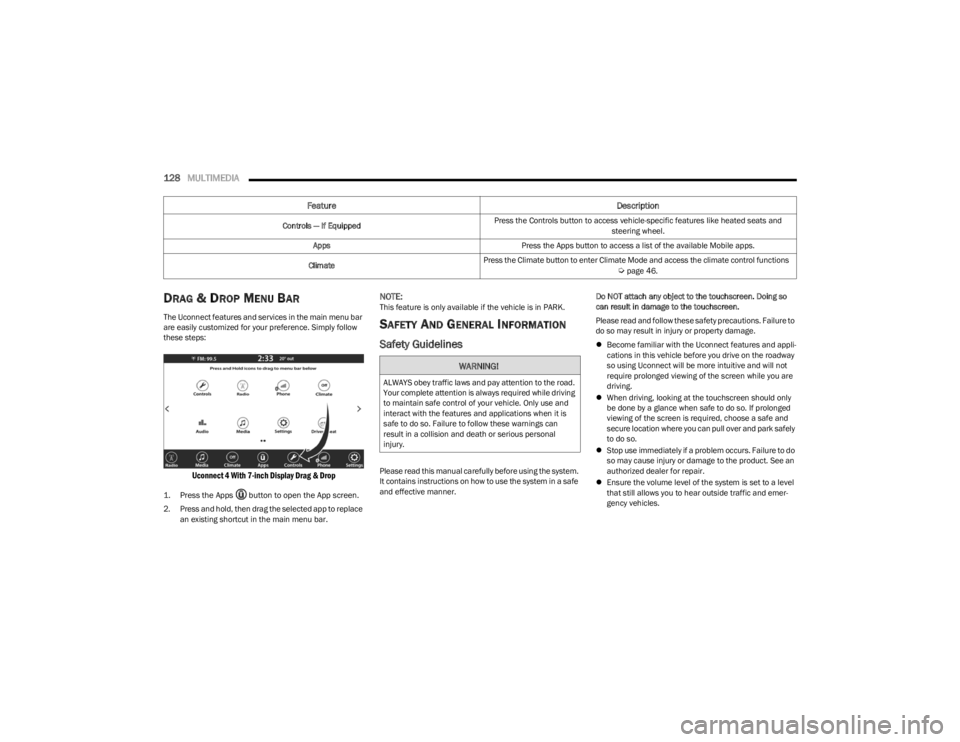
DRAG & DROP MENU BAR
The Uconnect features and services in the main menu bar
are easily customized for your preference. Simply follow
these steps:
Uconnect 4 With 7-inch Display Drag & Drop
1. Press the Apps button to open the App screen.
2. Press and hold, then drag the selected app to replace
an existing shortcut in the main menu bar.
NOTE:This feature is only available if the vehicle is in PARK.
SAFETY AND GENERAL INFORMATION
Safety Guidelines
Please read this manual carefully before using the system.
It contains instructions on how to use the system in a safe
and effective manner. Do NOT attach any object to the touchscreen. Doing so
can result in damage to the touchscreen.
Please read and follow these safety precautions. Failure to
do so may result in injury or property damage.
Become familiar with the Uconnect features and appli -
cations in this vehicle before you drive on the roadway
so using Uconnect will be more intuitive and will not
require prolonged viewing of the screen while you are
driving.
When driving, looking at the touchscreen should only
be done by a glance when safe to do so. If prolonged
viewing of the screen is required, choose a safe and
secure location where you can pull over and park safely
to do so.
Stop use immediately if a problem occurs. Failure to do
so may cause injury or damage to the product. See an
authorized dealer for repair.
Ensure the volume level of the system is set to a level
that still allows you to hear outside traffic and emer -
gency vehicles.
Feature Description
Controls — If EquippedPress the Controls button to access vehicle-specific features like heated seats and
steering wheel.
Apps Press the Apps button to access a list of the available Mobile apps.
Climate Press the Climate button to enter Climate Mode and access the climate control functions
Úpage 46.
WARNING!
ALWAYS obey traffic laws and pay attention to the road.
Your complete attention is always required while driving
to maintain safe control of your vehicle. Only use and
interact with the features and applications when it is
safe to do so. Failure to follow these warnings can
result in a collision and death or serious personal
injury.
23_LD_OM_EN_USC_t.book Page 128
Page 143 of 292

MULTIMEDIA141
The Phone feature is driven through your Bluetooth®
“Hands-Free Profile” mobile phone. Uconnect features
Bluetooth® technology — the global standard that enables
different electronic devices to connect to each other
without wires or a docking station. Ensure you phone is
turned on with Bluetooth® active and has been paired to
the Uconnect system. Up to 10 mobile phones or audio
devices are allowed to be linked to the system. Only one
linked (or paired) mobile phone and one audio device can
be used with the system at a time.
Phone Button
The Phone button on your steering wheel is
used to get into the Phone Mode and make
calls, show recent, incoming or outgoing calls,
view phonebook, etc. When you push the
button you will hear a BEEP. The BEEP is your signal to give
a command.
Voice Command Button
The Voice Command button on your steering
wheel is only used for “barge in” and when you
are already in a call or want to make another
call. The button on your steering wheel is also used to access
the Voice Commands for the Uconnect Voice Command
features if your vehicle is equipped.
Phone Operation
OPERATION
Voice commands can be used to operate the Uconnect
Phone and to navigate its menu structure. Voice
commands are required after most Uconnect Phone
prompts. There are two general methods for how Voice
Command works:
1. Say compound commands like
“Call John Smith mobile”.
2. Say the individual commands and allow the system to guide you to complete the task.
You will be prompted for a specific command and then
guided through the available options.
Prior to giving a voice command, one must wait for the
beep, which follows the “Listen” prompt or another
prompt.
For certain operations, compound commands can be
used. For example, instead of saying “Call” and then
“John Smith” and then “mobile”, the following
compound command can be said:
“Call John Smith mobile.”
For each feature explanation in this section, only the
compound command form of the voice command is
given. You can also break the commands into parts and
say each part of the command when you are asked for
it. For example, you can use the compound command
form voice command “Search for John Smith,” or you
can break the compound command form into two voice
commands: “Search Contacts” and when asked, “John
Smith.” Please remember, the Uconnect Phone works
best when you talk in a normal conversational tone, as
if speaking to someone sitting a few feet/meters away
from you.
NATURAL SPEECH
Your Uconnect Phone Voice system uses a Natural
Language Voice Recognition (VR) engine.
Natural speech allows the user to speak commands in
phrases or complete sentences. The system filters out
certain non-word utterances and sounds such as “ah”
and “eh.” The system handles fill-in words such as
“I would like to”.
The system handles multiple inputs in the same phrase or
sentence such as “make a phone call” and “to Kelly
Smith”. For multiple inputs in the same phrase or
sentence, the system identifies the topic or context and
provides the associated follow-up prompt such as “Who
do you want to call?” in the case where a phone call was
requested but the specific name was not recognized.
The system utilizes continuous dialog. When the system
requires more information from the user, it will ask a
question to which the user can respond without pushing
the Voice Command button on the steering wheel.
WARNING!
ALWAYS drive safely with your hands on the steering
wheel. You have full responsibility and assume all risks
related to the use of the Uconnect features and
applications in this vehicle. Only use Uconnect when it
is safe to do so. Failure to do so may result in an
accident involving serious injury or death.
5
23_LD_OM_EN_USC_t.book Page 141
Page 149 of 292
MULTIMEDIA147
MAKING A SECOND CALL WHILE CURRENT
CALL IS IN PROGRESS
You can place a call on hold by pressing the Hold button
on the Phone main screen, then dial a number from the
keypad (if supported by your mobile phone), recent calls,
SMS Inbox or from the phonebooks.
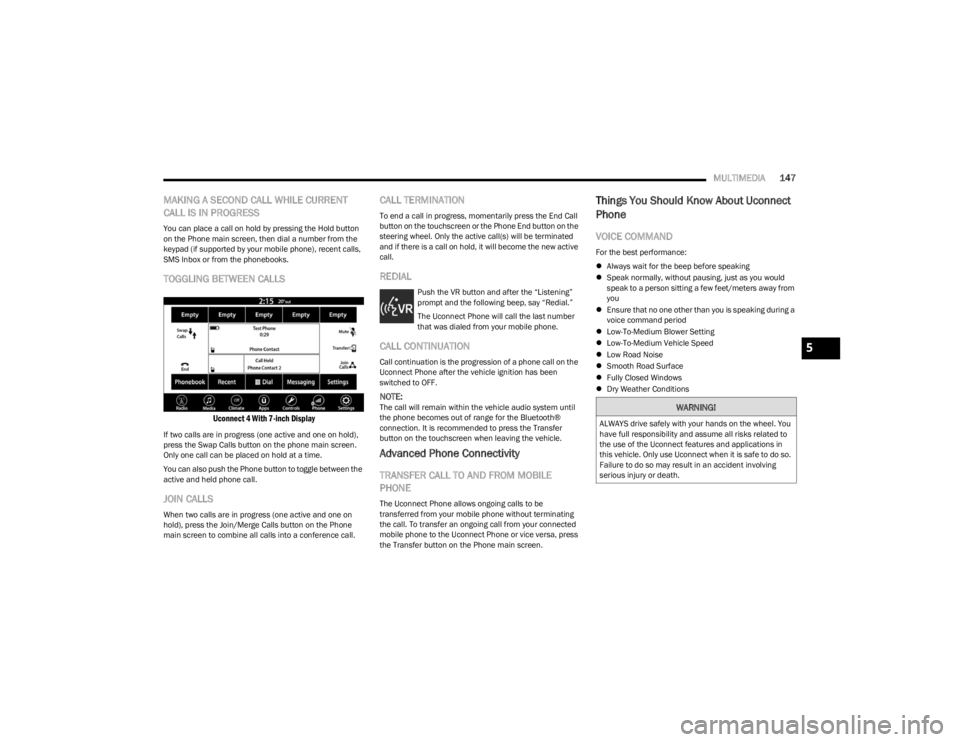
TOGGLING BETWEEN CALLS
Uconnect 4 With 7-inch Display
If two calls are in progress (one active and one on hold),
press the Swap Calls button on the phone main screen.
Only one call can be placed on hold at a time.
You can also push the Phone button to toggle between the
active and held phone call.
JOIN CALLS
When two calls are in progress (one active and one on
hold), press the Join/Merge Calls button on the Phone
main screen to combine all calls into a conference call.
CALL TERMINATION
To end a call in progress, momentarily press the End Call
button on the touchscreen or the Phone End button on the
steering wheel. Only the active call(s) will be terminated
and if there is a call on hold, it will become the new active
call.
REDIAL
Push the VR button and after the “Listening”
prompt and the following beep, say “Redial.”
The Uconnect Phone will call the last number
that was dialed from your mobile phone.
CALL CONTINUATION
Call continuation is the progression of a phone call on the
Uconnect Phone after the vehicle ignition has been
switched to OFF.
NOTE:The call will remain within the vehicle audio system until
the phone becomes out of range for the Bluetooth®
connection. It is recommended to press the Transfer
button on the touchscreen when leaving the vehicle.
Advanced Phone Connectivity
TRANSFER CALL TO AND FROM MOBILE
PHONE
The Uconnect Phone allows ongoing calls to be
transferred from your mobile phone without terminating
the call. To transfer an ongoing call from your connected
mobile phone to the Uconnect Phone or vice versa, press
the Transfer button on the Phone main screen.
Things You Should Know About Uconnect
Phone
VOICE COMMAND
For the best performance:
Always wait for the beep before speaking
Speak normally, without pausing, just as you would
speak to a person sitting a few feet/meters away from
you
Ensure that no one other than you is speaking during a
voice command period
Low-To-Medium Blower Setting
Low-To-Medium Vehicle Speed
Low Road Noise
Smooth Road Surface
Fully Closed Windows
Dry Weather Conditions
WARNING!
ALWAYS drive safely with your hands on the wheel. You
have full responsibility and assume all risks related to
the use of the Uconnect features and applications in
this vehicle. Only use Uconnect when it is safe to do so.
Failure to do so may result in an accident involving
serious injury or death.
5
23_LD_OM_EN_USC_t.book Page 147
Page 155 of 292
MULTIMEDIA153
PERFORMANCE PAGES
Performance Pages is an application that provides a
display for performance indicators, as received from the
instrument cluster, that will help you gain familiarity with
the capabilities of your vehicle in real time.
To access the Performance Pages, press the Apps button
on the touchscreen then press the Performance Pages
button on the touchscreen. Press the desired button on
the touchscreen to access that specific Performance
Page. The Performance Pages include the following:
Home
Timers
Gauges
G-Force
Engine
Dyno
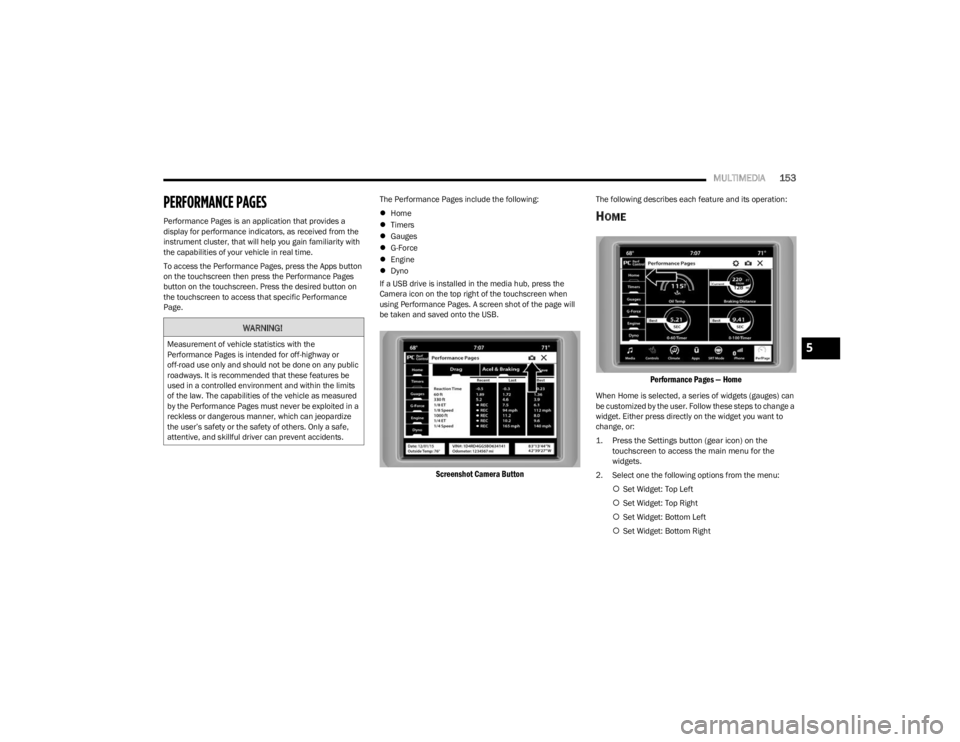
If a USB drive is installed in the media hub, press the
Camera icon on the top right of the touchscreen when
using Performance Pages. A screen shot of the page will
be taken and saved onto the USB.
Screenshot Camera Button
The following describes each feature and its operation:
HOME
Performance Pages — Home
When Home is selected, a series of widgets (gauges) can
be customized by the user. Follow these steps to change a
widget. Either press directly on the widget you want to
change, or:
1. Press the Settings button (gear icon) on the touchscreen to access the main menu for the
widgets.
2. Select one the following options from the menu: Set Widget: Top Left
Set Widget: Top Right
Set Widget: Bottom Left
Set Widget: Bottom Right
WARNING!
Measurement of vehicle statistics with the
Performance Pages is intended for off-highway or
off-road use only and should not be done on any public
roadways. It is recommended that these features be
used in a controlled environment and within the limits
of the law. The capabilities of the vehicle as measured
by the Performance Pages must never be exploited in a
reckless or dangerous manner, which can jeopardize
the user’s safety or the safety of others. Only a safe,
attentive, and skillful driver can prevent accidents.5
23_LD_OM_EN_USC_t.book Page 153