2023 CITROEN C4 warning
[x] Cancel search: warningPage 239 of 292

237
MyCitroën Drive
12– "No data sharing except for company
vehicles ".
–
"Only data sharing "
–
"Sharing data and vehicle position "
Settings specific to
connected navigation
Press Navigation to display the main
page.
Press the "MENU" button to access the
secondary page.
Select "Settings".
Select the "Map” tab.
Activate or deactivate: – "Allow declaration of danger zones ".
–
"Guidance to final destination on foot ".
These settings must be configured for each
profile.
Press “OK” to confirm your selection.
Select the "Alerts” tab.
Activate or deactivate:
–
"Advise of car park nearby ".
–
"Filling station alert ".
–
“Risk areas alert " then press the warning icon
(triangle) to configure the alerts.
–
"Give an audible warning ".
–
"Advise proximity of POI 1 ".
– "Advise proximity of POI 2".Press “OK” to confirm your selection.
The "Notifications", located in the upper
bar, can be accessed at any time.
Danger zone alerts may or may not be
displayed, depending on the applicable
legislation and subscription to the
corresponding service.
When "TOMTOM TRAFFIC” appears, the
services are available.
The services offered with connected navigation are as follows.
A Connected Services pack:
–
Weather,
–
Filling stations,
–
Car park,
–
T
raffic,
–
POI local search.
A
Danger area pack (optional).
Declaration: "Risk areas
alert"
To send information about danger zones, select the option:Allow declaration of
danger zones
Press Navigation to display the main
page.
Press the "Declare a new danger zone"
button located in the side bars or the
upper bar of the touch screen (depending on
equipment).
Select the "Type” option to select the type
of "Danger area".
Select the "Speed" option and enter it
using the virtual keypad.
Press "OK" to save and send the
information.
Displaying fuel information
Press Navigation to display the main
page.
Press this button to display the list of
services.
Press "POI on map" to display the list
of points of interest.
Press one of the buttons to search for
"Stations".
Activate/deactivate "Stations".
Press this button to display a secondary
page.
Select the "Settings” tab.
Select the desired fuel.
Press "OK" to save.
Page 250 of 292

248
MyCitroën Drive
Select "Setting the time-date".
Select "Date".
Press this button to set the date.
Press "OK" to confirm.
Select the display format for the date.
Time and date setting is only available if "GPS synchronisation" is deactivated.
Setting the time
Press Settings to display the main page.
Press the "OPTIONS " button to access the
secondary page.
Select "Setting the time-date".
Select "Time".
Press this button to set the time using the
virtual keypad.
Press "OK" to confirm.
Press this button to set the time zone.
Select the display format for the time
(12h/24h).
Activate or deactivate summer time (+1 hour).
Activate or deactivate GPS synchronisation (UTC).
Press "OK" to confirm.
The system may not automatically manage the change between winter and
summer time (depending on the country of
sale).
Colour schemes
Depending on equipment/Depending on version.
As a safety measure, the procedure for changing the colour scheme is only
possible when the vehicle is stationary.
Press Settings to display the main page.
Select "Color schemes ".
Select a colour scheme in the list then
press "OK" to confirm.
Whenever the colour scheme is
changed, the system restarts, temporarily
displaying a black screen.
Frequently asked
questions
The following information groups together the answers to the most frequently asked questions
concerning the system.
Navigation
I cannot enter the navigation address.
The address is not recognised.
►
Use the "intuitive method" by pressing
the "Search…" button at the bottom of the
"Navigation” page.
The route calculation is not successful.
The route settings may conflict with the current
location (for example, if toll roads are excluded
but the vehicle is on a toll road).
►
Check the route settings in the "Navigation"
menu.
I am not receiving "Danger zone" alerts.
Y
ou have not subscribed to the online services
option.
►
If you have subscribed to the option:
- a few days may elapse before the service is
activated,
- services may not be selected in the system
menu,
- online services are not active ("T
OMTOM
TRAFFIC" not shown on the map).
The POIs do not appear.
The POIs have not been selected.
►
Set the zoom level to 200 metres (656 ft), or
select POIs from the POI list.
The "Danger zone" audible warning feature is
not working.
The audible warning is not active or the volume
is too low
.
Page 251 of 292

249
MyCitroën Drive
12► Activate the audible warning in the
"Navigation" menu and check the voice volume
in the sound settings.
The system does not suggest a detour
around an incident on the route.
The route settings do not take account of
TMC
messages.
►
Configure the "T
raffic info" function in the
route settings list (None, Manual or Automatic).
I am receiving a "Danger zone" alert which is
not on my route.
As well as providing guided navigation, the
system announces all "Danger areas" positioned
in a cone located in front of the vehicle. It may
provide an alert for "Danger areas" located on
nearby or parallel roads.
►
Zoom the map to show the exact location
of the "Danger area".
You can select "On the
route" to stop receiving warnings or decrease the
warning duration.
Certain traffic jams along the route are not
indicated in real time.
On starting, a few minutes may elapse before
the system begins to receive traffic information.
►
W
ait until traffic information is being received
correctly (traffic information icons shown on the
map).
In certain countries, only major routes
(motorways, etc.) are listed for the traffic
information.
This is perfectly normal. The system is
dependent on the traffic information available.
The altitude is not displayed. On starting, GPS initialisation may take up to
3 minutes to receive more than 4 satellites
correctly.
►
W
ait until the system has started up
completely so that there is GPS coverage by at
least 4
satellites.
Depending on the geographical environment
(tunnel, etc.) or the weather, the conditions of
reception of the GPS signal may vary.
This behaviour is normal. The system is
dependent on the GPS signal reception
conditions.
My navigation is no longer connected.
During start-up and in certain geographical
areas, the connection may be unavailable.
►
Check that the online services are activated
(settings, contract).
Radio
The reception quality of the radio station
being listened to gradually deteriorates or
the station presets are not working (e.g.
no
sound, "87.5" MHz is displayed).
The vehicle is too far from the selected station’s
transmitter, or no transmitter is present in the
geographical area.
►
Activate the "RDS" function by means of the
short-cut menu to enable the system to check
whether there is a more powerful transmitter in
the geographical area.
The aerial is missing or damaged (e.g.
when
going through a car wash or in an underground
car park). ►
Have the aerial checked by a dealer
.
The surrounding area (e.g. hill, building, tunnel,
underground car park, etc.) is blocking reception,
including in RDS tracking mode.
This is a perfectly normal phenomenon, and is
not indicative of an audio system malfunction.
I cannot find some radio stations in the list of
stations received.
The name of the radio station changes.
The station is no longer received or its name has
changed in the list.
Some radio stations send other information
in place of their name (the title of the song for
example).
The system interprets these details as the station
name.
►
Press "Update list" in the "Radio stations"
secondary menu.
Media
Playback of my USB memory stick starts only
after a very long wait (around 2 to 3 minutes).
Some files supplied with the memory stick may
greatly slow down access to reading the memory
stick (multiplication by 10 of the cataloguing
time).
►
Delete the files supplied with the memory
stick and limit the number of sub-folders in the
file structure on the memory stick.
There may be an extended pause after
inserting a USB stick.
Page 254 of 292

252
MyCitroën Drive Plus
MyCitroën Drive Plus
GPS navigation -
Applications - Multimedia
audio system - Bluetooth
®
telephone
The functions and settings described
vary according to the version and
configuration of the vehicle, and according to
the country of sale.
For safety reasons and because they
require continued attention on the part of
the driver, the following operations must be
carried out with the vehicle stationary and
the ignition on:
–
Pairing the smartphone with the system via
Bluetooth®.
–
Using the smartphone.
–
Connecting to Mirror Screen
(Apple®CarPlay® or Android Auto).
–
Changing the system settings and
configuration.
The message Energy economy mode is displayed when the system is about to go
into standby.
For more information on Energy economy
mode, refer to the "Practical information"
section.
The AM radio selection mode is not available on electric vehicles.
Warning
Navigation is a driving aid. It cannot
replace the driver. All guidance instructions
should be carefully checked by the user.
By using the navigation, you accept the
following terms and conditions:
https://www.tomtom.com/en_gb/legal/
eula-automotive/?388448
First steps
The system starts when the ignition is switched on.
Short press, ignition off: system on/off.
Short press, ignition on: mute/restore sound.
Long press, ignition on: start standby mode
(mute sound, screens and clock display off).
Rotation: volume adjustment.
Information
This system gives access to the following
elements:
–
Audio equipment and telephone controls with
display of associated information.
–
Connected services and display of associated
information.
–
Navigation system controls and display
of associated information (depending on
equipment). –
V
oice recognition (depending on equipment).
–
T
ime and outside temperature.
–
Heating/air conditioning system controls and
reminders of settings.
–
Settings for driving aid functions, comfort
and safety functions, extended head-up display
(depending on equipment and version), audio
equipment and digital instrument panel.
–
Settings for functions specific to electric
vehicles.
–
Display of visual manoeuvring aid functions.
–
Interactive handbook.
–
V
ideo tutorials (e.g. screen management,
driving aids, voice recognition).
Upper banner
Certain information is displayed permanently in
the upper banner of the touch screen:
–
Outside temperature from the vehicle's
sensors (associated with a blue symbol if there is
a risk of ice).
–
T
emperature setting reminder for the air
conditioning on the driver's and passenger sides.
–
Charge level of the connected smartphone.
–
System connection status (Bluetooth®, Wi-Fi,
mobile telephone network).
–
Time.
–
Quick access to the Mirror Screen® functions
(associated with a connected smartphone).
Swipe down from the upper edge of the touch
screen to access the notifications centre and
display a list of quick settings :Guest, Privacy
Page 268 of 292
266
MyCitroën Drive Plus
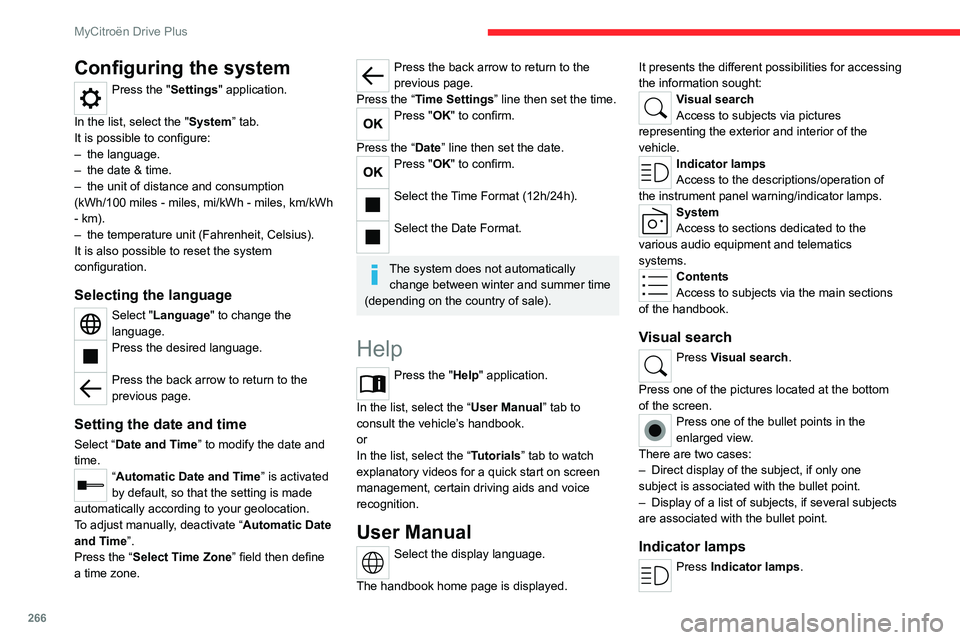
Configuring the system
Press the "Settings" application.
In the list, select the "System” tab.
It is possible to configure:
–
the language.
–
the date & time.
–
the unit of distance and consumption
(kWh/100 miles - miles, mi/kWh - miles, km/kWh
- km).
–
the temperature unit (Fahrenheit, Celsius).
It is also possible to reset the system
configuration.
Selecting the language
Select "Language" to change the
language.
Press the desired language.
Press the back arrow to return to the
previous page.
Setting the date and time
Select “Date and Time” to modify the date and
time.
“Automatic Date and Time” is activated
by default, so that the setting is made
automatically according to your geolocation.
To adjust manually, deactivate “Automatic Date
and Time”.
Press the “Select Time Zone” field then define
a time zone.
Press the back arrow to return to the
previous page.
Press the “Time Settings” line then set the time.
Press "OK" to confirm.
Press the “Date” line then set the date.
Press "OK" to confirm.
Select the Time Format (12h/24h).
Select the Date Format.
The system does not automatically change between winter and summer time
(depending on the country of sale).
Help
Press the "Help" application.
In the list, select the “User Manual” tab to
consult the vehicle’s handbook.
or
In the list, select the “Tutorials” tab to watch
explanatory videos for a quick start on screen
management, certain driving aids and voice
recognition.
User Manual
Select the display language.
The handbook home page is displayed. It presents the different possibilities for accessing
the information sought:
Visual search
Access to subjects via pictures
representing the exterior and interior of the
vehicle.
Indicator lamps
Access to the descriptions/operation of
the instrument panel warning/indicator lamps.
System
Access to sections dedicated to the
various audio equipment and telematics
systems.
Contents
Access to subjects via the main sections
of the handbook.
Visual search
Press Visual search.
Press one of the pictures located at the bottom
of the screen.
Press one of the bullet points in the
enlarged view.
There are two cases:
–
Direct display of the subject, if only one
subject is associated with the bullet point.
–
Display of a list of subjects, if several subjects
are associated with the bullet point.
Indicator lamps
Press Indicator lamps.
Page 269 of 292

267
MyCitroën Drive Plus
13The mosaic of warning/indicator lamps is
displayed.
The warning/indicator lamps are sorted by
colour.
Press the warning/indicator lamp concerned; the
corresponding content is displayed.
Back to the mosaic of warning/indicator
lamps.
System
Press System.
The list of audio and telematics systems is
displayed.
Press on the section concerned; the list of
subjects is displayed.
Press on the subject concerned;
the
corresponding content is displayed.
If the subject has more than one page,
drag horizontally.
Back to the list of subjects.
Contents
Press Contents.
The list of sections is displayed.
Press on the section concerned;
the list of
subjects is displayed.
Press on the subject concerned;
the
corresponding content is displayed.
If the subject has more than one page,
drag horizontally.
Back to the list of subjects.
Page 274 of 292

272
Alphabetical index
Charger, wireless 60
Charging cable
157
Charging cable (Electric)
156
Charging connector (Electric)
155, 160,
162–163
Charging flap (Electric)
155, 160, 162–163
Charging system (Electric)
5, 9, 28, 153, 171
Charging the traction battery
(Electric)
23, 153, 157, 160, 162–163
CHECK
24
Checking the engine oil level
20
Checking the levels
171–172
Checking tyre pressures
(using the kit)
181, 183
Checks
170, 173–175
Checks, routine
173–174
Child lock
92
Children
81, 87–89
Children (safety)
92
Child seats
81, 84–87
Child seats, conventional
87, 90–91
Child seats, i-Size
89–91
Child seats, ISOFIX
87–91
Cleaning (advice)
154, 177–179
Closing the boot
36, 40
Closing the doors
35–36, 39
Collision Risk Alert
132–134
Configuration, vehicle
11, 28–29
Connected applications
239
Connection, Android Auto
221, 239
Connection, Apple CarPlay
221, 238Connection, Bluetooth 208–209, 218–219,
239–240, 244–245, 260–261
Connection, Wi-Fi network
240
Connectivity
238, 265
Consumptions
29–30
Container, AdBlue®
176
Control, emergency boot release
40
Control, emergency door
37
Control, heated seats
47, 50–51
Controls, steering mounted
102–103
Control stalk, lighting
65–66
Control stalk, wipers
70–72
Control unit
156–157
Courtesy lamps
62–63
Cruise control
113–114, 116–118
Cruise control, adaptive
113–114, 118–119
Cruise control by speed limit
recognition
113–114
D
DAB (Digital Audio Broadcasting) -
Digital radio
207, 217, 242
Date (setting)
224, 247, 266
Daytime running lamps
66, 188
Deactivating the passenger airbag
83, 86
Deadlocking
33, 36
Deferred charging
30
Deferred charging (Electric)
28, 30,
155, 160, 163
Deferred charging (Rechargeable hybrid)
30
Defrosting 48, 57
Defrosting, front
57
Defrosting, rear screen
58
Demisting
48, 57
Demisting, front
57
Demisting, rear
58
Diagnosis, vehicle
24
Dials and gauges
10
Digital instrument panel
11
Dimensions
202
Dipstick
20, 171
Direction indicators (turn signals)
66, 188–189
Display, head-up
12
Display screen, instrument panel
10
Domestic charging
(Electric)
157, 162–163, 201
Doors
39
Drive, electric
5, 9, 23, 28, 30,
153, 164, 171, 192, 195, 201
Driver’s attention warning
136–137
Drive selector (Electric)
103, 174
Driving
93–94
Driving aids camera (warnings)
11 0
Driving aid shortcuts
111
Driving aids (recommendations)
109
Driving economically
8
Driving modes
104–105
Dynamic stability control (DSC)
78
Page 275 of 292

273
Alphabetical index
E
EBFD 77
Eco-driving (advice)
8
ECO mode
105
Electric windows
42
Electronic brake force distribution (EBFD)
77
Emergency braking assistance (EBA)
78
Emergency call
75–76
Emergency switching off
97–98
Emergency warning lamps
74, 180
Emissions control system, SCR
22, 175
Energy economy (mode)
168
Energy economy mode
168
Energy flows
23, 28, 30
Energy recovery
23, 104
Engine
175
Engine compartment
170
Engine, Diesel
152, 170, 180, 200
Engine, petrol
170, 198
Engines
197–198, 200
Environment
8, 38, 94
ESC (electronic stability control)
77
Expanded traffic sign recognition
11 4
Exterior lighting
68
F
Fatigue detection 136–137
Favourite driving functions
111
Filling the AdBlue® tank
173, 176
Filling the fuel tank 152–153
Filter, air
173
Filter, oil
173
Filter, particle
173
Filter, passenger compartment
51, 173
Fitting a wheel
185–186
Fitting roof bars
167–168
Fittings, boot
63
Fittings, interior
59
Flap, fuel filler
152–153
Flashing indicators
66, 188
Floor, boot, adjustable
63
Fluid, brake
172
Fluid, engine coolant
172
Foglamp, rear
65, 190
Foglamps, front
65, 70, 189
Foglamps, rear
191
Folding the rear seats
49–50
Frequency (radio)
241, 263
Fuel
8, 152
Fuel consumption
8
Fuel level, low
152
Fuel (tank)
152–153
Fuses
191
G
Gauge, fuel 152
Gearbox, automatic
101–103, 105, 174, 192
Gearbox, manual
101, 105, 174
Gear lever, manual gearbox
101
Gear shift indicator 106
Glove box
59
G.P.S.
235
H
Hazard warning lamps 74, 180
Headlamps (adjustment)
67
Headlamps, automatic dipping
69–70
Headlamps, automatic operation
67
Headlamps, dipped beam
188
Headlamps, halogen
67, 188
Headlamps, main beam
69, 188
Head restraints, front
45
Head restraints, rear
49–50
Head-up display
12
Heated steering wheel
47
Heating
51–52
Heating, programmable
30, 58
Hi-Fi system
61
High voltage
153
Highway Driver Assist
11 8
Hill start assist
105–106
Histogramme, fuel consumption
29–30
Horn
75
I
Ignition 97, 245, 265
Ignition on
97