2023 CADILLAC XT5 steering wheel
[x] Cancel search: steering wheelPage 144 of 482

Cadillac XT5 Owner Manual (GMNA-Localizing-U.S./Canada/Mexico-
16406251) - 2023 - CRC - 3/25/22
Instruments and Controls 143
HUD Display on theWindshield
The HUD may display some of
the following vehicle
information and vehicle
messages or alerts:
.Speed
.Tachometer
.Audio
.Phone
.Navigation
.Collision Alert
.Adaptive Cruise Control and
set speed
.Lane Departure
.Low Fuel
Some vehicle messages or
alerts displayed in the HUD
may be cleared by using the
steering wheel controls. See
Vehicle Messages 0146.
Some information shown may
not be available on your
vehicle if it is not equipped
with these features.
The HUD control is to the left
of the steering wheel.
To adjust the HUD image: 1. Adjust the driver seat.
2. Start the engine.
3. Use the following settings to adjust the HUD.
$:Press or lift to center the
HUD image. The HUD image
can only be adjusted up and
down, not side to side.
!: Press to select the
display view. Each press will
change the display view.
D: Lift and hold to brighten
the display. Press and hold to
dim the display. Continue to
hold to turn the display off.
The HUD image will
automatically dim and brighten
to compensate for outside
lighting. The HUD brightness
control can also be adjusted
as needed.
The HUD image can
temporarily light up depending
on the angle and position of
sunlight on the HUD display.
This is normal.
Polarized sunglasses could
make the HUD image harder
to see.
Page 145 of 482
Cadillac XT5 Owner Manual (GMNA-Localizing-U.S./Canada/Mexico-
16406251) - 2023 - CRC - 3/25/22
144 Instruments and Controls
Head-Up Display (HUD)
Rotation Option
This feature allows for
adjusting the angle of the HUD
image.
Press SEL on the steering
wheel controls while Head-Up
Display Rotation is highlighted
to enter Adjust Mode. Press
y
orzto adjust the angle of the
HUD display. Press
SorTto
highlight OK, then press SEL
to save the setting. CANCEL
can also be selected to cancel
the setting. The vehicle must
be in P (Park). See Instrument
Cluster 0122.
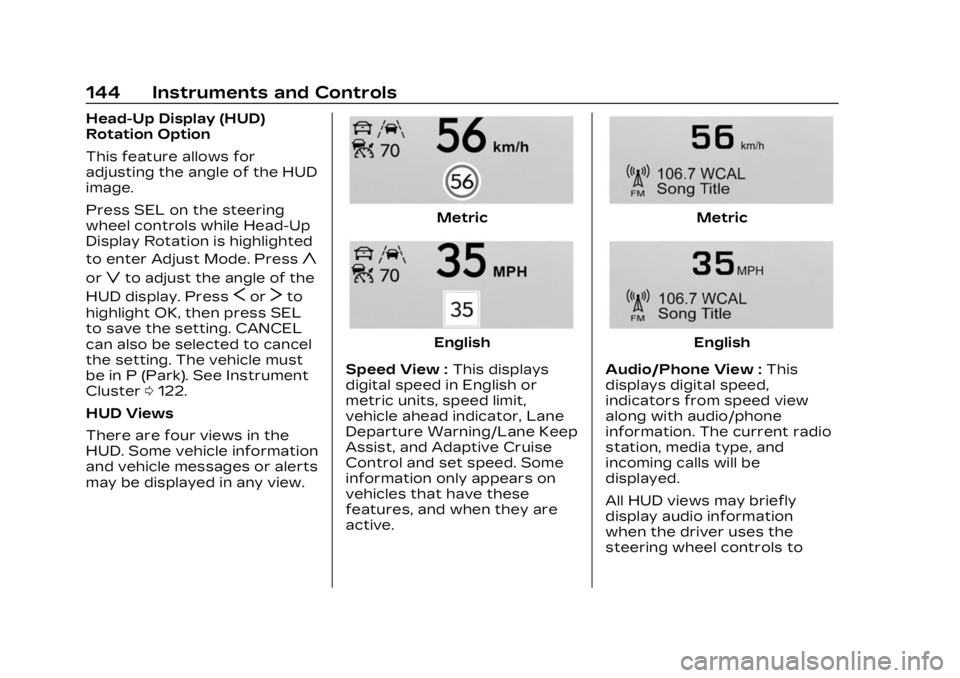
HUD Views
There are four views in the
HUD. Some vehicle information
and vehicle messages or alerts
may be displayed in any view.
Metric
English
Speed View : This displays
digital speed in English or
metric units, speed limit,
vehicle ahead indicator, Lane
Departure Warning/Lane Keep
Assist, and Adaptive Cruise
Control and set speed. Some
information only appears on
vehicles that have these
features, and when they are
active.
Metric
English
Audio/Phone View : This
displays digital speed,
indicators from speed view
along with audio/phone
information. The current radio
station, media type, and
incoming calls will be
displayed.
All HUD views may briefly
display audio information
when the driver uses the
steering wheel controls to
Page 156 of 482

Cadillac XT5 Owner Manual (GMNA-Localizing-U.S./Canada/Mexico-
16406251) - 2023 - CRC - 3/25/22
Lighting 155
wipers are not operating,
these lamps turn off. Move the
exterior lamp control to
Oor
;to disable this feature.
Hazard Warning
Flashers
|:Touch|on the center
stack to make the front and
rear turn signal lamps flash on
and off. Touch again to turn
the flashers off.
The hazard warning flashers
turn on automatically if the
airbags deploy.
Turn and
Lane-Change Signals
Move the lever all the way up
or down to signal a turn.
An arrow on the instrument
cluster flashes in the direction
of the turn or lane change.
Raise or lower the lever until
the arrow starts to flash to
signal a lane change. Hold it
there until the lane change is
completed. If the lever is
briefly pressed and released,
the turn signal flashes three
times.
The turn and lane-change
signal can be turned off
manually by moving the lever
back to its original position. If after signaling a turn or lane
change, the arrow flashes
rapidly or does not come on, a
signal bulb may be burned out.
Replace any burned out bulbs.
If a bulb is not burned out,
check the fuse. See Fuses and
Circuit Breakers
0367.
Cornering Lamps
Cornering lamps automatically
come on when all of the
following occur:
.The low-beam headlamps
are on.
.The turn signals are
activated or the steering
wheel is at a turning angle.
.The vehicle speed is below
40 km/h (25 mph).
Page 160 of 482

Cadillac XT5 Owner Manual (GMNA-Localizing-U.S./Canada/Mexico-
16406251) - 2023 - CRC - 3/25/22
Infotainment System 159
Infotainment
System
Introduction
Introduction . . . . . . . . . . . . . . . . . 159
Overview . . . . . . . . . . . . . . . . . . . . . 160
Steering WheelControls . . . . . . . . . . . . . . . . . . . . . 162
Using the System . . . . . . . . . . 163
Software Updates . . . . . . . . . 166
Radio
AM-FM Radio . . . . . . . . . . . . . . . 166
Radio Data System (RDS) . . . . . . . . . . . . . . 169
Satellite Radio . . . . . . . . . . . . . . 169
Radio Reception . . . . . . . . . . . . 170
Multi-Band Antenna . . . . . . . . 171
Audio Players
Avoiding Untrusted Media Devices . . . . . . . . . . . . . . . . . . . . . . . 171
USB Port . . . . . . . . . . . . . . . . . . . . . . 171
Bluetooth Audio . . . . . . . . . . . . 174
Navigation
Using the Navigation System . . . . . . . . . . . . . . . . . . . . . . 175
Maps . . . . . . . . . . . . . . . . . . . . . . . . . . . 179
Navigation Symbols . . . . . . . 179 Destination . . . . . . . . . . . . . . . . . . 180
Global Positioning
System (GPS) . . . . . . . . . . . . . . 187
Vehicle Positioning . . . . . . . . 188
Problems with Route Guidance . . . . . . . . . . . . . . . . . . . . 188
If the System Needs Service . . . . . . . . . . . . . . . . . . . . . . 189
Map Data Updates . . . . . . . . 189
Database Coverage Explanations . . . . . . . . . . . . . . . 189
Voice Recognition
Voice Recognition . . . . . . . . . 190
Phone
Bluetooth (Overview) . . . . . 197
Bluetooth (Pairing andUsing a Phone) . . . . . . . . . . . . 198
Apple CarPlay and Android Auto . . . . . . . . . . . . . . 203
Settings
Settings . . . . . . . . . . . . . . . . . . . . . . 205
Teen Driver . . . . . . . . . . . . . . . . . 209
Trademarks and License
Agreements
Trademarks and LicenseAgreements . . . . . . . . . . . . . . . . 214
Introduction
Read the following pages to
become familiar with the
features.
{Warning
Taking your eyes off the
road for too long or too
often while using any
infotainment feature can
cause a crash. You or others
could be injured or killed. Do
not give extended attention
to infotainment tasks while
driving. Limit your glances at
the vehicle displays and
focus your attention on
driving. Use voice commands
whenever possible.
The infotainment system has
built-in features intended to
help avoid distraction by
disabling some features when
driving. These features may
gray out when they are
unavailable. Many infotainment
Page 161 of 482

Cadillac XT5 Owner Manual (GMNA-Localizing-U.S./Canada/Mexico-
16406251) - 2023 - CRC - 3/25/22
160 Infotainment System
features are also available
through the instrument cluster
and steering wheel controls.
Before driving:
.Become familiar with the
operation, center stack
controls, steering wheel
controls, and infotainment
display.
.Set up the audio by
presetting favorite stations,
setting the tone, and
adjusting the speakers.
.Set up phone numbers in
advance so they can be
called easily by pressing a
single control or by using a
single voice command.
See Distracted Driving 0235.
Active Noise
Cancellation (ANC)
If equipped, ANC reduces
engine noise in the vehicle’s
interior. ANC requires the
factory-installed audio system,
radio, speakers, amplifier (if
equipped), induction system,
and exhaust system to work properly. Deactivation is
required by your dealer if
related aftermarket equipment
is installed.
Overview
Infotainment System
The infotainment system is
controlled by using the
infotainment display, controls
on the center console,
steering wheel controls, and
voice recognition.
1.>(Power and Mute)
.Press to turn the
power on.
.Press to mute/unmute
the system when on.
.Press and hold to
display the power off
screen or the option to
display the power off
screen.
2.{(Home Page)
.Press to go to the
Home Page. See
“Home
Page” later in this
section.
Press to exit Android
Auto or Apple CarPlay.
To enter back into
Android Auto or Apple
CarPlay, press and hold.
See Apple CarPlay and
Android Auto 0203.
Page 163 of 482

Cadillac XT5 Owner Manual (GMNA-Localizing-U.S./Canada/Mexico-
16406251) - 2023 - CRC - 3/25/22
162 Infotainment System
.If equipped, move right/
left or up/down to
change the highlighted
area on the display
screen.
7.6(Phone) or{
(Home Page)
.Press6to access the
phone menu or press
{
to access the Home
Page. See “Home Page”
later in this section.
8.0(Back)
.Press to return to the
previous display in
a menu.
Home Page
The Home Page is where
vehicle application icons are
accessed. Some applications
are disabled when the vehicle
is moving.
Swipe left or right across the
display to access the pages of
icons. Managing Home Page Icons
1. Touch and hold any of the Home Page icons to enter
edit mode.
2. Continue holding the icon and drag it to the desired
position.
3. Release your finger to drop the icon in the
desired position.
4. To move an application to another page, drag the
icon to the edge of the
display toward the
desired page.
5. Continue dragging and dropping application icons
as desired.Steering Wheel
Controls
The infotainment steering
wheel controls can be used to
control the infotainment
features displayed in the
instrument cluster. When in Valet Mode,
if equipped, access to the
infotainment functions is
disabled. See
“Valet Mode,”
under Settings 0205.
g:Press to answer an
incoming call or start voice
recognition. See Bluetooth
(Overview) 0197 or
Bluetooth (Pairing and Using a
Phone) 0198.
c:Press to decline an
incoming call or end a current
call. Press to mute or unmute
the infotainment system when
not on a call.
Page 175 of 482

Cadillac XT5 Owner Manual (GMNA-Localizing-U.S./Canada/Mexico-
16406251) - 2023 - CRC - 3/25/22
174 Infotainment System
Songs :TouchHnext to any
song to store the song as a
favorite. Touch a saved
favorite to recall a
favorite song.
Albums : Touch
Hnext to any
album to store the album as a
favorite. Touch a saved
favorite to recall a favorite
album. The first song in the
album list begins to play.
Genres : Touch
Hnext to any
genre to store the genre as a
favorite. Touch a saved
favorite to recall a favorite
genre. The first song of the
genre begins to play.
Podcasts : Touch
Hnext to
any podcast to store the
podcast as a favorite. Touch a
saved favorite to recall a
favorite podcast. The podcast
begins to play.
Audiobooks : Touch
Hnext
to any audiobook to store the
audiobook as a favorite. Touch
a saved favorite to recall a favorite audiobook. The first
chapter in the audiobook
begins to play.
Media Playback and Mute
USB playback will be paused if
the system is muted. If the
steering wheel mute control is
pressed again, playback will
resume.
If the source is changed while
in mute, playback resumes and
audio will unmute.
Bluetooth Audio
Music may be played from a
paired Bluetooth device. See
Bluetooth (Overview)
0197 or
Bluetooth (Pairing and Using a
Phone) 0198 for help pairing a
device.
Volume and song selection
may be controlled by using the
infotainment controls or the
mobile device. If Bluetooth is
selected and no volume is
present, check the volume
setting on the infotainment
system. Music can be launched by
touching Bluetooth from the
recent sources list on the left
of the display or by touching
the More option and then
touching the Bluetooth device.
To play music via Bluetooth:
1. Power on the device, and pair to connect the device.
2. Once paired, touch Audio from the Home Page, then
touch Bluetooth from the
recent sources list on the
left of the display.
Bluetooth Sound Menu
See “Infotainment System
Sound Menu” under AM-FM
Radio 0166.
Manage Bluetooth Devices
From the Home Page: 1. Touch Audio.
2. Touch Devices to add or delete devices.
When touching Bluetooth, the
radio may not be able to
launch the audio player on the
connected device to start
Page 179 of 482

Cadillac XT5 Owner Manual (GMNA-Localizing-U.S./Canada/Mexico-
16406251) - 2023 - CRC - 3/25/22
178 Infotainment System
Navigation Voice Control
Touch to access the voice
control setting display.
.Navigation Volume–To
adjust the volume level,
touch the up and down
arrows. If the voice guidance
prompt is being heard,
volume can also be adjusted
using the knob on the center
stack or the volume switch
on the steering wheel.
.Navigation Voice Prompt
Level during a Call. Options
available are:
‐ Full Prompt (Selected by
default)
‐ Tone Only
‐ None
Traffic Events (If Equipped)
This feature provides a list of
events that are on the route
or nearby. Touch
Aand then
select Traffic Events.
A connected Navigation
service plan is required. Traffic Preferences (If
Equipped)
While in Map View, touch
A,
then Settings and then Map
and Navigation Settings to
access Traffic Preferences.
When Show Traffic on Map is
turned on, the feature
provides an overview of the
traffic flow using different
coded colors. The following
options are available for
rerouting:
.Auto Reroute to Better
Route –The system will
automatically reroute if the
system detects there is a
traffic issue ahead.
.Ask Before Rerouting
(Default) –If the system
detects there is a traffic
issue ahead, it will display a
pop-up with details about
the issue. Choose to reroute
or cancel the alert.
.Never Search for Better
Route –The system will not
check for a better route until
one of the above options is
selected.
Alert Preferences
Set alerts on or off during
both inactive and active
guidance views. The following
alerts may be available:
.Road Safety Alerts –Touch
to display upcoming School
Zones.
.Traffic Camera Alerts
Manage History
Touch Manage History to
access the History options:
.Clear Recent Destinations –
Touch
\to clear the recent
destinations.
.Clear Search History –
Touch
\to clear the search
history.
About
Touch to display software
information, such as: