2023 BUICK ENVISION change wheel
[x] Cancel search: change wheelPage 202 of 356

Buick Envision Owner Manual (GMNA-Localizing-U.S./Canada/Mexico-
16060855) - 2023 - CRC - 2/9/22
Driving and Operating 201
Manual Mode
Tap ShiftCaution
Driving with the engine at a high rpm
without upshifting while using Tap Shift,
could damage the vehicle. Always upshift
when necessary while using Tap Shift.
Vehicles with Tap Shift have controls on the
back of the steering wheel to manually shift
the automatic transmission. Permanent Tap Shift Mode
To enter Permanent Tap Shift Mode:
1. With the vehicle in D (Drive), press the M (Manual Mode) button.
2. Pull the steering wheel control toward you to shift. Pull the left control to
downshift, and the right control to
upshift.
To exit Permanent Tap Shift Mode, pull the
D (Drive) switch on the center console.
Temporary Tap Manual Shift Mode
To enter Temporary Tap Shift Mode: 1. With the transmission in D (Drive) and not in Permanent Tap Shift Mode, the
Tap Shift controls will activate a
Temporary Tap Shift Mode, allowing the
transmission to be manually shifted.
2. To deactivate, hold the right control briefly. Automatic shifts return after no
manual shifts have been done for seven
to 10 seconds.
While using Tap Shift, the vehicle will have
firmer, quicker shifting. This can be used for
sport driving or when climbing or
descending hills, to stay in gear longer,
or to downshift for more power or engine
braking. The transmission will only allow shifting
into gears appropriate for the vehicle speed
and engine revolutions per minute (rpm).
If shifting is prevented for any reason, the
M or D will flash in the instrument cluster.
The transmission will not automatically shift
to the next higher gear if the engine rpm is
too high. It will only automatically shift to
the next lower gear if the engine rpm is
much too low.
Drive Systems
All-Wheel Drive
Vehicles with this feature can operate in
All-Wheel Drive (AWD) Mode. When the
AWD feature is active, the system transfers
engine power, if required, to all four wheels.
The system is fully automatic and adjusts to
road conditions for improved traction and
control. In FWD Mode engine power is
transferred to the front wheels only, and
the AWD feature is off.
The AWD feature is automatically activated
when certain modes are selected using the
Driver Mode Control switch. When an AWD
mode change is requested the light will
flash briefly while the system is engaging
and the AWD light will be displayed when
Page 210 of 356

Buick Envision Owner Manual (GMNA-Localizing-U.S./Canada/Mexico-
16060855) - 2023 - CRC - 2/9/22
Driving and Operating 209
Snow/Ice Mode :Snow/Ice Mode improves
vehicle acceleration on snow and ice covered
roads. When active, Snow/Ice Mode will
adjust acceleration to optimize traction on
slippery surfaces. This can compromise the
acceleration on dry asphalt.
This feature is not intended for use when
the vehicle is stuck in sand, mud, ice, snow,
or gravel. If the vehicle becomes stuck, see If
the Vehicle Is Stuck 0187.
Cruise Control
With cruise control the vehicle can maintain
a speed of about 40 km/h (25 mph) or more
without keeping your foot on the
accelerator. Cruise control does not work at
speeds below 40 km/h (25 mph).
{Warning
Cruise control can be dangerous where
you cannot drive safely at a steady
speed. Do not use cruise control on
winding roads or in heavy traffic.
(Continued)
Warning (Continued)
Cruise control can be dangerous on
slippery roads. On such roads, fast
changes in tire traction can cause
excessive wheel slip, and you could lose
control. Do not use cruise control on
slippery roads.
With the Traction Control System (TCS), the
system may begin to limit wheel spin while
you are using cruise control. If this happens,
the cruise control will automatically
disengage. See Traction Control/Electronic
Stability Control 0204. If a collision alert
occurs when cruise control is activated,
cruise control is disengaged. See Forward
Collision Alert (FCA) System 0230. When
road conditions allow you to safely use it
again, cruise control can be turned back on.
If the brakes are applied, cruise control
disengages.
5: Press to turn cruise control on or off.
A white indicator comes on in the
instrument cluster when cruise control is
turned on.
RES+ : If there is a set speed in memory,
press briefly to resume to that speed or
press and hold to accelerate. If cruise control
is already active, use to increase vehicle
speed.
SET− :Press the control down briefly to set
the speed and activate cruise control.
If cruise control is already active, use to
decrease vehicle speed.
*: Press to disengage cruise control
without erasing the set speed from memory.
Page 212 of 356

Buick Envision Owner Manual (GMNA-Localizing-U.S./Canada/Mexico-
16060855) - 2023 - CRC - 2/9/22
Driving and Operating 211
Adaptive Cruise Control
(Advanced)
If equipped, Adaptive Cruise Control (ACC)
allows the cruise control set speed and a
following gap to be selected. Read this
entire section before using the system. The
following gap is the following time (or
distance) between your vehicle and a vehicle
detected directly ahead in your path,
moving in the same direction. If no vehicle
is detected in your path, ACC works like
regular cruise control. ACC uses a camera
and radar sensor(s) to detect other vehicles.
SeeRadio Frequency Statement 0331.
If a vehicle is detected in your path, ACC can
apply acceleration or limited, moderate
braking to maintain the selected following
gap. To disengage ACC, apply the brake.
If ACC is controlling your vehicle speed
when the Traction Control System (TCS) or
StabiliTrak/Electronic Stability Control (ESC)
system activates, the ACC may automatically
disengage. See Traction Control/Electronic
Stability Control 0204. When road
conditions allow ACC to be safely used, ACC
can be turned back on. Disabling the TCS or StabiliTrak/ESC system
will disengage and prevent engagement
of ACC.
ACC can reduce the need for you to
frequently brake and accelerate, especially
when used on expressways, freeways, and
interstate highways. When used on other
roads, you may need to take over the
control of braking or acceleration more
often.
{Warning
ACC has limited braking ability and may
not have time to slow the vehicle down
enough to avoid a collision with another
vehicle you are following. This can occur
when vehicles suddenly slow or stop
ahead, or enter your lane. Also see
“Alerting the Driver”
in this section.
Complete attention is always required
while driving and you should be ready to
take action and apply the brakes. See
Defensive Driving 0182.
{Warning
ACC will not detect or brake for children,
pedestrians, animals, or other objects.
Do not use ACC when:
.On winding and hilly roads or when
the camera sensor is blocked by snow,
ice, or dirt. The system may not
detect a vehicle ahead. Keep the
windshield and headlamps clean.
.When visibility is poor due to rain,
snow, fog, dirt, insect residue, or dust;
when other foreign objects obscure
the camera’s view; or when the
vehicle in front or oncoming traffic
causes additional environmental
obstructions, such as road spray. ACC
performance is limited under these
conditions.
.On slippery roads where fast changes
in tire traction can cause excessive
wheel slip
.With extremely heavy cargo loaded in
the cargo area or rear seat
.When towing a trailer
Page 215 of 356

Buick Envision Owner Manual (GMNA-Localizing-U.S./Canada/Mexico-
16060855) - 2023 - CRC - 2/9/22
214 Driving and Operating
.To increase vehicle speed in larger
increments, hold RES+. While holding
RES+, the vehicle speed increases to the
next 5 km/h (5 mph) step, then continues
to increase by 5 km/h (5 mph) at a time.
The set speed can also be increased while
the vehicle is stopped.
.If stopped with the brake applied, press
RES+ until the desired set speed is
displayed.
.If ACC is holding the vehicle at a stop and
there is another vehicle directly ahead,
pressing RES+ will increase the set speed.
.Pressing RES+ when there is no longer a
vehicle ahead or the vehicle ahead is
pulling away and the brake is not applied
will cause the ACC to resume.
When it is determined that there is no
vehicle ahead or the vehicle ahead is beyond
the selected following gap, then the vehicle
speed will increase to the set speed.
Reducing Speed While ACC is at a Set Speed
If ACC is already activated, do one of the
following:
.Use the brake to get to the desired lower
speed. Release the brake and press SET–.
The vehicle will now cruise at the lower
speed.
.Press and hold SET– down until the
desired lower speed is reached, then
release it.
.To decrease the vehicle speed in smaller
increments, press SET− down briefly. For
each press, the vehicle goes about 1 km/h
or (1 mph) slower.
.To decrease the vehicle speed in larger
increments, hold SET−. While holding
SET−, the vehicle speed decreases to the
next 5 km/h (5 mph) step, then continues
to decrease by 5 km/h (5 mph) at a time.
The set speed can also be decreased while
the vehicle is stopped.
.If stopped with the brake applied, press
or hold SET− until the desired set speed is
displayed.
Selecting the Follow Distance
When a slower moving vehicle is detected
ahead within the selected following gap,
ACC will adjust the vehicle's speed and
attempt to maintain the follow distance gap
selected.
Press
[on the steering wheel to adjust
the following gap. Each press cycles the gap
button through three settings: Far, Medium,
or Near. When pressed, the current gap setting
displays briefly on the instrument cluster
and HUD (if equipped). The gap setting will
be maintained until it is changed.
Far Gap Setting
Medium Gap Setting
Page 216 of 356

Buick Envision Owner Manual (GMNA-Localizing-U.S./Canada/Mexico-
16060855) - 2023 - CRC - 2/9/22
Driving and Operating 215
Near Gap Setting
Since each gap setting corresponds to a
following time (Far, Medium, or Near), the
following distance will vary based on vehicle
speed. The faster the vehicle speed, the
further back your vehicle will follow a
vehicle detected ahead. Consider traffic and
weather conditions when selecting the
following gap. The range of selectable gaps
may not be appropriate for all drivers and
driving conditions.
Changing the gap setting automatically
changes the alert timing sensitivity (Far,
Medium, or Near) for the Forward Collision
Alert (FCA) feature. See Forward Collision
Alert (FCA) System 0230. Courtesy Gap
Press and hold
[on the steering wheel
when vehicle is moving to temporarily
increase the gap with the vehicle ahead to
allow for merging traffic.
Press and hold
[when stopped to cancel
ACC from resuming automatically (if the
stop is brief) and remain stationary. This can
be used to allow traffic to merge between
you and the vehicle ahead. Press RES+ or
the accelerator pedal to resume ACC.
Following distance gap will return to the
original selection after hold.
Alerting the Driver
If ACC is engaged, driver action may be
required when ACC cannot apply sufficient
braking because of approaching a vehicle
too rapidly. When this condition occurs, the collision
alert symbol will flash on the windshield.
Either eight beeps will sound from the front,
or both sides of the Safety Alert Seat will
pulse five times. Touch the Settings icon on
the infotainment home page. Select
“Vehicle”
to display the list of available
options and select “Collision/Detection
Systems”.
See Defensive Driving 0182.
Approaching and Following a Vehicle
The vehicle ahead indicator is in the
instrument cluster and HUD display (if
equipped). It only displays when a vehicle is
detected in your vehicle’s path moving in
the same direction. If this symbol is not
displaying, ACC will not respond to or brake
for vehicles ahead.
ACC automatically slows the vehicle down
and adjusts vehicle speed to follow a
detected vehicle ahead at the selected
following gap. The vehicle speed increases or
Page 232 of 356
Buick Envision Owner Manual (GMNA-Localizing-U.S./Canada/Mexico-
16060855) - 2023 - CRC - 2/9/22
Driving and Operating 231
Without Head-Up Display
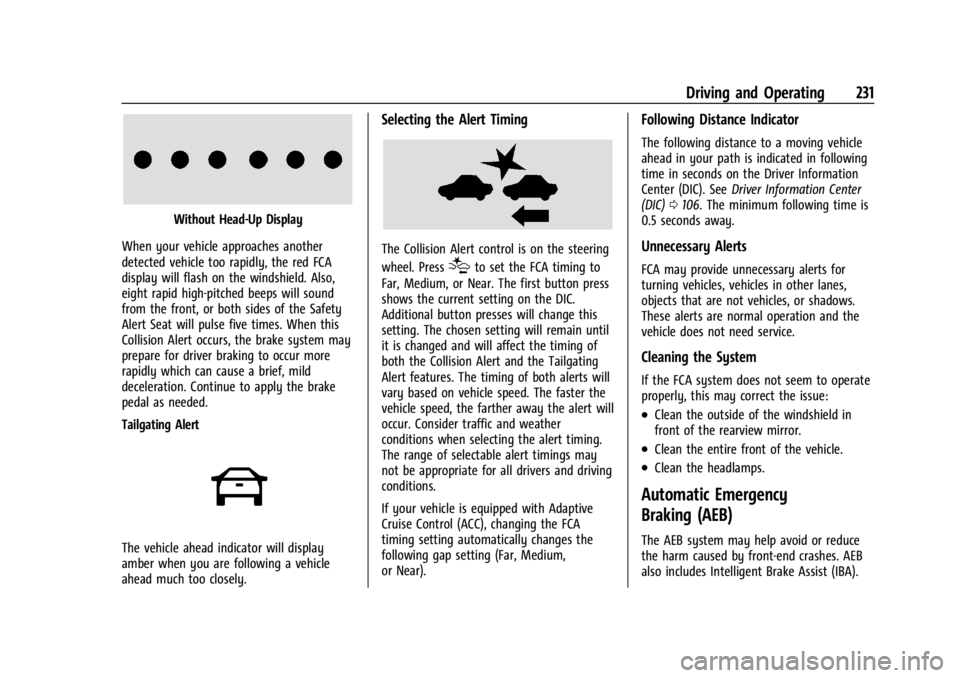
When your vehicle approaches another
detected vehicle too rapidly, the red FCA
display will flash on the windshield. Also,
eight rapid high-pitched beeps will sound
from the front, or both sides of the Safety
Alert Seat will pulse five times. When this
Collision Alert occurs, the brake system may
prepare for driver braking to occur more
rapidly which can cause a brief, mild
deceleration. Continue to apply the brake
pedal as needed.
Tailgating Alert
The vehicle ahead indicator will display
amber when you are following a vehicle
ahead much too closely.
Selecting the Alert Timing
The Collision Alert control is on the steering
wheel. Press
[to set the FCA timing to
Far, Medium, or Near. The first button press
shows the current setting on the DIC.
Additional button presses will change this
setting. The chosen setting will remain until
it is changed and will affect the timing of
both the Collision Alert and the Tailgating
Alert features. The timing of both alerts will
vary based on vehicle speed. The faster the
vehicle speed, the farther away the alert will
occur. Consider traffic and weather
conditions when selecting the alert timing.
The range of selectable alert timings may
not be appropriate for all drivers and driving
conditions.
If your vehicle is equipped with Adaptive
Cruise Control (ACC), changing the FCA
timing setting automatically changes the
following gap setting (Far, Medium,
or Near).
Following Distance Indicator
The following distance to a moving vehicle
ahead in your path is indicated in following
time in seconds on the Driver Information
Center (DIC). See Driver Information Center
(DIC) 0106. The minimum following time is
0.5 seconds away.
Unnecessary Alerts
FCA may provide unnecessary alerts for
turning vehicles, vehicles in other lanes,
objects that are not vehicles, or shadows.
These alerts are normal operation and the
vehicle does not need service.
Cleaning the System
If the FCA system does not seem to operate
properly, this may correct the issue:
.Clean the outside of the windshield in
front of the rearview mirror.
.Clean the entire front of the vehicle.
.Clean the headlamps.
Automatic Emergency
Braking (AEB)
The AEB system may help avoid or reduce
the harm caused by front-end crashes. AEB
also includes Intelligent Brake Assist (IBA).
Page 239 of 356

Buick Envision Owner Manual (GMNA-Localizing-U.S./Canada/Mexico-
16060855) - 2023 - CRC - 2/9/22
238 Driving and Operating
How the System Works
LKA uses a camera sensor installed on the
windshield ahead of the rearview mirror to
detect lane markings. It may provide brief
steering assist if it detects an unintended
lane departure. It may further provide an
audible alert or the driver seat may pulse
indicating that a lane marking has been
crossed. The sytem does not provide a LDW
when intentionally steering across a lane
marker.
To turn LKA on and off, press
Aon the
center console. If equipped, the indicator
light on the button comes on when LKA is
on and turns off when LKA is disabled.In
some vehicles, a long press of over
three seconds is required to turn LKA off.
When on,
Ais white, if equipped,
indicating that the system is not ready to
assist.
Ais green if LKA is ready to
assist. LKA may assist by gently turning the
steering wheel if the vehicle approaches a
detected lane marking.
Ais amber when
assisting. It may also provide a Lane
Departure Warning (LDW) alert by flashing
Aamber if the vehicle crosses a
detected lane marking. Additionally, there may be three beeps, or the driver seat may
pulse three times, on the right or left,
depending on the lane departure direction.
Take Steering
The LKA system does not continuously steer
the vehicle. If LKA does not detect active
driver steering, an alert and chime may be
provided. Steer the vehicle to dismiss. LKA
may become temporarily unavailable after
repeated take steering alerts.
When the System Does Not Seem to
Work Properly
The system performance may be
affected by:
.Close vehicles ahead.
.Sudden lighting changes, such as when
driving through tunnels.
.Banked roads.
.Roads with poor lane markings, such as
two-lane roads.
If the LKA system is not functioning
properly when lane markings are clearly
visible, cleaning the windshield may help.
A camera blocked message may display if
the camera is blocked. Some driver
assistance systems may have reduced
performance or not work at all. An LKA or LDW unavailable message may display if the
systems are temporarily unavailable. This
message could be due to a blocked camera.
The LKA system does not need service. Clean
the outside of the windshield behind the
rearview mirror.
LKA assistance and/or LDW alerts may occur
due to tar marks, shadows, cracks in the
road, temporary or construction lane
markings, or other road imperfections. This
is normal system operation; the vehicle does
not need service. Turn LKA off if these
conditions continue.
Fuel
Top Tier Fuel
GM recommends the use of TOP TIER
Detergent Gasoline to keep the engine clean,
reduce engine deposits, and maintain
optimal vehicle performance. Look for the
TOP TIER Logo or see www.toptiergas.com
for a list of TOP TIER Detergent Gasoline
marketers and applicable countries.
Page 258 of 356
Buick Envision Owner Manual (GMNA-Localizing-U.S./Canada/Mexico-
16060855) - 2023 - CRC - 2/9/22
Vehicle Care 257
Engine oil system flushes are not
recommended and could cause engine
damage not covered by the vehicle
warranty.
What to Do with Used Oil
Used engine oil contains certain elements
that can be unhealthy for your skin and
could even cause cancer. Do not let used oil
stay on your skin for very long. Clean your
skin and nails with soap and water, or a
good hand cleaner. Wash or properly
dispose of clothing or rags containing used
engine oil. See the manufacturer's warnings
about the use and disposal of oil products.
Used oil can be a threat to the environment.
If you change your own oil, be sure to drain
all the oil from the filter before disposal.
Never dispose of oil by putting it in the
trash or pouring it on the ground, into
sewers, or into streams or bodies of water.
Recycle it by taking it to a place that
collects used oil.
Engine Oil Life System
When to Change Engine Oil
This vehicle has a computer system that
indicates when to change the engine oil and
filter. This is based on a combination offactors which include engine revolutions,
engine temperature, and miles driven. Based
on driving conditions, the mileage at which
an oil change is indicated can vary
considerably. For the oil life system to work
properly, the system must be reset every
time the oil is changed.
When the system has calculated that oil life
has been diminished, it indicates that an oil
change is necessary. A CHANGE ENGINE OIL
SOON message comes on. Change the oil as
soon as possible within the next 1 000 km
(600 mi). It is possible that, if driving under
the best conditions, the oil life system may
indicate that an oil change is not necessary
for up to a year. The engine oil and filter
must be changed at least once a year and
at this time the system must be reset. Your
dealer has trained service people who will
perform this work and reset the system.
It is also important to check the oil regularly
over the course of an oil drain interval and
keep it at the proper level.
If the system is ever reset accidentally, the
oil must be changed at 5 000 km (3,000 mi)
since the last oil change. Remember to reset
the oil life system whenever the oil is
changed.
How to Reset the Engine Oil Life System
Reset the system whenever the engine oil is
changed so that the system can calculate
the next engine oil change. To reset the
system:
1. Using the DIC controls on the right side of the steering wheel, display remaining
OIL LIFE on the DIC. See Driver
Information Center (DIC) 0106. When
remaining oil life is low, the CHANGE
ENGINE OIL SOON message will appear
on the display.
2. Press the thumbwheel while the Oil Life display is active. When the confirmation
message displays, select YES. The oil life
will change to 100%.
Be careful not to reset the oil life display
accidentally at any time other than after
the oil is changed. It cannot be reset
accurately until the next oil change.
The system is reset when the CHANGE
ENGINE OIL SOON message is off.
If the CHANGE ENGINE OIL SOON message
comes back on when the vehicle is started,
the engine oil life system has not been
reset. Repeat the procedure.