2023 BUICK ENVISION change wheel
[x] Cancel search: change wheelPage 120 of 356

Buick Envision Owner Manual (GMNA-Localizing-U.S./Canada/Mexico-
16060855) - 2023 - CRC - 2/9/22
Lighting 119
with the taillamps, sidemarker, parking
lamps, and the instrument panel lights. The
radio lights will also be dim.
To turn off the automatic headlamp system,
turn the exterior lamp control to
Pand
then release it.
The vehicle has a light sensor on the top of
the instrument panel that controls the
automatic headlamp system. Do not cover
the sensor, otherwise the headlamps may
come on when they are not needed.
The system may also turn on the headlamps
when driving through a parking garage,
heavy overcast weather, or a tunnel. This is
normal. There is a delay in the transition between
the daytime and nighttime operation of the
automatic headlamp system so that driving
under bridges or bright overhead street
lights does not affect the system. The
automatic headlamp system is only affected
when the light sensor detects a change in
lighting lasting longer than the delay.
If the vehicle is started in a dark garage, the
automatic headlamp system will come on
immediately. Once the vehicle leaves the
garage, there is a slight delay for the
automatic headlamp system to change if it
is bright enough outside. During that delay,
the instrument cluster may not be as bright
as usual. Make sure the instrument panel
brightness control is in the full bright
position. See
Instrument Panel Illumination
Control 0121.
To idle the vehicle with the automatic
headlamp system off, turn the control to
the off position.
The headlamps will also stay on after you
exit the vehicle.
The regular headlamp system can be turned
on when needed.
Lights On with Wipers
If the windshield wipers are activated in
daylight with the engine on, and the
exterior lamp control is in AUTO, the
headlamps, parking lamps, and other
exterior lamps come on. The transition time
for the lamps coming on varies based on
wiper speed. When the wipers are not
operating, these lamps turn off. Move the
exterior lamp control to
Por;to
disable this feature.
Adaptive Forward Lighting (AFL)
If equipped with the AFL system, the
headlamp high beams move horizontally
while turning the steering wheel to provide
greater road illumination around curves.
To activate AFL, set the exterior lamp
control to the AUTO or
2position, and
Adaptive Headlight system is active. See
Exterior Lamp Controls 0115.
Page 137 of 356

Buick Envision Owner Manual (GMNA-Localizing-U.S./Canada/Mexico-
16060855) - 2023 - CRC - 2/9/22
136 Infotainment System
File System and Naming
File systems supported by the USB may
include:
.FAT32
.NTFS
.HFS+
The songs, artists, albums, and genres are
taken from the file’s song information and
are only displayed if present. The radio
displays the file name as the track name if
the song information is not available.
Storing and Recalling Media Favorites
To store media favorites, touch Browse to
display a list of media types.
Touch one of the following Browse options
to save a favorite:
Playlists : Touch
Hnext to any playlist to
store the playlist as a favorite. Touch a
saved favorite to recall a favorite playlist.
The first song in the playlist begins to play.
Artists : Touch
Hnext to any artist to
store the artist as a favorite. Touch a saved
favorite to recall a favorite artist. The first
song in the artist list begins to play. Songs :
Touch
Hnext to any song to store
the song as a favorite. Touch a saved
favorite to recall a favorite song.
Albums : Touch
Hnext to any album to
store the album as a favorite. Touch a saved
favorite to recall a favorite album. The first
song in the album list begins to play.
Genres : Touch
Hnext to any genre to
store the genre as a favorite. Touch a saved
favorite to recall a favorite genre. The first
song of the genre begins to play.
Podcasts : Touch
Hnext to any podcast to
store the podcast as a favorite. Touch a
saved favorite to recall a favorite podcast.
The podcast begins to play.
Audiobooks : Touch
Hnext to any
audiobook to store the audiobook as a
favorite. Touch a saved favorite to recall a
favorite audiobook. The first chapter in the
audiobook begins to play.
Media Playback and Mute
USB playback will be paused if the system is
muted. If the steering wheel mute control is
pressed again, playback will resume.
If the source is changed while in mute,
playback resumes and audio will unmute.
Bluetooth Audio
Music may be played from a paired
Bluetooth device. See Bluetooth (Pairing and
Using a Phone) 0154 or
Bluetooth (Overview) 0153 for help pairing a
device.
Volume and song selection may be
controlled by using the infotainment
controls or the mobile device. If Bluetooth is
selected and no volume is present, check the
volume setting on the infotainment system.
Music can be launched by touching
Bluetooth from the recent sources list on
the left of the display or by touching the
More option and then touching the
Bluetooth device.
To play music via Bluetooth:
1. Power on the device, and pair to connect the device.
2. Once paired, touch Audio from the Home Page, then touch Bluetooth from the
recent sources list on the left of the
display.
Bluetooth Sound Menu
See “Infotainment System Sound Menu”
under AM-FM Radio 0130.
Page 149 of 356

Buick Envision Owner Manual (GMNA-Localizing-U.S./Canada/Mexico-
16060855) - 2023 - CRC - 2/9/22
148 Infotainment System
Map Data Updates
The map data in the vehicle is the most
up-to-date information available when the
vehicle was produced. The map data is
updated periodically, provided that the map
information has changed and the vehicle has
a relevant service plan.
See www.gmnavdisc.com for details on
ordering, purchasing, and installing a new or
replacement SD card. Features are subject to
change. For more information on this
feature, visit your brand website. SeeOnline
Account 0325 for details.
If the vehicle is equipped with Connected
Navigation, which is a subscription service
that enables certain features of the
navigation system, such as Traffic, Smart
Search/Routing, and Predictive Navigation,
then the system will download the latest
map data from the cloud.
Database Coverage Explanations
Coverage areas vary with respect to the
level of map detail available for any given
area. Some areas feature greater levels of
detail than others. If this happens, it does
not mean there is a problem with the
system. As the map data is updated, more detail can become available for areas that
previously had limited detail. See
Map Data
Updates 0148.
Voice Recognition
If equipped, voice recognition allows for
hands-free operation within the navigation,
audio, phone, and weather applications. This
feature can be started by pressing
gon the
steering wheel or touching
gon the
infotainment display.
However, not all features within these areas
are supported by voice commands.
Generally, only complex tasks that require
multiple manual interactions to complete
are supported by voice commands.
For example, tasks that take more than one
or two touches, such as a song or artist to
play from a media device, would be
supported by voice commands. Other tasks,
like adjusting the volume or seeking up or
down, are audio features that are easily
performed by touching one or two options,
and are not supported by voice commands.
In general there are flexible ways to speak
commands for completing the tasks. If your language supports it, try stating a
one-shot command, such as
“Directions to
address
while stating the address during the
command. Another example of a one-shot
Destination Entry command is, “Directions to
Place of Interest at
commands do not work, try saying, “Take
me to Place of Interest” or“Find address”
and the system will walk you through by
asking additional questions.
Hybrid Speech Recognition
If equipped, this feature helps distinguish
words by using Internet-based information
along with the system’s voice recognition
database. This allows you to speak more
naturally when using voice recognition.
Using Voice Recognition
Voice recognition becomes available once
the system has been initialized. This begins
when the ignition is turned on. Initialization
may take a few moments.
1. Press
gon the steering wheel controls
to activate voice recognition.
2. The audio system mutes and the system plays a prompt.
Page 155 of 356

Buick Envision Owner Manual (GMNA-Localizing-U.S./Canada/Mexico-
16060855) - 2023 - CRC - 2/9/22
154 Infotainment System
Controls
Use the controls on the center stack and the
steering wheel to operate the Bluetooth
system.
Steering Wheel Controls
g:Press to answer incoming calls and start
voice recognition on your connected
Bluetooth mobile device.
i: Press to end a call, decline a call,
or cancel an operation. Press to mute or
unmute the infotainment system when not
on a call.
Infotainment System Controls
For information about how to navigate the
menu system using the infotainment
controls, see Overview0126.
Audio System
When using the Bluetooth mobile device
system, sound comes through the vehicle's
front audio system speakers and overrides
the audio system. The volume level while on
a mobile device call can be adjusted by
pressing the steering wheel controls or the
volume control on the center stack. The adjusted volume level remains in memory
for later calls. The volume cannot be
lowered beyond a certain level.
Bluetooth (Pairing and Using a
Phone)
Pairing
A Bluetooth-enabled mobile device must be
paired to the Bluetooth system and then
connected to the vehicle before it can be
used. See the mobile device manufacturer's
user guide for Bluetooth functions before
pairing the device.
Pairing Information
.If no mobile device has been connected,
the Phone main page on the infotainment
display will show the Connect Phone
option. Touch this option to connect.
Another way to connect is to touch the
Phones tab at the top right of the display
and then touch Add Phone.
.A Bluetooth smartphone with music
capability can be paired to the vehicle as
a smartphone and a music player at the
same time.
.Up to 10 devices can be paired to the
Bluetooth system.
.The pairing process is disabled when the
vehicle is moving.
.Pairing only needs to be completed once,
unless the pairing information on the cell
phone changes or the cell phone is
deleted from the system.
.If multiple paired cell phones are within
range of the system, the system connects
to the paired cell phone that is set to
First to Connect. If there is no cell phone
set to First to Connect, it will link to the
cell phone which was used last. To link to
a different paired cell phone, see
“Linking
to a Different Phone” later in this section.
Pairing a Phone 1. Make sure Bluetooth has been enabled on the cell phone before the pairing
process is started.
2. Touch the Phone icon on the Home Page or the phone icon on the shortcut tray
near the bottom of the display.
3. Touch Phones at the top of the infotainment display. There is also a
Connect Phones option in the middle of
the Phone display which will shortcut to
the Phone List menu.
4. Touch Add Phone.
Page 158 of 356

Buick Envision Owner Manual (GMNA-Localizing-U.S./Canada/Mexico-
16060855) - 2023 - CRC - 2/9/22
Infotainment System 157
Searching Contacts Using the Keypad
To search for contacts using the keypad:1. Touch the Phone icon on the Home Page.
2. Touch Keypad and enter partial phone numbers or contact names using the
digits on the keypad to search.
Results will show on the right side of the
display. Touch one to place a call.
Accepting or Declining a Call
When an incoming call is received, the
infotainment system mutes and a ring tone
is heard in the vehicle.
Accepting a Call
There are two ways to accept a call:
.Pressgon the steering wheel controls.
.Touch Answer on the infotainment
display.
Declining a Call
There are two ways to decline a call:
.Pression the steering wheel controls.
.Touch Ignore on the infotainment display.
Call Waiting
Call waiting must be supported on the
Bluetooth cell phone and enabled by the
wireless service carrier to work.
Accepting a Call
Press
gto answer, then touch Switch on
the infotainment display.
Declining a Call
Press
ito decline, then touch Ignore on
the infotainment display
Switching Between Calls (Call Waiting
Calls Only)
To switch between calls, touch Phone on the
Home Page to display Call View. While in
Call View, touch the call information of the
call on hold to change calls.
Three-Way Calling
Three-way calling must be supported on the
Bluetooth cell phone and enabled by the
wireless service carrier to work.
To start a three-way call while in a
current call:
1. In the Call View, touch Add Call to add another call. 2. Initiate the second call by selecting from
Recents, Contacts, or Keypad.
3. When the second call is active, touch the merge icon to conference the three-way
call together.
Ending a Call
.Pression the steering wheel controls.
.Touch#on the infotainment display,
next to a call, to end only that call.
Dual Tone Multi-Frequency (DTMF) Tones
The in-vehicle Bluetooth system can send
numbers during a call. This is used when
calling a menu-driven phone system. Use the
Keypad to enter the number.
Apple CarPlay and Android Auto
If equipped, Android Auto and/or Apple
CarPlay capability may be available through
a compatible smartphone. If available, the
Android Auto and Apple CarPlay icons will
change from gray to color on the Home
Page of the infotainment display.
Page 163 of 356
Buick Envision Owner Manual (GMNA-Localizing-U.S./Canada/Mexico-
16060855) - 2023 - CRC - 2/9/22
162 Infotainment System
Remote Lock, Unlock, and Start
Adjusts different remote lock settings.
Seating Position
Adjusts different seat settings.
Teen Driver
SeeTeen Driver 0162.
Valet Mode
This will lock the infotainment system and
steering wheel controls. It may also limit
access to vehicle storage locations,
if equipped.
To enable valet mode: 1. Enter a four-digit code on the keypad.
2. Select Enter to go to the confirmation screen.
3. Re-enter the four-digit code.
Touch Lock or Unlock to lock or unlock the
system. Touch Back to go back to the
previous menu.
Personal
If equipped, this menu allows adjustment of
different user profile settings. See “Users”in
Using the System 0127 for information on
setting up user profiles. The menu may contain the following:
Name
Edit your user name that will be displayed
in the vehicle.
Vehicle Account Information
View the vehicle account information and to
change the account password.
An
“unverified user account” pop-up will
display until the account information
verification process has been completed on
the Internet. Check your registered e-mail
account for an activation e-mail to complete
the verification process.
Profile Picture
Choose or change your profile picture.
Profile Identifiers
Have the vehicle recognize the identifier you
choose.
If the remote key is lost or stolen, see your
dealer.
Security
Have your profile secured with a PIN.
Vehicle Name
Edit the vehicle name. Vehicle Account
View the vehicle account information and to
change the account password.
Delete Profile
Remove the profile from the vehicle.
Teen Driver
If equipped, this allows multiple keys to be
registered for beginner drivers to encourage
safe driving habits. When the vehicle is
started with a Teen Driver key, it will
automatically activate certain safety
systems, allow setting of some features, and
limit the use of others. The Report Card will
record vehicle data about driving behavior
that can be viewed later. When the vehicle
is started with a registered key, the Driver
Information Center (DIC) displays a message
that Teen Driver is active.
To access:
1. Touch Settings on the Home Page, then touch Vehicle, and then Teen Driver.
2. Create a Personal Identification Number (PIN) by choosing a four-digit PIN.
Re-enter the PIN to confirm. To change
the PIN, touch Change PIN.
Page 179 of 356
Buick Envision Owner Manual (GMNA-Localizing-U.S./Canada/Mexico-
16060855) - 2023 - CRC - 2/9/22
178 Climate Controls
equipped with a cabin filter which cleans the
air and reduces this pollution anytime the
HVAC is on.
The displayed value is updated every few
seconds by a sensor in the vehicle’s interior.
Higher numbers indicate a higher level of
pollution in the air while lower numbers
indicate cleaner air. A reading of zero
indicates the pollution level is too low to be
read by the sensor.
The interior air quality level is displayed in
the application which can be opened from
the home screen. The interior air quality
level may also be continually displayed in
the lower right corner of the screen. This
can be turned on or off. Select Settings >
Applications > Air Quality.
The number scaling, colors, and categories
are set according to regional standards.
More information is available by touching
the screen within the Interior Air Quality
application. For more information on the
pollution scale in your region visit:
https://www.epa.gov/pm-pollutionAfterblow Feature
If equipped, under certain conditions, the
fan may stay on or may turn on and off
several times after you turn off and lock the
vehicle. This is normal.
Air Vents
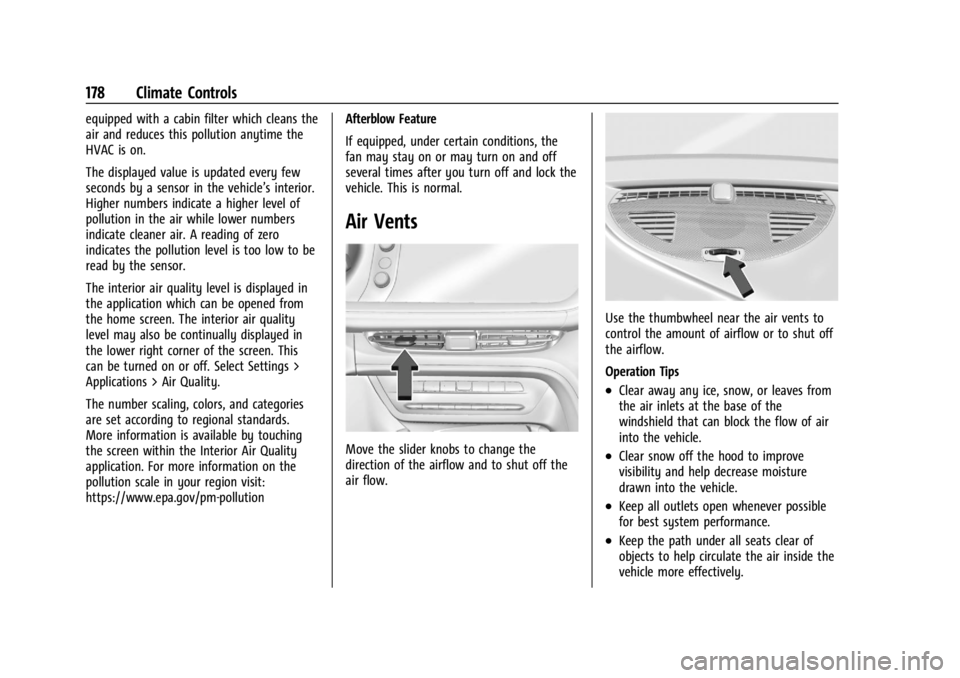
Move the slider knobs to change the
direction of the airflow and to shut off the
air flow.
Use the thumbwheel near the air vents to
control the amount of airflow or to shut off
the airflow.
Operation Tips
.Clear away any ice, snow, or leaves from
the air inlets at the base of the
windshield that can block the flow of air
into the vehicle.
.Clear snow off the hood to improve
visibility and help decrease moisture
drawn into the vehicle.
.Keep all outlets open whenever possible
for best system performance.
.Keep the path under all seats clear of
objects to help circulate the air inside the
vehicle more effectively.
Page 181 of 356

Buick Envision Owner Manual (GMNA-Localizing-U.S./Canada/Mexico-
16060855) - 2023 - CRC - 2/9/22
180 Driving and Operating
Driving and Operating
Driving Information
Driver Behavior . . . . . . . . . . . . . . . . . . . . . . . . 181
Driving Environment . . . . . . . . . . . . . . . . . . . 181
Vehicle Design . . . . . . . . . . . . . . . . . . . . . . . . . 181
Driving for Better Fuel Economy . . . . . . . 181
Distracted Driving . . . . . . . . . . . . . . . . . . . . . 182
Defensive Driving . . . . . . . . . . . . . . . . . . . . . . 182
Impaired Driving . . . . . . . . . . . . . . . . . . . . . . . 183
Control of a Vehicle . . . . . . . . . . . . . . . . . . . 183
Braking . . . . . . . . . . . . . . . . . . . . . . . . . . . . . . . . 183
Steering . . . . . . . . . . . . . . . . . . . . . . . . . . . . . . . 183
Off-Road Recovery . . . . . . . . . . . . . . . . . . . . . 184
Loss of Control . . . . . . . . . . . . . . . . . . . . . . . . 184
Driving on Wet Roads . . . . . . . . . . . . . . . . . 185
Hill and Mountain Roads . . . . . . . . . . . . . . 185
Winter Driving . . . . . . . . . . . . . . . . . . . . . . . . 186
If the Vehicle Is Stuck . . . . . . . . . . . . . . . . . 187
Vehicle Load Limits . . . . . . . . . . . . . . . . . . . . 188
Starting and Operating
New Vehicle Break-In . . . . . . . . . . . . . . . . . . 191
Ignition Positions . . . . . . . . . . . . . . . . . . . . . . 191
Starting the Engine . . . . . . . . . . . . . . . . . . . . 192
Stop/Start System . . . . . . . . . . . . . . . . . . . . . 193
Engine Heater . . . . . . . . . . . . . . . . . . . . . . . . . 194
Retained Accessory Power (RAP) . . . . . . . 195
Shifting Into Park . . . . . . . . . . . . . . . . . . . . . 196
Shifting out of Park . . . . . . . . . . . . . . . . . . . 196Parking over Things That Burn . . . . . . . . 196
Active Fuel Management . . . . . . . . . . . . . . 196
Extended Parking . . . . . . . . . . . . . . . . . . . . . . 197
Engine Exhaust
Engine Exhaust . . . . . . . . . . . . . . . . . . . . . . . . 197
Running the Vehicle While Parked . . . . . 197
Automatic Transmission
Automatic Transmission . . . . . . . . . . . . . . . 198
Manual Mode . . . . . . . . . . . . . . . . . . . . . . . . . 201
Drive Systems
All-Wheel Drive . . . . . . . . . . . . . . . . . . . . . . . . 201
Brakes
Antilock Brake System (ABS) . . . . . . . . . . 202
Electric Parking Brake . . . . . . . . . . . . . . . . . 202
Brake Assist . . . . . . . . . . . . . . . . . . . . . . . . . . . 203
Hill Start Assist (HSA) . . . . . . . . . . . . . . . . . 204
Ride Control Systems
Traction Control/Electronic Stability
Control . . . . . . . . . . . . . . . . . . . . . . . . . . . . . . 204
Hill Descent Control (HDC) . . . . . . . . . . . . 207
Driver Mode Control . . . . . . . . . . . . . . . . . . 208
Cruise Control
Cruise Control . . . . . . . . . . . . . . . . . . . . . . . . . 209
Adaptive Cruise Control (Advanced) . . . . 211
Driver Assistance Systems
Driver Assistance Systems . . . . . . . . . . . . . 219
Assistance Systems for Parking or Backing . . . . . . . . . . . . . . . . . . . . . . . . . . . . . . 221
Rear Vision Camera (RVC) . . . . . . . . . . . . . . 221
Surround Vision System . . . . . . . . . . . . . . . 222
Park Assist . . . . . . . . . . . . . . . . . . . . . . . . . . . . . 223
Automatic Parking Assist (APA) . . . . . . . . 225
Reverse Automatic Braking (RAB) . . . . . . 227
Rear Pedestrian Alert . . . . . . . . . . . . . . . . . . 228
Rear Cross Traffic Alert (RCTA) System . . . . . . . . . . . . . . . . . . . . . . . . . . . . . . 229
Assistance Systems for Driving . . . . . . . . 229
Forward Collision Alert (FCA) System . . . . . . . . . . . . . . . . . . . . . . . . . . . . . . 230
Automatic Emergency Braking (AEB) . . . 231
Front Pedestrian Braking (FPB) System . . . . . . . . . . . . . . . . . . . . . . . . . . . . . . 233
Side Blind Zone Alert (SBZA) . . . . . . . . . . . 235
Lane Change Alert (LCA) . . . . . . . . . . . . . . . 235
Lane Keep Assist (LKA) . . . . . . . . . . . . . . . . . 237
Fuel
Top Tier Fuel . . . . . . . . . . . . . . . . . . . . . . . . . . 238
Recommended Fuel . . . . . . . . . . . . . . . . . . . . 239
Prohibited Fuels . . . . . . . . . . . . . . . . . . . . . . . 239
Fuels in Foreign Countries . . . . . . . . . . . . . 239
Fuel Additives . . . . . . . . . . . . . . . . . . . . . . . . . 239
Filling the Tank . . . . . . . . . . . . . . . . . . . . . . . 240
Filling a Portable Fuel Container . . . . . . . 241