Page 312 of 658
310
uuCustomized Features u
Features
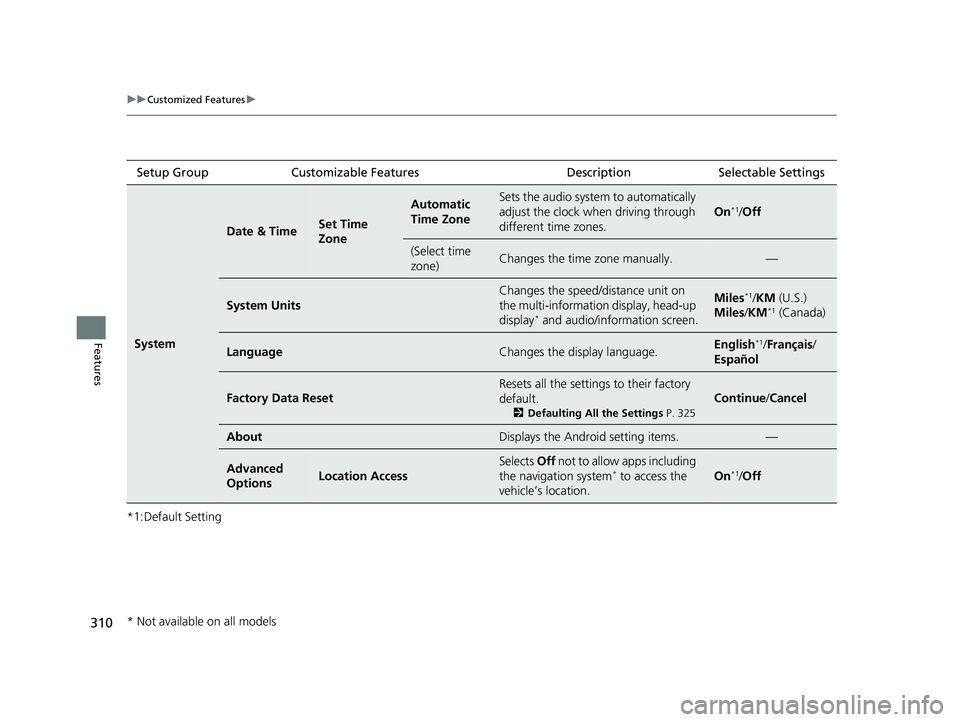
*1:Default SettingSetup Group
Customizable Features DescriptionSelectable Settings
System
Date & TimeSet Time
Zone
Automatic
Time ZoneSets the audio system to automatically
adjust the clock when driving through
different time zones.
On*1/Off
(Select time
zone)Changes the time zone manually.—
System Units
Changes the speed/distance unit on
the multi-information display, head-up
display
* and audio/information screen.
Miles*1/ KM (U.S.)
Miles /KM*1 (Canada)
LanguageChanges the display language.English*1/Français /
Español
Factory Data Reset
Resets all the settings to their factory
default.
2 Defaulting All the Settings P. 325
Continue/Cancel
AboutDisplays the Android setting items.—
Advanced
OptionsLocation Access
Selects Off not to allow apps including
the navigation system* to access the
vehicle’s location.On*1/ Off
* Not available on all models
23 ACURA TLX-31TGV6200.book 310 ページ 2022年8月4日 木曜日 午後1時59分
Page 316 of 658
314
uuCustomized Features u
Features
*1:Default SettingSetup Group
Customizable Features DescriptionSelectable Settings
Connections Android
Auto
(Saved
Devices)Sets up the Android Auto connection.
Disable/Enable
Delete Delete an Android Auto device. Cancel/Delete
Apple
CarPlay (Saved
Devices)Allow Apple
CarPlay
Sets up the Apple Ca
rPlay connection.Disable/Enable
AcuraLink
Assist Turn AcuraLink Assist on and off.
On
*1/Off
Delete Delete an Apple CarPlay device. Cancel/Delete
Display
BrightnessChanges the brightness of the audio/
information screen.—
Display OffTurns the audio/information screen
brightness off.—
Night ModeChanges between the daytime mode
and nighttime mode.
2 Display Setup P. 234
—Day Mode
More
SettingsContrastChanges the contrast of the audio/
information screen.—
Black LevelChanges the black level of the audio/
information screen.—
23 ACURA TLX-31TGV6200.book 314 ページ 2022年8月4日 木曜日 午後1時59分
Page 325 of 658
323
uuCustomized Features u
Continued
Features
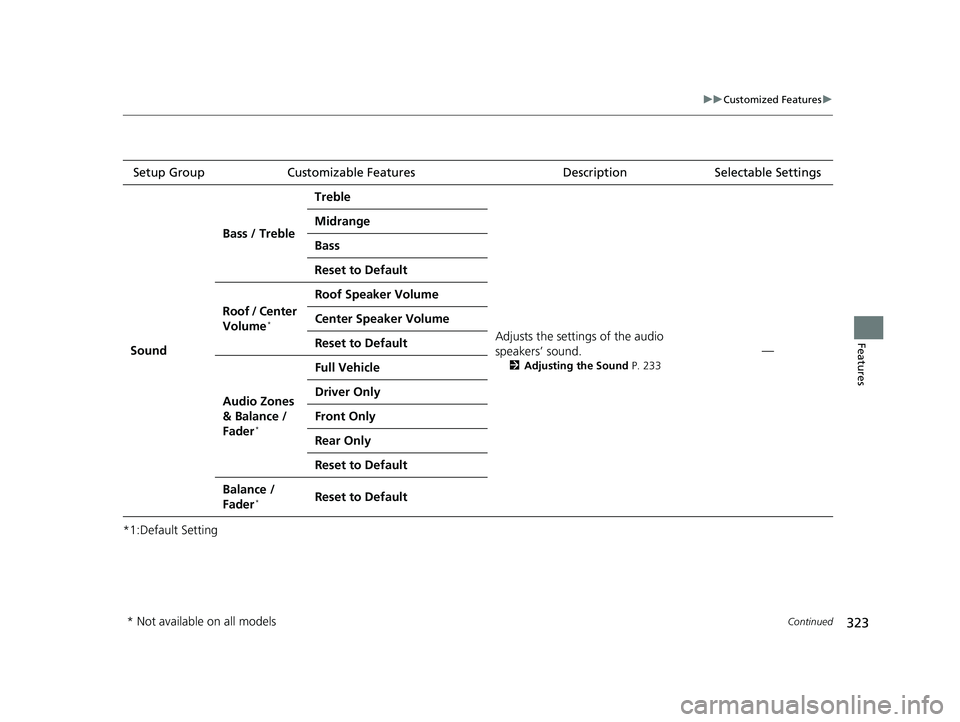
*1:Default SettingSetup Group
Customizable Features DescriptionSelectable Settings
Sound Bass / Treble
Treble
Adjusts the settings of the audio
speakers’ sound.
2Adjusting the Sound P. 233
—
Midrange
Bass
Reset to Default
Roof / Center
Volume
*
Roof Speaker Volume
Center Speaker Volume
Reset to Default
Audio Zones
& Balance /
Fader
*
Full Vehicle
Driver Only
Front Only
Rear Only
Reset to Default
Balance /
Fader*Reset to Default
* Not available on all models
23 ACURA TLX-31TGV6200.book 323 ページ 2022年8月4日 木曜日 午後1時59分
Page 326 of 658
324
uuCustomized Features u
Features
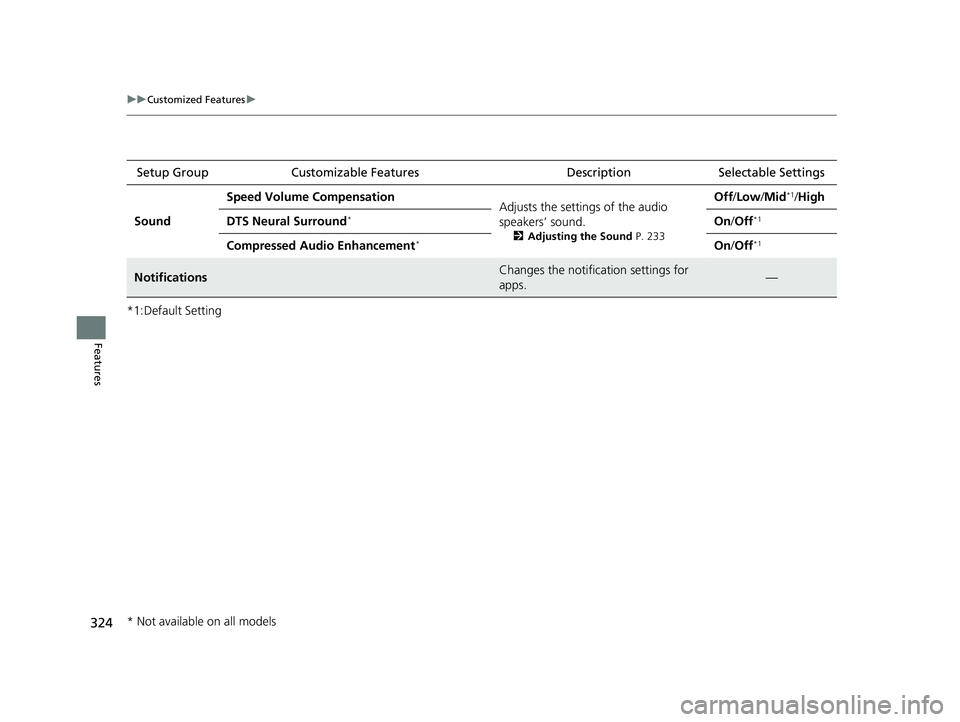
*1:Default SettingSetup Group
Customizable Features DescriptionSelectable Settings
Sound Speed Volume Compensation
Adjusts the settings of the audio
speakers’ sound.
2Adjusting the Sound P. 233
Off /Low /Mid*1/High
DTS Neural Surround
*On /Off*1
Compressed Audio Enhancement*On /Off*1
NotificationsChanges the notification settings for
apps.—
* Not available on all models
23 ACURA TLX-31TGV6200.book 324 ページ 2022年8月4日 木曜日 午後1時59分
Page 331 of 658

329Continued
Features
Bluetooth® HandsFreeLink ®
Bluetooth® HandsFreeLink ® (HFL) allows you to place and receive phone calls using
your vehicle’s audio system, without handling your cell phone.
Using HFL
■HFL Buttons
1 Bluetooth ® HandsFreeLink ®
Place your phone where y ou can get good reception.
To use HFL, you need a Bluetooth-compatible cell
phone. For a list of compatible phones, pairing
procedures, and special feature capabilities:
•U.S.: Visit www.handsfreelink.com/Acura , or call 1-
888-528-7876.
•Canada: For more info rmation on smartphone
compatibility, call 1-855-490-7351.
To use the system, the Bluetooth® setting must be
On .
2 Phone Setup P. 335
Voice control tips
•Aim the vents away from the ceiling and close the
windows, as noise coming from them may interfere
with the microphones.
•Press the button when you want to call a
number using a phonebook name or a number.
Speak clearly and naturally after a beep.
•If the microphone picks up vo ices other than yours,
the command may be misinterpreted.
•To change the volume level, the volume level is able
to change by the audio system’s volume.
(Talk) Button
Microphone
(Back) Button
VOk( +/VOL(- (Volume) Switch
Left Selector Wheel
APPS Button
23 ACURA TLX-31TGV6200.book 329 ページ 2022年8月4日 木曜日 午後1時59分
Page 332 of 658
uuBluetooth ® HandsFreeLink ®u Using HFL
330
Features
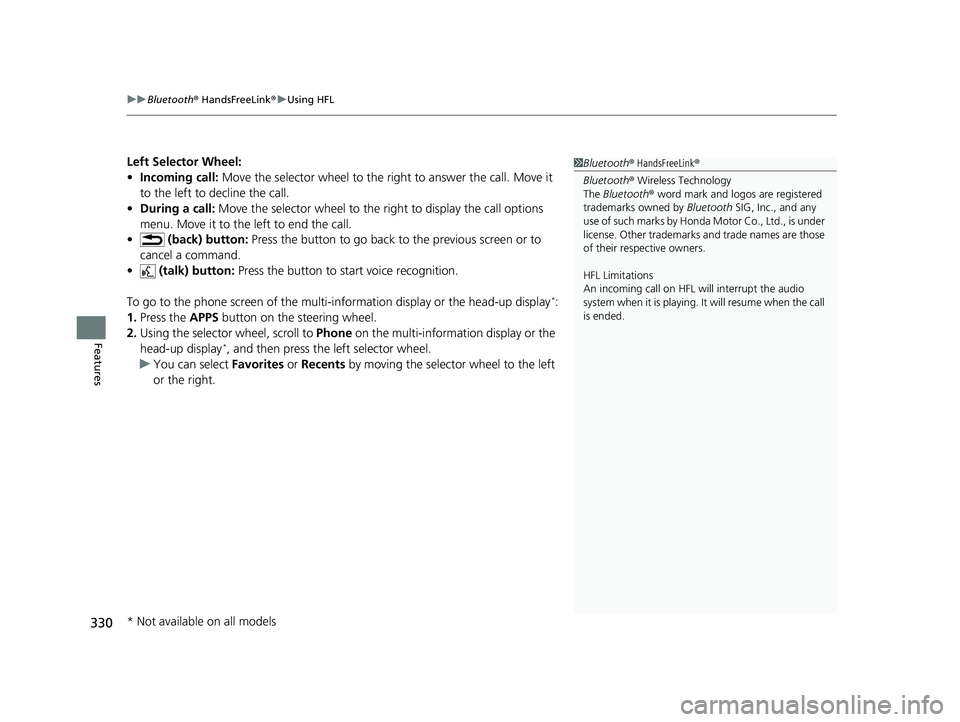
Left Selector Wheel:
• Incoming call: Move the selector wheel to the ri ght to answer the call. Move it
to the left to decline the call.
• During a call: Move the selector wheel to the ri ght to display the call options
menu. Move it to the left to end the call.
• (back) button: Press the button to go back to the previous screen or to
cancel a command.
• (talk) button: Press the button to st art voice recognition.
To go to the phone screen of the multi-in formation display or the head-up display
*:
1. Press the APPS button on the steering wheel.
2. Using the selector wheel, scroll to Phone on the multi-information display or the
head-up display
*, and then press the left selector wheel.
u You can select Favorites or Recents by moving the selector wheel to the left
or the right.
1 Bluetooth ® HandsFreeLink ®
Bluetooth ® Wireless Technology
The Bluetooth ® word mark and logos are registered
trademarks owned by Bluetooth SIG, Inc., and any
use of such marks by Honda Motor Co., Ltd., is under
license. Other trademarks and trade names are those
of their respective owners.
HFL Limitations
An incoming call on HFL will interrupt the audio
s y s t e m wh e n it is p la y i n g . It wi ll r e s u m e w h en t h e c a l l
is ended.
* Not available on all models
23 ACURA TLX-31TGV6200.book 330 ページ 2022年8月4日 木曜日 午後1時59分
Page 333 of 658
Continued331
uuBluetooth ® HandsFreeLink ®u Using HFL
Features
The audio/information scr een notifies you when there is an incoming call.
Bluetooth ® connection status is displayed in the B-zone.
■HFL Status Display1HFL Status Display
The information that appears on the audio/
information screen vari es between phone models.
HFL Mode
Caller’s Name (If registered)/
Caller’s Number (If not registered)
Bluetooth
Indicator
Appears when your phone is connected to HFL.
Signal Strength
Battery Level Status
23 ACURA TLX-31TGV6200.book 331 ページ 2022年8月4日 木曜日 午後1時59分
Page 338 of 658

uuBluetooth ® HandsFreeLink ®u HFL Menus
336
Features
■To pair a cell phone (when there is no
phone paired to the system)
1. Press the (home) button.
2. Select Phone .
3. Select Connect Phone .
4. Make sure your phone is in search or
discoverable mode, then select + Connect
New Device .
u HFL automatically searches for a
Bluetooth® device.
5. Select your phone when it appears on the
list.
u If your phone still does not appear,
search for Bluetooth® devices using your
phone.
From your phone, search for
HandsFreeLink .
6. The system gives you a pairing code on the
audio/information screen.
u Confirm if the pairing code on the screen
and your phone match.
This may vary by phone.
7. Select desired functions and then select
Connect .
u The pop-up menu app ears on the screen,
if the internet wire less hotspot function
is selected.1 Phone Setup
Your Bluetooth -compatible phone must be paired to
the system before you ca n make and receive hands-
free calls.
Phone Pairing Tips:
•You cannot pair your phone while the vehicle is
moving.
•Up to six phones can be paired.
•Your phone’s battery may dr ain faster when it is
paired to the system.
Once you have paired a phone, you can see it
displayed on the screen with one or more icons on
the right side.
These icons indicate the following: : The phone is compatible with Bluetooth ® Audio.
: The phone can be used with HFL.
: The phone can be used with internet wireless
hotspot.
If there is an active connection to Appl e CarPlay or
Android Auto, pairing of additional Bluetooth®
compatible devices is unavailable.
Enable Smart Sharing pop-up
Smart Sharing shares phone data with Acura. You
can change the setting later by deleting the device in
Phone Menu .
For detailed information of all data shared visit
https://acuralink.acura.com/#/acuralinkLegalTerms
23 ACURA TLX-31TGV6200.book 336 ページ 2022年8月4日 木曜日 午後1時59分