Page 295 of 713
293
uuAudio System Basic Operation uPlaying AM/FM Radio
Continued
Features
Playing AM/FM Radio
Tune
Select to display the manual
input screen of radio frequency.
MENU
Select to display the menu
screen.
Station List
Select to display the station list
screen.
Tune Up/Down Icons
Select or to search up
and down the selected band
for a station with a strong
signal.
Favorite Station Icons, Add
Favorite
Store a radio frequency as a
favorite station. Select Add
Favorite to store the station.
Swipe left or right on the A-
zone touchpad to display the
next or previous favorite
station.
VOL/AUDIO (Volume/
Power) Knob
Push to turn the audio system
on and off. Turn to adjust the
volume./ (Seek/Skip) Buttons
Press or to search up
and down the selected band for a
station with a strong signal.
Scan
Select to scan each station
with a strong signal.
Icon
Select to display the
subchannel list screen.
23 ACURA RDX-31TJB6400.book 293 ページ 2022年8月4日 木曜日 午後1時51分
Page 297 of 713

Continued295
uuAudio System Basic Operation uPlaying AM/FM Radio
Features
Lists the strongest stations on the selected band.
1. Select Station List to display a list.
2. Select the station.
■Manual update
Updates your available st ation list at any time.
1. Select Station List to display a list.
2. Select Refresh .
1.Select Tune.
2. Select or to tune the radio frequency.
Samples each of the strongest stations on th e selected band for 10 seconds. To turn
off scan, select Stop or press the (back) button.
■Station List
■Radio Frequency Manual Tune Screen
1Station List
Provides text data info rmation related to your
selected RDS-capable FM station.
When you select an RDS-capable FM station, the RDS
automatically turns on, and the frequency display
changes to the station name. However, when the
signals of that station become weak, the display
changes from the statio n name to the frequency.
1Radio Frequency Manual Tune Screen
Select , then trace the numbers of the radio
frequency on the A-zone touchpad. When KEYPAD
is selected, the on-screen keyboard appears.
■Scan
23 ACURA RDX-31TJB6400.book 295 ページ 2022年8月4日 木曜日 午後1時51分
Page 378 of 713

376
uuCustomized Features u
Features
*1:Default SettingSetup Group Customizable Features Description Selectable Settings
Vehicle Meter Setup Adjust Outside Temp Display
Adjusts the temperature reading by a
few degrees. −5°F ~
±0°F
*1 ~ 5°F
(U.S.)
−3°C ~ ±0°C
*1 ~ 3°C
(Canada)
“Trip A” Reset Timing Changes the setting of how to reset
trip meter A and average fuel economy
A. With Refuel
/IGN
Off /Manually
Reset
*1
“Trip B” Reset Timing Changes the setting of how to reset
trip meter B and average fuel economy
B. With Refuel
/IGN
Off /Manually
Reset*1
Reverse Shift Position Beep Causes the beeper to sound once
when the transmission is put into (R.On*1/
Off
Adjust Alarm Volume Changes the alarm volume, such as
buzzers, warnings, turn signal sound,
and so on. High
/Mid
*1/Low
Turn by Turn Display Selects whether the turn-by-turn
display comes on during the route
guidance. On
*1/
Off
Rear Seat Reminder Turns the Rear Seat Reminder feature
on and off. On
*1/
Off
23 ACURA RDX-31TJB6400.book 376 ページ 2022年8月4日 木曜日 午後1時51分
Page 440 of 713
uuTowing a Trailer uTowing Preparation
438
Driving
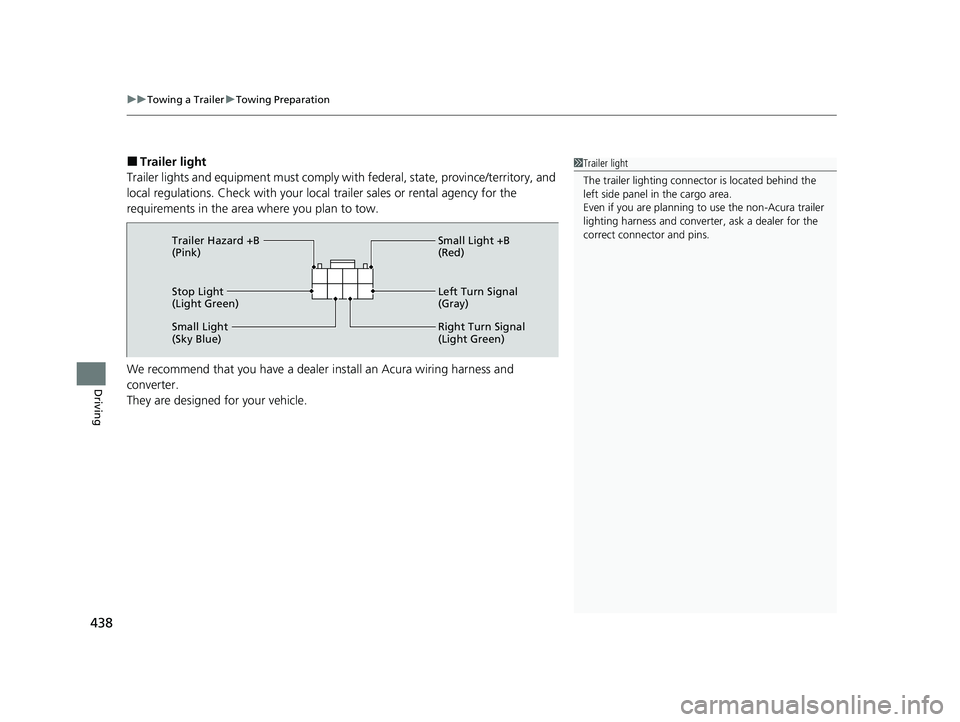
■Trailer light
Trailer lights and equipment must comply with federal, state, province/territory, and
local regulations. Check with your local trailer sales or rental agency for the
requirements in the area where you plan to tow.
We recommend that you have a dealer install an Acura wiring harness and
converter.
They are designed for your vehicle.1 Trailer light
The trailer lighting connect or is located behind the
left side panel in the cargo area.
Even if you are planning to use the non-Acura trailer
lighting harness and converte r, ask a dealer for the
correct connector and pins.
Stop Light
(Light Green) Small Light +B
(Red)
Left Turn Signal
(Gray)
Right Turn Signal
(Light Green)
Small Light
(Sky Blue) Trailer Hazard +B
(Pink)
23 ACURA RDX-31TJB6400.book 438 ページ 2022年8月4日 木曜日 午後1時51分
Page 482 of 713

uuWhen Driving uBlind Spot Information System
480
Driving
■When the system detects a vehicle
Blind spot information system alert indicator:
Located near the pillar on both sides.
Comes on when:
• A vehicle approaches you from behind to
overtake you at a speed difference of no
more than about 31 mph (50 km/h).
• You pass a vehicle at a speed difference of
no more than about 12 mph (20 km/h).
Blinks and a beeper sounds when:
You use the turn signal lever to signal a turn in
the direction of the detected vehicle while the
blind spot information system alert indicator is
on. u The beeper sounds three times.1Blind Spot Information System
For proper blind spot information system operation:
•Always keep the rear bumper and area around the
radar sensors clean.
•Do not cover the rear bumper corner area with
labels or sticke rs of any kind.
The system is for your convenience only. Even if an
object is within the alert zone, the following
situations may occur:
•The blind spot informatio n system alert indicator
does not come on and the message Blind Spot
Information System Not Available appears on
the multi-information display.
•The blind spot informatio n system alert indicator
may come on even with the message displayed.
Comes On
Blinks
23 ACURA RDX-31TJB6400.book 480 ページ 2022年8月4日 木曜日 午後1時51分
Page 484 of 713

482
uuWhen Driving uBlind Spot Information System
Driving
The blind spot information system alert indicator may not come on under the
following conditions:
• There is a large speed difference betwee n your vehicle and the vehicle in the
adjacent lane.
• A vehicle is parked in a side lane.
• An object not detected by the radar se nsors approaches or passes your vehicle.
• The vehicle driving in the adjacent lane is a motorcycle or other small vehicle.
The blind spot information system may not operate correctly under the following
conditions:
• Making a turn at an intersection.
• Objects (guard rails, poles, trees, etc.) are detected.
• An object that does not reflect radio wave s well or a motorcycle, is in the alert
zone.
• Driving on a curved road.
• A vehicle is moving from a far lane to the adjacent lane.
• The system picks up signal interference such as other radar sensors from another
vehicle or strong radio wave transmitted from a facility nearby.
• The rear bumper or the area around the radar sensors is covered by dirt, mud,
snow, ice, etc.
• The rear bumper or the area around the radar sensors has been damaged or
deformed.
• In bad weather (heavy rain, snow, and fog).
• Making a short turn or driving on a bumpy road that slightly tilts the vehicle.
• An object such as a bicycle rack is attached to the rear of the vehicle.
■Blind Spot Information System Conditions and Limitations
23 ACURA RDX-31TJB6400.book 482 ページ 2022年8月4日 木曜日 午後1時51分
Page 524 of 713

522
uuAcuraWatchTMuLane Keeping Assist System (LKAS)
Driving
Lane Keeping Assist System (LKAS)
Provides steering input to help keep the vehicle in the middle of a detected lane and
provides tactile and visual alerts if the ve hicle is detected drifting out of its lane.1Lane Keeping Assist System (LKAS)
Important Safety Reminders
The LKAS is for your convenience only. It is not an
autonomous driving system and always requires
driver attention and control. The system does not
work if you take your hands off the steering wheel or
fail to steer the vehicle. 2 Multi-Information Display Warning and
Information Messages P. 107
The LKAS is convenient when it is used on
expressways or freeways.
Do not place objects on the instrument panel.
Objects may reflect on th e windshield and prevent
correct detection of the traffic lanes.
The LKAS only alerts you when lane drift is detected
without a turn signal in use. The LKAS may not detect
all lane markings or lane departures; accuracy will
vary based on weather, speed, and lane marker
condition.
It is always your responsibility to safely operate the
vehicle and avoid collisions.
The LKAS may not work properly or may work
improperly under the certain conditions: 2 LKAS Conditions and Limitations P. 527
You can read about handling information for the
camera equipped with this system. 2 Front Sensor Camera P. 541
When you operate the turn signals to chan ge lanes, the system is suspended, and
resumes after the signals are off.
If you make a lane change without operating the turn signals, the LKAS alerts
activate, and torque is applied to the steering.
■Front Sensor Camera
Monitors the lane
lines.■Tactile and visual alerts
Rapid vibrations on the steering
wheel and a warning display alert
you that the vehicle is drifting out of
a detected lane.
■Steering input assist
The system applies torque to the steering to keep the vehicle between the left and
right lane lines. The applied torque become s stronger as the vehicle gets closer to
either of the lane lines.
23 ACURA RDX-31TJB6400.book 522 ページ 2022年8月4日 木曜日 午後1時51分
Page 526 of 713
uuAcuraWatchTMuLane Keeping Assist System (LKAS)
524
Driving
The system can be used when the following conditions are met.
• The lane in which you are driving has dete ctable lane markers on both sides, and
your vehicle is in the center of the lane.
• The vehicle is traveling between about 45 and 90 mph (72 and 145 km/h).
• You are driving on a straight or slightly curved road.
• The turn signals are off.
• The brake pedal is not depressed.
• The wipers are not in high speed operation.
■How to activate the system
1.Press the LKAS button.
u LKAS indicator (white) and lane outlines
appear on the multi-information display.
The system is ready to use.
■When the System can be Used1When the System can be Used
If the vehicle drifts toward ei ther left or right lane line
due to the system applying torque, turn off the LKAS
and have your vehicle checked by a dealer.
LKAS Button
(white)
23 ACURA RDX-31TJB6400.book 524 ページ 2022年8月4日 木曜日 午後1時51分