Page 308 of 740
306
uuAudio System Basic Operation uAcuraLink ®
Features
Use the following procedure to connect to AcuraLink® service.
■To enable the AcuraLink ® service
1.Press the button.
2. Select General Settings .
3. Select System .
4. Select Data Sharing Setting .
5. Select ON.
■To link with AcuraLink ®
You can see the connection guide screen after
launching AcuraLink ® when there is no
connection to a network. If you do not need
this guide, select check-box and select OK.
■To Set Up to Connect AcuraLink ® Service
23 ACURA INTEGRA-313S56000_03.book 306 ページ 2022年3月18日 金曜日 午前11時47分
Page 309 of 740
307
uuAudio System Basic Operation uAcuraLink ®
Continued
Features
You can check the messages that are receiv ed quickly in the shortcut operation.
1. A notification appears and notifies you of a
new message on the header area.
2. A notification icon is continuously displayed
in the header area until the new message is
read.
■Vehicle Information and Message from Acura Tips
Notification
23 ACURA INTEGRA-313S56000_03.book 307 ページ 2022年3月18日 金曜日 午前11時47分
Page 310 of 740
308
uuAudio System Basic Operation uAcuraLink ®
Features
3.Select the system status icon to see the
messages.
4. Select a new message to open.
23 ACURA INTEGRA-313S56000_03.book 308 ページ 2022年3月18日 金曜日 午前11時47分
Page 311 of 740

309
uuAudio System Basic Operation uSmart Shortcuts
Continued
Features
Smart Shortcuts
By observing and learning driver behavior s, patterns, and preferences, the system
anticipates driver actions and presents on-screen suggestions to help perform
desired actions quicker and with fewer steps.
• The app will suggest actions based on what it learns you do often, and
occasionally make recommendations ba sed on your learned preferences.
• The system will take some time to learn. The more you interact with the system,
the more suggestion you will see, and the more accurate they will become.
• Suggestions will automatically refresh periodically to provide updated content for
each profile.
• You can also provide feedback on whether a suggestion is helpful by pressing and
holding on it. This can help the app grow smarter over time.
• To change the notifications behavior for Smart Shortcuts:
1. Select Options on the Smart Shortcuts screen.
2. Select Suggestion Settings .
3. Select an option.
• All data used for Smart Shortcuts can be erased by a Factory Data Reset.
2Defaulting All the Settings P. 382
1Smart Shortcuts
The app also supports different profiles for each user,
with customized learning for each profile. The app
will also learn to associate a profile to a user over time
based on key fob and connected phone data.
Smart Shortcuts Screen Shortcut Suggestion
23 ACURA INTEGRA-313S56000_03.book 309 ページ 2022年3月18日 金曜日 午前11時47分
Page 312 of 740
uuAudio System Basic Operation uSmart Shortcuts
310
Features
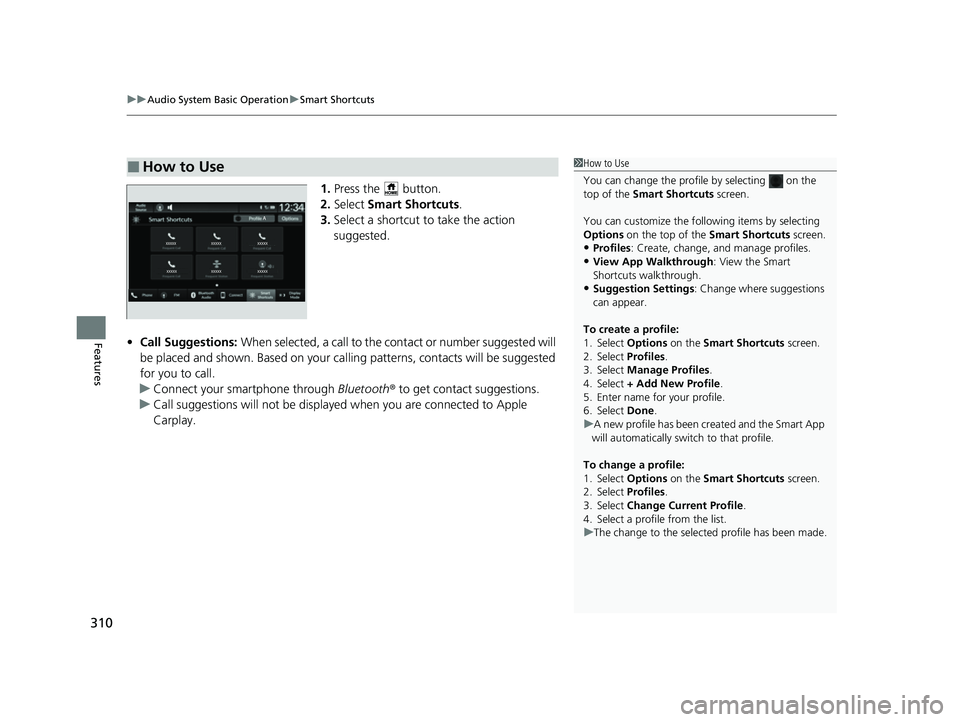
1. Press the button.
2. Select Smart Shortcuts .
3. Select a shortcut to take the action
suggested.
• Call Suggestions: When selected, a call to the c ontact or number suggested will
be placed and shown. Based on your cal ling patterns, contacts will be suggested
for you to call.
u Connect your smartphone through Bluetooth® to get contact suggestions.
u Call suggestions will not be displayed when you are connected to Apple
Carplay.
■How to Use1How to Use
You can change the profile by selecting on the
top of the Smart Shortcuts screen.
You can customize the foll owing items by selecting
Options on the top of the Smart Shortcuts screen.
•Profiles: Create, change, a nd manage profiles.
•View App Walkthrough : View the Smart
Shortcuts walkthrough.
•Suggestion Settings : Change where suggestions
can appear.
To create a profile:
1. Select Options on the Smart Shortcuts screen.
2. Select Profiles .
3. Select Manage Profiles .
4. Select + Add New Profile .
5. Enter name for your profile.
6. Select Done .
u A new profile has been cr eated and the Smart App
will automatically switch to that profile.
To change a profile:
1. Select Options on the Smart Shortcuts screen.
2. Select Profiles .
3. Select Change Current Profile .
4. Select a profile from the list.
u The change to the selected profile has been made.
23 ACURA INTEGRA-313S56000_03.book 310 ページ 2022年3月18日 金曜日 午前11時47分
Page 313 of 740
311
uuAudio System Basic Operation uSmart Shortcuts
Features
• Radio Suggestions: When selected, the corresponding radio app (FM, AM, or
SiriusXM ®) will open and it will start playing the station.
u From radio apps you can receive:
- FM, AM, SiriusXM ®: Most frequently listened stations you may like to play
next.
- FM, SiriusXM ®: Genre-based suggestions.
u Considerations:
- FM suggestions will appear only when they are within range, according to
your vehicle’s tuner signal.
- SiriusXM ® suggestions will be available as long as there is an active account in
the vehicle.
23 ACURA INTEGRA-313S56000_03.book 311 ページ 2022年3月18日 金曜日 午前11時47分
Page 314 of 740

312
uuAudio System Basic Operation uWi-Fi Connection
Features
Wi-Fi Connection
This vehicle is equipped wi th Wi-Fi connectivity. You ca n connect to an external
Wi-Fi hotspot or communication device.
1.Press the button.
2. Select General Settings .
3. Select Connections .
4. Select Wi-Fi.
5. Select OK.
6. Select Change Mode .
7. Select Network.
u If the data sharing settings is to OFF, the
message will be displayed on the screen.
You need to change to ON.
2Customized Features P. 359
uIf you want to turn off the Wi-Fi mode,
select OFF.
■Connect the vehicle to a Wi-Fi hotspot
1Wi-Fi Connection
Wi-Fi and Wi-Fi Direct are registered trademarks of
Wi-Fi Alliance ®.
1 Connect the vehicle to a Wi-Fi hotspot
You cannot go through the setting procedure while
the vehicle is moving. Park in a safe place to set the
audio system in Wi-Fi mode.
Some cell phone carriers charge for tethering and
smartphone data use. Check your phone’s data
subscription package.
Check your phone manual to find out if the phone
has Wi-Fi connectivity.
You can confirm whether Wi -Fi connection is on or
off with the icon on th e system status area.
Transmission speed and others will not be displayed
on this screen.
23 ACURA INTEGRA-313S56000_03.book 312 ページ 2022年3月18日 金曜日 午前11時47分
Page 315 of 740
313
uuAudio System Basic Operation uWi-Fi Connection
Features
8. Select the access point you want to connect
to the system.
u To add a new network or select the
saved networks, select Options.
u If Options is selected, Add Network
and Saved Networks can be registered.
23 ACURA INTEGRA-313S56000_03.book 313 ページ 2022年3月18日 金曜日 午前11時47分


