2022 TOYOTA SUPRA key
[x] Cancel search: keyPage 13 of 498

11
1
1-1. NOTES
NOTES
or the driver's behaviour.
These include, for example:
• Status reports relating to the
vehicle and its individual compo-
nents, for example wheel speed,
wheel circumferential velocity,
deceleration, lateral accelera-
tion, fastened seat belts.
• Ambient conditions, for example
temperature, rain sensor signals.
The data is processed within the
vehicle and is usually transient. It is
only saved for longer than the oper-
ating period if it is required in order
to perform services agreed with the
customer.
Electronic parts, for example con-
trol devices and vehicle keys, con-
tain components for storing
technical informat ion. Information
about the vehicle's condition, com-
ponent use and wear, maintenance
requirements, events or errors can
be stored temporarily or perma-
nently.
This information generally docu-
ments the condition of a compo-
nent, a module, a system or the
vehicle surroundings, including:
• Operating states of system com-
ponents, for examp le fill levels,
tyre inflation pr essure, battery
status.
• Malfunctions and faults of impor-
tant system components, for
example lights and brakes.
• Responses of the vehicle to par-
ticular driving situations, for
example triggering of an airbag,
activation of th e drive stability
control systems.
• Information on vehicle-damag-
ing events.
The data is required so that the
control units can perform their func-
tions. It is also used for detecting
and rectifying malfunctions, as well
as to optimise vehicle functions.
Most of this data is transient and is
only processed within the vehicle
itself. Only a small proportion of the
data is stored in event or error
memories in response to specific
circumstances.
Convenience functions, such as
seat, climate or light settings, make
every journey even more pleasant.
The personal settings for these
functions can be saved in a profile
within the vehicle and retrieved on
request, for example if the settings
have been changed by another
driver. Depending on the equip-
ment, these profiles can be saved
in the vehicle manufacturer's
secure data systems. When the
driver changes vehicle, these
saved profiles can simply be
applied to a different vehicle.
The vehicle settings saved in the
vehicle profile can be changed or
deleted at any time.
Electronic components
Personal settings
Page 31 of 498

29
2
2-1. QUICK REFERENCE
QUICK REFERENCE
This feature allows you to access
the vehicle without having to oper-
ate the remote control.
Simply having the remote control
with you, for example in your trou-
ser pocket, is sufficient.
The vehicle automatically recog-
nises the remote control when it is
in the immediate vicinity or inside
the vehicle.
Fully grip the handle of a vehicle
door.
With the doors closed, touch the
indentation (lock sensor) on the
door handle with a finger for
approximately 1 second.
Press and hold the button on
the remote control for approxi-
mately 1 second. Depending on the
setting, the doors may also unlock,
see page 100.
Close the boot lid manually.
Unlocking
Pressing button unlocks
vehicle.
Smart Key System
Principle
Unlocking the vehicle
Locking the vehicle
Boot lid
Opening
Closing
Page 56 of 498
543-1. CONTROLS
The vehicle switches automatically
to idle state, for example under the
following conditions:
• After a few minutes, if no opera-
tion is performed on the vehicle.
• When the battery state of charge
is low.
• Depending on the Toyota Supra
Command setting: if one or both
of the front doors is opened
when exiting the vehicle after a
journey.
In some situations, Idle state will
not be established automatically,
for example during a telephone call
or if the low-beam headlights are
switched on.
After a trip, the rest state can be
established by opening the front
doors. For this purpose, the driver
and front passenger must exit the
vehicle.
Via Toyota Supra Command:
1 "My Vehicle"
2 "Vehicle setting"
3 "Doors/Key"
4 "Switch off after door opening"
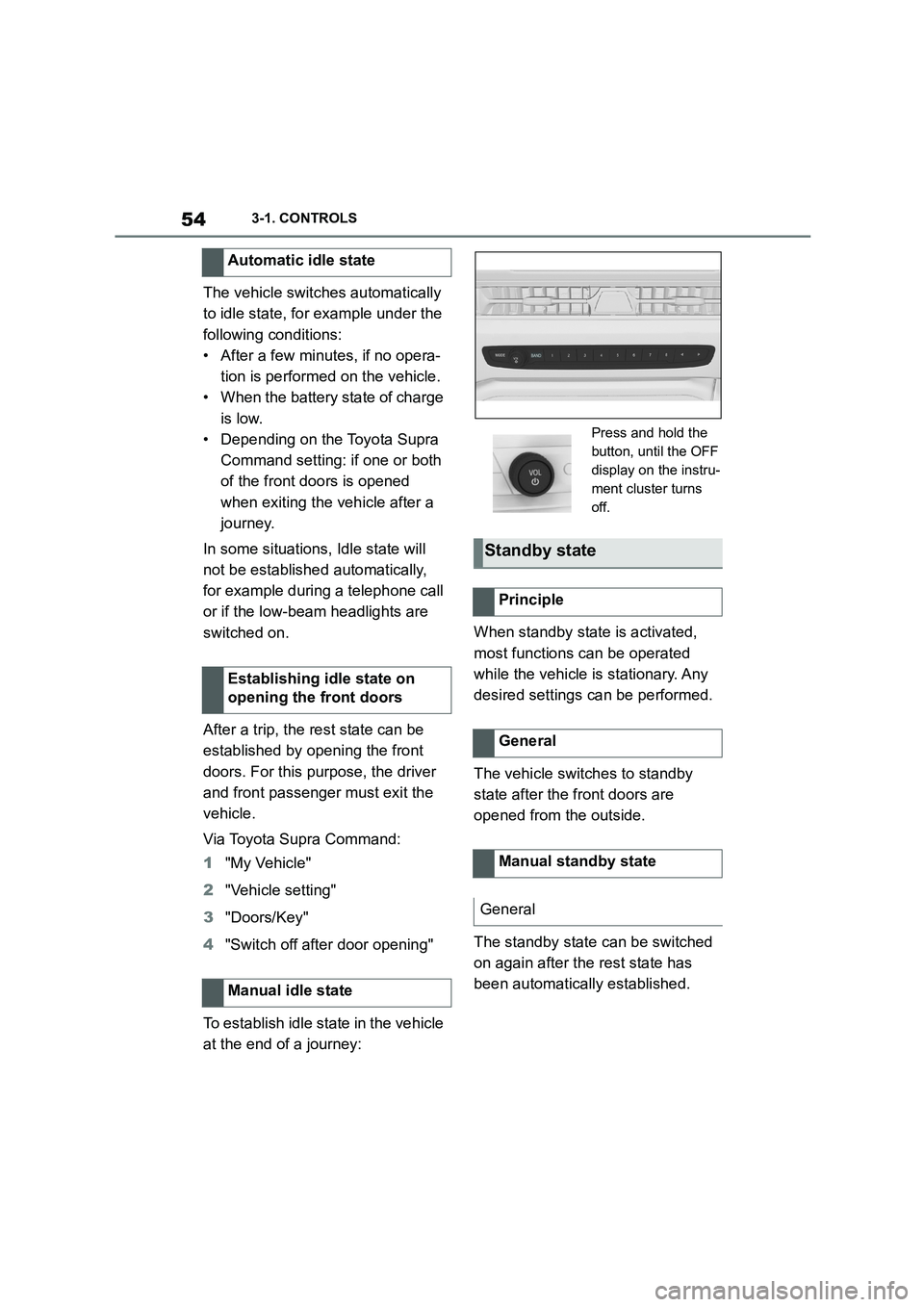
To establish idle state in the vehicle
at the end of a journey:
When standby state is activated,
most functions can be operated
while the vehicle is stationary. Any
desired settings can be performed.
The vehicle switches to standby
state after the front doors are
opened from the outside.
The standby state can be switched
on again after the rest state has
been automatically established.
Automatic idle state
Establishing idle state on
opening the front doors
Manual idle state
Press and hold the
button, until the OFF
display on the instru-
ment cluster turns
off.
Standby state
Principle
General
Manual standby state
General
Page 59 of 498
57
3
3-1. CONTROLS
CONTROLS
This chapter describes all standard,
country-specific and special equip-
ment available for the model series.
It may therefore describe equip-
ment which is not installed in your
vehicle, for exampl e on account of
the special equipment selected or
the country specific ation. This also
applies to safety-relevant functions
and systems. Please comply with
the relevant laws and regulations
when using the corresponding func-
tions and systems.
The Toyota Supra Command com-
bines the functions of many
switches.
These functions can be operated
as follows:
Via the Controller.
Via the touchscreen.
Via the voice activation system.
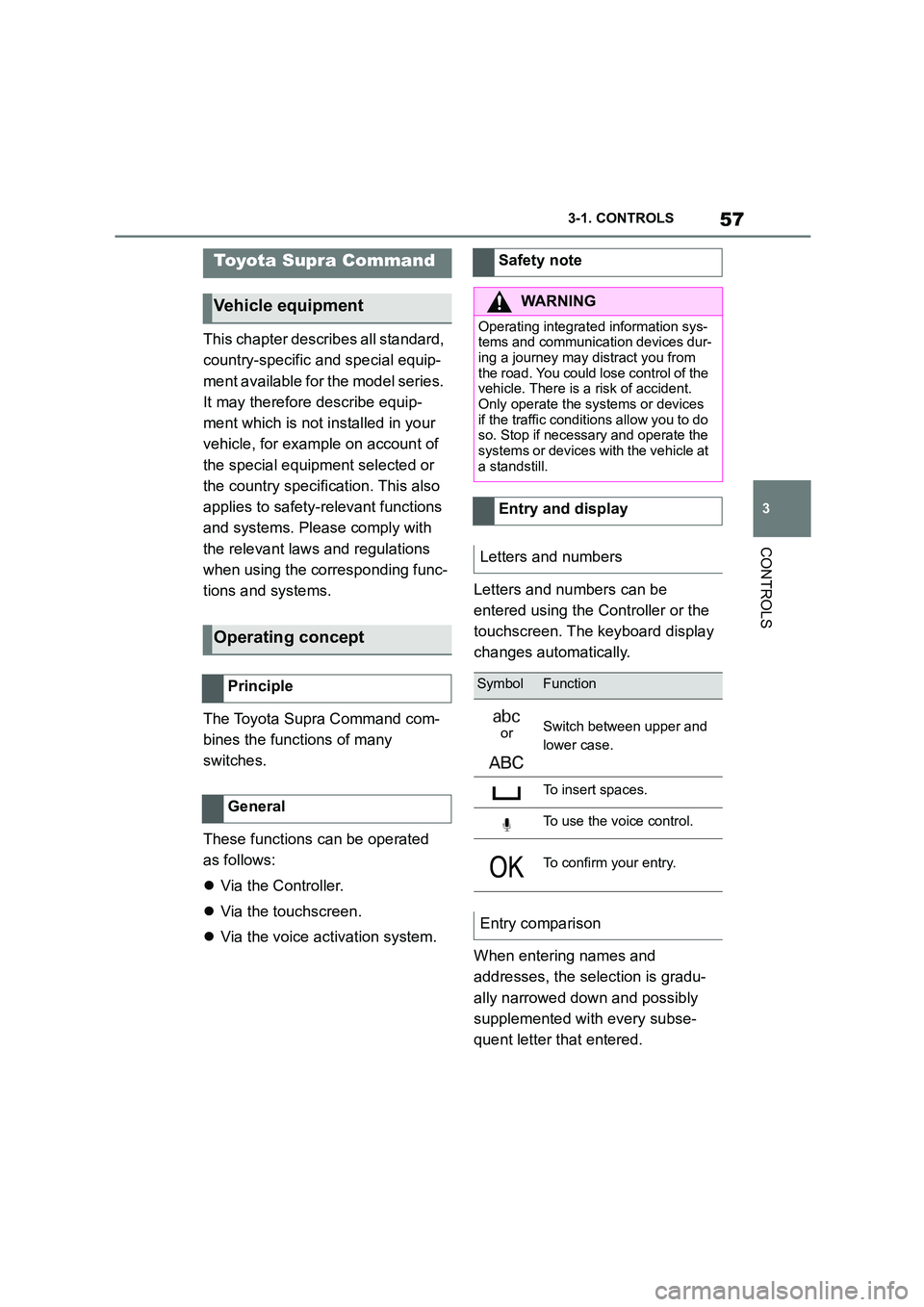
Letters and numbers can be
entered using the Controller or the
touchscreen. The keyboard display
changes automatically.
When entering names and
addresses, the selection is gradu-
ally narrowed down and possibly
supplemented with every subse-
quent letter that entered.
Toyota Supra Command
Vehicle equipment
Operating concept
Principle
General
Safety note
WA R N I N G
Operating integrated information sys-
tems and communication devices dur- ing a journey may distract you from
the road. You could lose control of the
vehicle. There is a risk of accident. Only operate the systems or devices
if the traffic conditions allow you to do
so. Stop if necessary and operate the
systems or devices wi th the vehicle at a standstill.
Entry and display
Letters and numbers
SymbolFunction
orSwitch between upper and
lower case.
To insert spaces.
To use the voice control.
To confirm your entry.
Entry comparison
Page 66 of 498
643-1. CONTROLS
■General
Letters and characters can be
entered using the Controller or the
touchscreen. The keyboard display
changes automatically.
■Entry
1 Selecting the input language.
2 Turn Controller: highlight letter
or syllable.
3 Press Controller: highlighted let-
ter or syllable is selected.
Tilt Controller upward: switch
between single and double
characters.
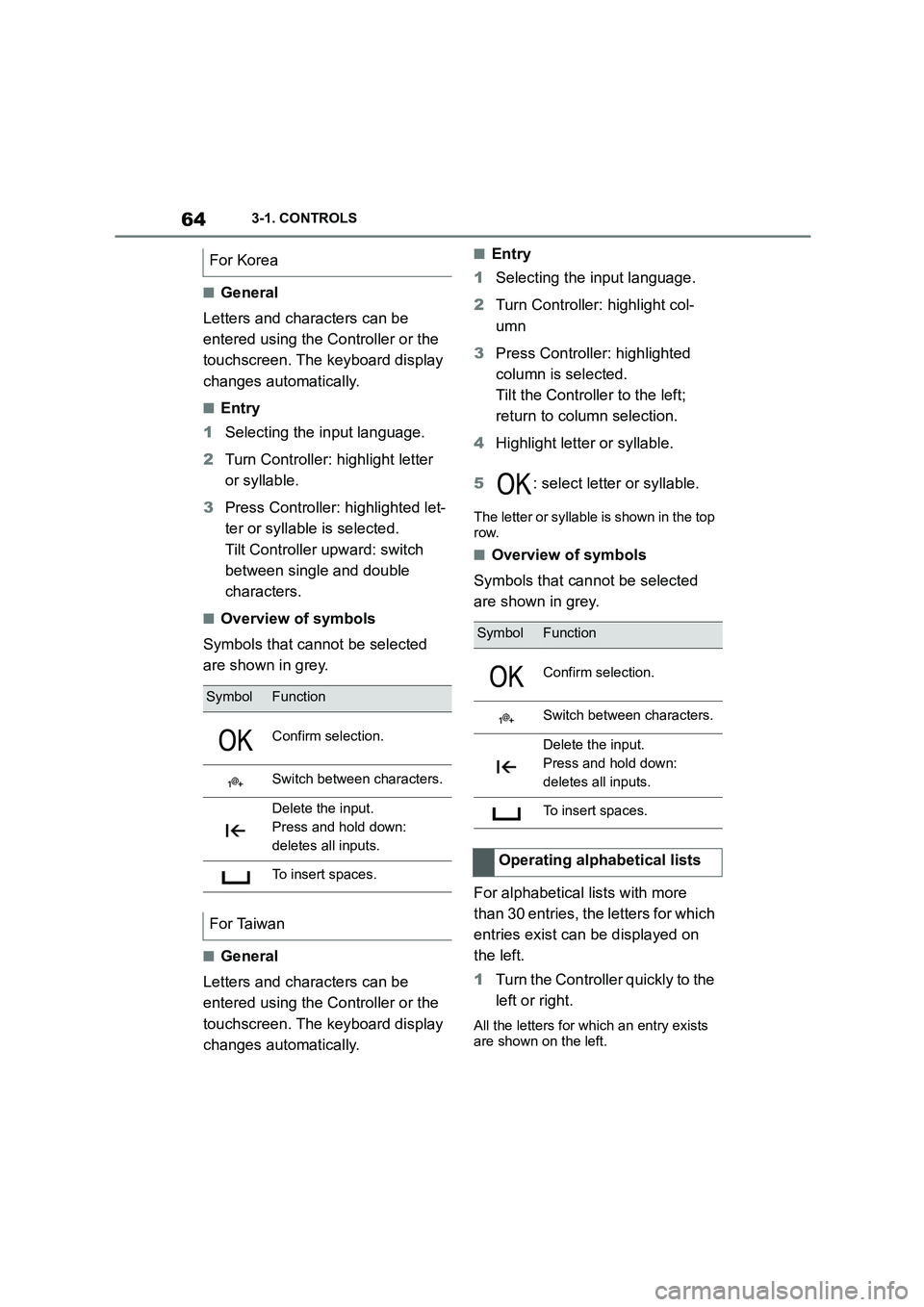
■Overview of symbols
Symbols that cannot be selected
are shown in grey.
■General
Letters and characters can be
entered using the Controller or the
touchscreen. The keyboard display
changes automatically.
■Entry
1 Selecting the input language.
2 Turn Controller: highlight col-
umn
3 Press Controller: highlighted
column is selected.
Tilt the Controller to the left;
return to column selection.
4 Highlight letter or syllable.
5 : select letter or syllable.
The letter or syllable is shown in the top
row.
■Overview of symbols
Symbols that cannot be selected
are shown in grey.
For alphabetical lists with more
than 30 entries, the letters for which
entries exist can be displayed on
the left.
1 Turn the Controller quickly to the
left or right.
All the letters for which an entry exists
are shown on the left.
For Korea
SymbolFunction
Confirm selection.
Switch between characters.
Delete the input.
Press and hold down:
deletes all inputs.
To insert spaces.
For Taiwan
SymbolFunction
Confirm selection.
Switch between characters.
Delete the input.
Press and hold down:
deletes all inputs.
To insert spaces.
Operating alphabetical lists
Page 68 of 498
663-1. CONTROLS
The new screen is opened.
Settings such as brightness can be
made using the touchscreen.
Via Toyota Supra Command:
1 "My Vehicle"
2 "System settings"
3 "Displays"
4 "Control display"
5 "Brightness at night"
6 Make the desired setting:
• Move to the right or left until the
required setting is displayed.
• Tap the symbol.
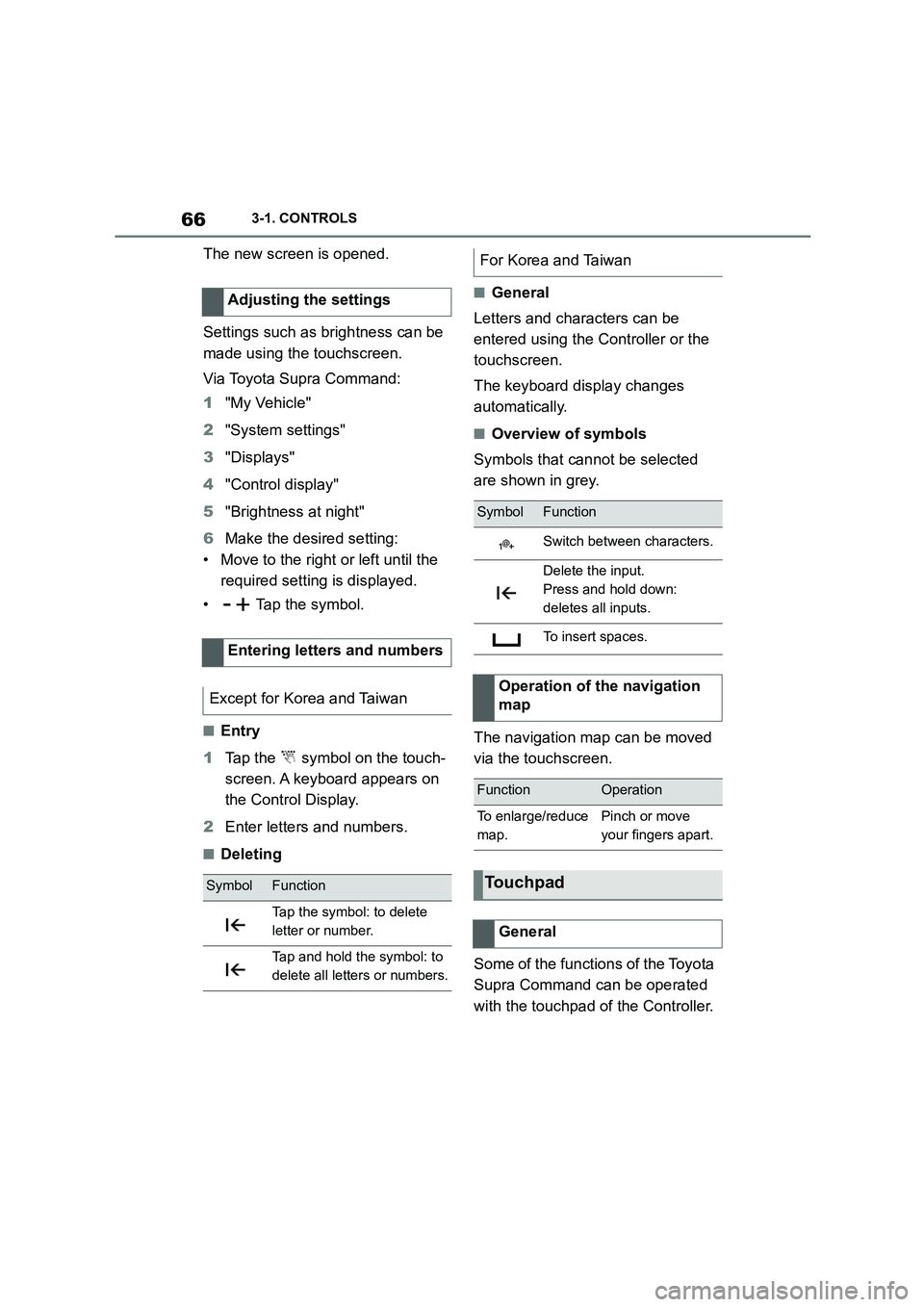
■Entry
1 Tap the symbol on the touch-
screen. A keyboard appears on
the Control Display.
2 Enter letters and numbers.
■Deleting
■General
Letters and characters can be
entered using the Controller or the
touchscreen.
The keyboard display changes
automatically.
■Overview of symbols
Symbols that cannot be selected
are shown in grey.
The navigation map can be moved
via the touchscreen.
Some of the functions of the Toyota
Supra Command can be operated
with the touchpad of the Controller.
Adjusting the settings
Entering letters and numbers
Except for Korea and Taiwan
SymbolFunction
Tap the symbol: to delete
letter or number.
Tap and hold the symbol: to
delete all letters or numbers.
For Korea and Taiwan
SymbolFunction
Switch between characters.
Delete the input.
Press and hold down:
deletes all inputs.
To insert spaces.
Operation of the navigation
map
FunctionOperation
To enlarge/reduce
map.
Pinch or move
your fingers apart.
Touchpad
General
Page 78 of 498
763-1. CONTROLS
memos.
• Login accounts.
It can take up to 15 minutes in total
to delete data.
Data can only be deleted with the
vehicle at a standstill.
Follow the instructions on the Con-
trol Display.
Via Toyota Supra Command:
1 "My Vehicle"
2 "System settings"
3 "Data privacy"
4 "Delete personal data"
5 "Delete personal data"
6 "OK"
7 Exit and lock the vehicle.
Deletion is completed after 15 min-
utes.
If not all data is deleted, repeat the
deletion process if required.
Switch-on drive-ready state to can-
cel data deletion.
Individual settings for several driv-
ers can be saved in the driver pro-
files and called up again as
required.
Three profiles are provided, in
which personal vehicle settings can
be saved. Each remote control is
allocated one of these driver pro-
files.
When the vehicle is unlocked with a
remote control, the allocated driver
profile is activated. All the settings
saved in the driver profile are
applied automatically.
If several drivers each use their
own remote control, the vehicle will
adapt to their personal settings
when it is unlocked. These settings
are also restored if the vehicle is
used in the intervening period by
someone with a different remote
control.
Changes to settings are saved
automatically in the currently used
driver profile.
If a different driver profile is
selected via To yota Supra Com-
mand, the settings saved there are
automatically applied. The new
driver profile is allocated to the cur-
rently used vehicle key.
A guest profile is also available
which is not allocated to any remote
control. It can be used to perform
settings on the vehicle without
changing the personal driver pro-
Operating requirements
Deleting data
Cancelling deletion
Driver profiles
Principle
General
Page 81 of 498
79
3
3-1. CONTROLS
CONTROLS
If necessary, select the USB storage
medium, see page 83.
The existing settings of the cur-
rently used driver profile are over-
written by the settings of the
imported driver profile.
Via Toyota Supra Command:
1 "My Vehicle"
2 "Driver profiles"
3 Select the driver profile to be
overwritten.
The driver profile marked with this
symbol can be overwritten.
4 "Import driver profile"
5 Select a medium for importing
the driver profile.
• USB storage medium: "USB
device"
If necessary, select the USB storage
medium.
6 Select the driver profile to be
imported.
It is not always po ssible to allocate
a remote control uniquely to a
driver. This may be the case in the
following scenarios:
• The front passenger unlocks the
vehicle with their remote control,
but another person is driving.
• The driver unlocks the vehicle
using Smart Key System and is
carrying a number of remote
controls.
• If there is a change of driver with-
out the vehicle being locked and
unlocked.
• If a number of remote controls
are located in the area outside of
the vehicle.
Importing a driver profile
System limits