2022 TOYOTA HIGHLANDER change time
[x] Cancel search: change timePage 94 of 568

942-1. Instrument cluster
■Liquid crystal display
Small spots or light spots may
appear on the display. This phenom-
enon is characteristi c of liquid crys-
tal displays, and there is no problem
continuing to use the display.
The multi-information display is
operated using the meter control
switches.
Scroll screens
*, change the
displayed content
* and move
the cursor
Press: Enter/Set Press and hold: Reset/Dis-
play customizable items
Return to the previous screen
Call sending/receiving and
history display
Linked with the hands-free system,
sending or receiving call is dis-
played. For details regarding the
hands-free system, refer to the
“NAVIGATION AND MULTIMEDIA
SYSTEM OWNER’S MANUAL”.
*: On screens where the screen can
be scrolled and the display can
be switched, a scroll bar or a
round icon that shows the num-
ber of registered screens is dis-
played.
■Fuel economy
Use the displayed values as a ref-
erence only.
Current fuel consumption
Displays the instantaneous current
fuel consumption.
Average fuel economy (after
start)
Displays the average fuel con-
sumption since engine start.
*1
WARNING
■Caution for use while driving
●When operating the multi-infor-
mation display while driving,
pay extra attention to the safety
of the area aroun d the vehicle.
●Do not look continuously at the
multi-information display while
driving as you may fail to see
pedestrians, objects on the
road, etc. ahead o f the vehicle.
■The information display at
low temperatures
P. 8 2
Changing the meter dis-
play
Driving information dis-
play ( )
Page 95 of 568
952-1. Instrument cluster
2
Vehicle status information and indicators
Driving range
Displays the driving range with
remaining fuel.
This distance is computed based
on your average fuel consumption.
As a result, the actual distance that
can be driven may differ from that
displayed.
When only a small amount of fuel is
added to the tank, the display may
not be updated.
When refueling, turn the engine
switch off. If the vehicle is refueled
without turning the engine switch
off, the display may not be updated.
When “Refuel” is displayed, the
remaining fuel amount is low and
the distance that can be driven with
the remaining fuel cannot be calcu-
lated.
Refuel immediately.
Gadget*2
The following ite ms can be dis-
played by changing the settings for
gadget content and fuel economy
type on . ( P. 9 8 )
•Other
Blank: No item
• Average vehicle speed
After start: Displays average vehi-
cle speed since engine start
After reset: Displays average vehi-
cle speed since the display was
reset
*3
• Distance
After start: Displays the distance
driven since vehicle start.
After reset: Displays the distance
driven since the display was reset
*3
• Elapsed time
After start: Displays elapsed time since engine start
After reset: Displays elapsed time
since the display was reset
*3
Average fuel economy
Displayed item (listed below) can
be changed on the fuel economy
type screen of . (
P. 9 8 )
Total (after reset)
Displays the average fuel con-
sumption since t he display was
reset.
*1, 3
Tank (after refuel)
Displays the average fuel con-
sumption since the vehicle was
refueled.
*1
When only a small amount of fuel is
added to the tank, the display may
not be updated.
When refueling, turn the engine
switch off. If the ve hicle is refueled
without turning the engine switch
off, the display may not be updated.
*1: Use the displayed fuel consump- tion as a reference only.
*2: The default setting is no display.
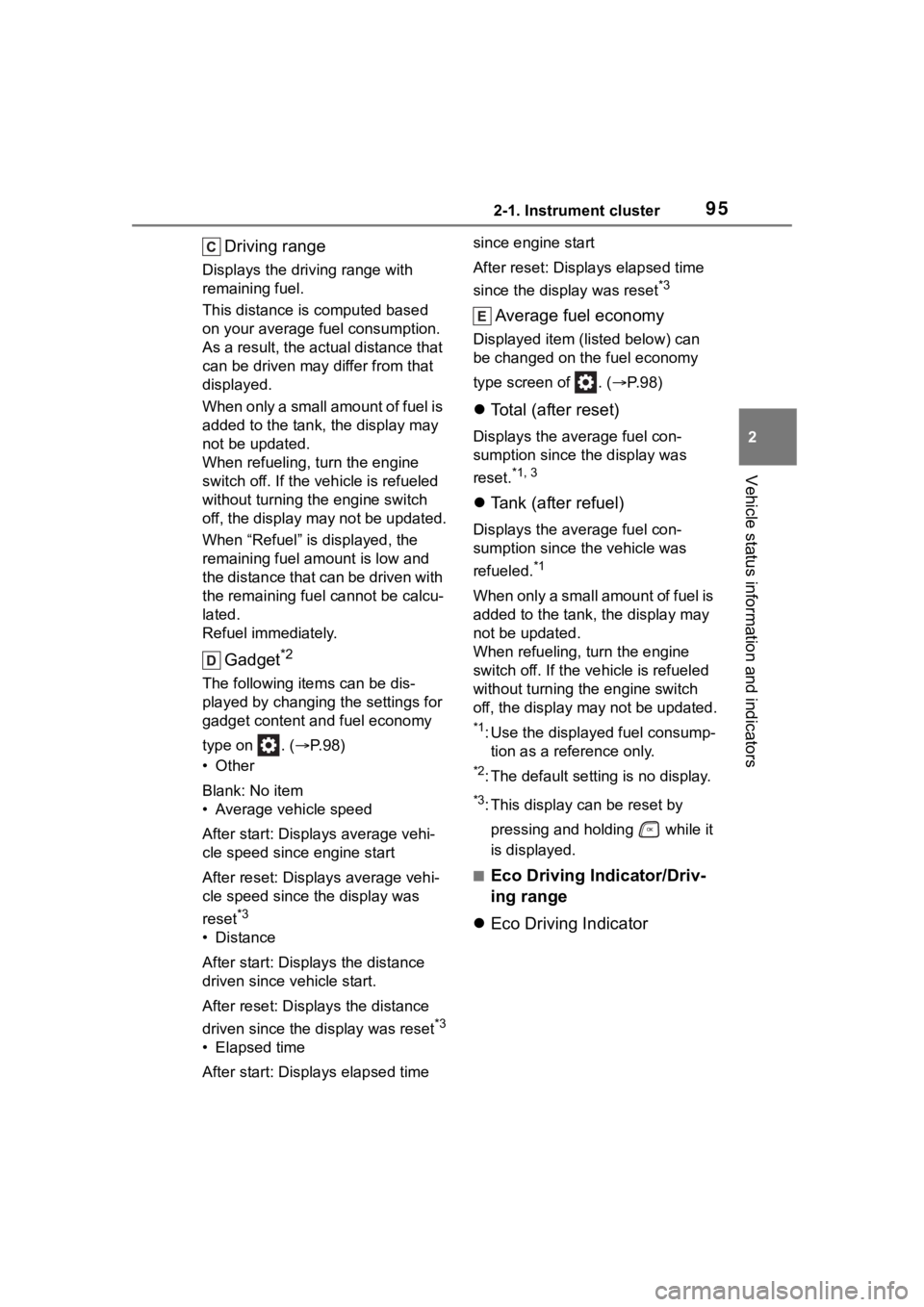
*3: This display can be reset by
pressing and holding while it
is displayed.
■Eco Driving Indicator/Driv-
ing range
Eco Driving Indicator
Page 100 of 568

1002-1. Instrument cluster
Parking Support Brake function.
HUD (Head-up display) (if
equipped) ( P.103)
Press to enable/disable the
head-up display.
• HUD (Head-up display) on/off
Select to enable/disable the
head-up display.
Press and hold to change the
settings of the following items:
• “HUD Brightness/Position”
Select to adjust the brightness/posi-
tion of the head-up display.
• “HUD Driving Support”
Select to change the displayed
head-up display driving support
item.
• “HUD Rotation”
Select to adjust the angle of the
head-up display.
RSA (Road Sign Assist) (if
equipped) ( P.269)
Press to enable/disable the
Road Sign Assist.
• RSA (Road Sign Assist) on/off
Select to enable/disable the Road
Sign Assist.
Press and hold to change the
settings of the following items:
• “Notification Method”
Select to change e ach notification
method used to notify the driver
when the system recognizes
excess speed and no-entry sign.
• “Notification Level”
Select to change e ach notification level used to notify the driver when
the system recognizes a speed limit
sign.
■ Vehicle settings
Press and hold to change
the settings of the following
items:
PBD (Power Back Door)
( P.121)
• “System Settings”
Select to enable/disable the power
back door system.
• “Kick Sensor”
*
Select to enable/disable the kick
sensor.
• “Opening Adjustment”
Select the open position when
power back door is fully open.
•“Volume”
Select to set the volume of the
buzzer which sounds when the
power back door system operates.
*: Vehicles with a hands free power
back door
(Stop & Start) (if
equipped) ( P.272)
Select to set the length of time the
Stop & Start system will operate
when the “A/C” switch of the air
conditioning system is on.
“TPWS” (Tire Pressure Warn-
ing System) ( P.420)
• “Set Pressure” (tire pressure
warning system initialization)
Select to initialize the tire pressure
warning system.
Page 109 of 568
1092-1. Instrument cluster
2
Vehicle status information and indicators
Audio Plus (vehicles with
Data Communication Mod-
ule) or Premium Audio
1 Press the “MENU” button.
2 Select “Info” on the “Menu”
screen.
3 Select “ECO” on the “Infor-
mation” screen.
If a screen other than “Trip Informa-
tion” is displayed, select “Trip Infor-
mation”.
12.3-inch display
1 Select Toyota multi-oper-
ation touch ( P.332).
2 Select “TripInfo.”.
The screen position can also be
changed by select a desired infor-
mation in full screen.
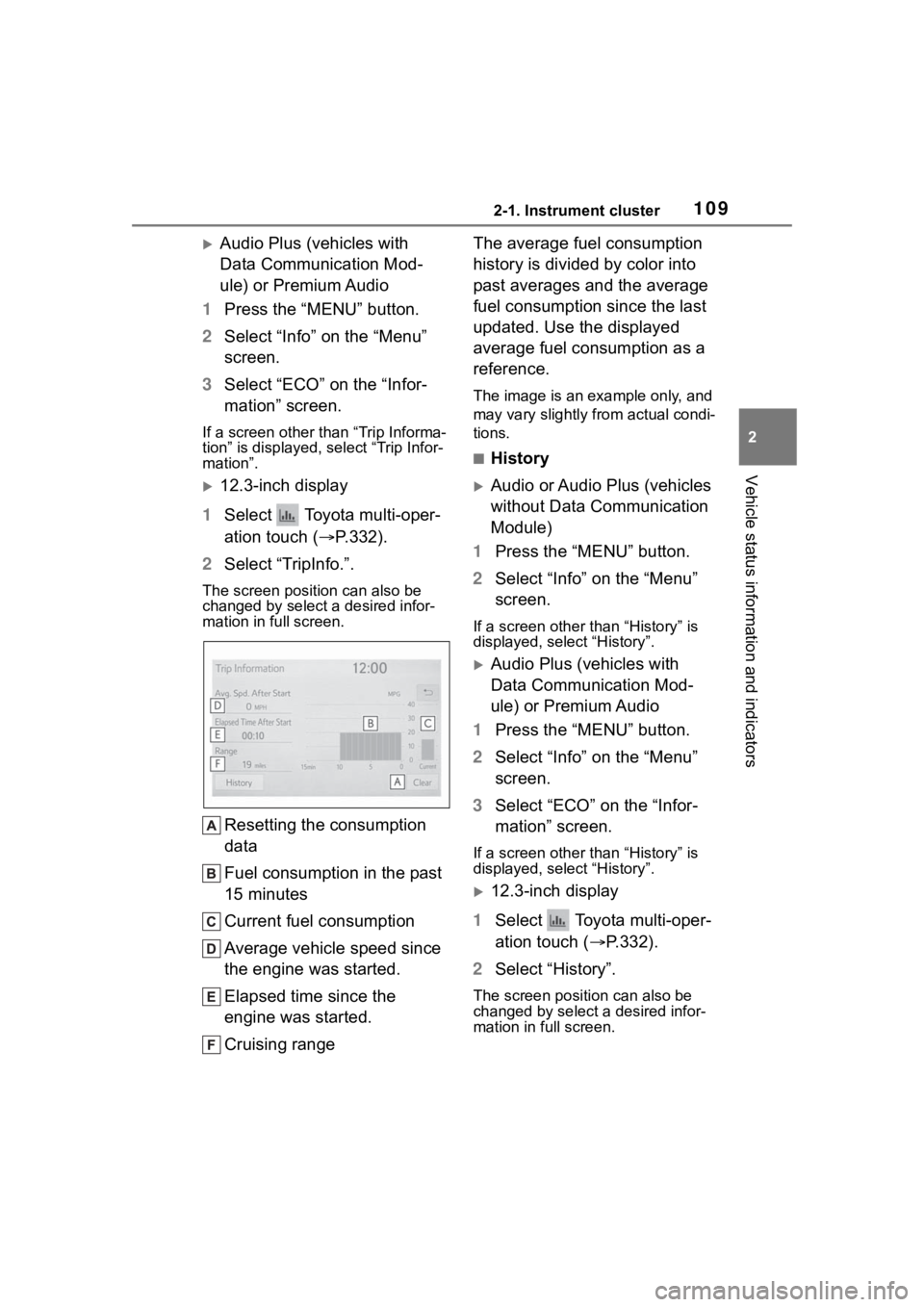
Resetting the consumption
data
Fuel consumption in the past
15 minutes
Current fuel consumption
Average vehicle speed since
the engine was started.
Elapsed time since the
engine was started.
Cruising range The average fuel consumption
history is divided by color into
past averages and the average
fuel consumption since the last
updated. Use the displayed
average fuel consumption as a
reference.
The image is an example only, and
may vary slightly from actual condi-
tions.
■History
Audio or Audio Plus (vehicles
without Data Communication
Module)
1 Press the “MENU” button.
2 Select “Info” on the “Menu”
screen.
If a screen other than “History” is
displayed, select “History”.
Audio Plus (vehicles with
Data Communication Mod-
ule) or Premium Audio
1 Press the “MENU” button.
2 Select “Info” on the “Menu”
screen.
3 Select “ECO” on the “Infor-
mation” screen.
If a screen other than “History” is
displayed, select “History”.
12.3-inch display
1 Select Toyota multi-oper-
ation touch ( P.332).
2 Select “History”.
The screen posit ion can also be
changed by select a desired infor-
mation in full screen.
Page 117 of 568

1173-2. Opening, closing and locking the doors
3
Before driving
3-2.Opening, closing and locking the doors
■Smart key system
Carry the electronic key to
enable this function.
1 Grip the driver’s door handle
to unlock the door. Holding
the driver’s door handle for
approximately 2 seconds
unlocks all the doors. Grip
the front passenger’s door
handle to unlock all the
doors.
*
Make sure to touch the sensor on
the back of the handle.
The doors cannot be unlocked for 3
seconds after the doors are locked.
*: The door unlock settings can be
changed. ( P.117, 521)
2 Touch the lock sensor (the
indentation on the upper part of the front door handle) to
lock all the doors.
Check that the d
oor is securely
locked.
■Wireless remote control
1 Locks all the doors
Check that the d oor is securely
locked.
2 Unlocks all the doors
Pressing the button unlocks the
driver’s door. Pressing the button
again within 5 seconds unlocks the
other doors.
Press and hold to open the win-
dows
*1 and moon roof*1, 2
*1
: This setting must be customized at your Toyota dealer.
*2: If equipped
■Switching the door unlock func-
tion
It is possible to set which doors the
entry function unlocks using the
wireless remote control.
1 Turn the engine switch off.
2 When the indicator light on the
key surface is not on, press and
hold , or for
approximately 5 seconds while
pressing and holding .
The setting changes each time an
operation is per formed, as shown
below. (When changing the setting
Side doors
The vehicle can be locked
and unlocked using the
entry function, wireless
remote control or door lock
switches.
Unlocking and locking the
doors from the outside
Page 118 of 568

1183-2. Opening, closing and locking the doors
continuously, release the buttons,
wait for at least 5 seconds, and
repeat step 2.)
For vehicles with an alarm: To pre-
vent unintended triggering of the
alarm, unlock the doors using the
wireless remote control and open
and close a door once after the set-
tings have been changed. (If a door
is not opened within 60 seconds
after is press ed, the doors will
be locked again an d the alarm will
automatically be set.)
In case that the alarm is triggered,
immediately stop the alarm. ( P. 7 3 )
■Impact detection door lock
release system
In the event that t he vehicle is sub-
ject to a strong impact, all the doors
are unlocked. Depending on the
force of the impact or the type of
accident, however, the system may
not operate.
■Operation signals
A buzzer sounds and the emer-
gency flashers flash to indicate that
the doors have been
locked/unlocked. (Locked: Once;
Unlocked: Twice)
A buzzer sounds to indicate that the
windows and the moon roof
* or pan-
oramic moon roof* are operating.
*: If equipped
■Security feature
If a door is not opened within
approximately 60 s econds after the
vehicle is unlocked, the security fea-
ture automatically locks the vehicle
again.
■When the door cannot be
locked by the lock sensor on
the surface of the front door
handle
If the door will not lock even when
the topside sensor area is touched,
try touching both the topside and
underside sensor areas at the same
time.
When gloves are being worn,
remove the gloves.
■Door lock buzzer
If an attempt to lock the doors using
the smart key system is made when
a door is not fully closed, a buzzer
will sound continuo usly for 5 sec-
onds. Fully close the door to stop
the buzzer, and lock the doors
again.
■Setting the alarm (if equipped)
Locking the doors will set the alarm
system. ( P. 7 3 )
Multi-informa-
tion display/BeepUnlocking func- tion
Exterior: Beeps 3 times
Interior: Pings once
Holding the
driver’s door
handle unlocks
only the driver’s
door.
Holding the front
passenger’s
door handle
unlocks all the
doors.
Exterior: Beeps twice
Interior: Pings once
Holding either
front door handle
unlocks all the
doors.
Page 135 of 568

1353-2. Opening, closing and locking the doors
3
Before driving
wireless remote control or the
mechanical key, to unlock the
doors.
■Turning an electronic key to
battery-saving mode
When battery-savi ng mode is set,
battery depletion is minimized by
stopping the electronic key from
receiving radio waves.
Press twice while pressing and
holding . Confirm that the elec-
tronic key indicator flashes 4 times.
While the battery-saving mode is
set, the smart key system cannot be
used. To cancel the function, press
any of the electronic key buttons.
■Conditions affecting operation
The smart key system uses weak
radio waves. In the following situa-
tions, the communication between
the electronic key and the vehicle
may be affected, preventing the
smart key system, wireless remote
control and engine immobilizer sys-
tem from operating properly. (Ways
of coping: P.488)
●When the electronic key battery is
depleted
●Near a TV tower, electric power
plant, gas station , radio station,
large display, airpo rt or other facil-
ity that generates strong radio
waves or electrical noise
●When the electronic key is in con-
tact with, or is covered by the fol-
lowing metallic objects
• Cards to which al uminum foil is
attached
• Cigarette boxes that have alumi- num foil inside • Metallic wallets or bags
•Coins
• Hand warmers made of metal
• Media such as CDs and DVDs
●When other wirel
ess keys (that
emit radio waves) are being used
nearby
●When carrying the electronic key
together with the following devices
that emit radio waves
• Portable radio, cellular phone, cordless phone or other wireless
communication devices
• Another electronic key or a wire- less key that emits radio waves
• Personal computers or personal
digital assistants (PDAs)
• Digital audio players
• Portable game systems
●If window tint wit h a metallic con-
tent or metallic objects are
attached to the rear window
●When the electronic key is placed
near a battery charger or elec-
tronic devices
●When the vehicle is parked in a
pay parking spot where radio
waves are emitted
■Note for the entry function
●Even when the electronic key is
within the effective range (detec-
tion areas), the system may not
operate properly in the following
cases:
• The electronic key is too close to the window or outside door han-
dle, near the ground, or in a high
place when the doors are locked
or unlocked.
• The electronic key is on the instru-
ment panel, luggage compart-
ment, floor, or in the door pockets
or glove box when the engine is
started or engine switch modes
are changed.
●Do not leave the electronic key on
top of the instrument panel or near
the door pockets when exiting the
vehicle. Depending on the radio
wave reception conditions, it may
be detected by the antenna out-
Page 158 of 568
1583-4. Adjusting the steering wheel and mirrors
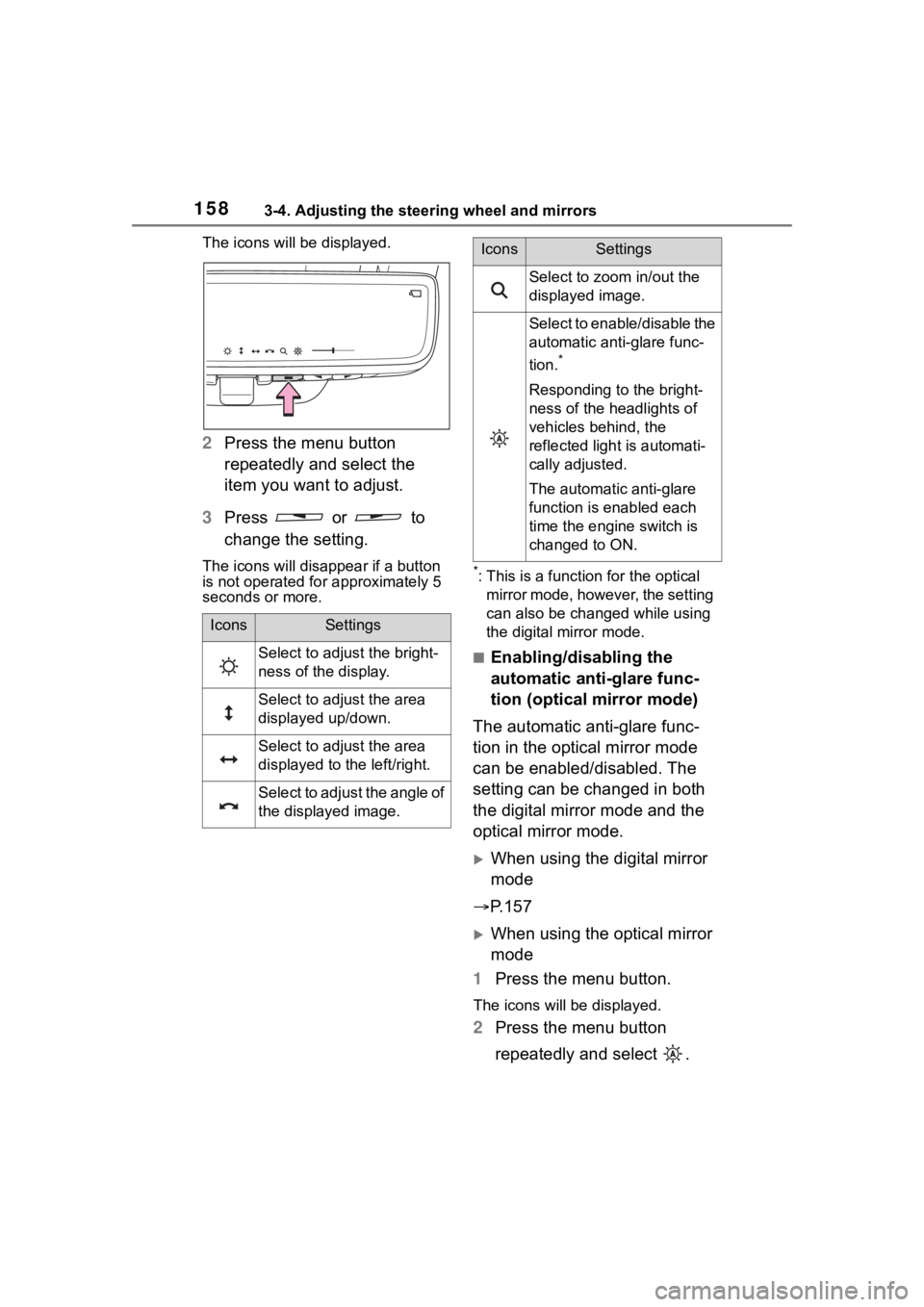
The icons will be displayed.
2Press the menu button
repeatedly and select the
item you want to adjust.
3 Press or to
change the setting.
The icons will disapp ear if a button
is not operated fo r approximately 5
seconds or more.*: This is a functi on for the optical
mirror mode, however, the setting
can also be changed while using
the digital mirror mode.
■Enabling/disabling the
automatic anti-glare func-
tion (optical mirror mode)
The automatic anti-glare func-
tion in the optical mirror mode
can be enabled/disabled. The
setting can be changed in both
the digital mirror mode and the
optical mirror mode.
When using the digital mirror
mode
P.157
When using the optical mirror
mode
1 Press the menu button.
The icons will be displayed.
2Press the menu button
repeatedly and select .
IconsSettings
Select to adjust the bright-
ness of the display.
Select to adjust the area
displayed up/down.
Select to adjust the area
displayed to the left/right.
Select to adjust the angle of
the displayed image.
Select to zoom in/out the
displayed image.
Select to enable/disable the
automatic anti-glare func-
tion.
*
Responding to the bright-
ness of the headlights of
vehicles behind, the
reflected light is automati-
cally adjusted.
The automatic anti-glare
function is enabled each
time the engine switch is
changed to ON.
IconsSettings