2022 SUBARU ASCENT speed
[x] Cancel search: speedPage 45 of 148
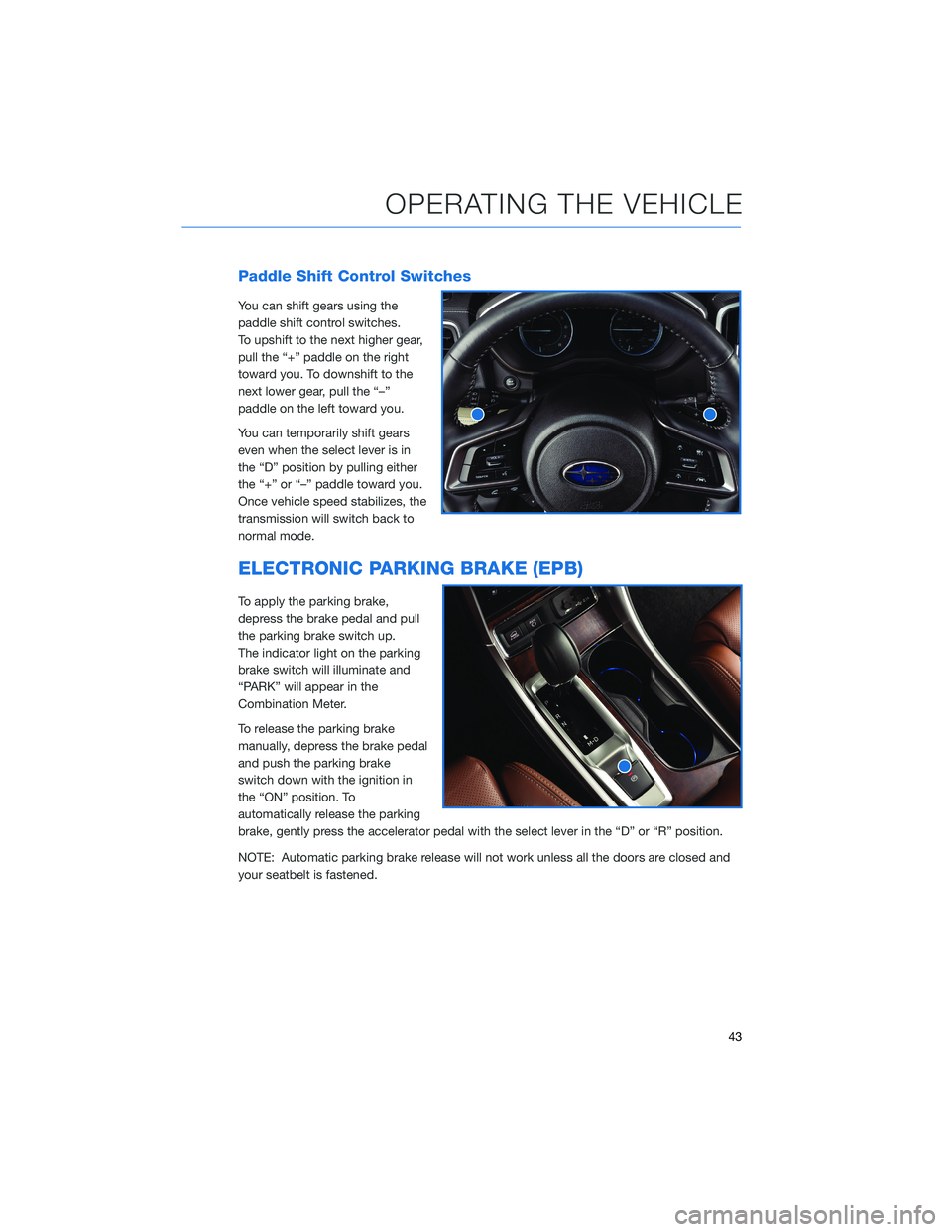
Paddle Shift Control Switches
You can shift gears using the
paddle shift control switches.
To upshift to the next higher gear,
pull the “+” paddle on the right
toward you. To downshift to the
next lower gear, pull the “–”
paddle on the left toward you.
You can temporarily shift gears
even when the select lever is in
the “D” position by pulling either
the “+” or “–” paddle toward you.
Once vehicle speed stabilizes, the
transmission will switch back to
normal mode.
ELECTRONIC PARKING BRAKE (EPB)
To apply the parking brake,
depress the brake pedal and pull
the parking brake switch up.
The indicator light on the parking
brake switch will illuminate and
“PARK” will appear in the
Combination Meter.
To release the parking brake
manually, depress the brake pedal
and push the parking brake
switch down with the ignition in
the “ON” position. To
automatically release the parking
brake, gently press the accelerator pedal with the select lever in the “D” or “R” position.
NOTE: Automatic parking brake release will not work unless all the doors are closed and
your seatbelt is fastened.
OPERATING THE VEHICLE
43
Page 47 of 148

X-MODE®
X-MODE®is the integrated control system of the
engine, All Wheel Drive, and Vehicle Dynamics Control
(VDC) systems for driving with bad road conditions.
Using X-MODE
®, you can drive more comfortably
even in slippery road conditions, such as mud or
snow, including uphill and
downhill. You can activate the
system when the vehicle speed is
less than 12 mph. If the vehicle
speed reaches 25 mph, the
X-MODE
®system is canceled and
can be reactivated once the once
the vehicle speed is lower.
To activate the X-MODE
®system,
press the X-MODE®switch. While
the system is active, the
X-MODE
®indicator appears, and
the Multi-Function Display shows
vehicle posture and function
operation status. To deactivate
X-MODE
®press the X-MODE®
switch again.
In certain situations, such as navigating a vehicle stuck in mud or
snow, it may be helpful to allow more wheel spin by turning off the
VDC system. To turn off the VDC system, push the Vehicle
Dynamics Control OFF switch located in the lower left instrument
panel. Push the Vehicle Dynamics Control OFF switch again to
reactivate the VDC system.
Hill Descent Control (HDC)
The Hill Descent Control function helps maintain a consistent
vehicle speed when driving down steep hills or declines. HDC is
automatically activated and set in standby mode when X-MODE
®
is activated. The Hill Descent Control Indicator appears when in
standby mode, and the indicator will flash when HDC is operating.
X-MODE®Multi-Function
Display
X-MODE®Switch
X-Mode®Indicator
Hill Descent
Control Indicator
OPERATING THE VEHICLE
45
Page 59 of 148
NEW VEHICLE BREAK-IN
The performance and long life of your Subaru are dependent on how you handle and care
for your Subaru while it is new.
Follow these instructions during the first 1,000 miles:
• Do not race the engine.
• Do not allow the engine speed to exceed 4,000 rpm except in an emergency.
• Do not drive at one consistent engine or vehicle speed for a long time, either fast or
slow.
• Avoid starting suddenly and rapid acceleration, except in an emergency.
• Avoid hard braking, except in an emergency.
ENGINE OIL
Use 0W-20 synthetic, with one of the following specifications:
• API classification SN with the words “RESOURCE CONSERVING”, SN PLUS with the
words “RESOURCE CONSERVING”, or SP with the words “RESOURCE CONSERVING”.
• ILSAC GF-5 or GF-6A, which can be identified with the ILSAC certification mark
(Starburst mark).
ENGINE OIL CAPACITY
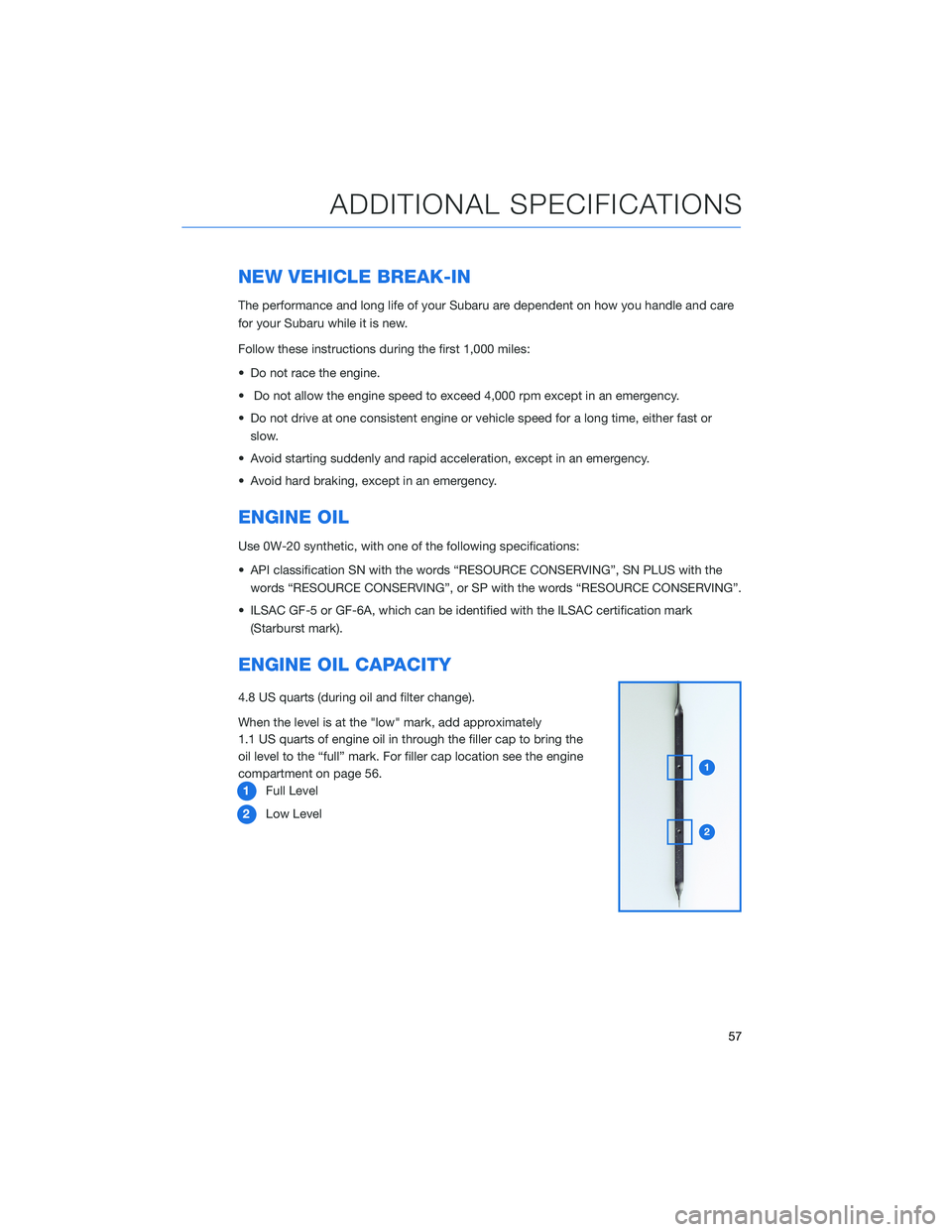
4.8 US quarts (during oil and filter change).
When the level is at the "low" mark, add approximately
1.1 US quarts of engine oil in through the filler cap to bring the
oil level to the “full” mark. For filler cap location see the engine
compartment on page 56.
1Full Level
2Low Level
ADDITIONAL SPECIFICATIONS
57
Page 68 of 148
Common Commands
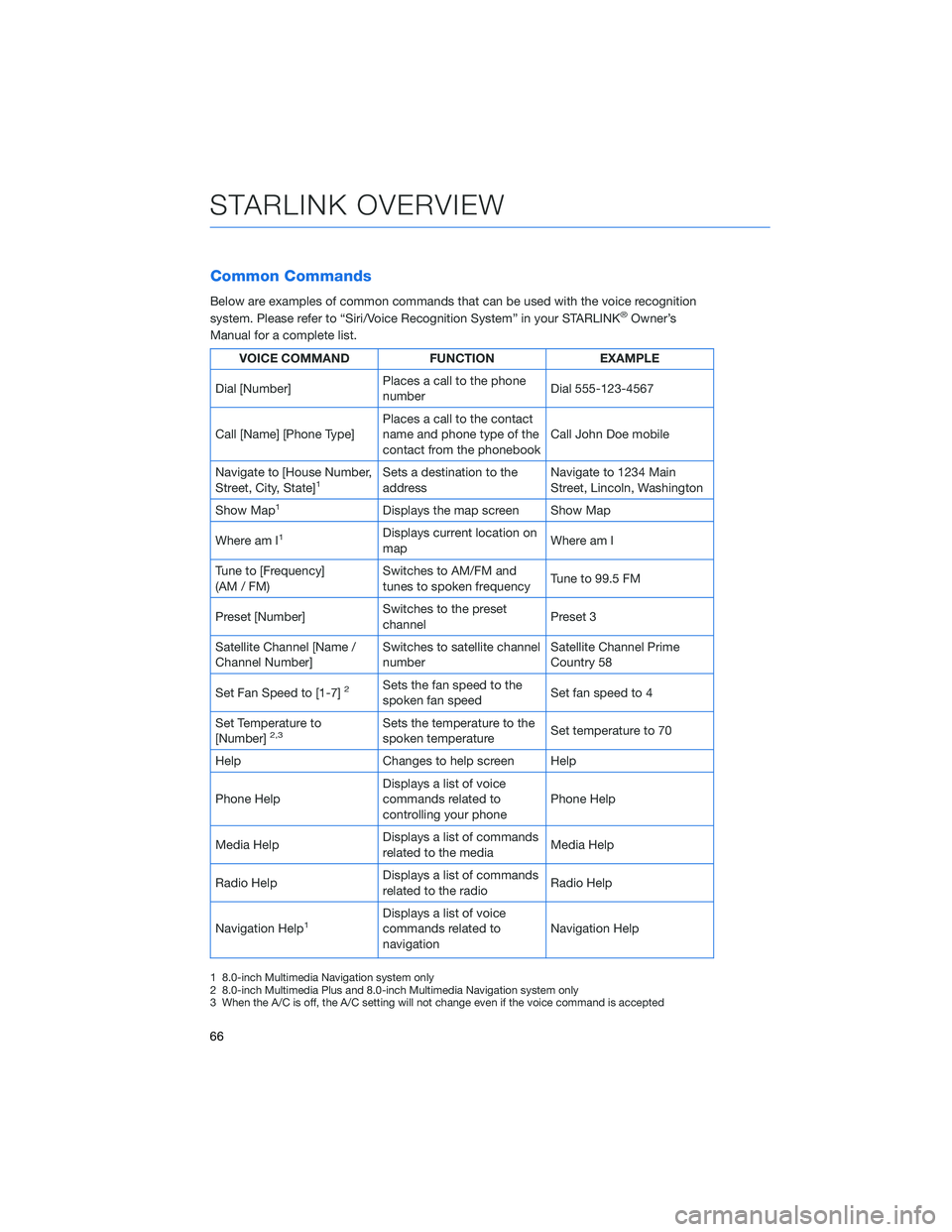
Below are examples of common commands that can be used with the voice recognition
system. Please refer to “Siri/Voice Recognition System” in your STARLINK®Owner’s
Manual for a complete list.
VOICE COMMAND FUNCTION EXAMPLE
Dial [Number]Places a call to the phone
numberDial 555-123-4567
Call [Name] [Phone Type]Places a call to the contact
name and phone type of the
contact from the phonebookCall John Doe mobile
Navigate to [House Number,
Street, City, State]
1Sets a destination to the
addressNavigate to 1234 Main
Street, Lincoln, Washington
Show Map
1Displays the map screen Show Map
Where am I
1Displays current location on
mapWhere am I
Tune to [Frequency]
(AM / FM)Switches to AM/FM and
tunes to spoken frequencyTune to 99.5 FM
Preset [Number]Switches to the preset
channelPreset 3
Satellite Channel [Name /
Channel Number]Switches to satellite channel
numberSatellite Channel Prime
Country 58
Set Fan Speed to [1-7]
2Sets the fan speed to the
spoken fan speedSet fan speed to 4
Set Temperature to
[Number]
2,3Sets the temperature to the
spoken temperatureSet temperature to 70
Help Changes to help screen Help
Phone HelpDisplays a list of voice
commands related to
controlling your phonePhone Help
Media HelpDisplays a list of commands
related to the mediaMedia Help
Radio HelpDisplays a list of commands
related to the radioRadio Help
Navigation Help
1Displays a list of voice
commands related to
navigationNavigation Help
1 8.0-inch Multimedia Navigation system only
2 8.0-inch Multimedia Plus and 8.0-inch Multimedia Navigation system only
3 When the A/C is off, the A/C setting will not change even if the voice command is accepted
STARLINK OVERVIEW
66
Page 86 of 148
SETTINGS AND UPDATES OVERVIEW
Many settings can be customized for different features in your Subaru. In this section you
will find examples and instructions for some of the settings you can tailor to fit your
preferences, as well as ways to keep your system updated.
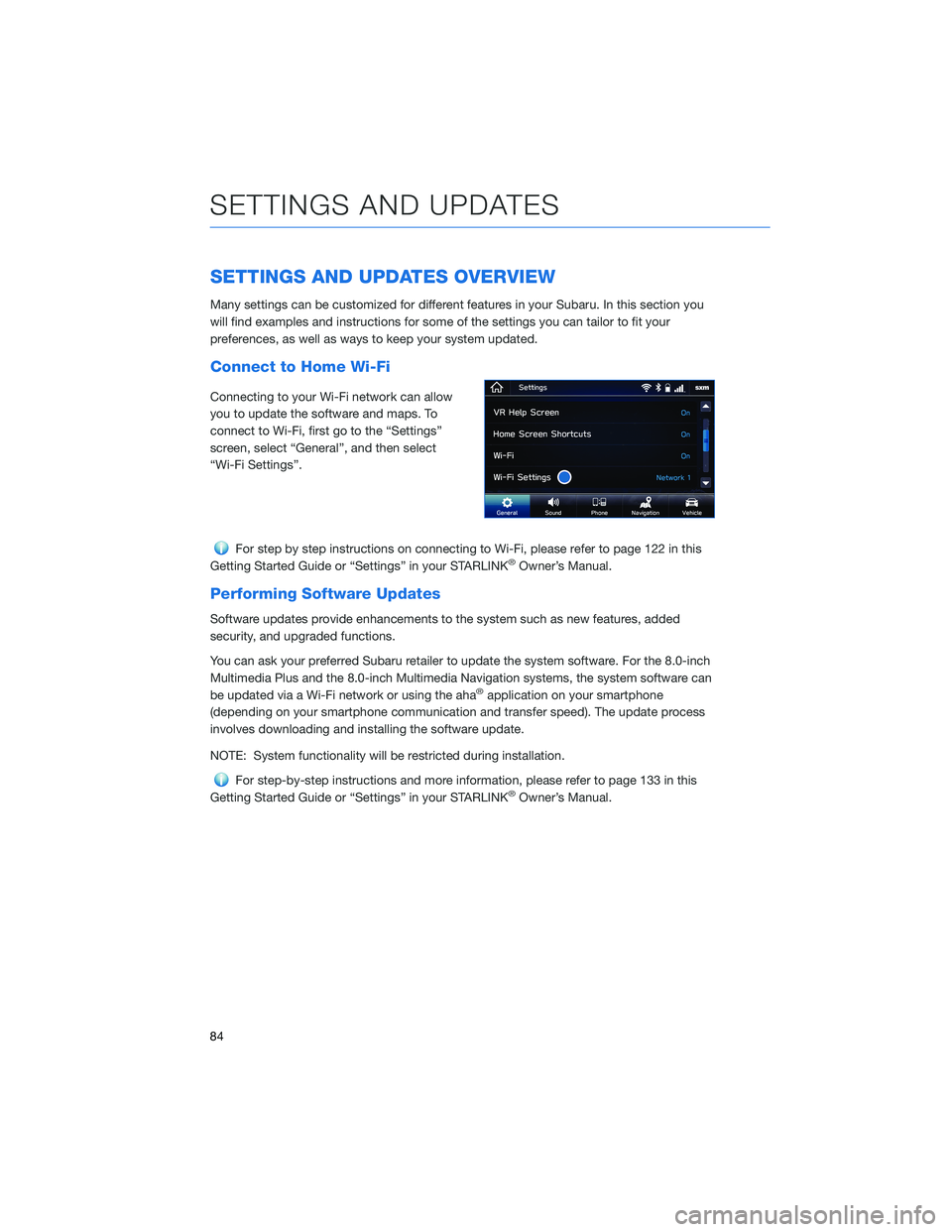
Connect to Home Wi-Fi
Connecting to your Wi-Fi network can allow
you to update the software and maps. To
connect to Wi-Fi, first go to the “Settings”
screen, select “General”, and then select
“Wi-Fi Settings”.
For step by step instructions on connecting to Wi-Fi, please refer to page 122 in this
Getting Started Guide or “Settings” in your STARLINK®Owner’s Manual.
Performing Software Updates
Software updates provide enhancements to the system such as new features, added
security, and upgraded functions.
You can ask your preferred Subaru retailer to update the system software. For the 8.0-inch
Multimedia Plus and the 8.0-inch Multimedia Navigation systems, the system software can
be updated via a Wi-Fi network or using the aha
®application on your smartphone
(depending on your smartphone communication and transfer speed). The update process
involves downloading and installing the software update.
NOTE: System functionality will be restricted during installation.
For step-by-step instructions and more information, please refer to page 133 in this
Getting Started Guide or “Settings” in your STARLINK®Owner’s Manual.
SETTINGS AND UPDATES
84
Page 87 of 148
SOUND
To change the sound settings, press the “Home” button, then select “Settings”, and then
select “Sound”. Choose the setting you want to change.
SETTING FUNCTION
EQ and Sound Position Select to set sound settings.
Entertainment Volume Select to set audio volume.
Aux Volume Gain Select to set AUX volume gain.
Microphone Volume Select to adjust the mic sensitivity. This adjusts the
speaker’s voice during hands-free communication.
Navigation Volume Select to set the navigation prompt volume.
(Navigation-equipped vehicles only).
Phone Volume Select to adjust the default volume of the other party’s
voice.
Ringtone Volume Select to adjust the ringtone volume.
Speech/VR Volume Select to set the voice recognition prompts volume.
Alert Sounds Select to turn the Alert Sound on/off for traffic,
weather, or SXM game information updates.
Beep Sounds Select to turn the sound beeps on/off.
Speed Volume Select to set the speed volume. The system adjusts to
the optimum volume and tone quality according to
vehicle speed to compensate for increased vehicle
noise.
PHONE
This system supports Bluetooth®, a wireless data system. The hands-free system lets you
make and receive calls without taking your hands off the steering wheel.
In the sound settings menu, you can adjust the microphone, ringtone, and phone volume.
On the Home Screen, select "Settings", then select the "Phone" menu to manage
connected devices and access other phone settings.
SETTINGS AND UPDATES
85
Page 95 of 148
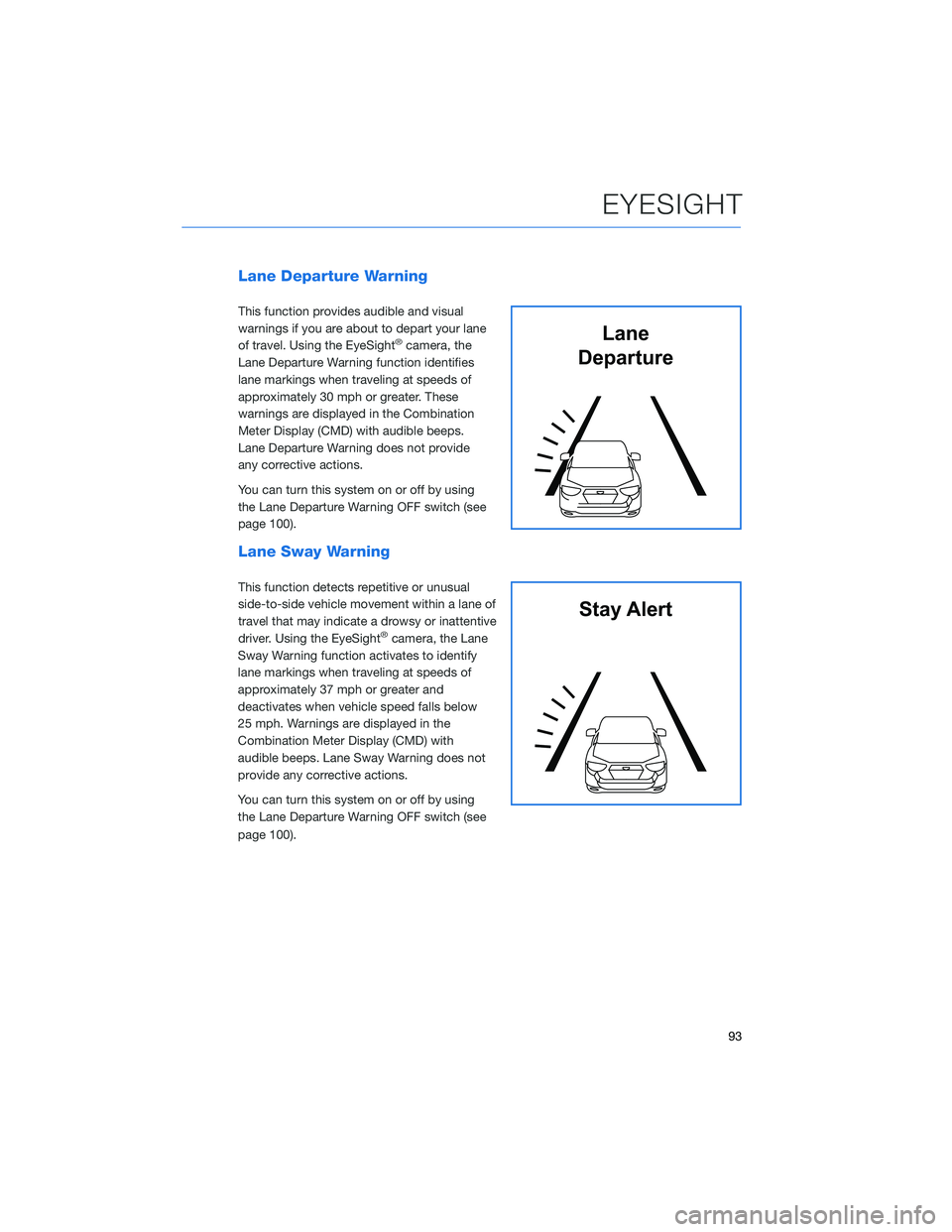
Lane Departure Warning
This function provides audible and visual
warnings if you are about to depart your lane
of travel. Using the EyeSight
®camera, the
Lane Departure Warning function identifies
lane markings when traveling at speeds of
approximately 30 mph or greater. These
warnings are displayed in the Combination
Meter Display (CMD) with audible beeps.
Lane Departure Warning does not provide
any corrective actions.
You can turn this system on or off by using
the Lane Departure Warning OFF switch (see
page 100).
Lane Sway Warning
This function detects repetitive or unusual
side-to-side vehicle movement within a lane of
travel that may indicate a drowsy or inattentive
driver. Using the EyeSight
®camera, the Lane
Sway Warning function activates to identify
lane markings when traveling at speeds of
approximately 37 mph or greater and
deactivates when vehicle speed falls below
25 mph. Warnings are displayed in the
Combination Meter Display (CMD) with
audible beeps. Lane Sway Warning does not
provide any corrective actions.
You can turn this system on or off by using
the Lane Departure Warning OFF switch (see
page 100).
Lane
Departure
Stay Alert
EYESIGHT
93
Page 96 of 148
Lane Departure Prevention
This function provides steering assistance to
keep you in the lane of travel when driving on
expressways, freeways, and interstate
highways at approximately 37 mph or greater.
Lane Departure Prevention uses the EyeSight
®
camera to identify lane markings and assists
steering operation to help prevent lane
departure.
This function is turned on or off using the Lane
Keep Assist button on the right side of the
steering wheel. Once the system is turned on,
a white Lane Keep Assist icon will be
displayed on the Combination Meter Display
(CMD). Lane marking graphics on the CMD
change to white to indicate that the right and/or left lane markings have been successfully
identified by the EyeSight
®camera. If the vehicle is about to depart the driving lane, the
system assists steering by gently guiding the vehicle back into your lane. When the system
is actively providing assistance, the Lane Keep Assist icon in the CMD will change from
white to green.
Advanced Adaptive Cruise Control with Lane Centering
Advanced Adaptive Cruise Control is a driving support system intended to reduce the
burden on you when driving on an expressway (including during congestion and when
driving at high speed). Advanced Adaptive Cruise Control and Lane Centering work
together to assist you by automatically controlling the accelerator, brake, and steering.
Advanced Adaptive Cruise Control
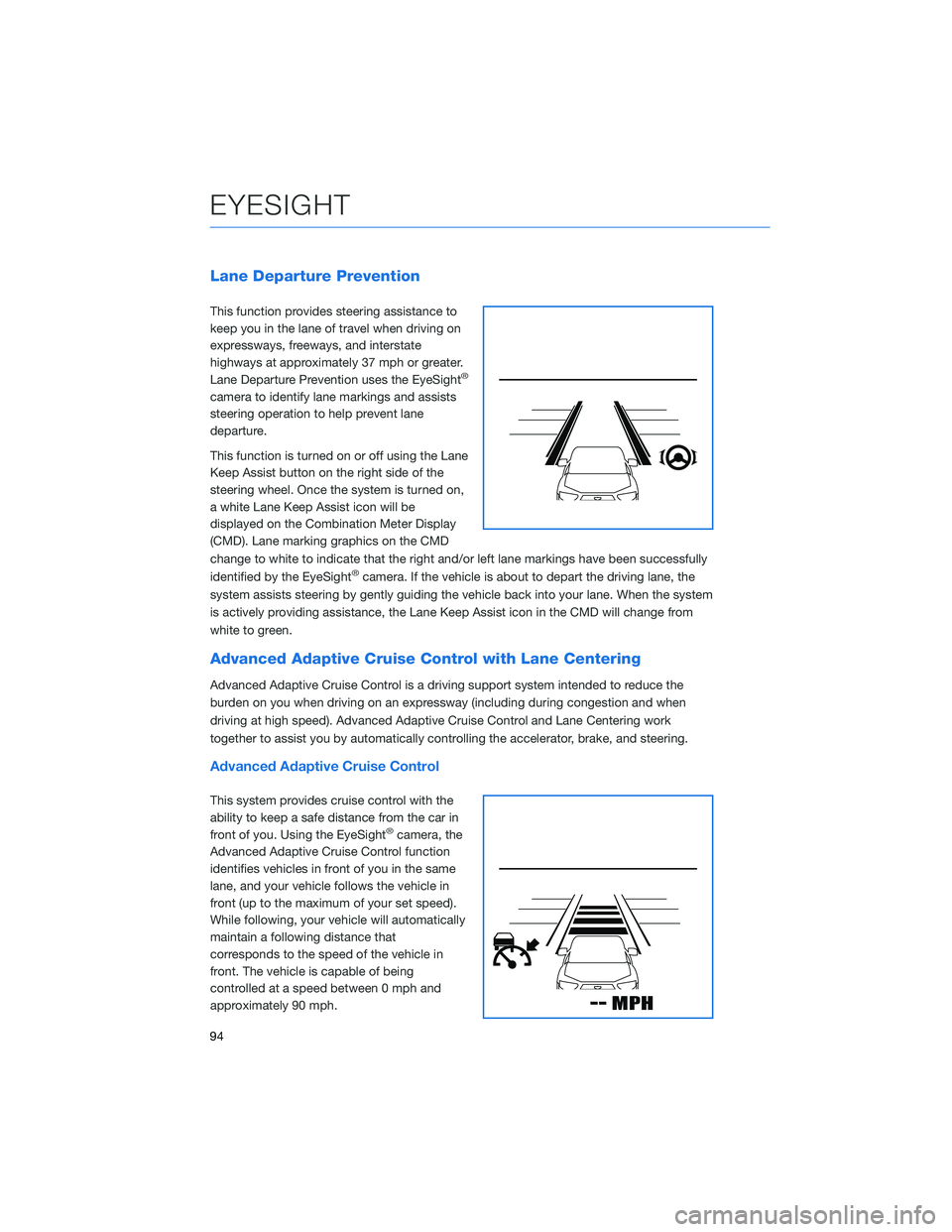
This system provides cruise control with the
ability to keep a safe distance from the car in
front of you. Using the EyeSight
®camera, the
Advanced Adaptive Cruise Control function
identifies vehicles in front of you in the same
lane, and your vehicle follows the vehicle in
front (up to the maximum of your set speed).
While following, your vehicle will automatically
maintain a following distance that
corresponds to the speed of the vehicle in
front. The vehicle is capable of being
controlled at a speed between 0 mph and
approximately 90 mph.
EYESIGHT
94