2022 RAM PROMASTER CITY ad blue
[x] Cancel search: ad bluePage 5 of 260

3
TRIP COMPUTER .................................................... 43 Trip Button ........................................................43
Trip Functions ..................................................43
Values Displayed ..............................................44
WARNING LIGHTS AND MESSAGES ................... 44
Red Warning Lights ..........................................44
Yellow Warning Lights ......................................47
Green Indicator Lights......................................49
Blue Indicator Lights ........................................50
White Indicator Lights ......................................50
ONBOARD DIAGNOSTIC SYSTEM — OBD II ....... 50
Onboard Diagnostic System
(OBD II) Cybersecurity ......................................51
EMISSIONS INSPECTION AND MAINTENANCE
PROGRAMS ............................................................ 51
STARTING AND OPERATING
STARTING THE ENGINE ........................................ 52
Automatic Transmission ..................................52
Normal Starting ................................................52
Cold Weather Operation .................................52
Extended Park Starting ....................................52
If Engine Fails To Start .....................................53
After Starting.....................................................53
ENGINE BLOCK HEATER — IF EQUIPPED ............ 53
ENGINE BREAK-IN RECOMMENDATIONS .......... 54
PARKING BRAKE .................................................. 54 AUTOMATIC TRANSMISSION ...............................55
Key Ignition Park Interlock...............................56
Brake/Transmission Shift Interlock (BTSI)
System .............................................................56
9-Speed Automatic Transmission ..................56
POWER STEERING ................................................60
Power Steering Fluid Check ............................60
CRUISE CONTROL — IF EQUIPPED .......................60
To Activate ........................................................61
To Set A Desired Speed ...................................61
To Vary The Speed Setting...............................61
To Accelerate For Passing ...............................61
To Resume Speed ............................................62
To Deactivate ...................................................62
PARKSENSE REAR PARK ASSIST —
IF EQUIPPED ...........................................................62
ParkSense Rear Park Assist Sensors .............62
ParkSense Rear Park Assist Alerts .................63
ParkSense Rear Park Assist Failure
Indications ........................................................64
Cleaning The ParkSense Rear Park Assist
System ..............................................................64
ParkSense Rear Park Assist System Usage
Precautions.......................................................64
PARKVIEW REAR BACK UP CAMERA .................65
REFUELING THE VEHICLE .....................................66 VEHICLE LOADING ................................................. 67
Vehicle Certification Label............................... 67
Gross Vehicle Weight Rating (GVWR) ............. 67
Gross Axle Weight Rating (GAWR) .................. 67
Tire Size ............................................................ 67
Rim Size ............................................................ 67
Inflation Pressure ............................................. 67
Curb Weight ...................................................... 67
Overloading ...................................................... 68
Loading ............................................................ 68
TRAILER TOWING .................................................. 68
Common Towing Definitions............................ 68
Trailer Hitch Classification............................... 70
Trailer Towing Weights (Maximum Trailer
Weight Ratings) ............................................... 71
Trailer And Tongue Weight .............................71
Towing Requirements ..................................... 71
Towing Tips ...................................................... 74
RECREATIONAL TOWING
(BEHIND MOTORHOME) ....................................... 75
Towing This Vehicle Behind Another Vehicle .... 75
Recreational Towing — Automatic Transmission .. 76
DRIVING TIPS ......................................................... 76
Driving On Slippery Surfaces .......................... 76
Driving Through Water ....................................76
22_VM_OM_EN_USC_t.book Page 3
Page 11 of 260

9
Yellow Warning Lights
Anti-Lock Brake System (ABS) Warning Light Úpage 47
Low Fuel Warning Light Úpage 47
Generic Warning Light Úpage 47
Tire Pressure Monitoring System (TPMS) Warning Light Úpage 47
Vehicle Security Warning Light Úpage 48
Engine Check/Malfunction Indicator Warning Light (MIL) Úpage 48
Electronic Stability Control (ESC) Warning Light Úpage 49
Electronic Stability Control (ESC) OFF Warning Light Úpage 49
Green Indicator Lights
Turn Signal Indicator Lights
Úpage 49
Parking/Headlights On Indicator Light Úpage 49
Front Fog Indicator Light Úpage 49
Cruise Control Indicator Light Úpage 50
Blue Indicator Lights
High Beam Indicator Light
Úpage 50
White Indicator Lights
Speed Warning Indicator Light
Úpage 50
1
22_VM_OM_EN_USC_t.book Page 9
Page 35 of 260
GETTING TO KNOW YOUR VEHICLE33
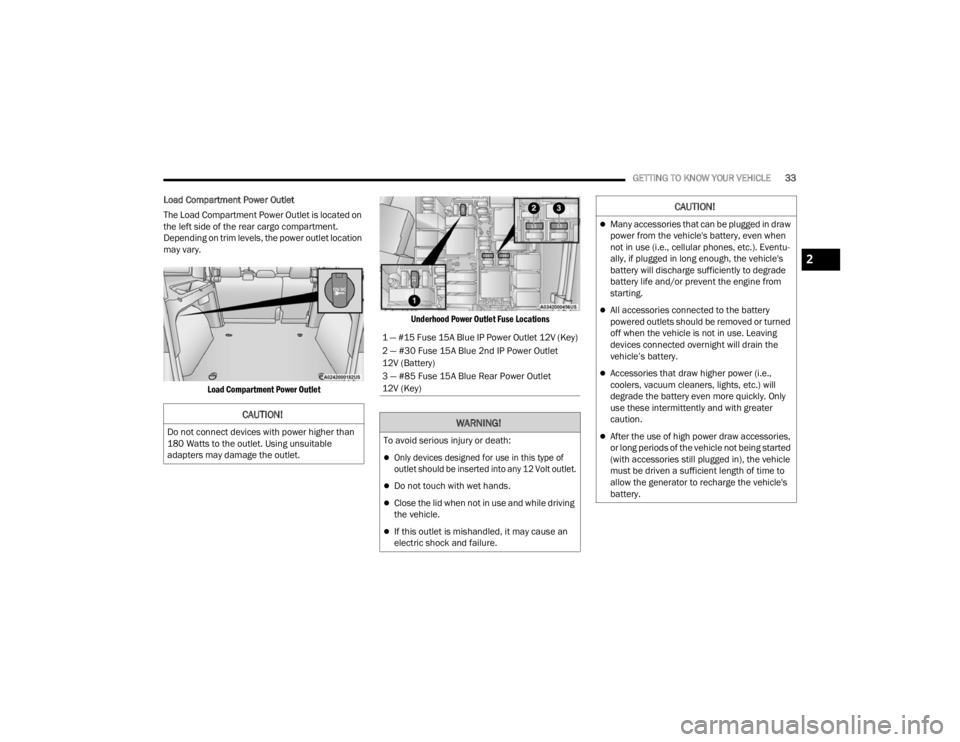
Load Compartment Power Outlet
The Load Compartment Power Outlet is located on
the left side of the rear cargo compartment.
Depending on trim levels, the power outlet location
may vary.
Load Compartment Power Outlet Underhood Power Outlet Fuse Locations
CAUTION!
Do not connect devices with power higher than
180 Watts to the outlet. Using unsuitable
adapters may damage the outlet.
1 — #15 Fuse 15A Blue IP Power Outlet 12V (Key)
2 — #30 Fuse 15A Blue 2nd IP Power Outlet
12V (Battery)
3 — #85 Fuse 15A Blue Rear Power Outlet
12V (Key)
WARNING!
To avoid serious injury or death:
Only devices designed for use in this type of
outlet should be inserted into any 12 Volt outlet.
Do not touch with wet hands.
Close the lid when not in use and while driving
the vehicle.
If this outlet is mishandled, it may cause an
electric shock and failure.
CAUTION!
Many accessories that can be plugged in draw
power from the vehicle's battery, even when
not in use (i.e., cellular phones, etc.). Eventu
-
ally, if plugged in long enough, the vehicle's
battery will discharge sufficiently to degrade
battery life and/or prevent the engine from
starting.
All accessories connected to the battery
powered outlets should be removed or turned
off when the vehicle is not in use. Leaving
devices connected overnight will drain the
vehicle’s battery.
Accessories that draw higher power (i.e.,
coolers, vacuum cleaners, lights, etc.) will
degrade the battery even more quickly. Only
use these intermittently and with greater
caution.
After the use of high power draw accessories,
or long periods of the vehicle not being started
(with accessories still plugged in), the vehicle
must be driven a sufficient length of time to
allow the generator to recharge the vehicle's
battery.
2
22_VM_OM_EN_USC_t.book Page 33
Page 52 of 260
50GETTING TO KNOW YOUR INSTRUMENT PANEL
Cruise Control Indicator Light —
If Equipped
This indicator light will illuminate when
the cruise control is activated
Úpage 60.
NOTE:There will be no change in the indicator light when
the desired speed is set.
BLUE INDICATOR LIGHTS
High Beam Indicator Light
This indicator light will illuminate to
indicate that the high beam headlights
are on. With the low beams activated,
push the multifunction lever forward
(toward the front of the vehicle) to turn on the high
beams. Pull the multifunction lever rearward
(toward the rear of the vehicle) to turn off the high
beams. If the high beams are off, pull the lever
toward you for a temporary high beam on, “flash to
pass” scenario.
WHITE INDICATOR LIGHTS
Speed Warning Indicator Light —
If Equipped
When Set Speed Warning is turned on,
the speed warning telltale will illuminate
in the instrument cluster with a number
matching the set speed. When the set
speed is exceeded, a single chime will sound along
with pop-up message of speed warning exceeded.
Speed Warning can be turned on and off in the
instrument cluster display Ú page 40.
NOTE:The number “55” is only an example of a speed
that can be set.
ONBOARD DIAGNOSTIC SYSTEM — OBD II
Your vehicle is equipped with a sophisticated
Onboard Diagnostic system called OBD II. This
system monitors the performance of the
emissions, engine, and transmission control
systems. When these systems are operating
properly, your vehicle will provide excellent
performance and fuel economy, as well as engine
emissions well within current government
regulations. If any of these systems require service, the OBD II
system will turn on the Malfunction Indicator Light
(MIL). It will also store diagnostic codes and other
information to assist your service technician in
making repairs. Although your vehicle will usually
be drivable and not need towing, see an authorized
dealer for service as soon as possible.
CAUTION!
Prolonged driving with the MIL on could cause
further damage to the emission control
system. It could also affect fuel economy and
driveability. The vehicle must be serviced
before any emissions tests can be performed.
If the MIL is flashing while the vehicle is
running, severe catalytic converter damage
and power loss will soon occur. Immediate
service is required.
22_VM_OM_EN_USC_t.book Page 50
Page 88 of 260
86MULTIMEDIA
Phone/Bluetooth®
SiriusXM® Setup
When the Phone/Bluetooth® button is pressed on the touchscreen, the system displays the option related to Bluetooth® connectivity from an external audio
device or smartphone. The list of paired audio devices or smartphones can be accessed from this menu.
NOTE:Depending on the vehicle’s options, feature settings may vary.
Setting Name Description
Paired Phones/Devices This setting will show which phones are paired to the Uconnect system.
When the SiriusXM® Setup button is pressed on the touchscreen, the system displays options related to SiriusXM® Satellite Radio. These settings can be
used to skip specific radio channels and restart favorite songs from the beginning.
NOTE:
A subscription to SiriusXM® Satellite Radio is required for these settings to be functional.
Depending on the vehicle’s options, feature settings may vary.
Setting NameDescription
Tune Start This setting will play the current song from the beginning when you tune to a
music channel using one of the 12 presets.
Channel Skip This setting allows you to set channels that you wish to skip. A channel list will
display of the skipped channels.
Subscription Information This menu provides SiriusXM® subscription information. SiriusXM® Travel
Link is a separate subscription.
22_VM_OM_EN_USC_t.book Page 86
Page 89 of 260
MULTIMEDIA87
Restore Settings
Clear Personal Data
When the Restore Settings button is pressed on the touchscreen, the system displays the option related to resetting the Uconnect system back to its factory
settings. This setting can clear personal data and reset selected settings from other menus.
NOTE:Depending on the vehicle’s options, feature settings may vary.
Setting Name Description
Restore Settings to Default This setting will return all the previously changed settings to their factory
default.
When the Clear Personal Data button is pressed on the touchscreen, a pop-up will display asking if you would like to clear all personal data from the system.
NOTE:Depending on the vehicle’s options, feature settings may vary.
Setting Name
Description
Clear Personal Data This setting will display a pop-up that provides the option to clear all personal
data from the system, including Bluetooth® devices and presets.
5
22_VM_OM_EN_USC_t.book Page 87
Page 100 of 260
98MULTIMEDIA
RADIO VOICE COMMANDS
Use your voice to quickly get to the AM, FM, or
SiriusXM® Satellite Radio stations you would like
to hear. (Subscription or included SiriusXM®
Satellite Radio trial required.)
Push the VR button and wait for the beep to say
a command. See some examples below:
“Tune to ninety-five-point-five FM”
“Tune to Satellite Channel Hits 1”
Did You Know: At any time, if you are not sure of
what to say or want to learn a Voice Command,
push the VR button and say “ Help”. The system
provides you with a list of commands.
MEDIA MODE
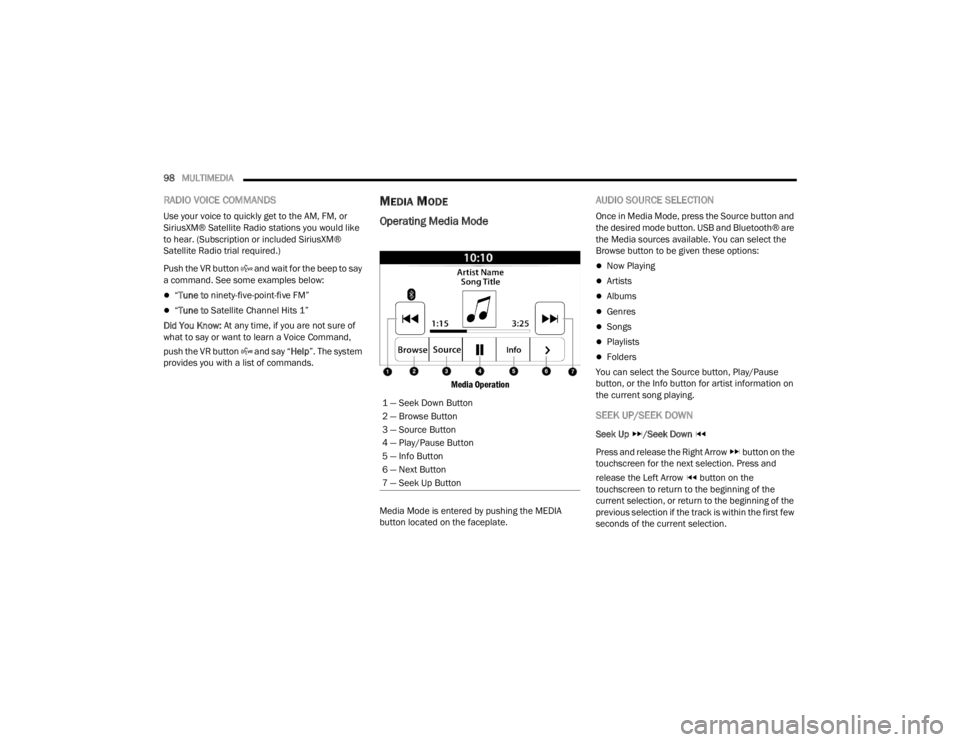
Operating Media Mode
Media Operation
Media Mode is entered by pushing the MEDIA
button located on the faceplate.
AUDIO SOURCE SELECTION
Once in Media Mode, press the Source button and
the desired mode button. USB and Bluetooth® are
the Media sources available. You can select the
Browse button to be given these options:
Now Playing
Artists
Albums
Genres
Songs
Playlists
Folders
You can select the Source button, Play/Pause
button, or the Info button for artist information on
the current song playing.
SEEK UP/SEEK DOWN
Seek Up /Seek Down
Press and release the Right Arrow button on the
touchscreen for the next selection. Press and
release the Left Arrow button on the
touchscreen to return to the beginning of the
current selection, or return to the beginning of the
previous selection if the track is within the first few
seconds of the current selection.
1 — Seek Down Button
2 — Browse Button
3 — Source Button
4 — Play/Pause Button
5 — Info Button
6 — Next Button
7 — Seek Up Button
22_VM_OM_EN_USC_t.book Page 98
Page 101 of 260

MULTIMEDIA99
Fast Seek Up /Fast Seek Down
Press and hold the Right Arrow or Left Arrow
button on the touchscreen and the desired mode
will begin to fast forward or reverse through the
current track until the button on the touchscreen is
released.
TRACK SELECTION (BROWSE)
Rotate the Browse button to scroll through and
select a desired track on the device or USB. Press
the Exit button on the touchscreen if you wish to
cancel the browse function.
REPEAT
Press the Repeat button on the touchscreen to
repeat the song selection. To cancel repeat, press
the Repeat button on the touchscreen a second
time.
SHUFFLE
Press the Shuffle button on the touchscreen to
play the selections on the USB or Bluetooth®
device in random order to provide an interesting
change of pace. Press the Shuffle button on the
touchscreen a second time to turn this feature off.
INFO
Press the Info button to display the current track
information. Press the X button to cancel this
feature.
USB Mode
USB Mode is entered by either inserting a USB
Jump Drive cable into the USB port or by pushing
the MEDIA button located on the faceplate. Once in
Media Mode, press the Source button on the
touchscreen and select “USB”.
NOTE:The system supports only FAT32 or ExFAT
formatted USB devices. The system does not
support devices with a capacity higher than 64GB.
The system does not support USB hubs connected
to the USB port of the vehicle. Connect your multi -
media device directly to the USB port using the
specific connection cable for the device if
necessary.
Inserting USB Device
Gently insert the USB device into the USB port. If
you insert a USB device with the ignition ON, the
unit will switch to USB Mode and begin to play. The
display will show the track number and index time
in minutes and seconds. Play will begin at the start
of track 1. Browse
Press the Browse button on the touchscreen to
select Artist, Album, Genre, Song, Playlist or Folder
from the USB device. Once the desired selection is
made, you can chose from the available media by
pressing the button on the touchscreen. Press the
Exit button on the touchscreen if you wish to cancel
the browse function.
Bluetooth® Mode
Before proceeding, the Bluetooth® device must be
paired with the Uconnect Phone to communicate
with the Uconnect system Ú
page 102.
Once the Bluetooth® device is paired to the
Uconnect system, push the MEDIA button located
on the faceplate. Once in Media Mode, press the
Source button on the touchscreen and select
Bluetooth®.
NOTE:For mobile phone compatibility and pairing instruc -
tions, please visit UconnectPhone.com.
5
22_VM_OM_EN_USC_t.book Page 99