2022 RAM PROMASTER CITY ignition
[x] Cancel search: ignitionPage 61 of 260

STARTING AND OPERATING59
If the transmission becomes extremely hot, the
Transmission Temperature Warning Light may
illuminate and the transmission may operate
differently until the transmission cools down.
During cold temperatures, transmission
operation may be modified depending on engine
and transmission temperature as well as vehicle
speed. This feature improves warm up time of the
engine and transmission to achieve maximum
efficiency. Engagement of the torque converter
clutch, and shifts into EIGHTH or NINTH gear, are
inhibited until the transmission fluid is warm
Ú
page 59. Normal operation will resume once
the transmission temperature has risen to a
suitable level.
Transmission Limp Home Mode
Transmission function is monitored electronically
for abnormal conditions. If a condition is detected
that could result in transmission damage,
Transmission Limp Home Mode is activated. In this
mode, the transmission may operate only in a fixed
gear, or may remain in NEUTRAL. The Malfunction
Indicator Light (MIL) may be illuminated. Limp
Home Mode may allow the vehicle to be driven to
an authorized dealer for service without damaging
the transmission. In the event of a momentary problem, the
transmission can be reset to regain all forward
gears by performing the following steps:
1. Stop the vehicle.
2. Shift the transmission into PARK.
3. Turn the ignition OFF.
4. Wait approximately 10 seconds.
5. Restart the engine.
6. Shift into the desired gear range. If the
problem is no longer detected, the
transmission will return to normal operation.
NOTE:
Even if the transmission can be reset, we recommend
that you visit an authorized dealer at your earliest
possible convenience. An authorized dealer has diag -
nostic equipment to assess the condition of your
transmission. If the transmission cannot be reset,
authorized dealer service is required.
Torque Converter Clutch
A feature designed to improve fuel economy has
been included in the automatic transmission on
your vehicle. A clutch within the torque converter
engages automatically at calibrated speeds. This
may result in a slightly different feeling or response
during normal operation in the upper gears. When
the vehicle speed drops or during some
accelerations, the clutch automatically
disengages.
NOTE:The torque converter clutch will not engage until
the transmission fluid is warm [usually after 1 to
3 miles (2 to 5 km) of driving]. Because the engine
speed is higher when the torque converter clutch is
not engaged, it may seem as if the transmission is
not shifting properly when cold. This is normal. The
torque converter clutch will function normally once
the transmission is sufficiently warm.
Electronic Range Select (ERS) Operation
The ERS shift control allows the driver to limit the
highest available gear. For example, if you set the
transmission gear limit to FIFTH gear, the
transmission will not shift above FIFTH gear, but
will shift through the lower gears normally.
You can switch between DRIVE and ERS mode at
any vehicle speed. When the gear selector is in the
DRIVE position, the transmission will operate
automatically, shifting between all available gears.
Moving the gear selector to the ERS position (beside
DRIVE) will activate ERS mode, display the current
gear in the instrument cluster, and set that gear as
the top available gear. Once in ERS mode, moving
the gear selector forward “-” or rearward “+” will
change the top available gear, which will be
displayed in the instrument cluster.
To exit ERS mode, simply return the gear selector
to the DRIVE position.4
22_VM_OM_EN_USC_t.book Page 59
Page 64 of 260

62STARTING AND OPERATING
Using Cruise Control On Hills
The transmission may downshift on hills to
maintain the vehicle set speed.
NOTE:The Cruise Control system maintains speed up and
down hills. A slight speed change on moderate hills
is normal. On steep hills, a greater speed loss or
gain may occur so it may be preferable to drive
without Cruise Control.
TO RESUME SPEED
To resume a previously set speed, push the RES (+)
button and release. Resume can be used at any
speed above 20 mph (32 km/h) up to the
maximum speed of 100 mph (160 km/h).
TO DEACTIVATE
A tap on the brake pedal, pushing the CAN button,
or normal brake pressure will deactivate the Cruise
Control system without erasing the set speed from
memory.
Pushing the on/off button or turning the ignition
switch off erases the set speed from memory.
PARKSENSE REAR PARK ASSIST —
IF EQUIPPED
The ParkSense system provides an audible
indication of the distance between the rear fascia/
bumper and a detected obstacle when backing up
(e.g. during a parking maneuver) Ú page 64.
The ParkSense system is automatically activated
when the transmission is placed into REVERSE. As
the distance from an obstacle behind the vehicle
decreases, the audible alert becomes more frequent.
Interaction With Trailer Towing
The ParkSense system is automatically
deactivated when a trailer equipped by Mopar® is
hitched to the vehicle. The system will be
automatically activated as soon as the trailer is
removed. If it does not happen, turning the key
ignition switch to STOP (OFF/LOCK) position and
then to AVV (START) again would be needed. If a
non-Mopar® trailer hitch is mounted, the sensor
deactivation cannot be guaranteed.
PARKSENSE REAR PARK ASSIST
S
ENSORS
The four ParkSense sensors, located in the rear
fascia/bumper, monitor the area behind the vehicle
that is within the sensors’ field of view. The sensors
can detect obstacles, in the horizontal direction,
from approximately 12 inches (30 cm) up to
55 inches (140 cm) from the center of the rear
fascia/bumper and up to 24 inches (60 cm) from
the corners of the rear fascia/bumper, depending on
the location, type and orientation of the obstacle.
ParkSense Rear Park Assist Sensors Locations
If several obstacles are detected, the ParkSense
system indicates the nearest obstacle.
The minimum height of a detectable obstacle
corresponds to the maximum height of an obstacle
that would clear the underside of the vehicle
during the parking maneuver.
WARNING!
Cruise Control can be dangerous where the
system cannot maintain a constant speed. Your
vehicle could go too fast for the conditions, and
you could lose control and have an accident. Do
not use Cruise Control in heavy traffic or on
roads that are winding, icy, snow-covered or
slippery.
22_VM_OM_EN_USC_t.book Page 62
Page 66 of 260

64STARTING AND OPERATING
PARKSENSE REAR PARK ASSIST
F
AILURE INDICATIONS
A malfunction of the ParkSense sensors
or system is indicated, during REVERSE
gear engagement, by the instrument
panel warning icon.
The warning icon is illuminated and a message is
displayed on the instrument cluster display (if
equipped) Ú page 44.
The sensors and wiring are tested continuously
when the ignition is in the MAR (ACC/ON/RUN)
position. Failures are indicated immediately if they
occur when the system is on.
Even if the system is able to identify that a specific
sensor is in failure condition, the instrument
cluster display shall indicate that the ParkSense
system is unavailable, without reference to the
sensor in failure condition. If even a single sensor
fails, the entire system will be disabled. The system
is turned off automatically.
CLEANING THE PARKSENSE REAR PARK
A
SSIST SYSTEM
Clean the ParkSense sensors with water, car wash
soap and a soft cloth. Do not use rough or hard
cloths. In washing stations, clean sensors quickly
while keeping the vapor jet/high pressure washing
nozzles at least 4 inches (10 cm) from the sensors. Do not scratch or poke the sensors. Otherwise, you
could damage the sensors.
PARKSENSE REAR PARK ASSIST
S
YSTEM USAGE PRECAUTIONS
NOTE:
Ensure that the outer surface and the underside
of the rear fascia/bumper is clean and clear of
snow, ice, mud, dirt or other obstruction to keep
the ParkSense Rear Park Assist system oper -
ating properly.
Jackhammers, large trucks, and other vibra -
tions could affect the performance of the
ParkSense system.
Clean the ParkSense sensors regularly, taking
care not to scratch or damage them. The sensors
must not be covered with ice, snow, slush, mud,
dirt or debris. Failure to do so can result in the
system not working properly. The ParkSense
system might not detect an obstacle behind the
fascia/bumper, or it could provide a false indica -
tion that an obstacle is behind the fascia/bumper.
Objects such as bicycle carriers, etc., must not
be placed within 12 inches (30 cm) from the
rear fascia/bumper while driving the vehicle.
Failure to do so can result in the system misin -
terpreting a close object as a sensor problem,
causing a failure indication to be displayed in
the instrument cluster display.
WARNING!
Drivers must be careful when backing up even
when using ParkSense. Always check carefully
behind your vehicle, look behind you, and be
sure to check for pedestrians, animals, other
vehicles, obstructions, and blind spots before
backing up. You are responsible for safety and
must continue to pay attention to your
surroundings. Failure to do so can result in
serious injury or death.
Before using ParkSense, it is strongly recom -
mended that the ball mount and hitch ball
assembly be disconnected from the vehicle
when the vehicle is not used for towing.
Failure to do so can result in injury or damage
to vehicles or obstacles because the hitch
ball will be much closer to the obstacle than
the rear fascia when the vehicle sounds the
continuous tone. Also, the sensors could
detect the ball mount and hitch ball
assembly, depending on its size and shape,
giving a false indication that an obstacle is
behind the vehicle.
22_VM_OM_EN_USC_t.book Page 64
Page 67 of 260

STARTING AND OPERATING65
If it’s necessary to keep the ball mount and hitch
ball assembly mounted for a long period, it is
possible to filter out the ball mount and hitch ball
assembly presence in the sensor field of view. The
filtering operation must be performed only by an
authorized dealer.
PARKVIEW REAR BACK UP CAMERA
Your vehicle is equipped with the ParkView Rear
Back Up Camera that allows you to see an
on-screen image of the rear surroundings of your
vehicle whenever the gear selector is put into
REVERSE. The image will be displayed on the
touchscreen display along with a caution note to “Check Entire Surroundings” across the top of the
screen. After five seconds this note will disappear.
The ParkView camera is located on the rear of the
vehicle above the rear license plate.
The Rear Back Up Camera can also be activated
when the vehicle is not in REVERSE through the
Uconnect system Ú
page 79.
NOTE:If one of the rear cargo doors is not completely
closed, the Back Up Camera cannot provide an
accurate image of the area behind the vehicle. A
dedicated message will appear on the Uconnect
display indicating the camera is not in the correct
position.
The Camera Delay setting can be set to on/off in
the rear camera settings menu. When the vehicle
is shifted out of REVERSE and the Camera Delay is
turned off, the rear camera mode is exited and the
navigation or audio screen appears on display
again.
When the transmission is shifted out of REVERSE,
and Camera Delay is activated in the menu screen,
the camera image will continue to be displayed for
up to 10 seconds, unless the speed of the vehicle
is greater than 8 mph (13 km/h), the transmission
is in PARK, or the ignition is placed in the STOP
(OFF/LOCK) position. When displayed, static grid lines will illustrate the
width of the vehicle and will show separate zones
that will help indicate the distance to the rear of
the vehicle. The following table shows the
approximate distances for each zone:
CAUTION!
ParkSense is only a parking aid and it is
unable to recognize every obstacle, including
small obstacles. Parking curbs might be
temporarily detected or not detected at all.
Obstacles located above or below the sensors
will not be detected when they are in close
proximity.
The vehicle must be driven slowly when using
ParkSense in order to be able to stop in time
when an obstacle is detected. It is recom
-
mended that the driver looks over his/her
shoulder when using ParkSense.
Zone Distance To The Rear
Of The Vehicle
Red 0 - 1 ft (0 - 30 cm)
Yellow 1 ft - 3 ft (30 cm - 1 m)
Green 3 ft or greater
(1 m or greater)
WARNING!
Drivers must be careful when backing up even
when using the ParkView Rear Back Up Camera.
Always check carefully behind your vehicle, and
be sure to check for pedestrians, animals, other
vehicles, obstructions, or blind spots before
backing up. You are responsible for the safety of
your surroundings and must continue to pay
attention while backing up. Failure to do so can
result in serious injury or death.
4
22_VM_OM_EN_USC_t.book Page 65
Page 86 of 260

84MULTIMEDIA
Doors & Locks
Key Off/Engine Off Options
When the Doors & Locks button is pressed on the touchscreen, the system displays the options related to locking and unlocking the vehicle’s doors.
NOTE:Depending on the vehicle’s options, feature settings may vary.
Setting Name Description
Sound Horn With Lock This setting will sound the horn when the key fob’s Lock button is pushed. The
“Off” setting will not sound the horn. The “1st Press” setting will sound the
horn when the Lock button is pushed once. The “2nd Press” setting will sound
the horn when the Lock button is pushed twice.
Auto Door Locks This setting will allow you to change if the doors lock automatically when the
vehicle reaches 12 mph (20 km/h).
When the Key Off/Engine Off Options button is pressed on the touchscreen, the system displays the option related to vehicle shut off. These settings will only
activate when the ignition is set to OFF.
NOTE:Depending on the vehicle’s options, feature settings may vary.
Setting Name
Description
Radio Off Delay This setting will allow you to set the amount of time the radio remains on after
the vehicle has been turned off. The “0 min” setting will shut the radio off the
moment the vehicle is turned off. The “20 min” setting will leave the radio on
for 20 minutes after the vehicle has been turned off or until one of the doors
has been opened.
22_VM_OM_EN_USC_t.book Page 84
Page 87 of 260

MULTIMEDIA85
Audio
When the Audio button is pressed on the touchscreen, the system displays options related to the vehicle’s sound system. These settings can change the audio
location within the vehicle, adjust the bass or treble levels, and auto-play music from an audio device or smartphone.
NOTE:Depending on the vehicle’s options, feature settings may vary.
Setting Name Description
Equalizer This setting will adjust the “Bass”, “Mid”, and “Treble” ranges of the audio.
Balance
This setting will adjust audio levels from specific speakers in the front/back and
left/right of the vehicle. The Speaker icon can be moved to set audio location.
Speed Adjusted Volume This setting will adjust audio volume as speeds increase. At a higher setting,
the volume will increase more as the vehicle speeds up. The available settings
are “Off”, “1”, “2”, and “3”.
Surround Sound This setting will turn the Surround Sound system on or off.
Auto Play This setting will automatically begin playing audio from a connected device.
Loudness This setting will improve audio quality at lower volumes.
Auto-On Radio This setting will set how the radio behaves when the ignition is switched to
ON/RUN. The available settings are “On”, “Off”, and “Recall Last”.
5
22_VM_OM_EN_USC_t.book Page 85
Page 101 of 260

MULTIMEDIA99
Fast Seek Up /Fast Seek Down
Press and hold the Right Arrow or Left Arrow
button on the touchscreen and the desired mode
will begin to fast forward or reverse through the
current track until the button on the touchscreen is
released.
TRACK SELECTION (BROWSE)
Rotate the Browse button to scroll through and
select a desired track on the device or USB. Press
the Exit button on the touchscreen if you wish to
cancel the browse function.
REPEAT
Press the Repeat button on the touchscreen to
repeat the song selection. To cancel repeat, press
the Repeat button on the touchscreen a second
time.
SHUFFLE
Press the Shuffle button on the touchscreen to
play the selections on the USB or Bluetooth®
device in random order to provide an interesting
change of pace. Press the Shuffle button on the
touchscreen a second time to turn this feature off.
INFO
Press the Info button to display the current track
information. Press the X button to cancel this
feature.
USB Mode
USB Mode is entered by either inserting a USB
Jump Drive cable into the USB port or by pushing
the MEDIA button located on the faceplate. Once in
Media Mode, press the Source button on the
touchscreen and select “USB”.
NOTE:The system supports only FAT32 or ExFAT
formatted USB devices. The system does not
support devices with a capacity higher than 64GB.
The system does not support USB hubs connected
to the USB port of the vehicle. Connect your multi -
media device directly to the USB port using the
specific connection cable for the device if
necessary.
Inserting USB Device
Gently insert the USB device into the USB port. If
you insert a USB device with the ignition ON, the
unit will switch to USB Mode and begin to play. The
display will show the track number and index time
in minutes and seconds. Play will begin at the start
of track 1. Browse
Press the Browse button on the touchscreen to
select Artist, Album, Genre, Song, Playlist or Folder
from the USB device. Once the desired selection is
made, you can chose from the available media by
pressing the button on the touchscreen. Press the
Exit button on the touchscreen if you wish to cancel
the browse function.
Bluetooth® Mode
Before proceeding, the Bluetooth® device must be
paired with the Uconnect Phone to communicate
with the Uconnect system Ú
page 102.
Once the Bluetooth® device is paired to the
Uconnect system, push the MEDIA button located
on the faceplate. Once in Media Mode, press the
Source button on the touchscreen and select
Bluetooth®.
NOTE:For mobile phone compatibility and pairing instruc -
tions, please visit UconnectPhone.com.
5
22_VM_OM_EN_USC_t.book Page 99
Page 104 of 260
102MULTIMEDIA
CANCEL COMMAND
At any prompt, after the beep, you can say “Cancel”
and you will be returned to the main menu.
You can also push the VR button or Phone button
on your steering wheel when the system is listening
for a command and be returned to the main or
previous menu.
PAIR (LINK) UCONNECT PHONE TO A MOBILE
PHONE
To begin using your Uconnect Phone, you must pair
your compatible Bluetooth®-enabled mobile
phone. Mobile phone pairing is the process of
establishing a wireless connection between a
cellular phone and the Uconnect system.
To complete the pairing process, you will need to
reference your mobile phone’s manual. Please
visit
UconnectPhone.com for complete mobile
phone compatibility information.
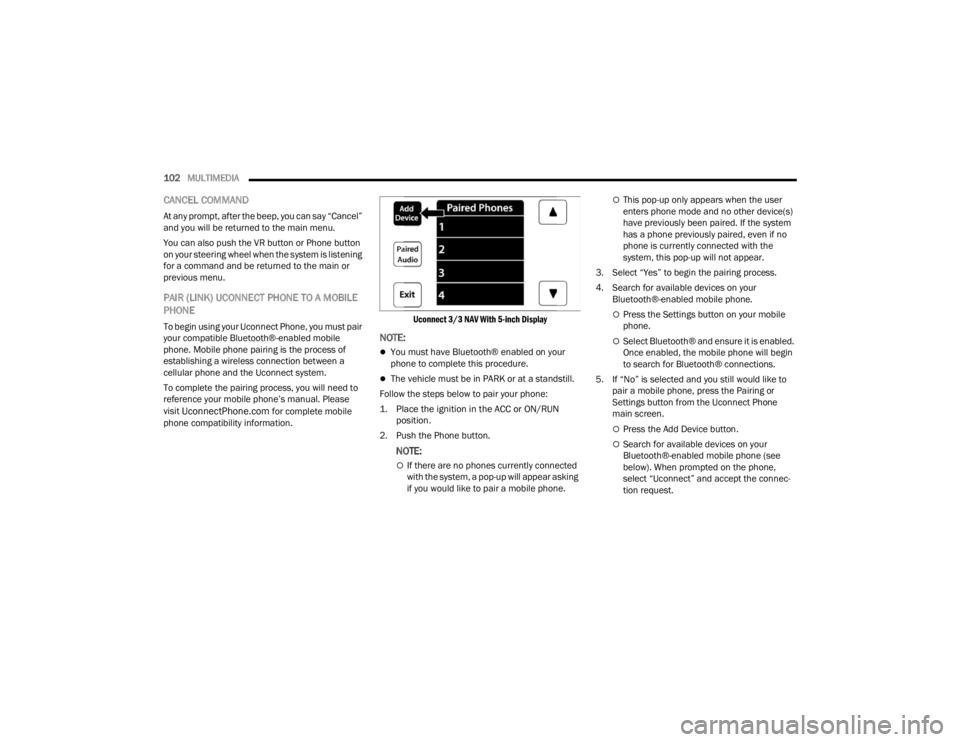
Uconnect 3/3 NAV With 5-inch Display
NOTE:
You must have Bluetooth® enabled on your
phone to complete this procedure.
The vehicle must be in PARK or at a standstill.
Follow the steps below to pair your phone:
1. Place the ignition in the ACC or ON/RUN position.
2. Push the Phone button.
NOTE:
If there are no phones currently connected
with the system, a pop-up will appear asking
if you would like to pair a mobile phone.
This pop-up only appears when the user
enters phone mode and no other device(s)
have previously been paired. If the system
has a phone previously paired, even if no
phone is currently connected with the
system, this pop-up will not appear.
3. Select “Yes” to begin the pairing process.
4. Search for available devices on your Bluetooth®-enabled mobile phone.
Press the Settings button on your mobile
phone.
Select Bluetooth® and ensure it is enabled.
Once enabled, the mobile phone will begin
to search for Bluetooth® connections.
5. If “No” is selected and you still would like to pair a mobile phone, press the Pairing or
Settings button from the Uconnect Phone
main screen.
Press the Add Device button.
Search for available devices on your
Bluetooth®-enabled mobile phone (see
below). When prompted on the phone,
select “Uconnect” and accept the connec -
tion request.
22_VM_OM_EN_USC_t.book Page 102