2022 RAM CHASSIS CAB horn
[x] Cancel search: hornPage 206 of 428
204MULTIMEDIA
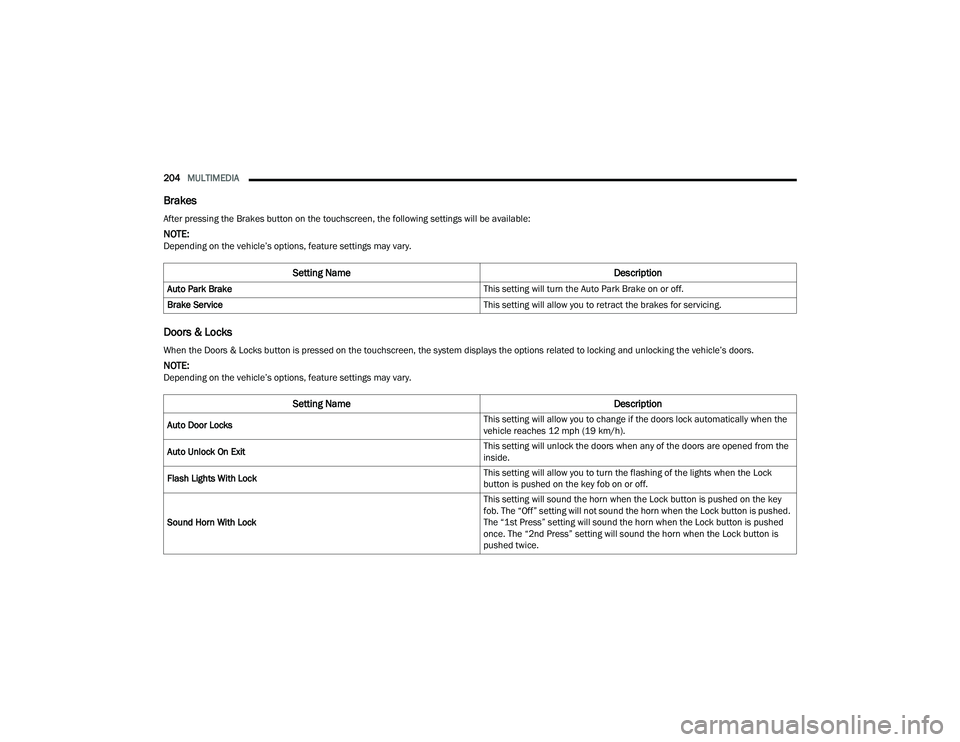
Brakes
Doors & Locks
After pressing the Brakes button on the touchscreen, the following settings will be available:
NOTE:Depending on the vehicle’s options, feature settings may vary.
Setting Name Description
Auto Park Brake This setting will turn the Auto Park Brake on or off.
Brake Service This setting will allow you to retract the brakes for servicing.
When the Doors & Locks button is pressed on the touchscreen, the system displays the options related to locking and unlocking the vehicle’s doors.
NOTE:Depending on the vehicle’s options, feature settings may vary.
Setting NameDescription
Auto Door Locks This setting will allow you to change if the doors lock automatically when the
vehicle reaches 12 mph (19 km/h).
Auto Unlock On Exit This setting will unlock the doors when any of the doors are opened from the
inside.
Flash Lights With Lock This setting will allow you to turn the flashing of the lights when the Lock
button is pushed on the key fob on or off.
Sound Horn With Lock This setting will sound the horn when the Lock button is pushed on the key
fob. The “Off” setting will not sound the horn when the Lock button is pushed.
The “1st Press” setting will sound the horn when the Lock button is pushed
once. The “2nd Press” setting will sound the horn when the Lock button is
pushed twice.
22_DPF_OM_EN_USC_t.book Page 204
Page 207 of 428
MULTIMEDIA205
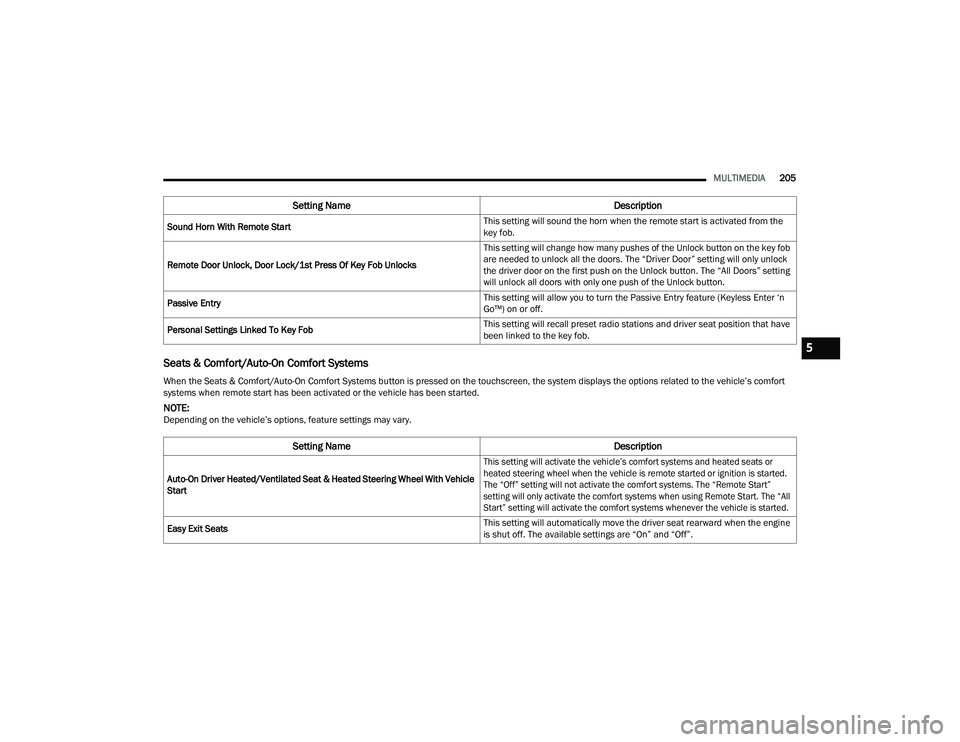
Seats & Comfort/Auto-On Comfort Systems
Sound Horn With Remote Start This setting will sound the horn when the remote start is activated from the
key fob.
Remote Door Unlock, Door Lock/1st Press Of Key Fob Unlocks This setting will change how many pushes of the Unlock button on the key fob
are needed to unlock all the doors. The “Driver Door” setting will only unlock
the driver door on the first push on the Unlock button. The “All Doors” setting
will unlock all doors with only one push of the Unlock button.
Passive Entry This setting will allow you to turn the Passive Entry feature (Keyless Enter ‘n
Go™) on or off.
Personal Settings Linked To Key Fob This setting will recall preset radio stations and driver seat position that have
been linked to the key fob.
When the Seats & Comfort/Auto-On Comfort Systems button is pressed on the touchscreen, the system displays the options related to the vehicle’s comfort
systems when remote start has been activated or the vehicle has been started.
NOTE:Depending on the vehicle’s options, feature settings may vary.
Setting Name Description
Auto-On Driver Heated/Ventilated Seat & Heated Steering Wheel With Vehicle
Start
This setting will activate the vehicle’s comfort systems and heated seats or
heated steering wheel when the vehicle is remote started or ignition is started.
The “Off” setting will not activate the comfort systems. The “Remote Start”
setting will only activate the comfort systems when using Remote Start. The “All
Start” setting will activate the comfort systems whenever the vehicle is started.
Easy Exit Seats This setting will automatically move the driver seat rearward when the engine
is shut off. The available settings are “On” and “Off”.
Setting Name
Description
5
22_DPF_OM_EN_USC_t.book Page 205
Page 237 of 428
MULTIMEDIA235
Features And Packages
After the trial period, you must purchase a
subscription to continue your services by calling a
SiriusXM Guardian™ Customer Care agent.
GETTING STARTED WITH CONNECTED
V
EHICLE SERVICES
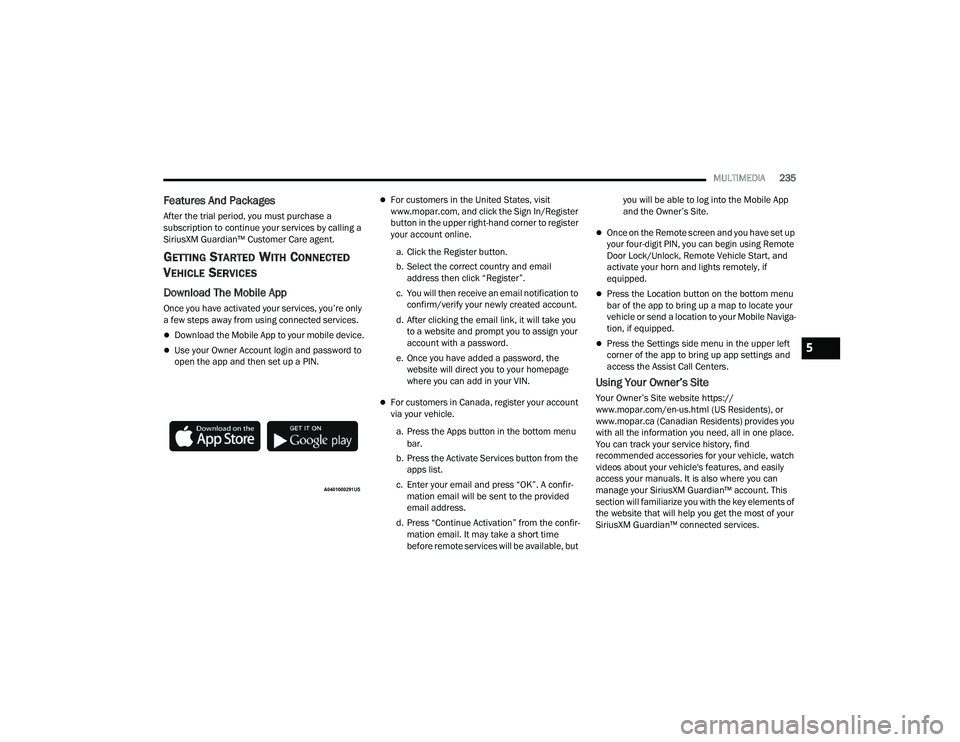
Download The Mobile App
Once you have activated your services, you’re only
a few steps away from using connected services.
Download the Mobile App to your mobile device.
Use your Owner Account login and password to
open the app and then set up a PIN.
For customers in the United States, visit
www.mopar.com, and click the Sign In/Register
button in the upper right-hand corner to register
your account online.
a. Click the Register button.
b. Select the correct country and email address then click “Register”.
c. You will then receive an email notification to confirm/verify your newly created account.
d. After clicking the email link, it will take you to a website and prompt you to assign your
account with a password.
e. Once you have added a password, the website will direct you to your homepage
where you can add in your VIN.
For customers in Canada, register your account
via your vehicle.
a. Press the Apps button in the bottom menu bar.
b. Press the Activate Services button from the apps list.
c. Enter your email and press “OK”. A confir -
mation email will be sent to the provided
email address.
d. Press “Continue Activation” from the confir -
mation email. It may take a short time
before remote services will be available, but you will be able to log into the Mobile App
and the Owner’s Site.
Once on the Remote screen and you have set up
your four-digit PIN, you can begin using Remote
Door Lock/Unlock, Remote Vehicle Start, and
activate your horn and lights remotely, if
equipped.
Press the Location button on the bottom menu
bar of the app to bring up a map to locate your
vehicle or send a location to your Mobile Naviga
-
tion, if equipped.
Press the Settings side menu in the upper left
corner of the app to bring up app settings and
access the Assist Call Centers.
Using Your Owner’s Site
Your Owner’s Site website https://
www.mopar.com/en-us.html (US Residents), or
www.mopar.ca (Canadian Residents) provides you
with all the information you need, all in one place.
You can track your service history, find
recommended accessories for your vehicle, watch
videos about your vehicle's features, and easily
access your manuals. It is also where you can
manage your SiriusXM Guardian™ account. This
section will familiarize you with the key elements of
the website that will help you get the most of your
SiriusXM Guardian™ connected services.
5
22_DPF_OM_EN_USC_t.book Page 235
Page 238 of 428
236MULTIMEDIA
For customers in the United States, press the Sign
In/Register button and enter your email address
and password.
For customers in Canada, press the My Vehicle
button. Select from “Dashboard”, “Vehicle Health
Report”, and “Recalls”. The website will then
prompt you to log in using your email address and
password.
Edit/Edit Profile:
To manage the details of your SiriusXM
Guardian™ account, such as your contact infor -
mation, password and SiriusXM Guardian™ PIN,
click on the Edit/Edit Profile button to access
the details of your account.
Connected Services Status:
This statement will indicate your SiriusXM
Guardian™-equipped vehicle.
Remote Commands:
For vehicles with an active SiriusXM Guardian™
subscription, press one of these icons and enter
your four-digit SiriusXM Guardian™ Security PIN
to remotely start (if equipped), lock/unlock
doors or sound the horn and flash the lights.
Editing Your Notifications
Notifications are an important element of your
SiriusXM Guardian™ account. For example, any
time you use your remote services (such as
Remote Door Unlock), you can elect to receive a text message, push notification, and/or E-mail to
notify you of the event. To set up the notifications,
please follow these instructions.
1. Log on to your Owner’s Account at
https://
www.mopar.com/en-us.html (US Residents)
and select “Dashboard”, or www.mopar.ca
(Canadian Residents), select “My Vehicle”
and then “Dashboard”.
2. Click the Edit/Edit Profile button.
3. Once there, select “SiriusXM Guardian™” where you can edit Notification Preferences.
4. You can enter a mobile phone and/or email address to notify you, and you can customize
the types of messages.
USING SIRIUSXM GUARDIAN™
SOS Call — If Equipped
Access To Emergency Services At The Push Of A
Button
SiriusXM Guardian™ In-Vehicle Assistance
Features
With SiriusXM Guardian™, your vehicle has
onboard assistance features located on the
rearview mirror or overhead console designed to
enhance your driving experience if you should ever
need assistance or support.
Description
SOS Call offers a convenient way to get in contact
with a SiriusXM Guardian™ Customer Care agent
in the event of an emergency. When the
connection between the vehicle and the live agent
is made, your vehicle will automatically transmit
location information. In the event of a minor
collision, medical or any other emergency, press
the SOS button to be connected to a call center
agent who can send emergency assistance to your
vehicle’s location.
WARNING!
Some SiriusXM Guardian™ connected services,
including SOS Call and Roadside Assistance
Call, will NOT work without a network connection
compatible with your device.
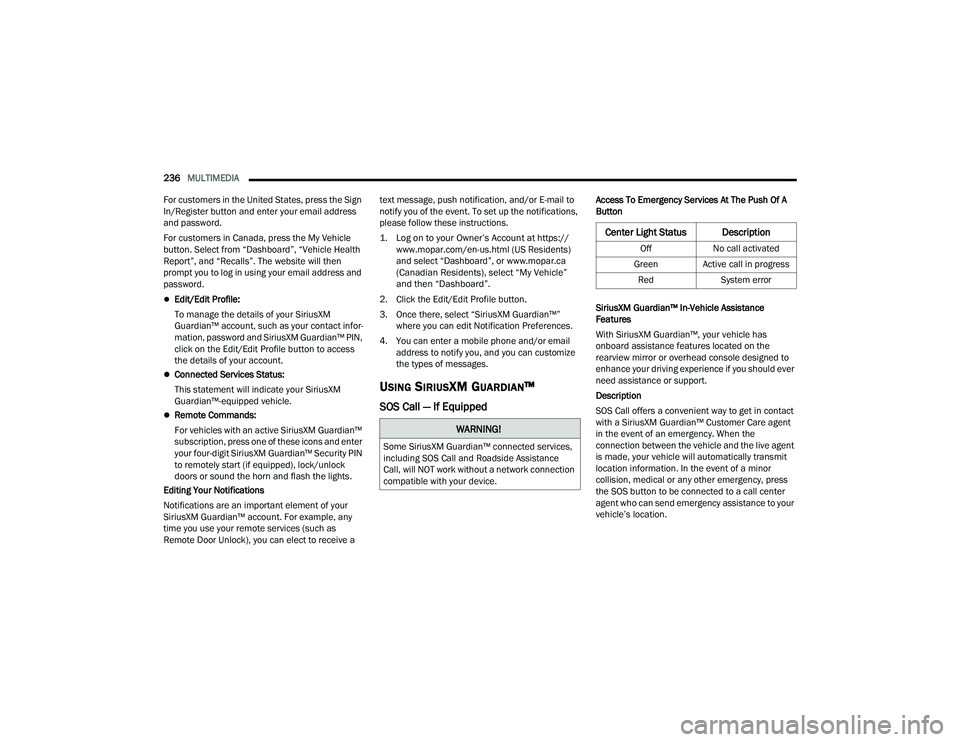
Center Light Status Description
Off No call activated
Green Active call in progress Red System error
22_DPF_OM_EN_USC_t.book Page 236
Page 241 of 428

MULTIMEDIA239
After a crash where the airbags deploy:
1. Automatic SOS will initiate a call with an agent.
2. An agent will receive the call and confirm the location of the emergency.
3. If needed, the agent will request the assistance of emergency services.
4. First responders will arrive on scene. The agent will remain on the call until emergency
services arrive.
NOTE:
Agents are available 24/7 to assist you in the
case of an emergency.
On your behalf, agents are able to notify family
members about the collision.
Agents can brief first responders of the situation
before they arrive on scene.
In the event vehicle occupants are unable to
speak, emergency services will be dispatched
based on the last known GPS coordinates.
SiriusXM Guardian™ connected services are
dependent upon an operative telematics
device, a cellular connection, navigation map
data, and GPS satellite reception, which can limit the ability to reach the response center or
reach emergency support.
Terms of service of the Uconnect and the
SiriusXM Guardian™ subscriber agreement
apply. See terms of services for complete
service limitation.
Remote Commands
On the Remote Commands screen, you have
access to several vehicle features that can be
controlled remotely from your mobile device. These
features include locking/unlocking, remote
starting, and activating the horn and lights of the
vehicle.
Remote Commands lets you send a request to your
vehicle in one of three ways:
Anywhere using your mobile device and Mobile
App
From your computer on the Owner’s Site (not
available on all functions)
Contacting SiriusXM Guardian™ Customer Care
(not available on all functions)
Using A Remote Command Through Your Mobile
Device And The Mobile App
1. Press the desired Remote Command icon on your mobile device.
2. A pop-up screen will appear asking for your SiriusXM Guardian™ Security PIN (this is the
same four-digit code established when you
activated your SiriusXM Guardian™ connected
services). Enter the SiriusXM Guardian™
Security PIN on the keypad.
3. It may take 30 seconds or more for the command to go through to your vehicle.
4. A message will let you know if the command was received by your vehicle.
Lock
Press this button to
lock your vehicle.
Vehicle Start Press this button to
start your vehicle.
Horn & Lights Press this button to
sound the horn and activate your lights.
Unlock Press this button to
unlock your vehicle.
Cancel Vehicle Start Press this button to
cancel remote start.
5
22_DPF_OM_EN_USC_t.book Page 239
Page 242 of 428

240MULTIMEDIA
Using A Remote Command Through Your Owner’s
Site
1. Log on to your Owner’s Site using the username and password you used when
activating your SiriusXM Guardian™
connected services in your vehicle.
NOTE:If you forgot your username or password, links are
provided on the website to help you retrieve them.
2. If you have more than one vehicle registered into your Owner’s Site, select the vehicle you
want to send the command to by clicking on its
image along the top.
3. On your dashboard, you will see remote commands. Press the desired icon to activate
that feature.
4. You will then be asked to enter your SiriusXM Guardian™ Security PIN (this is the same
four-digit code established when you activated
your SiriusXM Guardian™ connected services).
Please enter your SiriusXM Guardian™
Security PIN.
5. A message will appear on the screen to let you know if the command was received by your
vehicle. Contacting SiriusXM Guardian™ Customer Care
(for example, in case of an accidental lock-out):
1. Contact SiriusXM Guardian™ Customer Care if you are unable to lock your vehicle through
the Mobile App or your key fob.
2. For security purposes, the SiriusXM Guardian™ Customer Care agent will verify
your identity by asking for your four-digit
SiriusXM Guardian™ Security PIN.
3. After providing your SiriusXM Guardian™ Security PIN, you can ask them to perform a
remote command.
NOTE:Anyone with access to your PIN may request
Remote Door Lock/Unlock. It is your responsibility
to protect your PIN appropriately.
Remote Door Lock/Unlock
Description
The Remote Door Lock/Unlock feature provides
you the ability to lock or unlock the door on your
vehicle without the keys and from virtually any
distance.
Working Vehicle Conditions
The vehicle must in PARK or at a standstill.
The vehicle must be in an open area with cell
tower reception.
Your mobile device must have a cellular or Wi-Fi
connection.
Requirements
Vehicle must be properly equipped with
SiriusXM Guardian™.
Vehicle must have an operable LTE (voice/data)
or 3G or 4G (data) network connection. If using
the Mobile App to command your vehicle, your
device must be compatible and be connected to
an operable LTE (voice/data) or 3G or 4G (data)
network connection.
Vehicle must be registered with SiriusXM
Guardian™ and have an active subscription that
includes the applicable feature.
An ignition cycle is required for some remote
commands, such as Remote Vehicle Start and
Remote Door Lock/Unlock if following a Remote
Horn & Lights activation.
Your Remote Door Lock/Unlock request will not
be processed if the vehicle is in motion, the igni -
tion key is on or during an emergency call.
NOTE:All other remote services should be performed via
your Owner’s Site or through the Mobile App on
your compatible device.
22_DPF_OM_EN_USC_t.book Page 240
Page 243 of 428

MULTIMEDIA241
Remote Vehicle Start
Description
The Remote Vehicle Start feature provides you with
the ability to start the engine on your vehicle
without the keys and from virtually any distance.
Once started, the preset climate controls in your
vehicle can warm up or cool down the interior.
You can also send a command to turn off an
engine that has been started using Remote Vehicle
Start. After 15 minutes, if you have not entered
your vehicle with the key, the engine will shut off
automatically.
This remote function requires your vehicle to be
equipped with a factory-installed Remote Start
system.
You can set up push notifications every time a
command is sent to activate or cancel Remote
Start.
Working Vehicle Conditions
The vehicle must be off or in ACC mode.
The vehicle has been started with the key fob
within the last 14 days.
The vehicle must be in PARK or at a standstill.
The vehicle’s security system has been armed
and not triggered since the last vehicle start.
The doors, hood, and trunk/liftgate are closed.
The vehicle’s check engine light must be off.
The vehicle must have at least a quarter tank of
fuel, along with oil and battery power.
The vehicle’s hazard lights must be off.
If equipped, the vehicle must have an automatic
transmission.
The vehicle must be in an open area with cell
tower reception.
Your mobile device must have a cellular or Wi-Fi
connection.
If the Panic button has been pressed, the
vehicle must be started at least once after
alarming the system.
NOTE:The SiriusXM Guardian™ Customer Care agents
are not authorized for Remote Vehicle Start
services. Contact the Uconnect Care Team for
assistance.
Remote Horn & Lights
Description
It is easy to locate a vehicle in a dark, crowded or
noisy parking area by activating the horn and
lights. It may also help if you need to draw attention
to your vehicle for any reason.
If you want, you can set up push notifications every
time a command is sent to turn on the horn and
lights. Working Vehicle Conditions
The vehicle must in PARK or at a standstill.
The vehicle must be in an open area with cell
tower reception.
Your mobile device must have a cellular or Wi-Fi
connection.
NOTE:The Remote Horn & Lights feature is designed to
be loud and get noticed. Please keep in mind the
surroundings when using this feature. You are
responsible for compliance with local laws, rules
and ordinances in the location of your vehicle
when using Remote Horn & Lights.
Assist — If Equipped
Description
Vehicles equipped with the SiriusXM Guardian™
connected services feature may contain an ASSIST
button in the vehicle. Once your SiriusXM
Guardian™ connected services have been
activated, the ASSIST button can connect you
directly to a Customer Care call center (if
equipped). You will be directed to one of the four
services below:
Roadside Assistance
— If you get a flat tire or
need a tow, you’ll be connected to someone
who can help anytime.
Connected Services — Contact the SiriusXM
Guardian™ Customer Care call center to acti -
5
22_DPF_OM_EN_USC_t.book Page 241
Page 245 of 428

MULTIMEDIA243
Vehicle Finder
Description
The Vehicle Finder feature allows you to find the
location of your vehicle.
You can also sound the horn and flash the lights to
make finding your vehicle even easier.
How It Works
Select the Vehicle Finder function within the
Mobile App and select the Location tab at the
bottom of the App. Then, press the Vehicle icon to
find your vehicle.
Requirements
Vehicle must be properly equipped with the
Uconnect system.
Vehicle must have an operable LTE (voice/data)
or 3G or 4G (data) network connection compat -
ible with your device.
Vehicle must have an active subscription that
includes the applicable feature.
Vehicle ignition must have been turned on
within 14 days.
4G Wi-Fi Hotspot — If Equipped
Description
4G Wi-Fi Hotspot is an in-vehicle service that
connects your device to an LTE (voice/data) or 4G
(data) network that is ready to go wherever you are.
After you've made your purchase, turn on your
device’s Wi-Fi and connect your devices.
Enables all your passengers to be simultane -
ously connected to the web.
Connect several devices at one time.
Any Wi-Fi-enabled device — such as a laptop or
any other portable-enabled media — can
connect over your private in-vehicle network.
A high-speed, secured connection lets anyone
on your private network access the Web — great
for working and relaxing. Create A 4G Wi-Fi Hotspot For Use In Your Vehicle
How It Works
The 4G Wi-Fi Hotspot feature provides
the vehicle passengers with an internet
access hotspot in the vehicle, using the
radio as an access point. The hotspot will
allow Wi-Fi-enabled in-vehicle devices (such as a
laptop or any other portable-enabled media
device) to wirelessly connect to the internet.
Uconnect offers a complimentary 3-month trial
period that includes 1GB of total data. The trial can
be activated any time within the first year of new
vehicle ownership.
Use one of these three ways to purchase a
subscription to the 4G Wi-Fi Hotspot:
1. From your vehicle’s touchscreen, select the 4G Wi-Fi Hotspot App, and press the How To
Purchase button and follow the instructions.
2. Log onto your Owner’s Site and click the link to the AT&T portal to get set up.
3. For existing Connected Car customers: Push
the ASSIST button to be routed to an AT&T
Customer Care agent who will assist you.
WARNING!
The driver should NEVER use the 4G Wi-Fi
Hotspot while driving the vehicle as doing so
may result in an accident involving serious injury
or death.
5
22_DPF_OM_EN_USC_t.book Page 243