Page 294 of 604
4-64Monitor, heater, air conditioner, audio, phone and voice recognition systems
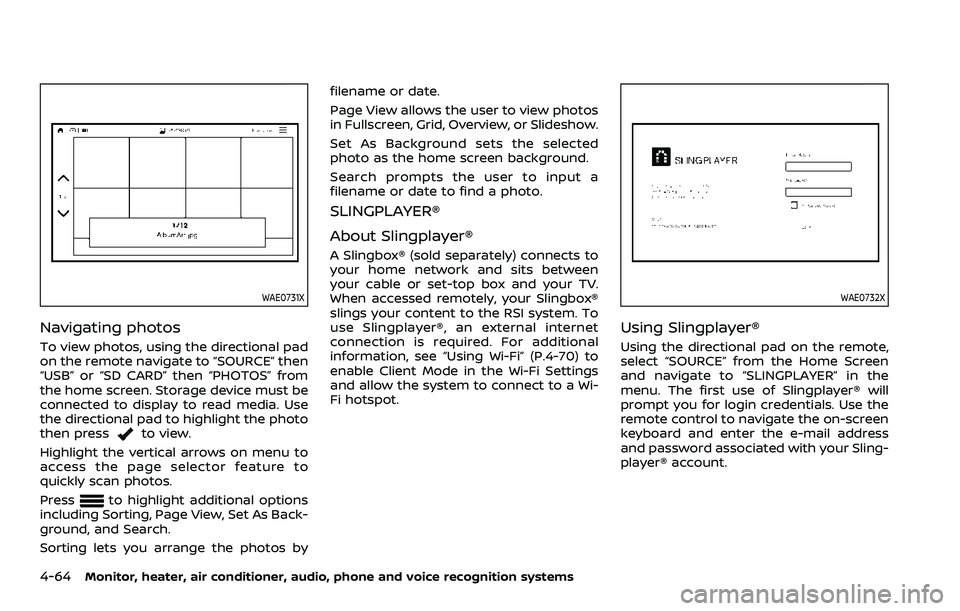
WAE0731X
Navigating photos
To view photos, using the directional pad
on the remote navigate to “SOURCE” then
“USB” or “SD CARD” then “PHOTOS” from
the home screen. Storage device must be
connected to display to read media. Use
the directional pad to highlight the photo
then press
to view.
Highlight the vertical arrows on menu to
access the page selector feature to
quickly scan photos.
Press
to highlight additional options
including Sorting, Page View, Set As Back-
ground, and Search.
Sorting lets you arrange the photos by filename or date.
Page View allows the user to view photos
in Fullscreen, Grid, Overview, or Slideshow.
Set As Background sets the selected
photo as the home screen background.
Search prompts the user to input a
filename or date to find a photo.
SLINGPLAYER®
About Slingplayer®
A Slingbox® (sold separately) connects to
your home network and sits between
your cable or set-top box and your TV.
When accessed remotely, your Slingbox®
slings your content to the RSI system. To
use Slingplayer®, an external internet
connection is required. For additional
information, see “Using Wi-Fi” (P.4-70) to
enable Client Mode in the Wi-Fi Settings
and allow the system to connect to a Wi-
Fi hotspot.
WAE0732X
Using Slingplayer®
Using the directional pad on the remote,
select “SOURCE” from the Home Screen
and navigate to “SLINGPLAYER” in the
menu. The first use of Slingplayer® will
prompt you for login credentials. Use the
remote control to navigate the on-screen
keyboard and enter the e-mail address
and password associated with your Sling-
player® account.
Page 295 of 604
WAE0733X
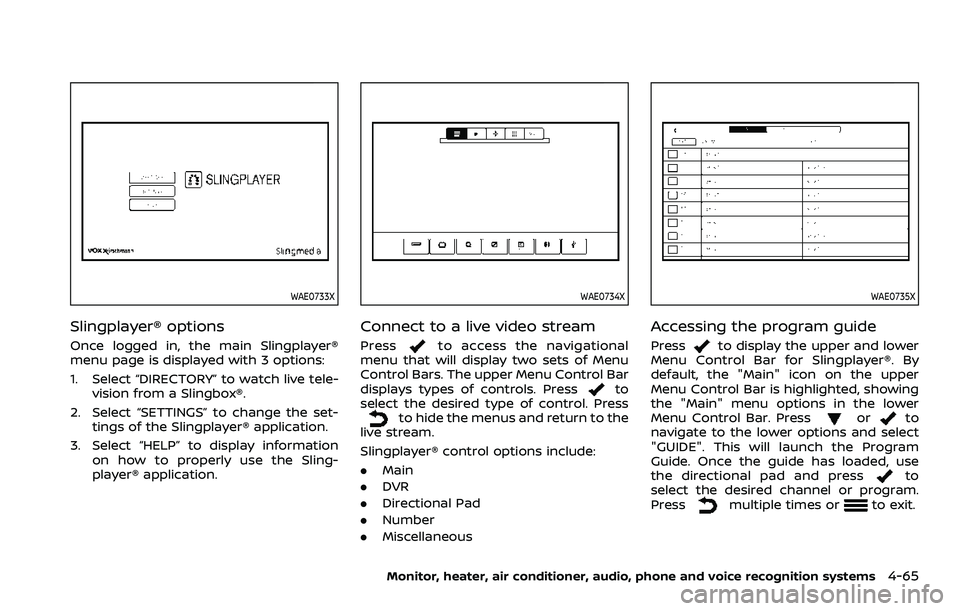
Slingplayer® options
Once logged in, the main Slingplayer®
menu page is displayed with 3 options:
1. Select “DIRECTORY” to watch live tele-vision from a Slingbox®.
2. Select “SETTINGS” to change the set- tings of the Slingplayer® application.
3. Select “HELP” to display information on how to properly use the Sling-
player® application.
WAE0734X
Connect to a live video stream
Pressto access the navigational
menu that will display two sets of Menu
Control Bars. The upper Menu Control Bar
displays types of controls. Press
to
select the desired type of control. Press
to hide the menus and return to the
live stream.
Slingplayer® control options include:
. Main
. DVR
. Directional Pad
. Number
. Miscellaneous
WAE0735X
Accessing the program guide
Pressto display the upper and lower
Menu Control Bar for Slingplayer®. By
default, the "Main" icon on the upper
Menu Control Bar is highlighted, showing
the "Main" menu options in the lower
Menu Control Bar. Press
orto
navigate to the lower options and select
"GUIDE". This will launch the Program
Guide. Once the guide has loaded, use
the directional pad and press
to
select the desired channel or program.
Press
multiple times orto exit.
Monitor, heater, air conditioner, audio, phone and voice recognition systems4-65
Page 300 of 604
4-70Monitor, heater, air conditioner, audio, phone and voice recognition systems
WAE0741X
Using Wi-Fi
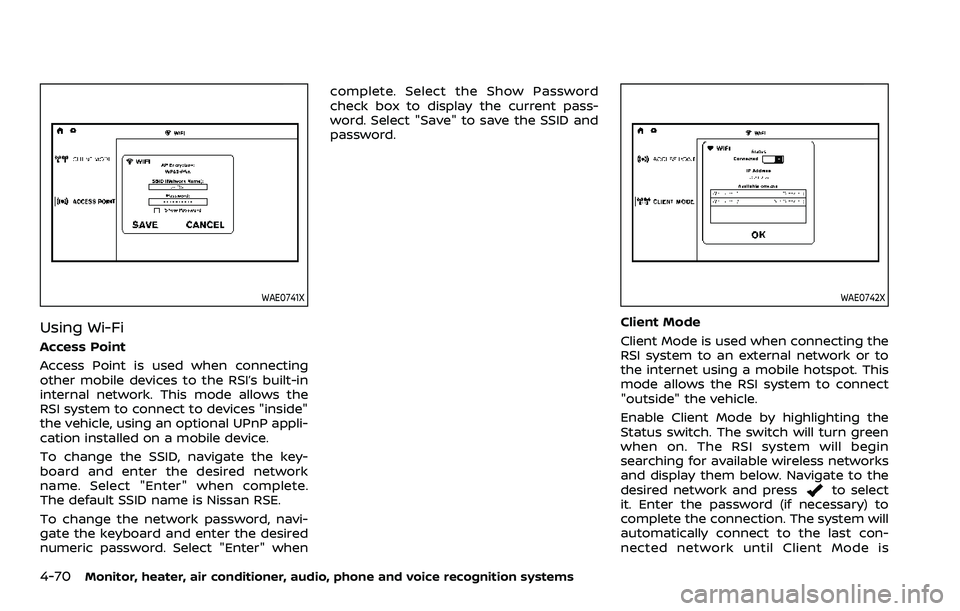
Access Point
Access Point is used when connecting
other mobile devices to the RSI’s built-in
internal network. This mode allows the
RSI system to connect to devices "inside"
the vehicle, using an optional UPnP appli-
cation installed on a mobile device.
To change the SSID, navigate the key-
board and enter the desired network
name. Select "Enter" when complete.
The default SSID name is Nissan RSE.
To change the network password, navi-
gate the keyboard and enter the desired
numeric password. Select "Enter" whencomplete. Select the Show Password
check box to display the current pass-
word. Select "Save" to save the SSID and
password.
WAE0742X
Client Mode
Client Mode is used when connecting the
RSI system to an external network or to
the internet using a mobile hotspot. This
mode allows the RSI system to connect
"outside" the vehicle.
Enable Client Mode by highlighting the
Status switch. The switch will turn green
when on. The RSI system will begin
searching for available wireless networks
and display them below. Navigate to the
desired network and press
to select
it. Enter the password (if necessary) to
complete the connection. The system will
automatically connect to the last con-
nected network until Client Mode is
Page 301 of 604
disabled.
NOTE:
Client Mode will use data from the
external Wi-Fi connection. Use with care
as additional data is consumed when
using mobile device data plans.
Using Read Back*
Enable the Read Back feature by high-
lighting the Status switch. The switch will
turn green when on. Highlight the Save
button and press
to enable Read
Back. When enabled, the RSI system will
read the text of menu items displayed on
the screen, providing audible guidance on
how to use the system. A blue bar will also
appear at the top of each screen indicat-
ing the Read Back feature is enabled.
Speech Volume
Speech Volume can be adjusted to match
the media volume (spoken text volume is
the same volume level as the content
being played). To reduce the Speech
Volume to be lower than the volume level
content being played, set it to 75%, 50%,
or 25% of the media volume.
Speech Rate
Speech Rate can be adjusted between
Normal, Fast, or Slow. This setting con-
trols how fast the spoken text is pro-
nounced. *Complies with FCC/Accessibility rule 21st
Century Communications and Video Ac-
cessibility Act (CVAA).
WAE0743X
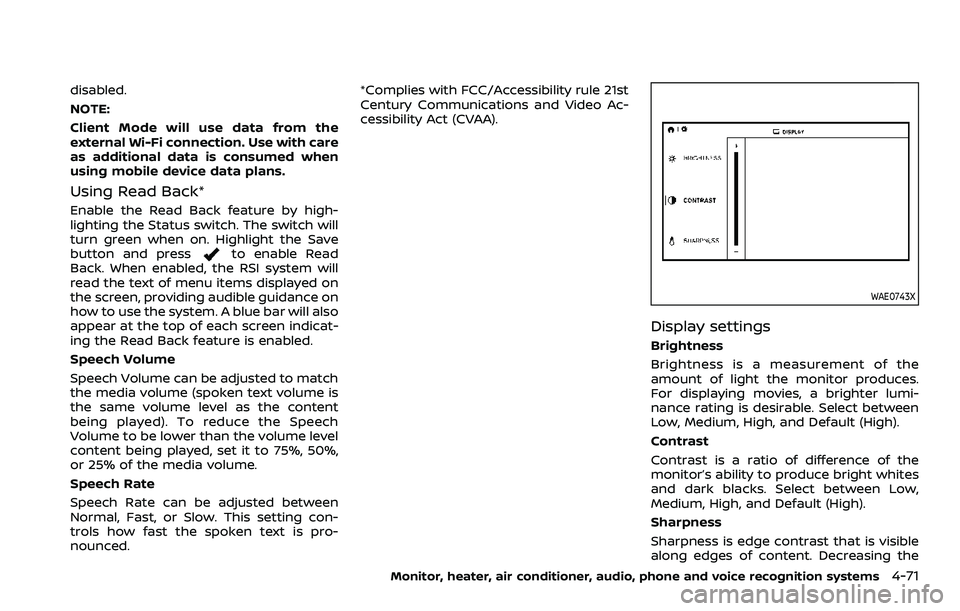
Display settings
Brightness
Brightness is a measurement of the
amount of light the monitor produces.
For displaying movies, a brighter lumi-
nance rating is desirable. Select between
Low, Medium, High, and Default (High).
Contrast
Contrast is a ratio of difference of the
monitor’s ability to produce bright whites
and dark blacks. Select between Low,
Medium, High, and Default (High).
Sharpness
Sharpness is edge contrast that is visible
along edges of content. Decreasing the
Monitor, heater, air conditioner, audio, phone and voice recognition systems4-71
Page 303 of 604
see “Bluetooth® streaming” (P.4-74).
WAE0746X
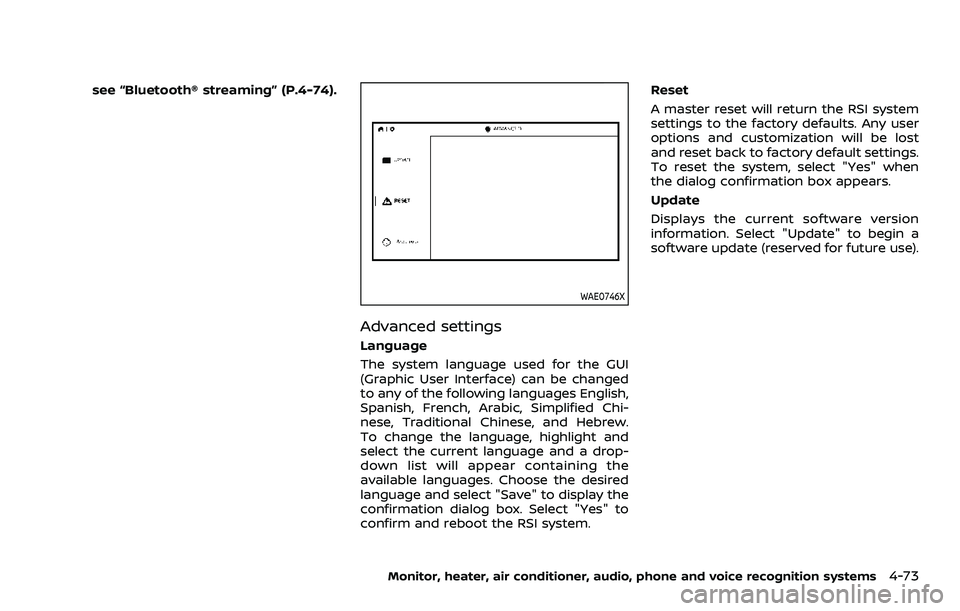
Advanced settings
Language
The system language used for the GUI
(Graphic User Interface) can be changed
to any of the following languages English,
Spanish, French, Arabic, Simplified Chi-
nese, Traditional Chinese, and Hebrew.
To change the language, highlight and
select the current language and a drop-
down list will appear containing the
available languages. Choose the desired
language and select "Save" to display the
confirmation dialog box. Select "Yes" to
confirm and reboot the RSI system.Reset
A master reset will return the RSI system
settings to the factory defaults. Any user
options and customization will be lost
and reset back to factory default settings.
To reset the system, select "Yes" when
the dialog confirmation box appears.
Update
Displays the current software version
information. Select "Update" to begin a
software update (reserved for future use).
Monitor, heater, air conditioner, audio, phone and voice recognition systems4-73
Page 304 of 604
4-74Monitor, heater, air conditioner, audio, phone and voice recognition systems
WAE0747X
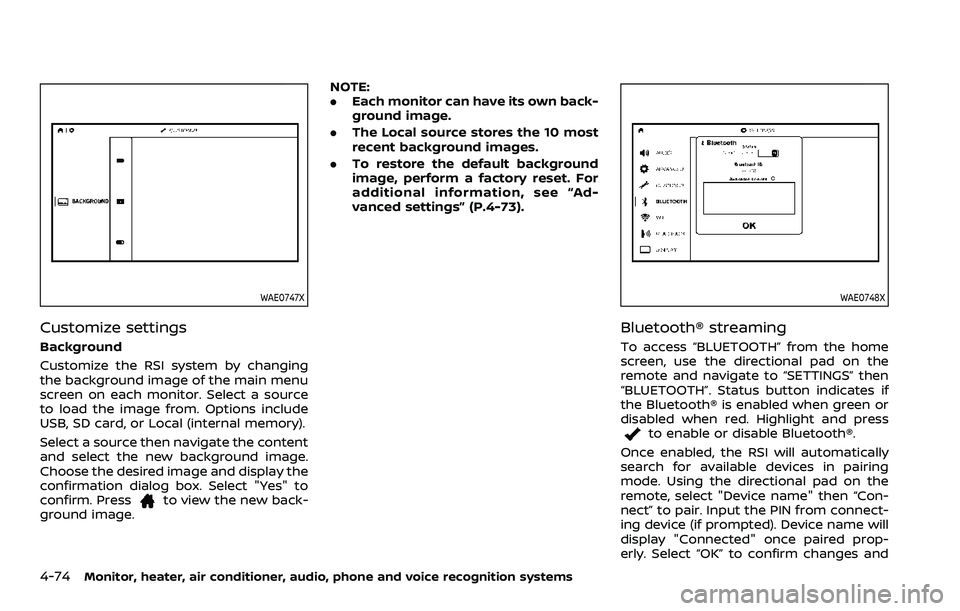
Customize settings
Background
Customize the RSI system by changing
the background image of the main menu
screen on each monitor. Select a source
to load the image from. Options include
USB, SD card, or Local (internal memory).
Select a source then navigate the content
and select the new background image.
Choose the desired image and display the
confirmation dialog box. Select "Yes" to
confirm. Press
to view the new back-
ground image. NOTE:
.
Each monitor can have its own back-
ground image.
. The Local source stores the 10 most
recent background images.
. To restore the default background
image, perform a factory reset. For
additional information, see “Ad-
vanced settings” (P.4-73).
WAE0748X
Bluetooth® streaming
To access “BLUETOOTH” from the home
screen, use the directional pad on the
remote and navigate to “SETTINGS” then
“BLUETOOTH”. Status button indicates if
the Bluetooth® is enabled when green or
disabled when red. Highlight and press
to enable or disable Bluetooth®.
Once enabled, the RSI will automatically
search for available devices in pairing
mode. Using the directional pad on the
remote, select "Device name" then “Con-
nect” to pair. Input the PIN from connect-
ing device (if prompted). Device name will
display "Connected" once paired prop-
erly. Select “OK” to confirm changes and
Page 305 of 604
close the window. To unpair a Bluetooth®
device, select Device name then Unpair.
If the device is not listed, select Refresh
Symbol and the device will appear in
Available device list. If device does not
appear, double check that the device is in
pairing mode (refer to the device’s man-
ual for instructions).
Bluetooth® equipped vehicles can stream
audio from the display through vehicle’s
sound system once paired. For additional
information, refer to the separate Nissan-
Connect® Owner’s Manual.
WAE0729X
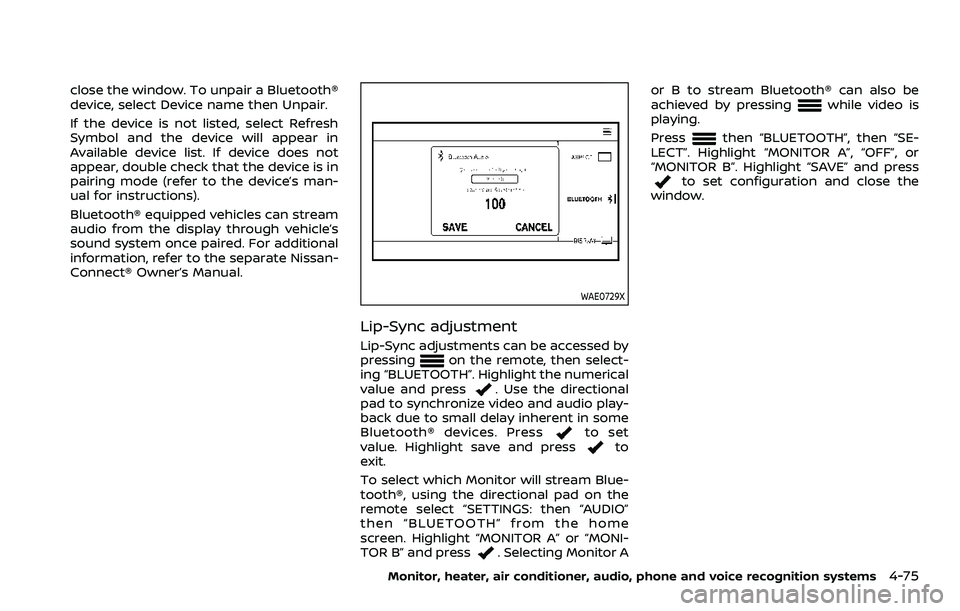
Lip-Sync adjustment
Lip-Sync adjustments can be accessed by
pressingon the remote, then select-
ing “BLUETOOTH”. Highlight the numerical
value and press
. Use the directional
pad to synchronize video and audio play-
back due to small delay inherent in some
Bluetooth® devices. Press
to set
value. Highlight save and pressto
exit.
To select which Monitor will stream Blue-
tooth®, using the directional pad on the
remote select “SETTINGS: then “AUDIO”
then “BLUETOOTH” from the home
screen. Highlight “MONITOR A” or “MONI-
TOR B” and press
. Selecting Monitor A or B to stream Bluetooth® can also be
achieved by pressing
while video is
playing.
Press
then “BLUETOOTH”, then “SE-
LECT”. Highlight “MONITOR A”, “OFF”, or
“MONITOR B”. Highlight “SAVE” and press
to set configuration and close the
window.
Monitor, heater, air conditioner, audio, phone and voice recognition systems4-75
Page 308 of 604
4-78Monitor, heater, air conditioner, audio, phone and voice recognition systems
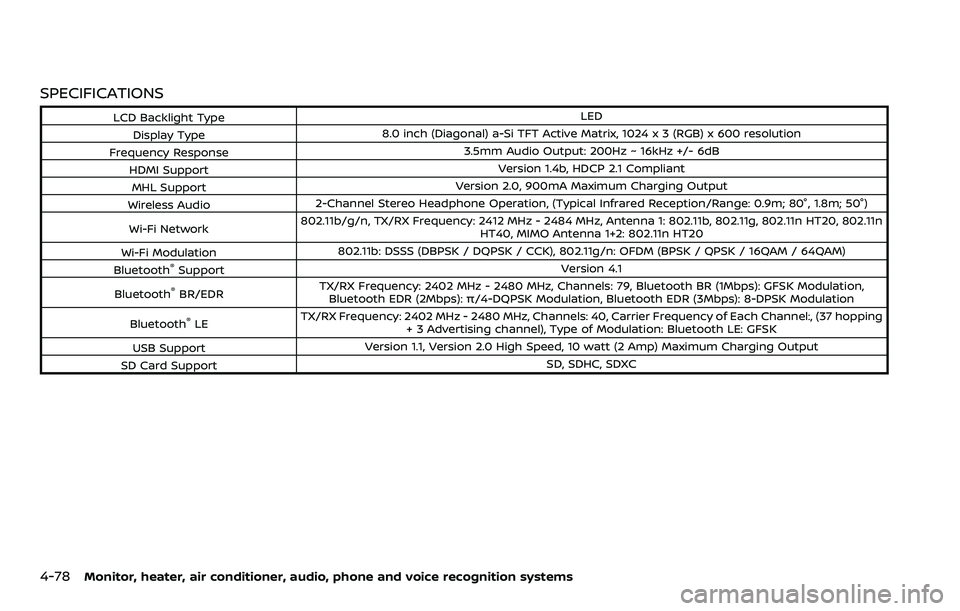
SPECIFICATIONS
LCD Backlight TypeLED
Display Type 8.0 inch (Diagonal) a-Si TFT Active Matrix, 1024 x 3 (RGB) x 600 resolution
Frequency Response 3.5mm Audio Output: 200Hz ~ 16kHz +/- 6dB
HDMI Support Version 1.4b, HDCP 2.1 Compliant
MHL Support Version 2.0, 900mA Maximum Charging Output
Wireless Audio 2-Channel Stereo Headphone Operation, (Typical Infrared Reception/Range: 0.9m; 80°, 1.8m; 50°)
Wi-Fi Network 802.11b/g/n, TX/RX Frequency: 2412 MHz - 2484 MHz, Antenna 1: 802.11b, 802.11g, 802.11n HT20, 802.11n
HT40, MIMO Antenna 1+2: 802.11n HT20
Wi-Fi Modulation 802.11b: DSSS (DBPSK / DQPSK / CCK), 802.11g/n: OFDM (BPSK / QPSK / 16QAM / 64QAM)
Bluetooth
®Support Version 4.1
Bluetooth
®BR/EDR TX/RX Frequency: 2402 MHz - 2480 MHz, Channels: 79, Bluetooth BR (1Mbps): GFSK Modulation,
Bluetooth EDR (2Mbps): π/4-DQPSK Modulation, Bluetooth EDR (3Mbps): 8-DPSK Modulation
Bluetooth
®LE TX/RX Frequency: 2402 MHz - 2480 MHz, Channels: 40, Carrier Frequency of Each Channel:, (37 hopping
+ 3 Advertising channel), Type of Modulation: Bluetooth LE: GFSK
USB Support Version 1.1, Version 2.0 High Speed, 10 watt (2 Amp) Maximum Charging Output
SD Card Support SD, SDHC, SDXC