2022 NISSAN ARMADA light
[x] Cancel search: lightPage 230 of 604
3-42Pre-driving checks and adjustments
The driver’s seat, steering column and
outside mirrors will move to the
memorized position or to the exit
position when the entry/exit function
is set to active with the indicator light
flashing, and then the light will stay on
for approximately 5 seconds.
SETTING MEMORY FUNCTION
The status of the following settings can
be linked to the Intelligent Key and the
memorized settings can be available for
each Intelligent Key.
.Air conditioner system
. Navigation system (if so equipped)
. Audio system
To use the memory function, lock the
doors with the Intelligent Key that is
linked to the settings.
To enable the memorized settings:
1. Carry the Intelligent Key that is linked to the settings, and unlock the doors
by pushing the driver’s door handle
request switch or “UNLOCK”
but-
ton on the Intelligent Key.
2. Place the ignition switch in the ON position. “Connection with the key has
been done” will be displayed on the
screen and the memorized settings
are available (only when a new Intel-
ligent Key is used).
SYSTEM OPERATION
The memory seat system will not work or
will stop operating under the following
conditions:
.When the vehicle speed is above 0
MPH (0 km/h) or 4 MPH (7 km/h) for
some limited functions such linking an
Intelligent Key to the vehicle when the
power source is turned on from off or
during the Exit function.
. When any of the memory switches are
pushed while the memory seat is
operating.
. When the adjusting switch for the
driver’s seat and steering column is
turned on while the memory seat is
operating.
. When the seat has already been
moved to the memorized position.
. When no seat position is stored in the
memory switch.
. When the shift lever is moved from the
P (Park) position to any other position.
Page 240 of 604

4-10Monitor, heater, air conditioner, audio, phone and voice recognition systems
REARVIEW MONITOR SYSTEM LIM-
ITATIONS
WARNING
Listed below are the system limita-
tions for RearView Monitor. Failure to
operate the vehicle in accordance
with these system limitations could
result in serious injury or death.
.The system cannot completely
eliminate blind spots and may
not show every object.
. Underneath the bumper and the
corner areas of the bumper can-
not be viewed on the RearView
Monitor because of its monitoring
range limitation. The system will
not show small objects below the
bumper, and may not show ob-
jects close to the bumper or on
the ground.
. Objects viewed in the RearView
Monitor differ from actual dis-
tance because a wide-angle lens
is used.
. Objects in the RearView Monitor
will appear visually opposite
compared to when viewed in the
rearview and outside mirrors. .
Use the displayed lines as a re-
ference. The lines are highly af-
fected by the number of
occupants, fuel level, vehicle po-
sition, road conditions and road
grade.
. Make sure that the liftgate is
securely closed when backing up.
. Do not put anything on the rear-
view camera. The rearview cam-
era is installed above the license
plate.
. When washing the vehicle with
high-pressure water, be sure not
to spray it around the camera.
Otherwise, water may enter the
camera unit causing water con-
densation on the lens, a malfunc-
tion, fire or an electric shock.
. Do not strike the camera. It is a
precision instrument. Otherwise,
it may malfunction or cause da-
mage resulting in a fire or an
electric shock.
The following are operating limitations
and do not represent a system malfunc-
tion:
. When the temperature is extremely
high or low, the screen may not clearly
display objects. .
When strong light directly shines on
the camera, objects may not be dis-
played clearly.
. Vertical lines may be seen in objects
on the screen. This is due to strong
reflected light from the bumper.
. The screen may flicker under fluores-
cent light.
. The colors of objects on the RearView
Monitor may differ somewhat from
the actual color of objects.
. Objects on the monitor may not be
clear in a dark environment.
. There may be a delay when switching
between views.
. If dirt, rain or snow accumulates on
the camera, the RearView Monitor
may not display objects clearly. Clean
the camera.
. Do not use wax on the camera lens.
Wipe off any wax with a clean cloth
dampened with a diluted mild clean-
ing agent, then wipe with a dry cloth.
Page 244 of 604
4-14Monitor, heater, air conditioner, audio, phone and voice recognition systems
ber of occupants, fuel level, vehi-
cle position, road condition and
road grade.
. If the tires are replaced with
different sized tires, the predic-
tive course lines and the bird’s-
eye view may be displayed incor-
rectly.
. When driving the vehicle up a hill,
objects viewed in the monitor are
farther than they appear. When
driving the vehicle down a hill,
objects viewed in the monitor are
closer than they appear.
. Objects in the rear view will ap-
pear visually opposite compared
to when viewed in the rear view
and outside mirrors.
. Use the mirrors or actually look to
properly judge distances to other
objects.
. The distance between objects
viewed in the rear view differs
from actual distance because a
wide-angle lens is used.
. On a snow-covered or slippery
road, there may be a difference
between the predictive course
lines and the actual course line. .
The vehicle width and predictive
course lines are wider than the
actual width and course.
. The displayed lines on the rear
view will appear slightly off to the
right because the rearview cam-
era is not installed in the rear
center of the vehicle.
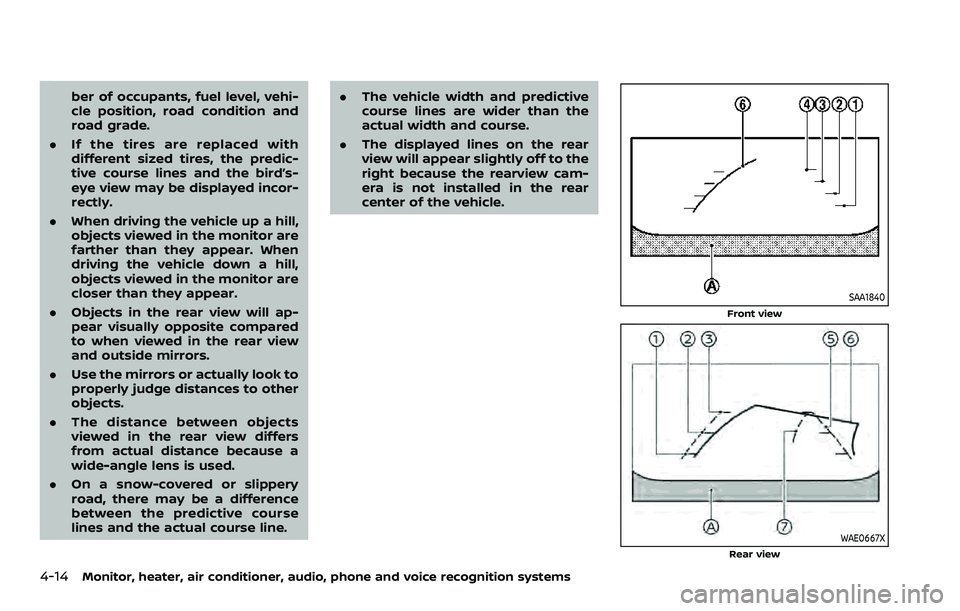
SAA1840
Front view
WAE0667XRear view
Page 245 of 604
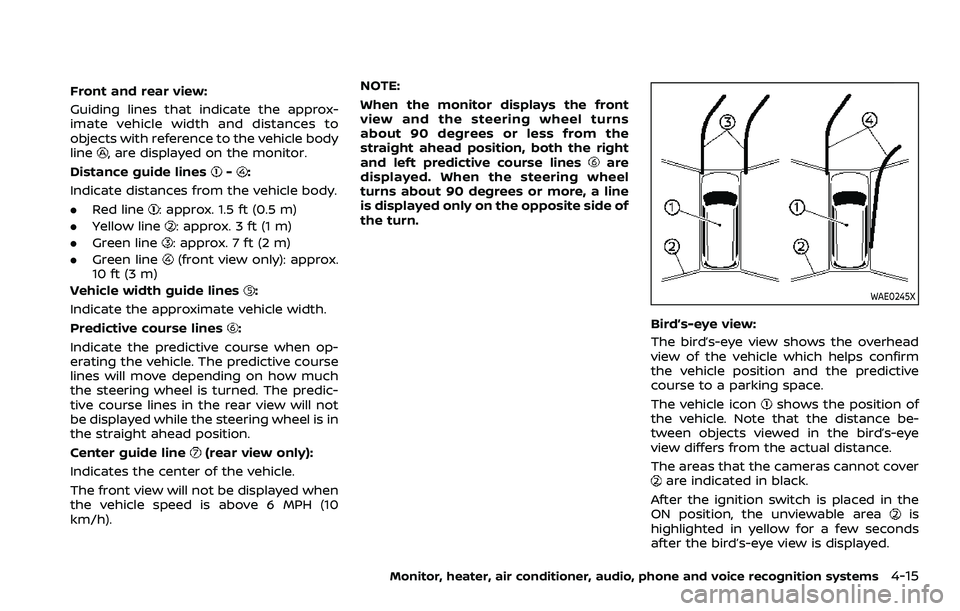
Front and rear view:
Guiding lines that indicate the approx-
imate vehicle width and distances to
objects with reference to the vehicle body
line
, are displayed on the monitor.
Distance guide lines
-:
Indicate distances from the vehicle body.
. Red line
: approx. 1.5 ft (0.5 m)
. Yellow line
: approx. 3 ft (1 m)
. Green line
: approx. 7 ft (2 m)
. Green line
(front view only): approx.
10 ft (3 m)
Vehicle width guide lines
:
Indicate the approximate vehicle width.
Predictive course lines
:
Indicate the predictive course when op-
erating the vehicle. The predictive course
lines will move depending on how much
the steering wheel is turned. The predic-
tive course lines in the rear view will not
be displayed while the steering wheel is in
the straight ahead position.
Center guide line
(rear view only):
Indicates the center of the vehicle.
The front view will not be displayed when
the vehicle speed is above 6 MPH (10
km/h). NOTE:
When the monitor displays the front
view and the steering wheel turns
about 90 degrees or less from the
straight ahead position, both the right
and left predictive course lines
are
displayed. When the steering wheel
turns about 90 degrees or more, a line
is displayed only on the opposite side of
the turn.
WAE0245X
Bird’s-eye view:
The bird’s-eye view shows the overhead
view of the vehicle which helps confirm
the vehicle position and the predictive
course to a parking space.
The vehicle icon
shows the position of
the vehicle. Note that the distance be-
tween objects viewed in the bird’s-eye
view differs from the actual distance.
The areas that the cameras cannot cover
are indicated in black.
After the ignition switch is placed in the
ON position, the unviewable area
is
highlighted in yellow for a few seconds
after the bird’s-eye view is displayed.
Monitor, heater, air conditioner, audio, phone and voice recognition systems4-15
Page 246 of 604
4-16Monitor, heater, air conditioner, audio, phone and voice recognition systems
Predictive course lines (and) indicate
the predictive course when operating the
vehicle. The predictive course lines (
and) will be displayed on the monitor when
the steering wheel is turned. The predic-
tive course lines (
and) will move
depending on how much the steering
wheel is turned.
WARNING
. Objects in the bird’s-eye view will
appear farther than the actual
distance.
. Tall objects, such as a curb or
vehicle, may be misaligned or not
displayed at the seam of the
views.
. Objects that are above the cam-
era cannot be displayed.
. The view for the bird’s-eye view
may be misaligned when the
camera position alters.
. A line on the ground may be
misaligned and is not seen as
being straight at the seam of the
views. The misalignment will in-
crease as the line proceeds away
from the vehicle.
JVH1141X
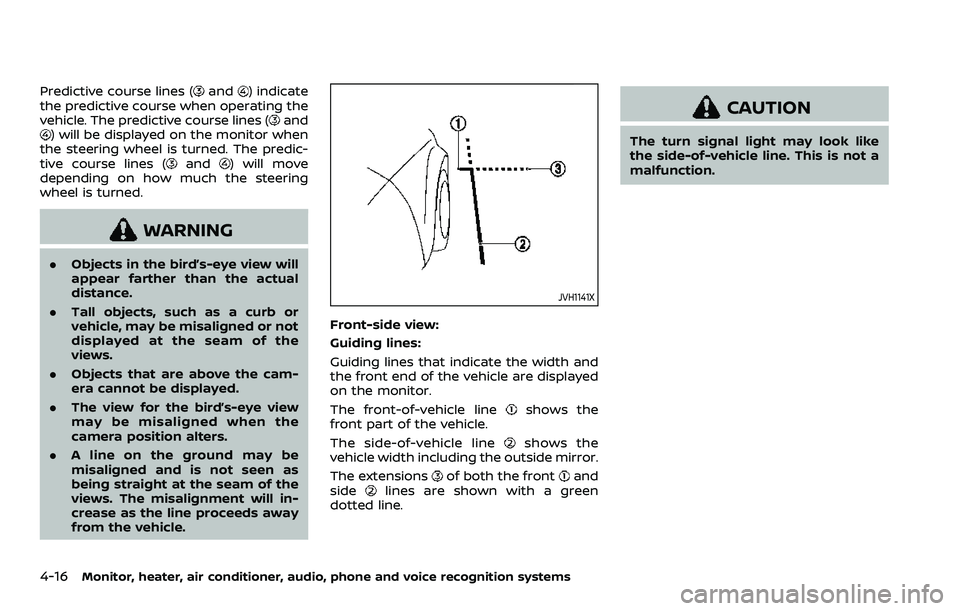
Front-side view:
Guiding lines:
Guiding lines that indicate the width and
the front end of the vehicle are displayed
on the monitor.
The front-of-vehicle line
shows the
front part of the vehicle.
The side-of-vehicle line
shows the
vehicle width including the outside mirror.
The extensions
of both the frontand
sidelines are shown with a green
dotted line.
CAUTION
The turn signal light may look like
the side-of-vehicle line. This is not a
malfunction.
Page 252 of 604
4-22Monitor, heater, air conditioner, audio, phone and voice recognition systems
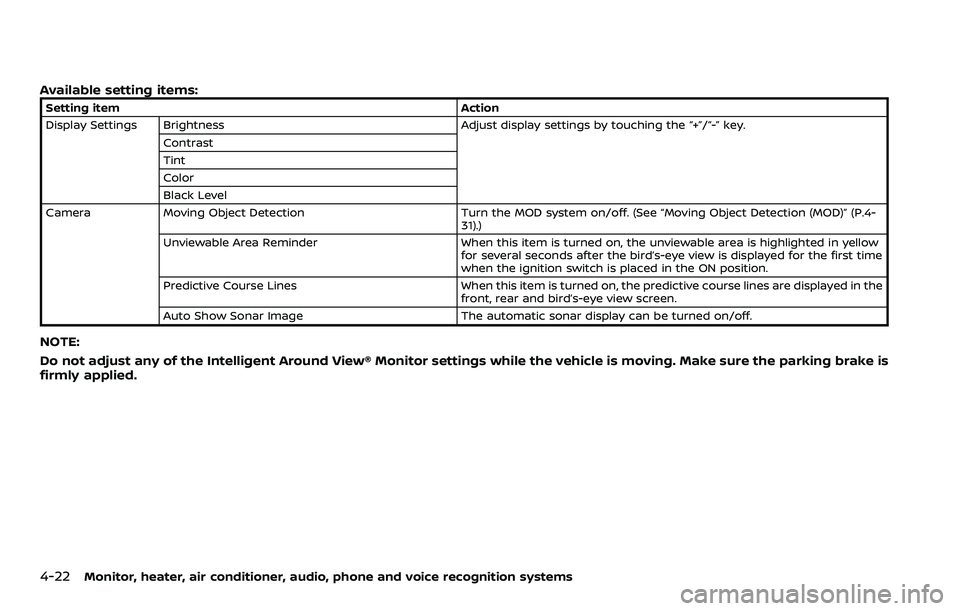
Available setting items:
Setting itemAction
Display Settings Brightness Adjust display settings by touching the “+”/“-” key.
Contrast
Tint
Color
Black Level
Camera Moving Object Detection Turn the MOD system on/off. (See “Moving Object Detection (MOD)” (P.4-
31).)
Unviewable Area Reminder When this item is turned on, the unviewable area is highlighted in yellow
for several seconds after the bird’s-eye view is displayed for the first time
when the ignition switch is placed in the ON position.
Predictive Course Lines When this item is turned on, the predictive course lines are displayed in the
front, rear and bird’s-eye view screen.
Auto Show Sonar Image The automatic sonar display can be turned on/off.
NOTE:
Do not adjust any of the Intelligent Around View® Monitor settings while the vehicle is moving. Make sure the parking brake is
firmly applied.
Page 254 of 604
4-24Monitor, heater, air conditioner, audio, phone and voice recognition systems
the monitor.
The following are operating limitations
and do not represent a system malfunc-
tion:
.The screen displayed on the Intelligent
Around View® Monitor will automati-
cally return to the previous screen 3
minutes after the CAMERA button has
been pushed while the shift lever is in
a position other than the R (Reverse)
position.
. There may be a delay when switching
between views.
. When the temperature is extremely
high or low, the screen may not
display objects clearly.
. When strong light is directly shines on
the camera, objects may not be dis-
played clearly.
. The screen may flicker under fluores-
cent light.
. The colors of objects on the Intelligent
Around View® Monitor may differ
somewhat from the actual color of
objects.
. Objects on the monitor may not be
clear and the color of the object may
differ in a dark environment.
. There may be differences in sharpness
between each camera view of the
bird’s-eye view. .
When activating the Intelligent Around
View® Monitor, the icons and the
messages may not be displayed for a
while.
. If dirt, rain or snow accumulates on
the camera, the Intelligent Around
View® Monitor may not display objects
clearly. Clean the camera.
. Do not use wax on the camera lens.
Wipe off any wax with a clean cloth
that has been dampened with a
diluted mild cleaning agent, then wipe
with a dry cloth.
WAE0670X
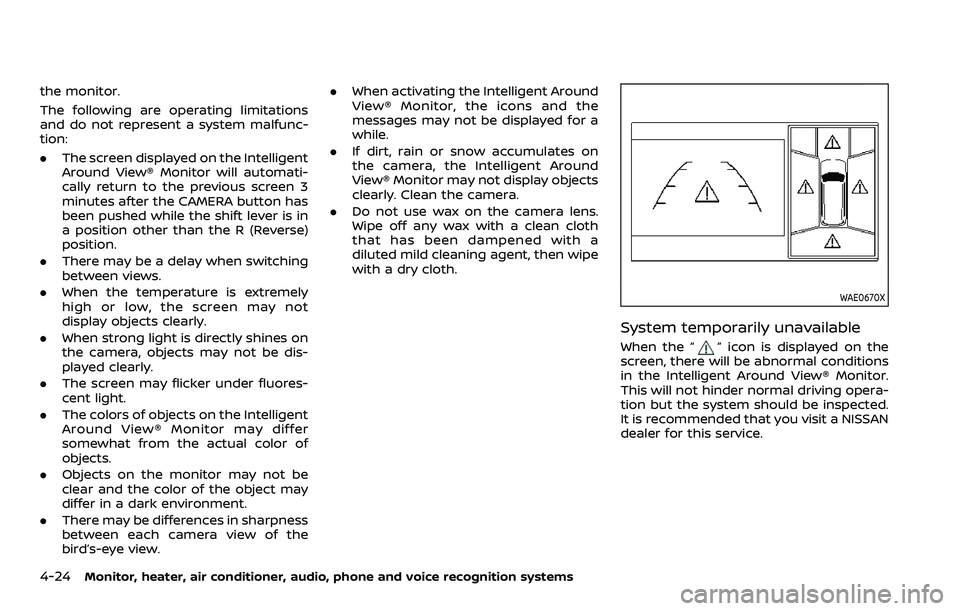
System temporarily unavailable
When the “” icon is displayed on the
screen, there will be abnormal conditions
in the Intelligent Around View® Monitor.
This will not hinder normal driving opera-
tion but the system should be inspected.
It is recommended that you visit a NISSAN
dealer for this service.
Page 257 of 604
touch screen display, the system shows
the sonar indicator regardless of the shift
lever position.
The system is deactivated at speeds
above 6 MPH (10 km/h). It is reactivated
at lower speeds.
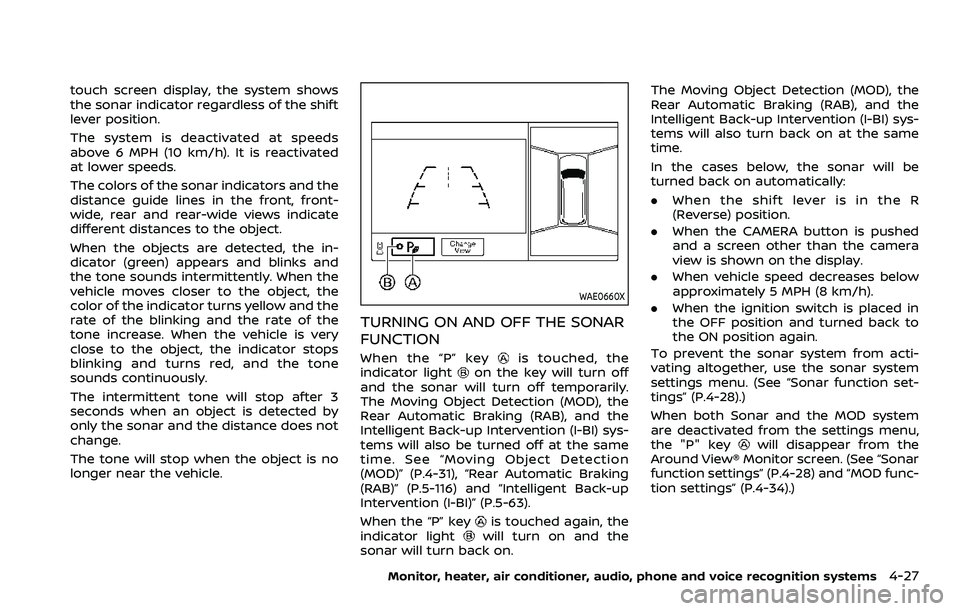
The colors of the sonar indicators and the
distance guide lines in the front, front-
wide, rear and rear-wide views indicate
different distances to the object.
When the objects are detected, the in-
dicator (green) appears and blinks and
the tone sounds intermittently. When the
vehicle moves closer to the object, the
color of the indicator turns yellow and the
rate of the blinking and the rate of the
tone increase. When the vehicle is very
close to the object, the indicator stops
blinking and turns red, and the tone
sounds continuously.
The intermittent tone will stop after 3
seconds when an object is detected by
only the sonar and the distance does not
change.
The tone will stop when the object is no
longer near the vehicle.
WAE0660X
TURNING ON AND OFF THE SONAR
FUNCTION
When the “P” keyis touched, the
indicator lighton the key will turn off
and the sonar will turn off temporarily.
The Moving Object Detection (MOD), the
Rear Automatic Braking (RAB), and the
Intelligent Back-up Intervention (I-BI) sys-
tems will also be turned off at the same
time. See “Moving Object Detection
(MOD)” (P.4-31), “Rear Automatic Braking
(RAB)” (P.5-116) and “Intelligent Back-up
Intervention (I-BI)” (P.5-63).
When the “P” key
is touched again, the
indicator lightwill turn on and the
sonar will turn back on. The Moving Object Detection (MOD), the
Rear Automatic Braking (RAB), and the
Intelligent Back-up Intervention (I-BI) sys-
tems will also turn back on at the same
time.
In the cases below, the sonar will be
turned back on automatically:
.
When the shift lever is in the R
(Reverse) position.
. When the CAMERA button is pushed
and a screen other than the camera
view is shown on the display.
. When vehicle speed decreases below
approximately 5 MPH (8 km/h).
. When the ignition switch is placed in
the OFF position and turned back to
the ON position again.
To prevent the sonar system from acti-
vating altogether, use the sonar system
settings menu. (See “Sonar function set-
tings” (P.4-28).)
When both Sonar and the MOD system
are deactivated from the settings menu,
the "P" key
will disappear from the
Around View® Monitor screen. (See “Sonar
function settings” (P.4-28) and “MOD func-
tion settings” (P.4-34).)
Monitor, heater, air conditioner, audio, phone and voice recognition systems4-27