%
IfAc tive Brake Assist is deactivated, theæ
symbol appears in the status bar of the Instru-
ment Displa y. T
T
r
ra�1c
a�1c Sign Assist
Sign Assist F
F
unction of
unction of Tr
Tra�1c
a�1c Sign Assist
Sign Assist
Tr a�1c Sign Assist de tects tra�1c signs with the
multifunction camera (/ page 213). It assists
yo uby displaying de tected speed limits and over-
ta king restrictions in the Instrument Displa y.
Obser vethe no tes on driving systems and your
re sponsibility; you may otherwise failto recognise
dangers (/ page 213).
Since Tra�1c Sign Assist also uses the data stored
in the navigation system, it can update the display
in thefo llowing situations without de tecting tra�1c
signs.
If th e system de tects that you are driving onto a
section of road in the wrong direction of tr avel, it
triggers a warning.
The camera also de tects tra�1c signs with a
re striction indicated byan additional sign (e.g.
when wet). These are only displa yed if a restric- tion applies or if
the system cannot clear lyde ter-
mine whe ther there striction applies.
W
W ar ar ning when t
ning when t he maximum per
he maximum per missible speed is
missible speed is
ex
ex ceeded
ceeded
The system can warnyou if you unintentionally
ex ceed the maximum permissible speed. Todo
th is, you can specify in the multimedia system by
how much the maximum permissible speed can
be exceeded before a warning is issued. You can
specify whe ther thewa rning is tobe just a visual
wa rning or an acoustic one as well. Displa
Displa
y in t
y in the Ins
he Instr trument Display
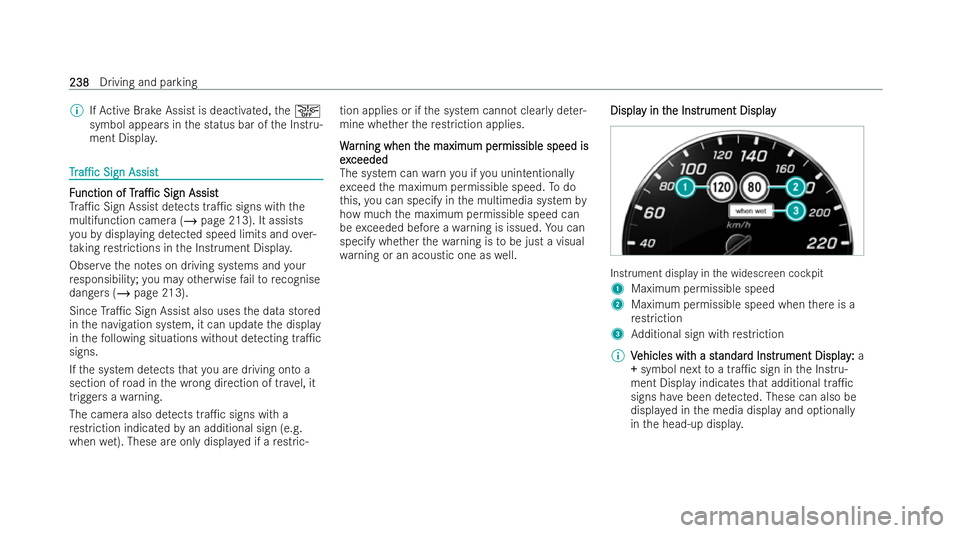
ument Display Instrument display in
the widescreen cockpit
1 Maximum permissible speed
2 Maximum permissible speed when there is a
re striction
3 Additional sign with restriction
% V
Vehicles wit
ehicles wit h a st
h a standar
andar d Ins
d Instrtrument Display
ument Display: :a
+
+ symbol next toa tra�1c sign in the Instru-
ment Display indicates that additional tra�1c
signs ha vebeen de tected. These can also be
displa yed in the media display and optionally
in the head-up displa y.238
238
Driving and parking
#
Switch Allow destination suggestions, Allow
music suggestions andAllow contact sugges-
tions on or o�.. #
T
To deactiv
o deactiv at
ate t
e t he lear
he lear ning function f
ning function f or one
or one
day
day: :activate Deact. learn. for 24h .
Fo r 24 hours no new actions will be trained
and no data recorded forth e active pro�/le.
Suggestions will continue tobe shown.
Example: if the option is switched on and a
ro ute toa new destination has been calcula-
te d, this destination would not be take n into
account forth e learning function.
Cr
Cr eating ne
eating ne w t
w themes
hemes #
Select ©. #
Select THEMES. #
Select WSet theme .
The settings which are sa ved in theth eme are
shown. #
Select Continue r. #
Select AudioandNavigation (Navigation) and
store the active settings in theth eme. #
Select Continue r. #
Select an entry screen. #
Select Continue r. #
Select an image. #
Enter the names into the entry �/eld and con-
�/rm with a. #
Select Save. Syst
Syst
em se
em se ttings
ttings Ov
Ov
er
ervie
vie w of t
w of t he sy
he syst
stem se
em se ttings menu
ttings menu In
the system settings menu, you can make set-
tings in thefo llowing menus and control ele-
ments:
R Displa y:
- Styles
- Instrument lighting
- Display brightness
- Edge lighting
- Day/night design
R Control elements: -
Keyboard language and handwriting recog-
nition
- Sensitivity of theto uchpad
- Sensitivity of theTo uch Controls
R LINGU ATRO NIC
R Sound
- Enter tainment
- Navigation and tra�1c announcements
- Telephone
- Voice ampli�/cation tothere ar
R Connectivity:
- Wi-Fi, Blue tooth ®
, NFC
R Time & date
R Language
R Units for distance
R So�Tware updates
R Data import/export
R PIN pr otection
R System reset 290
290
MBUX multimedia system