Page 180 of 316
8-4
Running the UVO
You can run the UVO in the system to use the service.
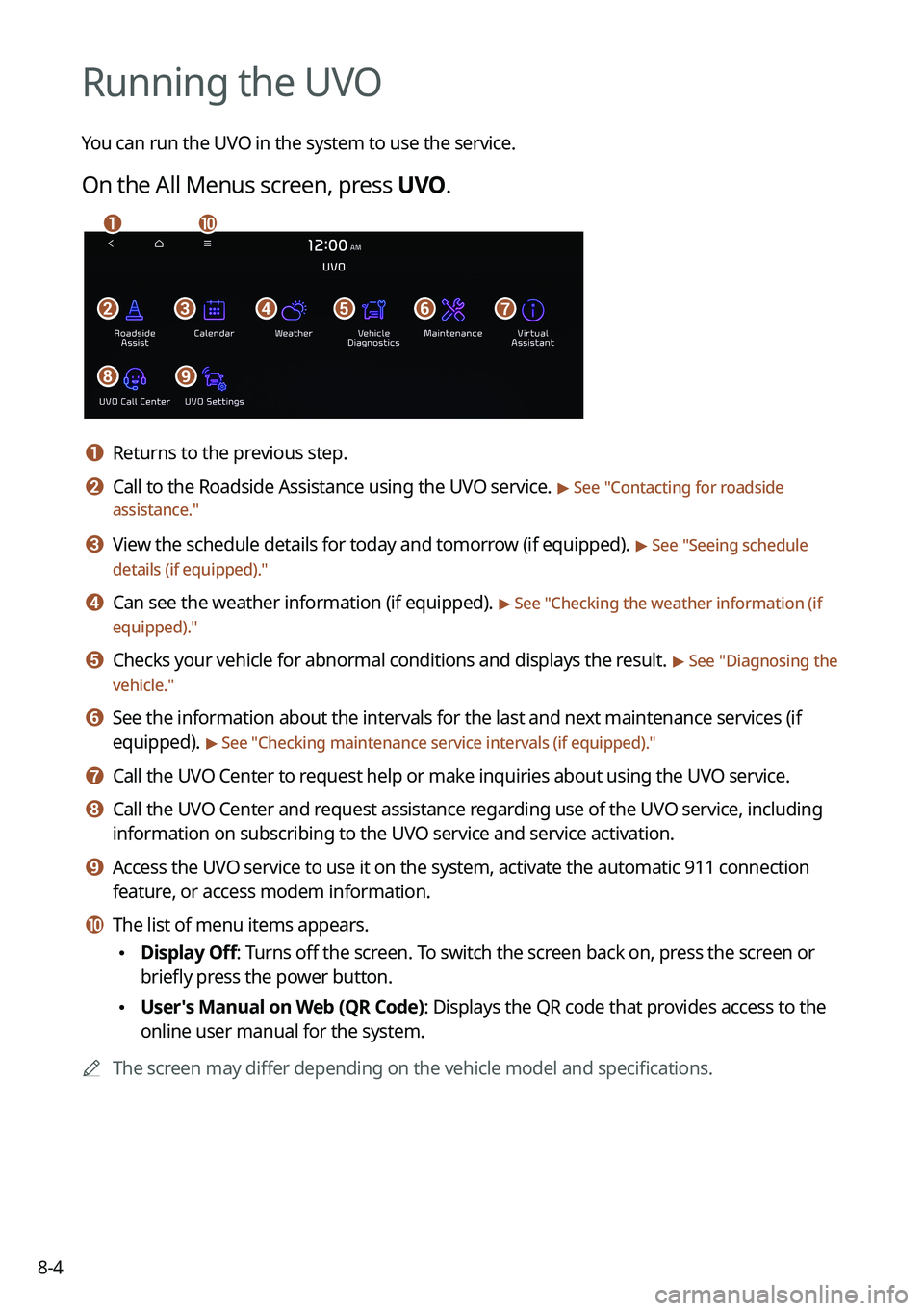
On the All Menus screen, press UVO.
\037\036\035\034\033\032
\031\030
\027\026
a a Returns to the previous step.
b b Call to the Roadside Assistance using the UVO service. > See "Contacting for roadside
assistance."
c c View the schedule details for today and tomorrow (if equipped). > See " Seeing schedule
details (if equipped)."
d d Can see the weather information (if equipped). > See "Checking the weather information (if
equipped)."
e e Checks your vehicle for abnormal conditions and displays the result. > See " Diagnosing the
vehicle."
f f See the information about the intervals for the last and next maintenance services (if
equipped).
> See "Checking maintenance service intervals (if equipped) ."
g g Call the UVO Center to request help or make inquiries about using the UVO service.
h h Call the UVO Center and request assistance regarding use of the UVO service, including
information on subscribing to the UVO service and service activation.
i i Access the UVO service to use it on the system, activate the automatic 911 connection\
feature, or access modem information.
j j The list of menu items appears.
\225Display Off: Turns off the screen. To switch the screen back on, press the screen or
briefly press the power button.
\225User's Manual on Web (QR Code): Displays the QR code that provides access to the
online user manual for the system.
0000
A
The screen may differ depending on the vehicle model and specifications.
Page 183 of 316
8-7
2 Press Search Destination.
3 Check the location of the destination and then press Set as Destination.
0000A
When you see the search result list, press the desired destination to see on the map.
4 Select the desired route from the searched ones and press Start
Guidance.
Page 184 of 316

8-8
Schedule reminder
A schedule notification pops up at a specified time.
0000
A
To view schedule details, press Details.
Checking the weather information (if equipped)
You can see the weather information (temperature, humidity, amount/probability of
precipitation, etc.) for today or the next 3 days.
0000
A
The weather information is accessible only when the system is connected \
to the network.
On the All Menus screen, press UVO >
Weather.
Weather information screen
\037\036
\035\034
a a Returns to the previous step.
b b Can see the weather information for today or the next 3 days.
c c Can update to the latest weather information.
d d The list of menu items appears.
\225 Display Off: Turns off the screen. To switch the screen back on, press the screen or
briefly press the power button (if equipped).
\225Current Location: Displays the weather of the current position.
\225Waypoint: Displays the weather of the waypoint, if specified (if equipped).
\225Destination: Displays the weather of the destination, if specified.
Page 186 of 316
8-10
Checking maintenance service intervals (if equipped)
You can see information about the intervals for the last and next maintenance services. This
feature can help you maintain your vehicle on a regular basis.
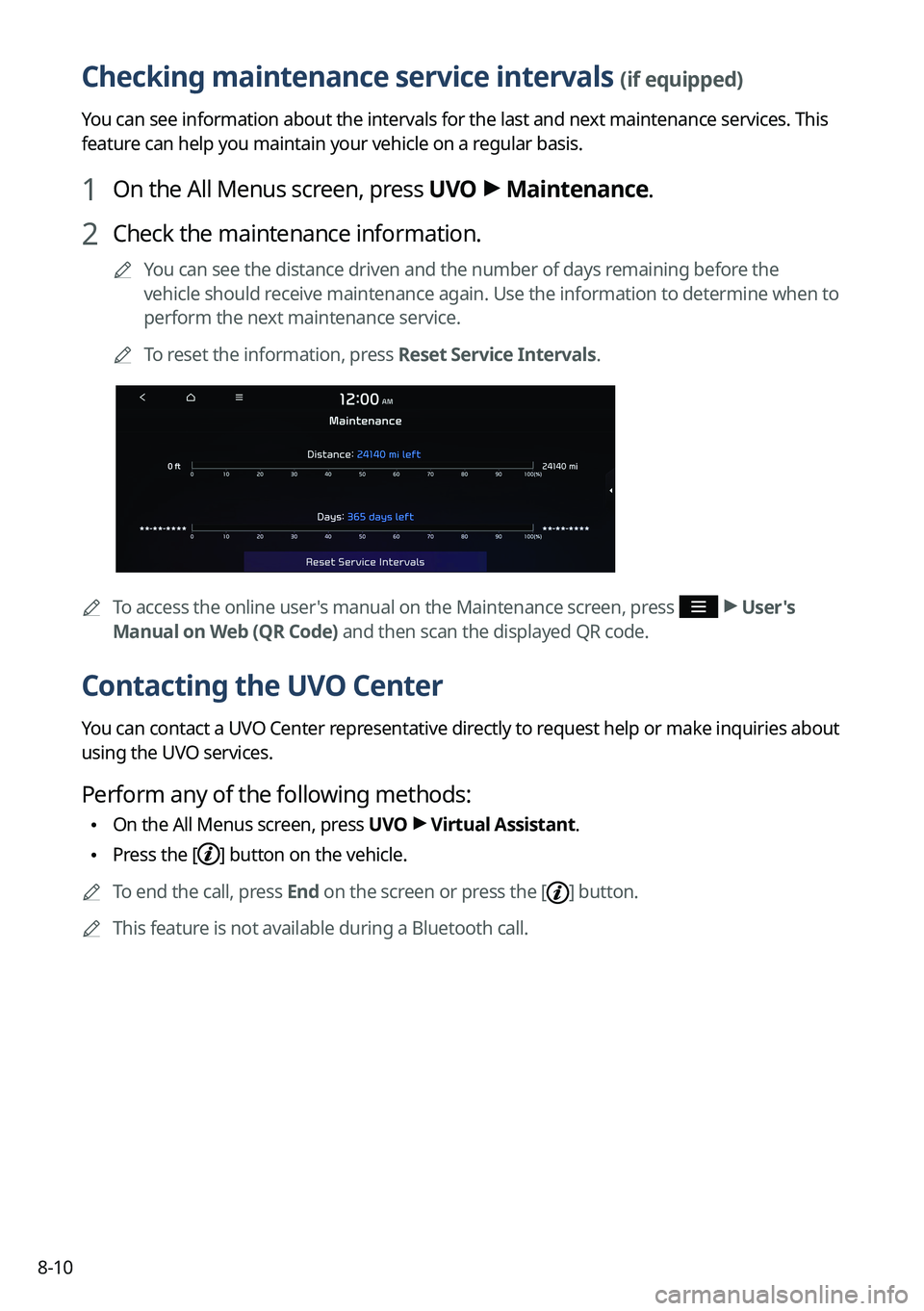
1 On the All Menus screen, press UVO >
Maintenance.
2 Check the maintenance information.
0000
A
You can see the distance driven and the number of days remaining before the
vehicle should receive maintenance again. Use the information to determine when to
perform the next maintenance service.
0000
A
To reset the information, press Reset Service Intervals.
0000
A
To access the online user's manual on the Maintenance screen, press >
User's
Manual on Web (QR Code) and then scan the displayed QR code.
Contacting the UVO Center
You can contact a UVO Center representative directly to request help or make inquiries about
using the UVO services.
Perform any of the following methods:
\225 On the All Menus screen, press UVO
>
Virtual Assistant.
\225 Press the [] button on the vehicle.
0000
A
To end the call, press End on the screen or press the [
] button.
0000
A
This feature is not available during a Bluetooth call.
Page 187 of 316
8-11
Configuring the UVO settings
You can subscribe to the UVO service or see the modem information.
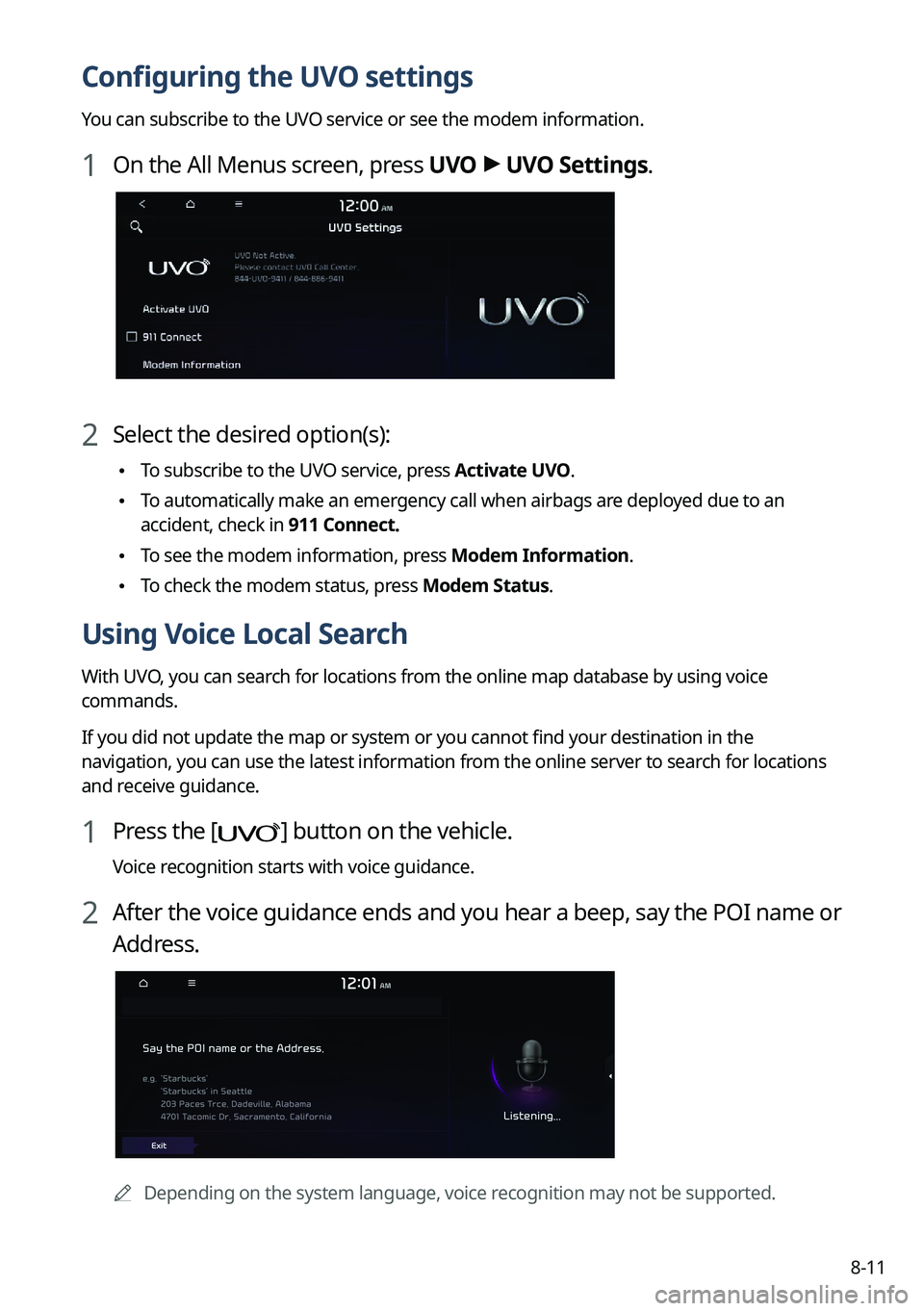
1 On the All Menus screen, press UVO >
UVO Settings.
2 Select the desired option(s):
\225 To subscribe to the UVO service, press Activate UVO.
\225To automatically make an emergency call when airbags are deployed due to an
accident, check in 911 Connect.
\225To see the modem information, press Modem Information.
\225To check the modem status, press Modem Status.
Using Voice Local Search
With UVO, you can search for locations from the online map database by using voice
commands.
If you did not update the map or system or you cannot find your destination in the
navigation, you can use the latest information from the online server to search for locations
and receive guidance.
1 Press the [] button on the vehicle.
Voice recognition starts with voice guidance.
2 After the voice guidance ends and you hear a beep, say the POI name or
Address.
0000A
Depending on the system language, voice recognition may not be supported.
Page 190 of 316
9-2
Configuring system settings
Configure various functions required for using the system. View information related to the
system.
Type1
Type2
0000
A
The displayed screen or menu items may differ, depending on the vehicle model
and features. Check the screen type for your vehicle model and view the appropriate
instructions.
0000
A
Press Menu or
>
Search for Settings or press and enter a keyword to search
for a setting item. You can also search for a setting item by voice.
0000
A
If you press Display Off at the top of the screen, the screen is switched off. To switch the
screen back on, press the screen or briefly press the power button.
Page 192 of 316

Can set the driving speed items and colors to display on the head-up dis\
play.
Driver Assistance (if equipped)
You can set to use various systems that assist the driver")
9-4
Speedometer (if equipped)
Can set the driving speed items and colors to display on the head-up dis\
play.
Driver Assistance (if equipped)
You can set to use various systems that assist the driver for safety.
0000AThe screen may differ depending on the vehicle model and specifications. Refer to the car
owner's manual for details of the function.
\335Warning
\225Be sure to always check the road conditions while driving. The Driver Assistance system
helps you drive safely and conveniently. Relying solely on the function may cause violation
of traffic rules and regulations, resulting in an accident.
\225Be sure to control the vehicle by your judgment and keep traffic regulations for safety.
When the function is active, drive the vehicle with keeping eyes forward and checking the
surroundings.
\225Not all warnings or functions are necessary when they are active, and they do not replace
the driver discretion under any circumstances. Stay focused on the road while driving.
\334\334Caution
Be sure to always check the vehicle surroundings while driving. The equipped cameras and
sensors may not operate properly under all driving conditions.
SCC Reaction (if equipped)
Adjusts the responsiveness of Smart Cruise Control to the acceleration of a leading vehicle.
Page 193 of 316
9-5
Driving Convenience (if equipped)
Sets the properties of Driving Convenience system.0000
A
The Driving Convenience system operates based on the information from the navigation
system so you must use the system only when the navigation system operates properly.
\225Highway Driving Assist: Assists driving in a highway according to the set speed and
distance to the leading vehicle while keeping the vehicle centered in the lane.
0000
A
The highway driving assist system operates only on a highway. When the vehicle exits
from the highway, the system is turned off automatically.
\225Highway Auto Speed Zone Slowdown: Automatically decelerates in a highway speed
enforcement zone.
0000
A
The highway auto speed zone slowdown system operates only on a highway. When
the vehicle exits from the highway, the system is turned off automatically.
0000
A
It operates considering the speed cameras located on the selected route.
\225Highway Auto Curve Slowdown: Automatically decelerates in a highway curve zone.
0000
A
It operates based on the curve zones on the route. When the destination is not set, it
operates based on the curve zones on the expected path.
Warning Timing (if equipped)
Sets the timing of the warning.
Warning Volume (if equipped)
Sets the volume of the warning sound.
Driver Attention Warning (if equipped)
Sets the properties of the Driver Attention Warning system.
\225Leading Vehicle Departure Alert: Alerts the driver during a stop, when the leading
vehicle departs.
\335Warning
Be sure to always check the road conditions ahead or surroundings before departure. An
accident caused by distracted driving can be prevented.
\225Safety Notice Call: When abnormal driving is detected, a Connected Services Center
representative will call to check on your safety.
\225Inattentive Driving Warning: Provides a warning when signs of driver inattentiveness
are detected, and recommends a rest if needed.

