2022 KIA NIRO PHEV turn
[x] Cancel search: turnPage 193 of 332

8-5
ÝWarning
Driving while distracted may cause a loss of vehicle control that may lead to an accident,
severe bodily injury, or death. The driver's primary responsibility is the safe and legal
operation of the vehicle, and the use of any vehicle systems, including the \
touch screen
and steering wheel controls that take the driver's eyes, attention, and focus away from safe
driving or that are not permissible by the law, should never be used while driving.
A
Use the UVO features on the system when the vehicle is stationary with the vehicle turned
on.
Contacting the roadside assistance
When you encounter a disabled vehicle or other problems on the road, you can directly
contact the UVO Center for roadside assistance and receive the service for vehicle towing.
Perform any of the following methods:
•On the All Menus screen, press UVO
>
Roadside Assist.
• Press the [] button on the vehicle.
A
Depending on the network status, this feature may not work correctly.
Checking schedule details (if equipped)
View the schedule details for today and tomorrow.
On the All Menus screen, press UVO >
Calendar.
A
To use the calendar, make sure you install the UVO App on your smartphone and sign
up for the UVO Service. Use either Google Play Store or App Store (depending on your
smartphone model) to download and install the Kia UVO App and sign up for the UVO
Service.
> See "Subscribing to the service "
A
To use the calendar, make sure your user profile is linked to your UVO account. It is not
possible to use the calendar if your user profile is set to "Guest." To link your user profile
to your UVO account, press Setup >
User Profile from All Menus.
Page 194 of 332

8-6
Calendar screen
eadbc
a a Returns to the previous step.
b b Select the account to provide schedule details to.
c c View the schedule details for today or tomorrow.
d d Update with the latest schedule details.
e e The list of menu items appears.
•Display Off: Turns off the screen. To switch the screen back on, press the screen or
briefly press the power button.
•Sync now: Sync to the latest schedule details of the linked account.
•Select Calendar: Select the calendar to display on the screen.
•User's Manual on Web (QR Code): Displays the QR code that provides access to the
online user manual for the system.
•Split Screen: Can turn on or off the split screen mode.
A
Available icons and their arrangement may differ depending on the vehicle model and
specifications.
Setting a destination
You can view schedule details and set a destination by pressing a schedule from the calendar
screen.
A
If location information is registered in the schedule, the registered location is
automatically set as the destination.
1 From the calendar screen, press the schedule to set a destination for.
Page 196 of 332

8-8
Schedule reminder
A schedule notification pops up at a specified time.
A
To view schedule details, press Details.
Checking weather information (if equipped)
You can see the weather information (temperature, humidity, amount/probability of
precipitation, etc.) for today or the next 3 days.
A
The weather information is accessible only when the system is connected \
to the network.
On the All Menus screen, press UVO >
Weather.
Weather information screen
da
cb
a a Returns to the previous step.
b b Can see the weather information for today or the next 3 days.
c c Can update to the latest weather information.
d d The list of menu items appears.
• Display Off: Turns off the screen. To switch the screen back on, press the screen or
briefly press the power button.
•Current Location: Displays the weather of the current position.
•Waypoint: Displays the weather of the waypoint, if specified.
•Destination: Displays the weather of the destination, if specified.
Page 197 of 332

8-9
•Search: Can see the weather information by searching for an address.
•Forecast: Can see the weather information for today or the next 3 days.
•User's Manual on Web (QR Code): Displays the QR code that provides access to the
online user manual for the system.
•Split Screen: Can turn on or off the split screen mode.
Diagnosing the vehicle
If you are curious about whether or not there is a problem with your vehicle, you can
diagnose your vehicle. With the diagnosis result, you can also reserve a maintenance service.
1 Park your vehicle in a safe location.
A
The vehicle must be stationary because some components cannot be diagnos\
ed
while driving.
2 On the All Menus screen, press UVO >
Vehicle Diagnostics.
Remote vehicle diagnosis starts.
A
Keep the screen on until the diagnosed result appears. When you switch to another
screen during diagnosis, the diagnosis service is canceled.
3 See the diagnosis results and perform a required function, as follows:
•To schedule a maintenance service at a preferred Kia dealership or the nearest one,
press
Schedule Service.
•To call the UVO center for roadside assistance, press Roadside Assist.
A
A diagnosis result provided by this service is only an estimated result based on the signals
from your vehicle. Visit a Kia dealership for a detailed diagnosis.
A
When a critical diagnostics issue is detected on your vehicle, an automa\
tic diagnosis
starts when a warning light illuminates on the instrument cluster. You are notified of the
diagnosis result.
A
Your preferred dealership must be registered on owners.kia.com for you to schedule a
maintenance service with it.
Page 205 of 332

9-5
Driving Convenience (if equipped)
Sets the properties of Driving Convenience system.
A
The Driving Convenience system operates based on the information from the navigation
system so you must use the system only when the navigation system operates properly.
•Highway Driving Assist: Assists driving in a highway according to the set speed and
distance to the leading vehicle while keeping the vehicle centered in the lane.
A
The highway driving assist system operates only on a highway. When the vehicle exits
from the highway, the system is turned off automatically.
•Highway Auto Speed Zone Slowdown: Automatically decelerates in a highway speed
enforcement zone.
A
The highway auto speed zone slowdown system operates only on a highway. When
the vehicle exits from the highway, the system is turned off automatically.
A
It operates considering the speed cameras located on the selected route.
•Highway Auto Curve Slowdown: Automatically decelerates in a highway curve zone.
A
It operates based on the curve zones on the route. When the destination is not set, it
operates based on the curve zones on the expected path.
Warning Timing (if equipped)
Sets the timing of the warning.
Warning Volume (if equipped)
Sets the volume of the warning sound.
Driver Attention Warning (if equipped)
Sets the properties of the Driver Attention Warning system.
•Leading Vehicle Departure Alert: Alerts the driver during a stop, when the leading
vehicle departs.
ÝWarning
Be sure to always check the road conditions ahead or surroundings before departure. An
accident caused by distracted driving can be prevented.
•Safety Notice Call: When abnormal driving is detected, a Connected Services Center
representative will call to check on your safety.
•Inattentive Driving Warning: Provides a warning when signs of driver inattentiveness
are detected, and recommends a rest if needed.
Page 206 of 332

9-6
Forward Safety (if equipped)
Sets the properties of the Forward Safety system.
•Active Assist: Provides a warning and vehicle control when a risk of forward collision is
detected.
ÝWarning
This function is only a supplemental function and it is not intended to, nor does it replace
the need for extreme care and attention of the driver. The sensing range and objects
detectable by the sensors are limited. Pay attention to the road conditions at all times.
•Warning Only: Provides a warning when a risk of forward collision is detected.
•Off: Disables the Forward Safety functions.
Lane Safety (if equipped)
Sets the properties of the Lane Safety system.
•Lane Keeping Assist: Automatically assists with steering to help prevent the vehicle from
leaving the lane.
ÝWarning
Lane Keeping Assist is a supplementary function for safe driving and does not replace
driving. It is the responsibility of the driver to always be aware of the surroundings and
steer the vehicle.
A
When the lanes are not recognized well by front view camera, always check the
surroundings because Lane Keeping Assist may not work properly.
•Lane Departure Warning: Provides a warning when the vehicle leaves the lane without
operating the turn signal switch.
•Off: Disables the Lane Safety functions.
Blind-Spot Safety (if equipped)
Sets the properties of the Blind-Spot Safety system.
•Blind-Spot View: Displays the blind-spot view in the cluster when operating the turn
signal switch.
•Safe Exit Assist: Provides a warning and door control when an approaching vehicle is
detected in the vehicle's blind spot.
Page 210 of 332

9-10
Automatic Ventilation (if equipped)
You can set to prevent condensation inside and keep inside air pleasant using this feature.
•Auto Dehumidify: Once the inside air circulation mode has been used for a long time, it
is switched to the outside air inflow mode to prevent condensation.
Defog/Defrost Options (if equipped)
You can set to enable the defogger to secure driver visibility.
•Auto Defog: When the sensor detects fog on the windshield, the automatic ventilation is
run for defogging.
Climate Features (if equipped)
You can set or change the settings for the climate system.
•Rear Climate Controls: Used to move to the climate control screen for the rear seat. You
can check or set the climate status for the rear seat.
A
For more information about controlling the rear-seat climate control system:
> see "Using the rear-seat climate control function (if equipped)"
Lights (if equipped)
You can configure the settings for vehicle lights.
A
The screen may differ depending on the vehicle model and specifications.
Ambient Light (if equipped)
You can set the brightness and color of the ambient light.
One Touch Turn Signal (if equipped)
You can set the number of turn signal lamp flashes when the lamp lever is operated.
Headlight Delay (if equipped)
You can set to turn off the taillights and headlights in 15 seconds after turning off the vehicle
to ensure visibility.
Page 213 of 332
9-13
Cluster Voice Guidance Volume (if equipped)
You can adjust the volume of guiding beep.
Welcome Sound (if equipped)
You can set to generate the notification sound when turning on or off the instrument cluster.
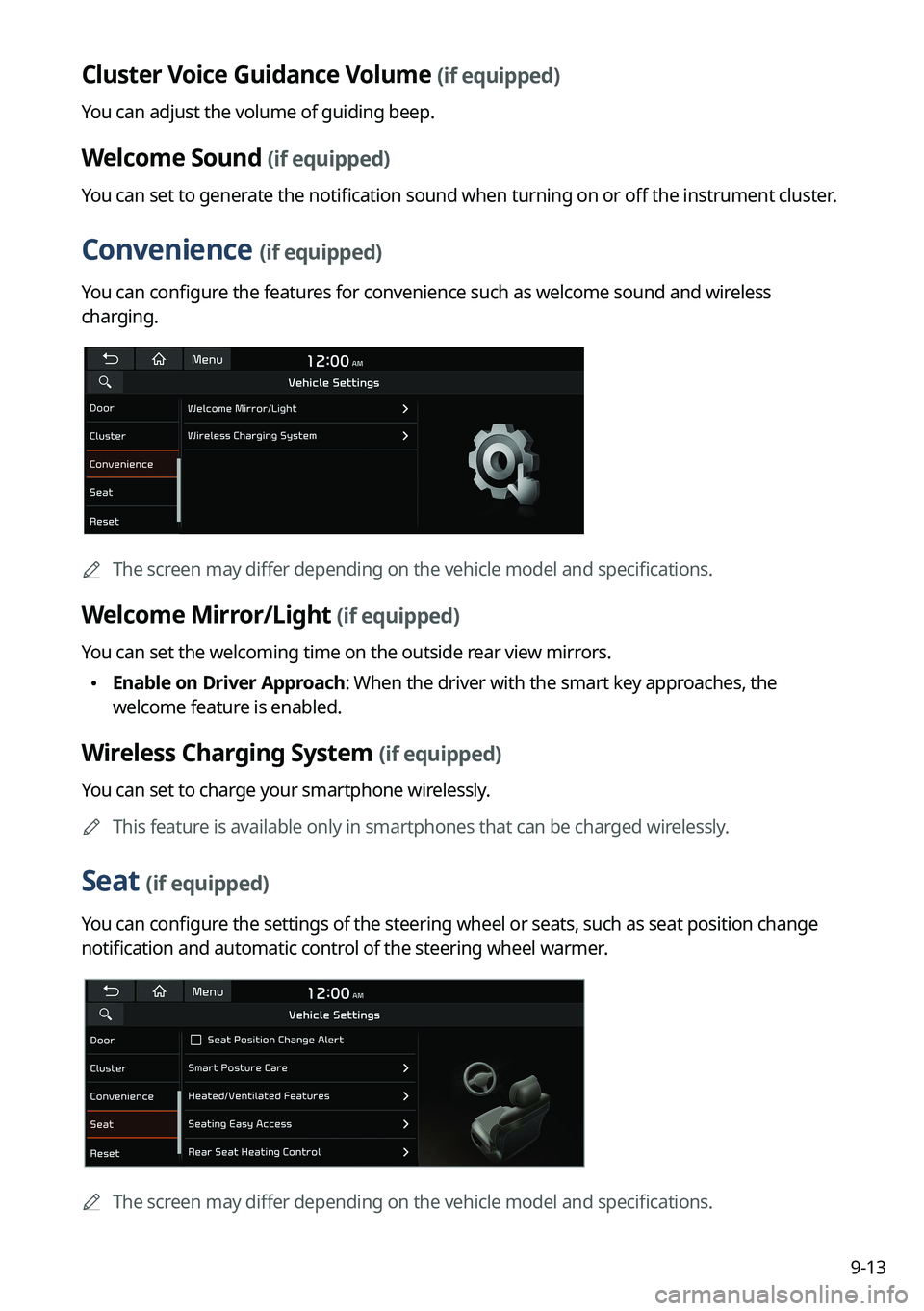
Convenience (if equipped)
You can configure the features for convenience such as welcome sound and wireless
charging.
A
The screen may differ depending on the vehicle model and specifications.
Welcome Mirror/Light (if equipped)
You can set the welcoming time on the outside rear view mirrors.
•Enable on Driver Approach: When the driver with the smart key approaches, the
welcome feature is enabled.
Wireless Charging System (if equipped)
You can set to charge your smartphone wirelessly.
A
This feature is available only in smartphones that can be charged wirelessly.
Seat (if equipped)
You can configure the settings of the steering wheel or seats, such as seat position change
notification and automatic control of the steering wheel warmer.
A
The screen may differ depending on the vehicle model and specifications.