Page 185 of 380

7-3
A
Voice recognition may not work properly when:
The sunroof or windows are open so the wind is strong.
The fan speed of the air conditioner or heater is high.
The vehicle is passing through a tunnel.
The vehicle is driving on an unpaved road and its noise and vibration are loud.
Noise is loud due to a heavy rain or storm.
A
When using speech recognition from the rear seats, some commands may not be
supported depending on the vehicle model and type.
A
Special characters included in a contact are not recognized by voice (e.g., School_John,
John!).
A
Voice recognition is supported only for certain languages. If you change the sy\
stem
language, voice recognition may not be supported.
Using the voice recognition function (Type1)
1 On the steering wheel, press the Voice Recognition button.
Voice recognition starts along with voice guidance.
A
To skip the voice guidance, press the Voice Recognition button on the steering wheel.
2 When a beep sound is heard, say a command to perform (e.g.
navigation, music, call).
> See "Available voice commands (Type1)" or " Viewing the voice
recognition help."
The recognized command appears in text at the top of the screen and the corresponding
function is performed.
A
When an additional command is required to perform, the commands that can be
followed in the next step appear on the screen. Say a command or press a command.
A
When there are several similar commands, say a command number to perform.
A
The screen may differ depending on the vehicle and specifications.
Page 190 of 380
7-8
Using voice recognition via phone projection
Use the voice recognition function on your smartphone via phone projection. > See "Using the
phone projection function."
Adjusting the voice guidance volume
When voice recognition mode is on, you can adjust the volume by using either the volume
button on the steering wheel or the volume knob.
Viewing available voice commands
Turn on voice recognition mode and then say "All functions" to view all commands that are
available for use.
A
The All functions screen can be controlled by touch only and does not recognize voice
commands.
A
To redirect to the Voice Recognition screen, press the Voice Recognition button.
A
Press Exit to end voice recognition.
A
Some functions may not be supported depending on the vehicle's options.
AThe screen may differ depending on the vehicle and specifications.
Page 191 of 380

7-9
Available voice commands (Type1)
You can view the voice commands that can be recognized by the system.
A
Depending on vehicle model or specifications, the screen layout and available commands
may differ. Check the screen type for your vehicle model and view the appropriate
instructions.
Call commands
Command Function
Call You can make a call to one of your mobile phone's contacts. Say
a contact's name to begin a call.
Call The system dials the phone number of that contact. If the
contact has multiple phone numbers, select a phone number.
Call on Mobile The system dials the phone number saved as "Mobile" for that
contact.
Call at Work The system dials the phone number saved as "Work" for that
contact.
Call at Home The system dials the phone number saved as "Home" for that
contact.
Call on Other The system dials a phone number saved as other than "Mobile",
"Work", or "Home" for that contact.
Dial Number You can make a call. Say a phone number to begin a call.
Dial You can make a call immediately to that phone number.
Send Message You can send a text message to one of your mobile phone's
contacts. Say a contact's name and then enter the message
content by following the guidance.
This command is available only if UVO is activated.
Send Message to
You can send a text message to that specific contact. Enter the
message content by following the guidance.
This command is available only if UVO is activated.
Send Message to
You can send a text message to that contact more directly.
This command is available only if UVO is activated.
Change Bluetooth
Device You can search for and connect another Bluetooth device.
A
To use call commands, your mobile phone must be connected to the system via Bluetooth
and your contacts must be downloaded.
> See "Connecting a Bluetooth device."
A
Some functions may not be available, depending on the connected mobile p\
hone.
Page 193 of 380

7-11
A
When you use a command starting with "Find," the system searches for locations within
the state or province where your vehicle is currently located. To search for locations in
another state or province, say the state or province name first and then say the location
you want.
A
Some commands, such as "Cancel Route" or "Show Route," are available only when a
destination is set.
Radio commands
Command Function
FM <87.5 to 107.9> Turn on the FM radio with that frequency.
AM <530 to 1710> Turn on the AM radio with that frequency.
SiriusXM <0 to 999> Turn on the SiriusXM radio with that channel number.
Tune to SiriusXM
<0 to 999> Tune on the SiriusXM radio with that channel number.
Tune to
Turn on the SiriusXM radio with that channel name.
A
Some commands are recognizable in English only.
A
Some commands may not be supported, depending on the vehicle model and f\
unctions.
Vehicle control commands (if equipped)
Command Function
Climate On/Off Turn on or off the climate control.
Air Conditioner
On/Off Can turn on or off the air conditioner.
Heat On/Off Can turn on or off the heater.
Fan High/Low Used to set the fan level.
Set Fan to windshield/
Face/Feet Used to set the air direction.
Warmer/Cooler Set the climate control temperature.
Open/Close all windows Open or close all windows.
Open/Close the
windows Open or close the driver-side window.
Open/Close the
passenger's window Open or close the passenger-side window.
Page 194 of 380

7-12
CommandFunction
Open/Close the rear
windows Open or close all rear-seat windows.
Open/Close the sunroof Open or close the sunroof.
Open/Close the
trunk (liftgate) Open or close the trunk (liftgate).
Turn On/Off the heated
steering wheel Turn on or off the steering wheel heater.
Turn On/Off all seat
warmers Turn on or off the heaters for all seats.
Turn On/Off seat
warmer Turn on or off the driver's seat heater.
Seat warmer
level 1 to 3 Set the driver's seat heater level in the range of 1 to 3.
Turn On/Off the
passenger seat warmer Turn on or off the passenger seat heater.
Passenger's Seat
Warmer Level 1 to 3 Set the passenger seat heater level in the range of 1 to 3.
Turn On/Off the rear
seat warmer Turn on or off the rear-seat heaters.
Turn On/Off all air
ventilation seats Turn on or off the ventilation for all seats.
Turn On/Off air
ventilation seats Turn on or off the driver's seat ventilation.
Air ventilation seat level
1 to 3 Set the driver's seat ventilation level in the range of 1 to 3.
Turn On/Off the
passenger air ventilation
seats Turn on or off the passenger seat ventilation.
Passenger's Air
Ventilation Seat Level
1 to 3 Set the passenger seat ventilation level in the rage of 1 to 3.
Turn On/Off the rear air
ventilation seat Turn on or off the rear-seat ventilation.
Page 195 of 380

Co")
7-13
A
Vehicle control commands are recognizable in English only.
A
Some commands may not be supported, depending on the vehicle model and f\
unctions.
Rear-seat function commands (if equipped)
Command Function
Passenger Talk Turn on the Passenger Talk.
Quiet Mode
Turn off Quiet Mode Turn on or off the Quiet Mode.
A
Some commands may not be supported, depending on the vehicle model and f\
unctions.
Search commands
Command Function
Search settings for
You can search for a setting menu.
For example, say "Search settings for Bluetooth" or "Search
settings for Display."
> See "Configuring system settings."
Other commands
Command
Function
Help Move to the help screen.
Line <1 to 4>* Select an item with the designated number on a list. Simple
numbers, such as "One" or "Two," can be recognized.
Yes* Accept a notification asking for your confirmation in an
exceptional situation.
No* Deny a notification asking for your confirmation in an
exceptional situation.
Next* If there are more than five items on a list, scroll to the next page.
Previous* If you scroll to the next page of a list, scroll back to the previous
page.
Manual Input* When using the Dial Number command, open the keypad to
enter a phone number manually.
Go Back* Returns to the previous step.
Exit End voice recognition.
* These commands are available only in certain situations.
Page 201 of 380
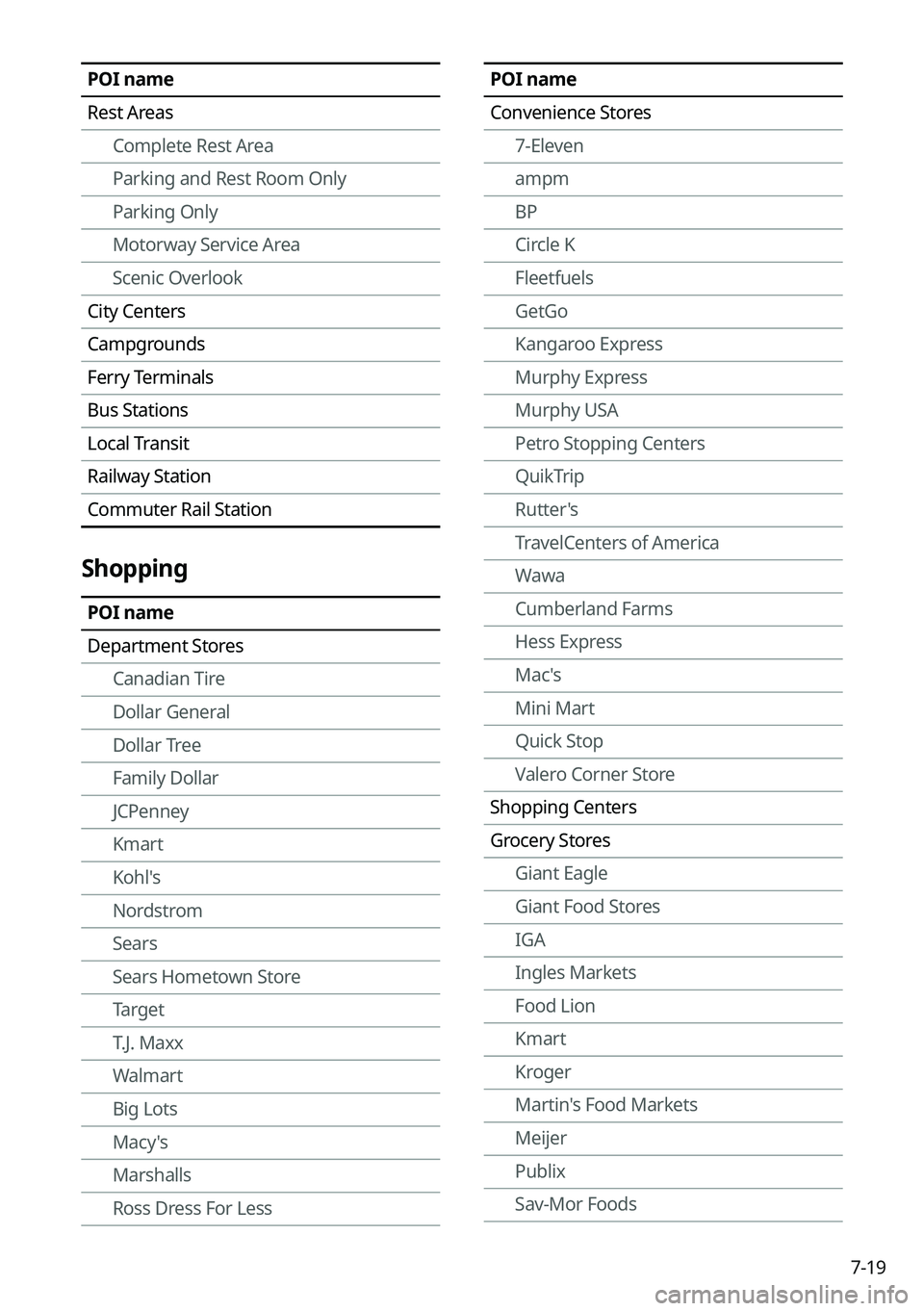
7-19
POI name
Rest AreasComplete Rest Area
Parking and Rest Room Only
Parking Only
Motorway Service Area
Scenic Overlook
City Centers
Campgrounds
Ferry Terminals
Bus Stations
Local Transit
Railway Station
Commuter Rail Station
Shopping
POI name
Department Stores Canadian Tire
Dollar General
Dollar Tree
Family Dollar
JCPenney
Kmart
Kohl's
Nordstrom
Sears
Sears Hometown Store
Target
T.J. Maxx
Walmart
Big Lots
Macy's
Marshalls
Ross Dress For Less
POI name
Convenience Stores7-Eleven
ampm
BP
Circle K
Fleetfuels
GetGo
Kangaroo Express
Murphy Express
Murphy USA
Petro Stopping Centers
QuikTrip
Rutter's
TravelCenters of America
Wawa
Cumberland Farms
Hess Express
Mac's
Mini Mart
Quick Stop
Valero Corner Store
Shopping Centers
Grocery Stores Giant Eagle
Giant Food Stores
IGA
Ingles Markets
Food Lion
Kmart
Kroger
Martin's Food Markets
Meijer
Publix
Sav-Mor Foods
Page 202 of 380
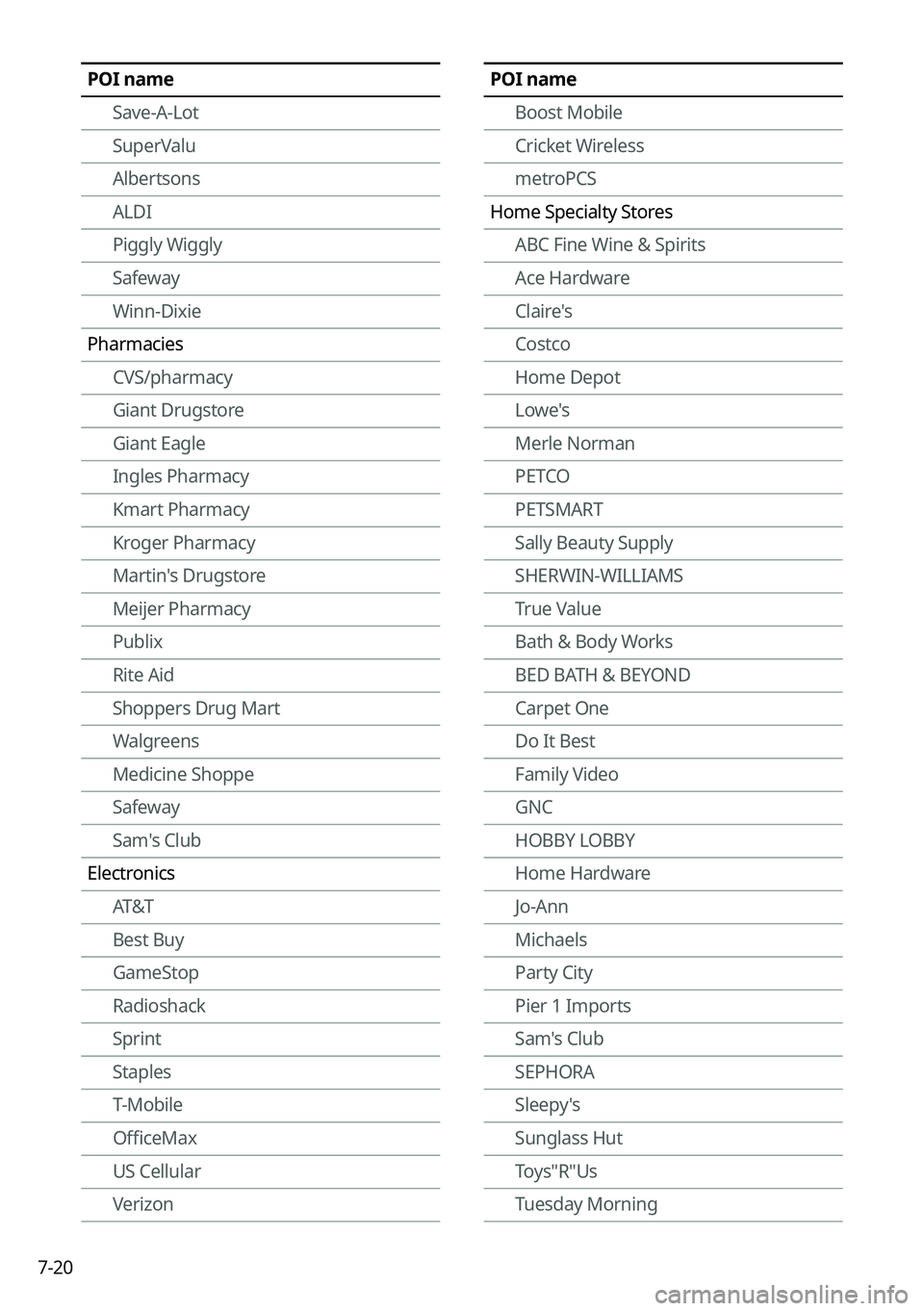
7-20
POI nameSave-A-Lot
SuperValu
Albertsons
ALDI
Piggly Wiggly
Safeway
Winn-Dixie
Pharmacies CVS/pharmacy
Giant Drugstore
Giant Eagle
Ingles Pharmacy
Kmart Pharmacy
Kroger Pharmacy
Martin's Drugstore
Meijer Pharmacy
Publix
Rite Aid
Shoppers Drug Mart
Walgreens
Medicine Shoppe
Safeway
Sam's Club
Electronics AT&T
Best Buy
GameStop
Radioshack
Sprint
Staples
T-Mobile
OfficeMax
US Cellular
VerizonPOI name
Boost Mobile
Cricket Wireless
metroPCS
Home Specialty Stores ABC Fine Wine & Spirits
Ace Hardware
Claire's
Costco
Home Depot
Lowe's
Merle Norman
PETCO
PETSMART
Sally Beauty Supply
SHERWIN-WILLIAMS
True Value
Bath & Body Works
BED BATH & BEYOND
Carpet One
Do It Best
Family Video
GNC
HOBBY LOBBY
Home Hardware
Jo-Ann
Michaels
Party City
Pier 1 Imports
Sam's Club
SEPHORA
Sleepy's
Sunglass Hut
Toys"R"Us
Tuesday Morning