2022 KIA CARNIVAL navigation distance
[x] Cancel search: navigation distancePage 97 of 316
5-5
A
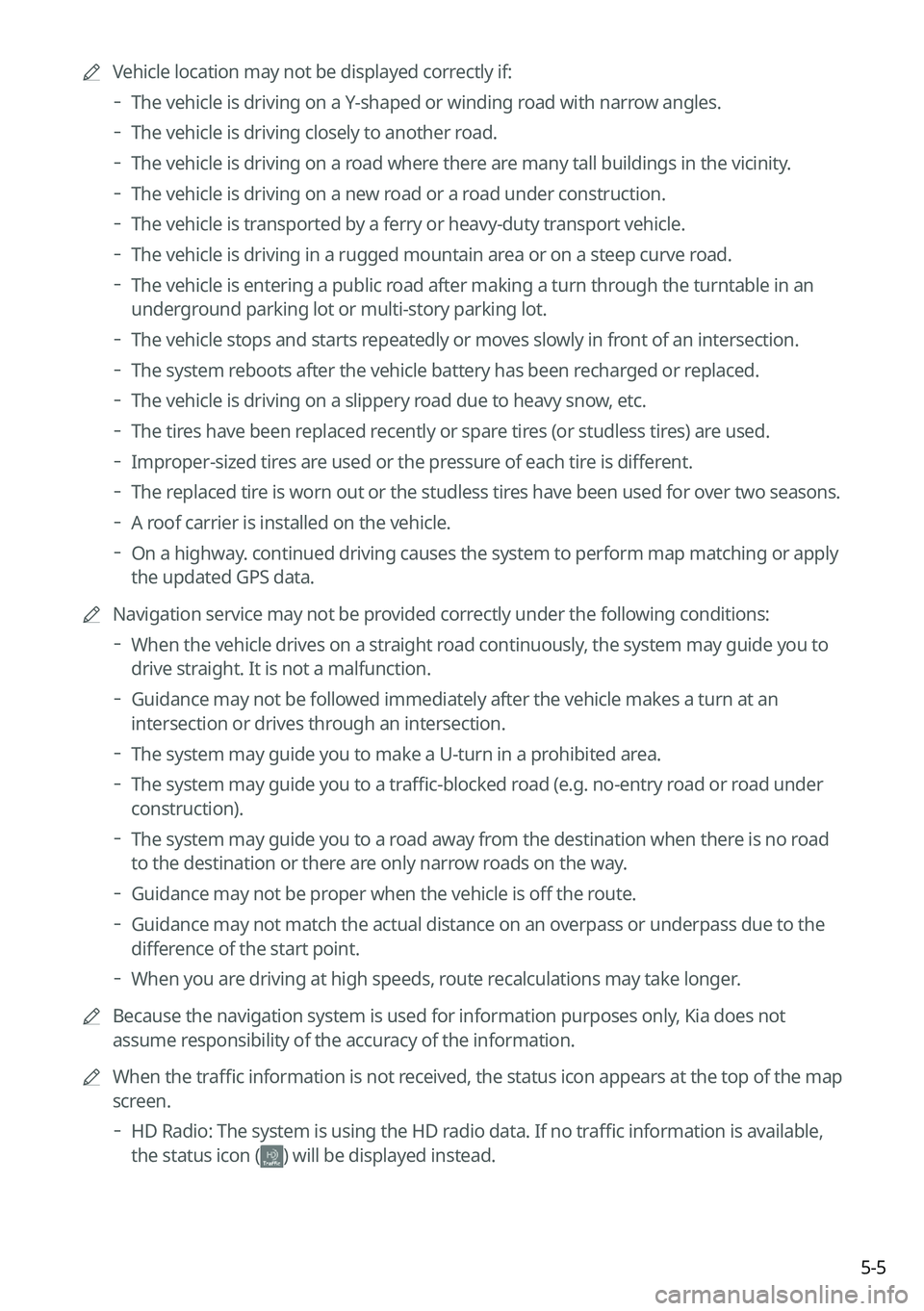
Vehicle location may not be displayed correctly if:
The vehicle is driving on a Y-shaped or winding road with narrow angles.
The vehicle is driving closely to another road.
The vehicle is driving on a road where there are many tall buildings in the vicinity.
The vehicle is driving on a new road or a road under construction.
The vehicle is transported by a ferry or heavy-duty transport vehicle.
The vehicle is driving in a rugged mountain area or on a steep curve road.
The vehicle is entering a public road after making a turn through the turntable in an
underground parking lot or multi-story parking lot.
The vehicle stops and starts repeatedly or moves slowly in front of an intersection.
The system reboots after the vehicle battery has been recharged or replaced.
The vehicle is driving on a slippery road due to heavy snow, etc.
The tires have been replaced recently or spare tires (or studless tires) are used.
Improper-sized tires are used or the pressure of each tire is different.
The replaced tire is worn out or the studless tires have been used for over two seasons.
A roof carrier is installed on the vehicle.
On a highway. continued driving causes the system to perform map matching or apply
the updated GPS data.
A
Navigation service may not be provided correctly under the following conditions:
When the vehicle drives on a straight road continuously, the system may guide you to
drive straight. It is not a malfunction.
Guidance may not be followed immediately after the vehicle makes a turn at an
intersection or drives through an intersection.
The system may guide you to make a U-turn in a prohibited area.
The system may guide you to a traffic-blocked road (e.g. no-entry road or road under
construction).
The system may guide you to a road away from the destination when there is no road
to the destination or there are only narrow roads on the way.
Guidance may not be proper when the vehicle is off the route.
Guidance may not match the actual distance on an overpass or underpass due to the
difference of the start point.
When you are driving at high speeds, route recalculations may take longer.
A
Because the navigation system is used for information purposes only, Kia does not
assume responsibility of the accuracy of the information.
A
When the traffic information is not received, the status icon appears at the top of the map
screen.
HD Radio: The system is using the HD radio data. If no traffic information is available,
the status icon (
) will be displayed instead.
Page 157 of 316
7-7
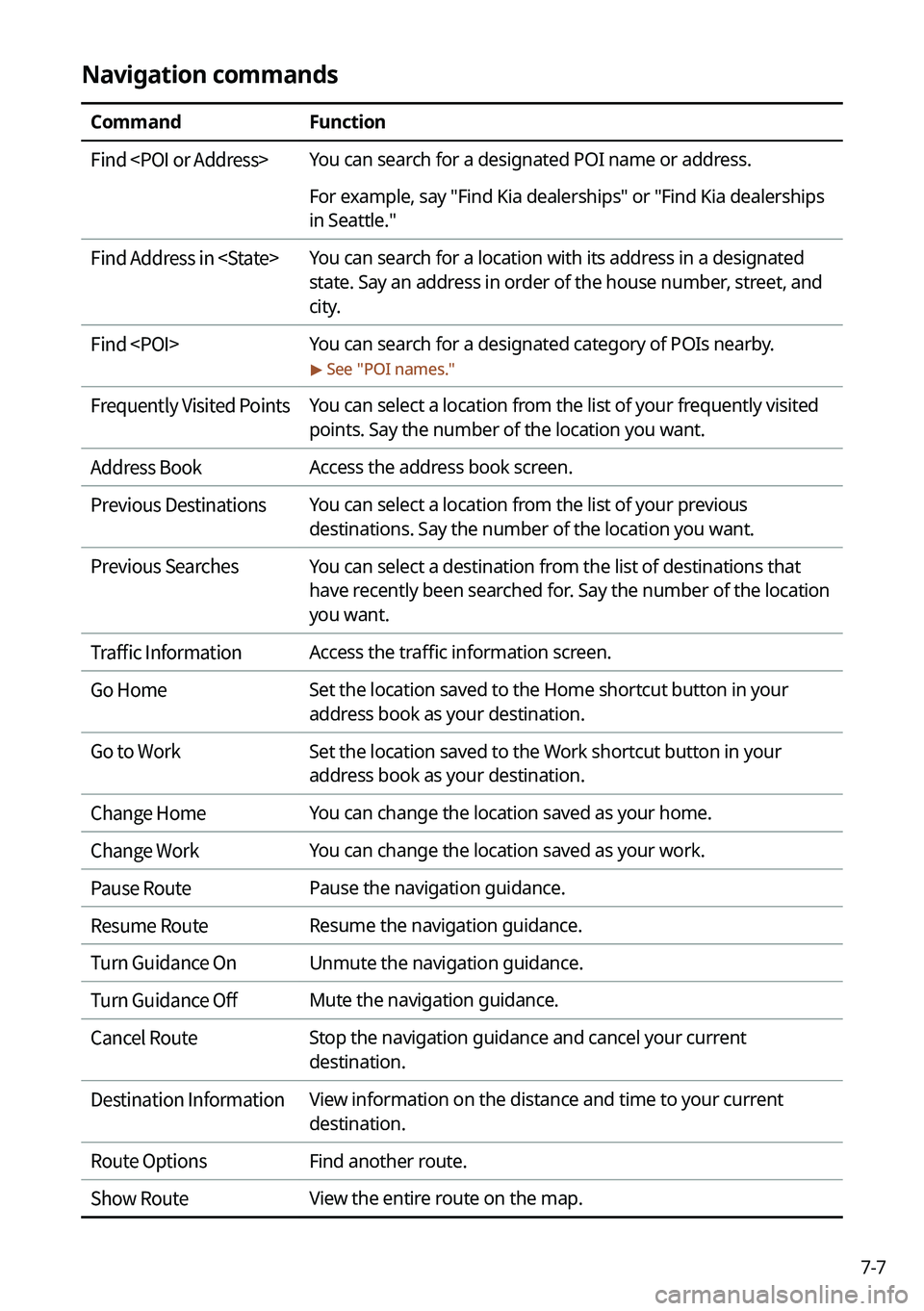
Navigation commands
CommandFunction
Find
For example, say "Find Kia dealerships" or "Find Kia dealerships
in Seattle."
Find Address in
state. Say an address in order of the house number, street, and
city.
Find
> See "
POI names."
Frequently Visited Points You can select a location from the list of your frequently visited
points. Say the number of the location you want.
Address Book Access the address book screen.
Previous Destinations You can select a location from the list of your previous
destinations. Say the number of the location you want.
Previous Searches You can select a destination from the list of destinations that
have recently been searched for. Say the number of the location
you want.
Traffic Information Access the traffic information screen.
Go Home Set the location saved to the Home shortcut button in your
address book as your destination.
Go to Work Set the location saved to the Work shortcut button in your
address book as your destination.
Change Home You can change the location saved as your home.
Change Work You can change the location saved as your work.
Pause Route Pause the navigation guidance.
Resume Route Resume the navigation guidance.
Turn Guidance On Unmute the navigation guidance.
Turn Guidance Off Mute the navigation guidance.
Cancel Route Stop the navigation guidance and cancel your current
destination.
Destination Information View information on the distance and time to your current
destination.
Route Options Find another route.
Show Route View the entire route on the map.
Page 186 of 316
8-12
Route guidance service (if equipped)
Use a more convenient, accurate route guidance service through the UVO route guidance
service.
Finding the route to the destination by manual entry
You can enjoy fast and accurate route guidance based on real-time traffic data and
forecasting traffic information collected by the UVO Center.
Using the UVO quick route guidance
You can use the quick navigation service based on real-time traffic information analyzed by
the UVO Center.
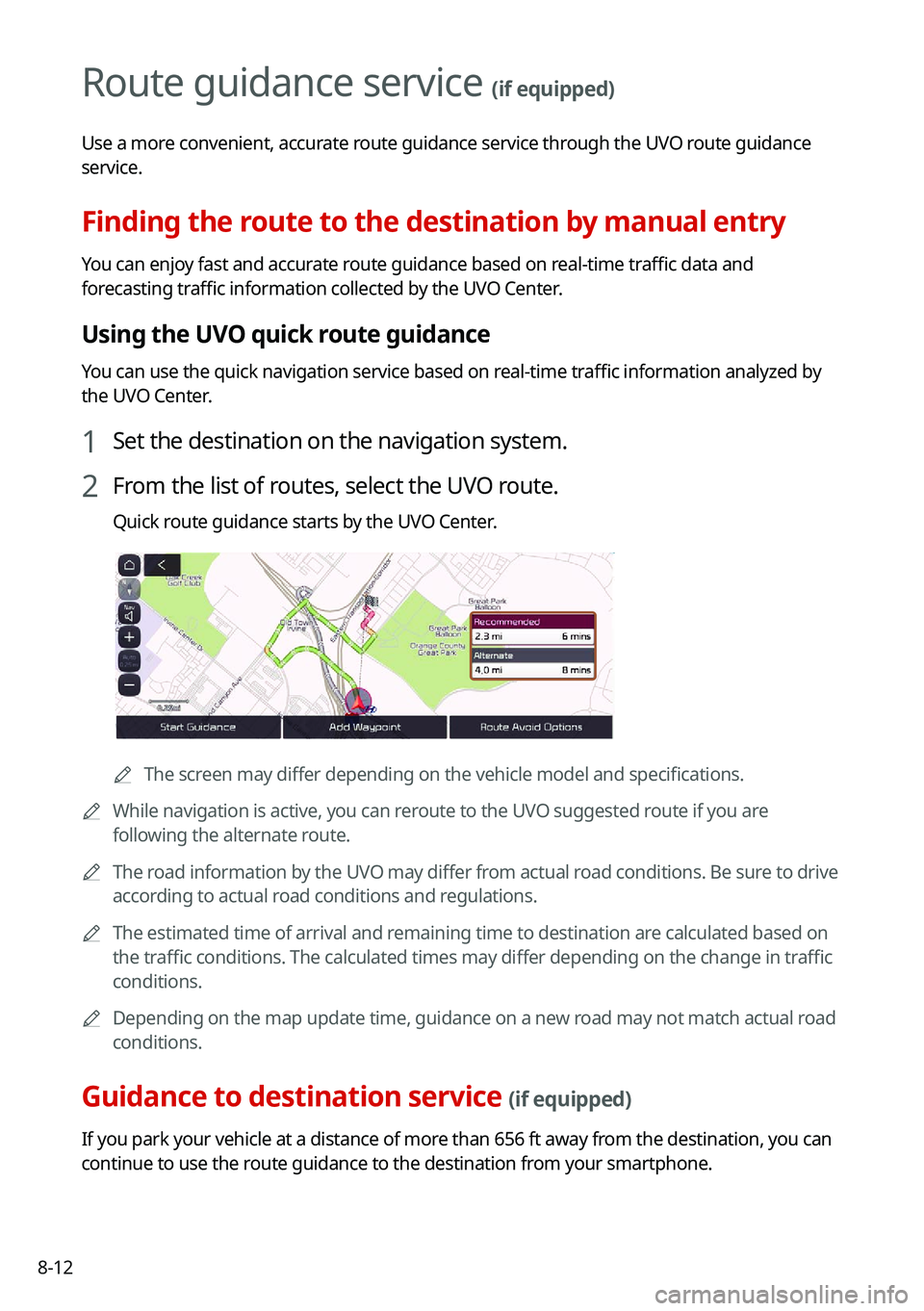
1 Set the destination on the navigation system.
2 From the list of routes, select the UVO route.
Quick route guidance starts by the UVO Center.
AThe screen may differ depending on the vehicle model and specifications.
A
While navigation is active, you can reroute to the UVO suggested route if you are
following the alternate route.
A
The road information by the UVO may differ from actual road conditions. Be sure to drive
according to actual road conditions and regulations.
A
The estimated time of arrival and remaining time to destination are calculated based on
the traffic conditions. The calculated times may differ depending on the change in traffic
conditions.
A
Depending on the map update time, guidance on a new road may not match actual road
conditions.
Guidance to destination service (if equipped)
If you park your vehicle at a distance of more than 656 ft away from the destination, you can
continue to use the route guidance to the destination from your smartphone.
Page 191 of 316
9-5
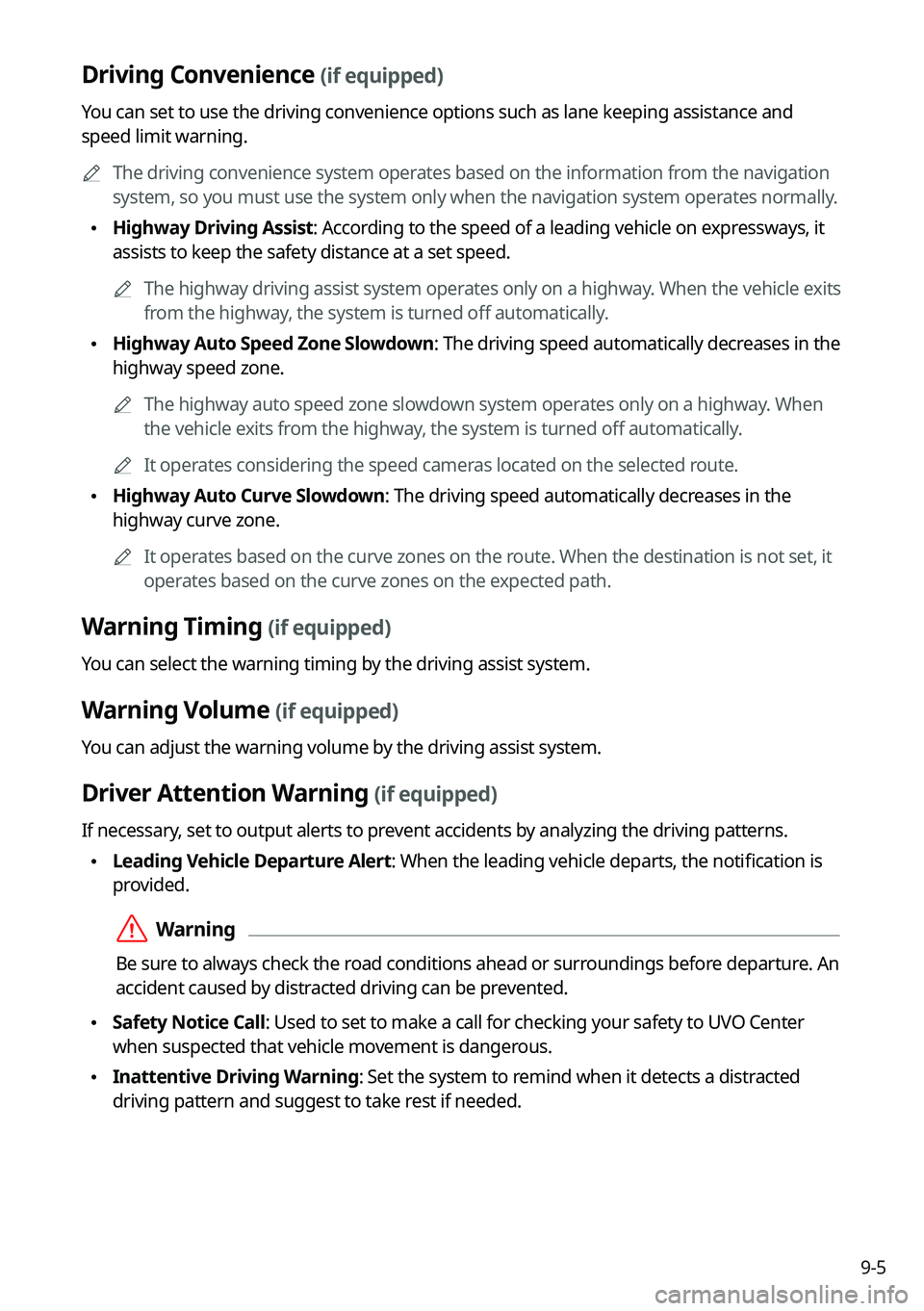
Driving Convenience (if equipped)
You can set to use the driving convenience options such as lane keeping assistance and
speed limit warning.
A
The driving convenience system operates based on the information from the navigation
system, so you must use the system only when the navigation system operates normally.
•Highway Driving Assist: According to the speed of a leading vehicle on expressways, it
assists to keep the safety distance at a set speed.
A
The highway driving assist system operates only on a highway. When the vehicle exits
from the highway, the system is turned off automatically.
•Highway Auto Speed Zone Slowdown: The driving speed automatically decreases in the
highway speed zone.
A
The highway auto speed zone slowdown system operates only on a highway. When
the vehicle exits from the highway, the system is turned off automatically.
A
It operates considering the speed cameras located on the selected route.
•Highway Auto Curve Slowdown: The driving speed automatically decreases in the
highway curve zone.
A
It operates based on the curve zones on the route. When the destination is not set, it
operates based on the curve zones on the expected path.
Warning Timing (if equipped)
You can select the warning timing by the driving assist system.
Warning Volume (if equipped)
You can adjust the warning volume by the driving assist system.
Driver Attention Warning (if equipped)
If necessary, set to output alerts to prevent accidents by analyzing the driving patterns.
•Leading Vehicle Departure Alert: When the leading vehicle departs, the notification is
provided.
ÝWarning
Be sure to always check the road conditions ahead or surroundings before departure. An
accident caused by distracted driving can be prevented.
•Safety Notice Call: Used to set to make a call for checking your safety to UVO Center
when suspected that vehicle movement is dangerous.
•Inattentive Driving Warning: Set the system to remind when it detects a distracted
driving pattern and suggest to take rest if needed.
Page 243 of 316
9-57
Display Traffic: Displays nearby traffic information on the map.
3D Buildings: Displays major buildings on the map in three dimensions.
Auto-scale: Automatically changes the scale of the map.
•
POI Display: You can specify the icon type to display nearby places on the map.
A
Press
on the right side of Gas/LPG Station to select display options for fuel prices.
Gas and LPG stations on the Map screen will also show their fuel prices if they are lower
than the set price.
Select Display Fuel Price Info on Map to view recommended fuel prices based on the
prices offered in the area.
Fuel prices on the map may differ from actual ones.
Information
You can specify the information to display on the navigation map screen while driving.
•
Route Guide Line: Used to display the route guide line in different colors depending on
the traffic conditions. To display the route color with a fixed one, uncheck
Show Traffic
Colors on Route and select a color.
• Vehicle Symbol: You can specify the icon type to display your current location on the
map.
•Units: You can set the distance unit of the navigation map to Kilometers (km) or Miles
(mi) (if equipped).
•Show Vehicle Speed: Displays the vehicle speed on the map.
•Detailed Guidance View: You can set to display detailed information on the Map screen,
such as moving directions and lane change.
•Speed Limits: Sets whether or not to display the speed limits on the screen.
Map Auto-scale Settings
You can set the scales for each vehicle speed zone.
A
For example, when you select "700 ft" for the 21–40 mi/h zone and "0.25 mi" for the 41–60
mi/h zone, the unit interval for the map scale on the navigation screen becomes 700 ft
when the vehicle speed is 40 mi/h and 0.25 mi when the vehicle speed is 41 mi/h.
Return to Map: Set Time
You can set the system to automatically display the map screen after a specified period of
time when switched to the Radio/Media mode screen while using the navigation.
A
This function works while driving once a destination has been set.
A
This feature is not available on the phone projection screen.
Page 244 of 316

9-58
Auto Re-center Map
You can set the system to automatically display the current position when the specified
period of time elapses after changing to another position on the map.
Guidance
You can configure the navigation guidance settings.
AThe screen may differ depending on the vehicle model and specifications.
Show Guidance Distance
You can configure settings for displaying the distance to the destination during guidance.
•Interval Distance: Displays the distance as the one between different zones.
•Cumulative Distance: Displays the distance as the one between the current position and
target position.
Border Crossing Information
You can set whether or not to display the border crossing information on the screen.
Show Route Overview While Stopped.
You can set to display the route overview from the start point to the destination when the
vehicle is stationary.
Alerts
You can set to activate drive assist features when needed for safety.
Page 245 of 316

9-59
ÝWarning
Be sure to check the road conditions while driving, because the camera information may get
changed occasionally after a map update to the latest version. Relying solely on the driving
assist system may cause violation of traffic rules and regulations, resulting in an accident.
Camera Alert Distance
You can set when to receive alerts against and voice descriptions about traffic enforcement
cameras.
•Camera Alerts with Navigation Muted: You can set traffic enforcement camera alerts
or warning sounds for safe driving when the navigation is muted.
None: No guidance is provided when the navigation is muted.
Use Beeps Only: Guidance is provided only with warning sound.
Use Voice Prompts with Beeps: Guidance is provided with warning sound and voice.
•
Camera Alert Distance Depending on the Vehicle Speed: The time when to get alerts
for traffic enforcement cameras is automatically set depending on the driving speed.
Camera Alert Distance (Local Roads): It is activated when Camera Alert Distance
Depending on the Vehicle Speed is turned off. The time when to get guidance for
traffic enforcement cameras on general roads can be selected.
Camera Alert Distance (Highway): It is activated when Camera Alert Distance
Depending on the Vehicle Speed is turned off. The time when to get guidance for
traffic enforcement cameras on highways can be selected.
Others
You can configure navigation options, e.g., turning on or off fuel prices, exporting or
importing places from and to Address Book.
A
The screen may differ depending on the vehicle model and specifications.
Page 249 of 316
9-63
Information
You can specify the information to display on the navigation map screen while driving.
•Route Guide Line: Used to display the route guide line in different colors depending on
the traffic conditions. To display the route color with a fixed one, uncheck
Show Traffic
Colors on Route and select a color.
• Vehicle Symbol: You can specify the icon type to display your current location on the
map.
•Units: You can set the distance unit of the navigation map to Kilometers (km) or Miles
(mi) (if equipped).
•Show Vehicle Speed: Displays the vehicle speed on the map.
•Detailed Guidance View: You can set to display detailed information on the Map screen,
such as moving directions and lane change.
•Speed Limits: Sets whether or not to display the speed limits on the screen.
Map Auto-scale Settings
You can set the scales for each vehicle speed zone.
A
For example, when you select "700 ft" for the 21–40 mi/h zone and "0.25 mi" for the 41–60
mi/h zone, the unit interval for the map scale on the navigation screen becomes 700 ft
when the vehicle speed is 40 mi/h and 0.25 mi when the vehicle speed is 41 mi/h.
Return to Map: Set Time
You can set the system to automatically display the map screen after a specified period of
time when switched to the Radio/Media mode screen while using the navigation.
A
This function works while driving once a destination has been set.
A
This feature is not available on the phone projection screen.
Auto Re-center Map
You can set the system to automatically display the current position when the specified
period of time elapses after changing to another position on the map.