2022 HYUNDAI TUCSON rating
[x] Cancel search: ratingPage 174 of 638
Convenient features
5-30
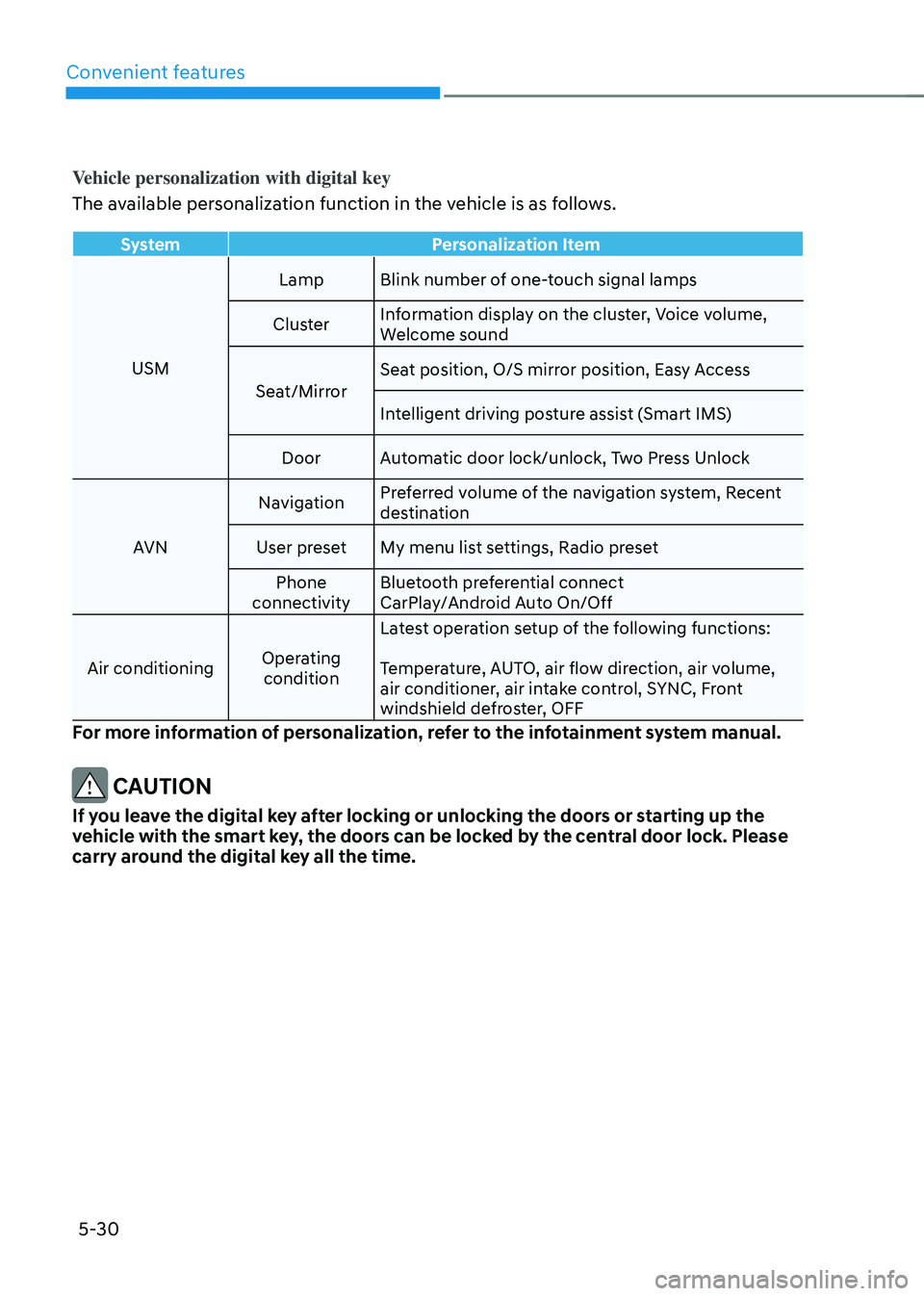
Vehicle personalization with digital key
The available personalization function in the vehicle is as follows.
SystemPersonalization Item
USM Lamp
Blink number of one-touch signal lamps
Cluster Information display on the cluster, Voice volume,
Welcome sound
Seat/Mirror Seat position, O/S mirror position, Easy Access
Intelligent driving posture assist (Smart IMS)
Door Automatic door lock/unlock, Two Press Unlock
AVN Navigation
Preferred volume of the navigation system, Recent
destination
User preset My menu list settings, Radio preset
Phone
connectivity Bluetooth preferential connect
CarPlay/Android Auto On/Off
Air conditioning Operating
condition Latest operation setup of the following functions:
Temperature, AUTO, air flow direction, air volume,
air conditioner, air intake control, SYNC, Front
windshield defroster, OFF
For more information of personalization, refer to the infotainment system manual.
CAUTION
If you leave the digital key after locking or unlocking the doors or starting up the
vehicle with the smart key, the doors can be locked by the central door lock. Please
carry around the digital key all the time.
Page 175 of 638
05
5-31
Operating door locks from
outside the vehicle
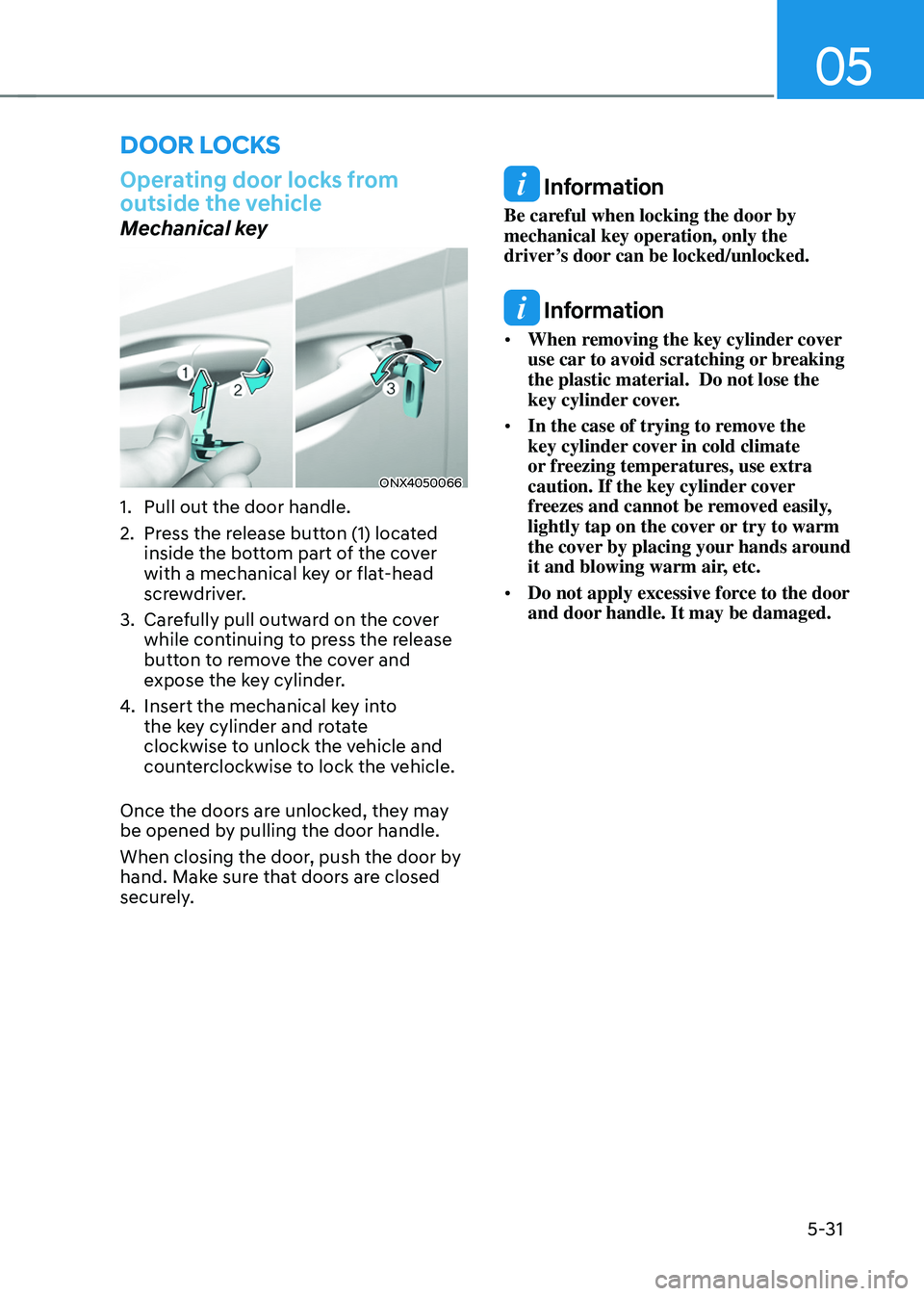
Mechanical key
ONX4050066
1. Pull out the door handle.
2. Press the release button (1) located
inside the bottom part of the cover
with a mechanical key or flat-head
screwdriver.
3. Carefully pull outward on the cover
while continuing to press the release
button to remove the cover and
expose the key cylinder.
4. Insert the mechanical key into
the key cylinder and rotate
clockwise to unlock the vehicle and
counterclockwise to lock the vehicle.
Once the doors are unlocked, they may
be opened by pulling the door handle.
When closing the door, push the door by
hand. Make sure that doors are closed
securely.
Information
Be careful when locking the door by
mechanical key operation, only the
driver’s door can be locked/unlocked.
Information
• When removing the key cylinder cover
use car to avoid scratching or breaking
the plastic material. Do not lose the
key cylinder cover.
• In the case of trying to remove the
key cylinder cover in cold climate
or freezing temperatures, use extra
caution. If the key cylinder cover
freezes and cannot be removed easily,
lightly tap on the cover or try to warm
the cover by placing your hands around
it and blowing warm air, etc.
• Do not apply excessive force to the door
and door handle. It may be damaged.
DOOR LOCKS
Page 176 of 638
Convenient features
5-32
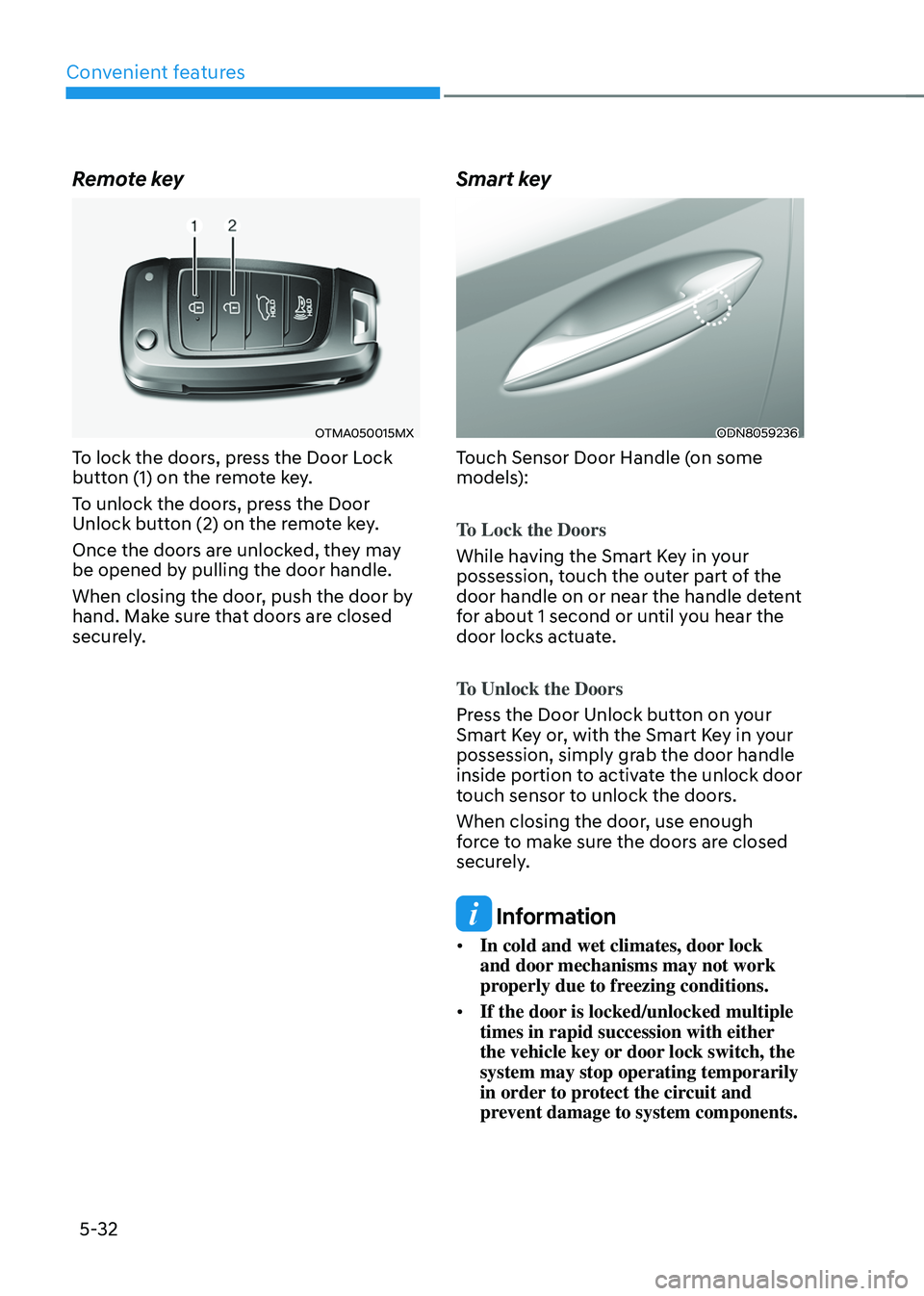
Remote key
OTMA050015MX
To lock the doors, press the Door Lock
button (1) on the remote key.
To unlock the doors, press the Door
Unlock button (2) on the remote key.
Once the doors are unlocked, they may
be opened by pulling the door handle.
When closing the door, push the door by
hand. Make sure that doors are closed
securely.
Smart key
ODN8059236
Touch Sensor Door Handle (on some
models):
To Lock the Doors
While having the Smart Key in your
possession, touch the outer part of the
door handle on or near the handle detent
for about 1 second or until you hear the
door locks actuate.
To Unlock the Doors
Press the Door Unlock button on your
Smart Key or, with the Smart Key in your
possession, simply grab the door handle
inside portion to activate the unlock door
touch sensor to unlock the doors.
When closing the door, use enough
force to make sure the doors are closed
securely.
Information
• In cold and wet climates, door lock
and door mechanisms may not work
properly due to freezing conditions.
• If the door is locked/unlocked multiple
times in rapid succession with either
the vehicle key or door lock switch, the
system may stop operating temporarily
in order to protect the circuit and
prevent damage to system components.
Page 177 of 638
05
5-33
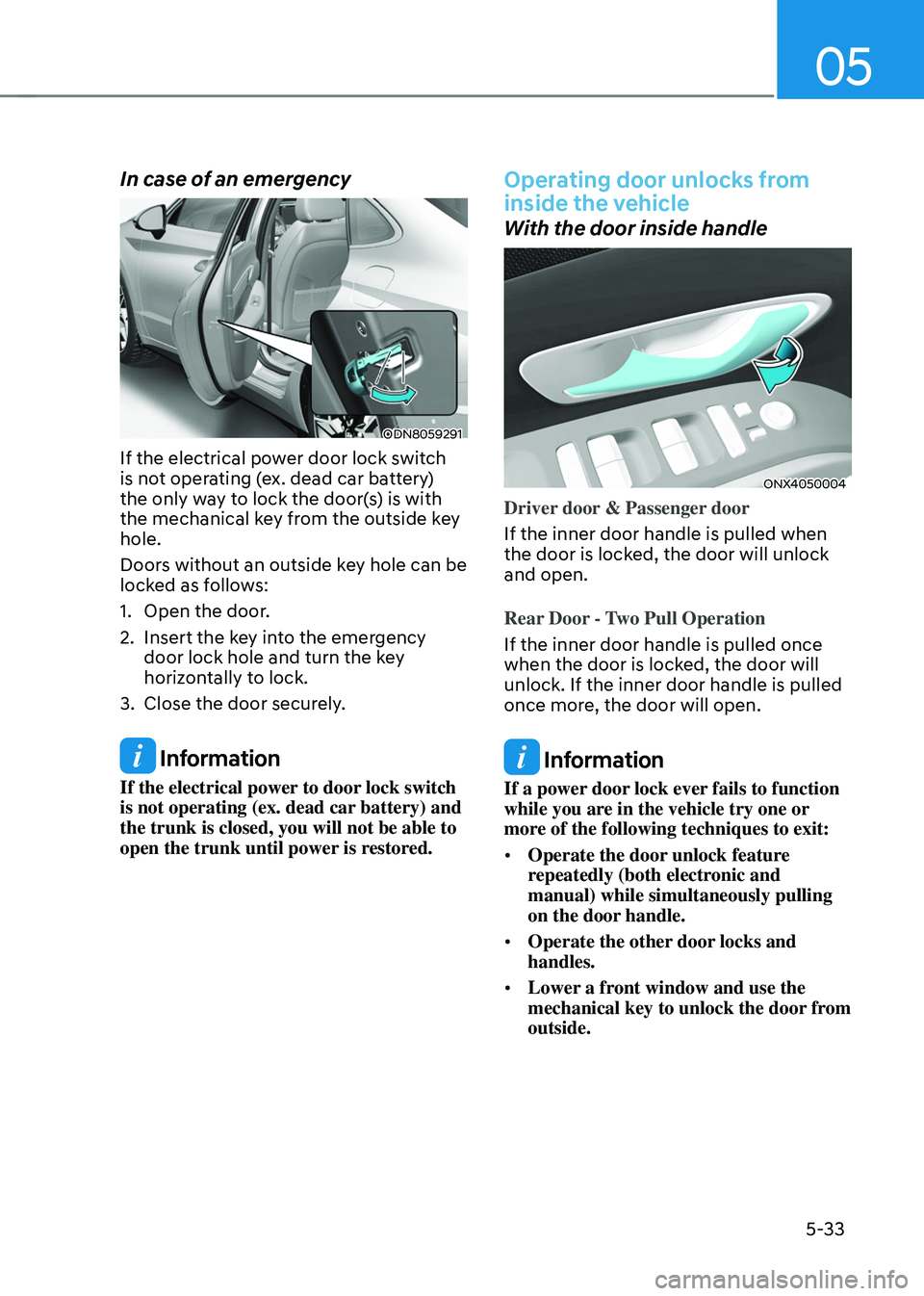
In case of an emergency
ODN8059291
If the electrical power door lock switch
is not operating (ex. dead car battery)
the only way to lock the door(s) is with
the mechanical key from the outside key
hole.
Doors without an outside key hole can be
locked as follows:
1. Open the door.
2. Insert the key into the emergency door lock hole and turn the key
horizontally to lock.
3. Close the door securely.
Information
If the electrical power to door lock switch
is not operating (ex. dead car battery) and
the trunk is closed, you will not be able to
open the trunk until power is restored.
Operating door unlocks from
inside the vehicle
With the door inside handle
ONX4050004
Driver door & Passenger door
If the inner door handle is pulled when
the door is locked, the door will unlock
and open.
Rear Door - Two Pull Operation
If the inner door handle is pulled once
when the door is locked, the door will
unlock. If the inner door handle is pulled
once more, the door will open.
Information
If a power door lock ever fails to function
while you are in the vehicle try one or
more of the following techniques to exit:
• Operate the door unlock feature
repeatedly (both electronic and
manual) while simultaneously pulling
on the door handle.
• Operate the other door locks and
handles.
• Lower a front window and use the
mechanical key to unlock the door from
outside.
Page 182 of 638
Convenient features
5-38
Recalling memory positions
1. Make sure that the vehicle is in the ON
position and the gear selector is in P
(Park).
2. Press the desired button (1 or 2). The
system will beep once and the driver’s
seat position and side view mirror
position will be automatically adjusted
to the stored positions.
3. ‘Driver 1 (or 2) settings applied’ will
appear on the cluster LCD display.
Information
• Note that while the memory settings
are being recalled, if you press the
SET button or the corresponding IMS
memory button (1 or 2) for which the
settings are being recalled, the IMS will
temporarily deactivate. If you select
the alternate IMS memory button (1 or
2), the IMS will activate according to
the settings of the alternate button.
For example, if you press the SET
button or the number 1 button with the
number 1 setting in operation, the IMS
will temporarily deactivate.
If you press the number 2 button, then
the IMS memory settings according to
number 2 will activate.
• If you adjust the driver seat settings
while the IMS is recalling the stored
positions, the memory settings will not
be applied.
Resetting the system
Follow the below procedures to reset the
Integrated Memory System (IMS) if it is
not operating properly:
Resetting the Integrated Memory
System (IMS)
1. Make sure that the vehicle is in Park
(P) and the engine is ON. Open the
driver’s door.
2. Adjust the driver’s seat and seatback
angle to the most forward positions.
3. Press the SET button and push
forward the driver’s seat movement
switch over 2 seconds simultaneously.
While resetting integrated memory
system
1. Resetting starts with a notification
sound.
2. The driver’s seat and seatback is
adjusted to the rearward position with
the notification sound.
3. The driver’s seat and seatback is
re-adjusted to the default position
(central position) with the notification
sound.
However, in the following cases, the
resetting procedure and the notification
sound may stop.
• The memory button is pressed.
• The seat control switch is operated.
• The gear is shifted out of P (Park).
• The driving speed exceeds
2 mph (3km/h).
• The driver’s door is closed.
Page 183 of 638
05
5-39
NOTICE
• While integrated memory system
is being reset, if the resetting
and notification sound stops
incompletely, restart the resetting
procedure again.
• Before performing the IMS memory
reset operation, make sure there are
no objects on or around the driver’s
seat.
Seat Easy Access Operation (if
equipped)
The system will move the driver’s seat
automatically as follows:
• Vehicles equipped with Driver’s Power
Seat and Smart Key
-The driver’s seat will move rearward
when the Engine Start/Stop button
is pressed to turn the engine OFF.
-The driver’s seat will move forward
when the Engine Start/Stop button
is pressed to the ACC or engine
START position.
Note that Seat Easy Access operation
may be limited when the driver’s seat
position setting is already close to the
maximum rearward travel position.
You can enable or disable the Seat Easy
Access feature in the User Settings menu
on the LCD display or the navigation
infotainment screen on some models.
‘Convenience → Seat Easy Access → Off/Normal/Extended’.
For more details, refer to “LCD Display”
In chapter 4.
CAUTION
The driver should be aware and be
cautious to avoid injury or damage
when using this feature if there are
objects or passengers in the driver’s
side rear seat or seat floor.
In case of emergency or to stop
movement of the front seat when the
Seat Easy Access is operating, press the
SET button or any of the driver’s seat
control switches.
Page 186 of 638

Convenient features
5-42
• Auto Comfort Control for Driver (if
equipped)
The Automatic Comfort Control
feature can control the steering
wheel heater operation according
to the ambient temperature and
the set climate control temperature
while the engine is running.
If the heated steering wheel switch
is pressed while the Automatic
Comfort Control feature is
operating, then the heated steering
wheel operation will be controlled
manually.
The Auto Comfort Control feature
is enabled from the Vehicle
Settings menu on the navigation
infotainment screen.
-The heated steering wheel defaults
to the OFF position whenever the
ignition switch is ON. However, if
the Auto Comfort Control function
is ON, the heated steering wheel
will turn on and off depending on
the ambient temperature and the
set climate control temperature.
For more details, we recommend that
you contact an authorized HYUNDAI
dealer.
Information
The heated steering wheel will turn off
automatically approximately 30 minutes
after the heated steering wheel is turned
on.
NOTICE
Do not install any cover or accessory
on the steering wheel. This cover or
accessory could cause damage to the
heated steering wheel system.
Horn
OCN7050016
To sound the horn, press the area
indicated by the horn symbol on your
steering wheel (see illustration). The
horn will operate only when this area is
pressed.
NOTICE
Do not strike the horn severely to
operate it, or hit it with your fist. Do not
press on the horn with a sharp-pointed
object.
Page 193 of 638
05
5-49
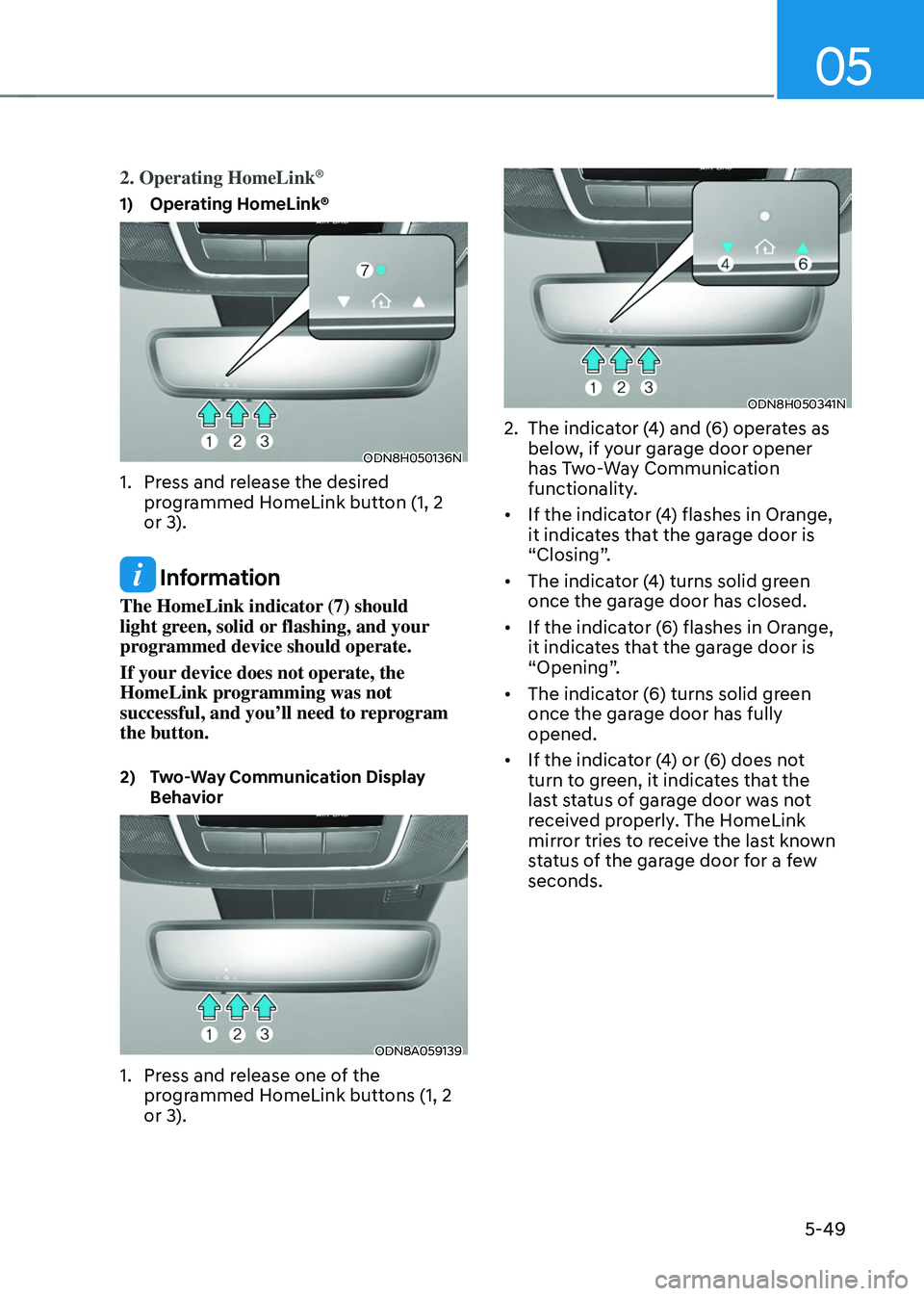
2. Operating HomeLink®
1) Operating HomeLink®
ODN8H050136N
1. Press and release the desired
programmed HomeLink button (1, 2
or 3).
Information
The HomeLink indicator (7) should
light green, solid or flashing, and your
programmed device should operate.
If your device does not operate, the
HomeLink programming was not
successful, and you’ll need to reprogram
the button.
2) Two-Way Communication Display Behavior
ODN8A059139
1. Press and release one of the
programmed HomeLink buttons (1, 2
or 3).
ODN8H050341N
2. The indicator (4) and (6) operates as
below, if your garage door opener
has Two-Way Communication
functionality.
• If the indicator (4) flashes in Orange,
it indicates that the garage door is
“Closing”.
• The indicator (4) turns solid green
once the garage door has closed.
• If the indicator (6) flashes in Orange,
it indicates that the garage door is
“Opening”.
• The indicator (6) turns solid green
once the garage door has fully
opened.
• If the indicator (4) or (6) does not
turn to green, it indicates that the
last status of garage door was not
received properly. The HomeLink
mirror tries to receive the last known
status of the garage door for a few
seconds.