2022 HYUNDAI SONATA auto stop
[x] Cancel search: auto stopPage 116 of 546
04
4-31
Trip Computer
The trip computer is a microcomputer-
controlled driver information system that
displays information related to driving.
Information
Some driving information stored in the
trip computer (for example Average
Vehicle Speed) resets if the battery is
disconnected.
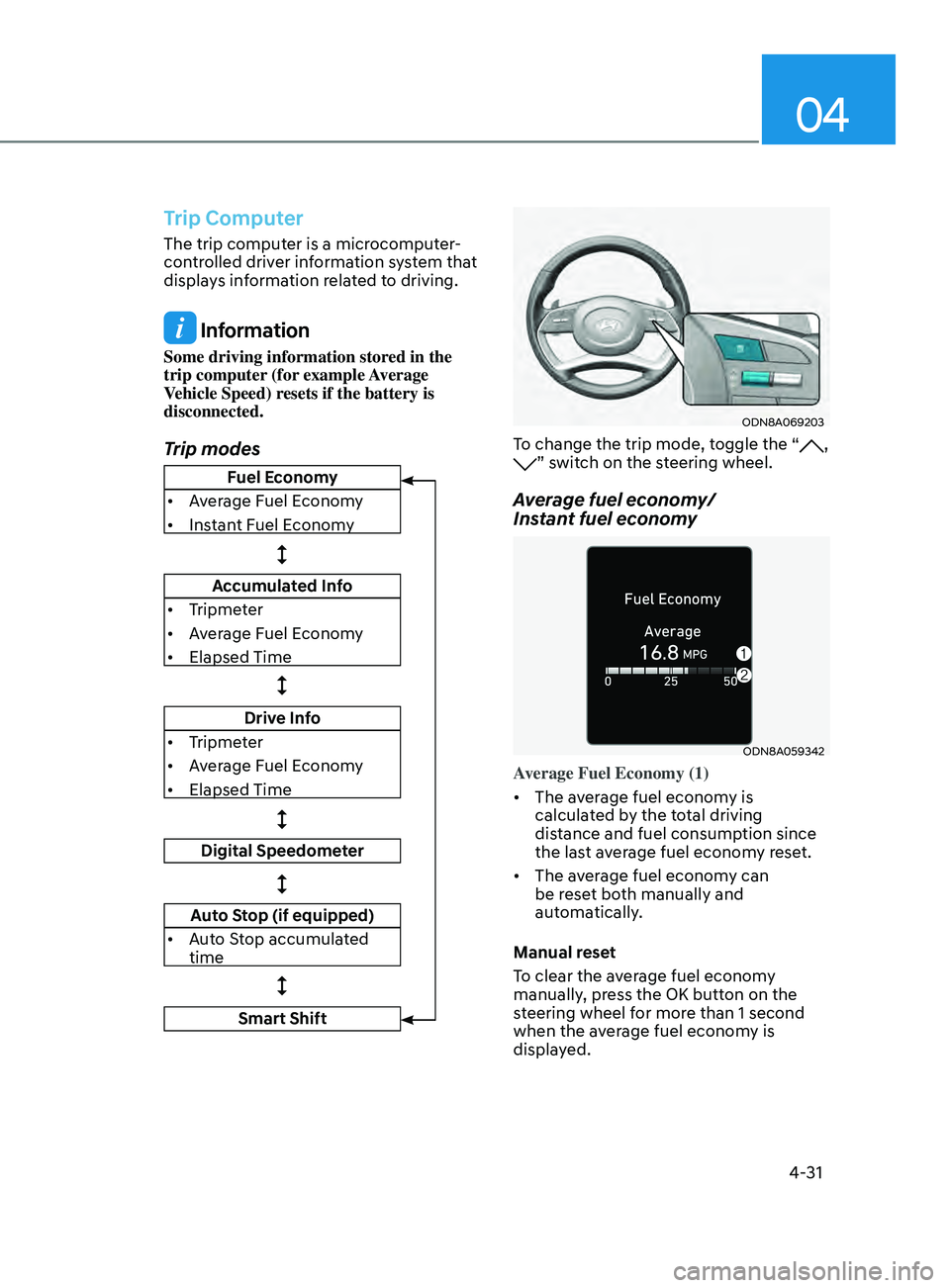
Trip modes
ODN8A069203
To change the trip mode, toggle the “, ” switch on the steering wheel.
Average fuel economy/
Instant fuel economy
ODN8A059342
Average Fuel Economy (1)
• The average fuel economy is
calculated by the total driving
distance and fuel consumption since
the last average fuel econ
om
y reset.
• The average fuel economy can
be reset both manually and
automatically.
Manual reset
To clear the average fuel economy
manually, press the OK button on the
steering wheel for more than 1 second
when the average fuel economy is
displayed.
Fuel Economy
• Average Fuel Economy
• Instant Fuel Economy
Accumulated Info
• Tripmeter
• Average Fuel Economy
• Elapsed Time
Drive Info
• Tripmeter
• Average Fuel Economy
• Elapsed Time
Digital Speedometer
Auto Stop (if equipped)
• Auto Stop accumulated
time
Smart Shift
Page 117 of 546
Instrument Cluster
4-32
Automatic reset
To automatically reset the average fuel
economy after refueling, select the "Fuel
Econ. Reset" mode in the User Settings
menu on the LCD display.
- A
fter Ignition: When the engine has
been OFF for 4 hours or longer the
average fuel economy will reset
automatically.
- A
fter Refueling: The average fuel
economy will reset automatically after
adding 1.6 gallons (6 liters) of fuel or
more and after driving speed exceeds
1 mph (1 km/h).
Information
The vehicle must be driven for a minimum
of 0.19 miles (300 meters) since the last
ignition key cycle before the average fuel
economy will be recalculated.
Instant Fuel Economy (2)
The instantaneous fuel economy is
displayed according to the bar graph in
the LCD display while driving.
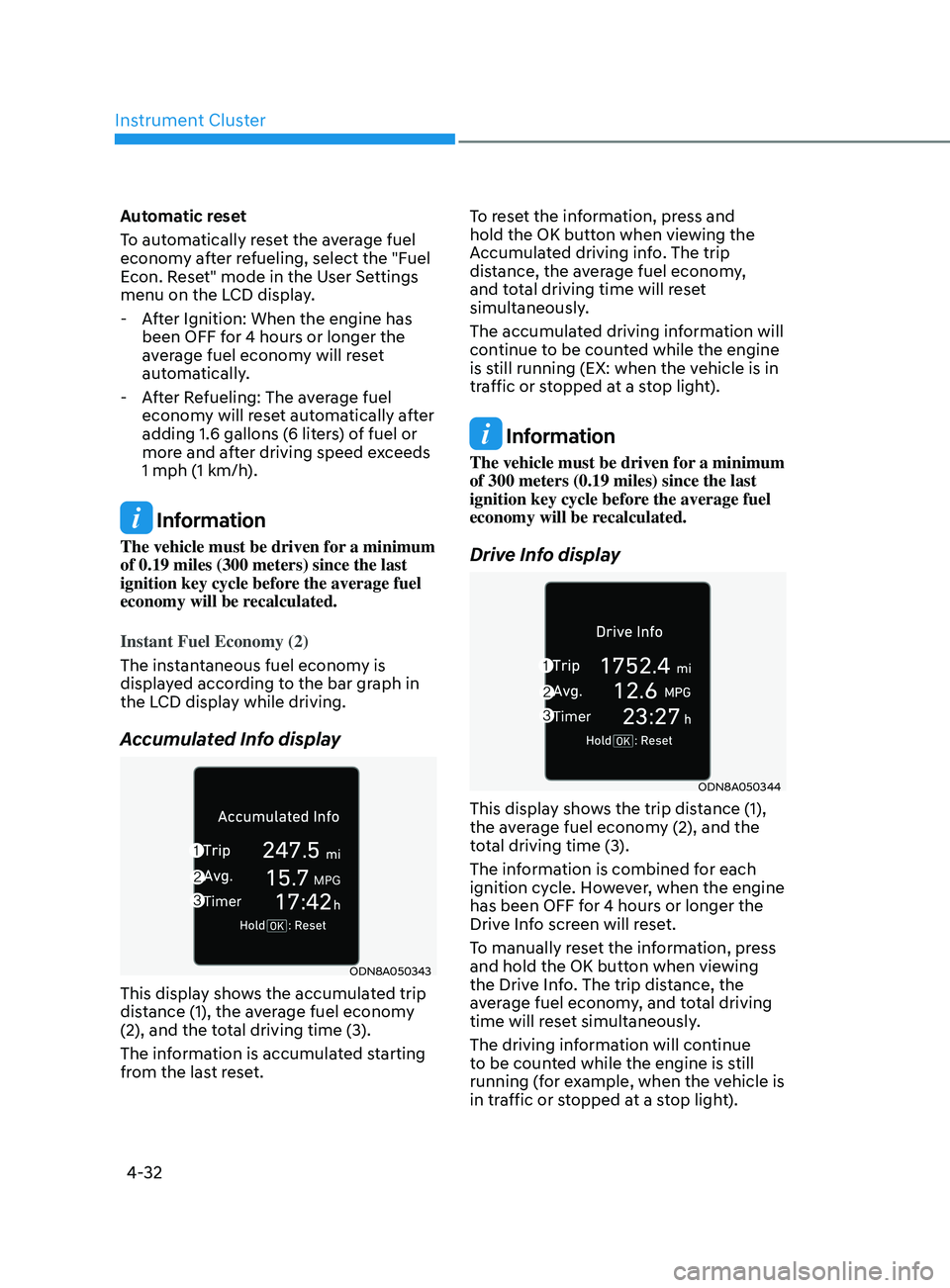
Accumulated Info display
ODN8A050343
This display shows the accumulated trip
distance (1), the average fuel economy
(2), and the total driving time (3).
The information is accumulated starting
from the last reset. To reset the information, press and
hold the OK button when viewing the
Accumulated driving info. The trip
distance, the average fuel economy,
and total driving time will reset
simultaneously.
The accumulated driving information will
continue to be counted while the engine
is still running (EX: when the vehicle is in
traffic or stopped at a stop light).
Information
The vehicle must be driven for a minimum
of 300 meters (0.19 miles) since the last
ignition key cycle before the average fuel
economy will be recalculated.
Drive Info display
ODN8A050344
This display shows the trip distance (1),
the average fuel economy (2), and the
total driving time (3).
The information is combined for each
ignition cycle. However, when the engine
has been OFF for 4 hours or longer the
Drive Info screen will reset.
To manually reset the information, press
and hold the OK button when viewing
the Drive Info. The trip distance, the
average fuel economy, and total driving
time will reset simultaneously.
The driving information will continue
to be counted while the engine is still
running (for example, when the vehicle is
in traffic or stopped at a stop light).
Page 118 of 546
04
4-33
Information
The vehicle must be driven for a minimum
of 0.19 miles (300 meters) since the last
ignition key cycle before the average fuel
economy will be recalculated.
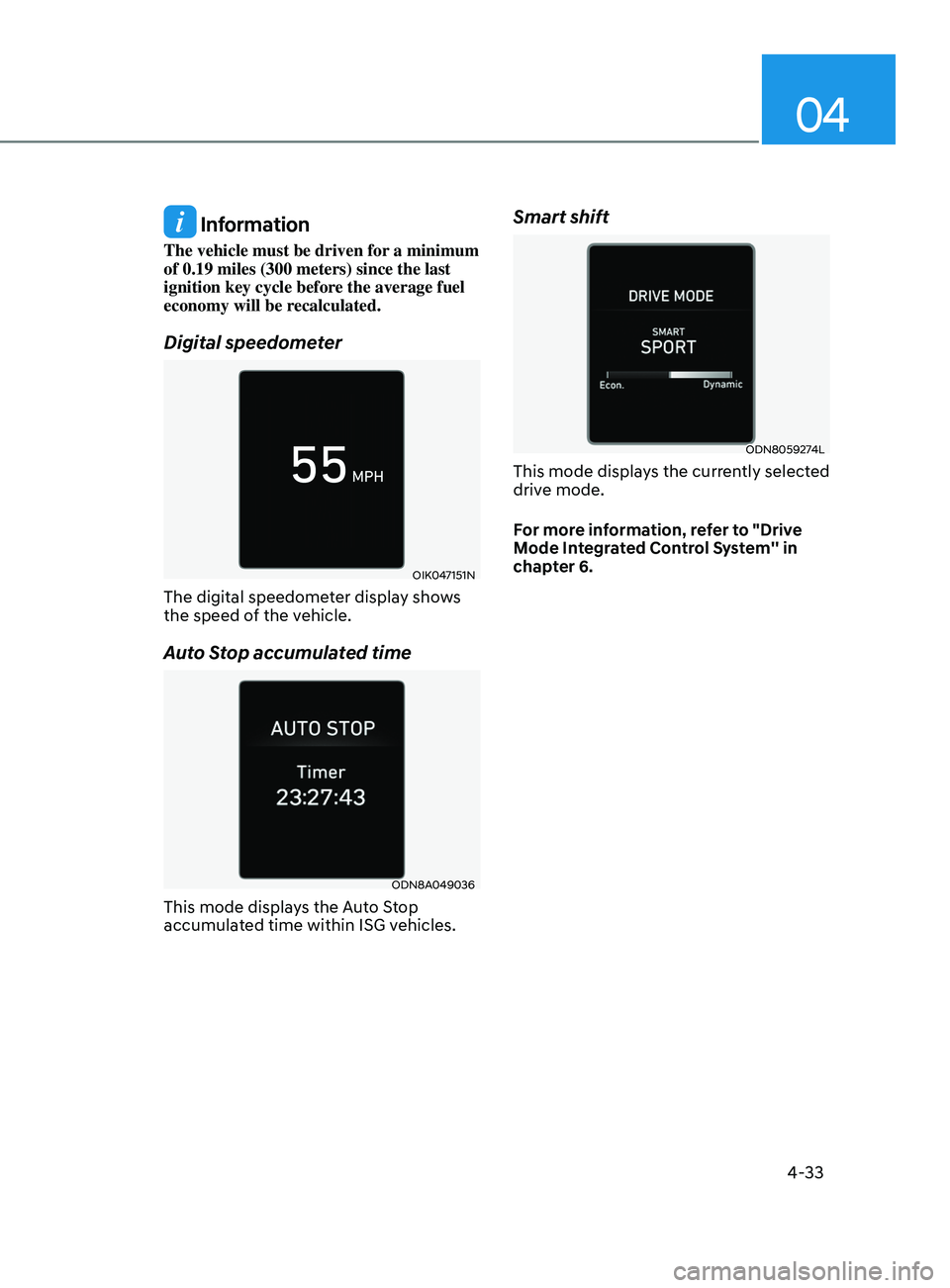
Digital speedometer
OIK047151N
The digital speedometer display shows
the speed of the vehicle.
Auto Stop accumulated time
ODN8A049036
This mode displays the Auto Stop
accumulated time within ISG vehicles.
Smart shift
ODN8059274L
This mode displays the currently selected
drive mode.
For more information, refer to "Drive
Mode Integrated Control System'' in
chapter 6.
Page 121 of 546
Instrument Cluster
4-36
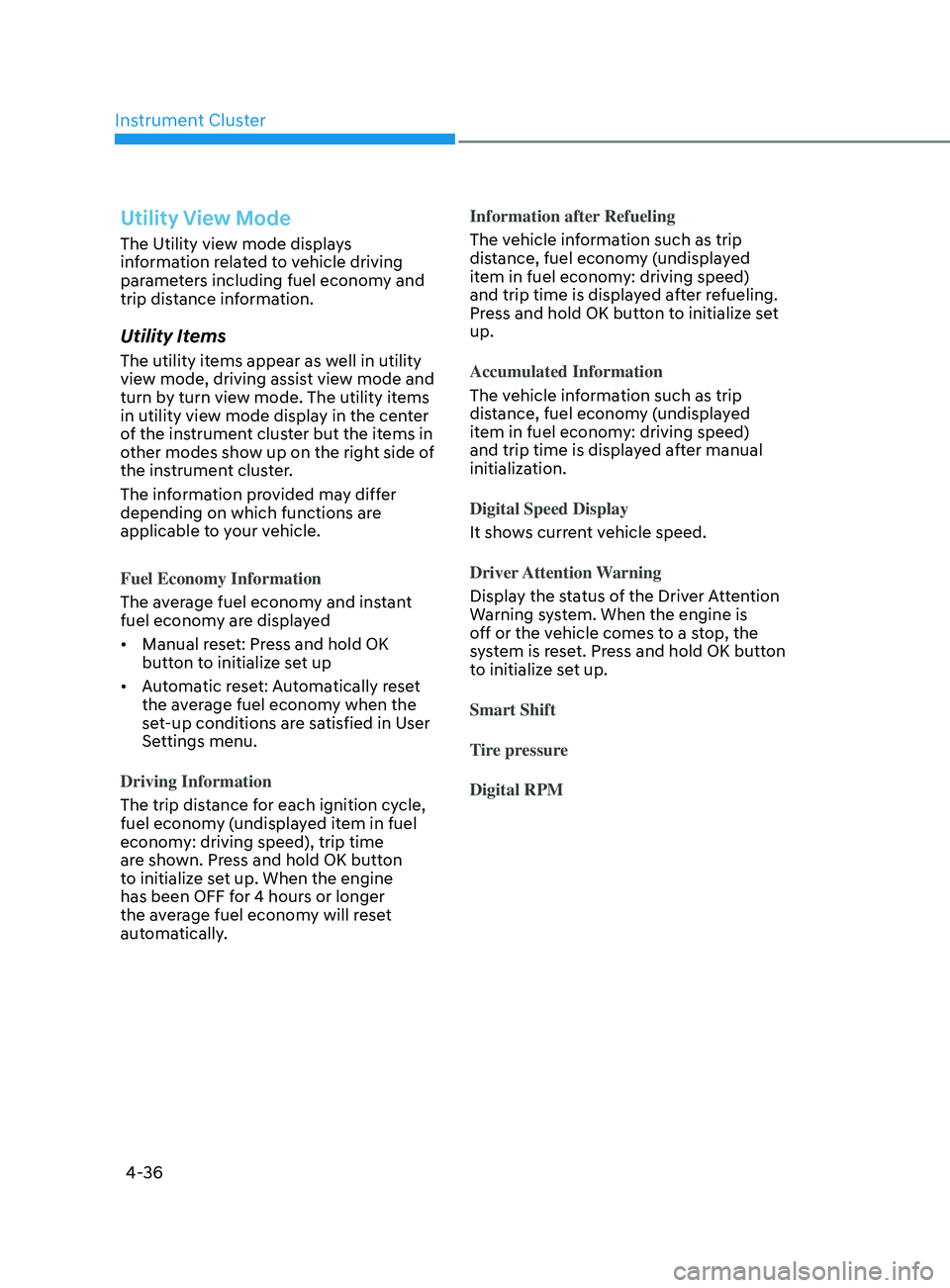
Utility View Mode
The Utility view mode displays
information related to vehicle driving
parameters including fuel economy and
trip distance information.
Utility Items
The utility items appear as well in utility
view mode, driving assist view mode and
turn by turn view mode. The utility items
in utility view mode display in the center
of the instrument cluster but the items in
other modes show up on the right side of
the instrument cluster.
The information provided may differ
depending on which functions are
applicable to your vehicle.
Fuel Economy Information
The average fuel economy and instant
fuel economy are displayed
• Manual reset: Press and hold OK
button to initialize set up
• Automatic reset: Automatically reset
the average fuel economy when the
set-up conditions are satisfied in User
Settings menu.
Driving Information
The trip distance for each ignition cycle,
fuel economy (undisplayed item in fuel
economy: driving speed), trip time
are shown. Press and hold OK button
to initialize set up. When the engine
has been OFF for 4 hours or longer
the average fuel economy will reset
automatically. Information after Refueling
The vehicle information such as trip
distance, fuel economy (undisplayed
item in fuel economy: driving speed)
and trip time is displayed after refueling.
Press and hold OK button to initialize set
up.
Accumulated Information
The vehicle information such as trip
distance, fuel economy (undisplayed
item in fuel economy: driving speed)
and trip time is displayed after manual
initialization.
Digital Speed Display
It shows current vehicle speed.
Driver Attention Warning
Display the status of the Driver Attention
Warning system. When the engine is
off or the vehicle comes to a stop, the
system is reset. Press and hold OK button
to initialize set up.
Smart Shift
Tire pressure
Digital RPM
Page 127 of 546
Instrument Cluster
4-42
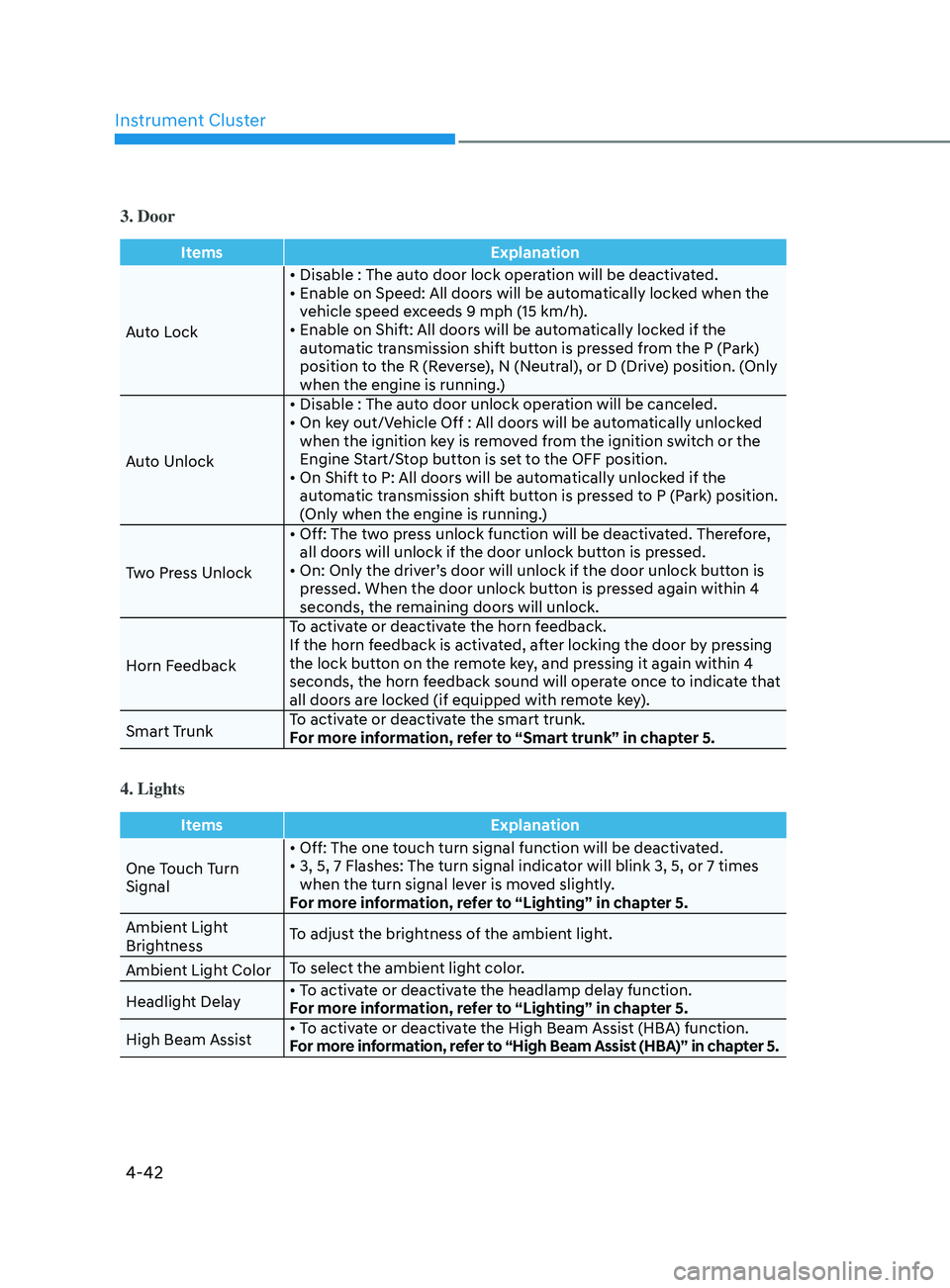
3. Door
ItemsExplanation
Auto Lock •
Disable : The auto door lock operation will be deactivated.
•
E
nable on Speed: All doors will be automatically locked when the
v
ehicle speed exceeds 9 mph (15 km/h).
•
E
nable on Shift: All doors will be automatically locked if the
aut
omatic transmission shift button is pressed from the P (Park)
position to the R (Reverse), N (Neutral), or D (Drive) position. (Only
when the engine is running.)
Auto Unlock •
Disable
: The auto door unlock operation will be canceled.
•
On
key out/Vehicle Off : All doors will be automatically unlocked
when the ignition k
ey is removed from the ignition switch or the
Engine Start/Stop button is set to the OFF position.
•
On
Shift to P: All doors will be automatically unlocked if the
aut
omatic transmission shift button is pressed to P (Park) position.
(Only when the engine is running.)
Two Press Unlock •
Off:
The two press unlock function will be deactivated. Therefore,
all door
s will unlock if the door unlock button is pressed.
•
On:
Only the driver’s door will unlock if the door unlock button is
pr
essed. When the door unlock button is pressed again within 4
seconds, the remaining doors will unlock.
Horn Feedback To activate or deactivate the horn feedback.
If the horn feedback is activated, after locking the door by pressing
the lock button on the remote key, and pressing it again within 4
seconds, the horn feedback sound will operate once to indicate that
all doors are locked (if equipped with remote key).
Smart Trunk To activate or deactivate the smart trunk.
For more information, refer to “Smart trunk” in chapter 5.
4. Lights
Items
Explanation
One Touch Turn
Signal •
Off: The one touch turn signal function will be deactivated.
•
3,
5, 7 Flashes: The turn signal indicator will blink 3, 5, or 7 times
when the turn signal le
ver is moved slightly.
For more information, refer to “Lighting” in chapter 5.
Ambient Light
Brightness To adjust the brightness of the ambient light.
Ambient Light Color To select the ambient light color.
Headlight Delay •
To activate or deactivate the headlamp delay function.
For more information, refer to “Lighting” in chapter 5.
High Beam Assist •
To activate or deactivate the High Beam Assist (HBA) function.
For more information, refer to “High Beam Assist (HBA)” in chapter 5.
Page 141 of 546
05
5-11
Start-up
You can start the vehicle without
inserting the key.
For information, refer to the “Engine
Start/Stop Button” section in chapter 6.
NOTICE
To prevent damaging the smart key:
• Keep the smart key in a cool,
dry place to avoid damage or
malfunction. Exposure to moisture
or high temperature may cause
the internal circuit of the smart key
to malfunction which may not be
covered under warranty.
• Avoid dropping or throwing the
smart key.
• Protect the smart key from extreme
temperatures.
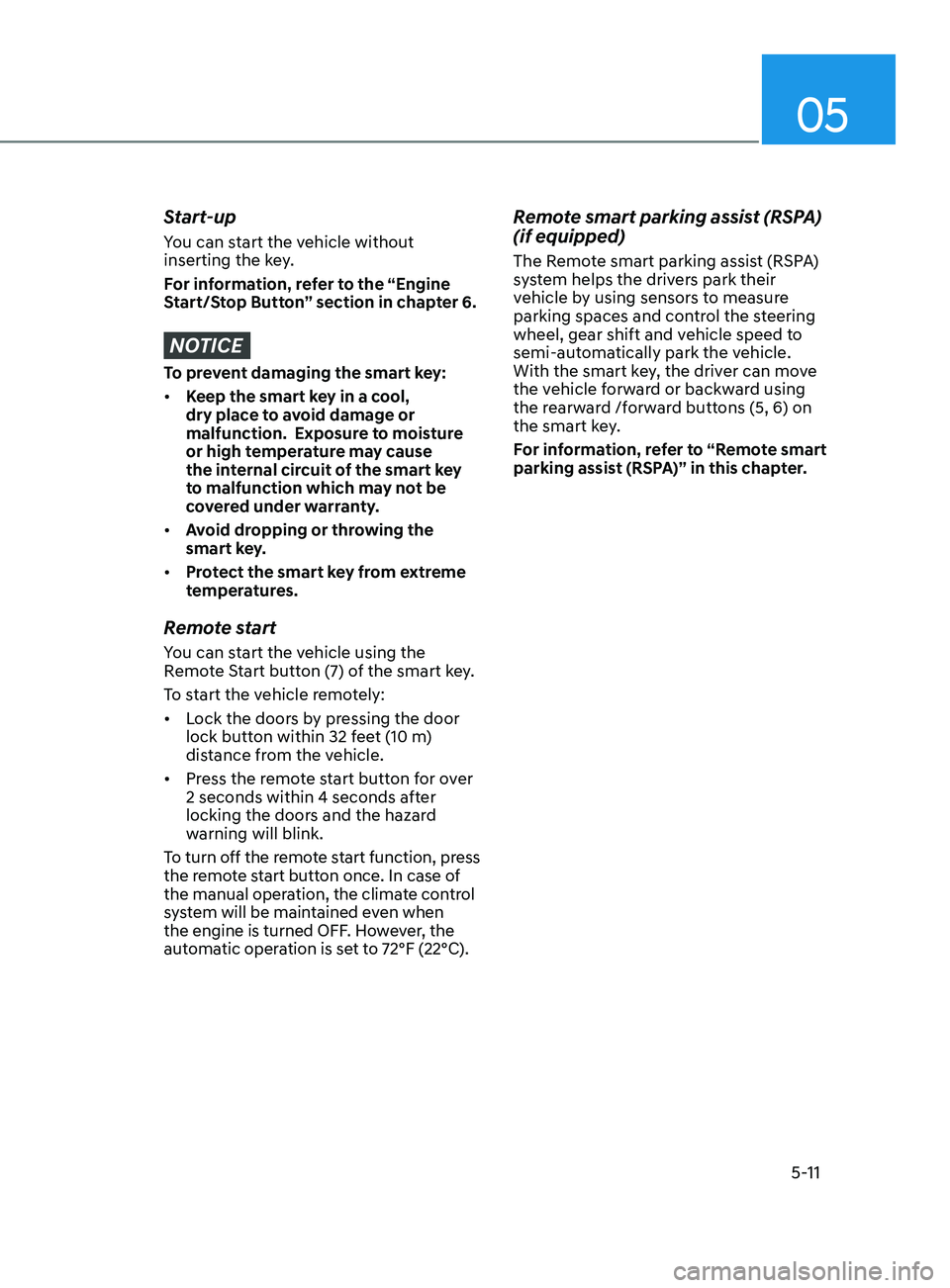
Remote start
You can start the vehicle using the
Remote Start button (7) of the smart key.
To start the vehicle remotely:
• Lock the doors by pressing the door
lock button within 32 feet (10 m)
distance from the vehicle.
• Press the remote start button for over
2 seconds within 4 seconds after
locking the doors and the hazard
warning will blink.
To turn off the remote start function, press
the remote start button once. In case of
the manual operation, the climate control
system will be maintained even when
the engine is turned OFF. However, the
automatic operation is set to 72°F (22°C).
Remote smart parking assist (RSPA)
(if equipped)
The Remote smart parking assist (RSPA)
system helps the drivers park their
vehicle by using sensors to measure
parking spaces and control the steering
wheel, gear shift and vehicle speed to
semi-automatically park the vehicle.
With the smart key, the driver can move
the vehicle forward or backward using
the rearward /forward buttons (5, 6) on
the smart key.
For information, refer to “Remote smart
parking assist (RSPA)” in this chapter.
Page 149 of 546
05
5-19
After unlock the door or start up the
vehicle with digital key, even though
the driver tries to lock the doors by the
central door lock switch, the door lock
will be once locked and immediately
released at the moment of door closed.
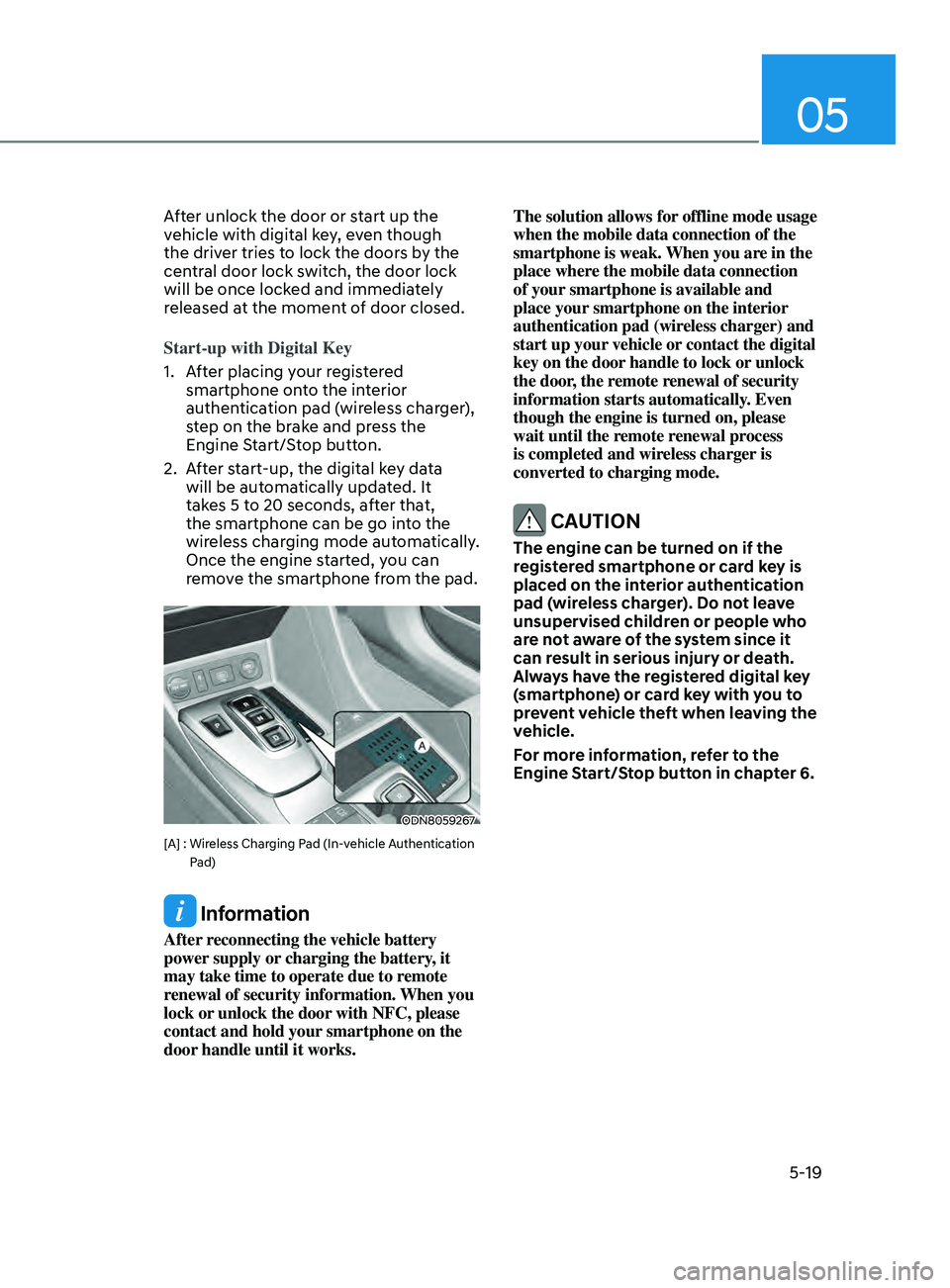
Start-up with Digital Key
1.
A
fter placing your registered
smartphone onto the interior
authentication pad (wireless charger),
step on the brake and press the
Engine Start/Stop button.
2.
A
fter start-up, the digital key data
will be automatically updated. It
takes 5 to 20 seconds, after that,
the smartphone can be go into the
wireless charging mode automatically.
Once the engine started, you can
remove the smartphone from the pad.
ODN8059267
[A] : Wireless Charging Pad (In-vehicle Authentication
Pad)
Information
After reconnecting the vehicle battery
power supply or charging the battery, it
may take time to operate due to remote
renewal of security information. When you
lock or unlock the door with NFC, please
contact and hold your smartphone on the
door handle until it works. The solution allows for offline mode usage
when the mobile data connection of the
smartphone is weak. When you are in the
place where the mobile data connection
of your smartphone is available and
place your smartphone on the interior
authentication pad (wireless charger) and
start up your vehicle or contact the digital
key on the door handle to lock or unlock
the door, the remote renewal of security
information starts automatically. Even
though the engine is turned on, please
wait until the remote renewal process
is completed and wireless charger is
converted to charging mode.
CAUTION
The engine can be turned on if the
registered smartphone or card key is
placed on the interior authentication
pad (wireless charger). Do not leave
unsupervised children or people who
are not aware of the system since it
can result in serious injury or death.
Always have the registered digital key
(smartphone) or card key with you to
prevent vehicle theft when leaving the
vehicle.
For more information, refer to the
Engine Start/Stop button in chapter 6.
Page 150 of 546
Convenient Features
5-20
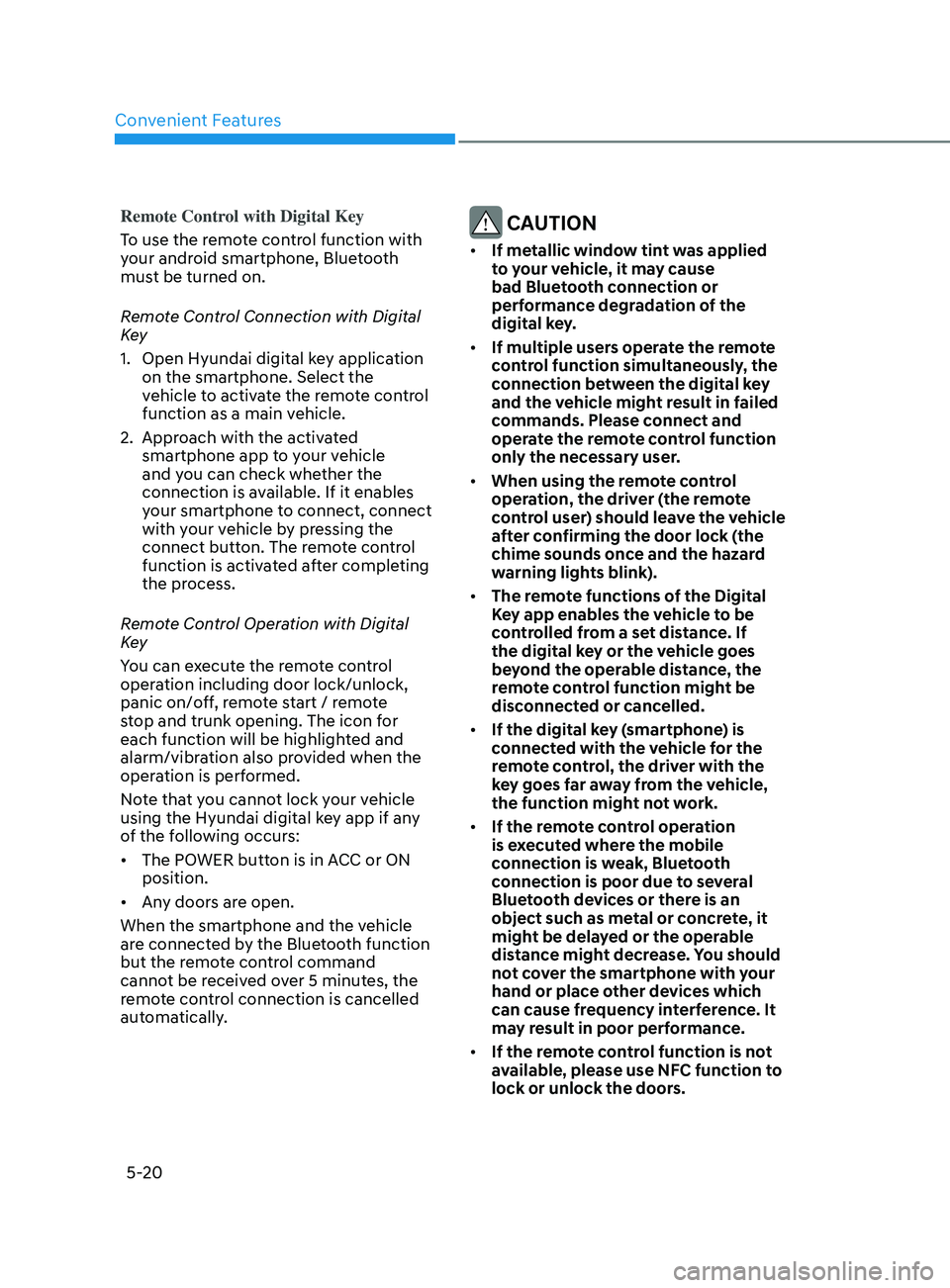
Remote Control with Digital Key
To use the remote control function with
your android smartphone, Bluetooth
must be turned on.
Remote Control Connection with Digital
Key
1.
Open Hyundai digital k
ey application
on the smartphone. Select the
vehicle to activate the remote control
function as a main vehicle.
2.
Appr
oach with the activated
smartphone app to your vehicle
and you can check whether the
connection is available. If it enables
your smartphone to connect, connect
with your vehicle by pressing the
connect button. The remote control
function is activated after completing
the process.
Remote Control Operation with Digital
Key
You can execute the remote control
operation including door lock/unlock,
panic on/off, remote start / remote
stop and trunk opening. The icon for
each function will be highlighted and
alarm/vibration also provided when the
operation is performed.
Note that you cannot lock your vehicle
using the Hyundai digital key app if any
of the following occurs:
• The POWER button is in ACC or ON
position.
• Any doors are open.
When the smartphone and the vehicle
are connected by the Bluetooth function
but the remote control command
cannot be received over 5 minutes, the
remote control connection is cancelled
automatically. CAUTION
• If metallic window tint was applied
to your vehicle, it may cause
bad Bluetooth connection or
performance degradation of the
digital key.
• If multiple users operate the remote
control function simultaneously, the
connection between the digital key
and the vehicle might result in failed
commands. Please connect and
operate the remote control function
only the necessary user.
• When using the remote control
operation, the driver (the remote
control user) should leave the vehicle
after confirming the door lock (the
chime sounds once and the hazard
warning lights blink).
• The remote functions of the Digital
Key app enables the vehicle to be
controlled from a set distance. If
the digital key or the vehicle goes
beyond the operable distance, the
remote control function might be
disconnected or cancelled.
• If the digital key (smartphone) is
connected with the vehicle for the
remote control, the driver with the
key goes far away from the vehicle,
the function might not work.
• If the remote control operation
is executed where the mobile
connection is weak, Bluetooth
connection is poor due to several
Bluetooth devices or there is an
object such as metal or concrete, it
might be delayed or the operable
distance might decrease. You should
not cover the smartphone with your
hand or place other devices which
can cause frequency interference. It
may result in poor performance.
• If the remote control function is not
available, please use NFC function to
lock or unlock the doors.