Page 176 of 579
Convenient features
5-42
The following steps show how to
program HomeLink. If you have any
questions or are having difficulty
programming your HomeLink buttons,
refer to the HomeLink website or call
the HomeLink customer support tollfree
number. Do this, before going back to
the dealer who sold you the car.
Visit the HomeLink website at: www.
homelink.com. Then at the top of the
page, choose your vehicle make. Then
watch the You Tube video, and/or
access additional website information.
If you choose to access the website
via your cell phone, scan the QR code.
Or, call HomeLink customer support
at 1-800-355-3515 (Please have the
vehicle make/model AND the opener
device make/model readily available.)
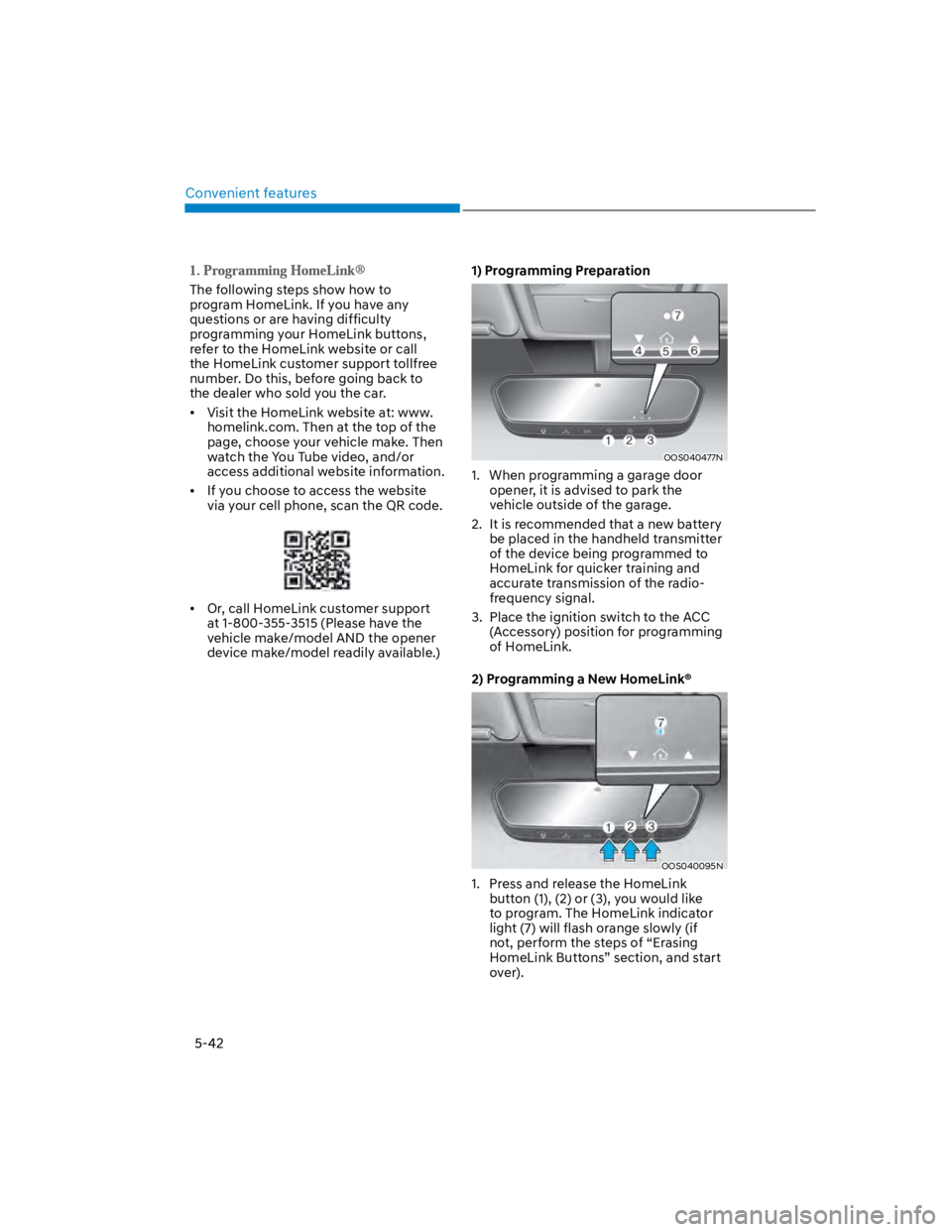
1) Programming Preparation
OOS040477N
1. When programming a garage door
opener, it is advised to park the
vehicle outside of the garage.
2. It is recommended that a new battery
be placed in the handheld transmitter
of the device being programmed to
HomeLink for quicker training and
accurate transmission of the radio-
frequency signal.
3. Place the ignition switch to the ACC
(Accessory) position for programming
of HomeLink.
2) Programming a New HomeLink®
OOS040095N
1. Press and release the HomeLink
button (1), (2) or (3), you would like
to program. The HomeLink indicator
light (7) will flash orange slowly (if
not, perform the steps of “Erasing
HomeLink Buttons” section, and start
over).
Page 179 of 579
05
5-45
4) Canadian Programming
Canadian radio-frequency laws require
transmitter remote signals to “time-
out” (or quit) after a couple seconds of
transmission, which may not be long
enough for HomeLink to pick up the
signal during programming.
If you live in Canada or you are having
difficulties programming a gate operator
or garage door opener by using the
programming procedures, replace
“Programming a New HomeLink Button”
step 3 with the following:
While the HomeLink indicator light (7)
is flashing orange, press and release
(“cycle”) your device’s handheld remote
every two seconds until the HomeLink
indicator light (7) changes from orange
to green. You may now release the hand-
held remote button. Then proceed with
“Programming a New HomeLink Button”
step 4.
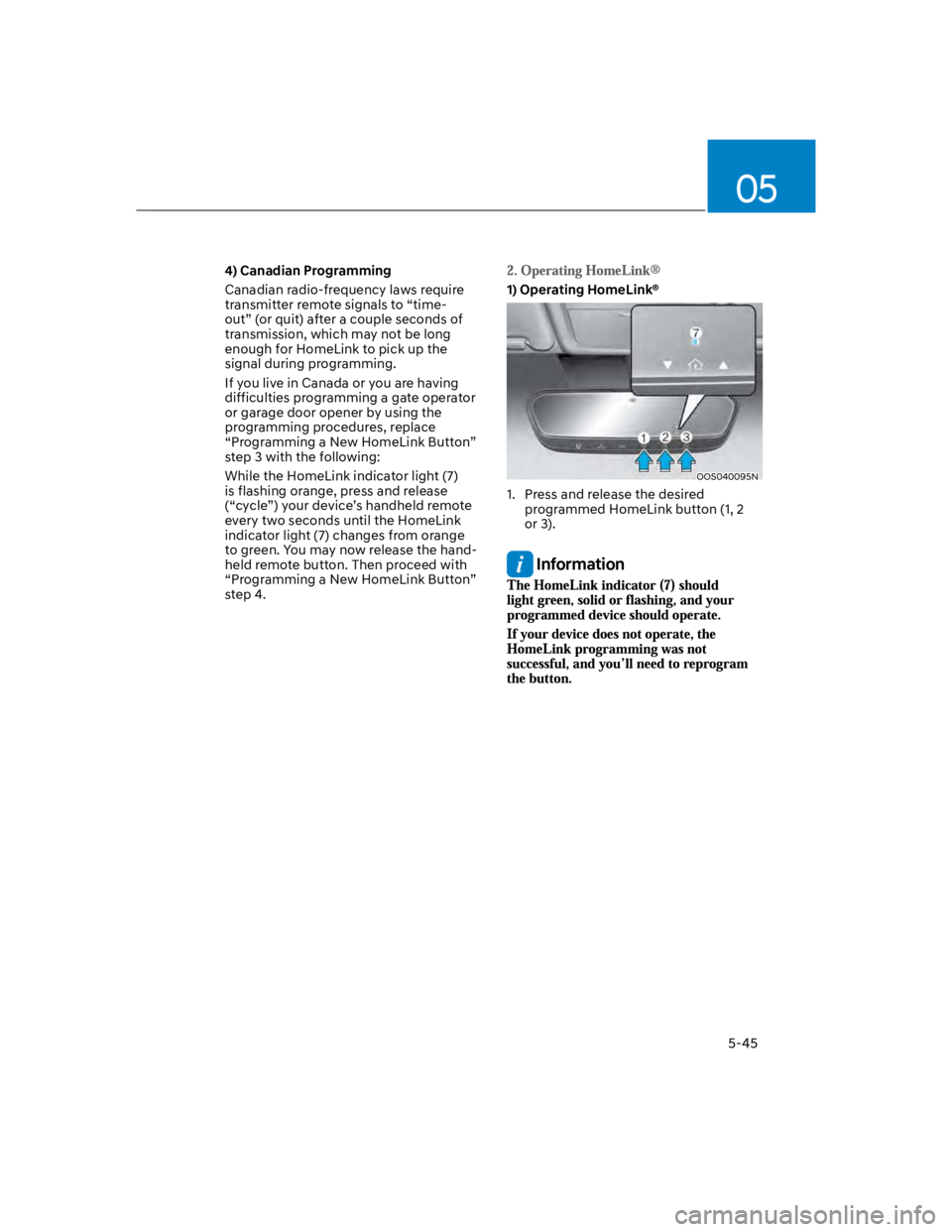
1) Operating HomeLink®
OOS040095N
1. Press and release the desired
programmed HomeLink button (1, 2
or 3).
Information
Page 251 of 579
05
5-117
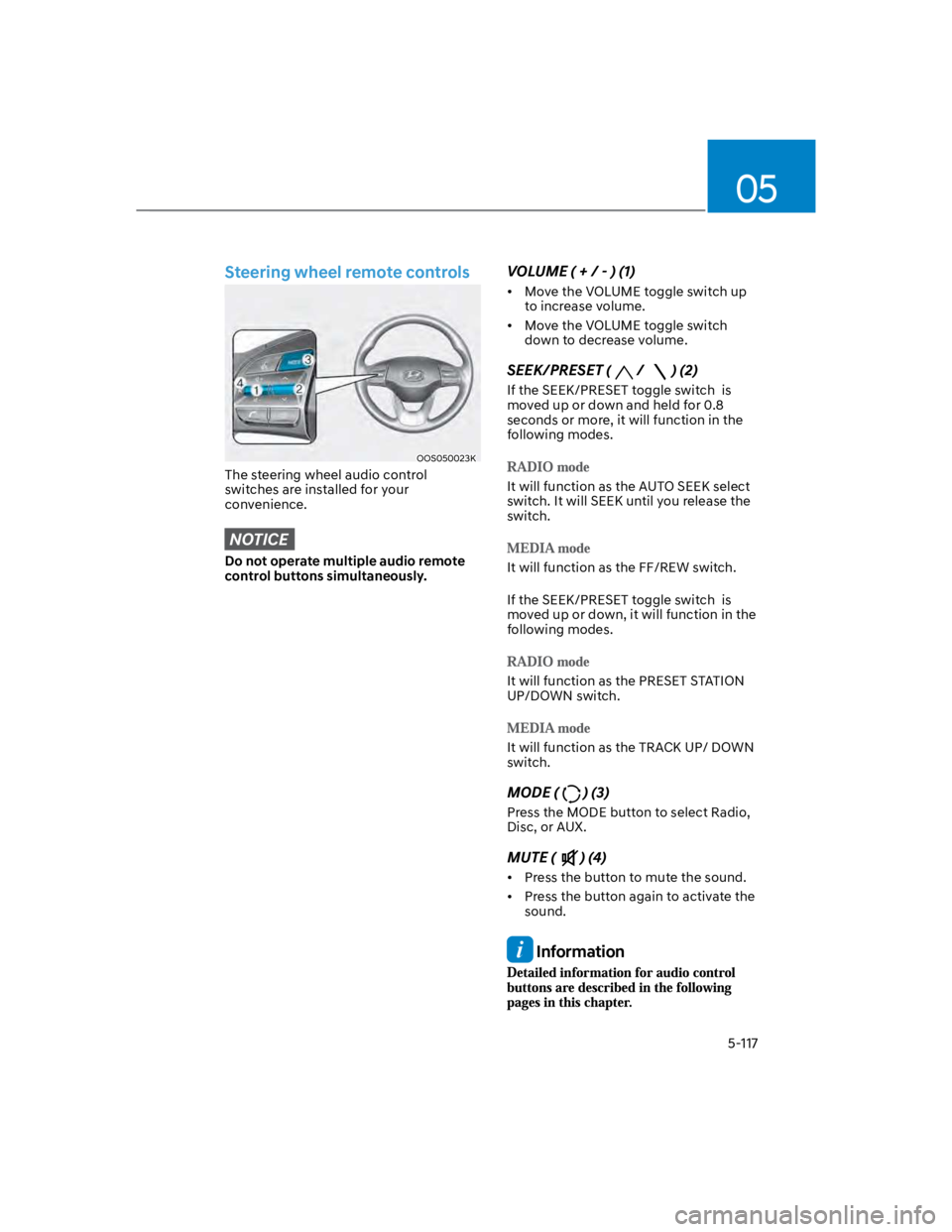
Steering wheel remote controls
OOS050023K
The steering wheel audio control
switches are installed for your
convenience.
NOTICE
Do not operate multiple audio remote
control buttons simultaneously.
VOLUME ( + / - ) (1)
Move the VOLUME toggle switch up
to increase volume.
Move the VOLUME toggle switch
down to decrease volume.
SEEK/PRESET (/ ) (2)
If the SEEK/PRESET toggle switch is
moved up or down and held for 0.8
seconds or more, it will function in the
following modes.
It will function as the AUTO SEEK select
switch. It will SEEK until you release the
switch.
It will function as the FF/REW switch.
If the SEEK/PRESET toggle switch is
moved up or down, it will function in the
following modes.
It will function as the PRESET STATION
UP/DOWN switch.
It will function as the TRACK UP/ DOWN
switch.
MODE () (3)
Press the MODE button to select Radio,
Disc, or AUX.
MUTE () (4)
Press the button to mute the sound.
Press the button again to activate the
sound.
Information
Page 253 of 579
05
5-119
How vehicle radio works
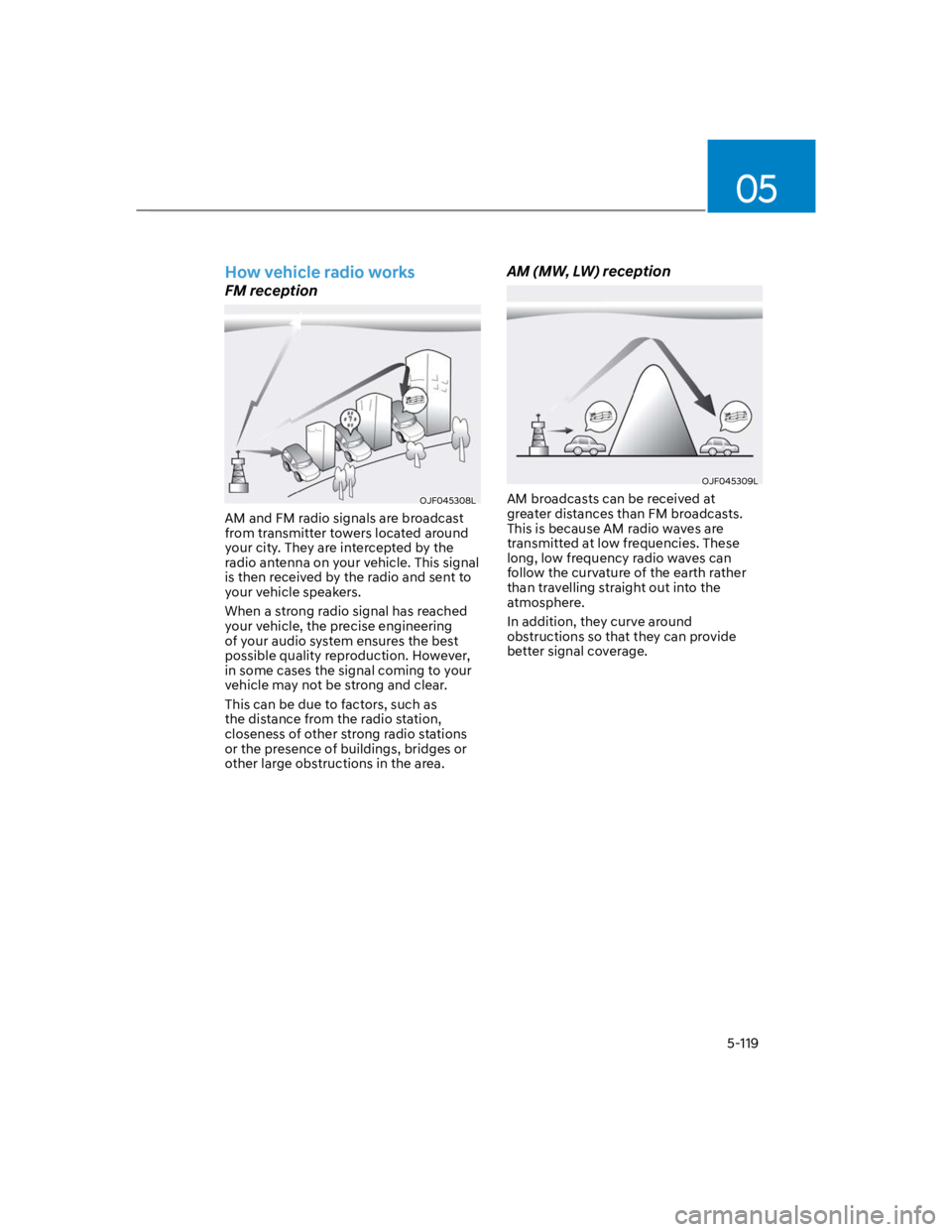
FM reception
OJF045308L
AM and FM radio signals are broadcast
from transmitter towers located around
your city. They are intercepted by the
radio antenna on your vehicle. This signal
is then received by the radio and sent to
your vehicle speakers.
When a strong radio signal has reached
your vehicle, the precise engineering
of your audio system ensures the best
possible quality reproduction. However,
in some cases the signal coming to your
vehicle may not be strong and clear.
This can be due to factors, such as
the distance from the radio station,
closeness of other strong radio stations
or the presence of buildings, bridges or
other large obstructions in the area.
AM (MW, LW) reception
OJF045309L
AM broadcasts can be received at
greater distances than FM broadcasts.
This is because AM radio waves are
transmitted at low frequencies. These
long, low frequency radio waves can
follow the curvature of the earth rather
than travelling straight out into the
atmosphere.
In addition, they curve around
obstructions so that they can provide
better signal coverage.
Page 254 of 579
Convenient features
5-120
FM radio station
OJF045310L
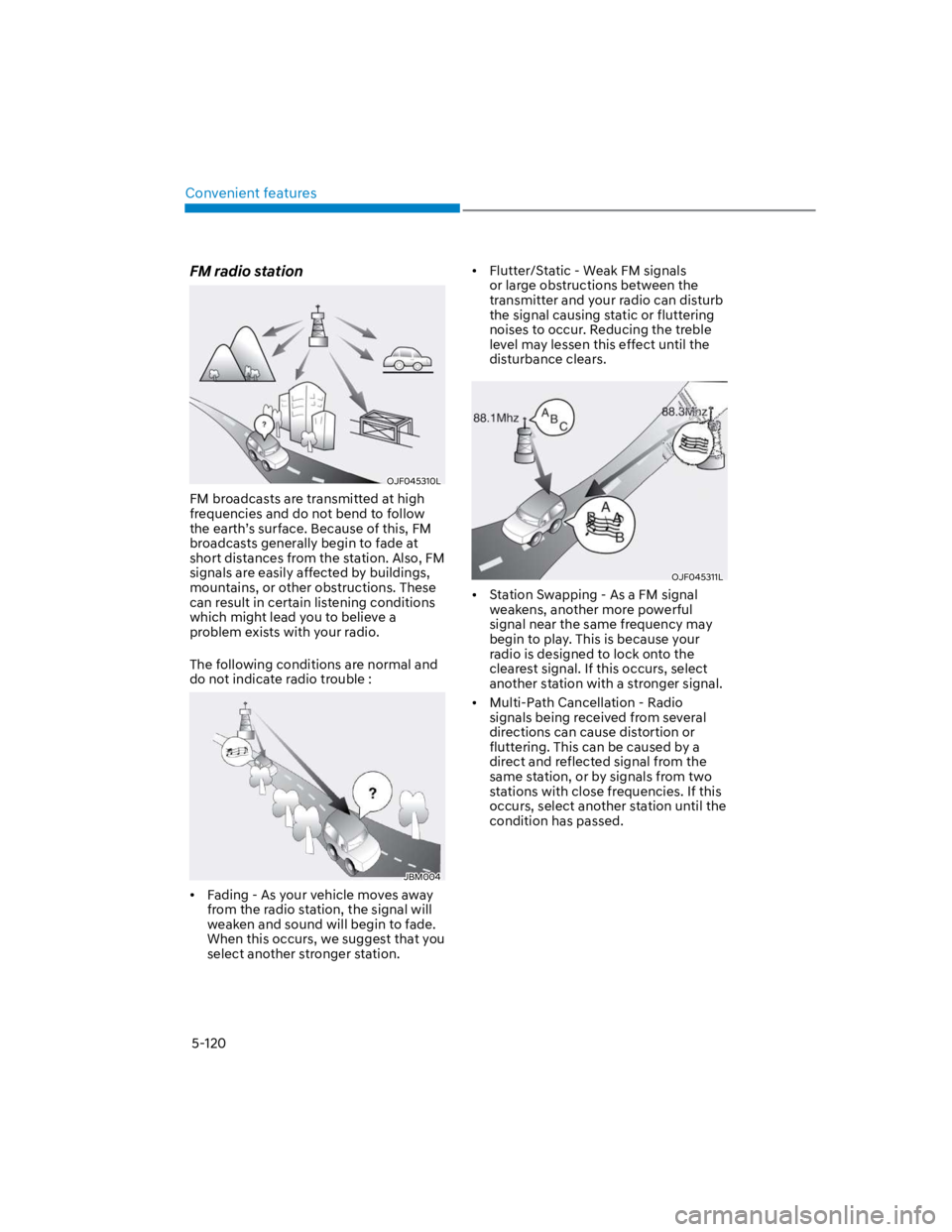
FM broadcasts are transmitted at high
frequencies and do not bend to follow
the earth’s surface. Because of this, FM
broadcasts generally begin to fade at
short distances from the station. Also, FM
signals are easily affected by buildings,
mountains, or other obstructions. These
can result in certain listening conditions
which might lead you to believe a
problem exists with your radio.
The following conditions are normal and
do not indicate radio trouble :
JBM004
Fading - As your vehicle moves away
from the radio station, the signal will
weaken and sound will begin to fade.
When this occurs, we suggest that you
select another stronger station.
Flutter/Static - Weak FM signals
or large obstructions between the
transmitter and your radio can disturb
the signal causing static or fluttering
noises to occur. Reducing the treble
level may lessen this effect until the
disturbance clears.
OJF045311L
Station Swapping - As a FM signal
weakens, another more powerful
signal near the same frequency may
begin to play. This is because your
radio is designed to lock onto the
clearest signal. If this occurs, select
another station with a stronger signal.
Multi-Path Cancellation - Radio
signals being received from several
directions can cause distortion or
fluttering. This can be caused by a
direct and reflected signal from the
same station, or by signals from two
stations with close frequencies. If this
occurs, select another station until the
condition has passed.
Page 255 of 579
05
5-121
Using a cellular phone or a twoway
radio
When a cellular phone is used inside
the vehicle, noise may be produced
from the audio system. This does not
mean that something is wrong with the
audio equipment. In such a case, use
the cellular phone at a place as far as
possible from the audio equipment.
NOTICE
When using a communication system
such as a cellular phone or a radio set
inside the vehicle, a separate external
antenna must be fitted. When a cellular
phone or a radio set is used with an
internal antenna alone, it may interfere
with the vehicle’s electrical system and
adversely affect safe operation of the
vehicle.
WARNING
Do not use a cellular phone while
driving. Stop at a safe location to use a
cellular phone.
iPod®
iPod® is a registered trademark of Apple
Inc.
Bluetooth® Wireless Technology
The Bluetooth® word mark and logos
are registered trademarks owned by
Bluetooth SIG, Inc. and any use of such
marks by HYUNDAI is under license.
Other trademarks and trade names are
those of their respective owners.
A Bluetooth® Wireless Technology
enabled cell phone is required to use
Bluetooth® Wireless Technology.
Page 342 of 579
Driver assistance system
7-10
There is a group of pedestrians or a
large crowd in front
The pedestrian is wearing clothing
that easily blends into the
background, making it difficult to
detect
The pedestrian is difficult to
distinguish from the similar shaped
structure in the surroundings
You are driving by a pedestrian,
traffic sign, structure, etc. near the
intersection
Driving in a parking lot
Driving through a tollgate,
construction area, unpaved road,
partial paved road, uneven road,
speed bumps, etc.
Driving on an incline road, curved
road, etc.
Driving through a roadside with trees
or streetlights
The adverse road conditions cause
excessive vehicle vibrations while
driving
Your vehicle height is low or high
due to heavy loads, abnormal tire
pressure, etc.
Driving through a narrow road where
trees or grass are overgrown
There is interference by
electromagnetic waves such as
driving in an area with strong radio
waves or electrical noise
WARNING
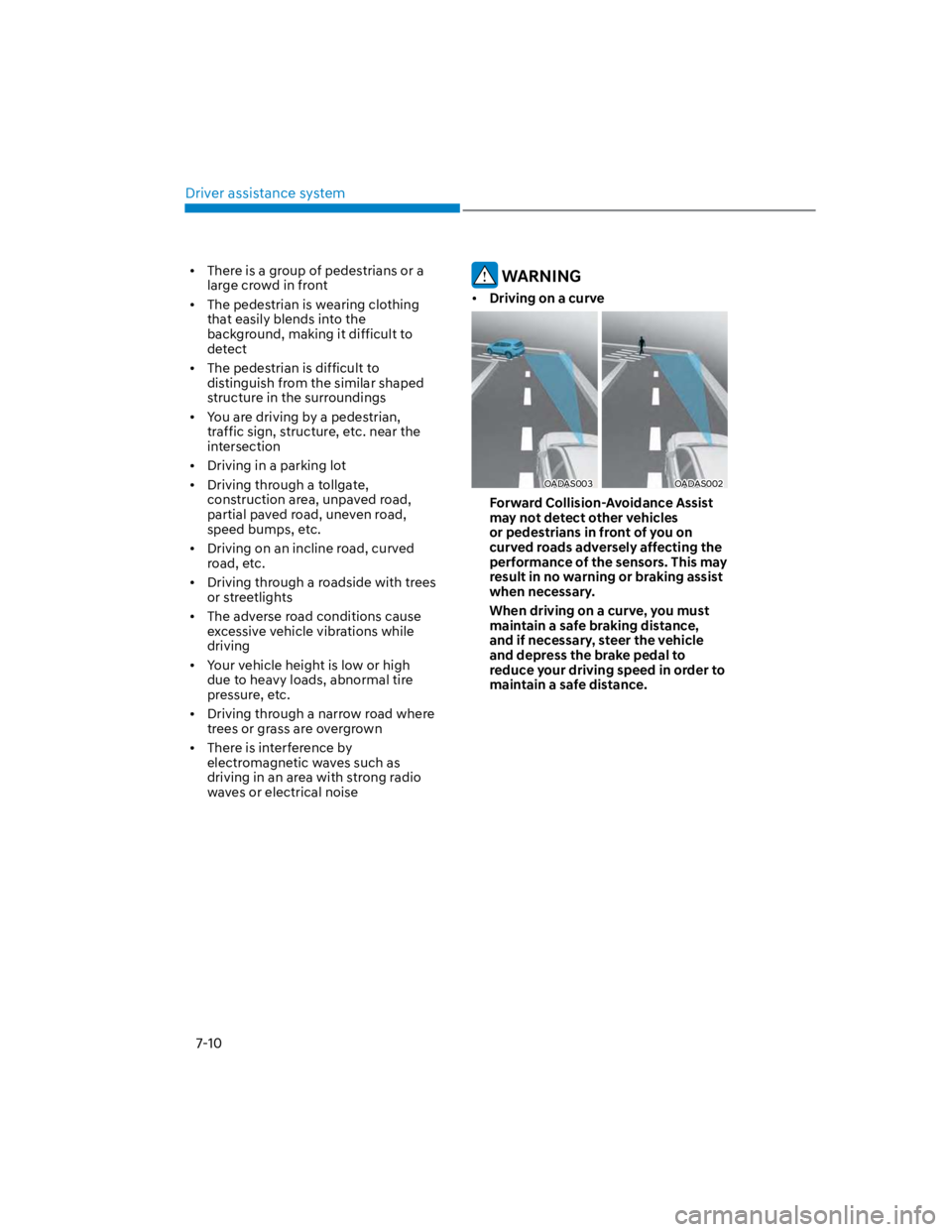
Driving on a curve
OADAS003OADAS002
Forward Collision-Avoidance Assist
may not detect other vehicles
or pedestrians in front of you on
curved roads adversely affecting the
performance of the sensors. This may
result in no warning or braking assist
when necessary.
When driving on a curve, you must
maintain a safe braking distance,
and if necessary, steer the vehicle
and depress the brake pedal to
reduce your driving speed in order to
maintain a safe distance.
Page 356 of 579
Driver assistance system
7-24
The pedestrian or cyclist is wearing
clothing that easily blends into the
background, making it difficult to
detect
The pedestrian or cyclist is difficult to
distinguish from the similar shaped
structure in the surroundings
You are driving by a pedestrian,
cyclist, traffic sign, structure, etc. near
the intersection
Driving in a parking lot
Driving through a tollgate,
construction area, unpaved road,
partial paved road, uneven road,
speed bumps, etc.
Driving on an incline road, curved
road, etc.
Driving through a roadside with trees
or streetlights
The adverse road conditions cause
excessive vehicle vibrations while
driving
Your vehicle height is low or high
due to heavy loads, abnormal tire
pressure, etc.
Driving through a narrow road where
trees or grass are overgrown
There is interference by
electromagnetic waves, such as
driving in an area with strong radio
waves or electrical noise
WARNING
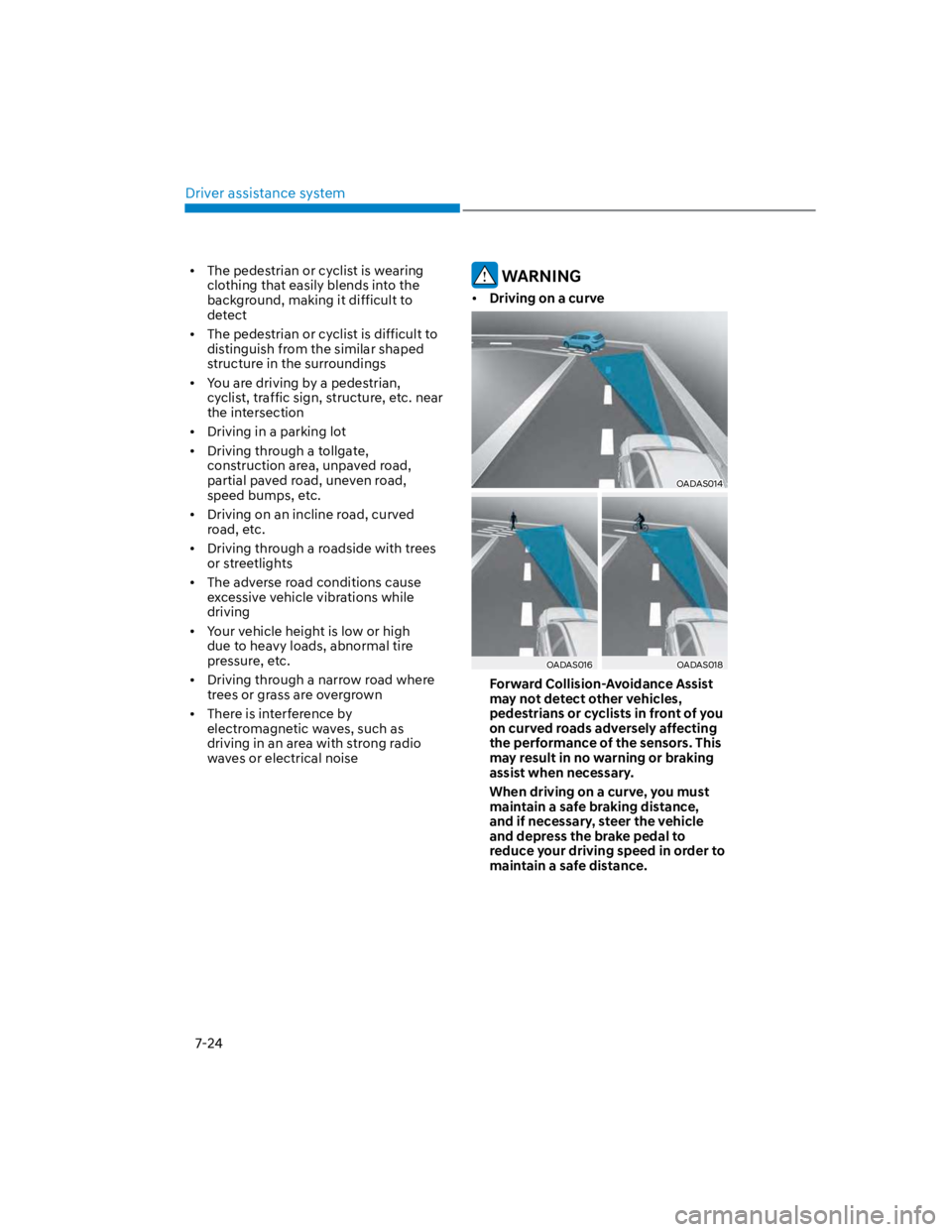
Driving on a curve
OADAS014
OADAS016OADAS018
Forward Collision-Avoidance Assist
may not detect other vehicles,
pedestrians or cyclists in front of you
on curved roads adversely affecting
the performance of the sensors. This
may result in no warning or braking
assist when necessary.
When driving on a curve, you must
maintain a safe braking distance,
and if necessary, steer the vehicle
and depress the brake pedal to
reduce your driving speed in order to
maintain a safe distance.