2022 HYUNDAI KONA Wireless
[x] Cancel search: WirelessPage 157 of 579

05
5-23
-If you use a smart phone cover that
uses wireless communication or is
made of metal, the digital key NFC
function may not work properly.
Remove the smart phone cover
before using the digital key NFC
function.
The vehicle may not be controlled by
the smartphone if any of the following
occurs:
-Basic and necessary functions of
the smartphone manufacturer are
operating. (General call, urgent
call, audio or NFC payment)
-Wireless earphone is operating.
(General call, urgent call or audio)
-The digital key app function such
as basic setting or app launching
is limited by prior policy according
to the manufacturer while using a
smartphone produced by domestic
and foreign manufactures.
If you change the smartphone
number, you should modify the user
account information on the HYUNDAI
customer web site to use the digital
key app.
If the vehicle owner changes
the smartphone device, the new
smartphone should be registered in
the car after deleting the registered
digital key(smartphone).
If a sharer changes or reset the
smartphone, the key should be re-
shared from owner.
Some of the old smartphone may
not work properly. Please check the
available smartphone models with
your dealer.
NFC antenna position on the
smartphone can be confirmed
on each smartphone’s manual or
contact to customer service center
of the smartphone manufacture.
Digital key (Card key)
1. Install Hyundai digital key app in
main user’s smartphone and register
the digital key (smartphone). Please
refer to the registration method of the
digital key (smartphone).
2. Using the [Pair Card Key] menu on
the digital key application, you can
activate the Card Key registration
mode.
NFC authentication : enter the NFC
authentication menu and contact
the smartphone on the outside door
handle.
Bluetooth authentication : enter the
Bluetooth authentication menu and
press the [OK] button for activation.
If you activate the registration mode,
you should complete the Card saving
process within 5 minutes.
If you have not registered the digital
key (smartphone), please register the
digital key (card key) with two smart
keys.
Page 158 of 579
![HYUNDAI KONA 2022 Owners Manual Convenient features
5-24
3. Register the NFC card key on the
User’s Settings menu after turning on
the vehicle.
With Navigation screen : From the
infotainment screen menu, go to
[Setup] - [Veh](/manual-img/35/41169/w960_41169-157.png "HYUNDAI KONA 2022 Owners Manual Convenient features
5-24
3. Register the NFC card key on the
User’s Settings menu after turning on
the vehicle.
With Navigation screen : From the
infotainment screen menu, go to
[Setup] - [Veh")
Convenient features
5-24
3. Register the NFC card key on the
User’s Settings menu after turning on
the vehicle.
With Navigation screen : From the
infotainment screen menu, go to
[Setup] - [Vehicle] - [Digital Key] -
[Card Key] then select the [Save] from
submenu.
Without navigation screen : From
cluster menu, go to [Digital Key] -
[Card Key] and select [Save].
The [Save] button will be disabled if
the digital key (Card key) is already
saved.
Please refer to “Digital Key Delete” in
this manual and follow the digital key
delete procedure in your car before
Digital key save.
4. Place the NFC card key onto the
interior authentication pad (wireless
charger). The saving process will
begin automatically.
5. If the key is enrolled, the message
will be displayed on the infotainment
screen or instrument cluster.
Once the card key registration mode
is activated, the process should be
completed within 5 minutes. After
then, you should reactivate once
again for registration.
For the digital key(card key) saving,
the smart key(fob) must be exist inside
of vehicle.
Once a Card key is registered, it
cannot be reuse onto another vehicle.
You should have the smart key to delete
the digital key (card key) so please carry
around the key.
1. Get on the vehicle with the smart key.
2. Delete the NFC card key on the User’s
Settings menu after turning on the
engine.
With Navigation screen : From the
infotainment screen menu, go to
[Setup] - [Vehicle] - [Digital Key] -
[Card Key] then select the [Delete]
from submenu.
Without navigation screen : From
cluster menu, go to [Digital Key] -
[Card Key] and select [Delete].
If there is no saved digital key(card key),
[Delete] menu will not be activated.
To delete the saved digital key (card
key), the smart key must be exist
inside the vehicle.
The deleted digital key (card key) can
be re-registered before registering a
new digital key (card key).
If you try to register a new digital key
(card key), the previously registered
digital key (card key) cannot be used
again.
Page 160 of 579
Convenient features
5-26
After placing your registered card key
onto the interior authentication pad
(wireless charger), step on the brake and
press the Engine Start/Stop button.
WARNING
If you do not place the digital key
(card key) onto the center of the
interior authentication pad (wireless
charger) exactly, the card key may
not be recognized. If the engine is
not turned on, adjust and place the
key again.
If you overlap and use the key
with NFC-enabled cards such as
transportation card or credit card,
the card key may not be recognized.
If the digital key (card key) does not
work, please detach the key around
4 inches (0.1 m) from the handle
authentication pad and retry to
contact.
The card key may be damaged due to
impact. It would not work properly if
the key is damaged. You should buy a
new card and register again.
For more information, refer to the
Engine Start/Stop button in chapter 6.
If you do not want to use the digital key
(smartphone and card key), you can
disable the function temporarily. You
should have the smart key when you
change the settings
With Navigation screen :
From the infotainment screen menu,
go to [Setup] - [Vehicle] - [Digital Key]
- [Enable Digital Keys] (deselect)
Without navigation screen :
From cluster menu, go to [Digital Key]
- [Enable Digital Keys] (deselect)
Information
CAUTION
If you uncheck Enable digital keys, it is
impossible to lock or unlock the doors
or start up the vehicle with digital keys
such as smartphone and card key. If
you check Enable digital keys again, the
registered digital keys(smartphone and
card key) are available. Even though
you stop the digital key function, the
registered keys (smartphone and card
key) are not deleted.
Page 161 of 579
05
5-27
Personalized profile and vehicle
settings
Connect the registered digital key with
personalized profile. Then in case you
lock or unlock the door with the digital
key NFC function or unlock the door
remotely by digital key application
Bluetooth connection, the vehicle
will play the personalized user profile
settings. Profile connection and
personalization are available for Driver 1
and Driver 2.
Profile link
(Smartphone) on the infotainment
system menu.
2. Unlock and place your smartphone on
the wireless charger according to a
message and it automatically starts to
interwork.
3. It begins the profile link with a
message.
4. If you select Link, the registered
phone number’s digital key and the
user’s profile are linked.
5. The interconnection process is
completed with a message.
Profile unlink
1. Select Digital Key information on
infotainment Vehicle Settings menu. It
is possible to unlink only if the profile
is interconnected.
2. Profile unlink is completed with a
message.
Information
PRECAUTION for vehicle profile link and
unlink
When you link or unlink the profile of
digital key, you should be careful of the
following.
Profile link is possible to use with the
digital key. (Infotainment Vehicle
Digital Keys)
Profile link information remains even
when you set the digital key function
disable.
Only the smart phone with digital key
app enables you to link your profile.
(Impossible to link with NFC card)
Profile link works only when the
smart phone and the digital key are
registered to the vehicle. The smart
phone with another vehicle’s digital
key cannot link profile.
If you remove the smart phone
from the wireless charger before
completing the profile link, it does not
work.
To unlink the profile, the smart phone
does not need to be on the wireless
charger.
Page 163 of 579
05
5-29
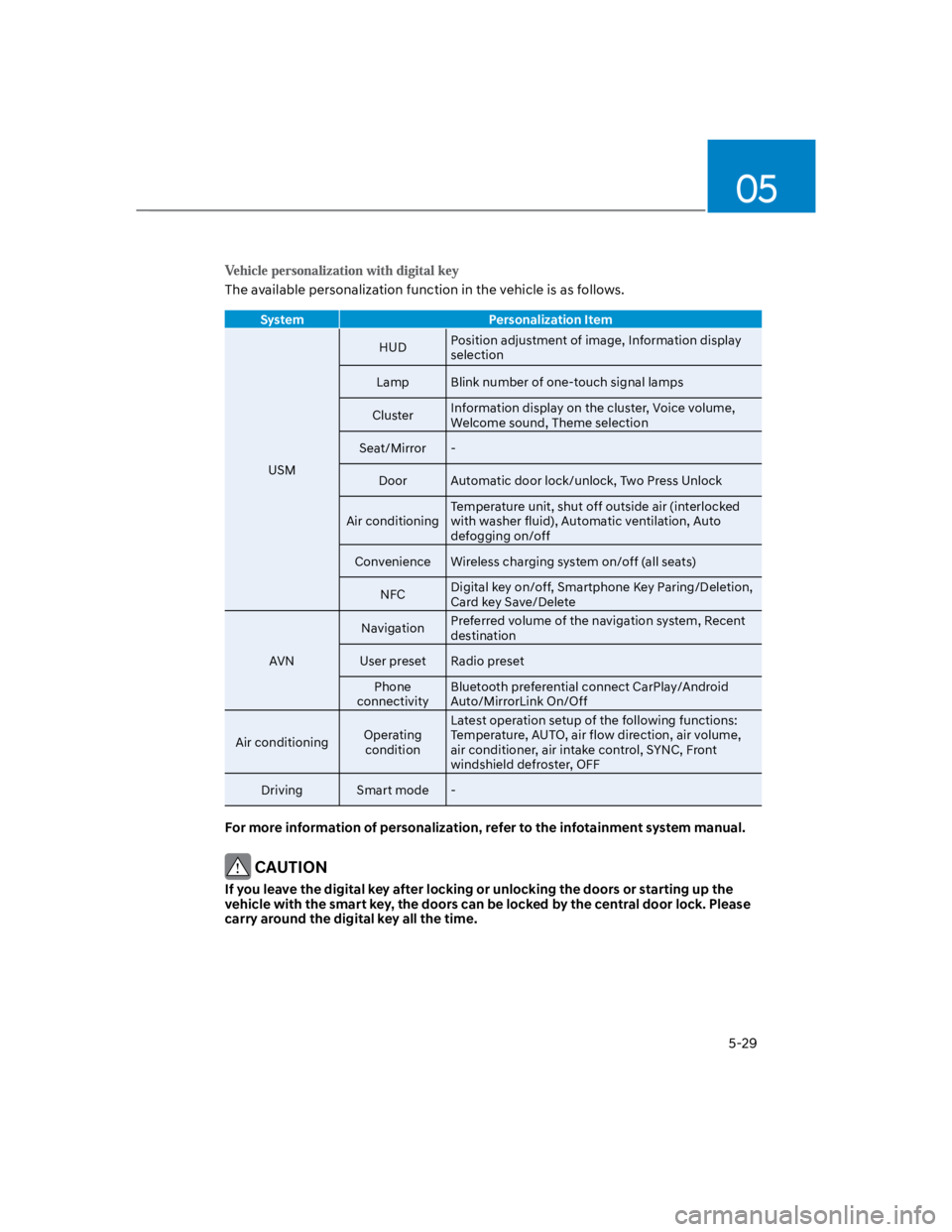
The available personalization function in the vehicle is as follows.
System Personalization Item
USM
HUDPosition adjustment of image, Information display
selection
Lamp Blink number of one-touch signal lamps
ClusterInformation display on the cluster, Voice volume,
Welcome sound, Theme selection
Seat/Mirror -
Door Automatic door lock/unlock, Two Press Unlock
Air conditioning
Temperature unit, shut off outside air (interlocked
with washer fluid), Automatic ventilation, Auto
defogging on/off
Convenience Wireless charging system on/off (all seats)
NFCDigital key on/off, Smartphone Key Paring/Deletion,
Card key Save/Delete
AVN
NavigationPreferred volume of the navigation system, Recent
destination
User preset Radio preset
Phone
connectivity
Bluetooth preferential connect CarPlay/Android
Auto/MirrorLink On/Off
Air conditioningOperating
condition
Latest operation setup of the following functions:
Temperature, AUTO, air flow direction, air volume,
air conditioner, air intake control, SYNC, Front
windshield defroster, OFF
Driving Smart mode -
For more information of personalization, refer to the infotainment system manual.
CAUTION
If you leave the digital key after locking or unlocking the doors or starting up the
vehicle with the smart key, the doors can be locked by the central door lock. Please
carry around the digital key all the time.
Page 174 of 579
Convenient features
5-40
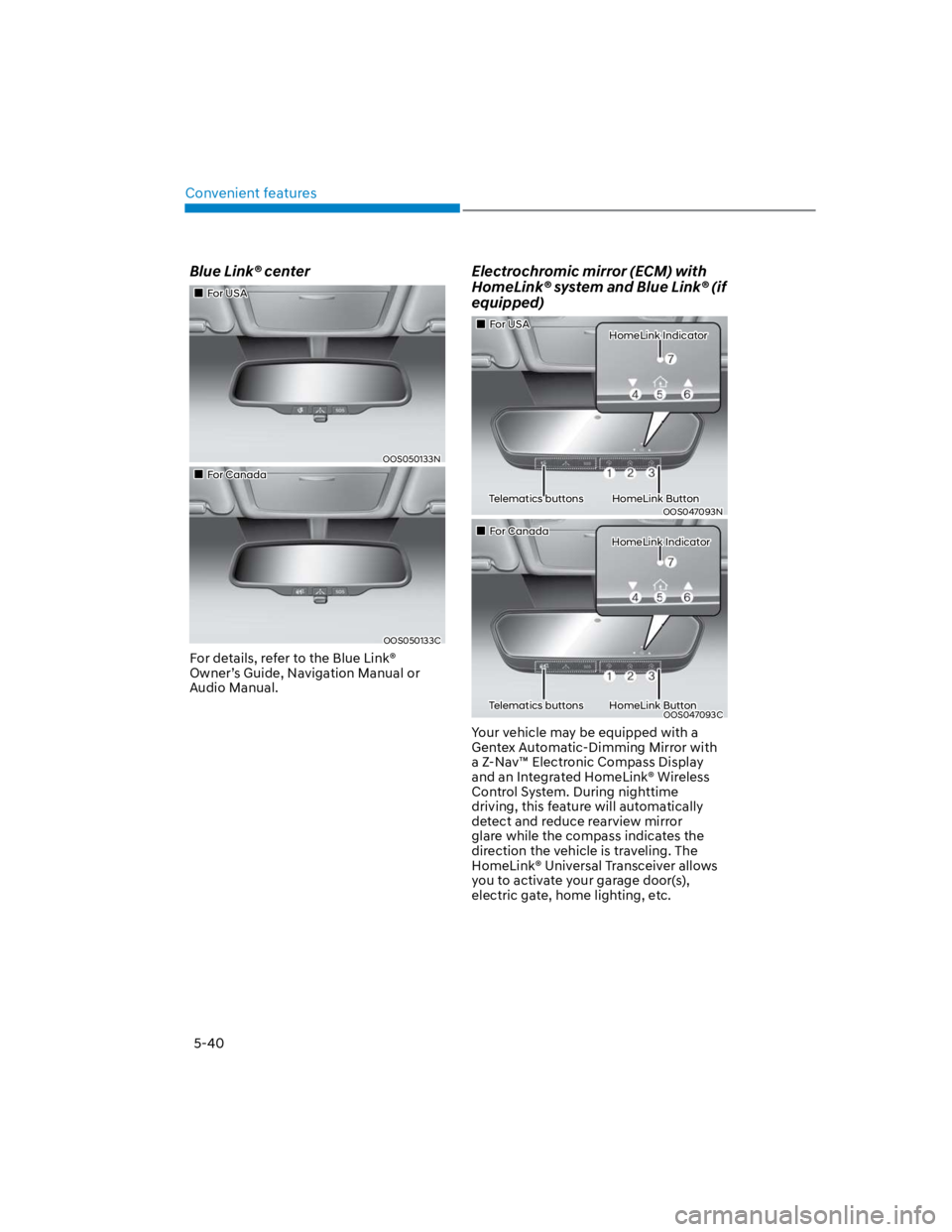
Blue Link® center
For USA
OOS050133N
For Canada
OOS050133C
For details, refer to the Blue Link®
Owner’s Guide, Navigation Manual or
Audio Manual.
Electrochromic mirror (ECM) with
HomeLink® system and Blue Link® (if
equipped)
For USA HomeLink Indicator
Telematics buttons HomeLink Button
OOS047093N
For Canada HomeLink Indicator
Telematics buttons HomeLink ButtonOOS047093C
Your vehicle may be equipped with a
Gentex Automatic-Dimming Mirror with
a Z-Nav™ Electronic Compass Display
and an Integrated HomeLink® Wireless
Control System. During nighttime
driving, this feature will automatically
detect and reduce rearview mirror
glare while the compass indicates the
direction the vehicle is traveling. The
HomeLink® Universal Transceiver allows
you to activate your garage door(s),
electric gate, home lighting, etc.
Page 175 of 579
05
5-41
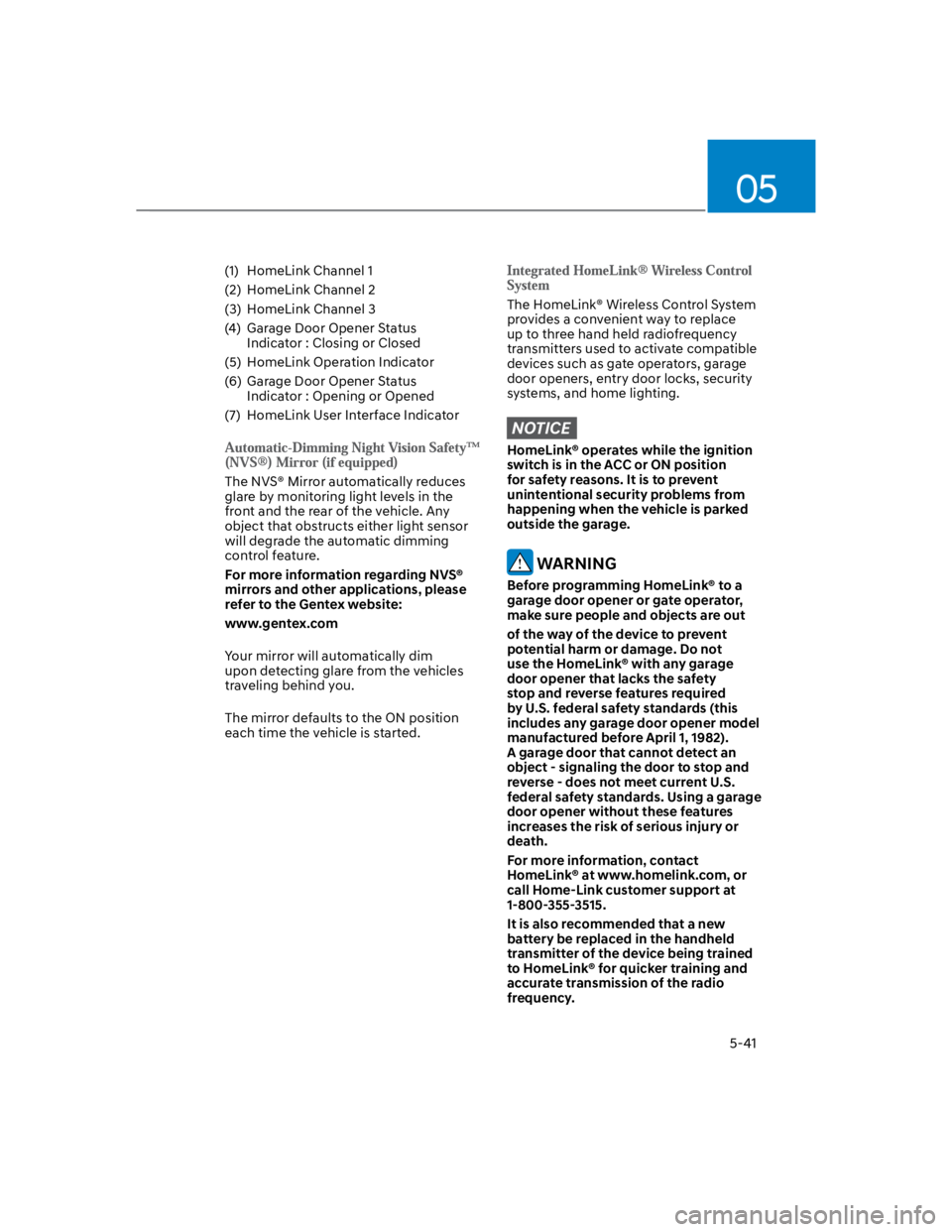
(1) HomeLink Channel 1
(2) HomeLink Channel 2
(3) HomeLink Channel 3
(4) Garage Door Opener Status
Indicator : Closing or Closed
(5) HomeLink Operation Indicator
(6) Garage Door Opener Status
Indicator : Opening or Opened
(7) HomeLink User Interface Indicator
The NVS® Mirror automatically reduces
glare by monitoring light levels in the
front and the rear of the vehicle. Any
object that obstructs either light sensor
will degrade the automatic dimming
control feature.
For more information regarding NVS®
mirrors and other applications, please
refer to the Gentex website:
www.gentex.com
Your mirror will automatically dim
upon detecting glare from the vehicles
traveling behind you.
The mirror defaults to the ON position
each time the vehicle is started.
The HomeLink® Wireless Control System
provides a convenient way to replace
up to three hand held radiofrequency
transmitters used to activate compatible
devices such as gate operators, garage
door openers, entry door locks, security
systems, and home lighting.
NOTICE
HomeLink® operates while the ignition
switch is in the ACC or ON position
for safety reasons. It is to prevent
unintentional security problems from
happening when the vehicle is parked
outside the garage.
WARNING
Before programming HomeLink® to a
garage door opener or gate operator,
make sure people and objects are out
of the way of the device to prevent
potential harm or damage. Do not
use the HomeLink® with any garage
door opener that lacks the safety
stop and reverse features required
by U.S. federal safety standards (this
includes any garage door opener model
manufactured before April 1, 1982).
A garage door that cannot detect an
object - signaling the door to stop and
reverse - does not meet current U.S.
federal safety standards. Using a garage
door opener without these features
increases the risk of serious injury or
death.
For more information, contact
HomeLink® at www.homelink.com, or
call Home-Link customer support at
1-800-355-3515.
It is also recommended that a new
battery be replaced in the handheld
transmitter of the device being trained
to HomeLink® for quicker training and
accurate transmission of the radio
frequency.
Page 244 of 579
![HYUNDAI KONA 2022 Owners Manual Convenient features
5-110
Wireless smart phone charging
system (if equipped)
OOS050015K
[A] : Indicator light, [B] : Charging pad
On certain models, the vehicle comes
equipped with a wireless smart](/manual-img/35/41169/w960_41169-243.png "HYUNDAI KONA 2022 Owners Manual Convenient features
5-110
Wireless smart phone charging
system (if equipped)
OOS050015K
[A] : Indicator light, [B] : Charging pad
On certain models, the vehicle comes
equipped with a wireless smart")
Convenient features
5-110
Wireless smart phone charging
system (if equipped)
OOS050015K
[A] : Indicator light, [B] : Charging pad
On certain models, the vehicle comes
equipped with a wireless smart phone
charger.
The system is available when all doors
are closed, and when the Engine Start/
Stop button is in the ACC or ON (or
START) position.
To charge a cellular phone
The wireless smart phone charging
system charges only the Qi-enabled
smart phones (). Read the label on
the smart phone accessory cover or
visit your smart phone manufacturer’s
website to check whether your smart
phone supports the Qi technology.
The wireless charging process starts
when you put a Qi-enabled smart phone
on the wireless charging unit.
1. Remove other items, including the
smart key, from the wireless charging
unit. If not, the wireless charging
process may be interrupted. Place
the smart phone on the center of the
charging pad.
2. The indicator light is orange when the
smart phone is charging. The indicator
light will turn blue when phone
charging is complete.
3. You can turn ON or OFF the wireless
charging function from the Settings
menu on the instrument cluster.
Select:
-
If your smart phone is not charging:
- Slightly change the position of the
smart phone on the charging pad.
- Make sure the indicator light is
orange.
The indicator light will blink orange for 10
seconds if there is a malfunction in the
wireless charging system.
In this case, temporarily stop the
charging process, and re-attempt to
charge your smart phone again.
The system warns you with a message on
the LCD display if the smart phone is still
on the wireless charging unit after the
vehicle is turned OFF and the front door
is opened.
For some manufacturer’s smart phones,
the system may not warn you even
though the smart phone is left on the
wireless charging unit. This is due to the
particular characteristic of the smart
phone and not a malfunction of the
wireless charging.
Information