Page 140 of 529
Instrument Cluster
4-42
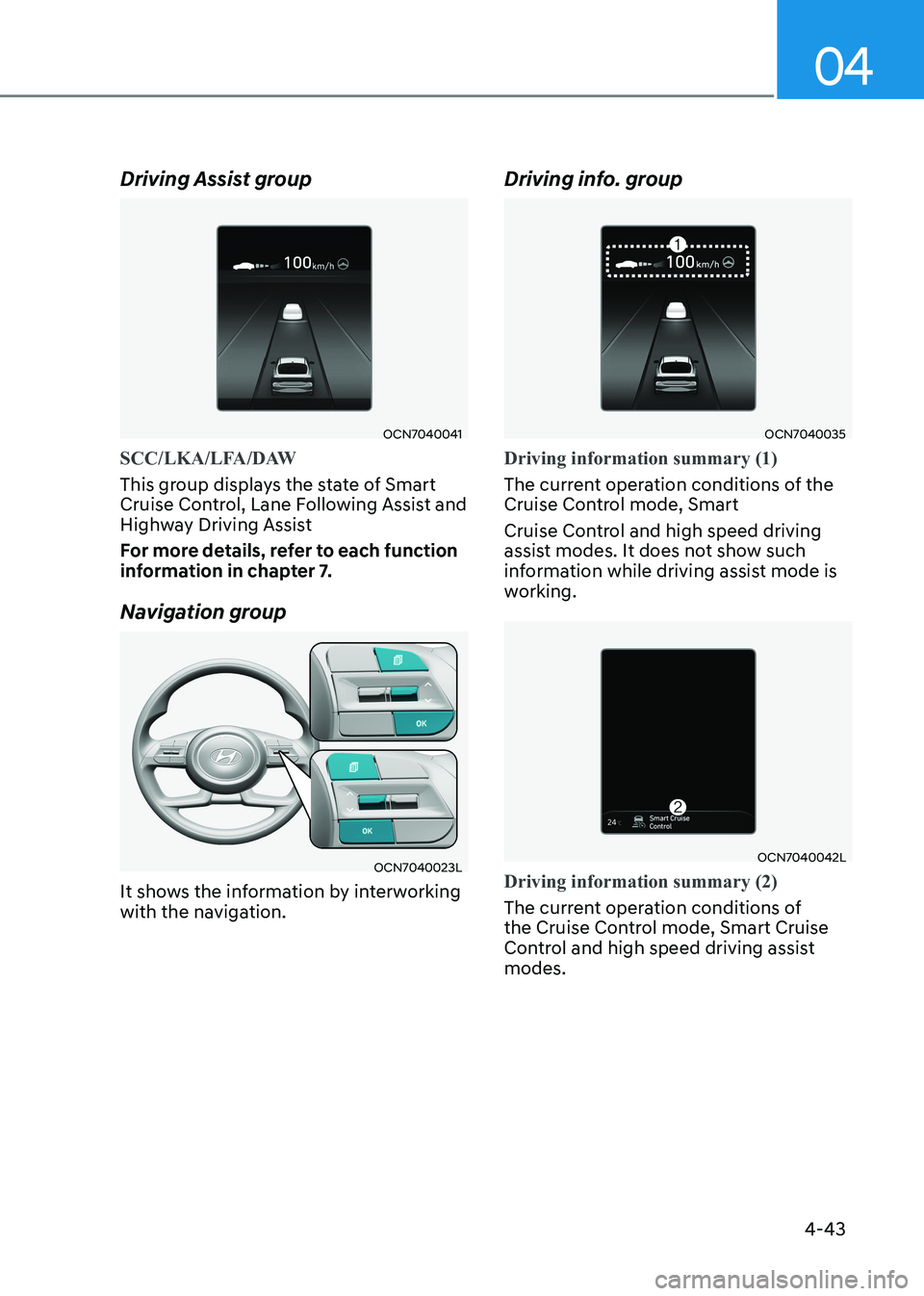
Utility Group
The Utility view mode displays
information related to vehicle driving
parameters including fuel economy and
trip distance information.
Utility Items
The utility items appear as well in utility
view mode, driving assist view mode and
turn by turn view mode. The utility items
in utility view mode display in the center
of the instrument cluster but the items in
other modes show up on the right side of
the instrument cluster.
The information provided may differ
depending on which functions are
applicable to your vehicle.
Driving Information
The trip distance for each ignition cycle,
fuel economy (undisplayed item in fuel
economy: driving speed), trip time
are shown. Press and hold OK button
to initialize set up. When the engine
has been OFF for 4 hours or longer
the average fuel economy will reset
automatically.
Information after Refueling
The vehicle information such as trip
distance, fuel economy (undisplayed
item in fuel economy: driving speed)
and trip time is displayed after refueling.
Press and hold OK button to initialize set up.
Accumulated Information
The vehicle information such as trip
distance, fuel economy (undisplayed
item in fuel economy: driving speed)
and trip time is displayed after manual
initialization.
Digital Speed Display
It shows current vehicle speed.
Driver Attention Warning
Display the status of the Driver Attention
Warning system. When the engine is
off or the vehicle comes to a stop, the
system is reset. Press and hold OK button
to initialize set up.
Smart Shift
Tire pressure
Page 141 of 529
04
4-43
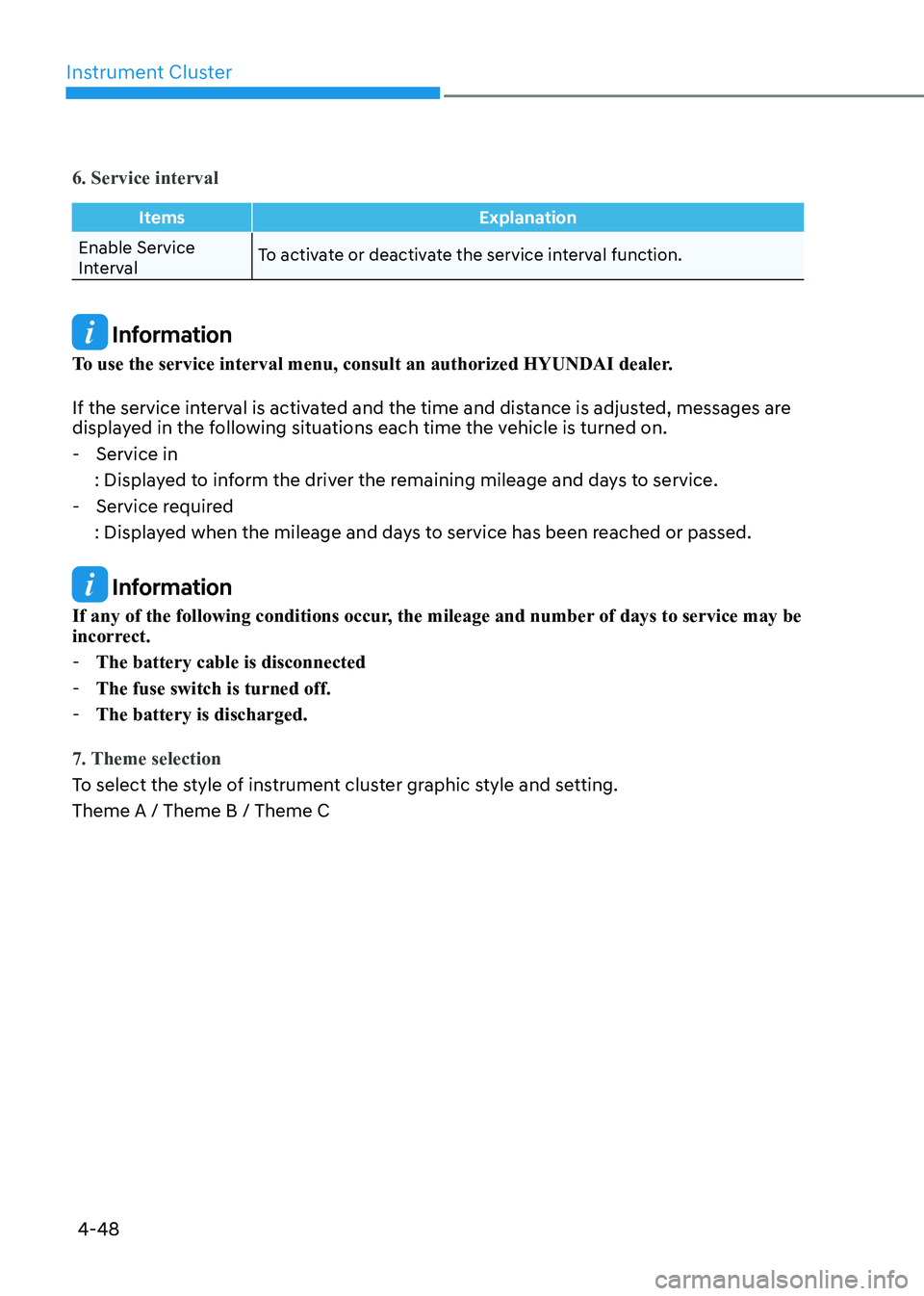
Driving Assist group
OCN7040041
SCC/LKA/LFA/DAW
This group displays the state of Smart
Cruise Control, Lane Following Assist and
Highway Driving Assist
For more details, refer to each function
information in chapter 7.
Navigation group
OCN7040023L
It shows the information by interworking
with the navigation. Driving info. group
OCN7040035
Driving information summary (1)
The current operation conditions of the
Cruise Control mode, Smart
Cruise Control and high speed driving
assist modes. It does not show such
information while driving assist mode is
working.
OCN7040042L
Driving information summary (2)
The current operation conditions of
the Cruise Control mode, Smart Cruise
Control and high speed driving assist modes.
Page 145 of 529
04
4-47
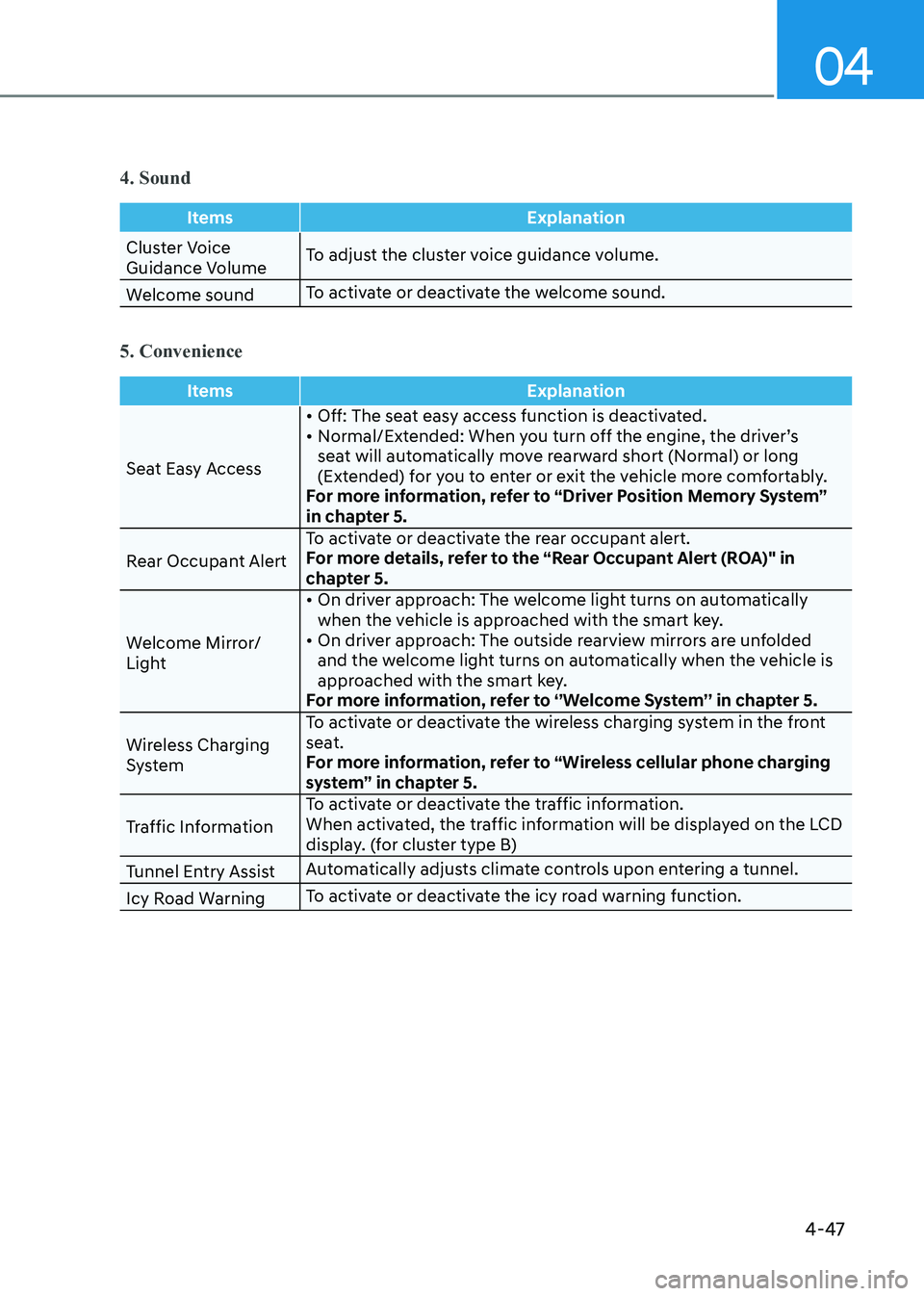
4. Sound
ItemsExplanation
Cluster Voice
Guidance VolumeTo adjust the cluster voice guidance volume.
Welcome sound To activate or deactivate the welcome sound.
5. Convenience
Items
Explanation
Seat Easy Access• Off: The seat easy access function is deactivated.
• Normal/Extended: When you turn off the engine, the driver’s
seat will automatically move rearward short (Normal) or long
(Extended) for you to enter or exit the vehicle more comfortably.
For more information, refer to “Driver Position Memory System”
in chapter 5.
Rear Occupant Alert To activate or deactivate the rear occupant alert.
For more details, refer to the “Rear Occupant Alert (ROA)" in
chapter 5.
Welcome Mirror/
Light • On driver approach: The welcome light turns on automatically
when the vehicle is approached with the smart key.
• On driver approach: The outside rearview mirrors are unfolded and the welcome light turns on automatically when the vehicle is
approached with the smart key.
For more information, refer to ‘’Welcome System’’ in chapter 5.
Wireless Charging
System To activate or deactivate the wireless charging system in the front
seat.
For more information, refer to “Wireless cellular phone charging
system” in chapter 5.
Traffic Information To activate or deactivate the traffic information.
When activated, the traffic information will be displayed on the LCD
display. (for cluster type B)
Tunnel Entry Assist Automatically adjusts climate controls upon entering a tunnel.
Icy Road Warning To activate or deactivate the icy road warning function.
Page 146 of 529
Instrument Cluster
4-48
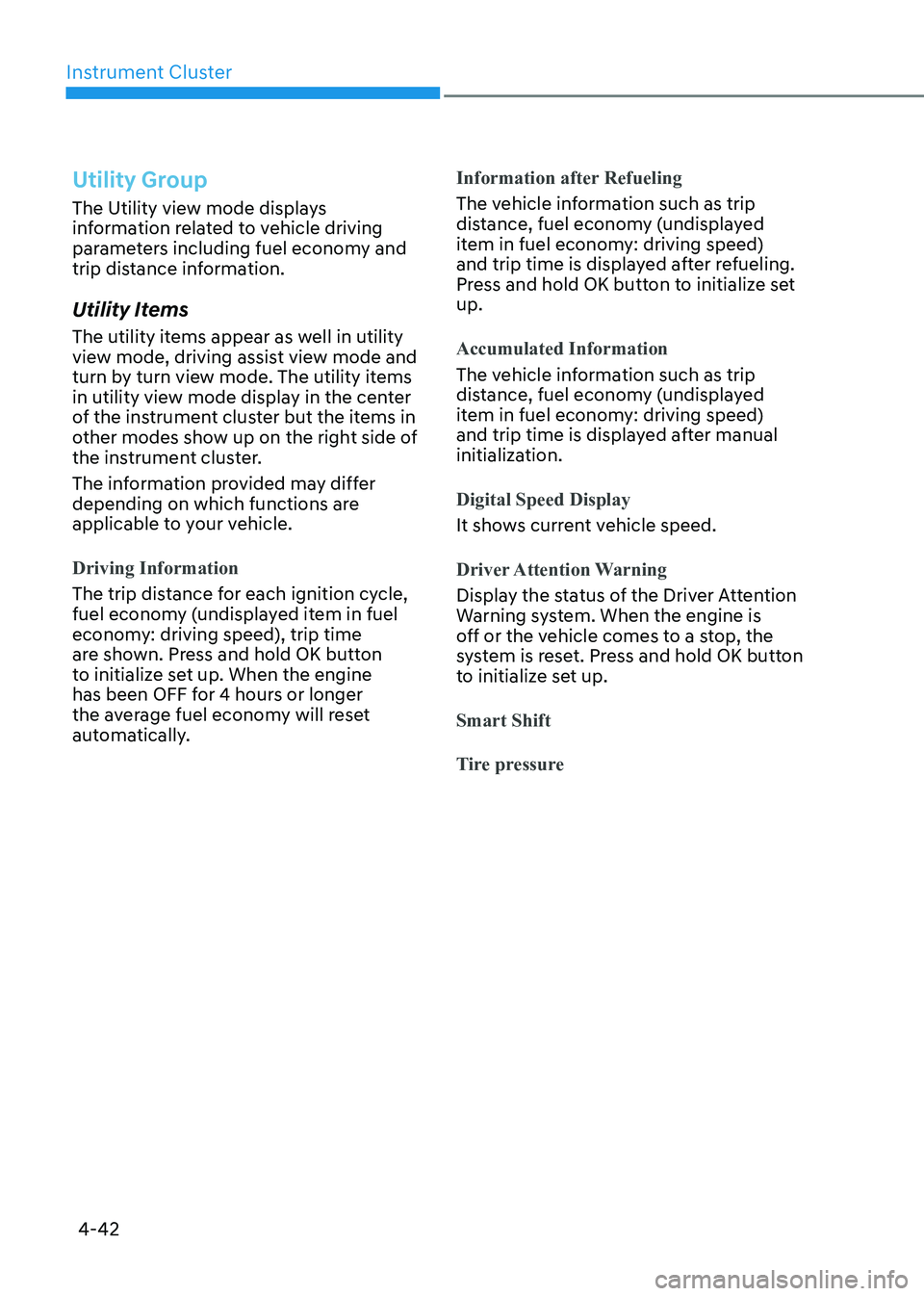
6. Service interval
ItemsExplanation
Enable Service
IntervalTo activate or deactivate the service interval function.
Information
To use the service interval menu, consult an authorized HYUNDAI dealer.
If the service interval is activated and the time and distance is adjusted, messages are
displayed in the following situations each time the vehicle is turned on. - Service in
: Displayed to inform the driver the remaining mileage and days to service. - Service required
: Displayed when the mileage and days to service has been reached or passed.
Information
If any of the following conditions occur, the mileage and number of days to service may be
incorrect. - The battery cable is disconnected
- The fuse switch is turned off.
- The battery is discharged.
7. Theme selection
To select the style of instrument cluster graphic style and setting. Theme A / Theme B / Theme C
Page 147 of 529
04
4-49
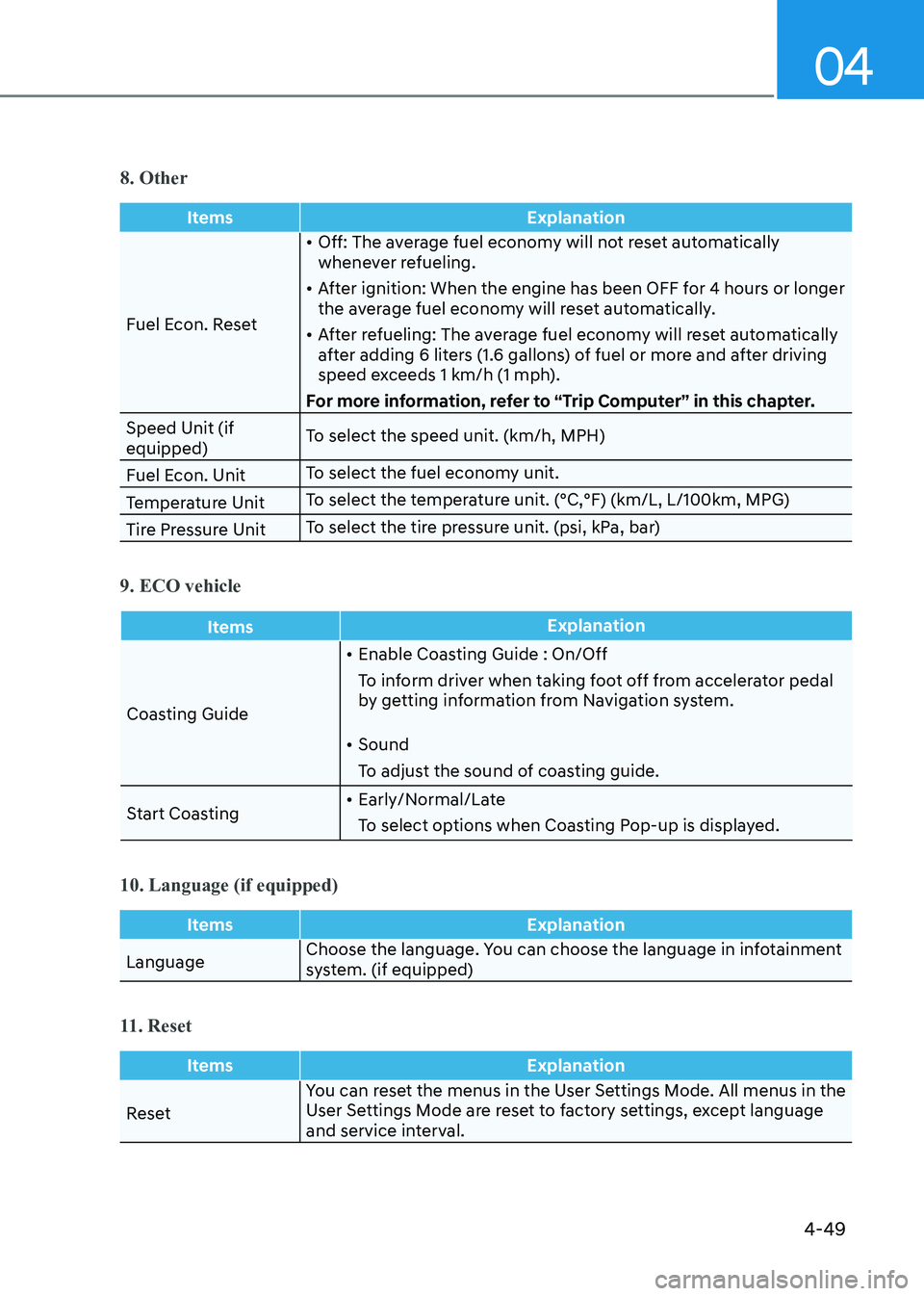
8. Other
ItemsExplanation
Fuel Econ. Reset•
Off: The average fuel economy will not reset automatically
whenever refueling.
• After ignition: When the engine has been OFF for 4 hours or longer
the average fuel economy will reset automatically.
• After refueling: The average fuel economy will reset automatically
after adding 6 liters (1.6 gallons) of fuel or more and after driving
speed exceeds 1 km/h (1 mph).
For more information, refer to “Trip Computer” in this chapter.
Speed Unit (if equipped) To select the speed unit. (km/h, MPH)
Fuel Econ. Unit To select the fuel economy unit.
Temperature Unit To select the temperature unit. (°C,°F) (km/L, L/100km, MPG)
Tire Pressure Unit To select the tire pressure unit. (psi, kPa, bar)
9. ECO vehicle
Items
Explanation
Coasting Guide•
Enable Coasting Guide : On/Off
To inform driver when taking foot off from accelerator pedal
by getting information from Navigation system.
• Sound
To adjust the sound of coasting guide.
Start Coasting •
Early/Normal/Late
To select options when Coasting Pop-up is displayed.
10. Language (if equipped)
Items Explanation
LanguageChoose the language. You can choose the language in infotainment
system. (if equipped)
11. Reset
Items
Explanation
ResetYou can reset the menus in the User Settings Mode. All menus in the
User Settings Mode are reset to factory settings, except language
and service interval.
Page 151 of 529
Convenient Features
5-4
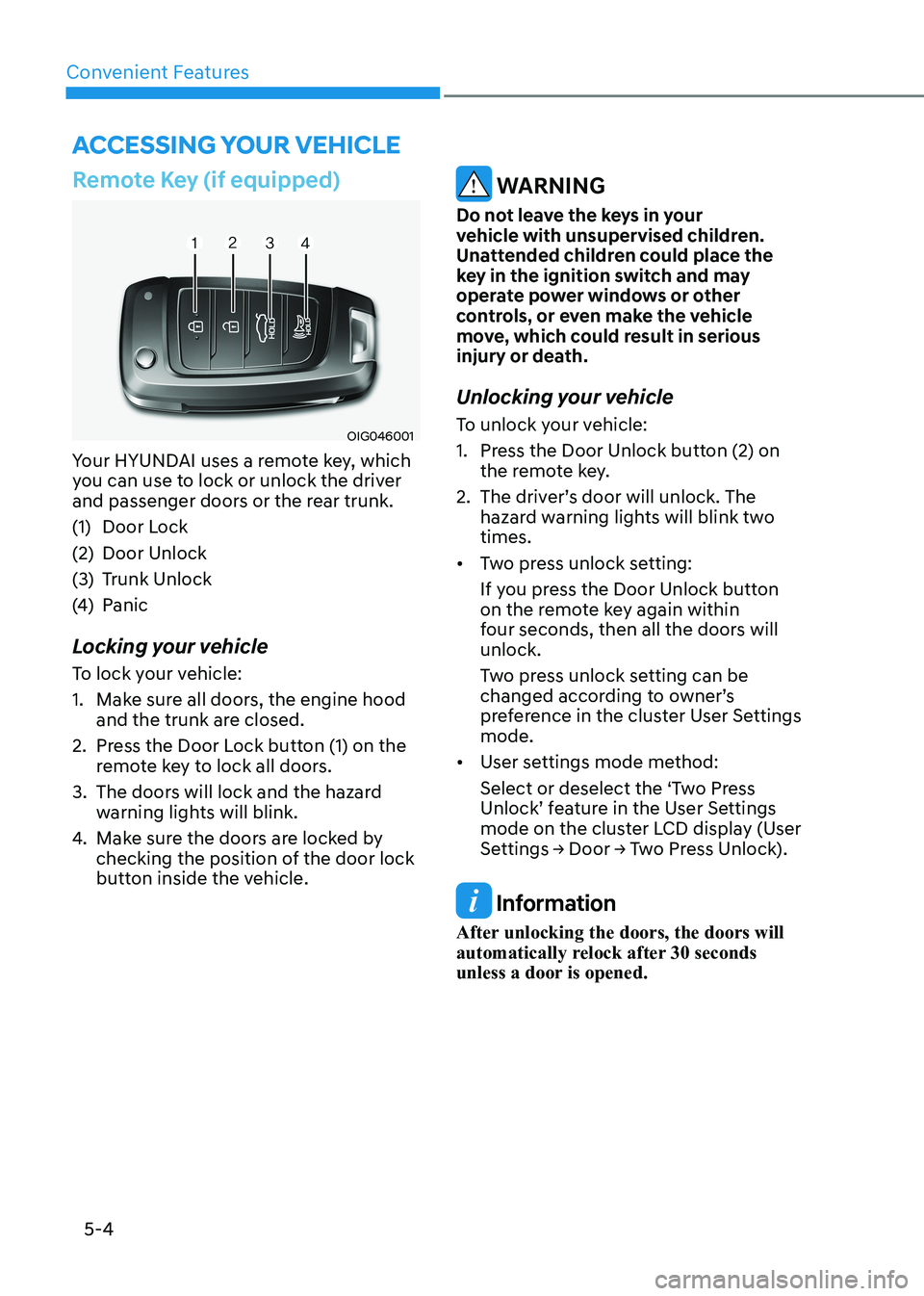
Remote Key (if equipped)
OIG046001
Your HYUNDAI uses a remote key, which
you can use to lock or unlock the driver
and passenger doors or the rear trunk.
(1) Door Lock
(2) Door Unlock
(3) Trunk Unlock
(4) Panic
Locking your vehicle
To lock your vehicle:
1. Make sure all doors, the engine hood and the trunk are closed.
2. Press the Door Lock button (1) on the remote key to lock all doors.
3. The doors will lock and the hazard warning lights will blink.
4. Make sure the doors are locked by
checking the position of the door lock
button inside the vehicle.
WARNING
Do not leave the keys in your
vehicle with unsupervised children.
Unattended children could place the
key in the ignition switch and may
operate power windows or other
controls, or even make the vehicle
move, which could result in serious
injury or death.
Unlocking your vehicle
To unlock your vehicle:
1. Press the Door Unlock button (2) on the remote key.
2. The driver’s door will unlock. The hazard warning lights will blink two times.
• Two press unlock setting:
If you press the Door Unlock button
on the remote key again within
four seconds, then all the doors will unlock.
Two press unlock setting can be
changed according to owner’s
preference in the cluster User Settings mode.
• User settings mode method:
Select or deselect the ‘Two Press
Unlock’ feature in the User Settings
mode on the cluster LCD display (User
Settings → Door → Two Press Unlock).
Information
After unlocking the doors, the doors will
automatically relock after 30 seconds
unless a door is opened.
Accessing Your Vehicle
Page 157 of 529
Convenient Features
5-10
Two Press Unlock Feature
The priority for unlocking the driver door
only, or unlocking all the doors with
one press may be adjusted in the User
Settings mode in the cluster LCD display.
The Two Press Unlock feature, when
enabled, will require the user to press
the door unlock button once for driver
door only and twice for unlocking all the
doors.
Select or Deselect the Two Press Unlock
feature in the User Settings mode in the
cluster LCD display. The option can be
found under the following menu:
User Settings → Door → Two Press Unlock
Information
If you press the front passenger outside
door handle with the smart key in your possession, all the doors will unlock.
Information
If the smart key is not moved for some
time, the detection function for smart key operation will pause. Lift the smart key to activate the detection again. Trunk opening
To open:
1. Make sure you have the smart key
in your possession and either press
inside the trunk emblem or press the
Trunk Unlock button (3) on the smart
key for more than one second.
2. Once the trunk is opened, the hazard warning lights will blink two times.
• The trunk handle button will only
operate when the smart key is within
0.7~1 m (28~40 inches) from the outside door handle.
• Once the trunk is opened and then
closed, the trunk will automatically lock.
Panic button
Press and hold the Panic button (4) for
more than one second. The horn sounds
and hazard warning lights flash for about
30 seconds. To cancel the panic mode,
press any button on the smart key.
Page 167 of 529
Convenient Features
5-20
Automatic Door Lock and Unlock
Features
Impact sensing door unlock system (if equipped)
All doors will be automatically unlocked
when an impact causes the air bags to
deploy.
Speed sensing door lock system (if equipped)
All doors will be automatically locked
when vehicle speed exceeds 9 mph (15
km/h).
You can activate or deactivate the Auto
Door Lock/Unlock features from the User
Settings Mode on the LCD display.
For more details, refer to “LCD Display”
in chapter 4. If your vehicle is equipped
with additional navigation, please refer
to the infotainment system manual
separately supplied.
Child-Protector Rear Door Locks
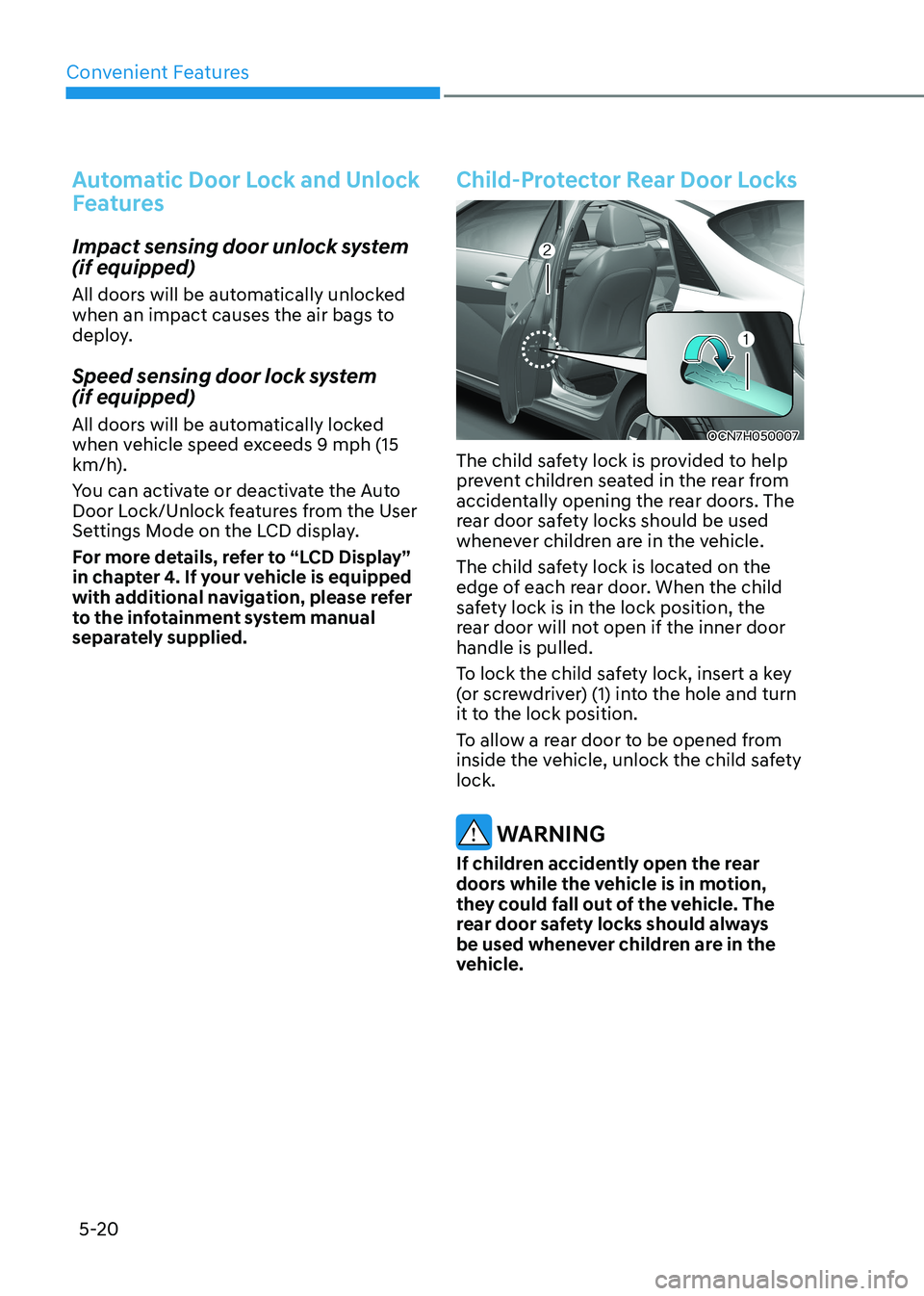
OCN7H050007
The child safety lock is provided to help
prevent children seated in the rear from
accidentally opening the rear doors. The
rear door safety locks should be used
whenever children are in the vehicle.
The child safety lock is located on the
edge of each rear door. When the child
safety lock is in the lock position, the
rear door will not open if the inner door handle is pulled.
To lock the child safety lock, insert a key
(or screwdriver) (1) into the hole and turn
it to the lock position.
To allow a rear door to be opened from
inside the vehicle, unlock the child safety lock.
WARNING
If children accidently open the rear
doors while the vehicle is in motion,
they could fall out of the vehicle. The
rear door safety locks should always
be used whenever children are in the
vehicle.