Page 275 of 737
Continued273
uuAudio System Basic Operation uAudio/Information Screen
Features
■To add app icons on the home screen
App icons can be added on the home screen. 1.Select .
2. Select All Apps.
3. Check the box of the app you want to add.
u The app icon will be added on the home
screen.1To add app icons on the home screen
Pre-installed apps may not start up normally. If this
occurs, you need to reset the system.
2 Defaulting All the Settings P. 447
If you perform Factory Data Reset , it may reset all
the settings to their factory default. 2 Defaulting All the Settings P. 447
In case those apps still do not start up normally even
after Factory Data Reset , contact your dealer.
There is a possibility that a browser is shut down in
the situation of the use. In that situation, the screen
will return to before the browser start up.
Check Box
All Apps
Icon
22 PILOT-31TG76600.book 273 ページ 2021年6月11日 金曜日 午後4時40分
Page 276 of 737
uuAudio System Basic Operation uAudio/Information Screen
274
Features
■To move icons on the home screen
You can change location on the home screen. 1.Select and hold an icon.
u The screen switches to the customization
screen.
2. Drag and drop the icon to where you want
it to be.
3. Select Done.
u The screen will return to the home
screen.1To move icons on the home screen
Select Tips to show tips. To hide them, select it again.
Select and hold.
Drag and drop.
22 PILOT-31TG76600.book 274 ページ 2021年6月11日 金曜日 午後4時40分
Page 277 of 737
Continued275
uuAudio System Basic Operation uAudio/Information Screen
Features
■To remove icons on the home screen
You can delete the icons on the home screen. 1.Select and hold an icon.
u The screen switches to the customization
screen.
2. Drag and drop the icon you want to remove
to the Hide icon.
u The icon is removed from the home
screen.
3. Select Done.
u The screen will return to the home
screen.1To remove icons on the home screen
Apps will not be deleted by deleting the icon on the
home screen.
Select Tips to show tips. To hide them, select it again.
Select and hold.
Drag and drop to
Hide icon.
22 PILOT-31TG76600.book 275 ページ 2021年6月11日 金曜日 午後4時40分
Page 278 of 737
uuAudio System Basic Operation uAudio/Information Screen
276
Features
■To create shortcuts for apps displayed on the home screen
Three shortcut icons for accessing apps displayed on the home screen are displayed
in the upper left area of the screen. You can replace any of these shortcut icons with
an icon of your preference. 1.From the home screen, select and hold the
icon that you want to store in the upper left
of the screen.
u The screen will switch to the
customization screen.
2. Drag the icon over to the upper left of the
screen and drop it over the icon that you
want to replace.
u The new icon will appear in place of the
old icon.
3. Select Done.
u The screen will return to the home
screen.1To create shortcuts for apps displayed on the home screen
Select Tips to show tips. To hide them, select it again.
Select and hold.
Drag and
drop to preset
icon.Preset
Icons
22 PILOT-31TG76600.book 276 ページ 2021年6月11日 金曜日 午後4時40分
Page 282 of 737
280
uuAudio System Basic Operation uSystem Updates
Features
System Updates
The audio system’s firmware can be updated with a Wi-Fi connection or with a USB
device.
■Wireless connecti on mode setup
1.Select .
2. Select System Updates .
3. Select Settings .
4. Select Connection Setup .
5. Select Change Mode .
6. Select Network, then Save.
u The display returns to the network list.
7. Select an access point from the network list,
then Connect .
u If the audio system requires a password,
enter a password.
■How to Update Wirelessly
1Wireless connection mode setup
If your vehicle has a telema tics control unit (TCU), you
do not need the wireless connection mode setup.
22 PILOT-31TG76600.book 280 ページ 2021年6月11日 金曜日 午後4時40分
Page 284 of 737
uuAudio System Basic Operation uSystem Updates
282
Features
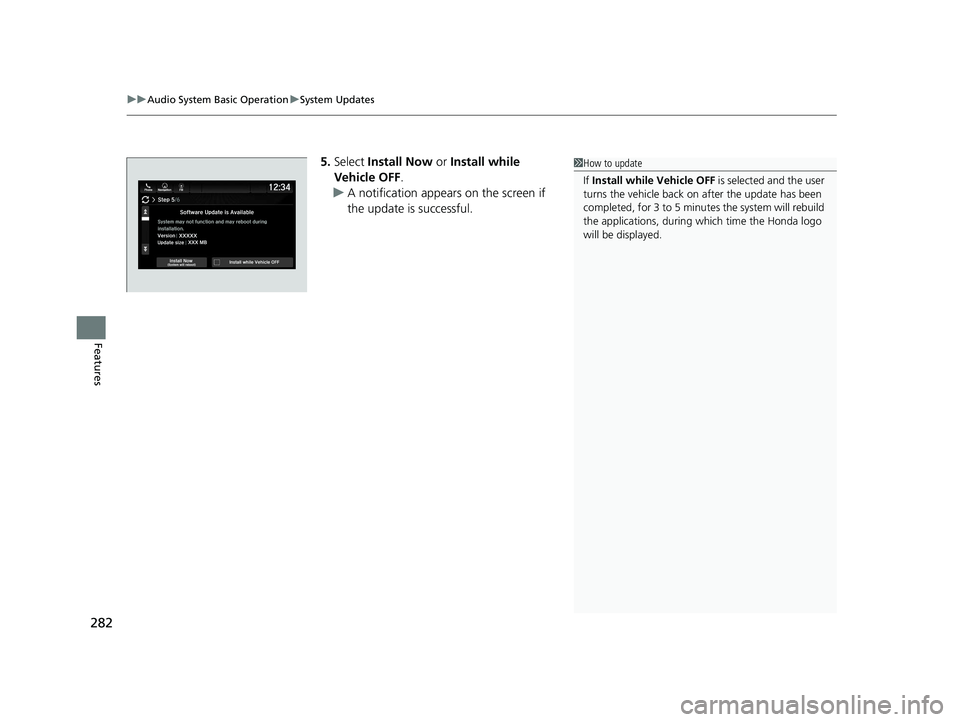
5. Select Install Now or Install while
Vehicle OFF .
u A notification appears on the screen if
the update is successful.1How to update
If Install while Vehicle OFF is selected and the user
turns the vehicle back on after the update has been
completed, for 3 to 5 minutes the system will rebuild
the applications, during wh ich time the Honda logo
will be displayed.
22 PILOT-31TG76600.book 282 ページ 2021年6月11日 金曜日 午後4時40分
Page 287 of 737
285
uuAudio System Basic Operation uSystem Updates
Features
■Update the audio system
1.Select .
2. Select System Updates .
3. Select via USB .
u A notification appears on the screen.
4. Connect the USB device with the update
files into the USB port.
u A notification appears on the screen.
2 USB Ports P. 241
5.Select Install Now or Install while
Vehicle OFF .
u A notification appears on the screen if
the update is successful.
1Update the audio system
If Install while Vehicle OFF is selected and the user
turns the vehicle back on after the update has been
completed, for 3 to 5 minutes the system will rebuild
the applications, during wh ich time the Honda logo
will be displayed.
22 PILOT-31TG76600.book 285 ページ 2021年6月11日 金曜日 午後4時40分
Page 289 of 737
Continued287
uuAudio System Basic Operation uFile Manager
Features
6. Select the file or folder you want to
transfer.
7. Select OK.
8. Select Transfer .
u A confirmation message appears on the
screen. Select Continue.
u A notification appears on the screen if
the transfer is successful. Then, the
display will return to the File Manager
screen.1 How to Transfer a File
To switch the view method, select List or Thumbnail
on the upper right of the screen.
22 PILOT-31TG76600.book 287 ページ 2021年6月11日 金曜日 午後4時40分