Page 191 of 737

189
uuOperating the Switches Around the Steering Wheel uDriving Position Memory System*
Continued
Controls
Driving Position Memory System*
You can store two driver’s seat (except for power lumbar) and door mirror positions
with the driving position memory system.
When you unlock and open the driver’s door with a remote transmitter, or keyless
access system, door mirrors adjust to one of the two preset positions and the seat
adjusts to retracted positions of one of the two preset positions automatically.
The seat will move to the stored position when you set the power mode to
ACCESSORY.
When you enter the vehicle, the driver in formation interface briefly shows you which
remote transmitter you used to unlock the vehicle.
• DRIVER 1 transmitter is linked to memory button 1.
• DRIVER 2 transmitter is linked to memory button 2.
The driver’s seat moves rearward depending
on the set seating position once you
•Stop the vehicle.
• Put the transmission in
(P.
• Turn the engine off.
• Open the driv er’s door.
Once the power mode is in the ACCESSORY
position, the driver’s seat moves to the
DRIVER 1 or 2 preset position.
1 Driving Position Memory System*
Using the audio/informati on screen, you can disable
the automatic seat and d oor mirrors adjustment
function. 2 Customized Features P. 429
The driver’s seat easy exit feature can be turned ON/
OFF. 2 Customized Features P. 429
System Operation
The system will not operate if:
•The vehicle speed is above 3 mph (5 km/h).
•Either memory position button is pressed while the
seat is in motion.
•The seat position is adju sted while in operation.
•The memory 1 or 2 position is set fully to the rear.
DRIVER 1 DRIVER 2
* Not available on all models
22 PILOT-31TG76600.book 189 ページ 2021年6月11日 金曜日 午後4時40分
Page 222 of 737

uuInterior Lights/Interior Convenience Items uInterior Convenience Items
220
Controls
■When charging does not start
Perform one of the solution s in the following table.
IndicatorCauseSolution
Slow Blink
There is an obstacle(s) between
the charging area and the
device.Remove the
obstacle(s).
The device is not within the
charging area. Move the device to the
center of the charging
area where is
located.
Fast BlinkThe wireless charger is faulty.
Turn the vehicle off
and back on. If the
indicator still blinks,
contact a dealer.
1
Wireless Charger*
Using the audio/informati on screen, you can disable
the wireless ch arger function.
2 Customized Features P. 429
3CAUTION
Metal objects between the charge pad
and the device to be charged will get
hot and can burn you.
•Always remove foreign objects from
the charge pad before charging the
device.
• Be sure the surface is clear of dust and
other debris before charging.
• Do not spill liquids (i. e. water, drinks,
etc.) on the charger and the device.
• Do not use oil, grease, alcohol,
benzine or thinner for cleaning the
charge pad.
• Do not cover the system with towels,
clothing, or other objects while
charging etc.
• Avoid spraying aerosols which may
come in contact with the charge pad
surface.
* Not available on all models
22 PILOT-31TG76600.book 220 ページ 2021年6月11日 金曜日 午後4時40分
Page 244 of 737
uuAudio System uAuxiliary Input Jack
242
Features
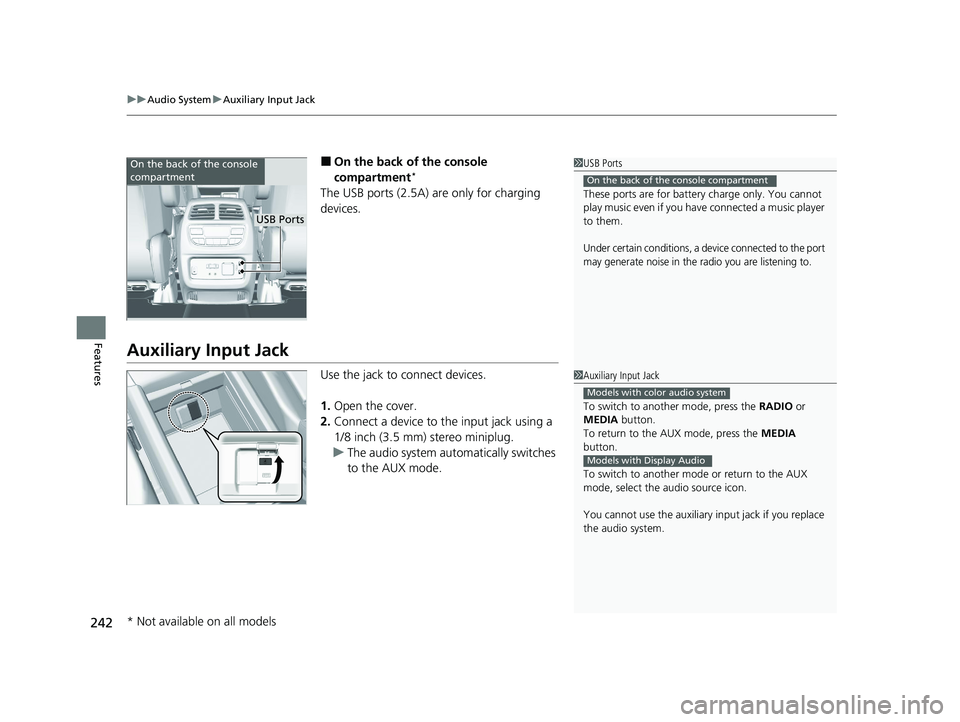
■On the back of the console
compartment*
The USB ports (2.5A) are only for charging
devices.
Auxiliary Input Jack
Use the jack to connect devices.
1. Open the cover.
2. Connect a device to the input jack using a
1/8 inch (3.5 mm) stereo miniplug.
u The audio system automatically switches
to the AUX mode.
1USB Ports
These ports are for battery charge only. You cannot
play music even if you have connected a music player
to them.
Under certain conditions, a device connected to the port
may generate noise in the radio you are listening to.
On the back of the console compartment
On the back of the console
compartment
USB Ports
1 Auxiliary Input Jack
To switch to another mode, press the RADIO or
MEDIA button.
To return to the AUX mode, press the MEDIA
button.
To switch to another mode or return to the AUX
mode, select the audio source icon.
You cannot use the auxiliary input jack if you replace
the audio system.
Models with color audio system
Models with Display Audio
* Not available on all models
22 PILOT-31TG76600.book 242 ページ 2021年6月11日 金曜日 午後4時40分
Page 245 of 737
243
uuAudio System uAudio System Theft Protection
Features
Audio System Theft Protection
The audio system is disabled when it is disconnected from the power source, such as
when the battery is disconnected or goes dead. In certain conditions, the system
may display a code entry screen. If this occurs, reactivate the audio system.
■Reactivating the audio system
1. Set the power mode to ON.
2. Turn on the audio system.
3. Press and hold the audio system powe r button for more than two seconds.
u The audio system is reac tivated when the audio co ntrol unit establishes a
connection with the vehicl e control unit. If the control unit fails to recognize
the audio unit, you must go to a dealer and have the audio unit checked.
22 PILOT-31TG76600.book 243 ページ 2021年6月11日 金曜日 午後4時40分
Page 251 of 737
249
uuAudio System Basic Operation uAudio/Information Screen
Continued
Features
■Audio
Shows the current audio information.
■Clock/Wallpaper
Shows a clock screen or an image you import.
■Change display
1. Press the MENU/CLOCK button.
2. Rotate to select Settings, then press .
3. Rotate to select Display Change, then press .
4. Rotate to select Wallpaper, then press .
u If you want to return to the audio/information screen, select Audio.
22 PILOT-31TG76600.book 249 ページ 2021年6月11日 金曜日 午後4時40分
Page 252 of 737
uuAudio System Basic Operation uAudio/Information Screen
250
Features
You can change, store, and delete the wallpaper on the audio/information screen.
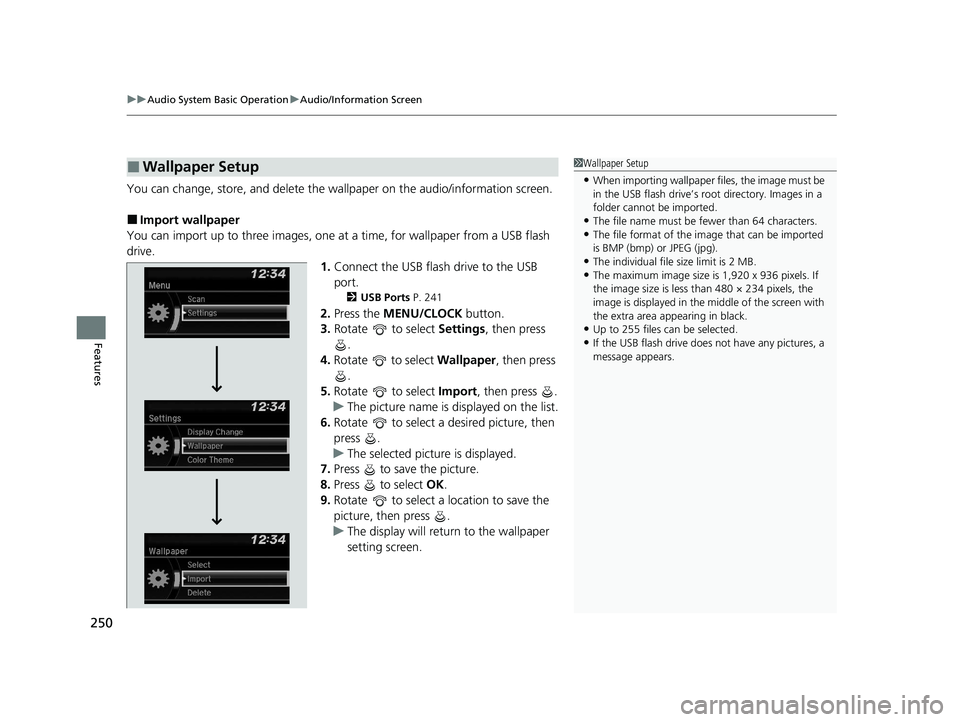
■Import wallpaper
You can import up to three images, one at a time, for wallpaper from a USB flash
drive. 1.Connect the USB flash drive to the USB
port.
2 USB Ports P. 241
2.Press the MENU/CLOCK button.
3. Rotate to select Settings, then press
.
4. Rotate to select Wallpaper , then press
.
5. Rotate to select Import, then press .
u The picture name is displayed on the list.
6. Rotate to select a desired picture, then
press .
u The selected picture is displayed.
7. Press to save the picture.
8. Press to select OK.
9. Rotate to select a location to save the
picture, then press .
u The display will return to the wallpaper
setting screen.
■Wallpaper Setup1Wallpaper Setup
•When importing wallpaper f iles, the image must be
in the USB flash drive’s root directory. Images in a
folder cannot be imported.
•The file name must be fewer than 64 characters.•The file format of the im age that can be imported
is BMP (bmp) or JPEG (jpg).
•The individual file size limit is 2 MB.•The maximum image size is 1,920 x 936 pixels. If
the image size is less than 480 × 234 pixels, the
image is displayed in the middle of the screen with
the extra area appearing in black.
•Up to 255 files can be selected.
•If the USB flash drive does not have any pictures, a
message appears.
22 PILOT-31TG76600.book 250 ページ 2021年6月11日 金曜日 午後4時40分
Page 253 of 737

251
uuAudio System Basic Operation uAudio/Information Screen
Features
■Select wallpaper
1. Press the MENU/CLOCK button.
2. Rotate to select Settings, then press .
3. Rotate to select Wallpaper, then press .
4. Rotate to select Select, then press .
u The screen changes to the wallpaper list.
5. Rotate to select a desired wallpaper, then press .
■To view wallpaper once it is set
1. Press the MENU/CLOCK button.
2. Rotate to select Settings, then press .
3. Rotate to select Display Change, then press .
4. Rotate to select Wallpaper, then press .
u The screen changes to the wallpaper list.
5. Rotate to select a wallpaper that you want to set, then press .
■Delete wallpaper
1. Press the MENU/CLOCK button.
2. Rotate to select Settings, then press .
3. Rotate to select Wallpaper, then press .
4. Rotate to select Delete, then press .
u The screen changes to the wallpaper list.
5. Rotate to select a wallpaper that you want to delete, then press .
6. Rotate to select Yes, then press .
u The display will return to the wallpaper setting screen.
1Wallpaper Setup
To go back to the previous screen, press the
(Back) button.
When the file size is large, it takes a while to be
previewed.
22 PILOT-31TG76600.book 251 ページ 2021年6月11日 金曜日 午後4時40分
Page 256 of 737
254
uuAudio System Basic Operation uPlaying AM/FM Radio
Features
Playing AM/FM Radio
RADIO Button
Press to select a band.
(Back) Button
Press to go back to the previous
display or cancel a setting.
/ (Seek/Skip) Buttons
Press or to search up and
down the selected band for a station
with a strong signal.
VOL/ (Volume/Power) Knob
Press to turn the audio system
on and off.
Turn to adjust the volume.
Preset Buttons (1-6)
To store a station:
1. Tune to the selected station.
2. Pick a preset button and hold it until you hear a beep.
To listen to a stored station, select a band, then press the preset button. Selector Knob
Turn to tune the radio frequency.
Press, and then turn to select an
item. After that, press again to
make your selection.
MENU/CLOCK Button
Press to display the menu items. Audio/Information Screen
22 PILOT-31TG76600.book 254 ページ 2021年6月11日 金曜日 午後4時40分


