Page 318 of 737
uuAudio System Basic Operation uPlaying an iPod
316
Features
1. Select Browse .
2. Select the items on that menu.
■How to Select a Song from the Music Search List1Playing an iPod
Available operating functi ons vary on models or
versions. Some functions ma y not be available on the
vehicle’s audio system.
If there is a problem, you may see an error message
on the audio/information screen. 2 iPod/USB Flash Drive P. 346
If you operate the musi c app on your iPhone/iPod
while the phone is connected to the audio system,
you may no longer be able to operate the same app
on the audio/information screen.
Reconnect the devi ce if necessary.
If an iPhone is connected vi a Apple CarPlay, the iPod/
USB source will be unavailable and audio files on the
phone will be playable onl y within Apple CarPlay.
22 PILOT-31TG76600.book 316 ページ 2021年6月11日 金曜日 午後4時40分
Page 320 of 737
318
uuAudio System Basic Operation uPlaying a USB Flash Drive
Features
Playing a USB Flash Drive
Your audio system reads and plays audio f iles on a USB flash drive in either MP3,
WMA, or AAC*1 format.
Connect your USB flash drive to the USB port, then select the USB mode.
2USB Ports P. 241
*1: Only AAC format files recorded with iTunes are playable on this unit.
(Back) Icon
Select to go back to the previous
display.
Track Icons
Select or to change files.
Select and hold to move rapidly
within a track.
VOL/ AUDIO (Volume/Power)
Knob
Push to turn the audio system on
and off.
Turn to adjust the volume.
Audio/Information Screen
Play/Pause Icon
22 PILOT-31TG76600.book 318 ページ 2021年6月11日 金曜日 午後4時40分
Page 328 of 737
uuAudio System Basic Operation uPlaying Bluetooth ® Audio
326
Features
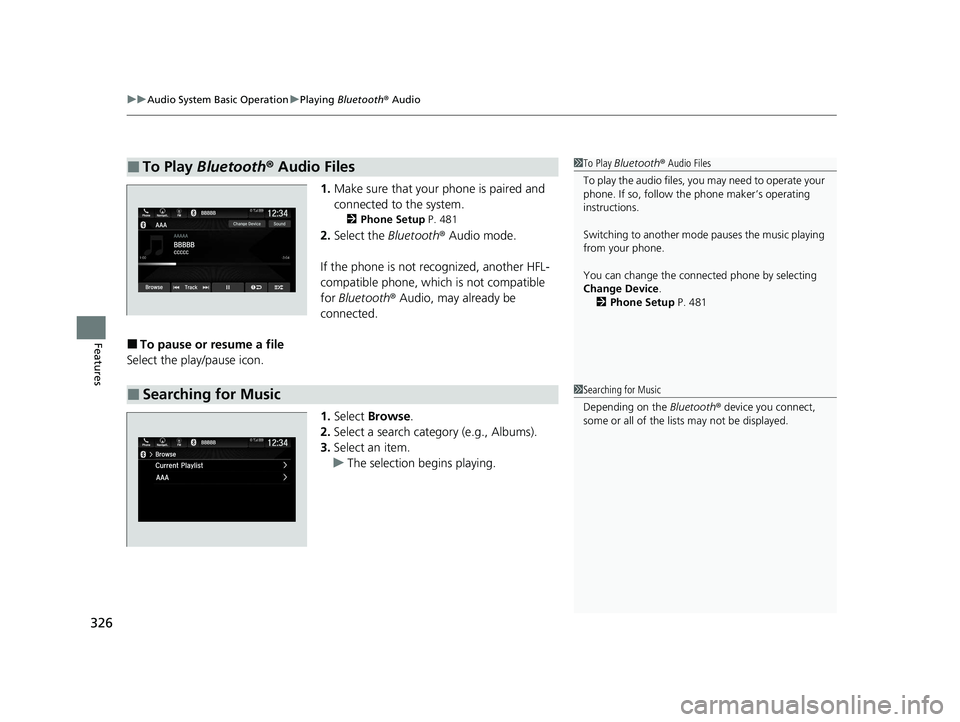
1. Make sure that your phone is paired and
connected to the system.
2 Phone Setup P. 481
2.Select the Bluetooth® Audio mode.
If the phone is not recognized, another HFL-
compatible phone, which is not compatible
for Bluetooth ® Audio, may already be
connected.
■To pause or resume a file
Select the play/pause icon.
1.Select Browse .
2. Select a search category (e.g., Albums).
3. Select an item.
u The selection begins playing.
■To Play Bluetooth ® Audio Files1 To Play Bluetooth ® Audio Files
To play the audio files, y ou may need to operate your
phone. If so, follow the phone maker’s operating
instructions.
Switching to another mode pauses the music playing
from your phone.
You can change the connected phone by selecting
Change Device .
2 Phone Setup P. 481
■Searching for Music1Searching for Music
Depending on the Bluetooth® device you connect,
some or all of the list s may not be displayed.
22 PILOT-31TG76600.book 326 ページ 2021年6月11日 金曜日 午後4時40分
Page 342 of 737

340
uuAudio System Basic Operation uAndroid Auto
Features
Android Auto
When you connect an Android phone to the audio system via the front USB port,
Android Auto is automatically initiated. When connected via Android Auto, you can
use the audio/information screen to access the Phone, Google Maps (Navigation),
Google Play Music, and Google Now functions. When you first use Android Auto, a
tutorial will appe ar on the screen.
We recommend that you complete this tuto rial while safely parked before using
Android Auto.
2 USB Ports P. 241
2 Auto Pairing Connection P. 342
1Android Auto
To use Android Auto, you need to download the
Android Auto app from Google Play to your
smartphone.
Only Android 5.0 (Lollipop) or later versions are
compatible with Android Auto.
Bluetooth A2DP cannot be used with Android Auto
phone.
Park in a safe place befo re connecting your Android
phone to Android Auto and when launching any
compatible apps.
To use Android Auto, connect the USB cable to the
USB port located on the console panel. The USB ports
located in the console compartment and on the back
of the console compartment
* will not enable Android
Auto operation. 2 USB Ports P. 241
To directly access the Android Auto phone function,
press Phone on the home screen.
2 Auto Pairing Connection P. 342
When your Android phone is connected to Android
Auto, it is not possible to use the Bluetooth® Audio.
However, other previously paired phones can stream
audio via Bluetooth ® while Android Auto is
connected.
2 Phone Setup P. 481
* Not available on all models
22 PILOT-31TG76600.book 340 ページ 2021年6月11日 金曜日 午後4時40分
Page 348 of 737

346
uuAudio Error Messages uiPod/USB Flash Drive
Features
iPod/USB Flash Drive
If an error occurs while playing an iPod or USB flash drive, you may see the following
error messages. If you cannot clear the error message, contact a dealer.
*1:Models with color audio system
*2:Models with Display Audio
Error MessageSolution
USB Error*1
Problem reading connected device. See
Owner’s Manual for a list of compatible
devices. If device is compatible, try
reconnecting device.
If this error rema ins, contact Honda
dealer.
*2
Appears when there is a problem with th e audio system. Check if the device is
compatible with the audio system.
Bad USB Device*1
Problem reading connected device. See
Owner’s Manual for a list of compatible
devices. If device is compatible, try
reconnecting device.
If this error rema ins, contact Honda
dealer.
*2
Appears when an incompatible device is connected. Disconnect the device. Then turn
the audio system off, and turn it on again. Do not reconnect the device that caused the
error.
Unsupported Ver*1
Problem reading connected device. See
Owner’s Manual for a list of compatible
devices. If device is compatible, try
reconnecting device.
If this error rema ins, contact Honda
dealer.
*2
• Appears when an unsupported iPod is connected. If it appears when a supported
iPod is connected, update the iP od software to the newer version.
• Appears when an unsupported device is connected. If it appears when a supported
device is connected, reconnect the device.
22 PILOT-31TG76600.book 346 ページ 2021年6月11日 金曜日 午後4時40分
Page 349 of 737

347
uuAudio Error Messages uiPod/USB Flash Drive
Features
*1:Models with color audio system
*2:Models with Display Audio
Error MessageSolution
Problem reading connected device. See
Owner’s Manual for a list of compatible
devices. If device is compatible, try
reconnecting device.
If this error remains, contact Honda
dealer.
*2
Appears when the system does not acknowledge the iPod. Reconnect the iPod.
Unplayable File*1
The selected file cannot be played on this
system*2
Appears when the files in the USB flash driv e are DRM or an unsupported format. This
error message appears for about three seconds, then plays the next song.
No Data*1
The connected device does not contain any
files that can be played on this system. See
Owner’s Manual for a list of compatible file
types.
*2
Appears when the iPod is empty.
Appears when the USB flash drive is empty or there are no MP3, WMA, or AAC files in
the USB flash drive.
Check that compatible files are stored on the device.
iPod
USB flash drive
iPod and USB flash drive
22 PILOT-31TG76600.book 347 ページ 2021年6月11日 金曜日 午後4時40分
Page 352 of 737
350
uuGeneral Information on the Audio System uRecommended CDs*
Features
Recommended CDs*
• Use only high-quality CD-R or CD-RW discs labeled for audio use.
• Use only CD-R or CD-RW discs on which the recordings are closed.
• Play only standard round-shaped CDs.
• Some software files may not allow for audio play or text data display.
• Some versions of MP3, WMA or AAC formats may be unsupported.1Recommended CDs*
A Dual-disc cannot play on this audio unit. If recorded
under certain conditions, a CD-R or CD-RW may not
play either.
■CDs with MP3, WMA or AAC files
The CD packages or jackets should have one of these marks.
* Not available on all models
22 PILOT-31TG76600.book 350 ページ 2021年6月11日 金曜日 午後4時40分
Page 355 of 737

353
uuGeneral Information on the Audio System uCompatible iPod, iPad, iPhone, and USB Flash Drives
Features
• A USB flash drive of 256 MB or higher is recommended.
• Some digital audio players may not be compatible.
• Some USB flash drives (e.g., a device with security lockout) may not work.
• Some software files may not allow for audio play or text data display.
• Some versions of MP3, WMA, or AAC formats may be unsupported.
*1: Models with Display Audio
*2: Models with color audio system
■USB Flash Drives1iPod, iPad, and iPhone Model Compatibility
USB works with iPhone 3G
*2, iPhone 3GS*2, iPhone
4*2, iPhone 4s, iPhone 5*1,iPhone 5c*1, iPhone 5s*1,
iPhone 6*1, iPhone 6 Plus*1, iPhone 6s*1, iPhone 6s
Plus*1, iPhone SE*1, iPhone 7*1, iPhone 7 Plus*1, iPad
Pro 9.7 inch*1, iPad Pro 12.9 inch (1st generation)*1,
iPad 2*1, iPad (3rd generation)*1, iPad (4th
generation)*1, iPad Air*1, iPad Air 2*1, iPad mini*1, iPad
mini 2*1, iPad mini 3*1, iPad mini 4*1, iPod (5th
generation)*2, iPod classic 80GB/160GB (launch in
2007)*2, iPod classic 120GB (launch in 2008)*2, iPod
classic 160GB (launch in 2009)*2, iPod nano (1st to
6th generation)*2, iPod nano (7th generation)*1, iPod
touch (1st to 4th generation)*2, iPod touch (5th to 6th
generation)*1.
1 USB Flash Drives
Files on the USB flash drive are played in their stored
order. This order may be different from the order
displayed on your PC or device.
22 PILOT-31TG76600.book 353 ページ 2021年6月11日 金曜日 午後4時40分


