2022 HONDA CRV change time
[x] Cancel search: change timePage 274 of 692

272
Features
Audio System Basic Operation
To use the audio system function, the power mode must be in ACCESSORY or ON.
(Home): Select to go to the home screen.
2 Switching the Display P. 273
(Map)*: Select to display the map screen.
2Refer to the Navigation System Manual
(Audio): Select to disp lay the audio screen.
(Phone): Select to display the phone
screen.
(Back): Select to go back to the previous
screen when the icon is illuminated.
(Day/Night): Select to change the audio/
information screen brightness.
Select once and select
(- or (+ to make
an adjustment. u Each time you select , the mode
switches among the daytime mode,
nighttime mode and off mode.
1Audio System Basic Operation
Audio Menu Items
2 Station List P. 302, 304
2 Music Search List P. 313, 322
2 Scan P. 303, 311, 323
2 Play Mode P. 314, 323Models with Display Audio
(Map) Icon*
(Phone) Icon
(Back) Icon
(Day/Night) Icon
(Home) Icon
(Audio) Icon
* Not available on all models
22 CR-V HEV ELP-31TPG6200.book 272 ページ 2021年6月30日 水曜日 午前11時6分
Page 284 of 692

uuAudio System Basic Operation uAudio/Information Screen
282
Features
You can change, store, and delete the wallpaper on the audio/information screen.
■Import wallpaper
You can import up to five images, one at a time, for wallpaper from a USB flash
drive. 1.Connect the USB flash drive to the USB
port.
2 USB Port(s) P. 245
2.Select Settings .
3. Select Clock.
4. Select Clock/Wallpaper Type , select
Next, then open the Wallpaper tab.
5. Select Add New .
u The picture name is displayed on the list.
6. Select a desired picture.
u The preview is displayed on the left side
on the screen.
7. Select Start Import to save the data.
u The display will return to the wallpaper
list.
■Wallpaper Setup1Wallpaper Setup
The wallpaper you set up on Clock/Wallpaper Type
cannot be displayed on th e driver information
interface.
•When importing wallpaper f iles, the image must be
in the USB flash drive’s root directory.
Images in a folder cannot be imported.
•The file name must be fewer than 256 bytes.•The file format of the im age that can be imported
is BMP (bmp) or JPEG (jpg).
•The individual file size limit is 5 MB.•The maximum image size is 4,096 × 4,096 pixels. If
the image size is less than 800 × 480 pixels, the
image is displayed in the middle of the screen with
the extra area appearing in black.
•If the USB flash drive doe s not have any pictures,
the No files detected message appears.
After changing the screen interface design, you can
change the wallpaper by following procedure.
1. Select .
2. Select .
3. Select and hold empty space on the home screen. The pop-up menu appears on the screen.
4. Select Change wallpaper .
5. Select Gallery, Live wallpapers , or Wallpapers.
22 CR-V HEV ELP-31TPG6200.book 282 ページ 2021年6月30日 水曜日 午前11時6分
Page 306 of 692

uuAudio System Basic Operation uPlaying AM/FM Radio
304
Features
Provides text data information related to your selected RDS-capable FM station.
■To find an RDS station from Station List
1. Select the open/close icon to display a list while listening to an FM station.
2. Select the Station List tab.
3. Select the station.
■Manual update
Updates your available station list at any time.
1. Select the open/close icon to display a list while listening to an FM station.
2. Select the Station List tab.
3. Select Refresh .
■Radio text
Displays the radio text informat ion of the selected RDS station.
1. Select MENU .
2. Select View Radio Text .
■Radio Data System (RDS)1Radio Data System (RDS)
When you select an RDS-capable FM station, the RDS
automatically turns on, and the frequency display
changes to the station name. However, when the
signals of that station become weak, the display
changes from the statio n name to the frequency.
22 CR-V HEV ELP-31TPG6200.book 304 ページ 2021年6月30日 水曜日 午前11時6分
Page 307 of 692

305
uuAudio System Basic Operation uPlaying SiriusXM ® Radio
Continued
Features
Playing SiriusXM® Radio
*1:Some or all of the lists may not be displayed.
VOL/ AUDIO (Volume/Power Audio) Knob
Press to turn the audio system on and off.
Turn to adjust the volume.
(Back) Icon
Select to go back to the previous display.
Channel Icons
Select or to the previous
or next channel.
Select and hold to rapidly skip 10
channels at a time.
Open/Close Icon*1
Displays/hides the detailed
information.
(Audio) Icon
Select to display the audio screen.
Category Icons
Select or to display and select a
SiriusXM ® Radio category.
Audio/Information Screen
Scan Icon
Select to scan eac
h channel.
Preset Icons
Tune the preset radio station. Select
and hold the preset icon to store that
station. Select to display preset 7
onwards.
Skip Icons
Select or to change
section in the channel. Select and
hold to move rapidly within the
section.
Station Art
22 CR-V HEV ELP-31TPG6200.book 305 ページ 2021年6月30日 水曜日 午前11時6分
Page 326 of 692

324
uuAudio System Basic Operation uPlaying Bluetooth ® Audio
Features
Playing Bluetooth ® Audio
Your audio system allows you to listen to music from your Bluetooth-compatible
phone.
This function is available when the phone is paired and connected to the vehicle’s
Bluetooth ® HandsFreeLink ® (HFL) system.
2 Phone Setup P. 430
*1:Depending on the Bluetooth® device you connect, some or all of the lists may not
be displayed.
1 Playing Bluetooth ® Audio
Not all Bluetooth -enabled phones with streaming
audio capabilities are compatible with the system.
For a list of compatible phones, visit
automobiles.honda.com /handsfreelink/,
or call 1-888-528-7876.
It may be illegal to perform some data device
functions while driving.
Only one phone can be used with HFL at a time.
When there are more than two paired phones in the
vehicle, the system automatically connects to the
prioritized phone. You can a ssign priority to a phone
in the Priority Device Settings .
2 Customized Features P. 369
The connected phone for Bluetooth® Audio can be different.
If more than one phone is paired to the HFL system,
there may be a delay before the system begins to play.
In some cases, the name of the artist, album, or track
may not appear correctly.
Some functions may not be available on some devices.
If a phone is currently connected via Apple CarPlay
TM or
Android AutoTM, Bluetooth® Audio from that phone is
unavailable. However, a second previously paired phone
can stream
Bluetooth® Audio by selecting Connect
from the
Bluetooth Device List screen.2 Phone Setup P. 430
Audio/
Information
Screen
VOL/ AUDIO
(Volu me/Po
wer
Aud
io) Knob
Press to turn the
audio system on
and off.
Turn to adjust the
volume.
(Back) Icon
Select to go back to the
previous display.
(Audio) Icon
Select to display
the audio screen.
Group Icons
Select or to change group.
Pause Icon
Play Icon
Bluetooth
Indicator
Appears when
your phone is
connected to
HFL.
Track Icons
Select or to change tracks.
Open/Close
Icon*1
Displays/hides
the detailed
information.
22 CR-V HEV ELP-31TPG6200.book 324 ページ 2021年6月30日 水曜日 午前11時6分
Page 329 of 692
327
uuAudio System Basic Operation uHondaLink ®
Continued
Features
■Messages from Honda
Displays helpful and important information from Honda.
■Weather*
Displays a weekly five-day weather forecast for any location you wa nt. You can
change the ZIP Code at any time.
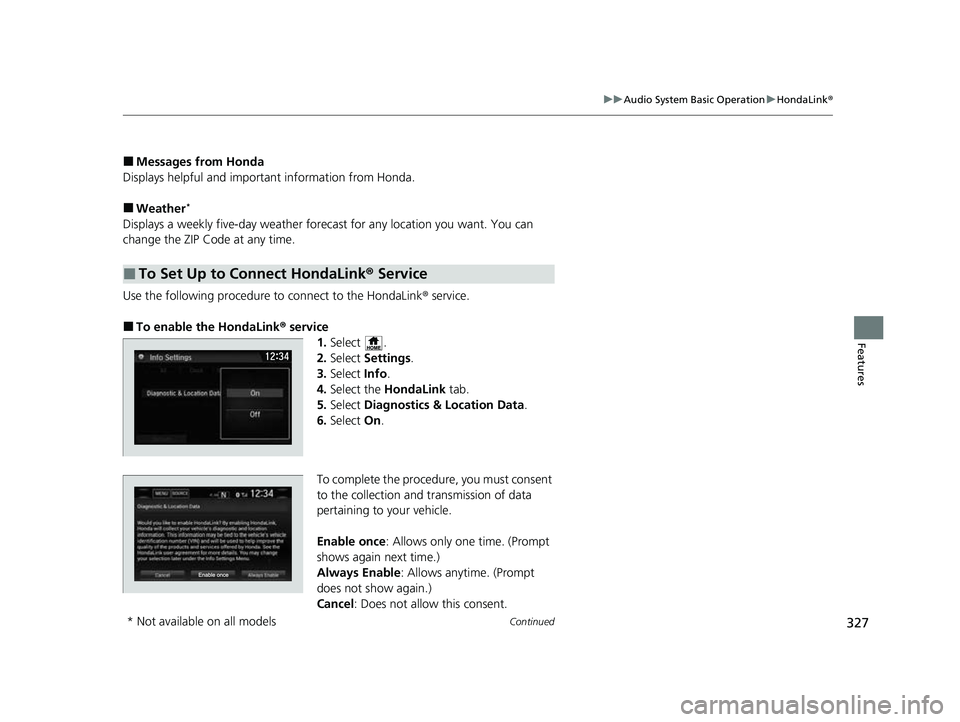
Use the following procedure to connect to the HondaLink ® service.
■To enable the HondaLink® service
1.Select .
2. Select Settings .
3. Select Info.
4. Select the HondaLink tab.
5. Select Diagnostics & Location Data .
6. Select On.
To complete the procedure, you must consent
to the collection and transmission of data
pertaining to your vehicle.
Enable once : Allows only one time. (Prompt
shows again next time.)
Always Enable: Allows anytime. (Prompt
does not show again.)
Cancel : Does not allow this consent.
■To Set Up to Connect HondaLink ® Service
* Not available on all models
22 CR-V HEV ELP-31TPG6200.book 327 ページ 2021年6月30日 水曜日 午前11時6分
Page 336 of 692

uuAudio System Basic Operation uApple CarPlayTM
334
Features
■Maps
Display Apple Maps and use the navigation function just as you would on your
iPhone.
Only one navigation system (pre-installed navigation or Apple CarPlay
TM) can give
directions at a time. When you are using one system, directions to any prior
destination set on the other system will be canceled, and the system you are
currently using will direct you to your destination.
After you have connected your iPhone to the system via the 1.5A USB port, use the
following procedure to set up Apple CarPlay
TM. Use of Apple CarPlayTM will result in
the transmission of certain user and vehicle information (such as vehicle location,
speed, and status) to your iPhone to enhance the Apple CarPlay
TM experience. You
will need to consent to the sharing of this information on the audio/information
screen.
■Enabling Apple CarPlayTM
Enable once : Allows only once. (Prompt
shows again next time.)
Always Enable : Allows anytime. (Prompt
does not show again.)
Cancel : Does not allow this consent.
You may change the consent settings under
the Smartphone settings menu.
■Setting Up Apple CarPlayTM
1Apple CarPlayTM
Apple CarPlayTM Operating Requirements &
Limitations
Apple CarPlay
TM requires a compatible iPhone with an
active cellular connecti on and data plan. Your
carrier’s rate plans will apply.
Changes in operating systems, hardware, software,
and other technology integral to providing Apple
CarPlay
TM functionality, as we ll as new or revised
governmental regulations, may result in a decrease or
cessation of Apple CarPlay
TM functionality and
services. Honda cannot a nd does not provide any
warranty or guarantee of future Apple CarPlay
TM
performance or functionality.
It is possible to use 3r d party apps if they are
compatible with Apple CarPlay
TM. Refer to the Apple
homepage for information on compatible apps.
Models with navigation system
1 Setting Up Apple CarPlayTM
You can also use the method below to set up Apple
CarPlayTM:
Select HOME Settings Smartphone
Apple CarPlay
Use of user and vehicle information
The use and handling of user and vehicle information
transmitted to/from your iPhone by Apple CarPlay
TM
is governed by the Appl e iOS terms and conditions
and Apple’s Privacy Policy.
22 CR-V HEV ELP-31TPG6200.book 334 ページ 2021年6月30日 水曜日 午前11時6分
Page 339 of 692

Continued337
uuAudio System Basic Operation uAndroid AutoTM
Featuresa Maps (Navigation)
Display Google Maps and use the navigation function just as you would with your
Android phone. When the vehicle is in motion, it is not possible to make keyboard
entries. Stop the vehicle in a safe locati on to undertake a search or provide other
inputs.
Only one navigation system (pre-installed navigation or Android Auto
TM) can give
directions at a time. When you are using one system, directions to any prior
destination set on the other system will be canceled, and the system you are
currently using will direct you to your destination.
The audio/information screen shows you turn-by turn dr iving directions to your
destination.
b Phone (Communication)
Make and receive phone calls as well as listen to voicemail.
c Google Now (Home screen)
Display useful information organized by Android Auto
TM into simple cards that
appear just when they’re needed.
■Android AutoTM Menu1 Android AutoTM
For details on c ountries and regions where Android
AutoTM is available, as well as information pertaining
to function, refer to the Android AutoTM homepage.
Screens may differ depending on the version of the
Android Auto app you are using.
Android Auto
TM Operating Requirements &
Limitations
Android Auto
TM requires a compatible Android phone
with an active cellular connection and data plan.
Your carrier’s rate plans will apply.
Changes in operating systems, hardware, software,
and other technology integral to providing Android
Auto
TM functionality, as we ll as new or revised
governmental regulations, may result in a decrease or
cessation of Android Auto
TM functionality and
services. Honda cannot a nd does not provide any
warranty or guarantee of future Android Auto
TM
performance or functionality.
It is possible to use 3r d party apps if they are
compatible with Android Auto
TM. Refer to the
Android AutoTM homepage for information on
compatible apps.
: Go back to
the home screen
Android AutoTM icon
6
Models with navigation system
22 CR-V HEV ELP-31TPG6200.book 337 ページ 2021年6月30日 水曜日 午前11時6分