2022 GMC TERRAIN instrument cluster
[x] Cancel search: instrument clusterPage 95 of 371

GMC Terrain/Terrain Denali Owner Manual (GMNA-Localizing-U.S./Canada/
Mexico-16540740) - 2023 - CRC - 6/16/22
94 Instruments and Controls
Cluster Menu
There is an interactive display area in the
center of the instrument cluster.
Use the right steering wheel control to open
and scroll through the different items and
displays.
Press
oto access the cluster applications.
Use
worxto scroll through the list of
available applications. Press
Vto select. Not
all applications will be available on all
vehicles.
.Info App. This is where the selected Driver
Information Center (DIC) displays can be viewed. See
Driver Information Center
(DIC) (Base and Midlevel) 0108 or
Driver Information Center (DIC) (Uplevel
and Denali) 0112.
.Audio
.Phone
.Navigation
.Options
Audio
Press
Vto select the Audio app, then press
pto enter the Audio menu. In the Audio
menu browse for music, select from the
favorites, or change the audio source. Use
worxto change the station or go to the
next or previous track.
Phone
Press
Vto select the Phone app, then press
pto enter the Phone menu. In the Phone
menu, if there is no active phone call, view
recent calls, or scroll through contacts.
If there is an active call, mute the phone or
switch to handset operation. Navigation
Press the
Vto select the Navigation app,
then press
pto enter the Navigation menu.
If there is no active route, you can resume
the last route and turn the voice prompts
on/off. If there is an active route, press
V
to cancel or resume route guidance or turn
the voice prompts on or off.
Options
Press the
Vto select the Options app, then
press
pto enter the Options menu. Usew
orxto scroll through items in the
Options menu.
Units : Press
pwhile Units is displayed to
enter the Units menu. Choose English or
Metric units by pressing
Vwhile the
desired item is highlighted.
Display Themes : There are two instrument
cluster display configurations to choose
from: Sport and Touring.
Info Pages : Press
pwhile Info Pages is
displayed to enter the Info Pages menu and
select the items to be displayed in the Info
Page 99 of 371

GMC Terrain/Terrain Denali Owner Manual (GMNA-Localizing-U.S./Canada/
Mexico-16540740) - 2023 - CRC - 6/16/22
98 Instruments and Controls
English Denali
This gauge shows the engine coolant
temperature.
If the pointer moves toward the warning
area at the high end of the gauge, the
engine is too hot.
If the engine coolant has overheated and
the vehicle has been operating under normal
driving conditions, pull off the road, stop the
vehicle, and turn off the engine as soon as
possible. See Engine Overheating 0273.
Voltmeter Gauge (Denali Only)
When the ignition is on, this gauge indicates
the battery voltage.
When the engine is running, this gauge
shows the condition of the charging system.
The gauge can transition from a higher to
lower or a lower to higher reading. This is
normal. If the vehicle is operating outside
the normal operating range, the charging
system light comes on. See Charging System
Light 0100.
Readings outside the normal operating
range can also occur when a large number
of electrical accessories are operating in the
vehicle and the engine is left idling for an
extended period. This condition is normal since the charging system is not able to
provide full power at engine idle. As engine
speeds are increased, this condition should
correct itself as higher engine speeds allow
the charging system to create maximum
power.
The vehicle can only be driven for a short
time with the readings outside the normal
operating range. If the vehicle must be
driven, turn off all accessories, such as the
radio and air conditioner, and unplug all
chargers and accessories.
Readings outside the normal operating
range indicate a possible problem in the
electrical system. Have the vehicle serviced
as soon as possible.
Seat Belt Reminders
Driver Seat Belt Reminder Light
There is a driver seat belt reminder light on
the instrument cluster.
Page 100 of 371

GMC Terrain/Terrain Denali Owner Manual (GMNA-Localizing-U.S./Canada/
Mexico-16540740) - 2023 - CRC - 6/16/22
Instruments and Controls 99
When the vehicle is started, this light
flashes and a chime may come on to remind
the driver to fasten their seat belt.
Then the light stays on solid until the belt is
buckled. This cycle may continue several
times if the driver remains or becomes
unbuckled while the vehicle is moving.
If the driver seat belt is buckled, neither the
light nor the chime comes on.
Front Passenger Seat Belt Reminder
Light
The vehicle may have a front passenger seat
belt reminder light near the passenger
airbag status indicator. SeePassenger
Sensing System 054.
When the vehicle is started, this light
flashes and a chime may come on to remind
passengers to fasten their seat belt. Then the light stays on solid until the belt is
buckled. This cycle continues several times if
the front passenger remains or becomes
unbuckled while the vehicle is moving.
If the front passenger seat belt is buckled,
neither the chime nor the light comes on.
The front passenger seat belt reminder light
and chime may come on if an object is put
on the seat such as a briefcase, handbag,
grocery bag, laptop, or other electronic
device. To turn off the reminder light and/or
chime, remove the object from the seat or
buckle the seat belt.
Airbag Readiness Light
This light shows if there is an electrical
problem with the airbag system. It is
located in the instrument cluster. The
system check includes the airbag sensor(s),
the passenger sensing system, the
pretensioners, the airbag modules, the
wiring, and the crash sensing and diagnostic
module. For more information on the airbag
system, see
Airbag System 049.
The airbag readiness light comes on for
several seconds when the vehicle is started.
If the light does not come on then, have it
fixed immediately.
{Warning
If the airbag readiness light stays on
after the vehicle is started or comes on
while driving, it means the airbag system
might not be working properly. The
airbags in the vehicle might not inflate in
a crash, or they could even inflate
without a crash. To help avoid injury,
have the vehicle serviced right away.
If there is a problem with the airbag
system, a Driver Information Center (DIC)
message may also come on.
Page 109 of 371
GMC Terrain/Terrain Denali Owner Manual (GMNA-Localizing-U.S./Canada/
Mexico-16540740) - 2023 - CRC - 6/16/22
108 Instruments and Controls
Cruise Control Light
The cruise control light is white when the
cruise control is on and ready, and turns
green when the cruise control is set and
active. SeeCruise Control 0220.
Adaptive Cruise Control Light
This light is white when the Adaptive Cruise
Control (ACC, if equipped) is on and ready,
and turns green when the ACC is set and
active. See Adaptive Cruise Control (Camera)
0 222.
Door Ajar Light
This light comes on when a door is open or
not securely latched. Before driving, check
that all doors are properly closed.
Information Displays
Driver Information Center (DIC)
(Base and Midlevel)
The DIC displays are shown in the center of
the instrument cluster in the Info app. See
Instrument Cluster (Base and Midlevel) 088
or Instrument Cluster (Uplevel) 091 or
Instrument Cluster (Denali Only) 093. The
displays show the status of many vehicle
systems. The controls for the DIC are on the
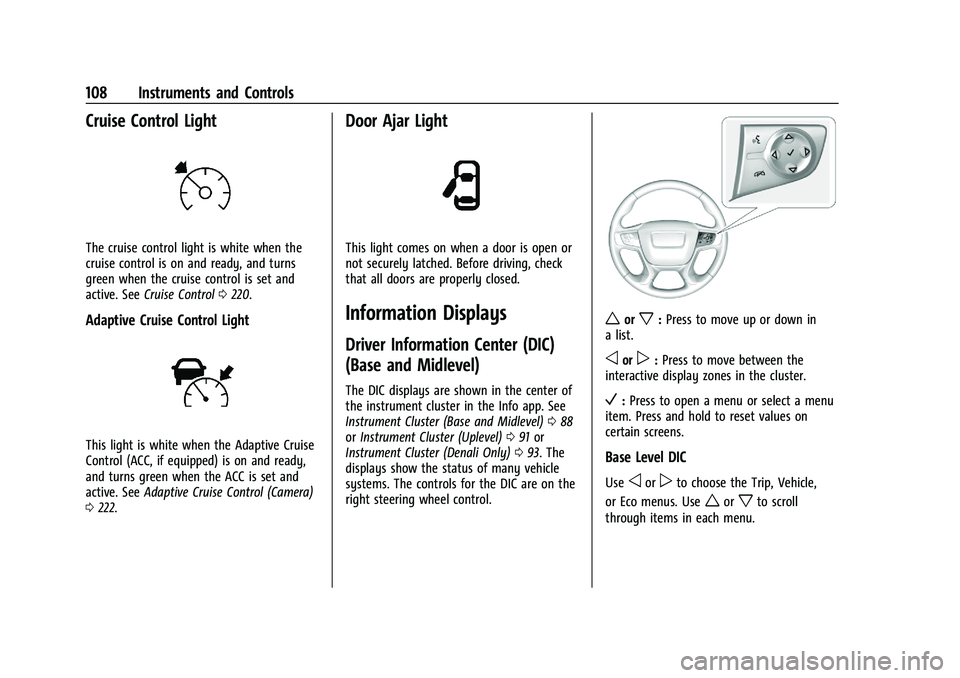
right steering wheel control.
worx: Press to move up or down in
a list.
oorp: Press to move between the
interactive display zones in the cluster.
V: Press to open a menu or select a menu
item. Press and hold to reset values on
certain screens.
Base Level DIC
Useoorpto choose the Trip, Vehicle,
or Eco menus. Use
worxto scroll
through items in each menu.
Page 111 of 371

GMC Terrain/Terrain Denali Owner Manual (GMNA-Localizing-U.S./Canada/
Mexico-16540740) - 2023 - CRC - 6/16/22
110 Instruments and Controls
the oil has just been changed. It cannot be
reset accurately until the next oil change. To
reset, seeEngine Oil Life System 0267.
Oil Pressure : Oil pressure is displayed in
either kilopascal (kPa) or in pounds per
square inch (psi).
Tire Pressure : Displays a vehicle with the
approximate pressures of all four tires. Tire
pressure is displayed in either
kilopascal (kPa) or in pounds per square
inch (psi). See Tire Pressure Monitor System
0 296 and
Tire Pressure Monitor Operation 0297.
Battery Voltage : Displays the current
battery voltage, if equipped. Battery voltage
changes are normal while driving. See
Charging System Light 0100. If there is a
problem with the battery charging system,
the DIC will display a message.
Coolant Temperature : Displays the coolant
temperature in degrees Celsius (°C) or
degrees Fahrenheit (°F).
TC/Stabilitrak : If equipped, press
Vto turn
on or off Traction Control or StabiliTrak/
Electronic Stability Control (ESC). ECO Drive Assist Menu (ECO) Items
Fuel Economy :
The center displays the
approximate instantaneous fuel economy as
a number and bar graph. Displayed above
the bar graph is a running average of fuel
economy for the most recently traveled
selected distance. Displayed below the bar
graph is the best average fuel economy that
has been achieved for the selected distance.
The selected distance is displayed at the top
of the page as “last xxx mi/km.” Press
Vto
select the distance or reset best value.
The display provides information on how
current driving behavior affects the running
average and how well recent driving
compares to the best that has been
achieved for the selected distance.
Economy Trend : Shows history of the
Average Fuel Economy from the last 50 km
(30 mi). Each bar represents about 5 km
(3 mi) of driving. During driving the bars will
shift to always reflect the most recent
distance on the right side. Press and hold
V
to clear the graph or pressVto reset
through the menu.
Midlevel DIC
Info Page Options
The info pages on the DIC can be turned on
or off through the Options menu.
1. Press
oto access the cluster
applications.
2. Press
worxto scroll to the Options
application.
3. Press
Vto enter the Options menu.
4. Scroll to Info Pages and press
p.
5. Press
worxto move through the list
of possible information displays.
6. Press
Vwhile an item is highlighted to
select or deselect that item. When an
item is selected, a checkmark will appear
next to it.
Info Pages
The following is the list of all possible DIC
info page displays. Some may not be
available for your particular vehicle. Some
items may not be turned on by default but
can be turned on through the Options app.
See “Info Page Options” earlier in this
section.
Page 113 of 371

GMC Terrain/Terrain Denali Owner Manual (GMNA-Localizing-U.S./Canada/
Mexico-16540740) - 2023 - CRC - 6/16/22
112 Instruments and Controls
Presspto select the distance or reset best
value. Use
wandxto choose the
distance and press
V. Presswandxto
select “Reset Best Score.” Press
Vto reset
the best average fuel economy. After reset,
the best value displays “-,-”until the
selected distance has been traveled.
The display provides information on how
current driving behavior affects the running
average and how well recent driving
compares to the best that has been
achieved for the selected distance.
Average Speed : Displays the average
vehicle speed of the vehicle in kilometers
per hour (km/h) or miles per hour (mph).
This average is based on the various vehicle
speeds recorded since the last reset. Press
and hold
Vwhile this display is active to
reset the average speed. Average speed can
also be reset by pressing
pand choosing
reset.
Timer : This display can be used as a timer.
To start the timer, press
Vto open the
menu while this display is active. The
display will show the amount of time that
has passed since the timer was last reset. To
stop the timer, press
Vbriefly while this display is active and the timer is running. To
reset the timer to zero, press and hold
V
while this display is active, or presspand
select reset.
Follow Distance : If equipped, the current
follow time to the vehicle ahead is displayed
as a time value on this page.
Battery Voltage : Displays the current
battery voltage, if equipped. Battery voltage
changes are normal while driving. See
Charging System Light 0100. If there is a
problem with the battery charging system, a
DIC will display a message.
Coolant Temperature : Displays the coolant
temperature in degrees Celsius (°C) or
degrees Fahrenheit (°F).
Economy Trend : Shows history of the
Average Fuel Economy from the last 50 km
(30 mi). Each bar represents about 5 km
(3 mi) of driving. During driving the bars will
shift to always reflect the most recent
distance on the right side. Press and hold
V
to clear the graph or presspto reset
through the menu.
Oil Pressure : Oil pressure is displayed in
either kilopascal (kPa) or in pounds per
square inch (psi). Oil pressure can vary with engine speed, outside temperature, and oil
viscosity. On some models, the oil pump will
vary engine oil pressure according to engine
needs. Oil pressure may change quickly as
the engine speed or load varies. This is
normal. If the oil pressure warning light or
Driver Information Center (DIC) message
indicates oil pressure outside the normal
operating range, check the vehicle's oil as
soon as possible.
Driver Information Center (DIC)
(Uplevel and Denali)
The DIC displays are shown in the center of
the instrument cluster in the Info App. See
Instrument Cluster (Base and Midlevel)
088
or
Instrument Cluster (Uplevel) 091 or
Instrument Cluster (Denali Only) 093. The
displays show the status of many vehicle
systems.
Page 114 of 371

GMC Terrain/Terrain Denali Owner Manual (GMNA-Localizing-U.S./Canada/
Mexico-16540740) - 2023 - CRC - 6/16/22
Instruments and Controls 113
worx:Press to move up or down in
a list.
oorp: Press to move between the
interactive display zones in the cluster.
V: Press to open a menu or select a menu
item. Press and hold to reset values on
certain screens.
Info Page Options
The info pages on the DIC can be turned on
or off through the Options menu.
1. Press
oorpto scroll to the Options
application.
2. Press
worxto scroll to the Info Page
Options and press
V. 3. Press
worxto move through the list
of possible information displays.
4. Press
Vwhile an item is highlighted to
select or deselect that item. When an
item is selected, a checkmark will appear
next to it.
Info Pages
The following is the list of all possible DIC
info page displays. Some may not be
available for your particular vehicle. Some
items may not be turned on by default but
can be turned on through the Options app.
See “Info Page Options” earlier in this
section.
Speed : Shows the vehicle speed in either
kilometers per hour (km/h) or miles per
hour (mph). If equipped, press
Vto open
the menu and select to display speed limit
signs. The sign will show “− −”when there
is no detected speed limit or the system is
unavailable.
Speed Limit : Shows sign information, which
comes from a roadway database in the
onboard navigation, if equipped. The sign
will show “− −”when there is no detected
speed limit or the system is unavailable. Press
Vwhile this display is active to
toggle Speed Limit sign on or off.
Trip 1 or Trip 2 : Shows the current distance
traveled, in either kilometers (km) or
miles (mi), since the trip odometer was last
reset.
If equipped, shows the average fuel
economy since the last reset. This number
reflects only the approximate average fuel
economy that the vehicle has right now,
and will change as driving conditions
change. The average fuel economy can be
displayed as mpg, km/L, or L/100km where
applicable.
If equipped, shows the average speed since
the last reset. This number reflects only the
approximate average speed that the vehicle
has, and will change as driving conditions
change. Average speed can be displayed
as mph or km/h where applicable.
Press
Vwhile this display is active to show
a confirmation window to reset all values to
zero. Use
oorpto select yes or no and
press
V.
Fuel Information or Fuel Range : Shows the
approximate distance the vehicle can be
driven without refueling. LOW will be
Page 117 of 371

GMC Terrain/Terrain Denali Owner Manual (GMNA-Localizing-U.S./Canada/
Mexico-16540740) - 2023 - CRC - 6/16/22
116 Instruments and Controls
The language selection is changed through
the radio and the units of measurement are
changed through the instrument cluster. See
Settings0165 and "Options" under
Instrument Cluster (Base and Midlevel) 088
or Instrument Cluster (Uplevel) 091 or
Instrument Cluster (Denali Only) 093.
{Warning
.Do not attach any stickers, decals,
or accessories on the Head-Up
Display (HUD).
.Do not attempt to adjust or move the
HUD screen or the mechanical door on
top of the instrument panel by hand.
.Do not place any objects near the
HUD. Objects may obstruct the image
display, and/or interference from the
objects during activation may
influence the operation or could
damage the display.
.Do not put any drinks near the HUD.
If liquid flows into the display, the
unit could be damaged.
(Continued)
Warning (Continued)
.Use caution when opening or closing
the HUD screen to prevent objects
from falling inside the
mechanical door.
.Use only a soft cloth to clean the HUD
screen. Do not use any organic
solvents, detergents, or polishing
materials to prevent damage to the
HUD display.
HUD Display
The HUD may display some of the following
vehicle information and vehicle messages or
alerts:
.Speed
.Tachometer
.Audio
.Phone
.Navigation
.Collision Alert
.Adaptive Cruise Control and set speed
.Lane Departure Warning/Lane Keep Assist
.Low Fuel
Some vehicle messages or alerts displayed in
the HUD may be cleared by using the
steering wheel controls. See Vehicle
Messages 0119.
The HUD control is to the left of the
steering wheel.
To adjust the HUD image: