2022 GMC ACADIA infotainment
[x] Cancel search: infotainmentPage 218 of 397

GMC Acadia/Acadia Denali Owner Manual (GMNA-Localizing-U.S./Canada/
Mexico-15170041) - 2022 - CRC - 10/6/21
Driving and Operating 217
3. Remove the engine heater connectorcover by gently prying with a flat
blade tool.
4. Plug the heater cord into the connectorin the front fascia.
5. Plug the cord into a grounded 110-volt AC outlet that is protected by a ground
fault detection function.
{Warning
Improper use of the heater cord or an
extension cord can damage the cord and
may result in overheating and fire.
.Plug the cord into a three-prong
electrical utility receptacle that is
protected by a ground fault detection
function. An ungrounded outlet could
cause an electric shock.
.Use a weatherproof, heavy-duty,
15 amp-rated extension cord if needed.
Failure to use the recommended
extension cord in good operating
condition, or using a damaged heater
or extension cord, could make it
overheat and cause a fire, property
damage, electric shock, and injury.
.Do not operate the vehicle with the
heater cord permanently attached to
the vehicle. Possible heater cord and
thermostat damage could occur.
.While in use, do not let the heater
cord touch vehicle parts or sharp
edges.
.Before starting the vehicle, unplug the
cord. Keep the cord away from any
moving parts. 6. Before starting the engine, be sure to
unplug and store the cord.
7. Install the engine heater connector cover.
The length of time the heater should remain
plugged in depends on several factors. Ask a
dealer in the area where you will be parking
the vehicle for the best advice on this.
Retained Accessory Power (RAP)
When the ignition is turned from on to off,
the following features (if equipped) will
continue to function for up to 10 minutes,
or until the driver door is opened. These
features will also work when the ignition is
in RUN or ACC/ACCESSORY:
.Infotainment System
.Power Windows (during RAP this
functionality will be lost when any door
is opened)
.Sunroof (during RAP this functionality will
be lost when any door is opened)
.Auxiliary Power Outlet
.Audio System
.OnStar System
Page 242 of 397

GMC Acadia/Acadia Denali Owner Manual (GMNA-Localizing-U.S./Canada/
Mexico-15170041) - 2022 - CRC - 10/6/21
Driving and Operating 241
.Front and rear bumpers and the area
below the bumpers
.Front grille and headlamps
.Front camera lens in the front grille or
near the front emblem
.Front side and rear side panels
.Outside of the windshield in front of the
rearview mirror
.Side camera lens on the bottom of the
outside mirrors
.Rear side corner bumpers
.Rear Vision Camera above the license
plate
Radio Frequency
This vehicle may be equipped with driver
assistance systems that operate using radio
frequency. See Radio Frequency Statement
0 373.
Assistance Systems for Parking or
Backing
If equipped, the Rear Vision Camera (RVC),
Surround Vision, Rear Park Assist (RPA),
Front and Rear Park Assist (FRPA), and Rear
Cross Traffic Alert (RCTA) may help the
driver park or avoid objects. Always check
around the vehicle when parking or backing.
Rear Vision Camera (RVC)
When the vehicle is shifted into R (Reverse),
the Rear Vision Camera (RVC) displays an
image of the area behind the vehicle in the
infotainment display. The previous screen displays when the vehicle is shifted out of
R (Reverse) after a short delay. To return to
the previous screen sooner, press Home or
Back on the infotainment system, shift into
P (Park), or reach a vehicle speed of
approximately 12 km/h (8 mph) while in
D (Drive).
1. View Displayed by the Camera
Page 243 of 397

GMC Acadia/Acadia Denali Owner Manual (GMNA-Localizing-U.S./Canada/
Mexico-15170041) - 2022 - CRC - 10/6/21
242 Driving and Operating
1. View Displayed by the Camera
2. Corners of the Rear Bumper
Displayed images may be farther or closer
than they appear. The area displayed is
limited and objects that are close to either
corner of the bumper or under the bumper
do not display.
A warning triangle may appear on the
infotainment display to show that Rear Park
Assist (RPA) or Rear Cross Traffic Alert (RCTA)
has detected an object. This triangle changes
from amber to red and increases in size the
closer the object.
{Warning
The camera(s) do not display children,
pedestrians, bicyclists, crossing traffic,
animals, or any other object outside of(Continued)
Warning (Continued)
the cameras’field of view, below the
bumper, or under the vehicle. Shown
distances may be different from actual
distances. Do not drive or park the
vehicle using only these camera(s).
Always check behind and around the
vehicle before driving. Failure to use
proper care may result in injury, death,
or vehicle damage.
Surround Vision System
If equipped, Surround Vision shows an
image of the area surrounding the vehicle,
along with the front or rear camera views
on the infotainment display. The front
camera is in the grille or near the front
emblem, the side cameras are on the
bottom of the outside mirrors, and the rear
camera is above the license plate.
The Surround Vision system can be accessed
by selecting CAMERA in the infotainment
display or when the vehicle is shifted into
R (Reverse). To return to the previous screen
sooner, when not in R (Reverse) press Home
or Back on the infotainment system, shift into P (Park), or reach a vehicle speed of
approximately 12 km/h (8 mph) while in
D (Drive).
{Warning
The Surround Vision cameras have blind
spots and will not display all objects near
the corners of the vehicle. Folding outside
mirrors that are out of position may not
display surround view correctly. Always
check around the vehicle when parking or
backing.
1. Views Displayed by the Surround
Vision Cameras
2. Area Not Shown
Page 244 of 397

GMC Acadia/Acadia Denali Owner Manual (GMNA-Localizing-U.S./Canada/
Mexico-15170041) - 2022 - CRC - 10/6/21
Driving and Operating 243
1. Views Displayed by the SurroundVision Cameras
2. Area Not Shown
{Warning
The camera(s) do not display children,
pedestrians, bicyclists, crossing traffic,
animals, or any other object outside of
the cameras’ field of view, below the
bumper, or under the vehicle. Shown
distances may be different from actual
distances. Do not drive or park the
vehicle using only these camera(s).
Always check behind and around the
vehicle before driving. Failure to use
proper care may result in injury, death,
or vehicle damage. Camera Views
Touch the camera view buttons along the
bottom of the infotainment display.
Available views will differ depending on
vehicle options.
Front/Rear Standard View :
Displays an
image of the area in front or behind the
vehicle. Touch Front/Rear Standard View on
the infotainment display when a camera
view is active. Touching the button multiple
times will toggle between front and rear
camera views.
If equipped, the front view camera also
displays when the Park Assist system
detects an object within 30 cm (12 in). Front/Rear Overhead View :
Displays a Front
or Rear Overhead View of the vehicle.
Touching the button will toggle between the
two views.
Side Forward/Rearward View : Displays a
view that shows objects next to the front or
rear sides of the vehicle. Touch Side
Forward/Rearward View on the infotainment
display when a camera view is active.
Touching the button multiple times will
toggle between forward and rearward views.
Park Assist and RCTA overlays are not
available when Side Forward/Rearward View
is active.
Hitch View : Assists while connecting to a
trailer. Displays a zoomed-in view of the
hitch to help align the vehicle’s hitch ball
with the trailer coupler. Shifting into
P (Park) while in this view will automatically
engage the Electric Parking Brake (EPB).
Guidance Lines : Displays available
guidelines. The horizontal markings
represent distance from the vehicle.
Top Down View : Displays an image of the
area surrounding the vehicle, along with
other views in the infotainment display. Top
Down can be enabled or disabled by
touching the Top Down View button
multiple times.
Page 245 of 397

GMC Acadia/Acadia Denali Owner Manual (GMNA-Localizing-U.S./Canada/
Mexico-15170041) - 2022 - CRC - 10/6/21
244 Driving and Operating
Hitch Guidance
If equipped, this feature displays a single,
centered guideline on the camera display to
assist with aligning a vehicle’s hitch ball
with a trailer coupler. Select the trailer
guidance line button, then align the trailer
guidance line over the trailer coupler.
Continuously steer the vehicle to keep the
guidance line centered on the coupler when
backing. RVC Park Assist overlays will not
display when the trailer guidance line is
active. Hitch Guidance is only available in
Standard View.
To check the trailer when in a forward gear
above 12 km/h (8 mph), touch CAMERA on
the infotainment display to view the rear
camera. Touch X to exit the view or it will
be removed automatically after
eight seconds.
{Warning
Use Hitch Guidance only to help back the
vehicle to a trailer hitch or, when
traveling above 12 km/h (8 mph), to
briefly check the status of your trailer. Do
not use for any other purpose, such as
making lane change decisions. Before(Continued)
Warning (Continued)
making a lane change, always check the
mirrors and glance over your shoulder.
Improper use could result in serious
injury to you or others.
Park Assist
The vehicle may be equipped with Front and
Rear Park Assist (FRPA). Under certain
conditions, the Park Assist system can assist
the driver during backing and parking
maneuvers when the vehicle is driven at no
more than 9 km/h (6 mph). An illuminated
indicator in the Park Assist button indicates
the system is ready.
Sensors located in the bumpers measure the
distance between the vehicle and objects
using sonar technology. These sensors are
designed to detect certain objects up to
2.5 m (8 ft) behind and 1.2 m (4 ft) in front of
your vehicle that are taller than
25 cm (10 in).
Different environmental conditions may
affect whether and how far the Park Assist
system can detect objects. Keep the sensors
clean of mud, dirt, snow, ice, and slush; and
clean sensors after a car wash in freezing temperatures. Sensors that are not clean
may not detect objects or may cause the
system to alert when not required.
{Warning
The Park Assist System is no substitute
for careful and attentive driving. The Park
Assist system does not detect children,
pedestrians, bicyclists, animals, or objects
located below the bumper or that are too
close or too far from the vehicle. It is not
available at speeds greater than 9 km/h
(6 mph). To prevent injury, death,
or vehicle damage, even with Park Assist,
always check the area around the vehicle
and check all mirrors before moving
forward or backing.
How the System Works
The vehicle may have a Park
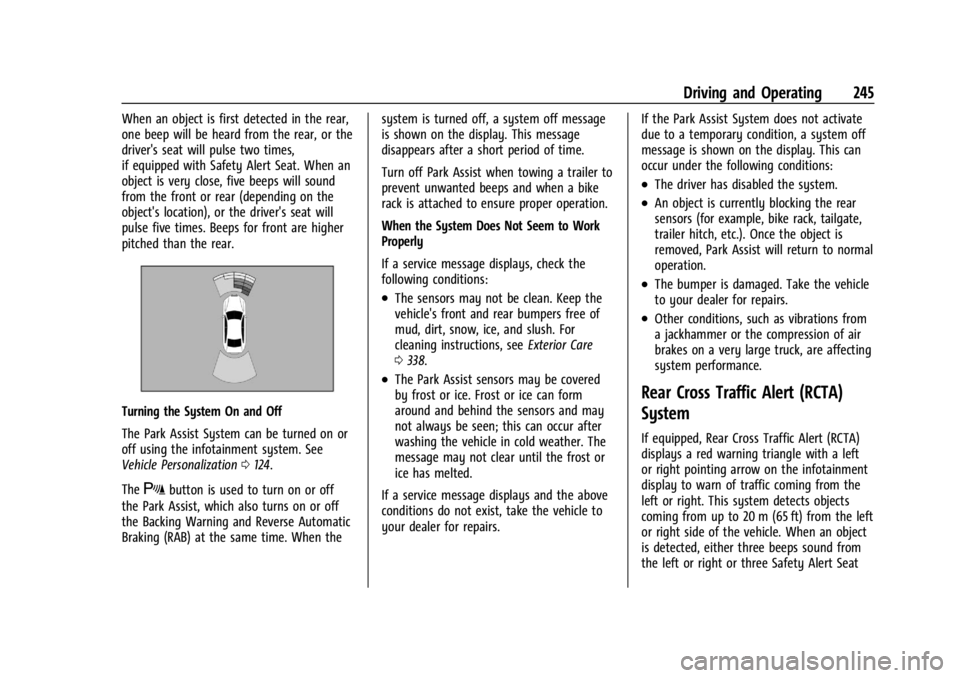
Assist amphitheatre-like display on the
cluster with bars that represent the
estimated location of a detected object and
the vehicle’s distance from the object. As a
detected object becomes closer, more bars
light up and change color from yellow to
amber to red.
Page 246 of 397
GMC Acadia/Acadia Denali Owner Manual (GMNA-Localizing-U.S./Canada/
Mexico-15170041) - 2022 - CRC - 10/6/21
Driving and Operating 245
When an object is first detected in the rear,
one beep will be heard from the rear, or the
driver's seat will pulse two times,
if equipped with Safety Alert Seat. When an
object is very close, five beeps will sound
from the front or rear (depending on the
object's location), or the driver's seat will
pulse five times. Beeps for front are higher
pitched than the rear.
Turning the System On and Off
The Park Assist System can be turned on or
off using the infotainment system. See
Vehicle Personalization0124.
The
Xbutton is used to turn on or off
the Park Assist, which also turns on or off
the Backing Warning and Reverse Automatic
Braking (RAB) at the same time. When the system is turned off, a system off message
is shown on the display. This message
disappears after a short period of time.
Turn off Park Assist when towing a trailer to
prevent unwanted beeps and when a bike
rack is attached to ensure proper operation.
When the System Does Not Seem to Work
Properly
If a service message displays, check the
following conditions:
.The sensors may not be clean. Keep the
vehicle's front and rear bumpers free of
mud, dirt, snow, ice, and slush. For
cleaning instructions, see
Exterior Care
0 338.
.The Park Assist sensors may be covered
by frost or ice. Frost or ice can form
around and behind the sensors and may
not always be seen; this can occur after
washing the vehicle in cold weather. The
message may not clear until the frost or
ice has melted.
If a service message displays and the above
conditions do not exist, take the vehicle to
your dealer for repairs. If the Park Assist System does not activate
due to a temporary condition, a system off
message is shown on the display. This can
occur under the following conditions:
.The driver has disabled the system.
.An object is currently blocking the rear
sensors (for example, bike rack, tailgate,
trailer hitch, etc.). Once the object is
removed, Park Assist will return to normal
operation.
.The bumper is damaged. Take the vehicle
to your dealer for repairs.
.Other conditions, such as vibrations from
a jackhammer or the compression of air
brakes on a very large truck, are affecting
system performance.
Rear Cross Traffic Alert (RCTA)
System
If equipped, Rear Cross Traffic Alert (RCTA)
displays a red warning triangle with a left
or right pointing arrow on the infotainment
display to warn of traffic coming from the
left or right. This system detects objects
coming from up to 20 m (65 ft) from the left
or right side of the vehicle. When an object
is detected, either three beeps sound from
the left or right or three Safety Alert Seat
Page 247 of 397

GMC Acadia/Acadia Denali Owner Manual (GMNA-Localizing-U.S./Canada/
Mexico-15170041) - 2022 - CRC - 10/6/21
246 Driving and Operating
pulses occur on the left or right side,
depending on the direction of the detected
vehicle.
Driving With a Trailer
Use caution while backing up when towing
a trailer. The RCTA feature is automatically
disabled when a trailer is attached to the
vehicle.
Turning the Features On or Off
The
Xbutton on the center console is
used to turn on or off Rear Park Assist (RPA)
and RCTA at the same time. The indicator
light in the button comes on when the
features are on and turns off when the
features have been disabled.
Turn off RPA and RCTA when towing a
trailer.
RCTA can be turned on or off using the
infotainment system. See “Collision/
Detection Systems” underVehicle
Personalization 0124.
Assistance Systems for Driving
If equipped, when driving the vehicle in a
forward gear, Forward Collision Alert (FCA),
Lane Departure Warning (LDW), Lane Keep
Assist (LKA), Side Blind Zone Alert (SBZA),
Lane Change Alert (LCA), Automatic
Emergency Braking (AEB), and/or the Front
Pedestrian Braking (FPB) System can help to
avoid a crash or reduce crash damage.
Forward Collision Alert (FCA)
System
If equipped, the FCA system may help to
avoid or reduce the harm caused by
front-end crashes. When approaching a
vehicle ahead too quickly, FCA provides a
red flashing alert on the windshield and
rapidly beeps or pulses the driver seat. FCA
also lights an amber visual alert if following
another vehicle too closely.
FCA detects vehicles within a distance of
approximately 60 m (197 ft) and operates at
speeds above 8 km/h (5 mph). If the vehicle
has Adaptive Cruise Control (ACC), it can
detect vehicles to distances of approximately
110 m (360 ft) and operates at all speeds.
See Adaptive Cruise Control (Advanced)
0 232.
{Warning
FCA is a warning system and does not
apply the brakes. When approaching a
slower-moving or stopped vehicle ahead
too rapidly, or when following a vehicle
too closely, FCA may not provide a
warning with enough time to help avoid
a crash. It also may not provide any
warning at all. FCA does not warn of
pedestrians, animals, signs, guardrails,
bridges, construction barrels, or other
objects. Be ready to take action and
apply the brakes. See Defensive Driving
0 201.
FCA can be disabled. See “Collision/Detection
Systems” underVehicle Personalization
0 124.
Detecting the Vehicle Ahead
Page 298 of 397
GMC Acadia/Acadia Denali Owner Manual (GMNA-Localizing-U.S./Canada/
Mexico-15170041) - 2022 - CRC - 10/6/21
Vehicle Care 297
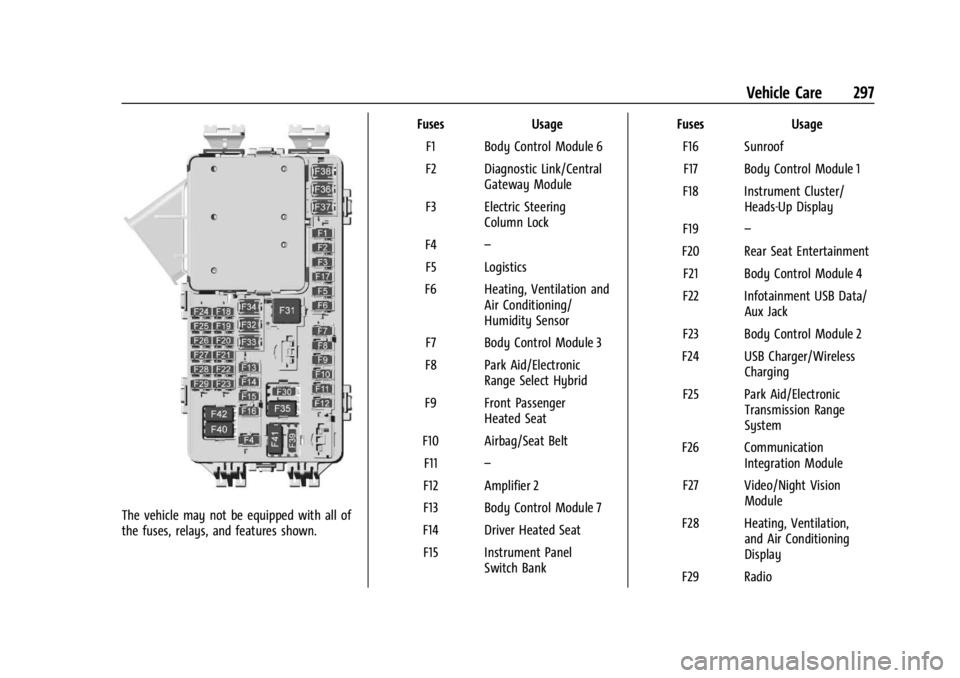
The vehicle may not be equipped with all of
the fuses, relays, and features shown.Fuses Usage
F1 Body Control Module 6
F2 Diagnostic Link/Central Gateway Module
F3 Electric Steering Column Lock
F4 –
F5 Logistics
F6 Heating, Ventilation and Air Conditioning/
Humidity Sensor
F7 Body Control Module 3
F8 Park Aid/Electronic Range Select Hybrid
F9 Front Passenger Heated Seat
F10 Airbag/Seat Belt F11 –
F12 Amplifier 2
F13 Body Control Module 7
F14 Driver Heated Seat F15 Instrument Panel Switch Bank Fuses Usage
F16 SunroofF17 Body Control Module 1
F18 Instrument Cluster/ Heads-Up Display
F19 –
F20 Rear Seat Entertainment F21 Body Control Module 4
F22 Infotainment USB Data/ Aux Jack
F23 Body Control Module 2
F24 USB Charger/Wireless Charging
F25 Park Aid/Electronic Transmission Range
System
F26 Communication Integration Module
F27 Video/Night Vision Module
F28 Heating, Ventilation, and Air Conditioning
Display
F29 Radio