Page 175 of 750

Malfunction Indicator Lamp
It illuminates when the ignition
is on and the engine is off, this is
normal. If it illuminates when the
engine is on this indicates the emission
control system requires service. If it flashes,
have your vehicle checked immediately.
See Emission Law (page 714). See
Starting and Stopping the Engine –
Warning Lamps
(page 238).
Stop Safely Illuminates if an electrical
component requires service or a
failure that causes your vehicle
to shutdown or enter into a limited
operating mode.
Tailgate Ajar It illuminates when the ignition
is on and the tailgate is not
completely closed.
WHAT ARE THE INSTRUMENT
CLUSTER INDICATORS
Indicators notify you of various features
that are active on your vehicle.
INSTRUMENT CLUSTER
INDICATORS
Adaptive Cruise Control See
Adaptive Cruise Control
(page 331).
Automatic High Beam See
Automatic High Beam
Control Indicators (page 152). Auto Hold Active See
Auto Hold (page 297).
Auto Hold Unavailable See
Auto Hold (page 297).
Auto-Start-Stop See
Auto-Start-Stop (page
244).
Blind Spot Monitor See
Blind Spot Information
System (page 368).
BlueCruise See
BlueCruise (page 344).
Cruise Control See
Cruise Control (page 329).
Electronic Locking Differential See
Electronic Locking
Differential (page 279).
171
2022 F-150 (TFD) Canada/United States of America, enUSA, Edition date: 202109, First-Printing Instrument Cluster E332963 E311338 E144524 E323448 E323449 E151262 E297977 E332905 E325779
Page 176 of 750
Four-Wheel Drive
See Four-Wheel Drive (page
269).
Note: Some indicators appear different
depending on vehicle options.
Front Airbag See
Airbags (page 70).
Front Fog Lamp See
Switching the Front Fog
Lamps On and Off (page 148).
High Beam See
Using the High Beam
Headlamps (page 145).
Hill Descent See Hill Descent Control
(page
309).
Lamps On See
Exterior Lighting Control
(page 145).
Ready to Drive See
Hybrid Electric Vehicle
Information (page 241). Reverse Brake Assist See
Reverse Braking Assist
(page 292).
Stability Control and Traction
Control See
Traction Control (page
298). See Stability Control
(page 300).
Turn Signal Lamps See Switching the Turn Signal
Lamps On and Off
(page 147).
Tow Haul See Towing a Trailer (page
403).
172
2022 F-150 (TFD) Canada/United States of America, enUSA, Edition date: 202109, First-Printing Instrument ClusterE181778 E181781 E181780 E181779 E67017 E163171 E224090 E293490 E138639 E130458 E246592
Page 177 of 750

USING THE INSTRUMENT
CLUSTER DISPLAY CONTROLS
WARNING: Driving while distracted
can result in loss of vehicle control, crash
and injury. We strongly recommend that
you use extreme caution when using any
device that may take your focus off the
road. Your primary responsibility is the
safe operation of your vehicle. We
recommend against the use of any
hand-held device while driving and
encourage the use of voice-operated
systems when possible. Make sure you
are aware of all applicable local laws
that may affect the use of electronic
devices while driving.
The controls are on the steering wheel. Back button.
A
OK button.
B
Menu button.
C
Back Button
Press to go back or to exit a menu.
OK Button
Press to make a selection. Menu Button
Press to display the submenus.
Scroll Buttons
Press the up or down buttons to scroll
through the menu items.
Status Indicator
Menu items with a check box
indicates a feature's status. A
check in the box indicates the
feature is on, and unchecked indicates the
feature is off.
INSTRUMENT CLUSTER
DISPLAY MAIN MENU -
VEHICLES WITH: 12.3 INCH
SCREEN
Depending on your vehicle options, some
menu items can appear different or not at
all.
Note: For your safety, some features are
speed-dependent and could be unavailable
when your vehicle is above a certain speed. Menu Item
MyView
Trip/Fuel
Truck Info Towing
Navigation PhoneAudio
Settings
173
2022 F-150 (TFD) Canada/United States of America, enUSA, Edition date: 202109, First-Printing Instrument Cluster DisplayE309379 E204495
Page 178 of 750

INSTRUMENT CLUSTER
DISPLAY MAIN MENU -
RAPTOR
Depending on your vehicle options, some
menu items can appear different or not at
all.
Note:
For your safety, some features are
speed-dependent and could be unavailable
when your vehicle is above a certain speed. Menu Item
MyView
Trip/Fuel
Raptor Info Towing
Navigation PhoneAudio
Settings
INSTRUMENT CLUSTER
DISPLAY MAIN MENU -
VEHICLES WITH: 4.2 INCH
SCREEN
Depending on your vehicle options, some
menu items can appear different or not at
all.
Note: For your safety, some features are
speed-dependent and could be unavailable
when your vehicle is above a certain speed. Menu Item
Select Screens Truck InfoTowing
Settings
INSTRUMENT CLUSTER
DISPLAY MAIN MENU -
VEHICLES WITH: 8 INCH
SCREEN
Depending on your vehicle options, some
menu items can appear different or not at
all.
Note: For your safety, some features are
speed-dependent and could be unavailable
when your vehicle is above a certain speed. Menu Item
MyView
Trip/Fuel
Truck Info Towing
Navigation PhoneAudio
Settings
174
2022 F-150 (TFD) Canada/United States of America, enUSA, Edition date: 202109, First-Printing Instrument Cluster Display
Page 179 of 750

TRIP COMPUTER - VEHICLES
WITH: 4.2 INCH SCREEN
ACCESSING THE TRIP COMPUTER
Using Select Screens
1. Select Select Screens.
2. Use the controls on the steering wheel
to navigate the menu. See
Customizing the Instrument Cluster
Display
(page 175).
Using the Home Screen
Once screens have been added, use the
controls on the steering wheel to view each
trip screen.
RESETTING THE TRIP COMPUTER
1. Use the controls on the steering wheel
to navigate the home screen.
2. Select
Trip 1 or Trip 2.
3. Press and hold the OK button for a few
seconds.
Note: This Trip resets every time you start
your vehicle.
TRIP COMPUTER - VEHICLES
WITH: 8 INCH SCREEN/12.3
INCH SCREEN
ACCESSING THE TRIP COMPUTER
1. Select
Trip/Fuel.
2. Select
This Trip, Trip 1 or Trip 2.
RESETTING THE TRIP COMPUTER
1. Select
Trip/Fuel.
2. Select
Trip 1 or Trip 2. 3.
Press and hold the OK button for a few
seconds.
Note: This Trip resets every time you start
your vehicle.
CUSTOMIZING THE
INSTRUMENT CLUSTER
DISPLAY
Adding Screens Using MyView
1. Using the information display controls on the steering wheel, select
MyView.
2. Select
Configure MyView.
3. Select a screen.
4. Press the
OK button.
Note: The number of screens you can add
is limited. If the selected screen does not
appear you must deselect screens from the
MyView menu.
Adding Screens Using Select
Screens
1. Select
Select Screens.
2. Use the controls on the steering wheel
to highlight a screen to add.
3. Press the
OK button.
Note: The number of screens you can add
is limited. If the selected screen does not
appear you must deselect screens from the
Select Screens menu.
Configuring Gauges
1. Select
Settings.
2. Select
Configure Gauges.
3. Select to swap or change left-hand side and right-hand side gauges.
175
2022 F-150 (TFD) Canada/United States of America, enUSA, Edition date: 202109, First-Printing Instrument Cluster Display
Page 180 of 750
PERSONALIZED SETTINGS
CHANGING THE MEASUREMENT
UNIT
1. Press Settings on the touchscreen.
2. Press
General.
3. Press
Measure Units.
4. Select a measurement unit.
CHANGING THE TEMPERATURE
UNIT
1. Press
Settings on the touchscreen.
2. Press
General.
3. Press
Temperature Units.
4. Select
Fahrenheit or Celsius.
CHANGING THE TIRE PRESSURE
UNIT
1. Press
Settings on the touchscreen.
2. Press
General.
3. Press
Tire Pressure Units.
4. Select a pressure unit.
HYBRID DISPLAY
INFORMATION
WHAT IS EV COACH
EV coach helps you get the most of your
vehicle's electrical driving and regenerative
braking capabilities.
HOW DOES EV COACH WORK
When accelerating or maintaining speed,
a blue or white solid bar displays. This
indicates vehicle power. A blue rectangular
box could also display that shows the
power level that the engine turns on at. When the power level displays in the
rectangular box, it is blue which indicates
you are in electric only operation.
When the power level displays outside of
the rectangular box, it is white which
indicates you are in hybrid operation.
When you are decelerating, either releasing
the accelerator pedal or applying the
brake, you see a green or white solid bar
which indicates the power being used to
slow your vehicle down. A green
rectangular box could also display that
shows the amount of power that can be
recaptured by the regenerative braking
system and returned to the high voltage
battery.
When the power level displays in the
rectangular box, it is green which indicates
that the regenerative braking system is
being used to slow down your vehicle and
return the maximum amount of energy to
the high voltage battery.
When the power level displays outside of
the rectangular box, it is white which
indicates both regenerative and
conventional braking systems are in use.
WHAT IS BRAKE COACH
The brake coach appears after the vehicle
has come to a stop. It coaches you to brake
in a manner that maximizes the amount
of energy returned through the
regenerative braking system.
The percent displayed is an indication of
the regenerative braking efficiency with
100% representing the maximum amount
of energy recovery. You can switch brake
coach on or off in the settings menu on
your touchscreen.
176
2022 F-150 (TFD) Canada/United States of America, enUSA, Edition date: 202109, First-Printing Instrument Cluster Display
Page 181 of 750
WHAT IS THE TRIP SUMMARY
Displays the trip summary when you switch
off your vehicle. The values are cumulative
since you last started your vehicle.
177
2022 F-150 (TFD) Canada/United States of America, enUSA, Edition date: 202109, First-Printing Instrument Cluster Display
Page 199 of 750
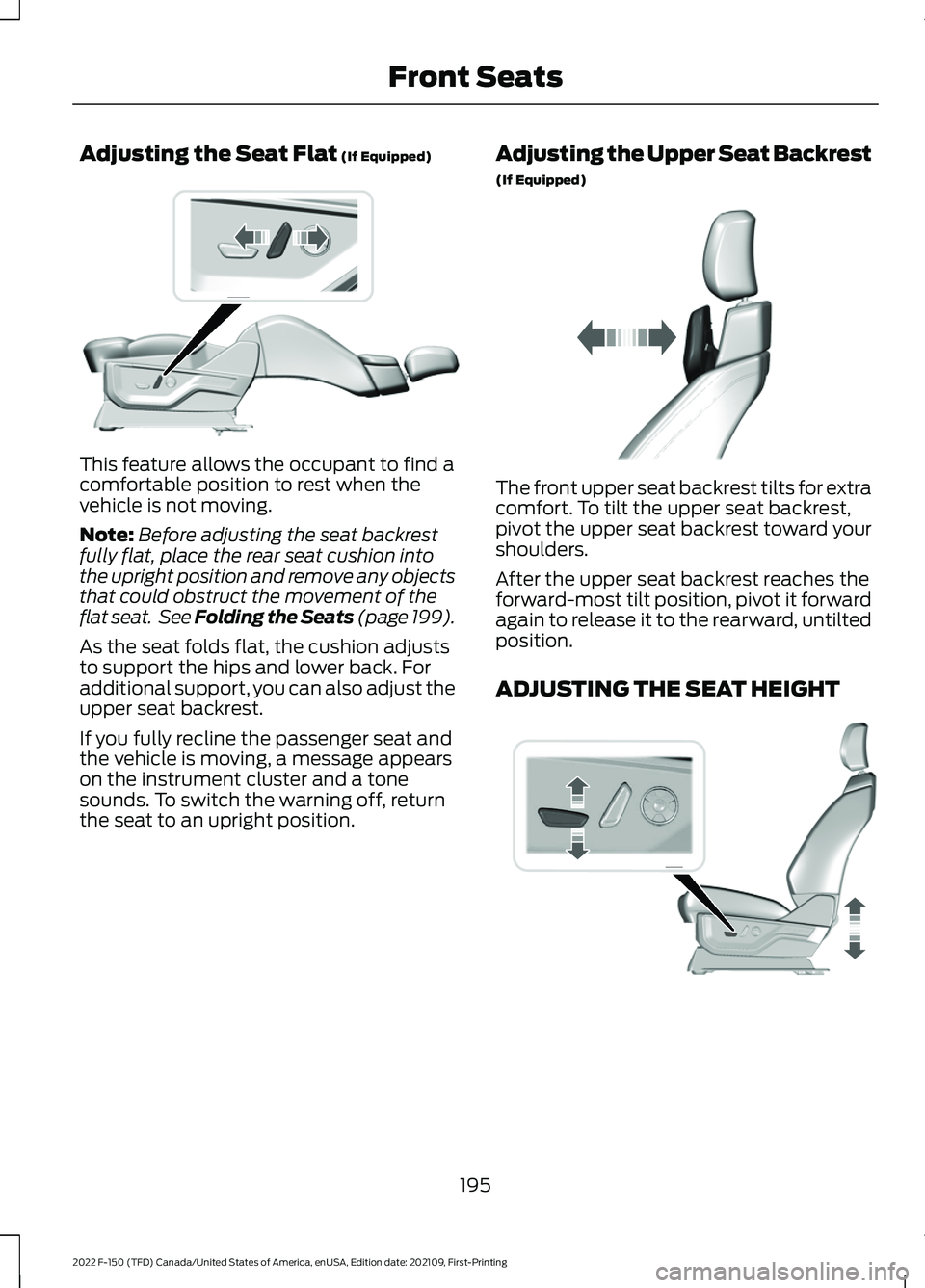
Adjusting the Seat Flat (If Equipped)
This feature allows the occupant to find a
comfortable position to rest when the
vehicle is not moving.
Note:
Before adjusting the seat backrest
fully flat, place the rear seat cushion into
the upright position and remove any objects
that could obstruct the movement of the
flat seat. See Folding the Seats (page 199
).
As the seat folds flat, the cushion adjusts
to support the hips and lower back. For
additional support, you can also adjust the
upper seat backrest.
If you fully recline the passenger seat and
the vehicle is moving, a message appears
on the instrument cluster and a tone
sounds. To switch the warning off, return
the seat to an upright position. Adjusting the Upper Seat Backrest
(If Equipped) The front upper seat backrest tilts for extra
comfort. To tilt the upper seat backrest,
pivot the upper seat backrest toward your
shoulders.
After the upper seat backrest reaches the
forward-most tilt position, pivot it forward
again to release it to the rearward, untilted
position.
ADJUSTING THE SEAT HEIGHT
195
2022 F-150 (TFD) Canada/United States of America, enUSA, Edition date: 202109, First-Printing Front SeatsE306956 E311333 E308337

