2022 FORD F-150 Display screen
[x] Cancel search: Display screenPage 311 of 750

WHAT IS TRAIL TURN ASSIST
Trail turn assist can reduce the turning
radius of your vehicle by applying the
brakes to the inside rear wheel in
low-speed, high steering-angle maneuvers.
TRAIL TURN ASSIST
PRECAUTIONS
Note:
Do not use trail turn assist on dry,
hard surfaced roads. Doing so can produce
excessive noise, increase tire wear and may
damage drive line, or braking components.
Trail turn assist is only intended for slippery,
or loose surfaces.
You may hear noise from the anti-lock
brake system while trail turn assist is
active. This is normal operation.
TRAIL TURN ASSIST
LIMITATIONS
Trail turn assist can only be used when the
vehicle ’s four-wheel drive system is in the
four-wheel drive high (4H), or four-wheel
drive low (4L) modes.
Trail Turn Assist cannot be used when the
vehicle ’s rear differential is locked. If the
rear differential has recently been locked
prior to Trail Turn Assist being turned on,
Trail Turn Assist may not activate until it
can confirm that the rear differential is
unlocked.
SWITCHING TRAIL TURN
ASSIST ON AND OFF
You can switch the trail turn assist on or
off from the features section of the vehicle
on screen display.
1. Press Features on the touchscreen.
2. Press
Trail Turn Assist. 3. Switch
Trail Turn Assist on or off.
Switch trail turn assist on when your
vehicle is in four-wheel drive high (4H) or
four-wheel drive low (4L).
The system activates when the:
• Vehicle speed is less than
12 mph
(19.3 km/h).
• Rear differential is fully unlocked.
• Steering wheel is almost fully turned
to the left or right.
Switch trail turn assist off by performing
any of the following:
• Switch trail turn assist off from the
features section of the vehicle on
screen display.
• Select two-wheel drive high, or
four-wheel drive auto.
• Switch on the rear locking differential.
TRAIL TURN ASSIST
INDICATORS When trail turn assist is on, one
of these two indicators will be
displayed, depending on the
direction of the vehicle
’s last
turn. When the feature is on but
not in use, the indicator light will
be gray. When the feature is active the
indicator light will be green.
307
2022 F-150 (TFD) Canada/United States of America, enUSA, Edition date: 202109, First-Printing Trail Turn Assist
(If Equipped)E338899 E338900
Page 323 of 750

REAR VIEW CAMERA GUIDE
LINES
Active guide lines.
A
Centerline.
B
Fixed guide line: Green zone.
C
Fixed guide line: Yellow zone.
D
Fixed guide line: Red zone.
E
Rear bumper.
F
Active guide lines only show with fixed
guide lines. To use active guide lines, turn
the steering wheel to point the guide lines
toward an intended path. If the steering
wheel position changes while reversing,
your vehicle might deviate from the
intended path. The fixed and active guide lines fade in and
out depending on the steering wheel
position. The active guide lines do not
display when the steering wheel position
is straight.
Use caution while reversing. Objects in the
red zone are closest to your vehicle and
objects in the green zone are farther away.
Objects get closer to your vehicle as they
move from the green zone to the yellow or
red zones. Use the side view mirrors and
rear view mirror to get better coverage on
both sides and rear of your vehicle.
Note:
Active guide lines and fixed guide
lines are only available when the
transmission is in reverse (R).
Note: The centerline is only available if the
active or fixed guide lines are on.
Note: Not all camera modes work properly
without an auxiliary camera.
REAR VIEW CAMERA
SETTINGS
ZOOMING THE REAR VIEW
CAMERA IN AND OUT WARNING: When manual zoom is
on, the full area behind your vehicle may
not show. Be aware of your surroundings
when using the manual zoom feature.
Selectable settings for this feature are
zoom in (+) and zoom out (-). Press the
symbol on the camera screen to change
the view. The default setting is zoom off.
This allows you to get a closer view of an
object behind your vehicle. The zoomed
image keeps the bumper in the image to
provide a reference. The zoom is only
active while the transmission is in reverse
(R).
319
2022 F-150 (TFD) Canada/United States of America, enUSA, Edition date: 202109, First-Printing Rear View CameraE306774
Page 324 of 750

Note:
Zooming in also engages park hold
which applies the electric park brake when
you shift to park (P). When you press the
zoom button, the electronic park hold
button illuminates on the touchscreen. See
Connecting a Trailer (page 399).
Note: Manual zoom is only available when
the transmission is in reverse (R).
Note: Only the centerline shows when you
enable manual zoom.
SWITCHING REAR VIEW CAMERA
DELAY ON AND OFF
1. Press
Features on the touchscreen.
2. Press
Driver Assistance.
3. Press
Rear View Camera.
4. Switch
Rear View Camera Delay on or
off.
When shifting the transmission out of
reverse (R) and into any gear other than
park (P), the camera image remains in the
display until:
• Your vehicle speed reaches
approximately
5 mph (8 km/h).
• You shift your vehicle into park (P).
SWITCHING THE REAR VIEW
CAMERA VIEW Press to access the different
camera views.
Rear normal view provides an
image of what is directly behind
your vehicle.
Rear split view provides an
extended view of what is behind
your vehicle.
The hitch view provides an
image of the area around the
tow hitch. Note:
The rear normal view and hitch view
are also available when your vehicle is in
drive (D).
320
2022 F-150 (TFD) Canada/United States of America, enUSA, Edition date: 202109, First-Printing Rear View CameraE337002 E310967 E310974 E350276
Page 326 of 750

Side View Camera
The side view camera is on the outside
mirror. It provides a video image of the area
on the sides of your vehicle to aid you when
parking or when backing up a trailer.
Bed Camera
The bed camera is mounted within the
high-mount stop lamp. It displays the
contents of your truck bed. The camera
contains a dynamic guideline to help locate
the center of your vehicle. This view can
be accessed while in drive (D) or reverse
(R).
Auxiliary Camera
The auxiliary camera is a variant of the rear
view camera and is accessed by pressing
the AUX button on the display screen when
moving in reverse (R) or in drive (D). It
displays a rear view image from the back
of a trailer while in reverse.
LOCATING THE 360 DEGREE
CAMERAS - RAPTOR/TREMOR
Rear View Camera
The rear view camera is on the tailgate. It
provides a video image of the area behind
your vehicle.
Front View Camera
The front view camera is in the grille. It
provides a video image of the area in front
of your vehicle.
Note:
The front camera switches on when
you are in mud/ruts, deep snow/sand, rock
crawl, baja mode or in four-wheel drive low. Side View Camera
The side view camera is on the outside
mirror. It provides a video image of the area
on the sides of your vehicle to aid you when
parking or when backing up a trailer.
Bed Camera
The bed camera is in the high-mount stop
lamp. It displays the contents of your truck
bed. The camera contains a dynamic
guideline to help locate the center of your
vehicle. You can access this view while in
drive (D) or reverse (R).
Auxiliary Camera
The auxiliary camera is a variant of the rear
view camera and you can access the
auxiliary view by pressing the AUX button
on the display screen when moving in
reverse (R) or in drive (D). It displays a rear
view image from the back of a trailer while
in reverse.
360 DEGREE CAMERA GUIDE
LINES
Note:
Active guide lines are only available
when the transmission is in reverse (R).
322
2022 F-150 (TFD) Canada/United States of America, enUSA, Edition date: 202109, First-Printing 360 Degree Camera (If Equipped)
Page 327 of 750

Active guide lines.
A
Centerline.
B
Fixed guide line: Green zone.
C
Fixed guide line: Yellow zone.
D
Fixed guide line: Red zone.
E
Rear bumper.
F
Active guide lines only show with fixed
guide lines. Turn the steering wheel to
point the guide lines toward an intended
path. If the steering wheel position changes
when reversing, your vehicle could deviate
from the intended path.
The fixed and active guide lines fade in and
out depending on the steering wheel
position. The active guide lines do not
display when the steering wheel position
is straight. Objects in the red zone are closest to your
vehicle and objects in the green zone are
farther away. Objects get closer to your
vehicle as they move from the green zone
to the yellow or red zones. Use the side
view mirrors and rear view mirror to get
better coverage on both sides and rear of
your vehicle.
Keep Out Zone
The keep out zone is represented by the
yellow dotted lines running parallel to your
vehicle.
360 DEGREE CAMERA
SETTINGS
SWITCHING THE 360 DEGREE
CAMERA ON AND OFF
The 360 degree camera system
button is on the instrument
panel. The front and rear
cameras have multiple screens which
consist of:
• Normal view.
• Normal view with 360.
• Split view.
• Bed camera.
323
2022 F-150 (TFD) Canada/United States of America, enUSA, Edition date: 202109, First-Printing 360 Degree Camera (If Equipped)E306774 E310341 E332186
Page 328 of 750
•
Auxiliary camera.
• Hitch view.
Note: The rear view camera activates when
you switch into reverse (R). Additional views
are then accessible on the touchscreen.
When in park (P), neutral (N) or drive (D),
the front images display when the button
is pressed. When in reverse (R), only the
rear images display when the button is
pressed.
Note: Not all cameras are available.
Note: The 360 degree camera system turns
off when your vehicle is in motion at low
speed, except when in reverse (R).
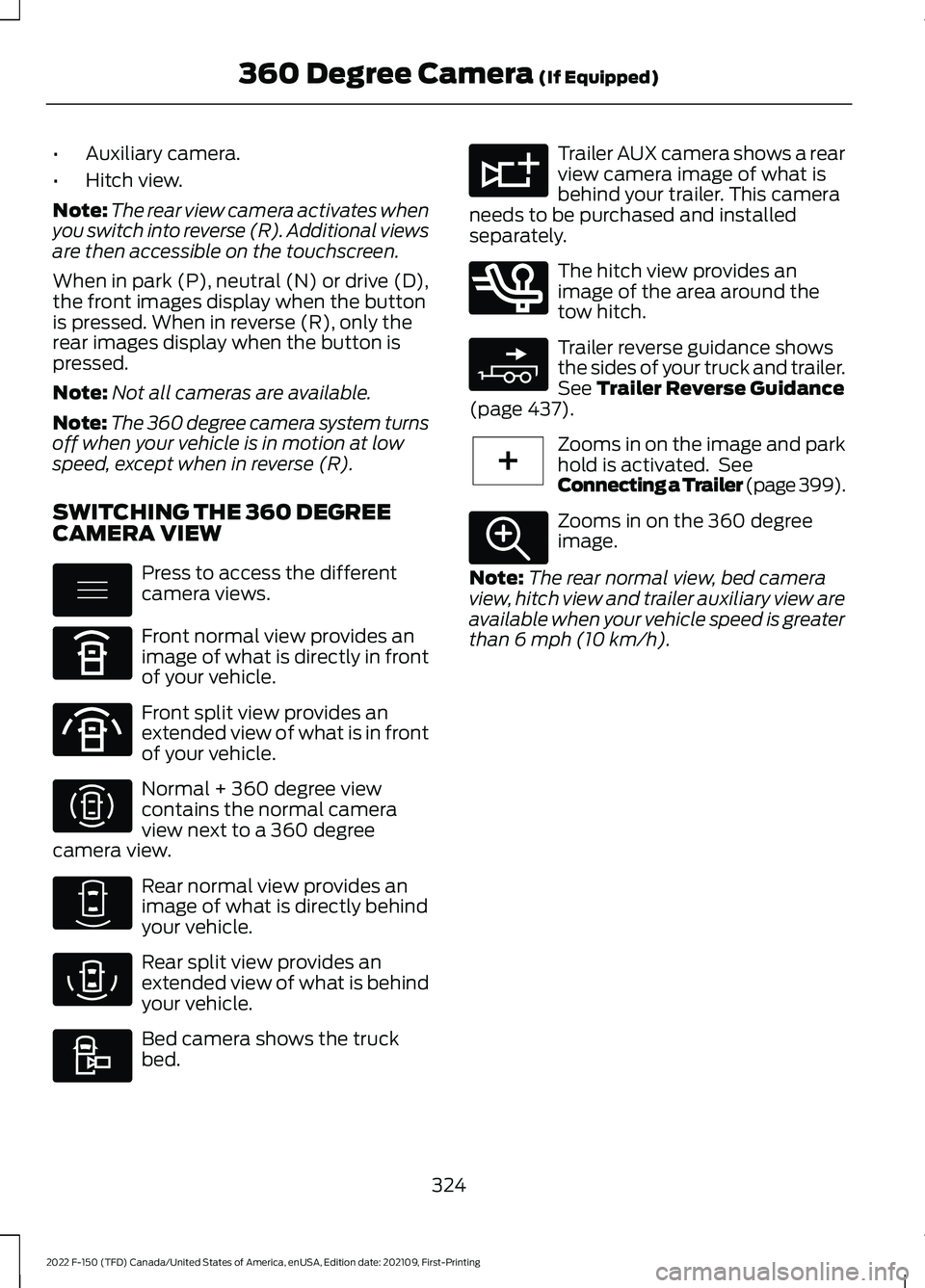
SWITCHING THE 360 DEGREE
CAMERA VIEW Press to access the different
camera views.
Front normal view provides an
image of what is directly in front
of your vehicle.
Front split view provides an
extended view of what is in front
of your vehicle.
Normal + 360 degree view
contains the normal camera
view next to a 360 degree
camera view. Rear normal view provides an
image of what is directly behind
your vehicle.
Rear split view provides an
extended view of what is behind
your vehicle.
Bed camera shows the truck
bed. Trailer AUX camera shows a rear
view camera image of what is
behind your trailer. This camera
needs to be purchased and installed
separately. The hitch view provides an
image of the area around the
tow hitch.
Trailer reverse guidance shows
the sides of your truck and trailer.
See Trailer Reverse Guidance
(page 437). Zooms in on the image and park
hold is activated. See
Connecting a Trailer (page 399).
Zooms in on the 360 degree
image.
Note: The rear normal view, bed camera
view, hitch view and trailer auxiliary view are
available when your vehicle speed is greater
than
6 mph (10 km/h).
324
2022 F-150 (TFD) Canada/United States of America, enUSA, Edition date: 202109, First-Printing 360 Degree Camera
(If Equipped)E337002 E336516 E336517 E310996 E310967 E310974 E310995 E311776 E350276 E310965 E224485 E337359
Page 330 of 750
4. Use the turn signal lever to search for
a parking space on the driver or
passenger side of your vehicle.
Note: If you do not use the turn signal lever,
the system searches for a parking space on
the passenger side of your vehicle.
5. Drive your vehicle approximately 3 ft
(1 m) away from and parallel to the
other parked vehicles when searching
for a parking space.
Note: A tone sounds and a message
appears in the information and
entertainment display when active park
assist finds a suitable parking space.
6. Press and hold the brake pedal.
7. Release the steering wheel and shift into neutral (N).
8. Press and hold the active park assist button.
9. Release the brake pedal to allow your vehicle to park.
Note: You can slow down your vehicle at
any time by pressing the brake pedal.
Note: When parallel parking between
objects, the system parks closer to the
object in front of your vehicle to allow easier
access to the luggage compartment.
Note: When parking is complete, your
vehicle shifts into park (P).
ENTERING A PERPENDICULAR
PARKING SPACE
1. Press the parking aid button.
Note: Active park assist does not recognize
parking space lines and centers your vehicle
between objects.
2. Press the active park assist icon on the
touchscreen.
3. Select perpendicular parking. 4. Use the turn signal lever to search for
a parking space on the driver or
passenger side of your vehicle.
Note: If you do not use the turn signal lever,
the system searches for a parking space on
the passenger side of your vehicle.
5. Drive your vehicle approximately 3 ft
(1 m) away from and perpendicular to
the other parked vehicles when
searching for a parking space.
Note: A tone sounds and a message
appears in the information and
entertainment display when active park
assist finds a parking space.
6. Press and hold the brake pedal.
7. Release the steering wheel and shift into neutral (N).
8. Press and hold the parking aid button.
9. Release the brake pedal to allow the vehicle to park.
Note: Active park assist backs your vehicle
into parking spaces.
Note: Active park assist aligns the front end
of your vehicle with the lane side of the
object next to it.
Note: When the system detects only one
object, it allows enough distance to open
the door on either side.
Note: You can slow down your vehicle at
any time by pressing the brake pedal.
Note: When parking is complete, your
vehicle shifts into park (P).
EXITING A PARKING SPACE
Active park assist only assists leaving
parallel parking spaces.
1. Press the parking aid button.
2. Press the active park assist icon on the
touchscreen.
3. Select parallel park exit.
326
2022 F-150 (TFD) Canada/United States of America, enUSA, Edition date: 202109, First-Printing Active Park Assist
(If Equipped)
Page 342 of 750

1. Press Features on the touchscreen.
2. Press
Driver Assistance.
3. Press
Cruise Control.
4. Press
Normal Cruise Control. The cruise control indicator
replaces the adaptive cruise
control indicator if you select
normal cruise control. The gap setting
does not display, and the system does not
respond to lead vehicles. Automatic
braking remains active to maintain set
speed. The system remembers the last
setting when you start your vehicle.
LANE CENTERING
HOW DOES LANE CENTERING
WORK
Adaptive cruise control with lane centering
uses radar and camera sensors to help
keep your vehicle in the middle of the lane
by applying continuous assistance steering
torque input toward the lane center on
highways.
Note: The adaptive cruise control gap
setting operates normally.
If you drive off-center within the lane, the
system sets and maintains that preferred
lane position. The system provides
continuous assistance steering torque
input toward the preferred position.
Note: The system can only set preferred
lane positions within the lane.
Note: If the system cancels, the preferred
position erases. On the next activation, the
system provides continuous assistance
steering torque input toward the lane center. LANE CENTERING PRECAUTIONS WARNING: Do not use the system
when towing a trailer. Failure to follow
this instruction could result in the loss of
control of your vehicle, personal injury or
death. WARNING:
Do not use the system
if any changes or modifications to the
steering wheel have been made. Any
changes or modifications to the steering
wheel could affect the functionality or
performance of the system. Failure to
follow this instruction could result in the
loss of control of your vehicle, personal
injury or death.
Adaptive cruise control precautions apply
to lane centering unless stated otherwise
or contradicted by a lane centering
precaution. See Adaptive Cruise Control
Precautions
(page 331).
LANE CENTERING
REQUIREMENTS
You must keep your hands on the steering
wheel at all times.
The system only activates when all of the
following occur:
• You have adaptive cruise control with
stop and go on.
• Lane centering assist is enabled in your
information and entertainment screen.
See
Switching Lane Centering On
and Off (page 339).
• You have your hands on the steering
wheel.
• The system detects both lane
markings.
Note: If it does not detect valid lane
markings, the system stays inactive until
valid markings are available.
338
2022 F-150 (TFD) Canada/United States of America, enUSA, Edition date: 202109, First-Printing Adaptive Cruise Control
(If Equipped)E332905